Report issues by sharing logs to Arkio
Written By Johan Hanegraaf
Last updated About 2 hours ago
Send issue report
If you are experiencing issues with Arkio, you can help us debug the issue by sharing an issue report with us using the Send Report button under General Settings. This will collect the latest Arkio logs from that run and scene on your device and include other information like device profiles that help us to investigate the problem.
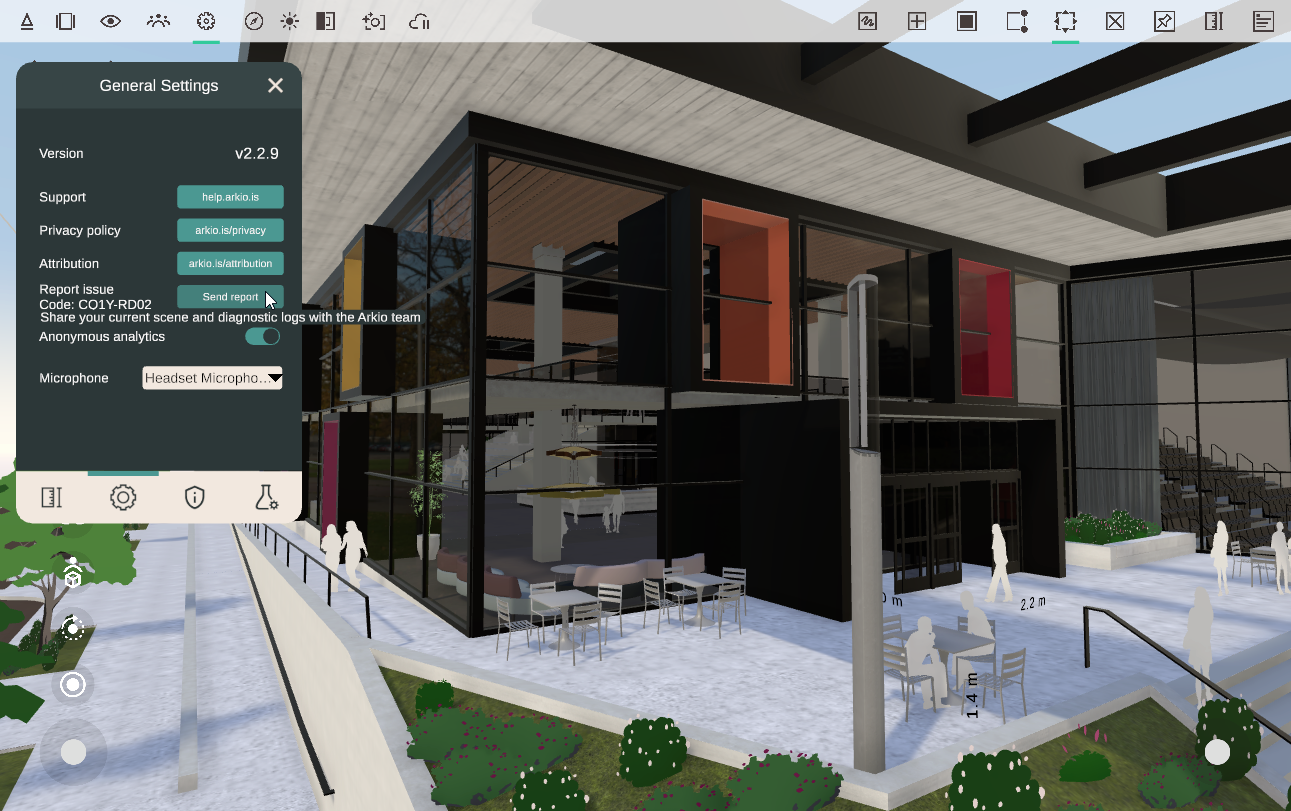
You can also reach us at support@arkio.is or describe a bug or suggest an improvement to Arkio at our feedback page
Manually access device logs
You can also manually access logs on your device using a file browser on the following paths.
Windows
On Windows, the Arkio logs can be found in the following paths
%userprofile%\appdata\locallow\Arkio\Arkio\
%userprofile%\Documents\ArkioLogs
Mac
Mac uses a hidden system folder that you can access by searching for "Arkio" in Finder or using Finder > Go > Go to folder ~/Library
~/Library/Containers/Arkio/Data/Documents/ArkioLogs
iOS
iOS user files can be found under the Files App. Your log files are found under:
Files\Arkio\ArkioLogs
Android
Android user files can be accessed by connecting your phone to a PC using a USB cable, allowing file access and opening the following folder:
\Internal storage\Android\data\is.arkio.arkio\files\ArkioLogs
Meta Quest
Activate Developer mode on your Quest:
Go to dashboard.oculus.com and sign in using your Quest's Meta account
Create a name for your development "organization" - This can be anything
Verify your Meta account - Set up Two Factor Authentication (via phone number)
Activate developer mode from the Meta Quest phone app: Devices > Headset settings > Developer mode > Turn on
Connect your headset to your PC using a USB-C cable.
On the headset, when prompted, select "Allow" for your PC to access your headset files
Arkio's logs can be copied from the following path
\Quest 3\Internal shared storage\Android\data\com.arkio.arkio\files\ArkioLogs