Restore and manage your Arkio scenes
Written By Johan Hanegraaf
Last updated 8 months ago
When you have broken geometry in your Arkio scene, or you see a red platform under your saved scene plate. You can use Arkio's history mode to find a recent backup on your device. (see File management) Backups of scenes are created every minute and stored in Documents\Arkio\UserModelsHistory, so a healthy version of your scene should always be available.

The steps to restore your scene are
Click the history mode and navigate to the model/time that looks correct
Click restore to bring back the selected platform to your main Arkio scenes
Inspect the restored scene to see if it contains all the latest geometry
Repeat the steps to find and restore the most suitable scene
Scene sharing via Arkio cloud
Scenes and all their content can be shared with others using the Arkio Cloud or from one device to another using an Arkio Meeting. You can upload your Arkio Scene to the cloud from the Export panel in the File Manager. After exporting your scene, it becomes available in your Arkio Cloud scene tab and will be shared among all devices linked to the same Arkio Cloud group.
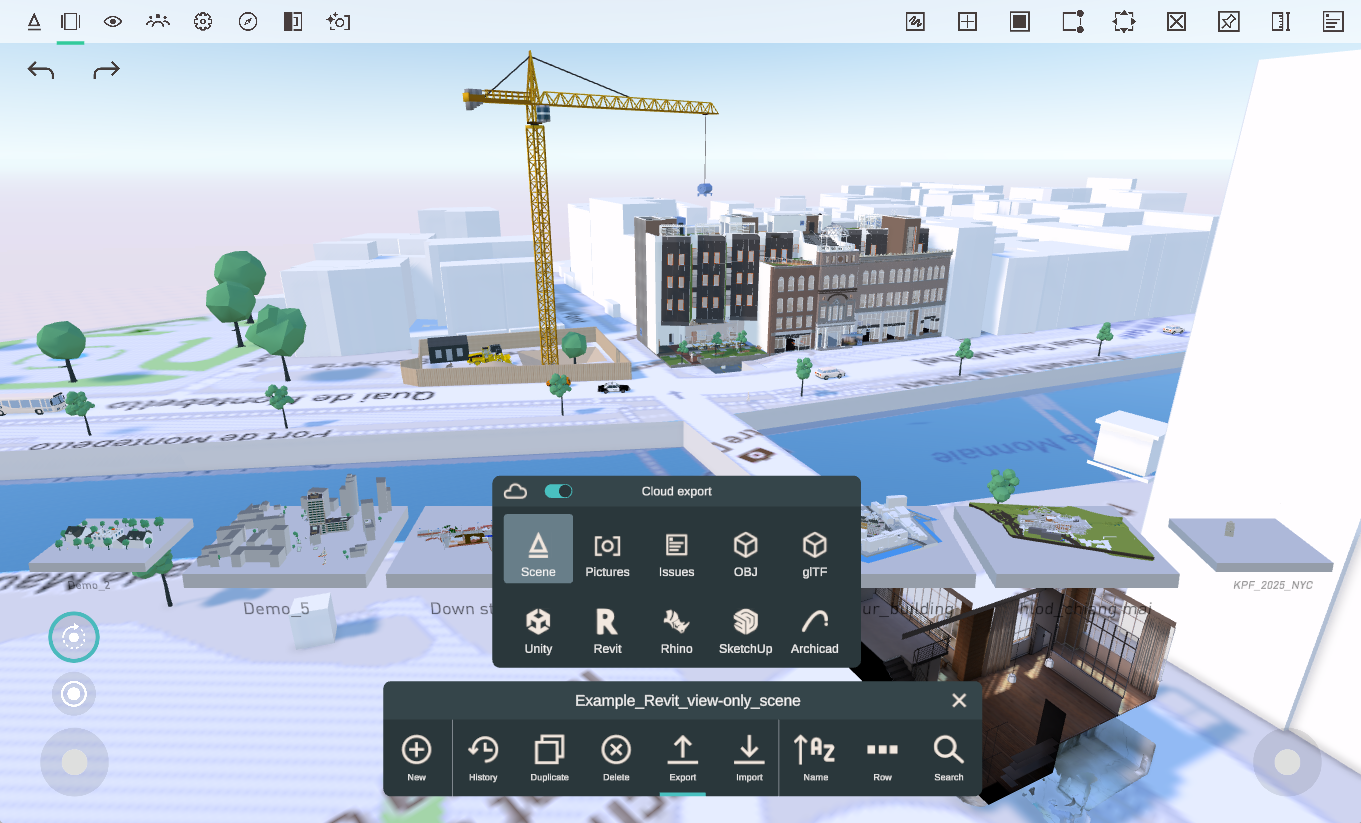
Sharing scenes to the cloud is a great way to back up important scenes or distribute scenes across multiple devices. Making it easier to manage and distribute your scenes than manually copying saved files
Manually manage Arkio saved files
You can also manually back up, rename and restore Arkio scenes from your devices using .arkio files in your Documents\Arkio\UserModels directory. These Arkio files contain all project geometry and encrypted download references to imported resources in the scene.
Arkio scenes are small files stored on your device and can be shared with other devices using an Arkio meeting or Arkio Cloud. Sharing scenes in a meeting creates a history backup, so you always have a backup version available before your meeting, in case you wish to restore to a previous state of your scene. You can learn more about how to access these Arkio files on your device at Access and manage user files
You can rename, move, and delete .arkio files from your device using a file browser. Closing and restarting Arkio is required when editing Arkio scenes on your device.

- Cleaning: In case you have a lot of duplicated and unused scenes, it's often easier to select them from a file browser and remove unneeded files from there. This can be done directly in the UserModels folder of your device. You can sort files by last edit date and size to get an idea of their content.
- Renaming: Arkio files can be renamed using a file browser and keyboard. This can be done directly in the UserModels folder
- Backups: You can make a backup of your most important scenes and manually recover them from your devices by making copies of the .arkio files and putting them in your desired backup folders.
- Restoring: You can manually restore and troubleshoot Arkio scenes available on your device by going to the UserModelsHistory and InvalidUserModels folders and finding what files are available to you there. The models from these folders can be copied to the UserModels folder to try to load them again at the next start of Arkio
- Corrupted files: Scenes that contain invalid or corrupted geometry will be marked with a red plate and are moved to Documents\Arkio\InvalidUserModels. These files can no longer be loaded in Arkio. You can help us by sharing some of these scenes and troublesome modeling steps with us so we can improve Arkio.
Arkio scene files
Arkio files contain all your project geometry and encrypted download references of imported resources in the scene. If you share these Arkio files with other users, they can place them in their UserModels folder to load the scene in Arkio without requiring an Arkio meeting or cloud scene sharing.
Custom-imported resources in the scene must be shared at least once in a meeting so they are available on our servers for download by other devices. You can simulate this by sharing the Arkio scene with the imported resources with your phone via a meeting. After this, you can gather the .arkio file in the Documents\Arkio\UserModels folder and share it with other users, with instructions to place these files in the same directory.
When that user opens Arkio, it should then show this scene in their scene viewer and load all the imported resources from our servers.
Was this helpful?
Still need help? Ask the team