Share your Arkio scenes
Written By Johan Hanegraaf
Last updated 5 months ago
You can share Arkio scenes with others during a live Arkio meeting or by sharing a copy of your Arkio scene using a URL generated from your Arkio Cloud.
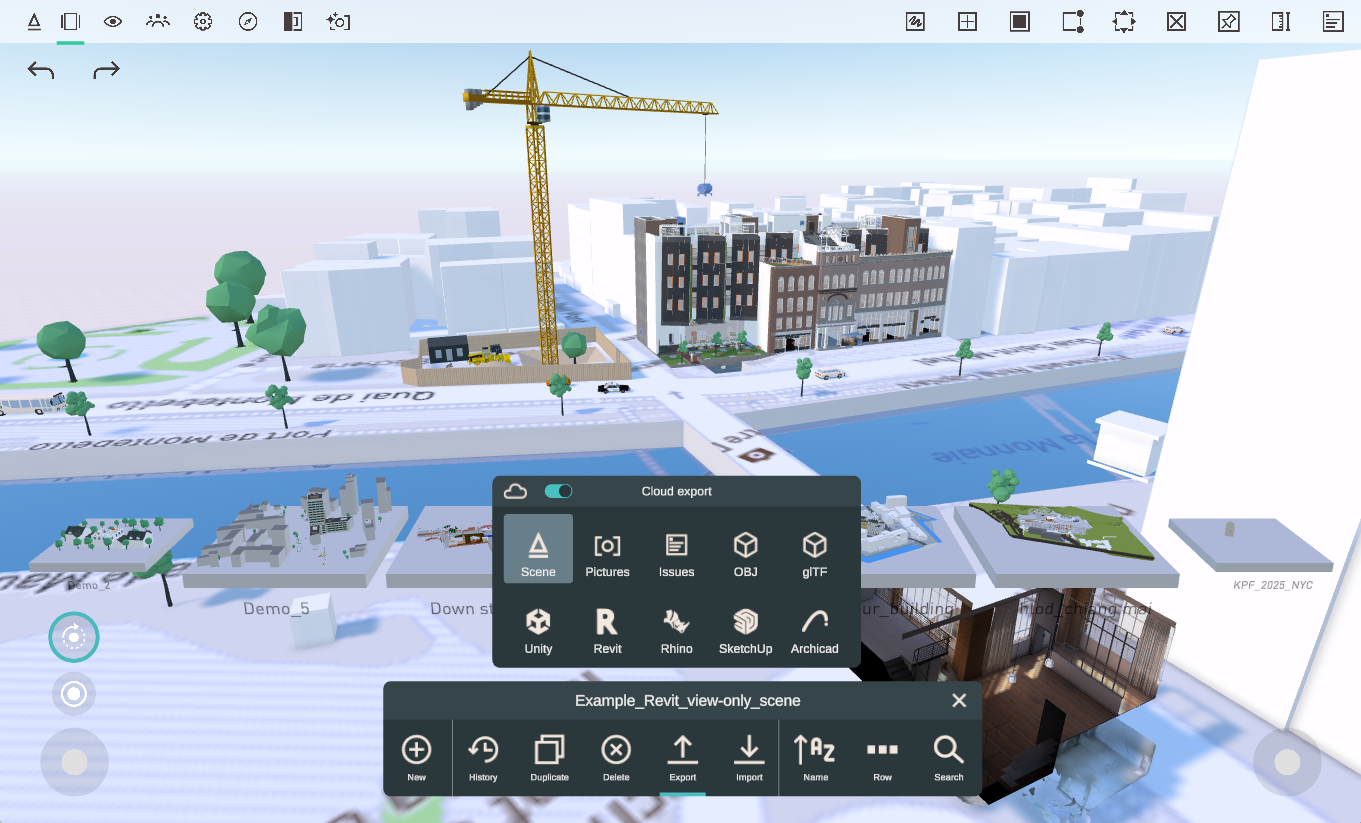
If you share your scene from your File browser to Arkio Cloud, that Scene will be synchronized across all your devices in the same cloud group. This is handy if you want to continue your work on other Arkio devices, or to back up or share your scene with others.
Share scenes using a URL
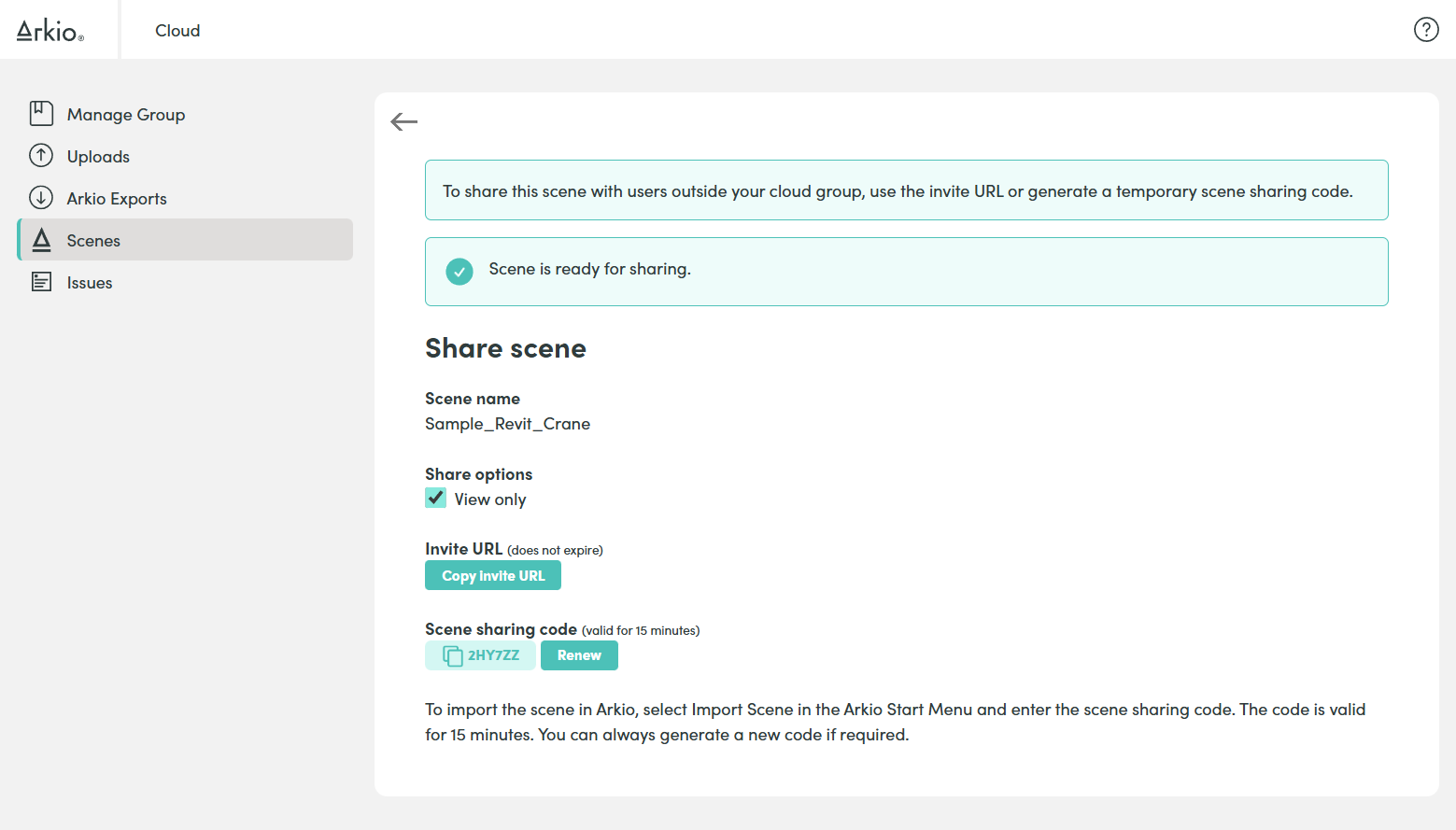
Once you have exported your scenes to the Arkio cloud, you can find and manage the scene in your cloud page at cloud.arkio.is/scenes You can remove any scene you have already shared, and you can click the scene name to open the scene's access and share settings.

View only scenes
Sharing a view only scene via the cloud requires an Enterprise license of Arkio
On your scene sharing page, you can copy an "Invite URL" that you can share with anyone via email or message to load that selected Arkio scene with all imported and created geometry. If the "View only" toggle is selected, users receiving that file can explore the scene but not make any further edits or exports of this scene.
Other users opening this link
When new Arkio users open this URL, they will see the following page with simple instructions for loading this scene in Arkio using the shown scene-sharing code.
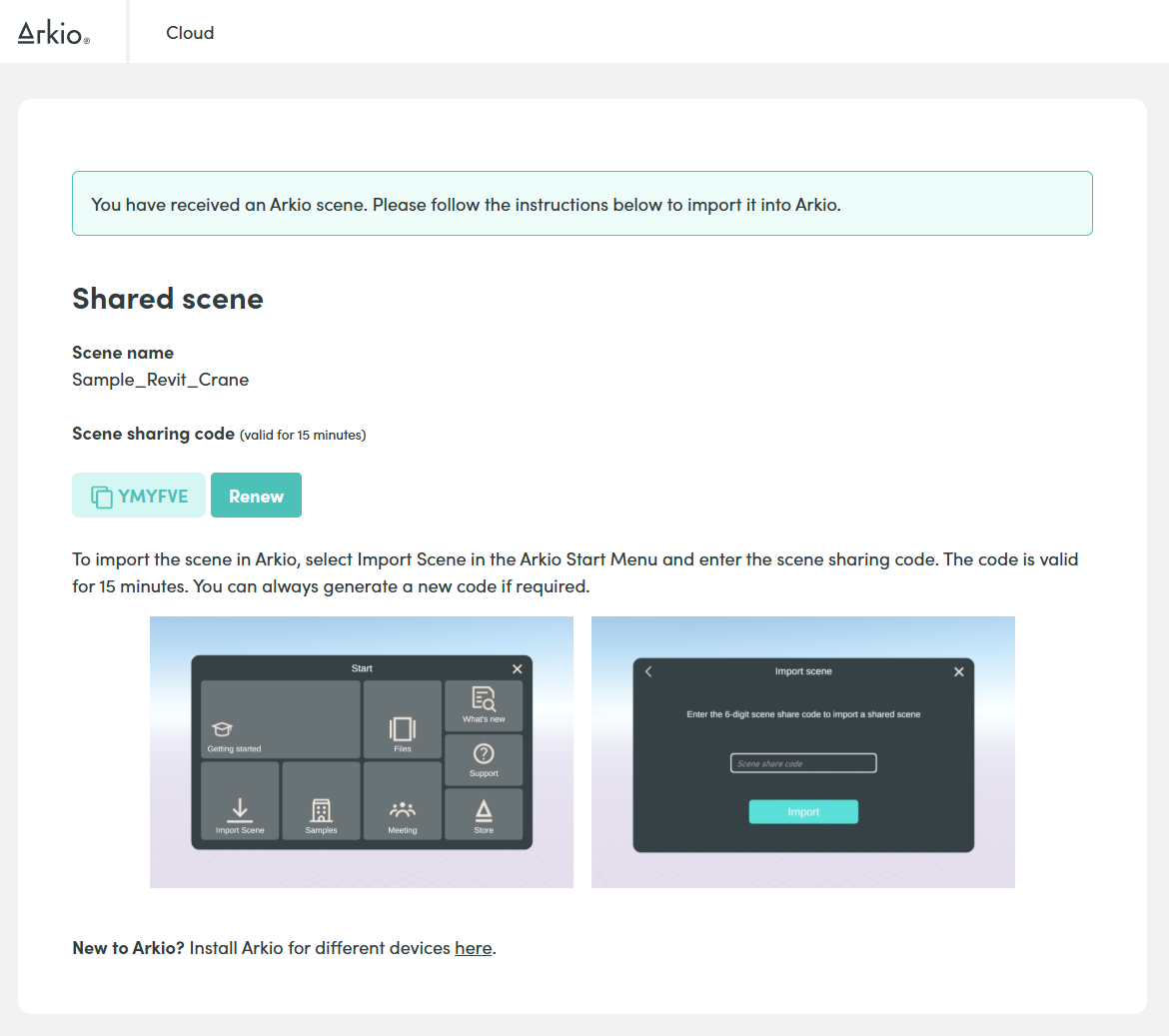
Users can then download Arkio on their device and enter the 6-digit scene-sharing code in the start panel to access the scene, including all loaded geometry imports, views, and notes. Our help pages have some additional instructions for users new to Arkio.