Archicad - Arkio
Written By Johan Hanegraaf
Last updated 7 days ago
Importing models from Archicad requires a Pro license. You can learn more about our paid features and start a free trial to try this.
Archicad 27, 28 and 29 are currently supported for exporting Archicad models to Arkio.
On Windows, the Arkio Archicad plugins are included with the Arkio installer, available from our download page. On Mac, you can install the Archicad plugin separately by following these instructions.
If the Arkio icons do not appear in Archicad after installing on Windows, you can add them manually using the instructions at the bottom of this page.
Archicad to Arkio
To export your models from Archicad, you need to have the Arkio plugin installed, open a 3D view with all the elements and layers you want to export visible, and press the Export button.
After a model is exported, Arkio opens on your device and displays the newly exported model in the Create > Import tab. You can open the model to preview it and place it at the origin in your current or a new scene from the import panel or place it manually by clicking in the scene.
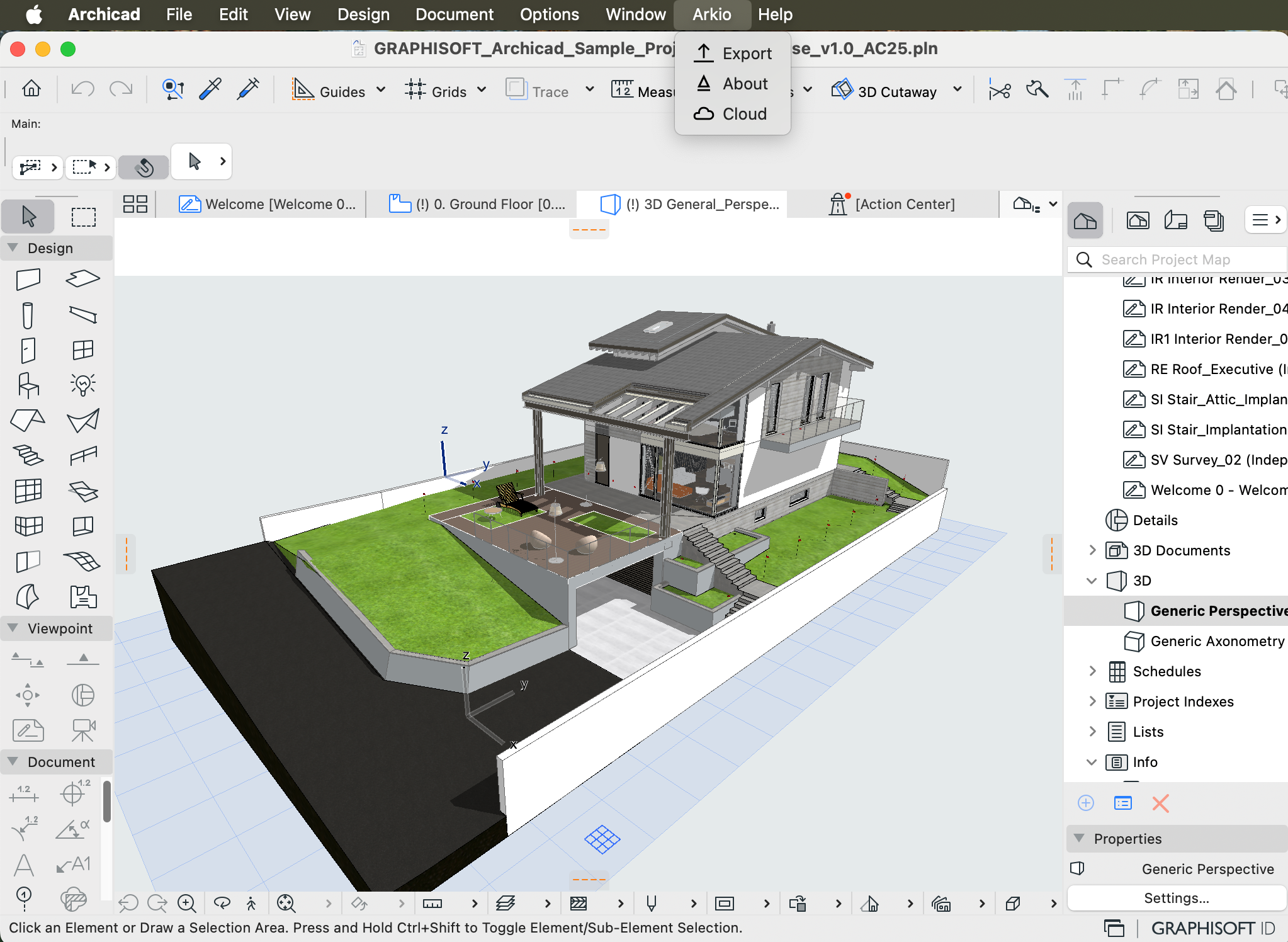
After a model has been exported from the plugins, it will open Arkio and process the file. From here, you can inspect and place the model on your desktop device from the Create > Import tab.
Synchronize imports with other Arkio devices
To synchronize your imported files across multiple Arkio devices, such as your PC, Meta Quest and iPad, you can link your PC and other devices to the same Arkio Cloud device group. The status of your Arkio Cloud shows in your main tool ribbon. After linking, new imports will automatically be synced with other linked devices.
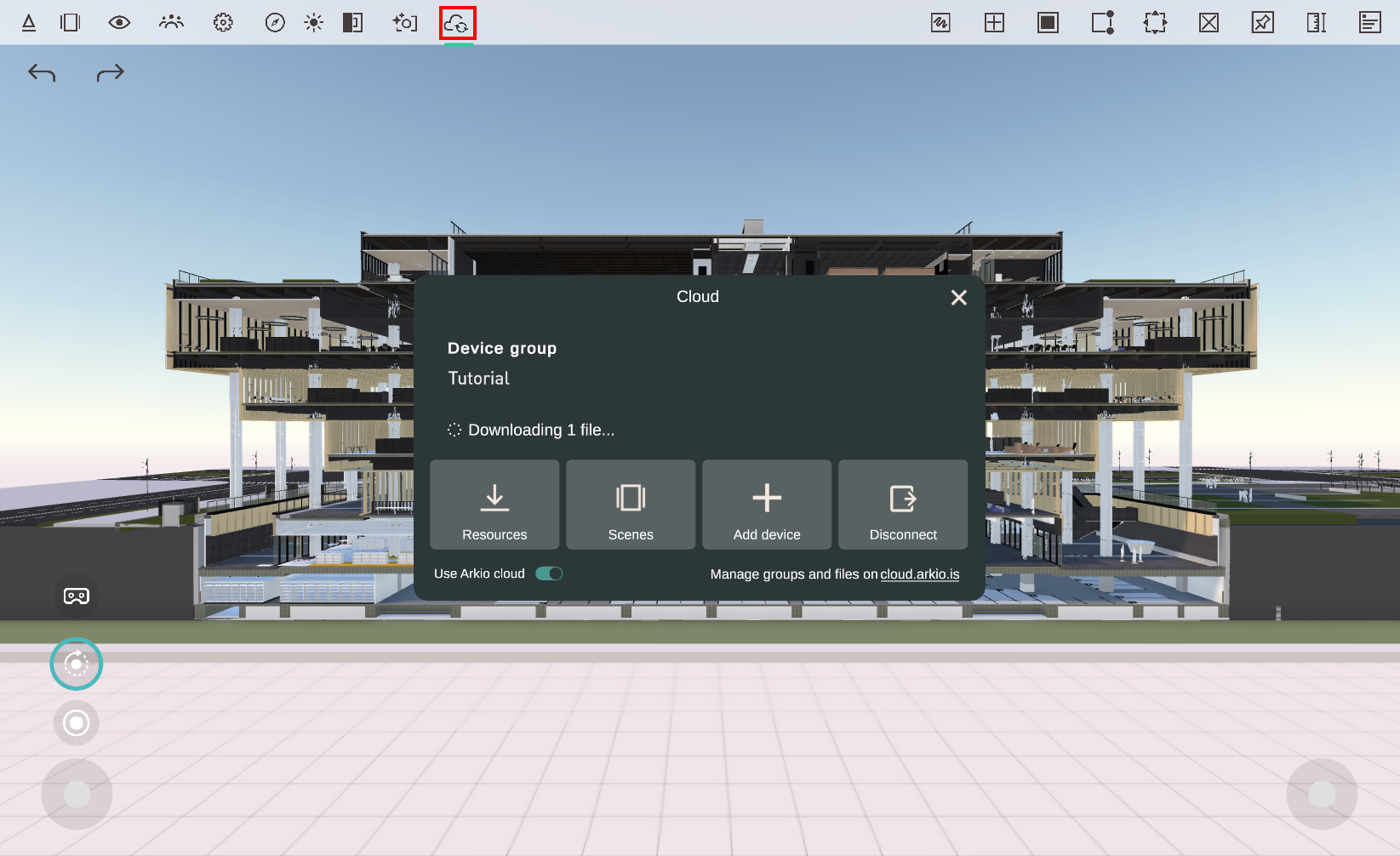
You can also share your scenes, including all placed imports, using a live meeting or via a URL shared from the cloud portal.
Placing models in Arkio
Files imported to Arkio will show in your Create > Import drawer. You can sort these imported resources by name, date, or type and click the file to open a preview with placement settings for that resource. In your model preview tab, you can see the number of triangles and movable elements for that imported object.

With the placement tab open, you can click anywhere in the scene to manually place an instance of that model. Or press the green Place at origin buttons to place the model pinned in the current or a new scene. Models placed at the origin can be aligned with other models, enabling a round trip between your design tools when exporting Arkio-added geometry back to your existing tools.
After you place the imports on one device, you can start a live meeting with your other device to share the scene with that device, including all imported geometry. You can also link your PC to the same Arkio Cloud to automatically synchronize new imports to your other devices.
Model location and orientation
Models will be loaded in Arkio based on Archicad's Origin and North, so the map feature can be used to load any context around your building.

If the model has geometry modeled under the xy-plane (origin), the Arkio table surface can be cut away using Arkio's modeling tools. Making the void bigger than the loaded model enables teleporting and modeling on underground geometry.
If your model is far from the center or floating, it means it is far from its origin. It's best to keep your model close to the origin in 3D tools to prevent model inaccuracies. You can address this in two ways:
Place the model manually by clicking in the Arkio scene and pin it in place. When you export from Arkio back to your design tool, you must manually align your imported geometry to your original coordinates.
You can adjust your model coordinates by linking your Archicad project to a new file. Move your linked model closer to the intended origin point and then export it to Arkio from that file.
Layers and BIM data
Your Archicad-exported files contain layer information in Arkio, mapped to the Archicad layers. If you want to present or switch between layers in Arkio, you can customize the layers in Archicad and re-export to update your model in Arkio.

You can export multiple Archicad models into a single Arkio scene (and models from other supported design tools) and align them at the origin to gain additional control over layers in your scene, as you can control the visibility of all loaded files separately.
The Arkio Revit plugin exports all the available BIM data for objects. The panel can be opened from the Review panel > BIM data tab, and the imported elements can be hovered with the laser/mouse/touch.

The BIM data includes built-in Archicad parameters, such as Level, Name, Phase, and IFC category, as well as user-defined custom parameters.
Updating a model
You can update an existing imported model by overwriting the model with the same name. In Archicad, you can export the same file again to make a green arrow appear in Arkio above your current model, indicating that a new version is available. You can click this arrow to replace the older file in the scene with the new version on the same coordinates.

Troubleshooting
In some localized Archicad versions, the Arkio plugin may not appear automatically after installation. Use the Add-On Manager to manually load the plugin from:
C:\Program Files (x86)\Arkio\ExtPlugIns\Archicad\Archicad 29

Avoid issues and long processing by exporting only the geometry you need. You can find tips and best practices to optimize your geometry here.
Sometimes, previously processed resources affect the loading of other files in Arkio. Clearing your temporary resources often resolves most issues.
If you have models that don't load well in Arkio, we'd love to review the file to improve Arkio’s importer. You can contact us at support@arkio.is
Was this helpful?
Still need help? Ask the team