Wristband and active tools
Control your active tools per hand
Written By Johan Hanegraaf
Last updated 4 months ago
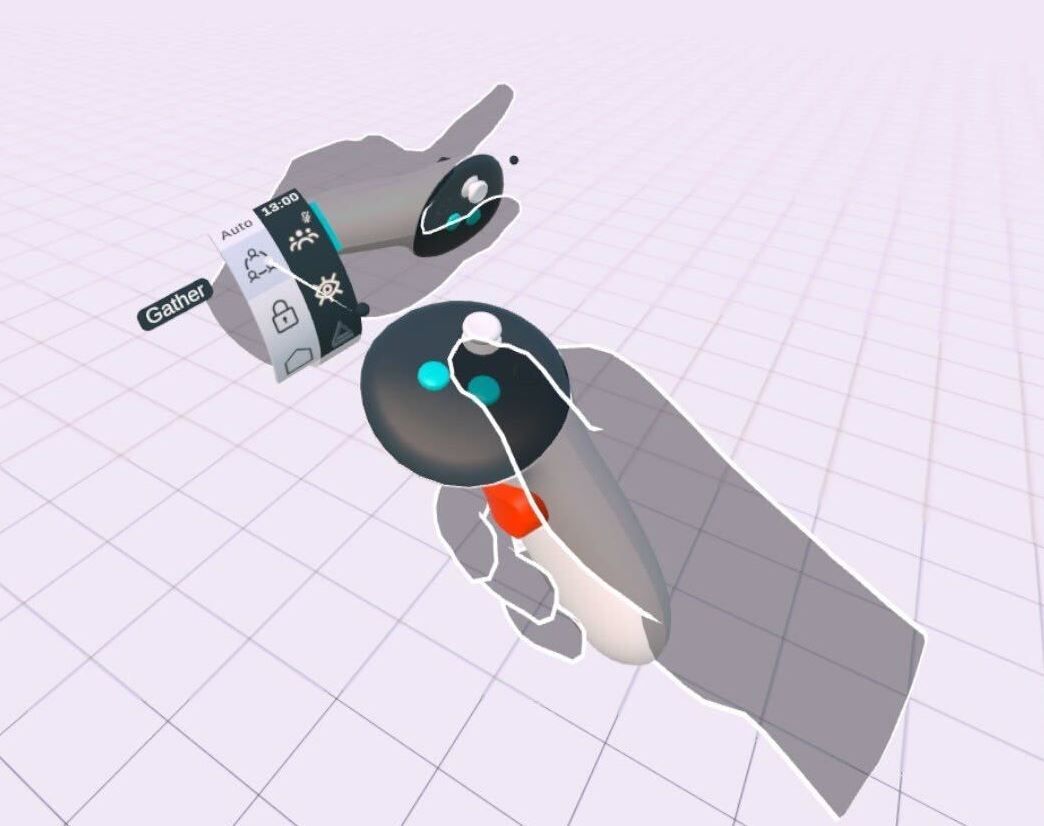
By default, Arkio starts with no tool selected on each hand. The black plate indicates which tool is currently active on that hand. This can be an icon for operations like edit and move, or a 3D object or paint material if those tools are selected. In Arkio, you can use tools in both hands. You can select these tools using the main menu. The Arkio home logo will reset you to the front of your table, and you can access device-specific features like passthrough and locking your position on a Mixed Reality headset like the Meta Quest.
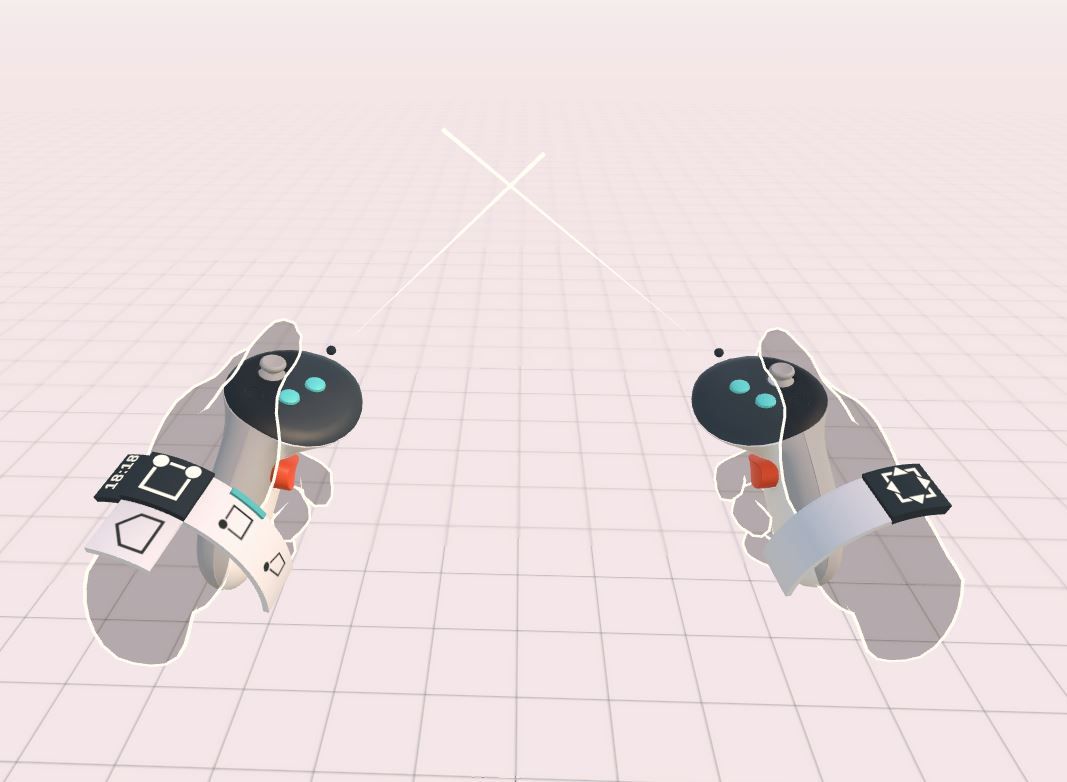
If you are using different VR controllers, the position of your wristband might change. You can also use these wristbands with hand tracking to press the buttons with your index finger.
Disable tools
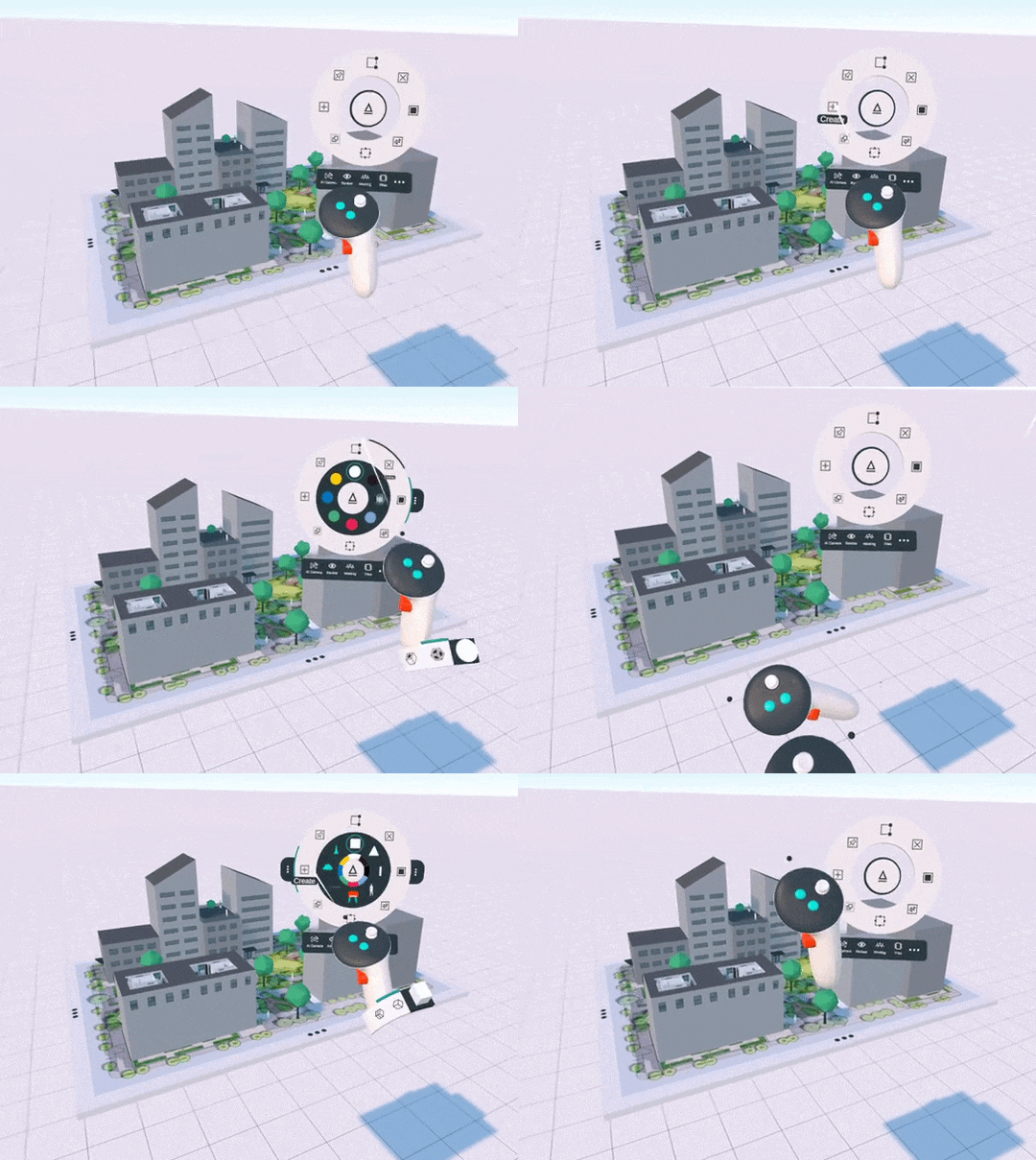
To disable an active tool in Arkio, you can click the same tool again, click the active tool preview icon on your wristband, or wiggle your hands left to right to remove the active tool on that hand.
Tool settings
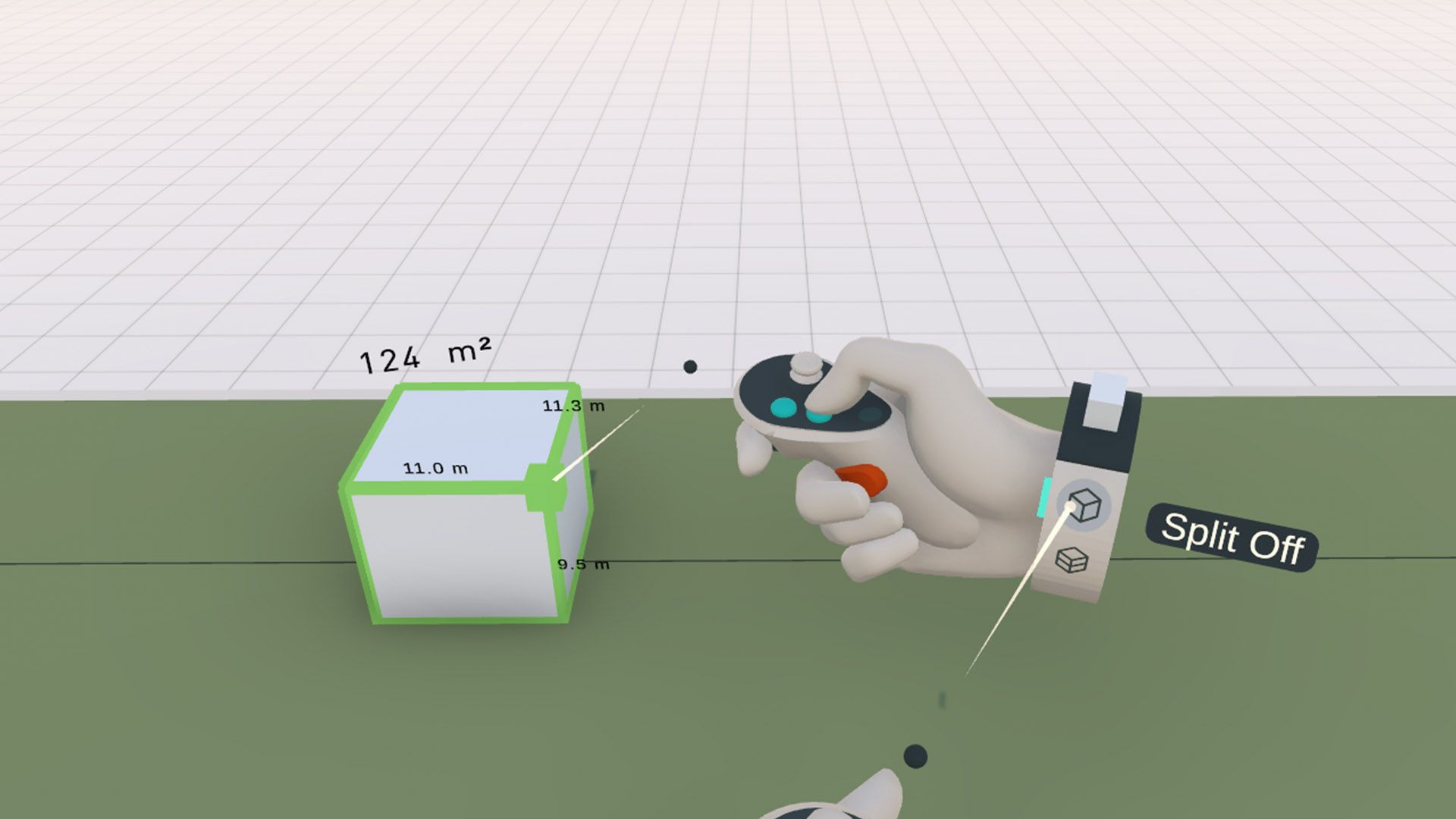
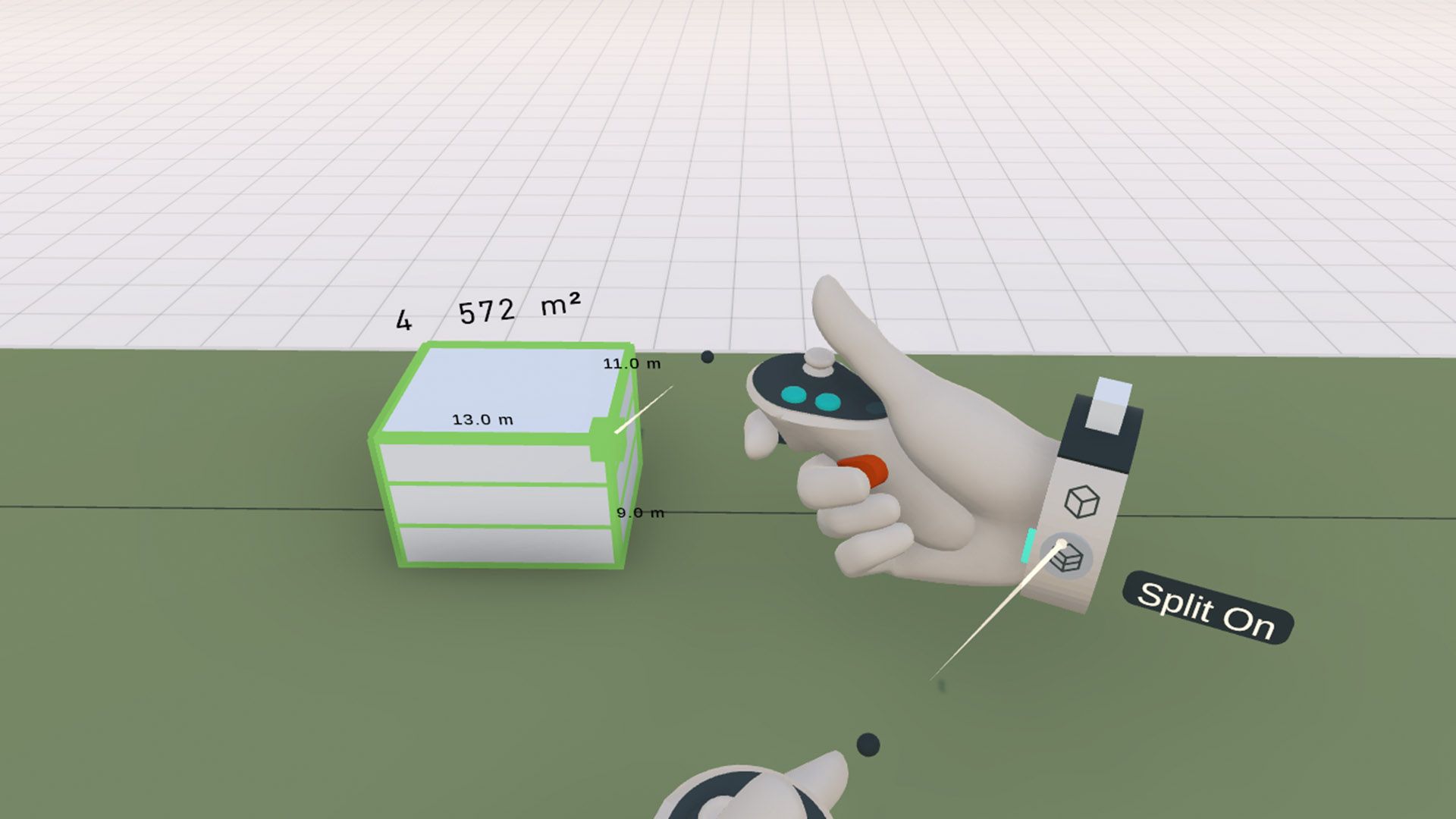
Some tools have additional settings that can be toggled per hand using the shortcuts on the side of the wristband. This toggle can be activated by clicking with the laser pointer, touching the button with your index finger on your other hand, or using the interaction point in front of your other controller.
 |  |
The current tools that allow alternative settings are:
Create - for solid/hollow shapes, it defaults to creating a full volume, but can be toggled to a volume that is automatically split into stacked floors.
Edit - While editing edges, it defaults to orthogonal edits and can be switched to free-form editing
Paint - defaults to painting an entire volume, but it could be toggled to painting individual faces
Delete - defaults to deleting the full solid/hollow shapes, but it can be toggled to delete sub-elements (walls, ceilings of hollow shapes)
Sketch - defaults to creating a 2D line from the initial laser hit surface. You can change it to 3D spatial lines.
Meeting settings
In an Arkio meeting, the wristband on your non-dominant hand displays additional quick-access tools, such as meeting status and lets you gather or lock the scene in mixed reality. You can learn more about these features in the meeting host and meeting gathering pages
Was this helpful?
Still need help? Ask the team