3D maps
Written By Johan Hanegraaf
Last updated 8 months ago
Using the Map tool requires a Plus license for Arkio. You can learn more about our paid features on our website and start a free trial within Arkio to try this.
When working on design proposals, having a site reference at the correct scale can save significant preparation time and help align your designs with the right scale and context. In Arkio, you can load maps with 3D buildings for many cities in the world.
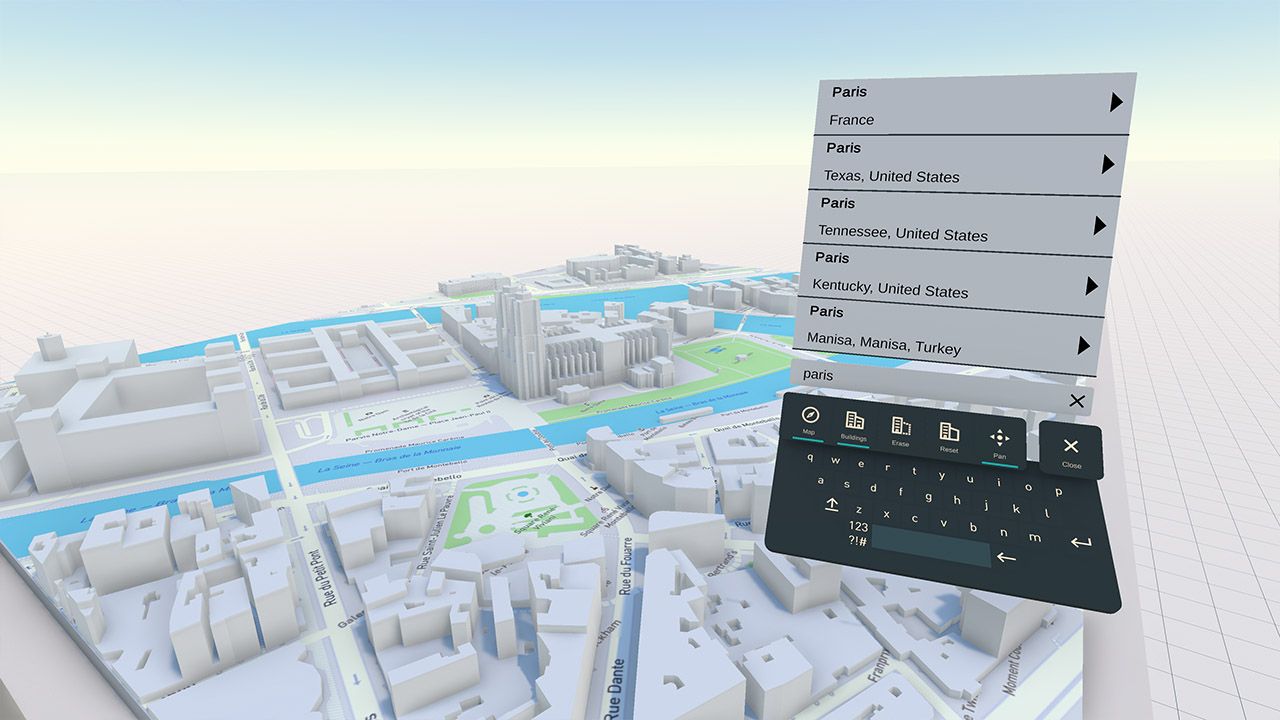
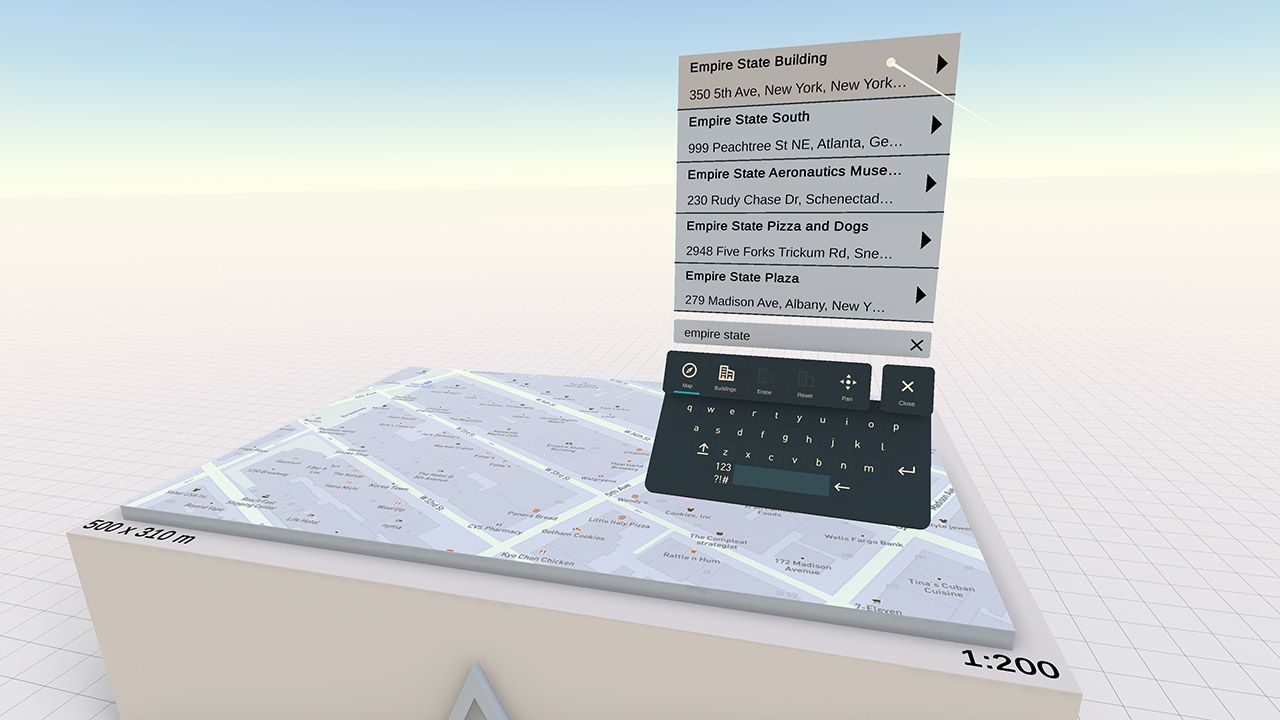
The Map tool can be accessed from the table UI in VR and the top tool ribbon on the flat version of Arkio. The keyboard can be used to search for any place or address in the world, and suggestions at the top can be clicked to load it into the table and update the sun's longitude and latitude accordingly.
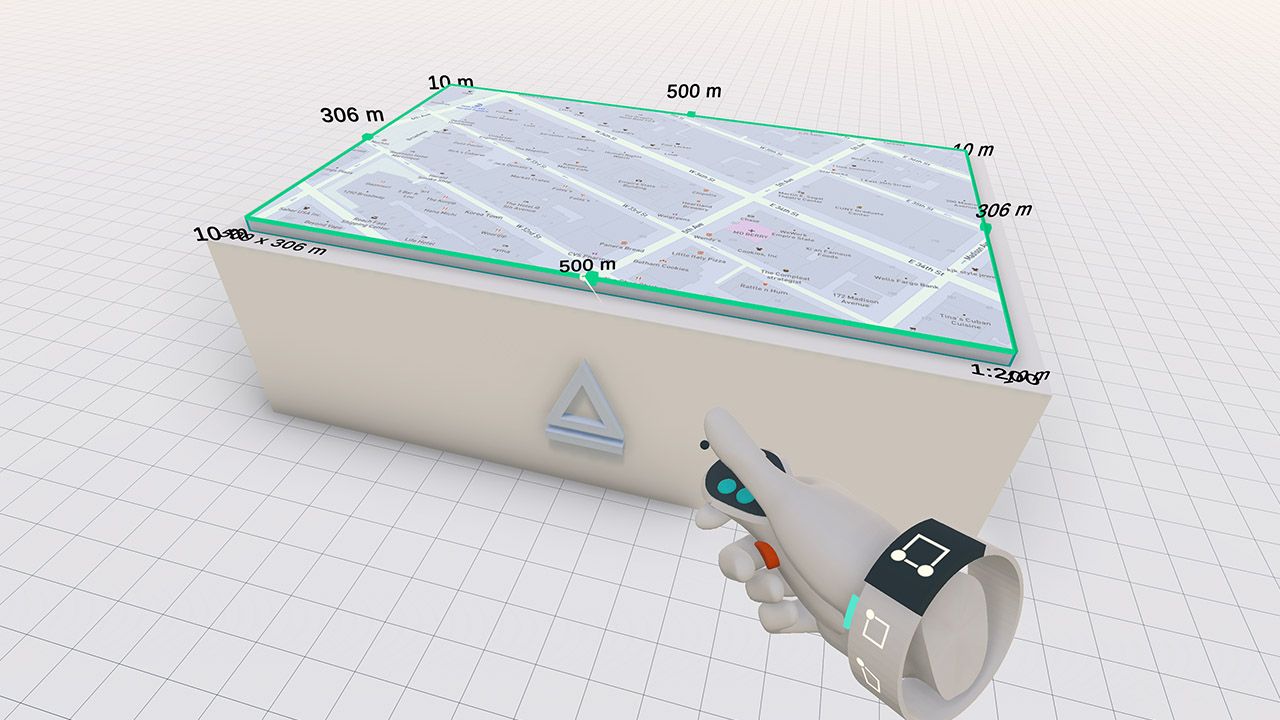
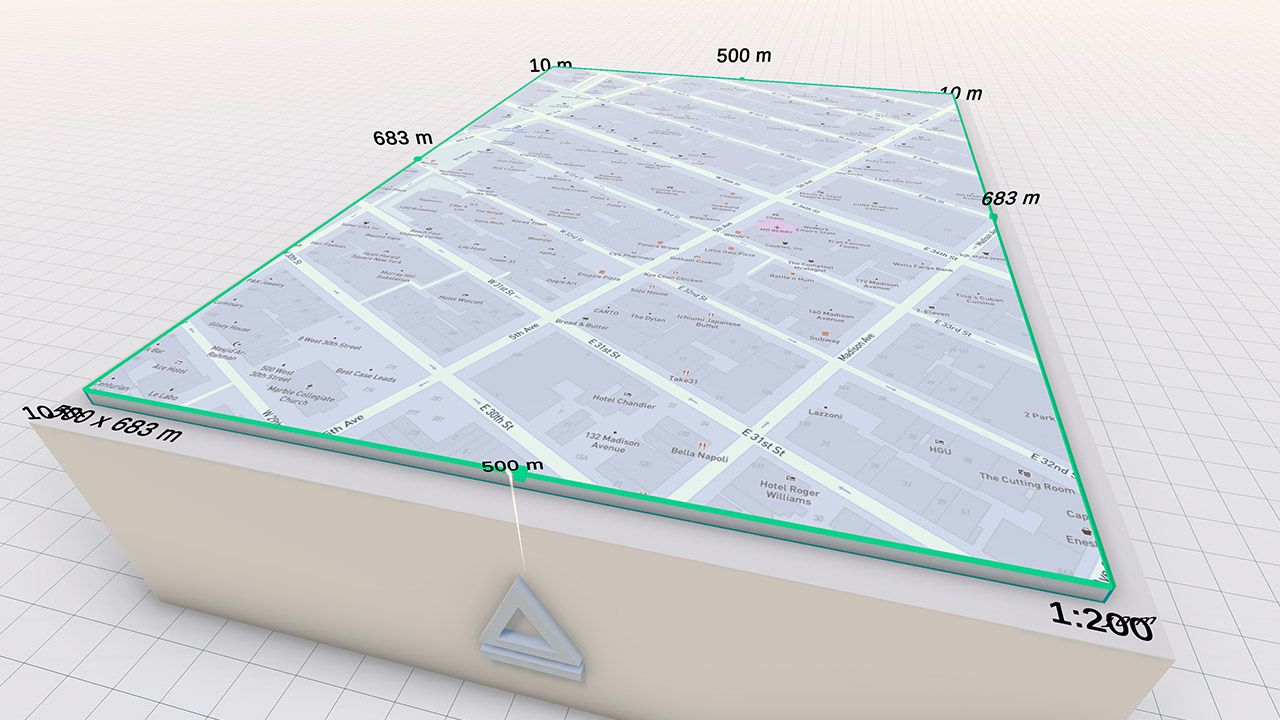
The map size and your Arkio working surface can be adjusted using the edit tool. Just hover your edit laser over the side of the table you want to resize, then drag the surface to make it bigger or smaller.
 |  |
Arkio can generate 3D buildings using data from OpenStreetMaps. These 3D buildings can be activated by clicking the buildings tab in the map UI. Sometimes, 3D building height information is not available for that city on OSM. Buildings will then extrude with a default height of 3 meters (~10 feet). The OSM database is updated regularly, so you can expect more cities to become available in due time.
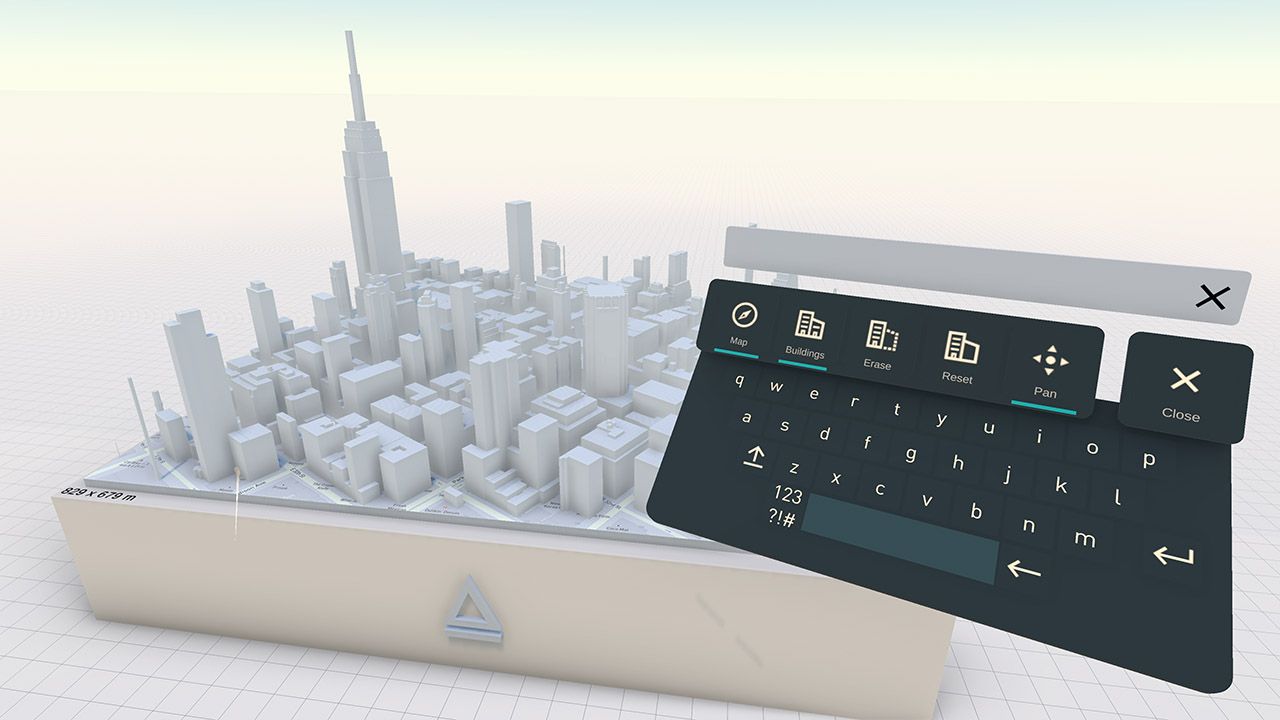
When your map is not in the correct position (e.g., you need to align it with your imported Revit model), you can update its location using the pan tool in the map interface. This will allow you to pan the map in the direction you like by grabbing it with your laser, mouse, or touch.
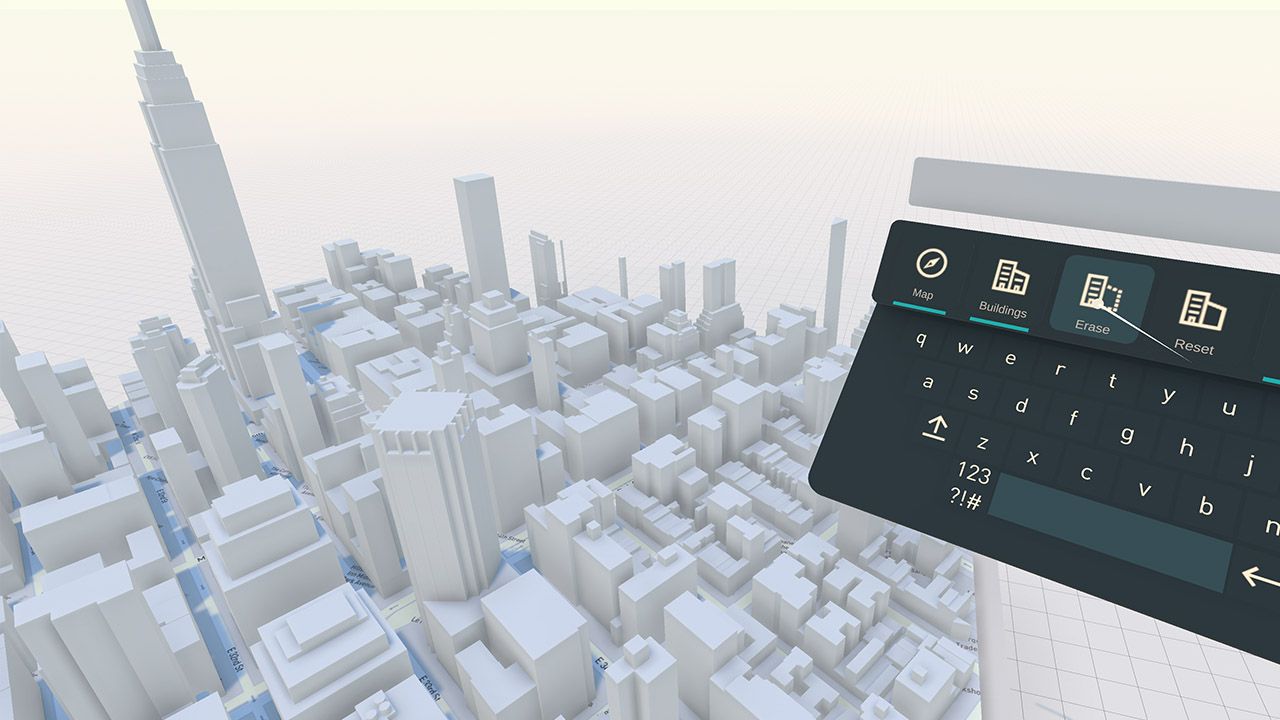
When a site needs to be cleared of existing 3D buildings that are still in the OpenStreetMaps Database, you can erase parts of the imported building by drawing a box around the buildings you would like to erase. You can create as many boxes as you need, and you can reset your erased buildings using the reset button.
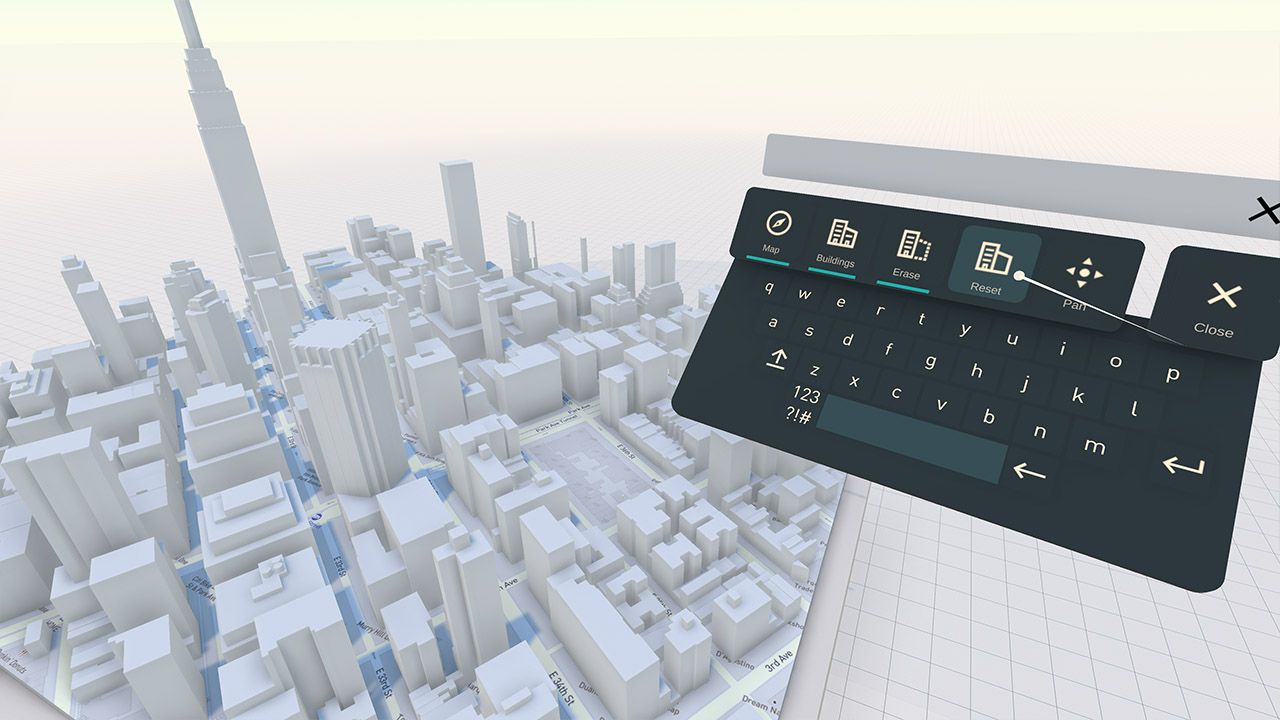
The loaded map and location will also be updated in multi-user sessions, so everyone can see the same data. Loading an address will automatically adjust the Solar and Time settings for your sun studies. This will be visible by the changing orientation of the shadow.
3D sloped landscapes
The Arkio table is flat by default, but by carving voids into the ground, the map will be projected onto them. This map projection can also be applied to other Arkio solid shapes. This allows the creation of simple sloped terrains in Arkio that might be required for your site's experience.
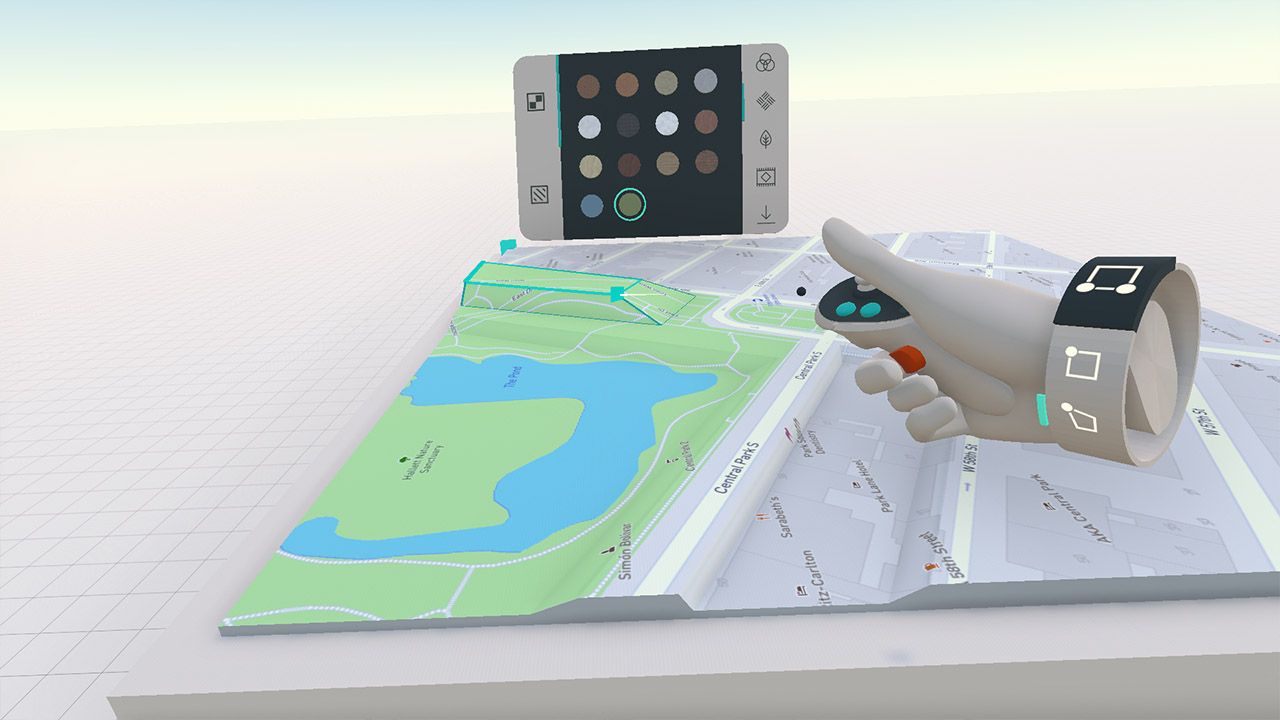
Rotating your import on the map
The map is always loaded with the north-facing to the back of the table. Currently, there is no way to rotate the map/skybox in Arkio. Therefore, it is best to import the model with the correct north orientation into Arkio.
You can move imported buildings in Arkio with your hand and align them to the map at any angle you like. You can pin that building in place to prevent movements and manually align your exports from Arkio back to your original tool, allowing you to use Arkio 3D map buildings and the north location in your original modeling tool.
You can add a north rotation to your original exported model before exporting to Arkio. This way, your imported models will always be oriented correctly on the map at placement, and you can export your Arkio-added geometry to the exact location in your original modeling tool.
Was this helpful?
Still need help? Ask the team