Colocated mixed reality
Written By Johan Hanegraaf
Last updated About 1 month ago
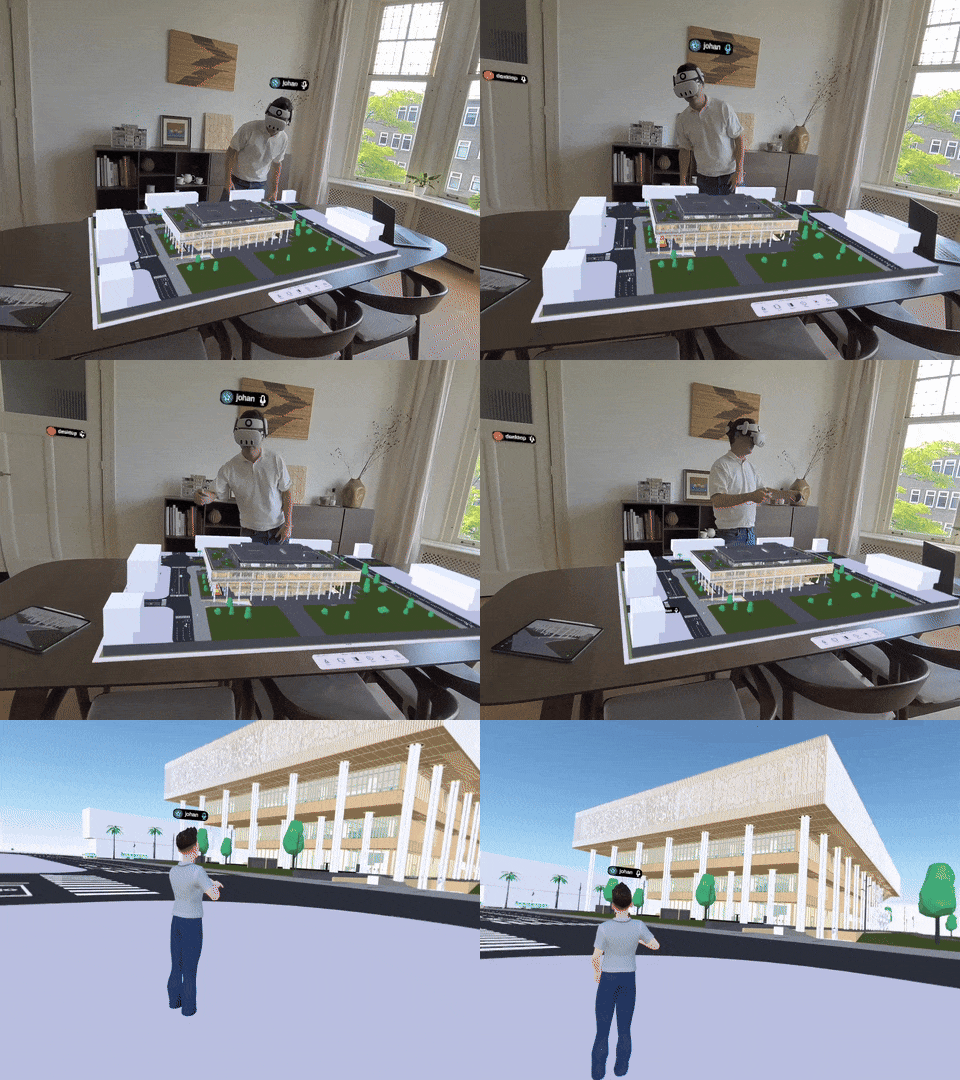
When working with multiple Meta Quest headsets in one location, Arkio allows them to be co-located. This aligns the headsets with each other's positions, allowing users to be positioned relative to their current physical location when gathered or anchored in Mixed Reality.
This can make your live presentations and tours more engaging by allowing meeting participants to experience models as virtual maquettes. You can then jump into these models in virtual reality with boundaryless mode, or use mixed reality at human scale to blend the real world with your imported files or Arkio geometry.
Manage colocated groups
Colocation groups can be managed from a Meta Quest headset. The meeting host will see a co-located outline that includes the host and any co-located users. Meta headsets in a meeting will automatically search for the same spatial anchors on nearby devices and try to join the co-located host. Use the "Manage Group" button and the "+" and "-" icons next to each user to manually manage users in this group. Other Quest users in the meeting can also request to join or leave this group using the top-right button in this outline.
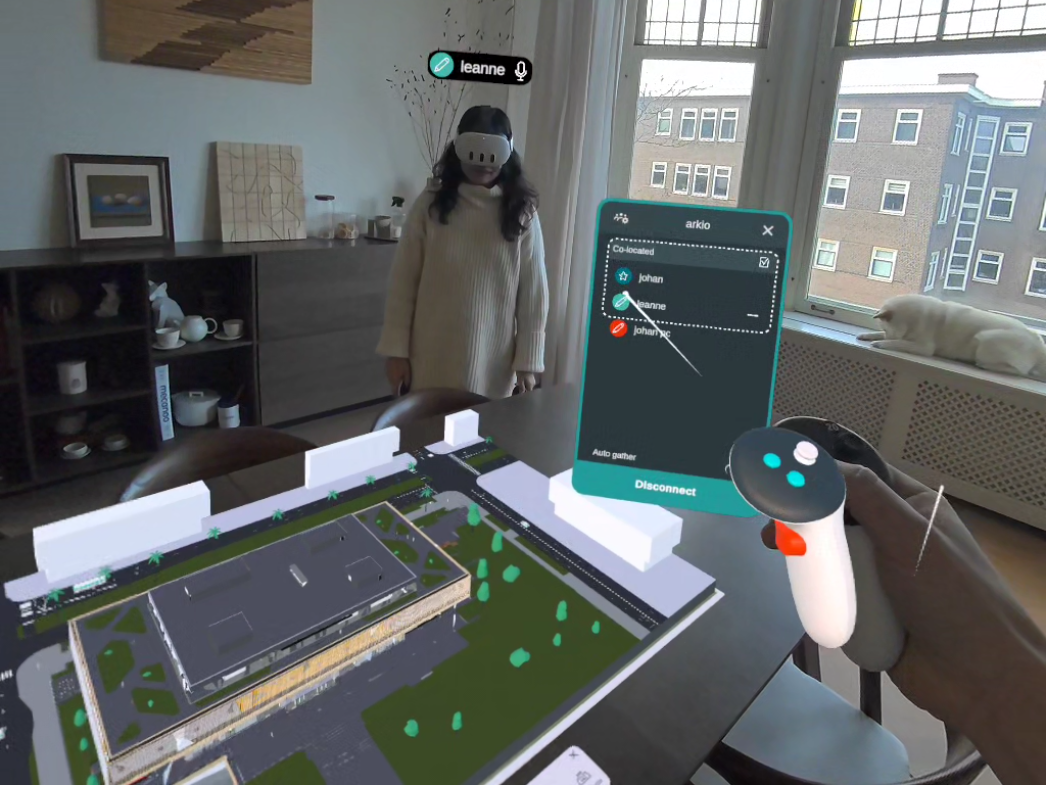
Users on non-Quest devices cannot join the co-location group because spatial anchor sharing between Meta and other devices is not yet supported. Users who are not colocated will be gathered like normal meeting participants set in the meeting settings. If you are having trouble adding colocated users, you can follow the troubleshooting steps at the bottom of this page.
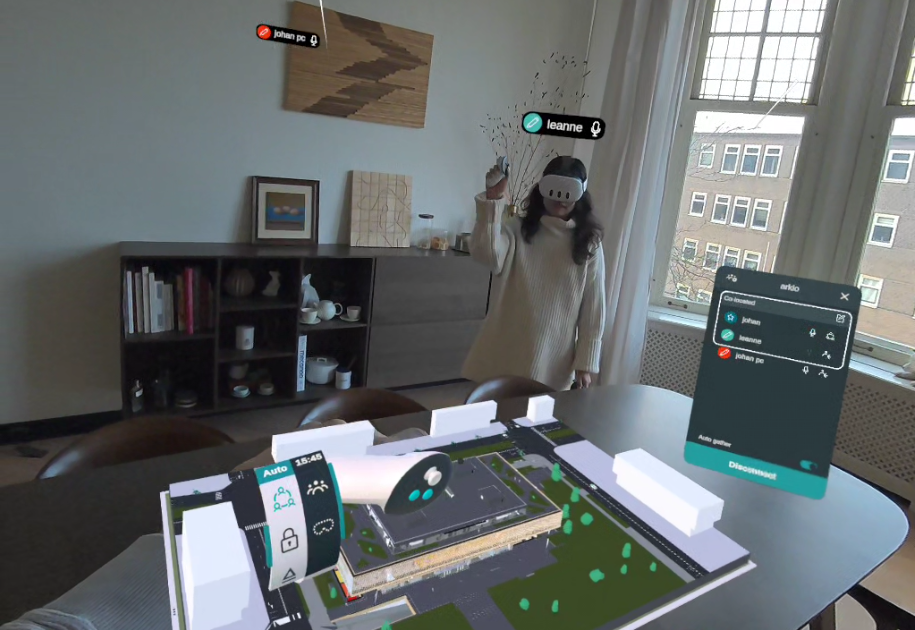
When co-located, a few things change for users in a meeting:
1) Users are automatically muted (grayed-out mic icon) to avoid hearing echoes from nearby people via Arkio. Users outside a co-location group can still hear the co-located users. Co-located user microphones can still be muted like in normal Arkio meetings.
2) When co-located users are gathered, they will be aligned to their real-world position instead of gathered in front of or behind a user (The host can set gathering preference in meeting settings)
3) When the host locks their model position in god scale or human scale, other colocated users will also be locked in this position. This allows users to view the model at scale in the same position, or to jump inside the model together at human scale, for full VR or Mixed Reality experiences.

4) The saved human-scale lock positions of a host will be shared with other colocated users in a meeting. They can teleport into these locks, as they do in a single-user scenario, and exit the locked position by teleporting or by gripping the outside of the lock.
5) If the Host teleports into a locked position, they can gather all other users to align to that position and apply the lock to all colocated users.
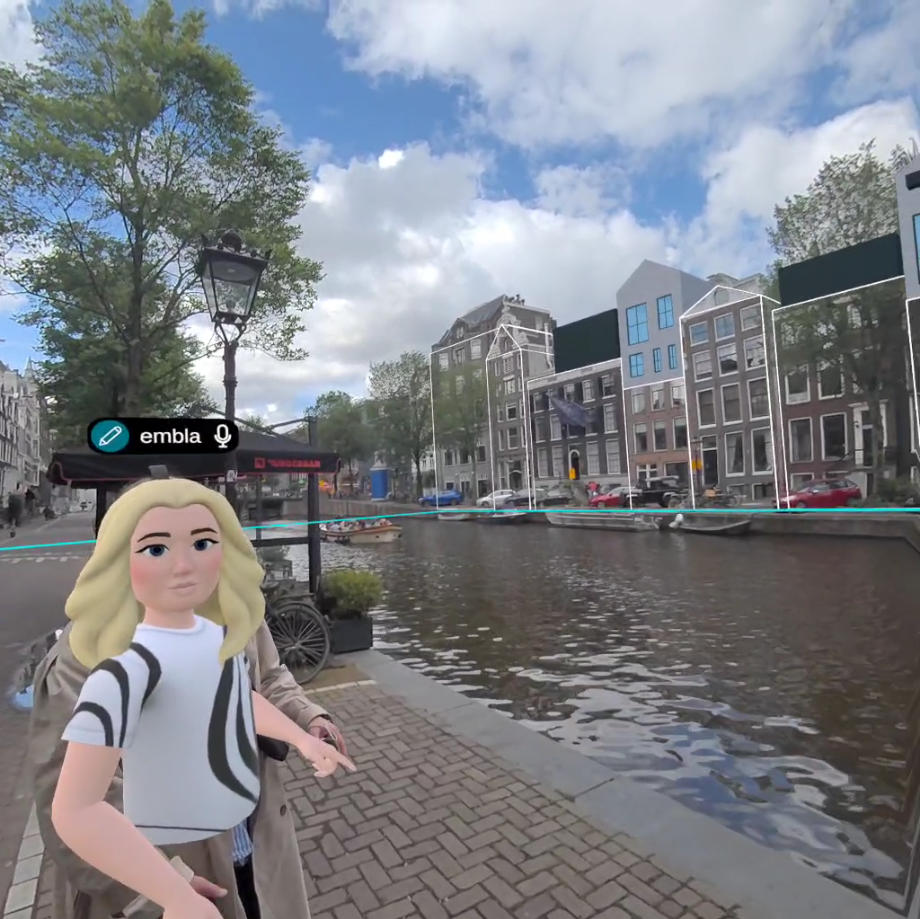
6) Users who are colocated and locked in a god scale will hide their avatars and only show the name tab above the real user. If a colocated user is no longer aligned (e.g., by leaving this lock position to go to a human scale) their avatar becomes visible again, so you can see where that person is going in VR and MR
7) If a host has selected the auto-follow mode in meeting settings, co-located users will automatically be aligned every time the host moves to a new position. If the host enters a human-scale locked position, all colocated users will first align with that position and then lock into it.
Troubleshooting colocation issues
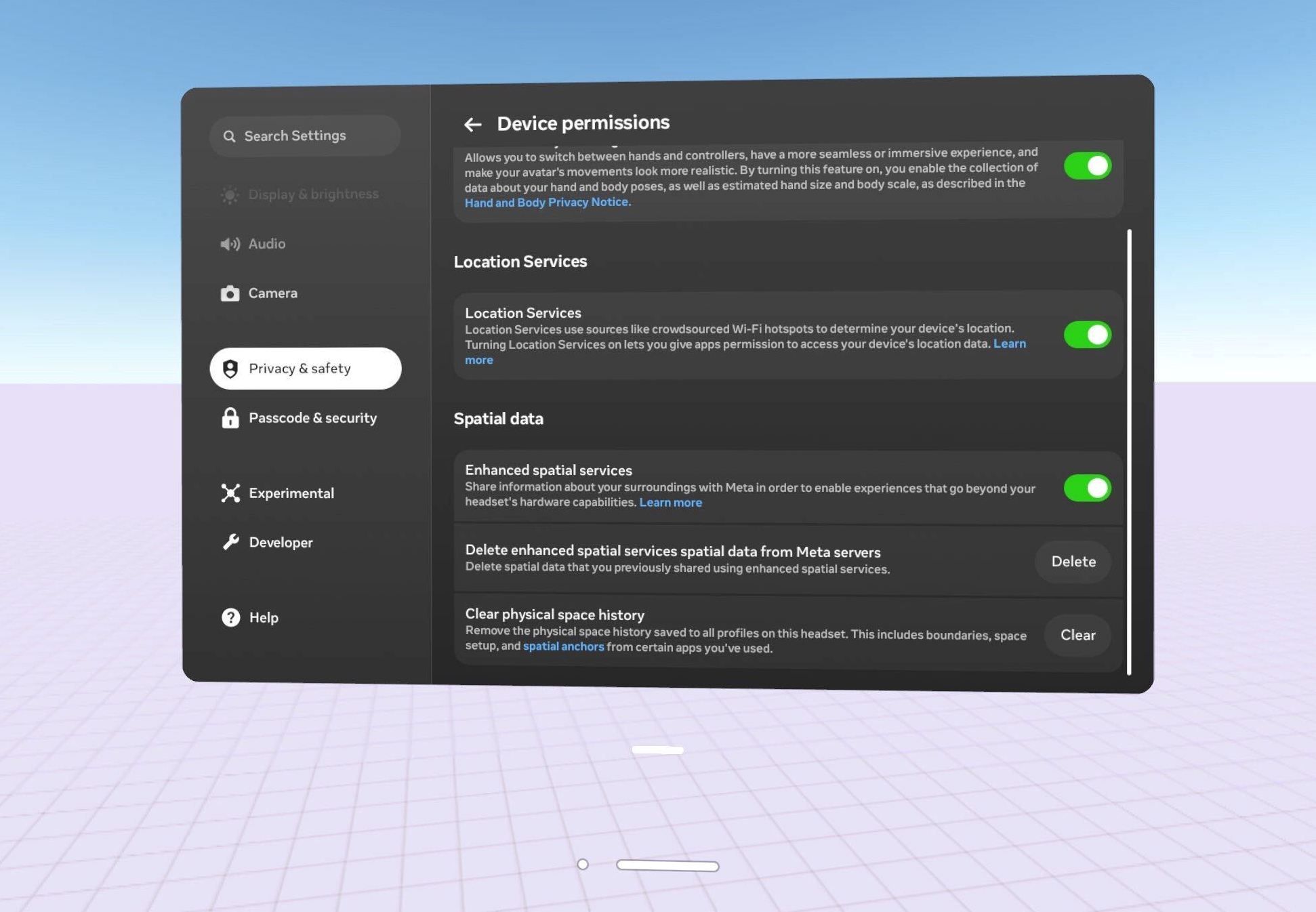
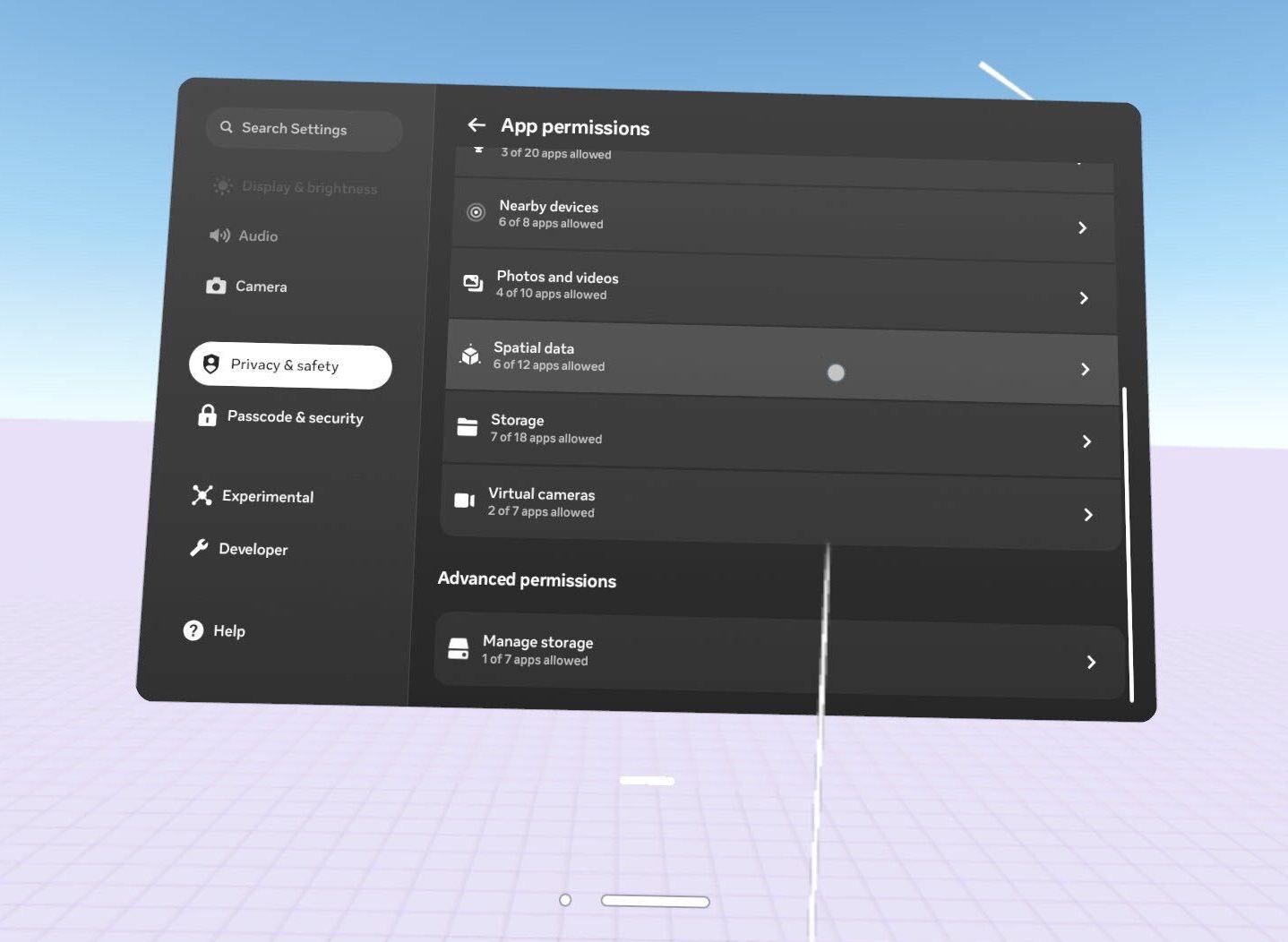
Enhanced Spatial Services and the Spatial Data permissions must be enabled on your Quest devices for Arkio to enable a colocated meeting. You receive a notification to enable this on startup, and you can later change this setting in Settings > Privacy & Safety > Device Permissions
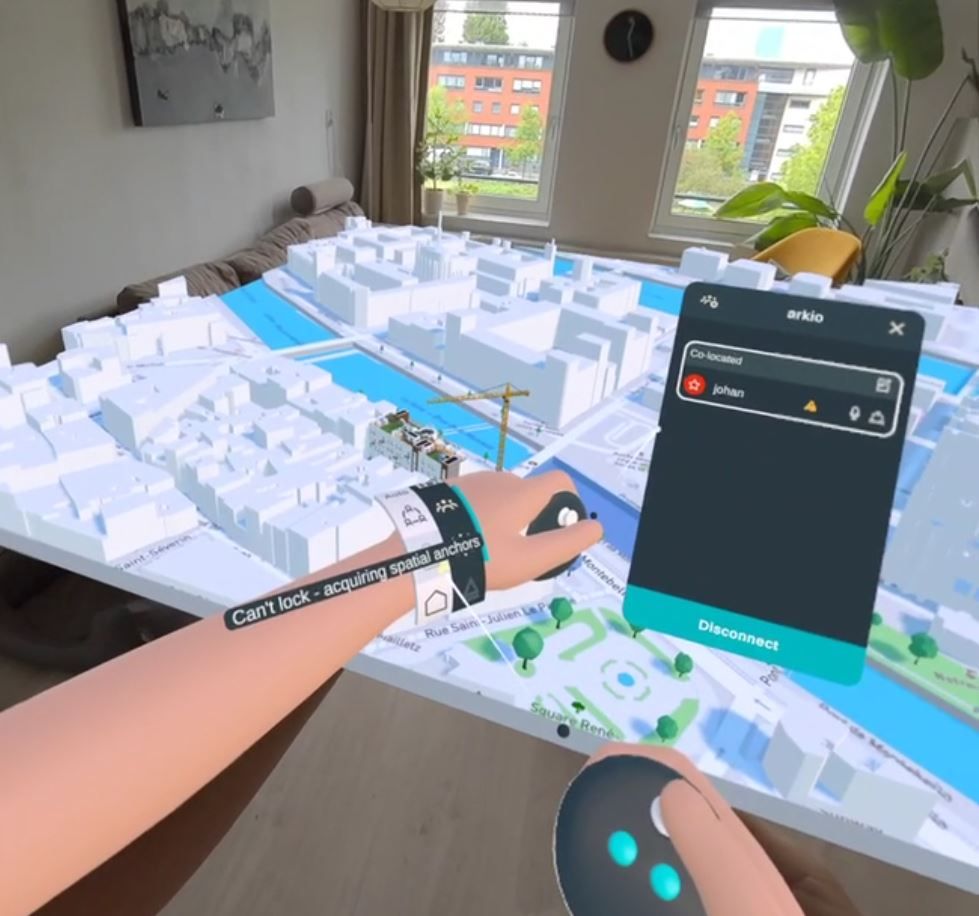
A warning in the meeting panel or on your wristband indicates if there is an issue with your device's spatial data. Once the spatial anchors are available and you are in the same meeting, your Quest devices should be able to join the same co-location group.
 |  |
Sometimes, devices have difficulty finding the same spatial data because of outdated or invalid data from previous spaces. A warning icon will appear behind the username in the multiuser panel to indicate that the user cannot join the same colocation group.
It can also happen that a colocation group is joined without warning, but there is a misalignment among two or more headsets. Every time colocated users are gathered, there is an offset due to misaligned older anchors.
To reset and improve colocation detection, you can best "Delete enhanced spatial services spatial data" and "clear physical space history" in Settings > Privacy & Safety on the headsets experiencing the colocation issues. The headset will then automatically rescan your space. After walking around your room and rejoining the Arkio meeting, your colocation alignments in Arkio should work better.
Colocation best practices
There are occasions when Meta's shared spatial anchors aren't synchronized correctly. You can try the following troubleshooting steps to make colocation work more reliably:
Turn on Enhanced Spatial Services on all your devices, so the anchors can be shared (see above)
Make sure a Quest user is the meeting host, and try to add nearby Quest devices to the colocation group. Only the meeting host can share anchors and colocate with other users.
If colocation does not align the Quest headsets correctly, try using a different Quest headset for the host.
If anchor sharing fails, restarting Arkio and rejoining the meeting can sometimes resolve the issue.
Delete your enhanced spatial services data and clear your previous physical space history (see above) to reset the spatial anchors on your device and avoid sharing invalid spatial anchors.
Walk two circles around your room, and give the headset time to acquire the same set of anchors
Use your headsets in a well-lit environment (dark spaces, many repetitive elements and crowds of people can best be avoided, as they will affect your Quest headset tracking and app performance)
Colocation requires reliable internet connectivity (Wi-Fi or a 5G hotspot) to ensure spatial anchor sharing works reliably between devices and Meta's servers.
Was this helpful?
Still need help? Ask the team