Working in Mixed Reality
Written By Johan Hanegraaf
Last updated 5 months ago
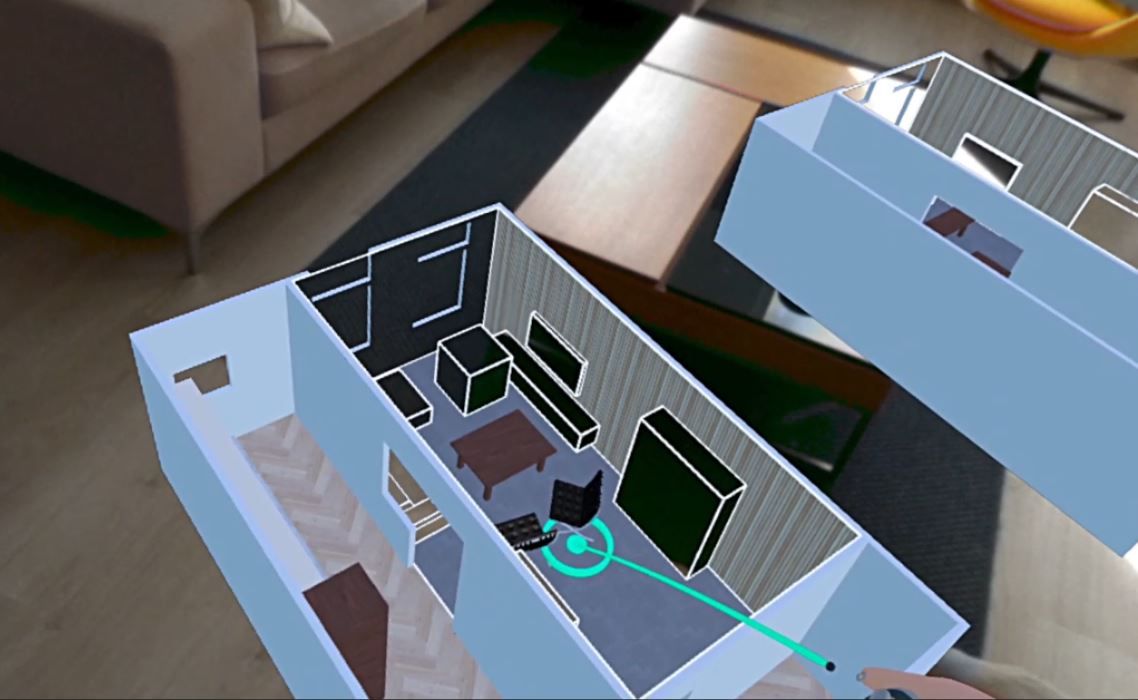
With Arkio on the Meta Quest, you can use passthrough mode to mix realities. You can toggle passthrough mode on to see your Arkio worktable in your real surroundings.
Passthrough on the Quest 3(s) and Quest Pro is in color, while on the Quest 2, it's in lower-resolution black and white. You can design, pan, and scale the model as you normally do in VR. You can also lock the model's position in your physical environment by toggling the wristband's lock.
Toggle between Virtual and Mixed Reality
Arkio launches in Mixed Reality on Quest 3 and Quest Pro, which support MR experiences. Any time you are in Arkio at god/model scale (1:1000-1:2), you can toggle back to VR by turning on the Passthrough toggle on your wristband. This will switch your default mode for that Arkio session to VR instead of MR.
 | 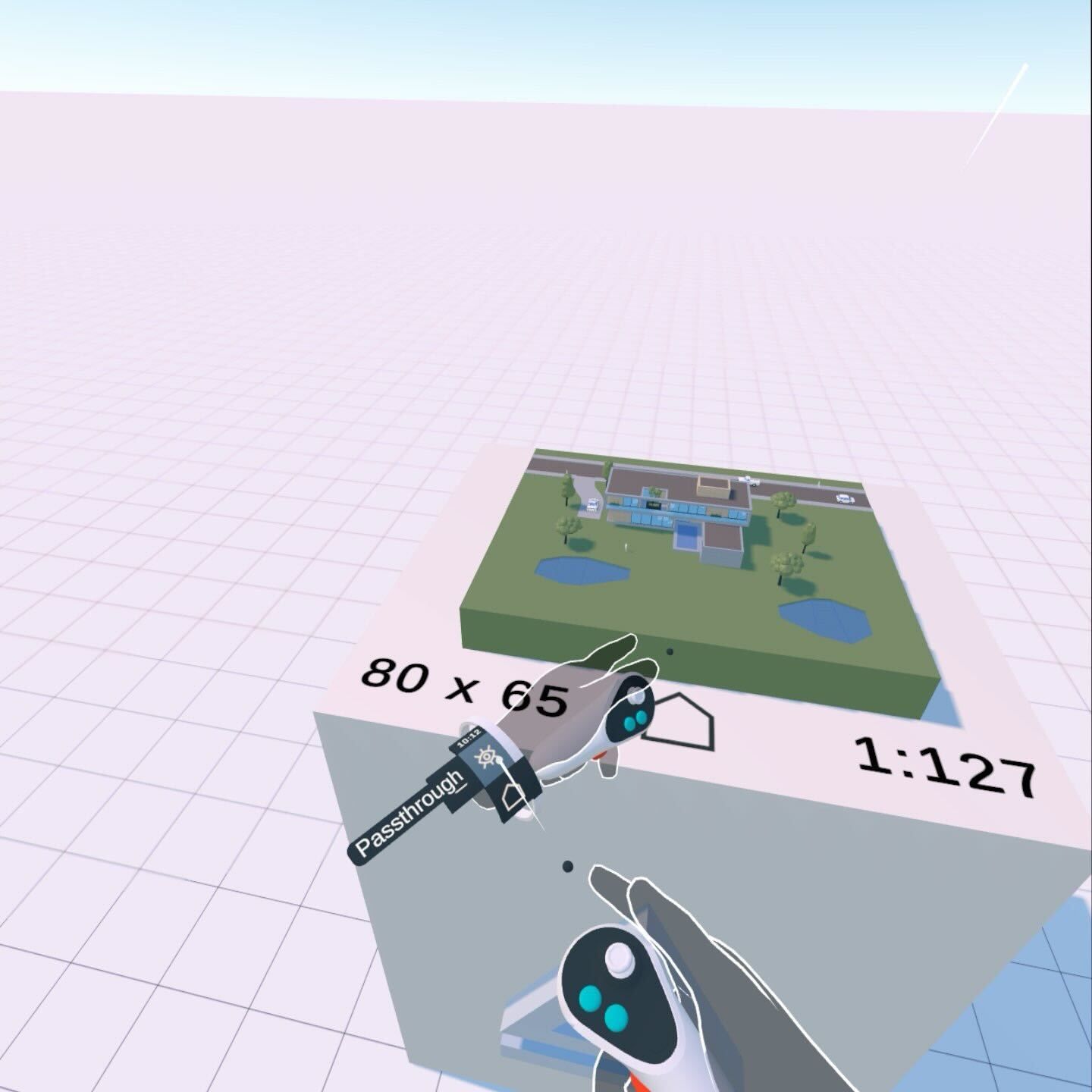 |
You can turn off your table top surface in your table settings. If you scale yourself beyond 1:2 in Arkio (or teleport down to the ground), you will enter human-scale mode, which switches you back to VR for full immersion in your design.
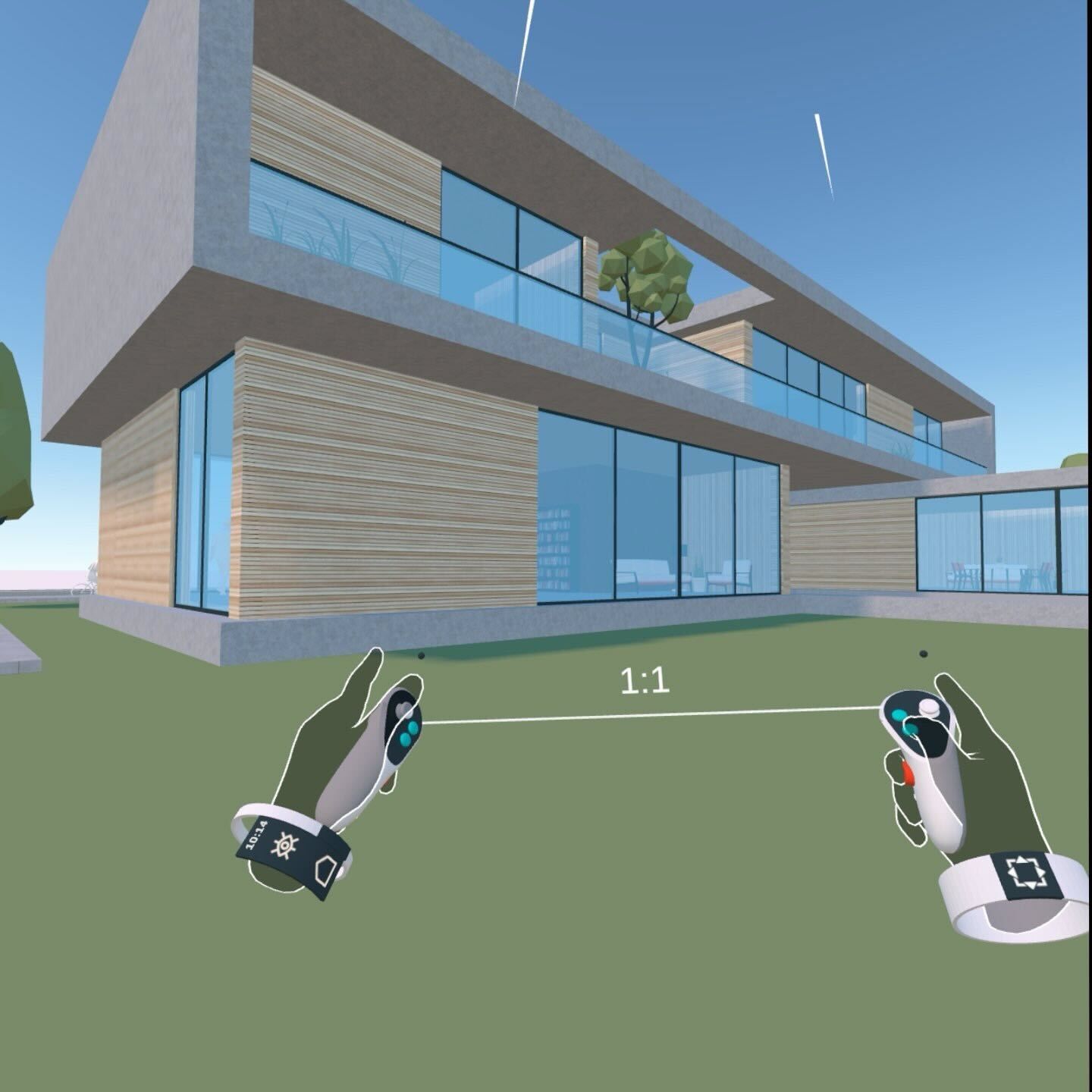 |  |
In a 1:1 human scale, you can also toggle to Mixed Reality to directly place objects or trace your environment at scale using Arkio's modeling tools. Switching to MR mode at 1:1 scale will hide the sky and tabletop, showing the real environment instead. You can switch back to default VR mode at human scale using the wristband toggle.
Boundaryless
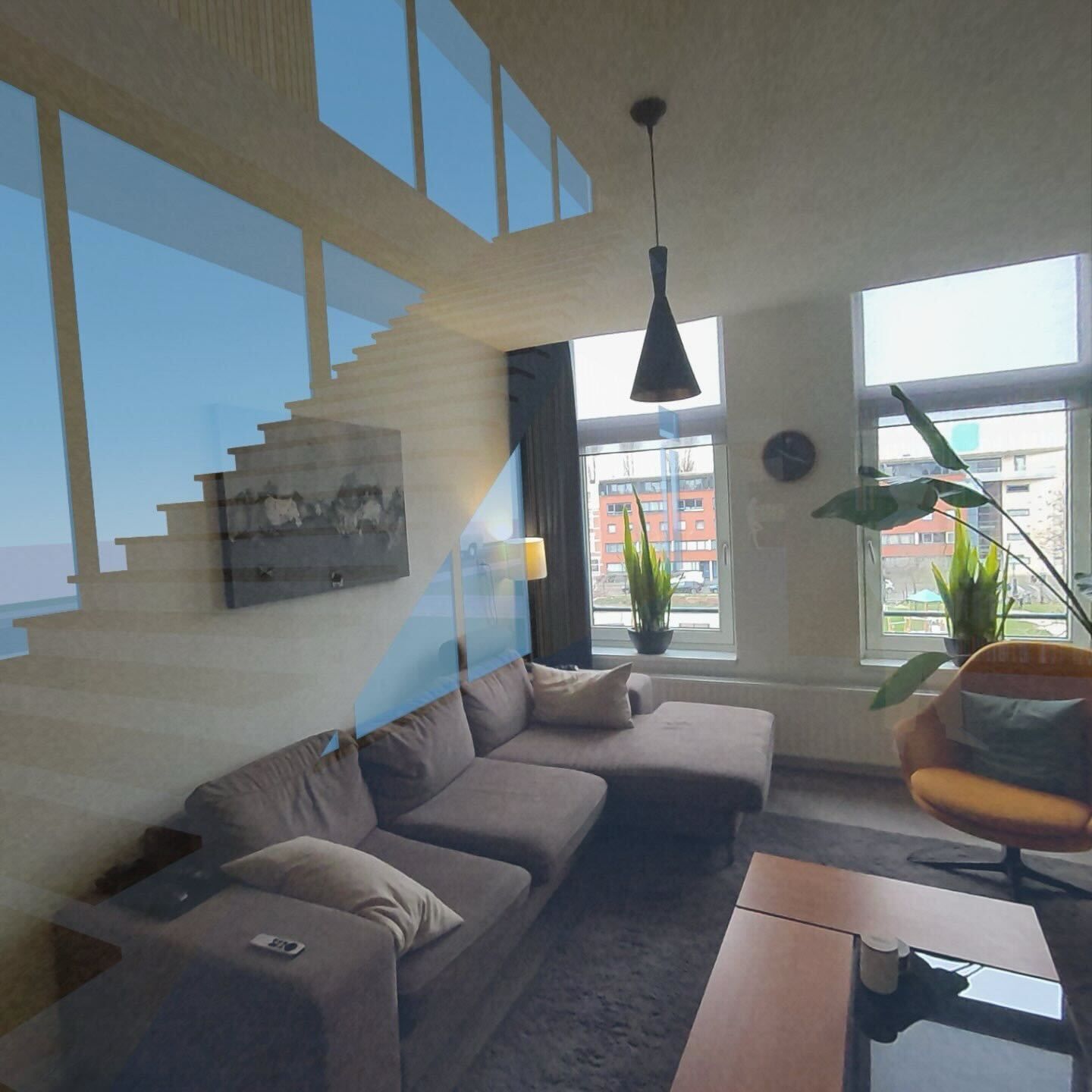
Arkio is a boundaryless application for Meta Quest that does not require a VR playspace safety boundary, letting you move freely in larger spaces. When walking around, Arkio blends in the real world to prevent users from bumping into objects. When you stand still, Arkio fades back your virtual geometry.
The threshold at which this “transparent” effect kicks in depends on the speed at which you move and your VR/MR wristband mode:
In VR mode at human scale, when you move more than 0,2 meters a second, we blend in reality. If you move slower than that, you stay in full VR.
In MR/passthrough mode, the movement sensitivity increases to 0,4 meters per second before Arkio blends in reality. Allowing you to move faster, before your virtual geometry is blended.
 |  |
If you wish to avoid the "transparency" effect while moving around in Arkio, you can move more slowly or switch to passthrough mode on your wristband to prevent this effect from kicking in. Completely disabling this effect is currently not possible, as this does not comply with Meta’s safety requirements for boundaryless applications.
Aligning and locking the scene to your environment
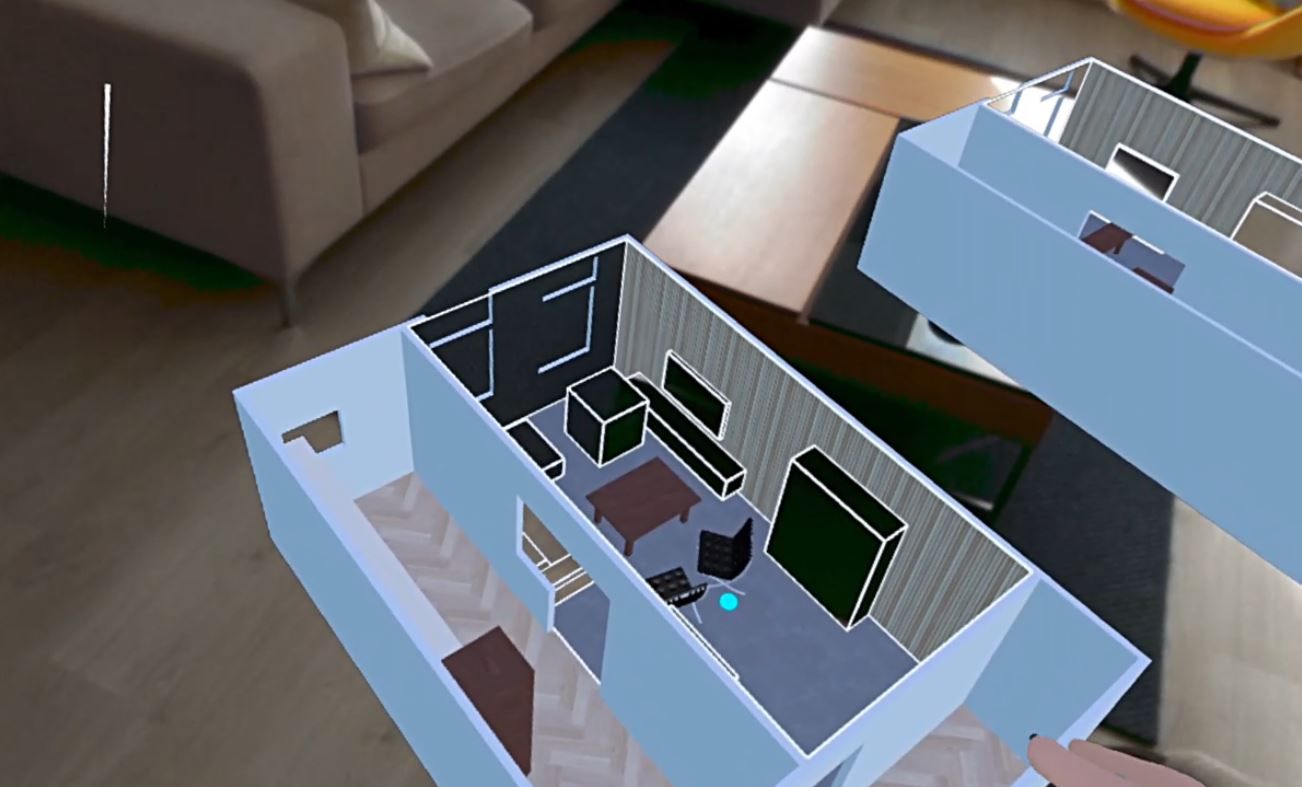
When you use the lock button on your wristband, you lock the scene's position to your real environment. This allows you to place the model on a surface, such as a table. Or align and lock your scene position at 1:1 human scale. These locks are visible in the Arkio scene as green teleport markers that update as you walk around. You can teleport inside these human-scale locks in your scene and learn more about locks on this page.
 |  |
Colocated Mixed Reality
You can work with multiple Meta Quest headsets, keeping the model aligned in the same Mixed Reality position. The meeting host can then lock the model's position, aligning and locking it for all colocated participants. You can learn more about colocated mixed reality with multiple headsets in this article.

Mixing realities
You can use the passthrough toggle on your wristband to show your real environment in both god and human scale. Things can get complex when mixing realities, but you can always turn off passthrough mode or teleport back to god scale to get a better overview of your project. The key to mixing realities is using the passthrough material and other materials to blend your real and virtual worlds.
You can bring existing objects from your home into your virtual world by making a passthrough shape around them. If faces around this shape are painted with other materials, I can also erase parts of reality by editing or removing this passthrough shape.
Passthrough material
The passthrough material in Arkio displays your real-world rather than your virtual materials. You can find this material in the Paint Favorites and in the bottom tab. Virtual see-through portals can be created by modeling walls, floors, or ceilings with passthrough material or importing your room and turning passthrough mode off to see the sky and floor at human scale.

Passthrough-painted Arkio primitive shapes will show white outlines when viewed through a mixed-reality-compatible headset (Quest 3). Cutting holes in these shapes will reveal objects in the scenes behind these surfaces. Using the passthrough materials, you can model something behind walls, ceilings and full buildings and import and align 3D models in your real environment.
When you are locked in human scale and are in fully immersive mode (Wristband) the white outlines of these passthrough shapes are temporarily hidden so you can have a clean view of your passthrough shapes without lines. If you switch to passthrough mode again, you will see white shape outlines, which you can use to align and lock your scene to the real world. You can learn more about these workflows on this page

Was this helpful?
Still need help? Ask the team