Desktop & Mobile user interface
Written By Johan Hanegraaf
Last updated 8 months ago
The desktop and mobile versions of Arkio have similar tools to the VR version. You are still working with objects that auto-collide and glue together, like working with a physical model. The main difference between the desktop and mobile versions of Arkio is that you use a mouse and keyboard versus touch controls, and that you have a more traditional toolbar UI
When you start Arkio in Windows/Mac/iOS/Android without a VR headset, the navigation tools are located in the bottom-left corners. You can find the orbit mode, teleport mode, and walk/look thumbsticks to navigate around.
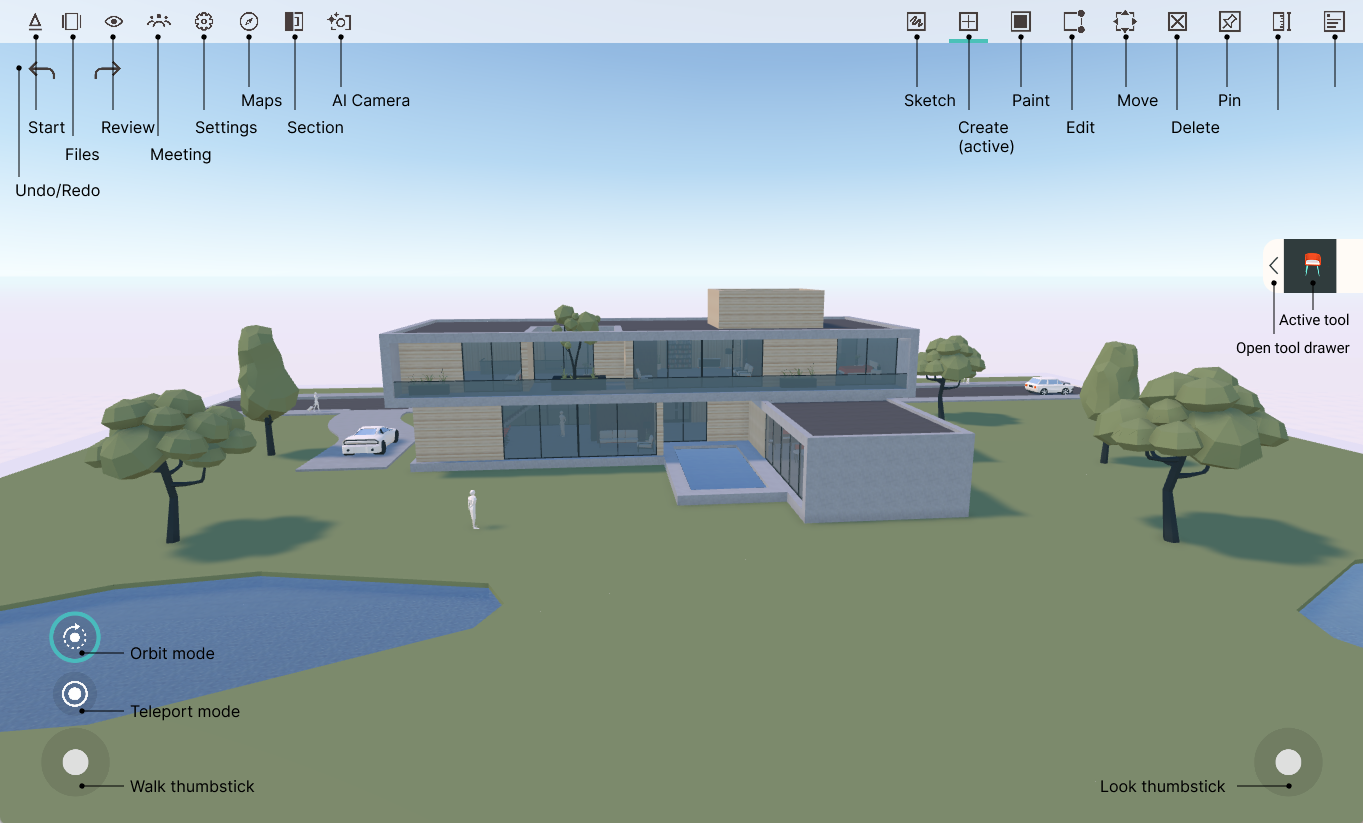
Navigation
Panning and zooming in Arkio can be done using your mouse scroll wheel or a two-finger pinch gesture on mobile devices using a touchscreen.
When the orbit tool is selected in the bottom-left corner, you can orbit around the model freely by touching/clicking anywhere on the screen and dragging. If the Orbit tool is not selected, you can also orbit around the model by tapping/clicking outside the model on the sky and the green worktable, and then dragging your finger or mouse.
PC/Mac navigation
Mouse scroll to zoom in and out
Middle mouse (scroll wheel) press to pan
Right-click anywhere on the screen to orbit around the model
Use the orbit or teleport tool in the bottom left corner to directly orbit or teleport
Use the thumbstick navigation controls for walking and viewing
Use the WASD keys (+Q and E) or the Arrow keys on the keyboard to walk and the right mouse button to view
Hold the Shift key while using the WASD keys to move faster
iOS/Android navigation
Two-finger pinch gesture to zoom in and out
Two-finger swipe gestures to pan
Touch and drag anywhere on the sky, the white ground below the worktable or the bottom of the green worktable to orbit the camera if any tool is selected.
Use the orbit or teleport tool in the bottom left corner to directly orbit or teleport
Use the thumbstick navigation controls to walk and view
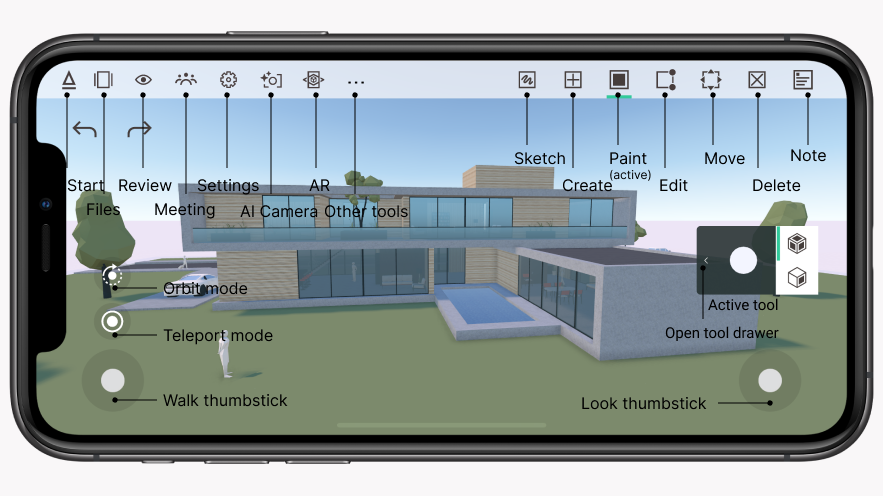
Walking mode
In the bottom-left and bottom-right corners, you'll find two navigation pads: the left one moves the camera, and the right one rotates it at 1:1 human scale. On a PC, you can also use your arrow keys on the keyboard to walk around and your right mouse button to look around when you have selected teleport mode.
Using tools
Tools in Arkio are activated by clicking the top toolbar buttons. The active tool will be highlighted, and additional tool options may be shown on the right side of your screen. The tool drawer can be expanded to offer more options for certain tools, such as selecting alternative colors and creating and importing shapes.
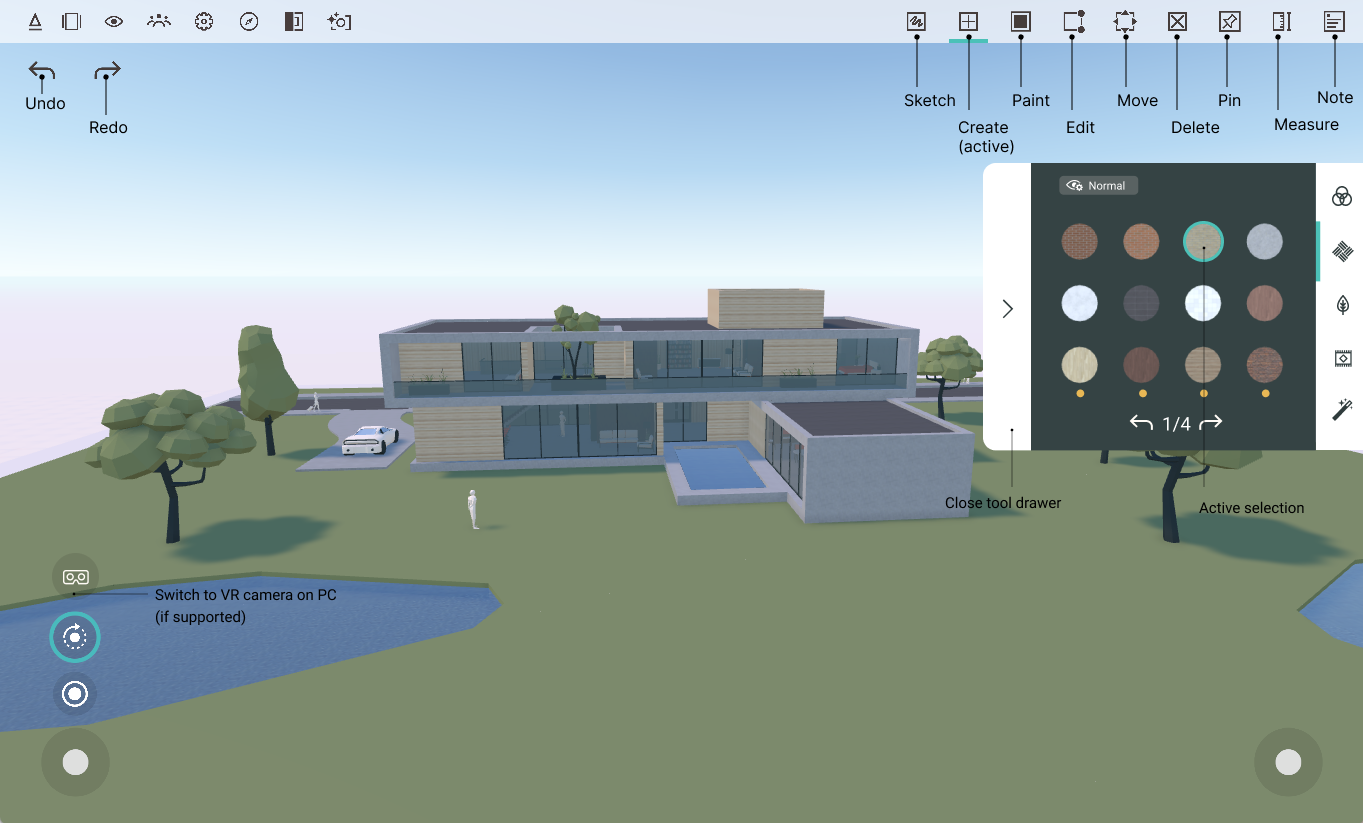
Tools like Create or Sketch require a drag motion, whereas others, such as Paint, require a single tap or click. The example below shows sketching on the model using the Sketch tool.
Some tools, like Create, Edit, or Move, work in three dimensions, requiring toggling between the primary and secondary axes. While creating, moving or editing shapes, you can briefly tap a second finger on your screen while still holding the first finger down to switch between axes.
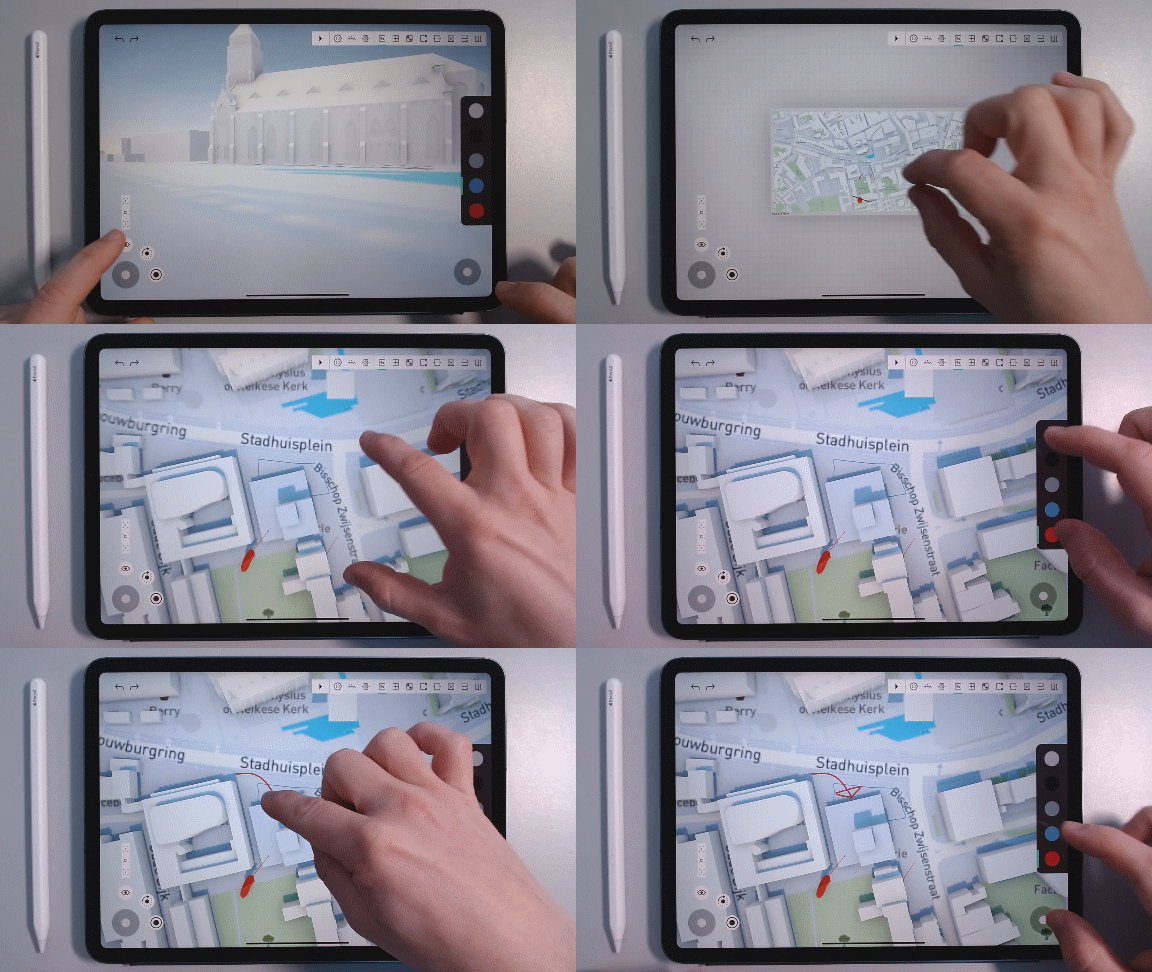
PC/Mac tool usage
Left-click anywhere on the model to use your active tool and release to finalize the position
While using the Move/Edit tool, you can press the space bar or click on the right mouse button to change the axis of the active tool
While moving objects, you can press the left/right keyboard arrows to rotate the selected object 45 degrees around its vertical axis. You can also hold the arrow keys to rotate the objects more slowly
While moving objects, you can press Ctrl+D (or CMD+D on a Mac) to duplicate your current selection
iOS/Android tool usage
Tap anywhere on the model to start using a tool, drag to your desired position, and release to finalize the operation.
While using the Move/Edit tool, tap the screen with another finger to change the axis.
While moving objects, you can touch the screen with your second finger and slide left/right to rotate the selected object around its axis (bashing an object against another surface changes the axis)
Was this helpful?
Still need help? Ask the team