Live meetings
Written By Johan Hanegraaf
Last updated 5 months ago
One of Arkio's main features is the ability to design in real time with up to 24 users from anywhere in the world. You can start a meeting from the meeting panel accessible via the main menu. Once you are in a meeting, all your created Arkio geometry and imported geometry are shared with meeting participants, allowing everyone to view the same scene and make suggestions in real-time.
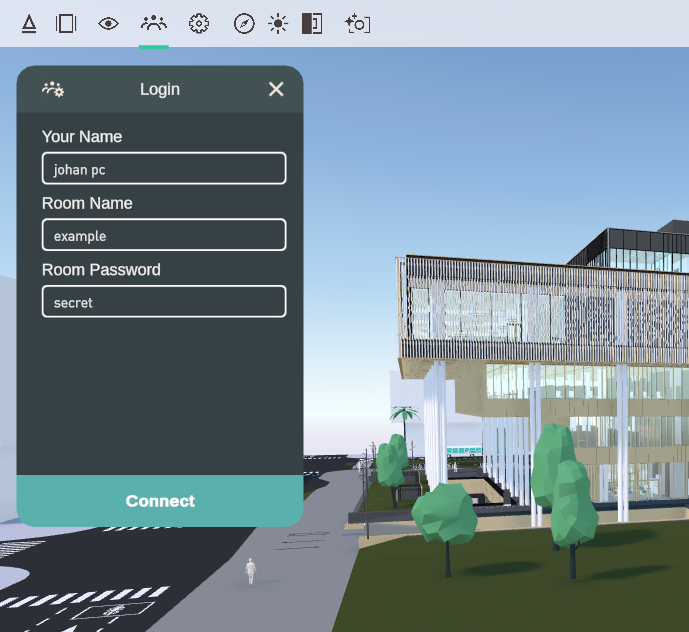
When joining a meeting, the following details need to be filled in:
Your Name - your name that will be displayed for other users in the meeting
Room Name - A meeting name to share with other people (needs to be at least 3 letters)
Room Password - (optional) A password to access this meeting for login security
All users must enter the same Name and Password to join the same meeting. (non-case sensitive)
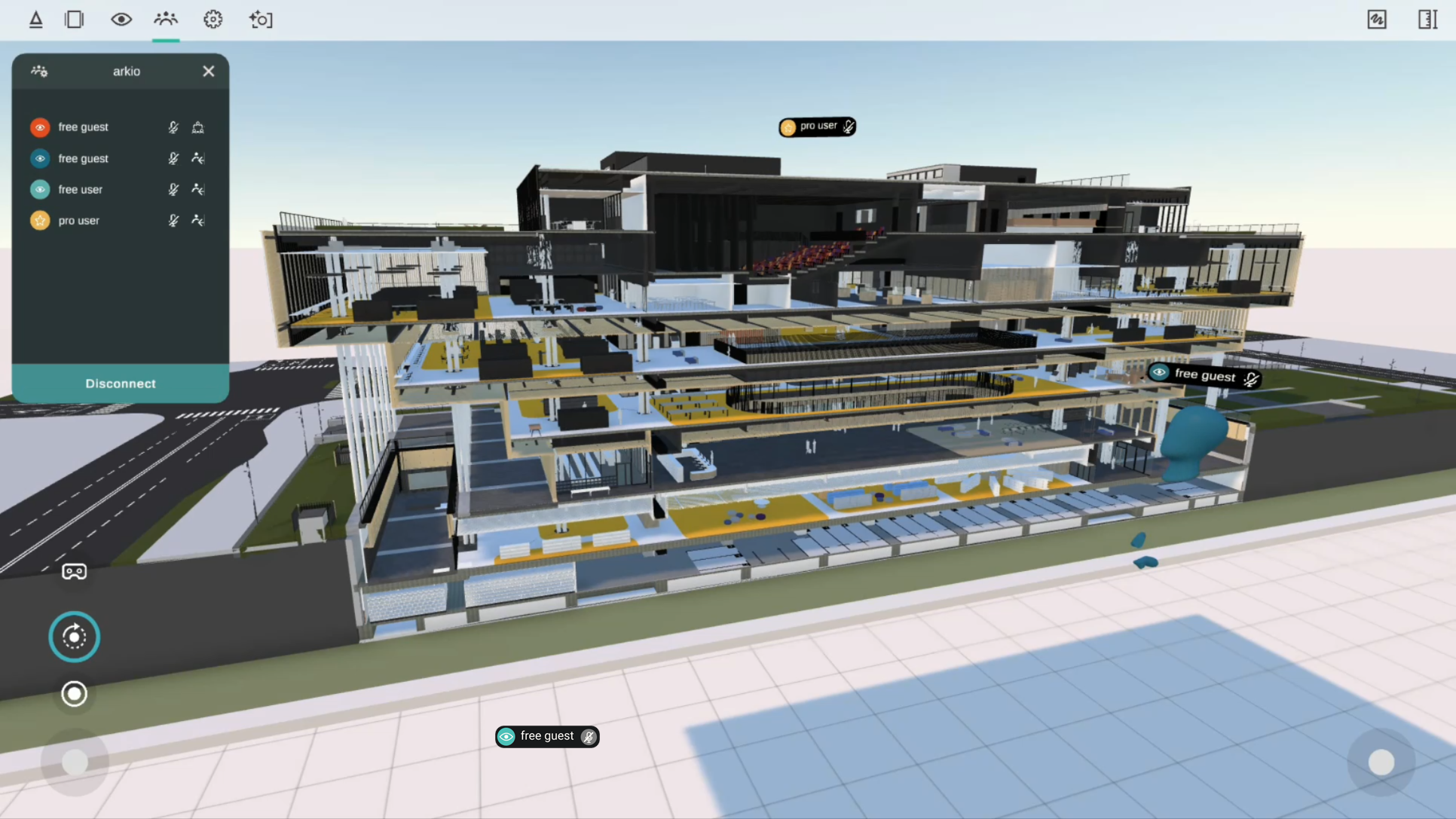
The first user to join a meeting becomes the meeting host, who manages the meeting and switches between scenes. All active participants in a meeting will be visible in the multi-user panel and in the scene, with each user's color and name tag.
Starter, Pro and Enterprise meetings
When you join a meeting on the free Starter plan, you can share and edit a scene one-on-one. This allows you to share models between devices and explore Arkio’s design collaboration with friends and family.
If you join a meeting with a Pro user, up to 6 participants can be active simultaneously. If an Enterprise user hosts the meeting, the meeting capacity increases to 24 participants. Free users will be converted to view-only in professional meetings, and Pro or Enterprise users will have edit rights and can request to become the meeting host.
Meeting settings
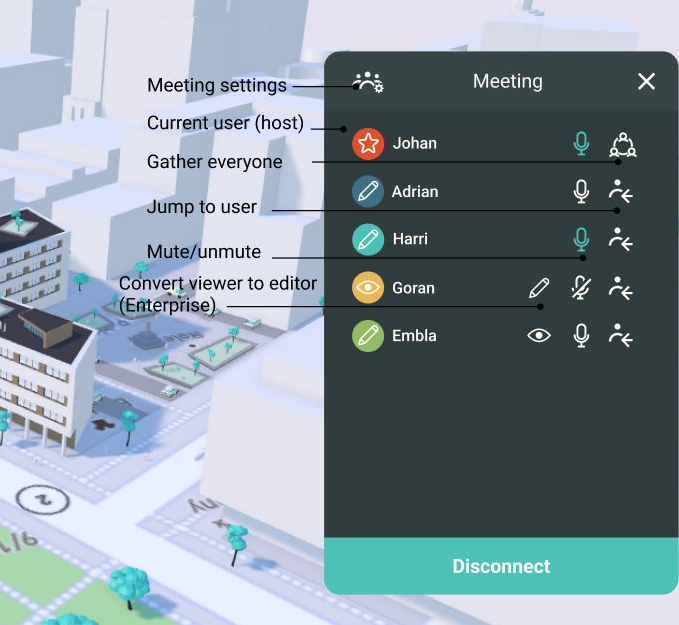
You can mute yourself by selecting the microphone icon behind your name. If you don't see your mic icon light up while talking, your microphone is likely not set up correctly. This can be changed in the meeting settings. You can also gather users and jump to other users.
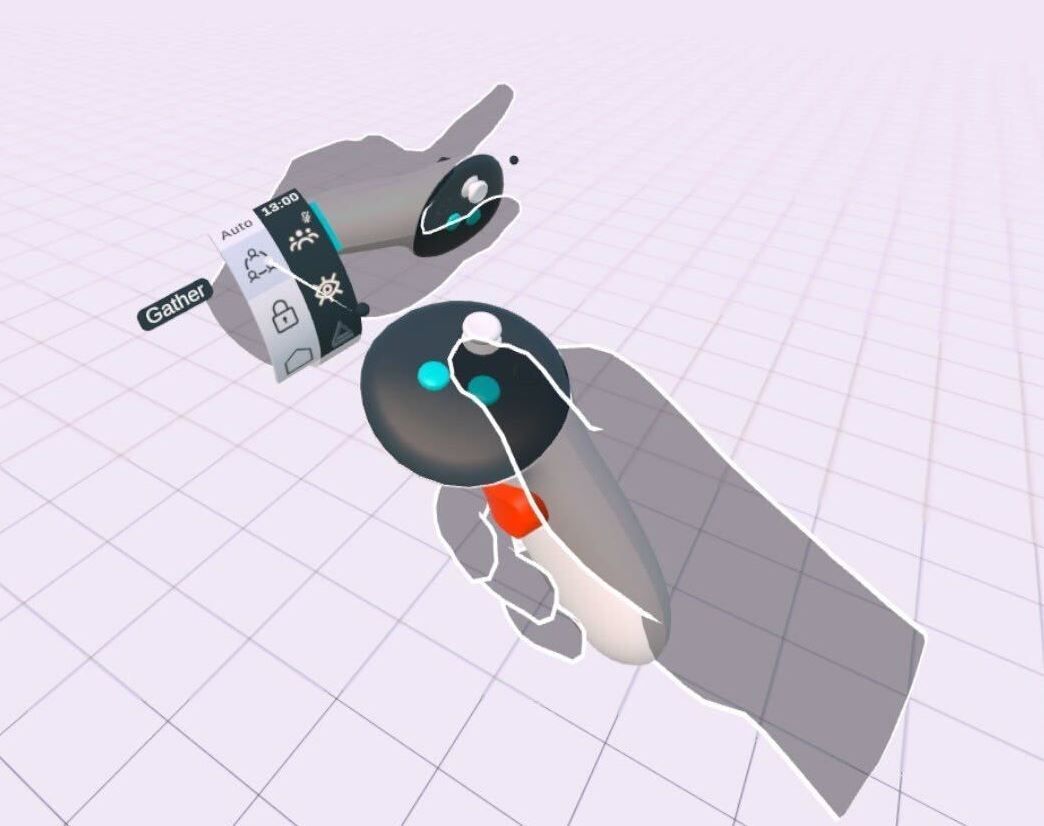
The host and other VR guest in the meeting can use their wristband to access the main meeting tools. There is a button to open the meeting panel, which also indicates whether your mic is inactive. And you can also (auto) gather all users, lock the scene for colocated mixed reality, or jump to the host.
Editing rights
Free Starter users can have 1:1 meetings with up to 2 participants, with both participants as editors. This allows you to try real-time collaboration with your friends and family.
Pro and Enterprise users always have edit rights and can host up to 6 and 24 free or paid participants. If a free Starter joins a professional meeting, they will be a viewer and must wait for an Enterprise user to grant them edit rights. Scenes you received in a professional Arkio meeting as a free user are converted to view-only after the meeting has ended. This allows your design professional to share WIP scenes and present their work with anyone who has Arkio installed on their device.
If you want to host and control edit rights in larger collaborative meetings yourself, you can start a 14-day free trial in the app to try this.
Modeling operations in meetings are simultaneous, so operations performed by one user can be directly seen, continued from and undone by other editors in a meeting. To organize large meetings more effectively and prevent participants from making edits, you can pin your geometry, hand a device without a Pro or Enterprise license to your clients, or activate presentation mode to keep the conversation central.
Presentation mode
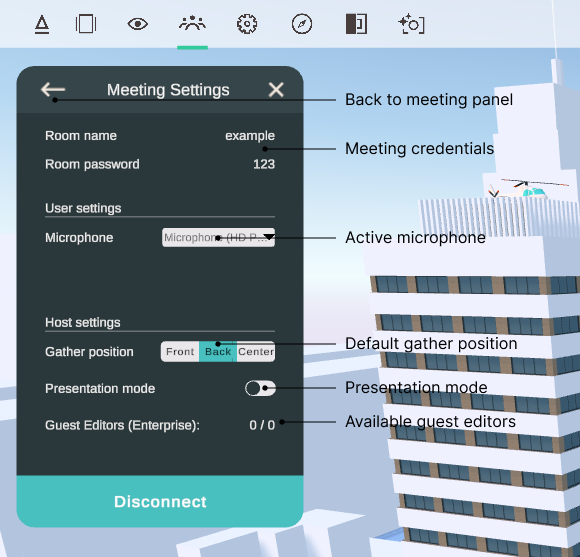
Using Arkio's presentation mode, the host can convert everyone in the meeting into viewers, regardless of their license. This mode can be activated from meeting settings and is compatible with both VR and non-VR devices.
When presentation mode is active, all other users in the meeting are converted to viewers, muted, and automatically gathered to the host's meeting location. If users are colocated, they will be automatically aligned each time the meeting host teleports or moves to a new location.
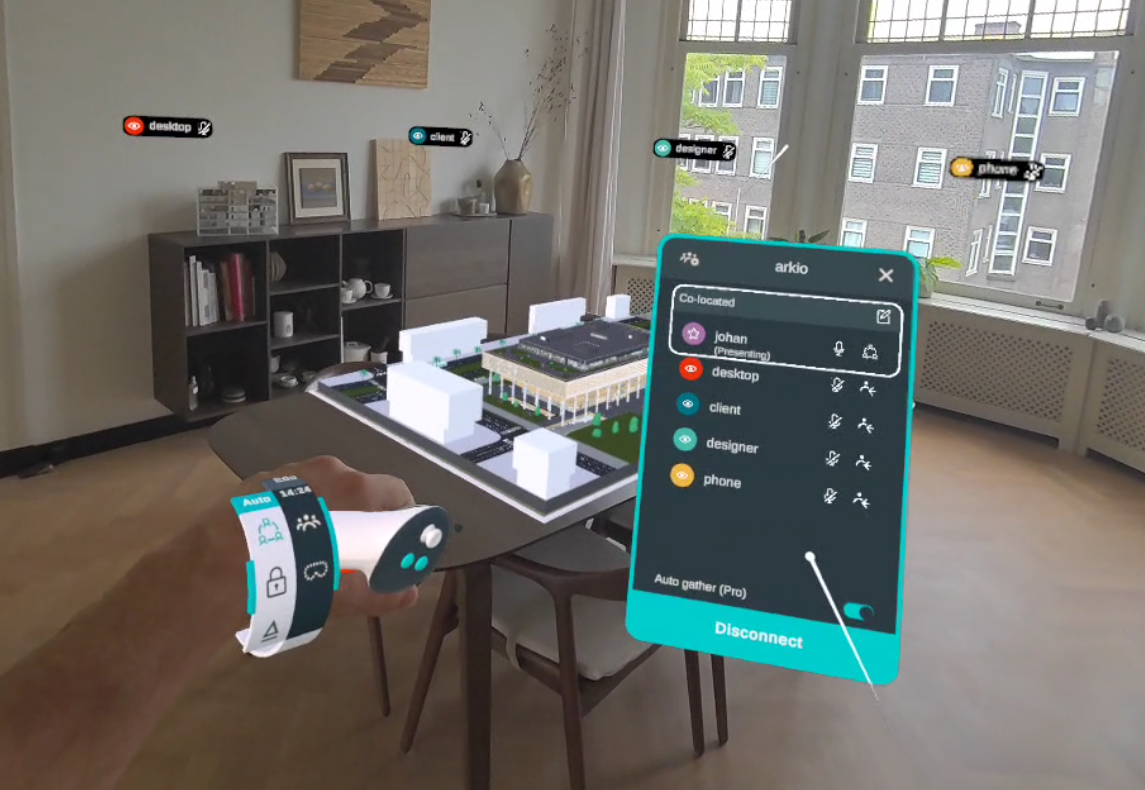
Presentation mode can be activated in meeting settings, and disabling it restores users' original edit permissions. Presentation mode is particularly useful for organizing guided tours for participants new to Arkio and VR, as it follows the presenter and prevents other participants from editing any content.
Additional meeting settings
In the Meeting Settings tab, you can find additional settings, including your microphone and the name/password for your meeting. You can also set the default way you want to gather users around you to streamline guided tours. This allows you to gather everyone in the meeting (VR and non-VR) to face you from the back, to form a circle in front of you, or to gather centered on your current position.
When looking at models at a god scale (far away from the table), users will always be gathered around the model. Users who are colocated will be positioned in the exact same location as the host, allowing them to view the model from the same position in both god-scale and human-scale views.
Data Security
Arkio has a unique security model. Your scenes, imported resources, and project data are all stored on your local device(s), similar to traditional CAD modeling tools. Arkio project data can be shared between Arkio devices using live Arkio meetings or Cloud device groups.
Arkio does not require user accounts or logins. In live Arkio meetings, individual operations are sent as end-to-end-encrypted edit operations and imported resource files, which are then decrypted on the receiving Arkio devices. You can best compare this to peer-to-peer file sharing. After the meeting ends, a copy of the scene only remains locally on the devices, making it nearly impossible for unwanted guests to access your data without access to your device. For higher security, you can use complex room names and passwords. We recommend using meeting names and passwords that are at least 10-12 characters long.
When importing models locally, without using Arkio's Cloud and meeting features. Arkio operates fully offline and can meet even the highest security requirements.
If you have questions about the security of Arkio's online services that you would like to verify with your organization's data security team, we're happy to provide you with more technical details. You can contact us to learn more.
Troubleshooting
If you are not seeing other users when using the same Meeting Name and Password, you may have a different spelling of the room name or password (try using a simple name without a password to confirm).
It's also possible that one of the participants is using an older version of Arkio and needs to update the app. If this is the case, older-version users will be inactive and are shown a notification to update. If you are experiencing internet connection issues, you can best troubleshoot by joining another (wireless) network or using a 4G/5G hotspot or tethered phone. You can find more network troubleshooting steps here
Was this helpful?
Still need help? Ask the team