Importing large 3D models
Written By Johan Hanegraaf
Last updated 14 days ago
BIM/CAD models can contain a large amount of geometry that requires attention when loading them onto mobile devices, such as standalone VR headsets. Here are some tips for importing and working with large models in Arkio
Arkio's large-model tech
Arkio dynamically adjusts the level of detail based on your viewpoint and the device's triangle budget. Objects that are further away will render with fewer details, while objects that are closer will display details that your device can still handle.
Arkio automatically prepares and substitutes farther-away objects with simplified versions (called LODs). We also use occlusion culling to skip parts of the model that are obscured by other objects. This allows your device to load much larger files than would usually be possible, as only a portion of your model's triangles is rendered. You can read more about this tech in our CTO's blog.
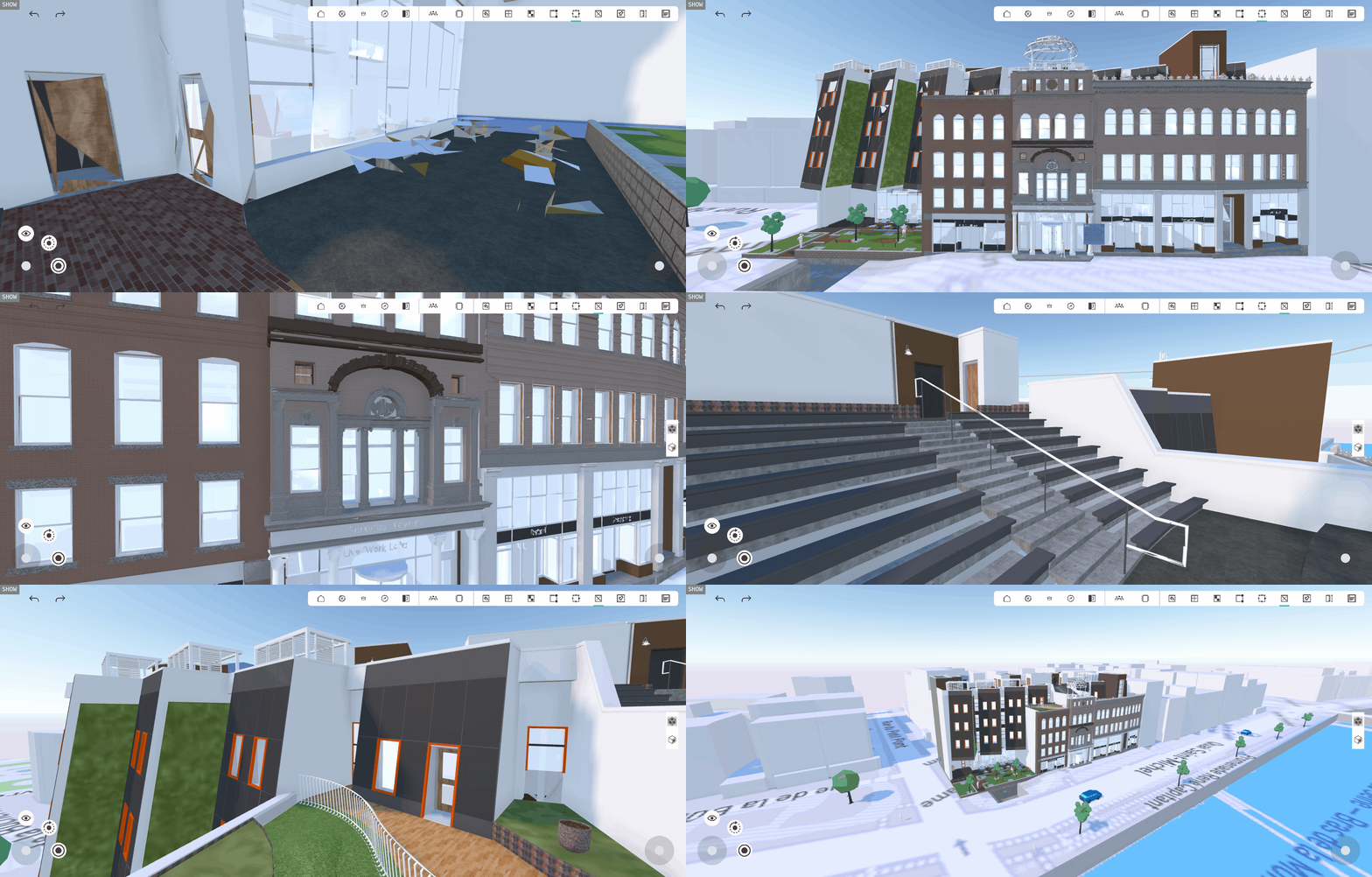
Mobile hardware rendering limits
Devices like the Quest use a mobile processor. Arkio supports loading large models on these devices; however, not all triangles will be visible from every viewpoint, as Arkio dynamically adjusts the number of triangles shown to fit the device's capabilities.
To prevent mobile devices with limited power from crashing, we recommend staying under a maximum file size per device. When you first process larger models on more powerful hardware, such as a PC or Mac, you can sync these models with your mobile devices by linking them to the same Arkio Cloud or using an Arkio meeting.
Loading extremely large models
A desktop PC/Mac has more power and memory to process large imported files into Arkio resources. Once your source files are processed in Arkio, you can place them in the scene to share them with less-powerful devices via an Arkio meeting or by connecting to the same Arkio Cloud group and synchronizing new imports from your PC to your mobile devices.
For example, you might have a 35M triangle Revit building that you want to load onto a Quest. Loading files of this size via a USB cable or direct downloads from the Arkio Cloud will exceed your Quest's processing capacity, causing it to fail and display a warning. However, if you first import this Revit model into Arkio on a more powerful PC/Mac, you can still sync the large model with your Quest and other cloud-connected or meeting-joining devices.
Large imports shared to other devices will only show the triangles that your devices can handle. When loading extremely large files, we recommend running tests to ensure your geometry renders and performs well on your planned device, ensuring a seamless experience for everyone.
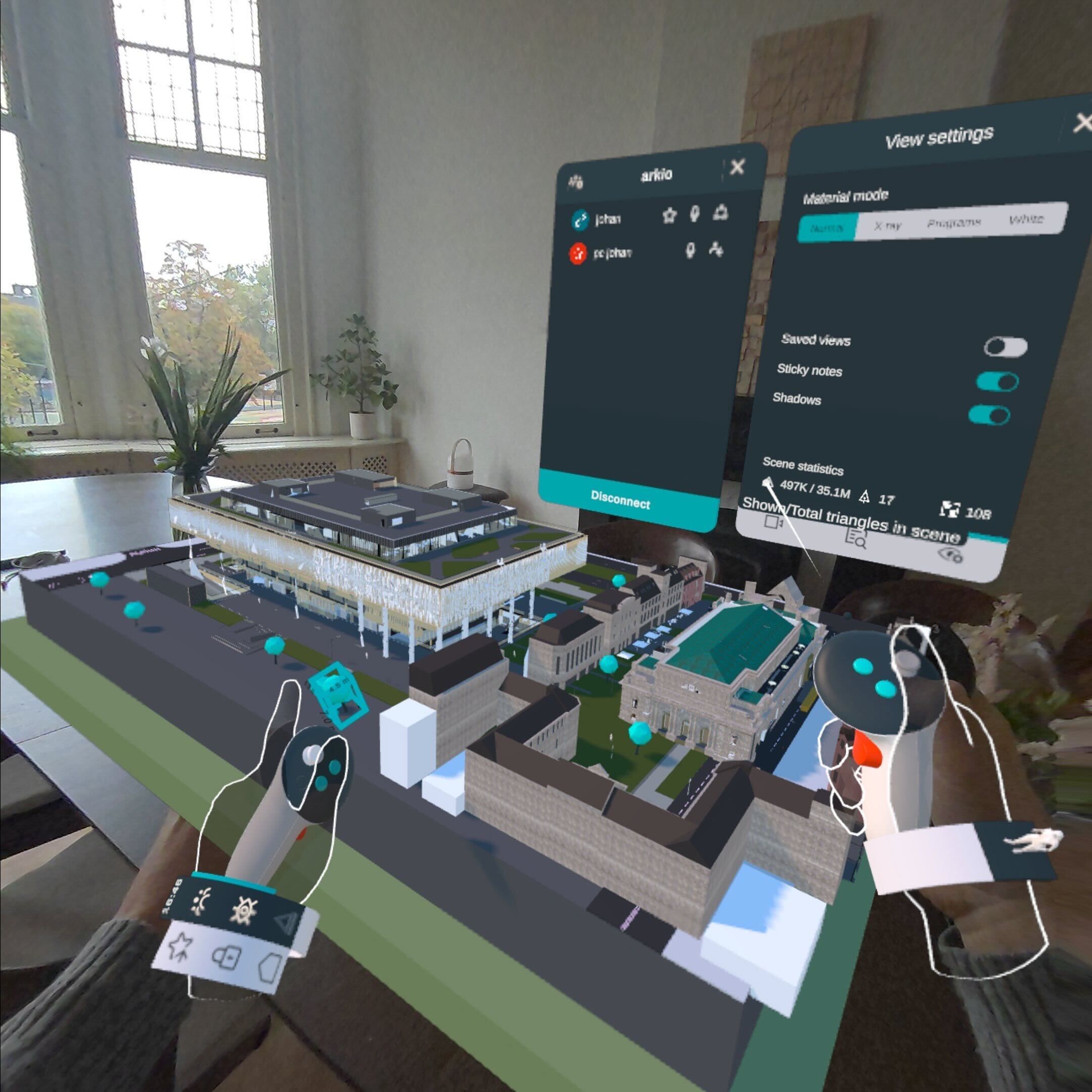
We recommend keeping the total number of imported triangles in the scene under 5 million triangles so that less powerful devices can load these models without issues. You can check your imported triangles in the Arkio import panel and see the active triangles for your entire scene in the View Settings tab of the review panel.
Render settings & performance
You can improve performance on a standalone headset by switching from Mixed Reality to full VR on your Wristband and by disabling shadows, sections and X-ray mode in View Settings. These settings affect your device's performance, and disabling them will boost the number of triangles you can see. Arkio automatically disables shadows when a scene with many triangles is loaded. You can also control this in the View Settings tab of the review panel.
If you want to view extremely large models in VR, we recommend switching to a PC in VR (air) link mode, as your PC can display more details and render with higher quality than a standalone headset.
Variable details per device
Based on your device's triangle render budget (see the table above), some details in your model might not be rendered because the device cannot handle all the geometry. If you want to render more details on that device, consider the following optimizations.
1) Switch from Passthrough to full immersion (VR wristband), and disabling sections, shadows, and other rendering effects will boost the number of triangles your device can show
2) Hide layers of your model in Arkio to free up budget for triangles of elements that you don’t want to see
3) Only export the parts of the design you want to view, eg, using a Section box in Revit or by selecting a lower level of detail on exports from Revit and Rhino
4) Look at the same scene with more powerful hardware (e.g., your Quest connected to a PC in Air Link mode). Your PC can render more triangles with improved shadows and lighting.
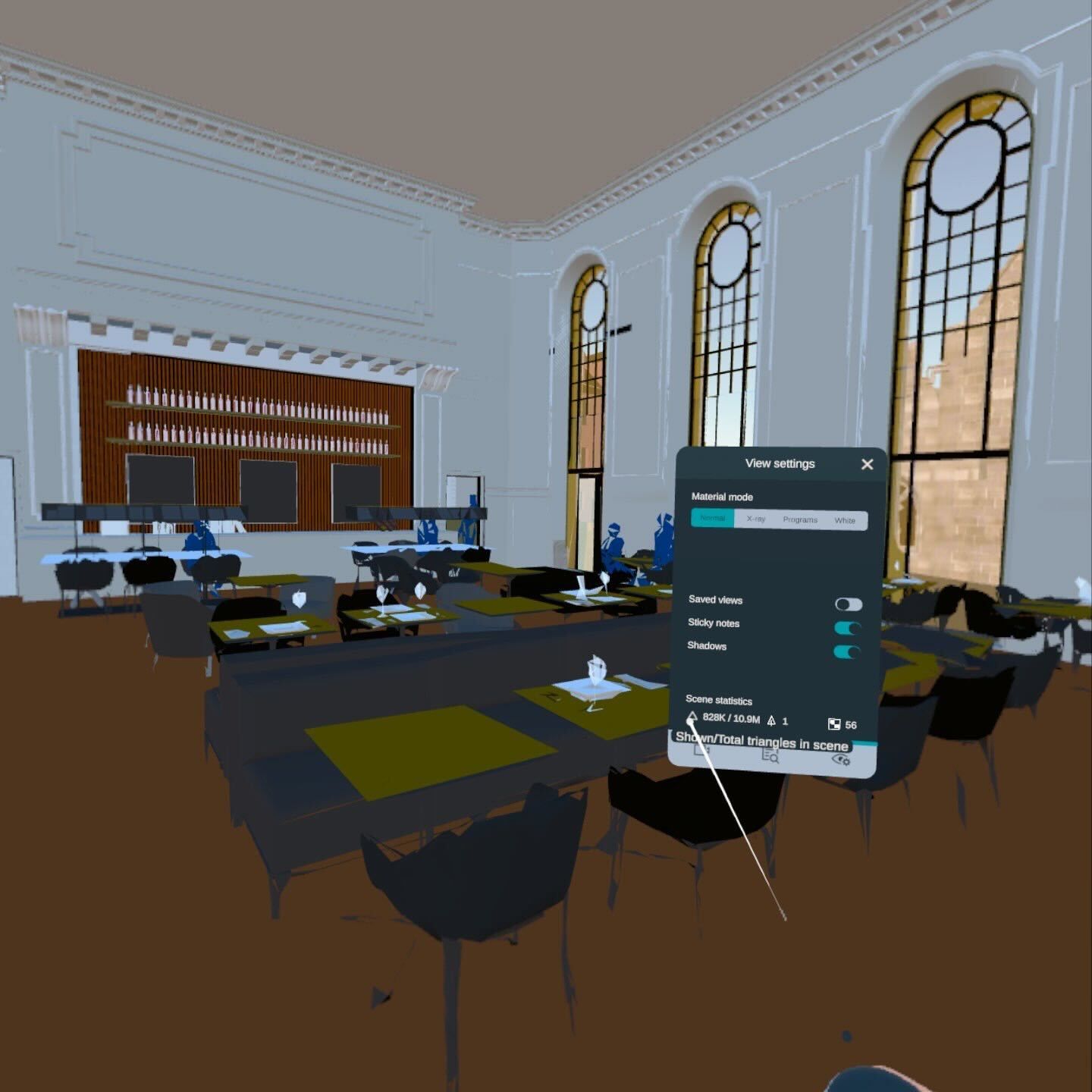 | 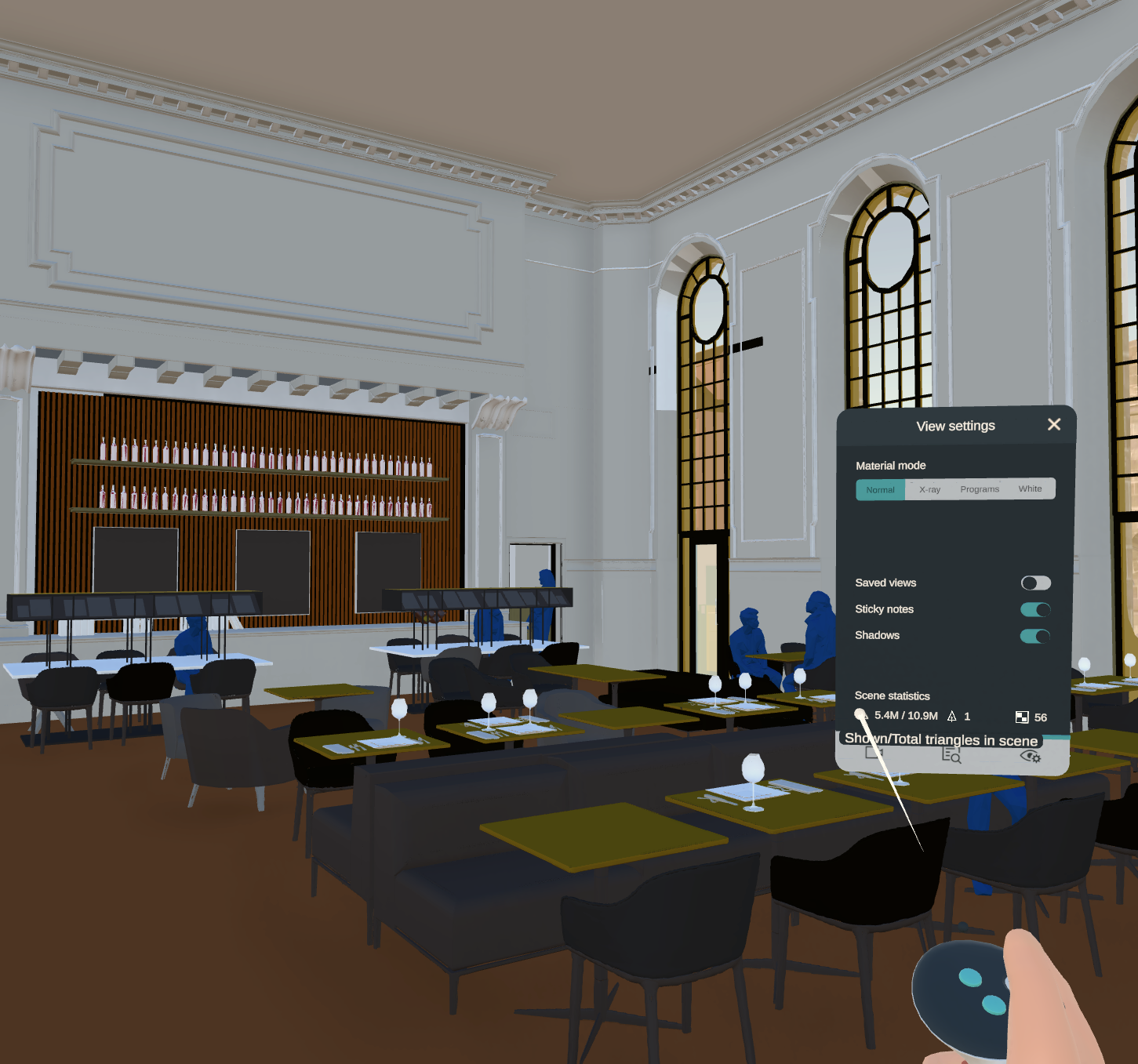 |
828K/10.9M on Quest 3 standalone | 5.4M/10.9M on Quest 3 in PC link mode |
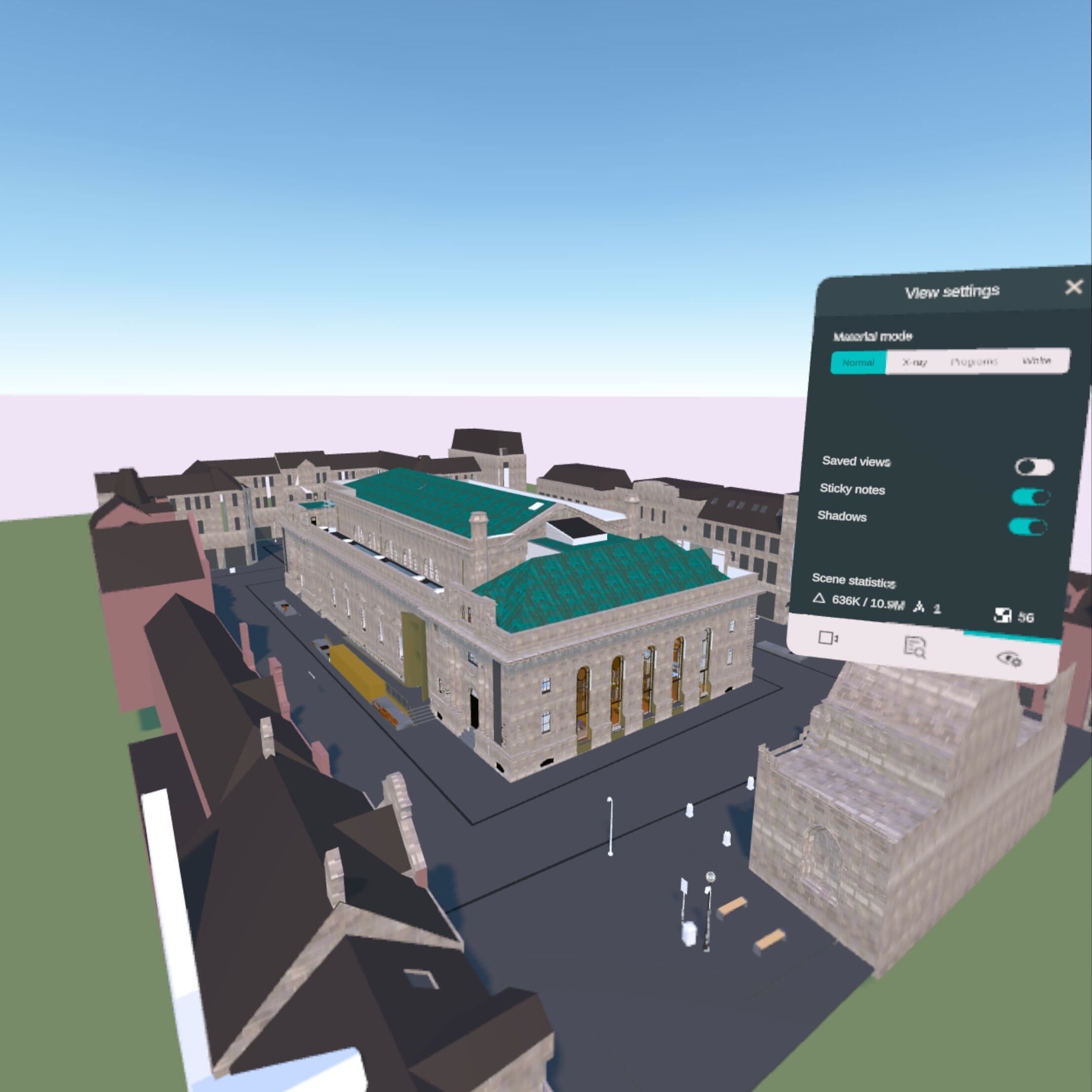 | 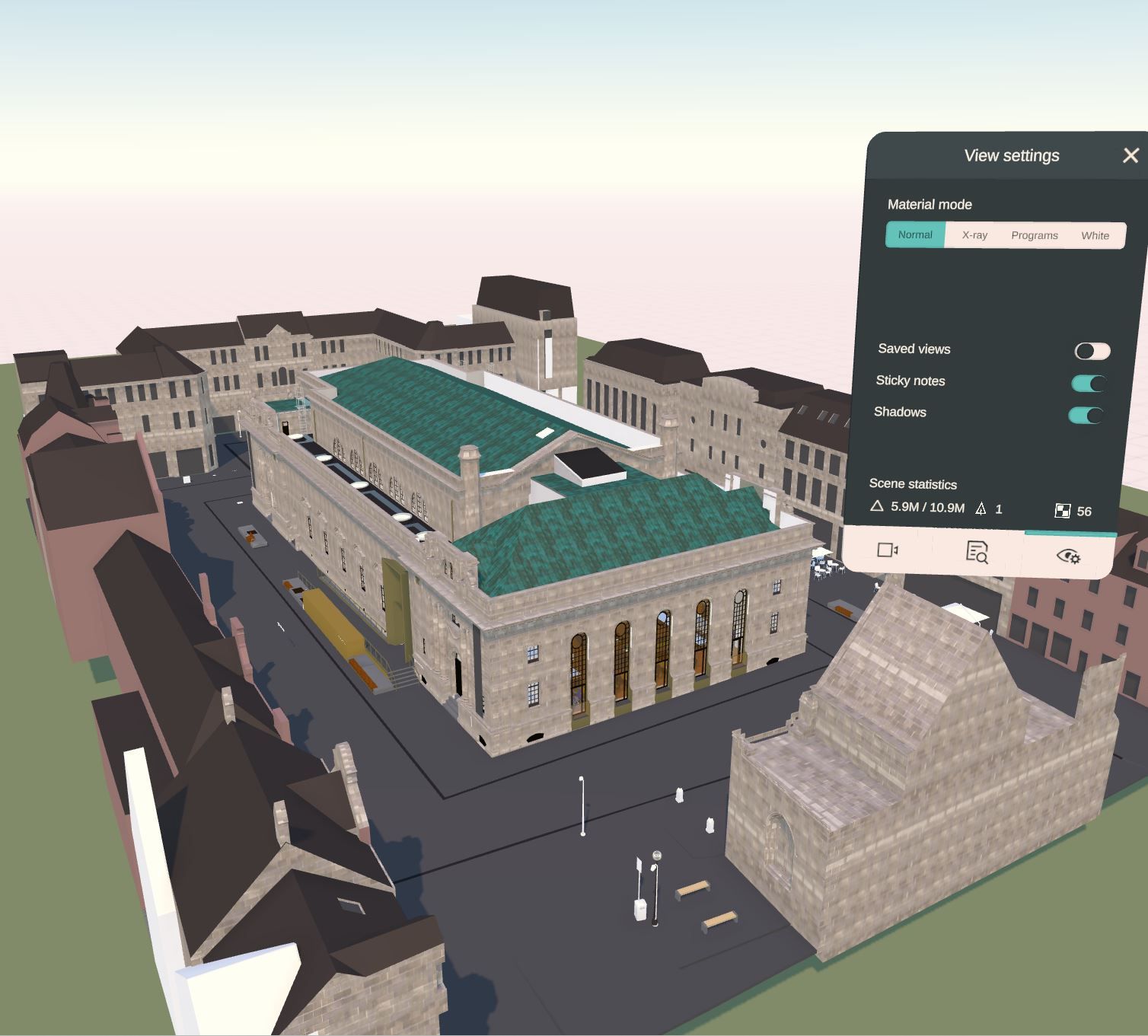 |
636K/10.9M on Quest 3 standalone | 5.9M/10.9M on Quest 3 in PC link mode |
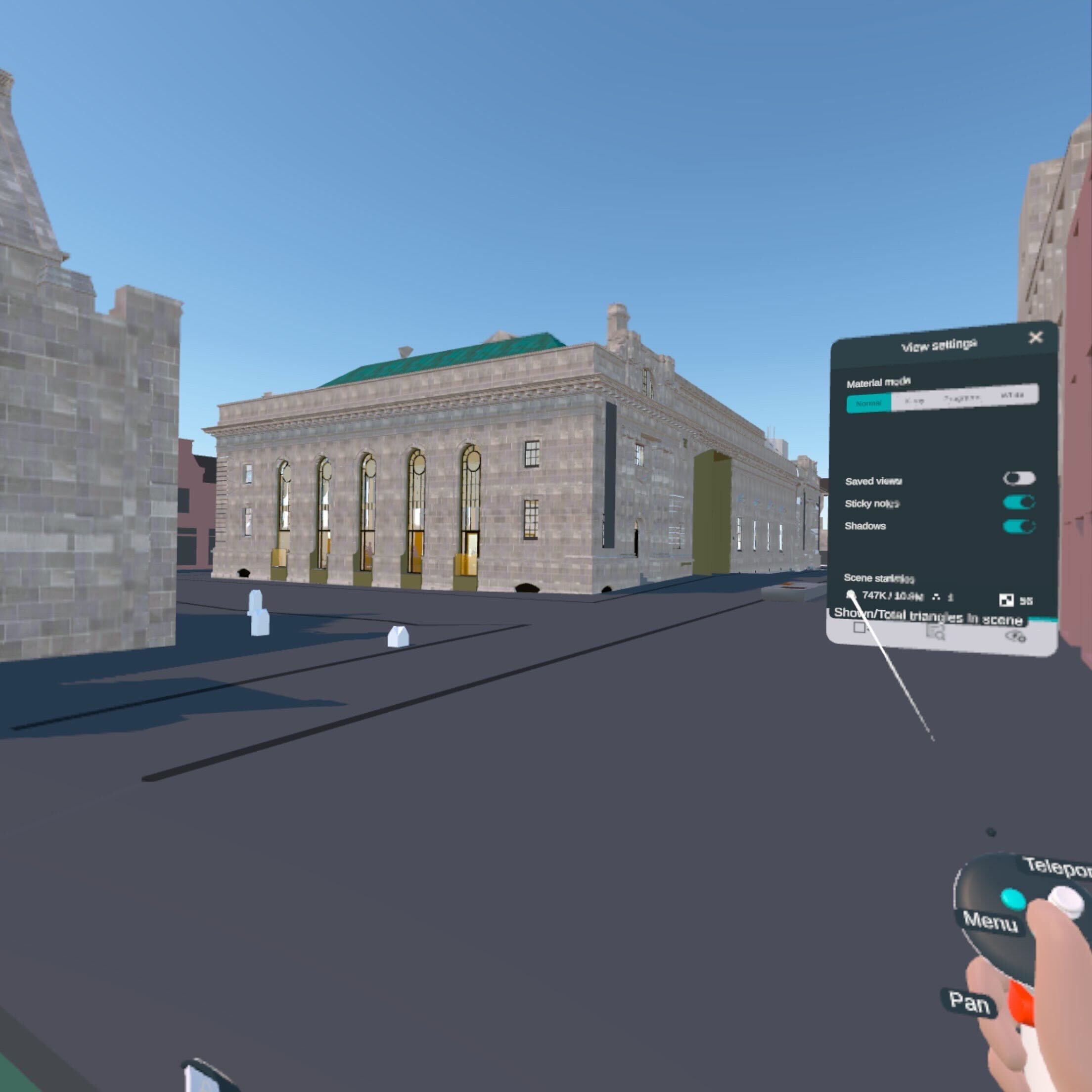 | 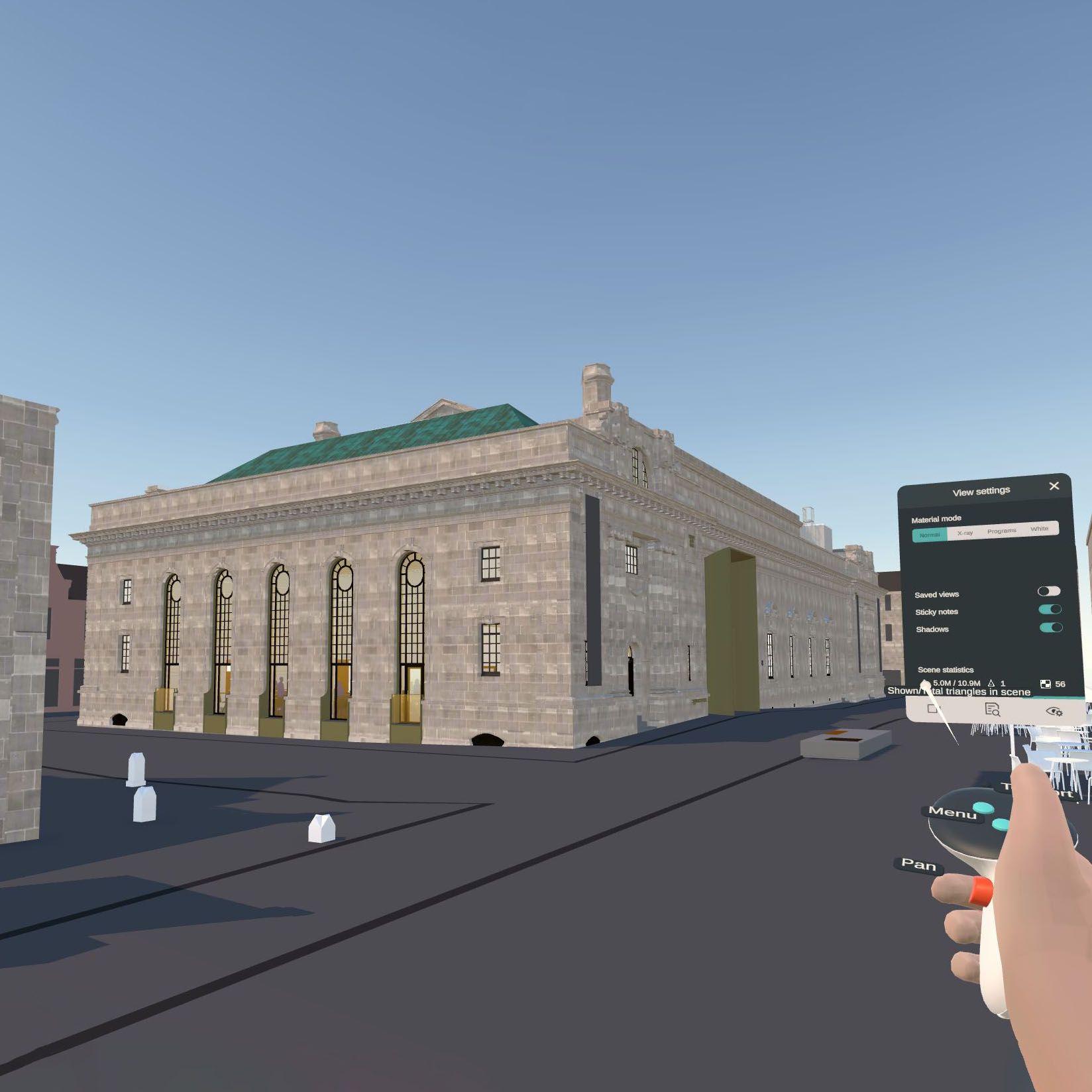 |
747K/10.9M on Quest 3 standalone | 5.0M/10.9M on Quest 3 in PC link mode |
Dynamic Occlusion
Arkio simplifies geometry based on your viewing distance using dynamic occlusion, reducing detail on parts of the model that are occluded by other geometry. This way, details closer to the user can be maintained, while objects that are obstructed have reduced detail.
When working with devices with limited performance and models with dense triangles, this can result in artifacts. Especially when your model has complex overlaps, parts of it can appear less detailed from certain viewpoints.
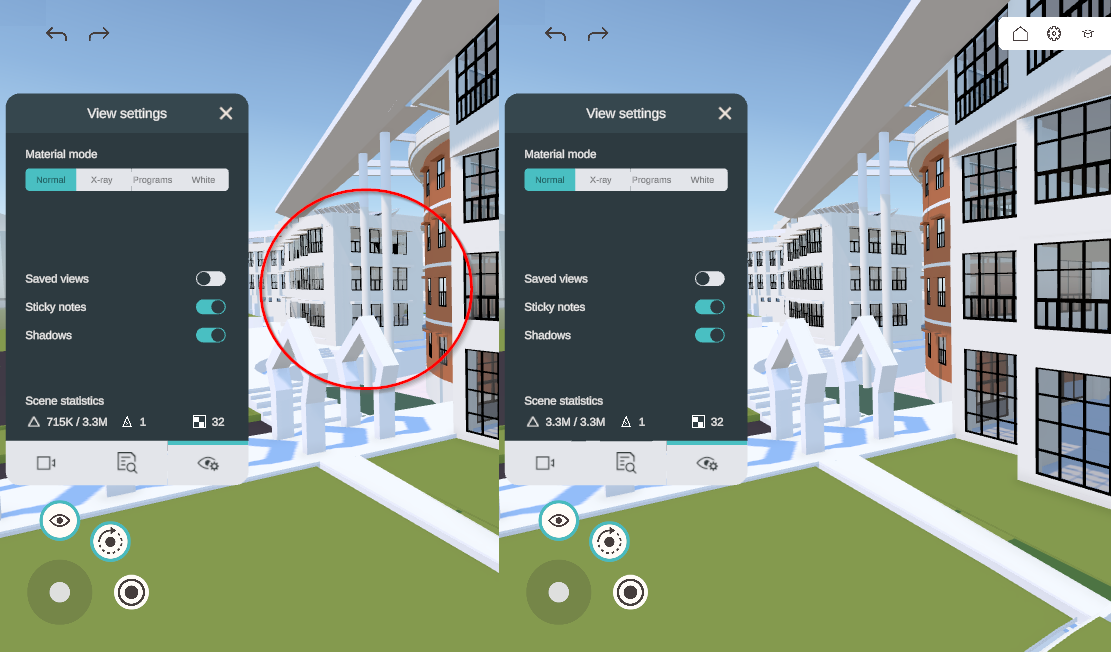
To prevent these low-detail areas from showing, you can reduce the triangle geometry in your exports, freeing up more render budget for the important details in your design. The easiest way to do this is to use Arkio’s Revit and Rhino plugins and select a lower level of detail during export. This page contains additional tips for optimizing your model for less powerful devices.
If you regularly experience artifacts, please contact us at support@arkio.is. We'd love to learn more about your geometry to improve Arkio's HLOD and Dynamic Occlusion systems.
Was this helpful?
Still need help? Ask the team