Prepare models with movable objects in Arkio
Written By Johan Hanegraaf
Last updated 8 months ago
Models exported from Archicad, Revit, SketchUp, and Rhino can contain thousands of objects, which can be too complex for a mobile device to render effectively. When loading models into Arkio, we combine all geometry into a single object to enhance performance and support large models.
If you want some of your CAD/BIM instances to be movable individually in Arkio, additional preparation steps are needed to organize them in your model. We are working to make this process easier in the upcoming updates of our Arkio plugins. Until then, you can use these manual steps to prepare movable objects from your modeling tools
From Revit via exported 3D views
You can best prepare movable objects from your Revit projects for Arkio by saving them as filtered 3D views that contain the objects you want to load and control individually in Arkio.
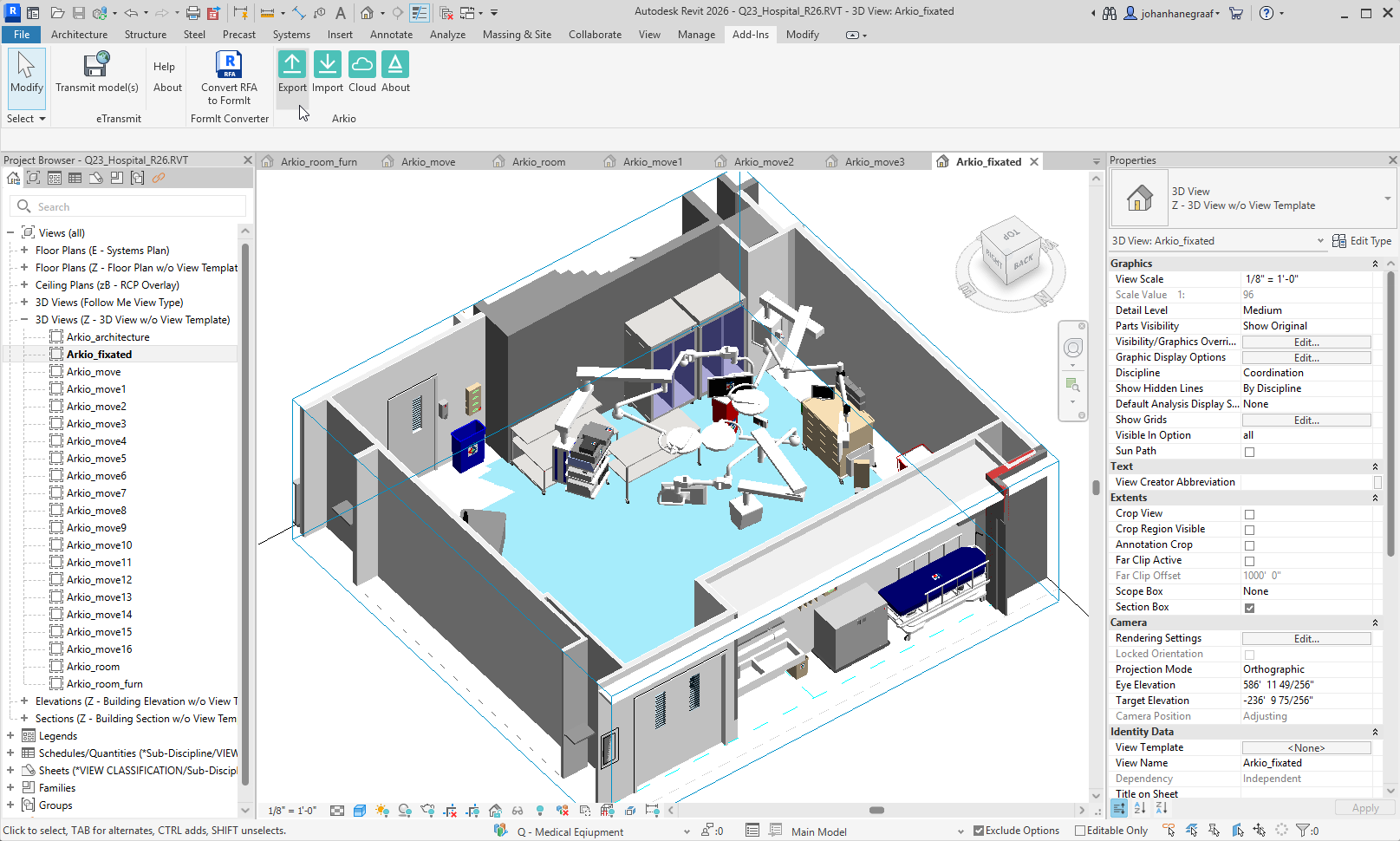
Step 1 - Prepare fixed objects 3D view
Objects that don't need to move in Arkio can all be combined in one single 3D view to be exported in one go to Arkio. This 3D view filtering can be done by creating a section box around the space you want to export, then filtering out the individual objects or categories you want to move.
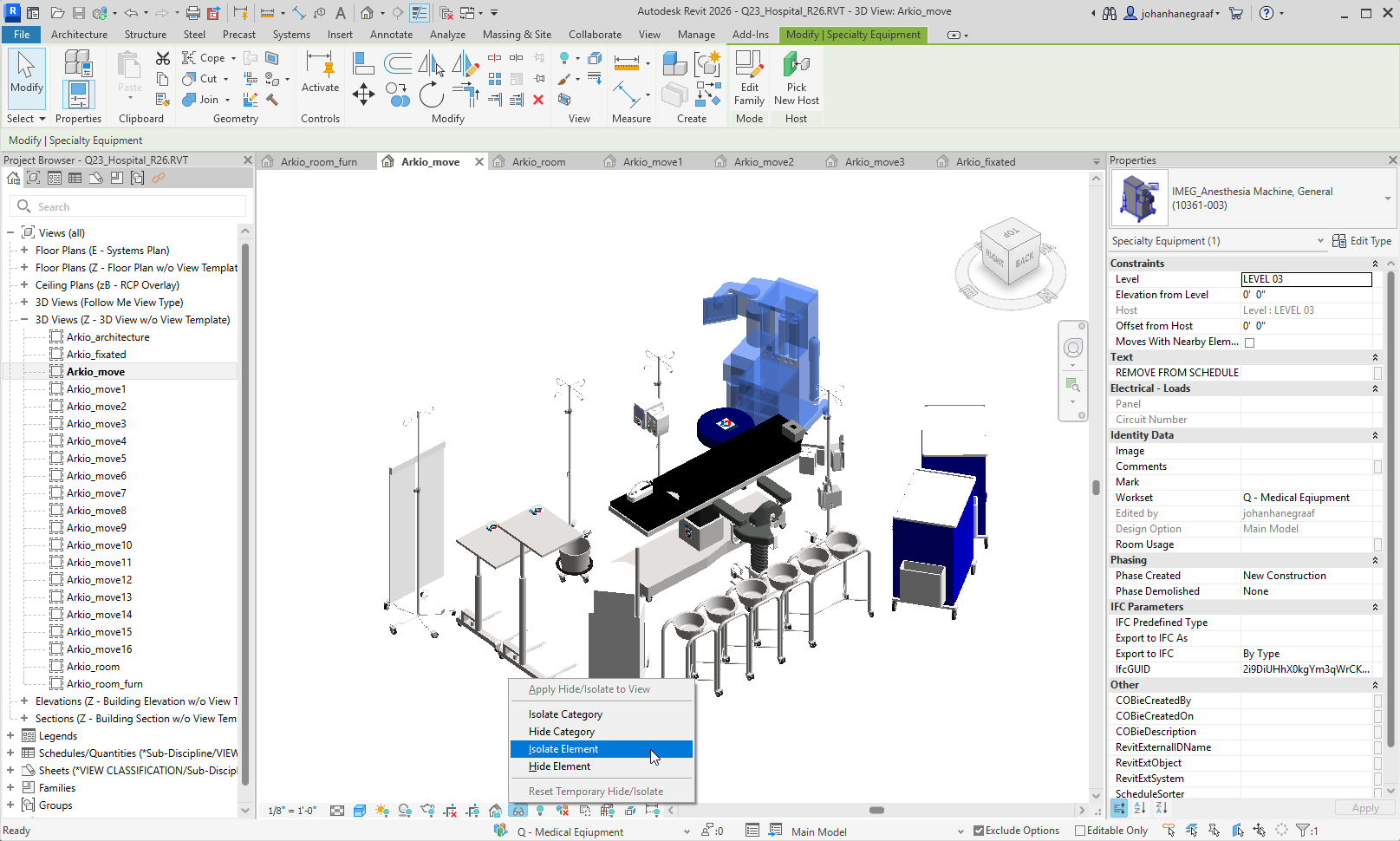
Step 2 - Prepare the movable objects in separate 3D views
Objects that need to move individually in Arkio can be separated in a single 3D view. You can first make a master 3D view with all your movable objects visible in your section box, and then make a number of duplicates of this view where you can Hide-Isolate the individual objects belonging together (Shortcut HI) and then apply that temporary hide to the view.
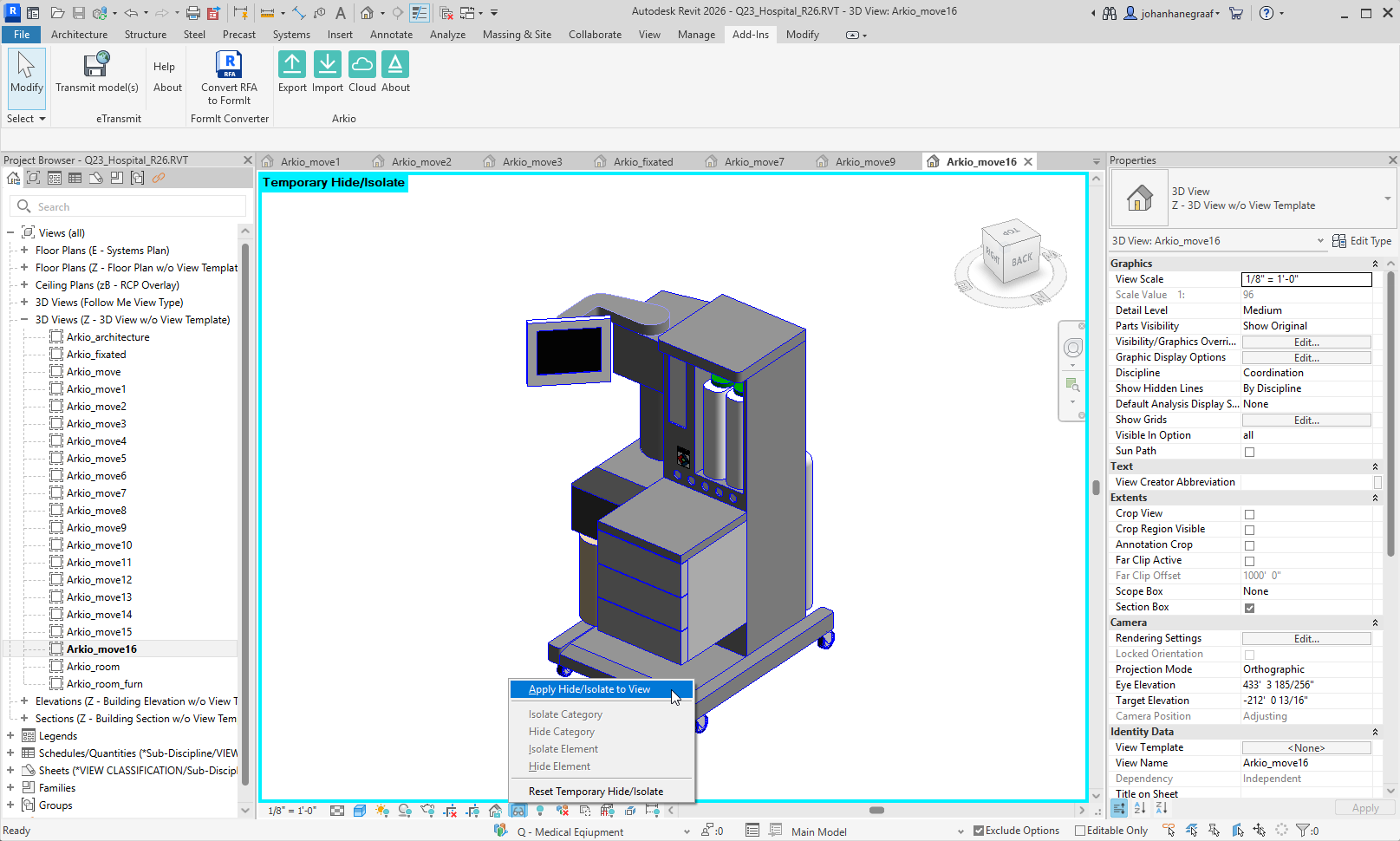
Step 3 - export all your 3D views to Arkio using the plugin
This will load your files into Arkio as individual 3D files, which can then be placed in your Arkio scene. To save yourself from creating 3D views and exports, you can skip exporting copies as separate views and copy these files manually in Arkio.
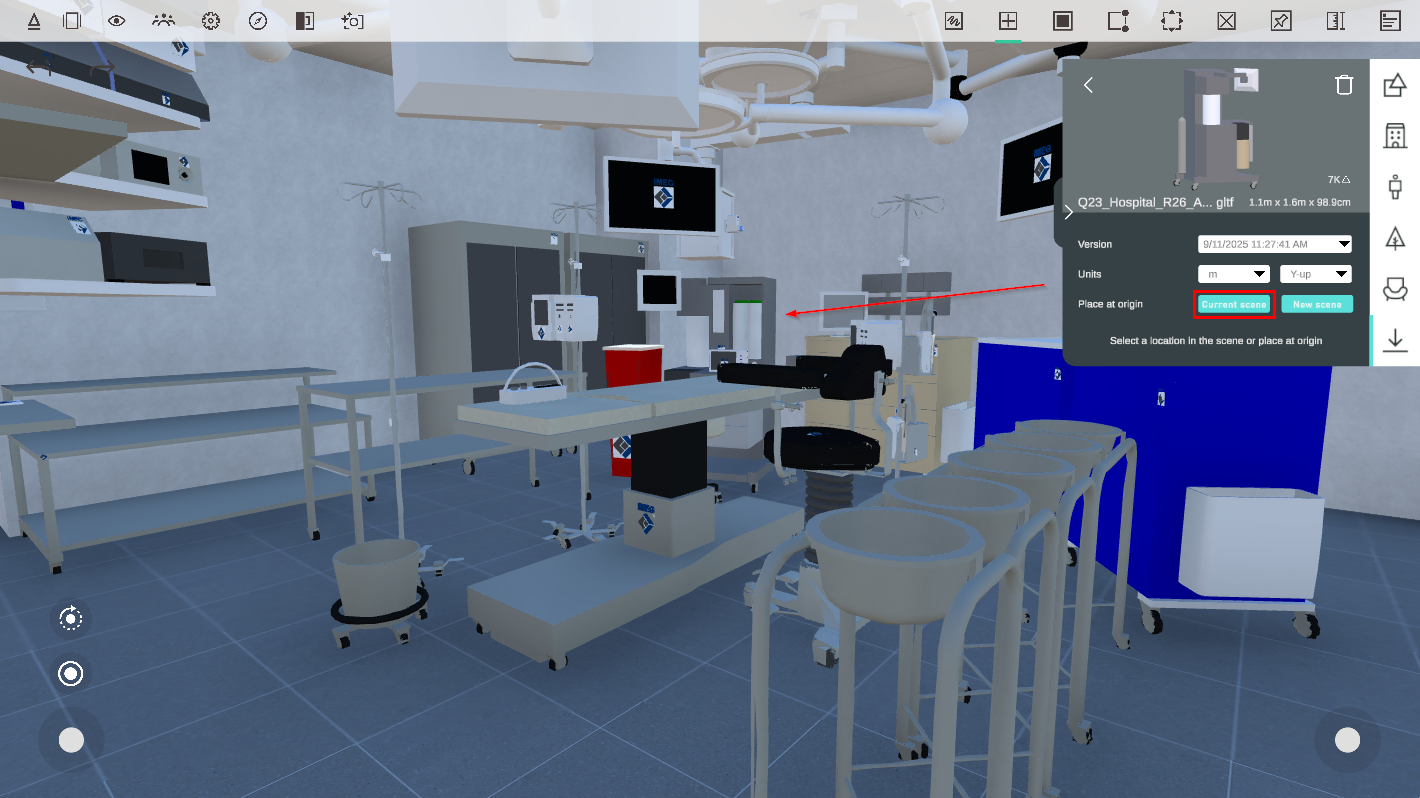
Step 4 - Place the exported Revit families in Arkio at the current scene origin
The final step loads the instances as individual objects to Arkio on the same coordinates. Here you can unpin/pin, move, copy, or apply other Arkio edit operations to your geometry. You can host a meeting with your VR headset or other devices to share your scene and work on these objects together.
From SketchUp, Rhino and other tools
Step 1 - Prepare the source file
Depending on your source software, make layers/filtering in the file for the objects that you want to move individually in Arkio. (e.g., some pieces of furniture that you want to move in a SketchUp file are assigned to the "Movable" layer)
Keep the number of movable objects below 200 to avoid affecting Quest performance.
You can clean things in SketchUp and put components together in one component if you, e.g., want to combine assets that belong together (like a desk, chair and PC)
You can now turn off the movable "Furniture" layers and make an "Architecture" export of SketchUp to Arkio using our plugin.
Step 2 - Prepare the movable file
Saved a special version of that file “Furniture_01” as that only contains the movable objects
Delete all the fixed architectural geometry that has already been exported in the previous step, and save the file
Make an export for one furniture piece
Rename the file to “Furniture_02”)
Make an export for one furniture piece
Repeat these steps for all the objects you want to move individualy
Step 3 - Load the files in Arkio
Place the SketchUp-exported "Architecture" file, pinned to the origin, in a new scene.
Place the "Furniture" files in the same scene and at the same origin.
The resulting Arkio scene should now have one larger, non-movable model from SketchUp and the individually placed, loose elements, all loaded in the correct place and scale.
Was this helpful?
Still need help? Ask the team