Windows deployments of Arkio
Written By Johan Hanegraaf
Last updated 5 months ago
Installation instructions
Arkio can be deployed to multiple workstations or virtual machines using our normal Windows MSI installer, available on our website.
System administrators can use deployment software such as PDQ Deploy, along with our MSI installer, to customize the setup. A default quiet installation can be achieved with.
msiexec.exe /i \\cd-pdqdeploy\c$\YOURPATH\Arkio_vXXX.msi /qn DEPLOY=1 REVIT=1A deployment installation will disable Arkio’s auto-updater, allowing you to control version rollouts in your organization. Optional features can be added using the command line. Arkio’s plugins will not be included by default in a deployment install. Adding the following commands will also include the required Arkio plugins:
REVIT=1 RHINO=1 SKETCHUP=1 ARCHICAD=1 NAVISWORKS=1Predefined configurations can be added to deployment devices to set runtime details for Arkio, such as the license. You can download and edit a simple Arkio.config file to add your Arkio floating license details
{ "ActivateLicenseKey":"xxxx-xxxx-xxxx-xxxx" }This file can be placed at C:\Program Files (x86)\Arkio\Arkio_Data\StreamingAssets
At startup on deployed devices, if a config file is available, Arkio will attempt to assign that license to unlock the paid features. When users open Arkio on their devices for the first time. Arkio will generate the import/export folders at %userprofile%\Documents\Arkio. Arkio’s plugins should appear to users when they open their CAD/BIM applications after the installation.
Testing the installation
You can confirm that Arkio is installed and working correctly using the following steps.
Open a Revit sample model
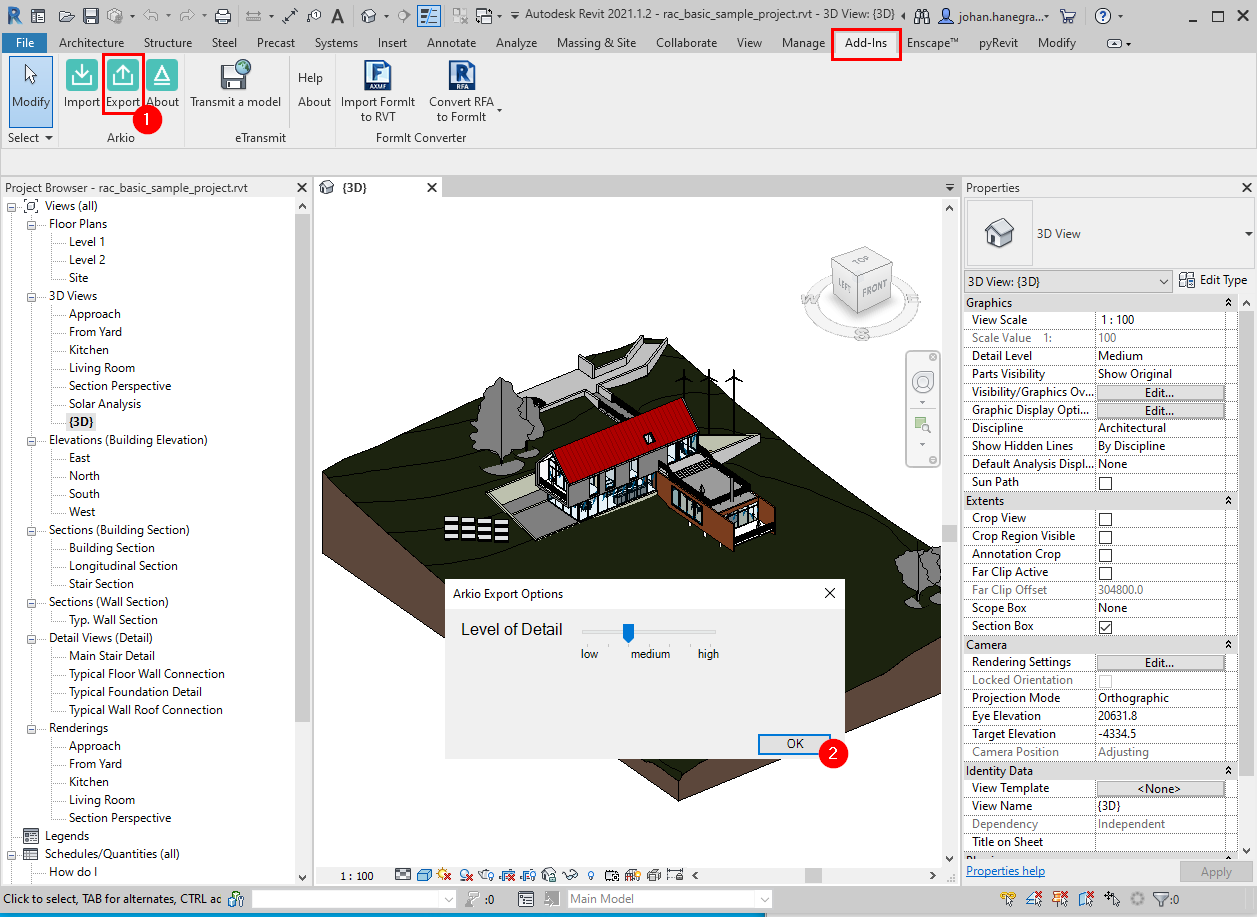
See the Arkio plugin in the Add-In ribbon
Export the Revit model from a 3D view.
Arkio should start and open the Import drawer after a successful export
You can place the model in the scene and share it with Arkio on your mobile device using a meeting, if you want to test whether those features work well in your organization's network
Revit
The Revit plugin can be found under Add-Ins>Arkio.
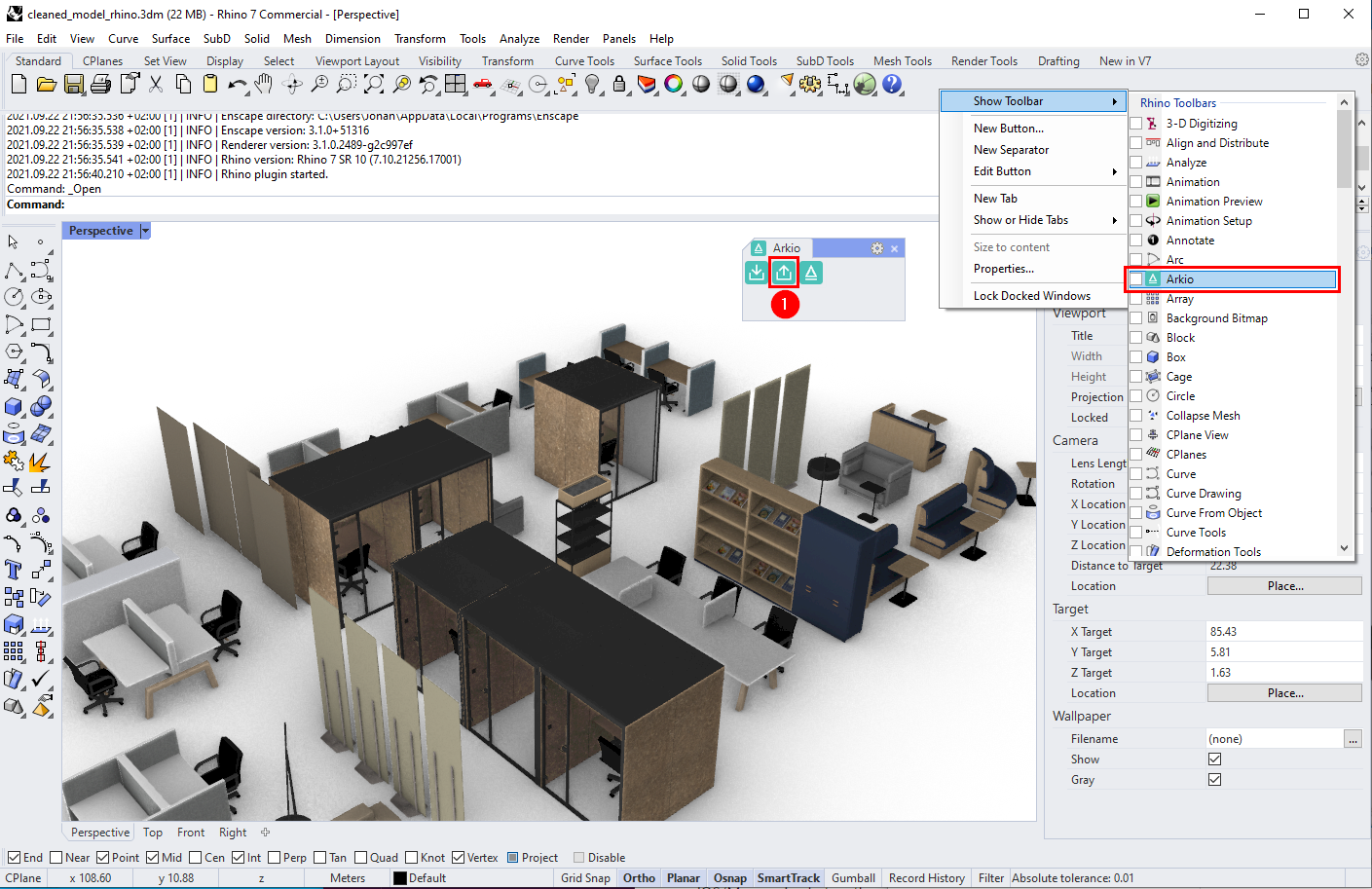
Rhino
The Rhino plugin can be found in the Arkio toolbar
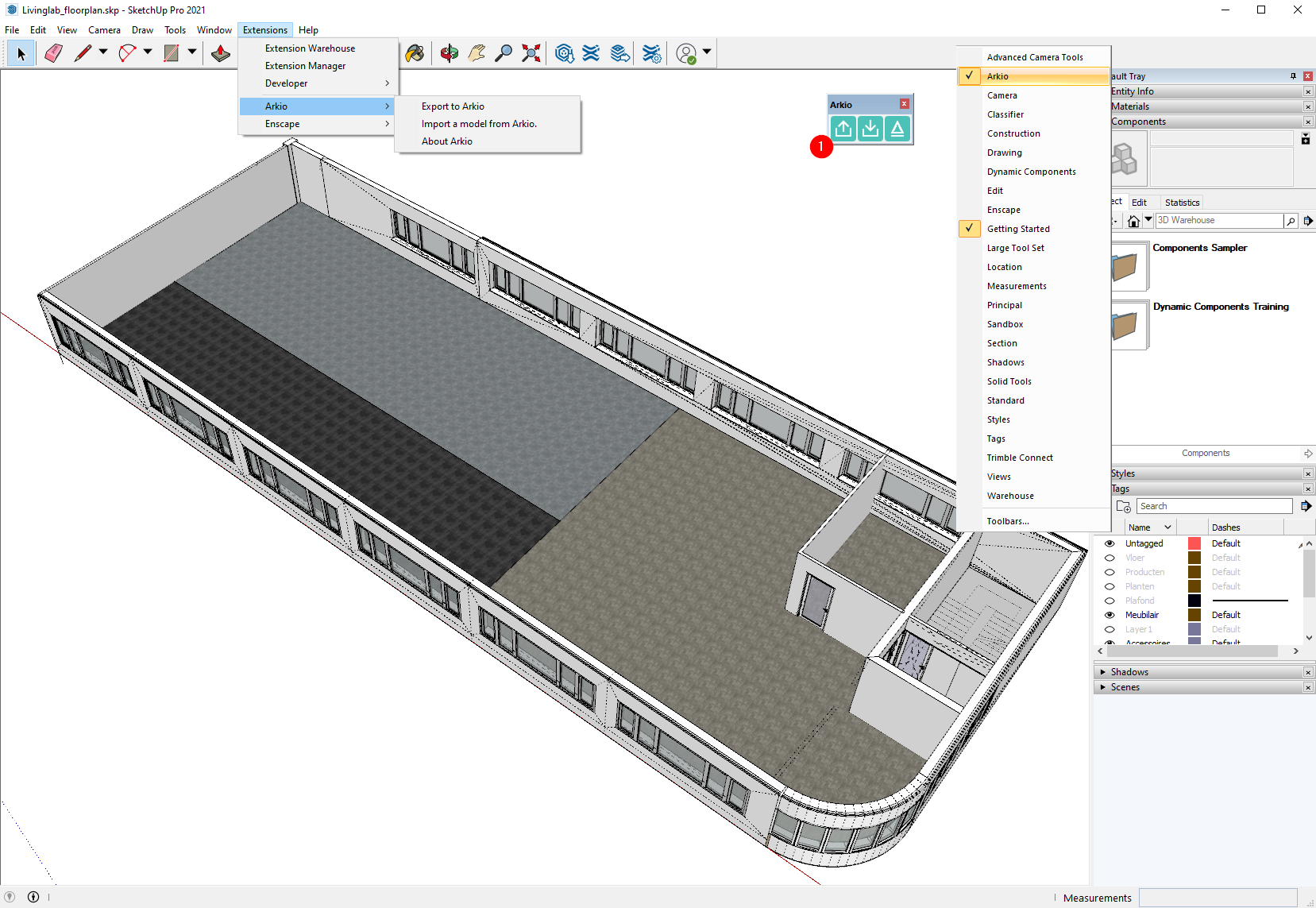
SketchUp
The SketchUp plugin can be found in the toolbar by right-clicking and adding the Arkio tab
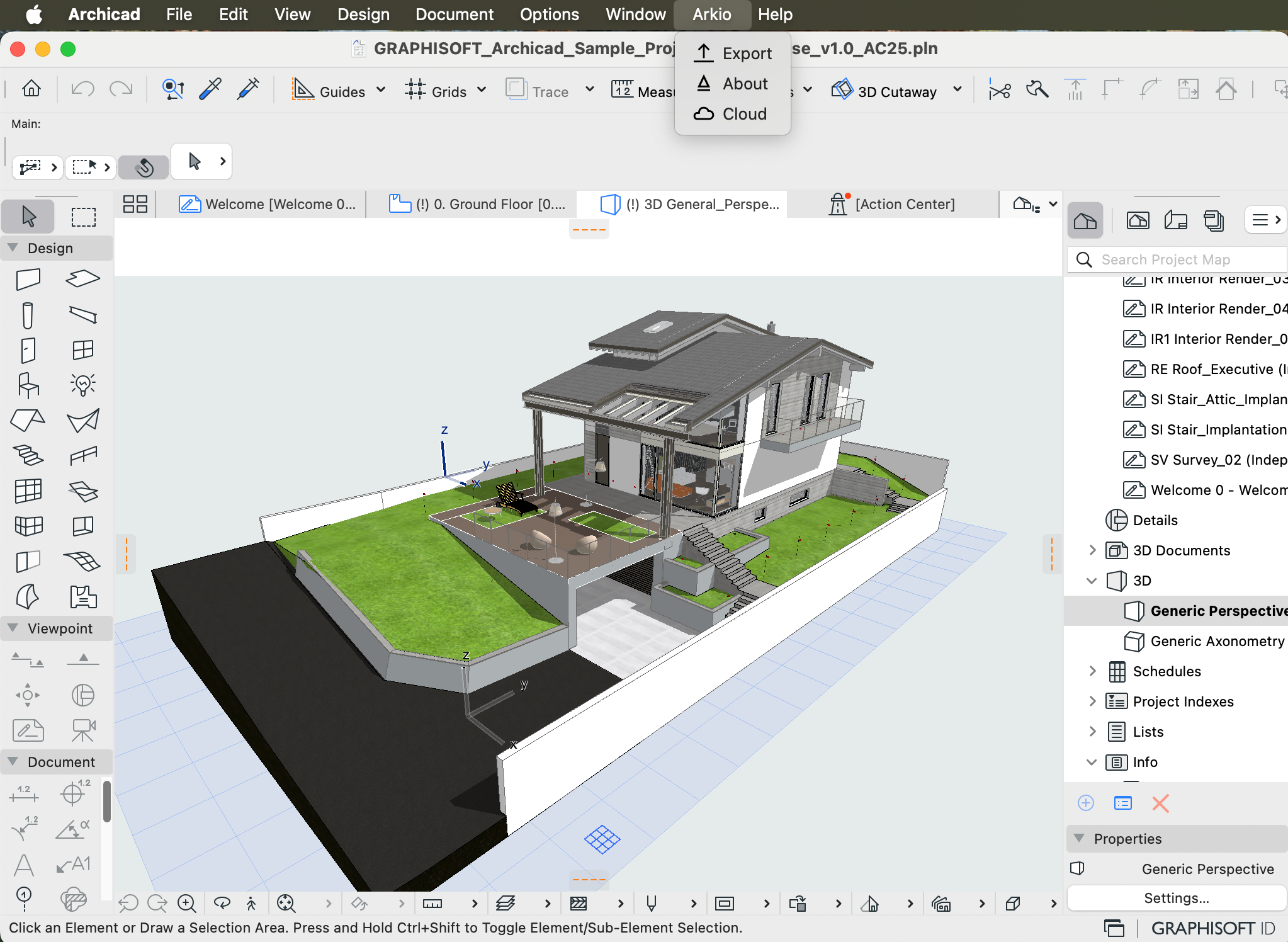
Archicad
The Archicad plugin is available in the main Arkio tab.
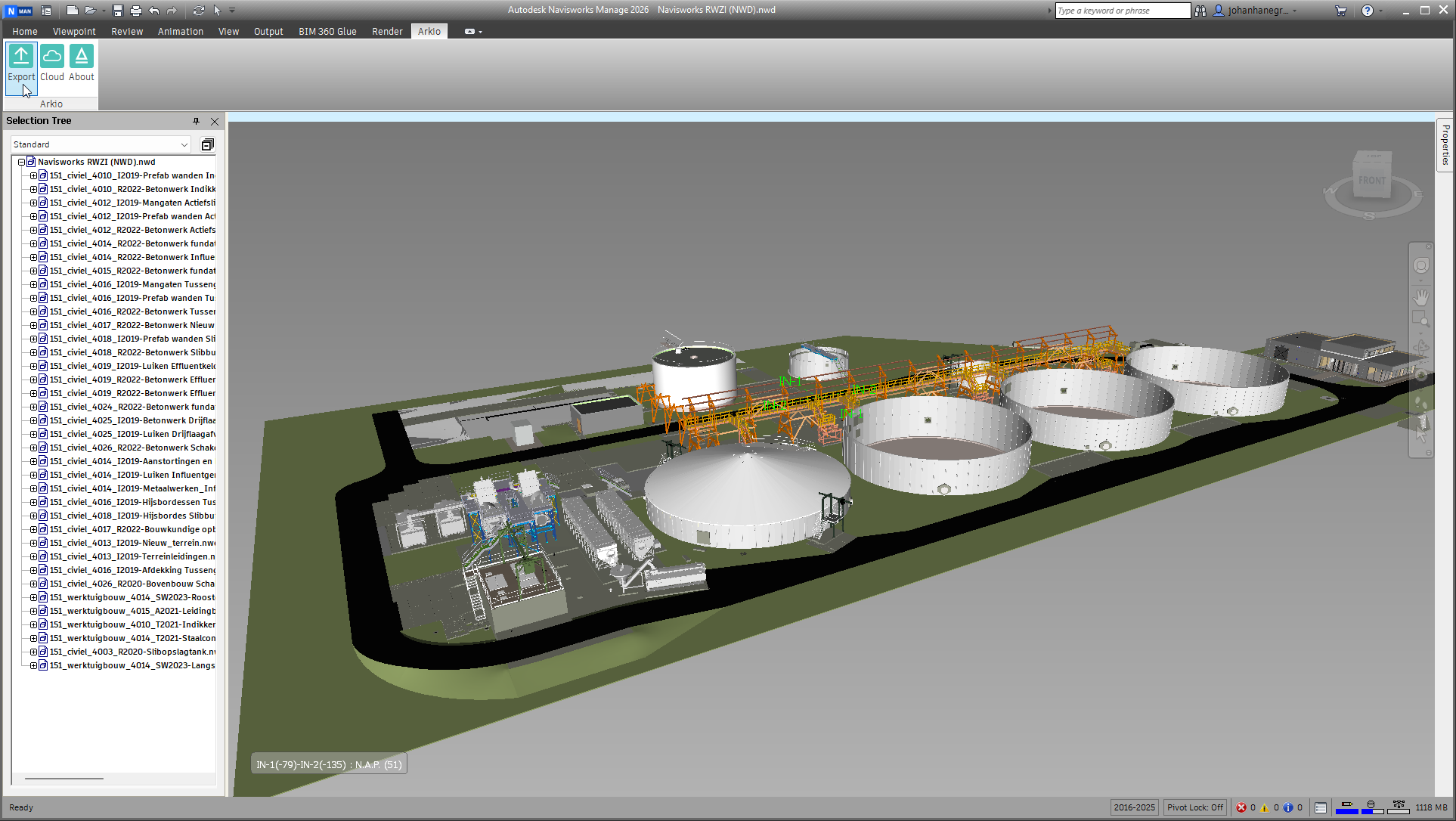
Navisworks
The Navisworks plugin is available in the main tool ribbon
Was this helpful?
Still need help? Ask the team