Program area studies
Written By Johan Hanegraaf
Last updated 8 months ago
Switching to Program mode requires an Arkio Pro license. You can learn more about our paid features on our website and start a free trial within Arkio to try this.
To gain insights into the areas and compare your progress against the design brief, Arkio can display the total projected floor area of your modeled volumes in the scene. Alternatively, you can import your own design brief to organize the building program, allowing you to work with these volumes as if they were a physical model that can be exported to our supported design tools.
Switching to program mode
The program mode can be activated from the paint tool, where you can switch between render modes using the View settings shortcut to assign program data to your volumes. Switching render modes changes your pain icon in the main menu, allowing you to see which mode is currently active. The window will let you model new programs using the create tool or apply new program categories to existing shapes using the paint tool.
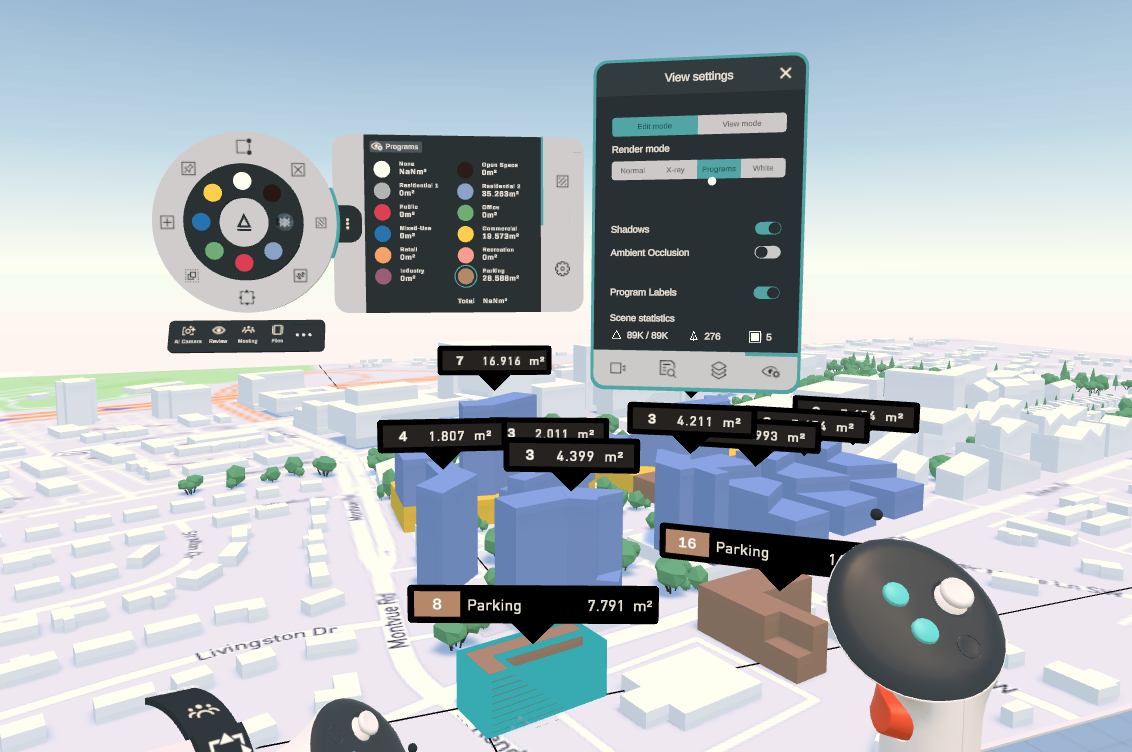
While the Program mode is active, all your Arkio volumes in the scene will default to none (white), and you can choose any of the predefined categories in your scene. You can also load your own program categories and generate volumes into the scene using a custom CSV file.
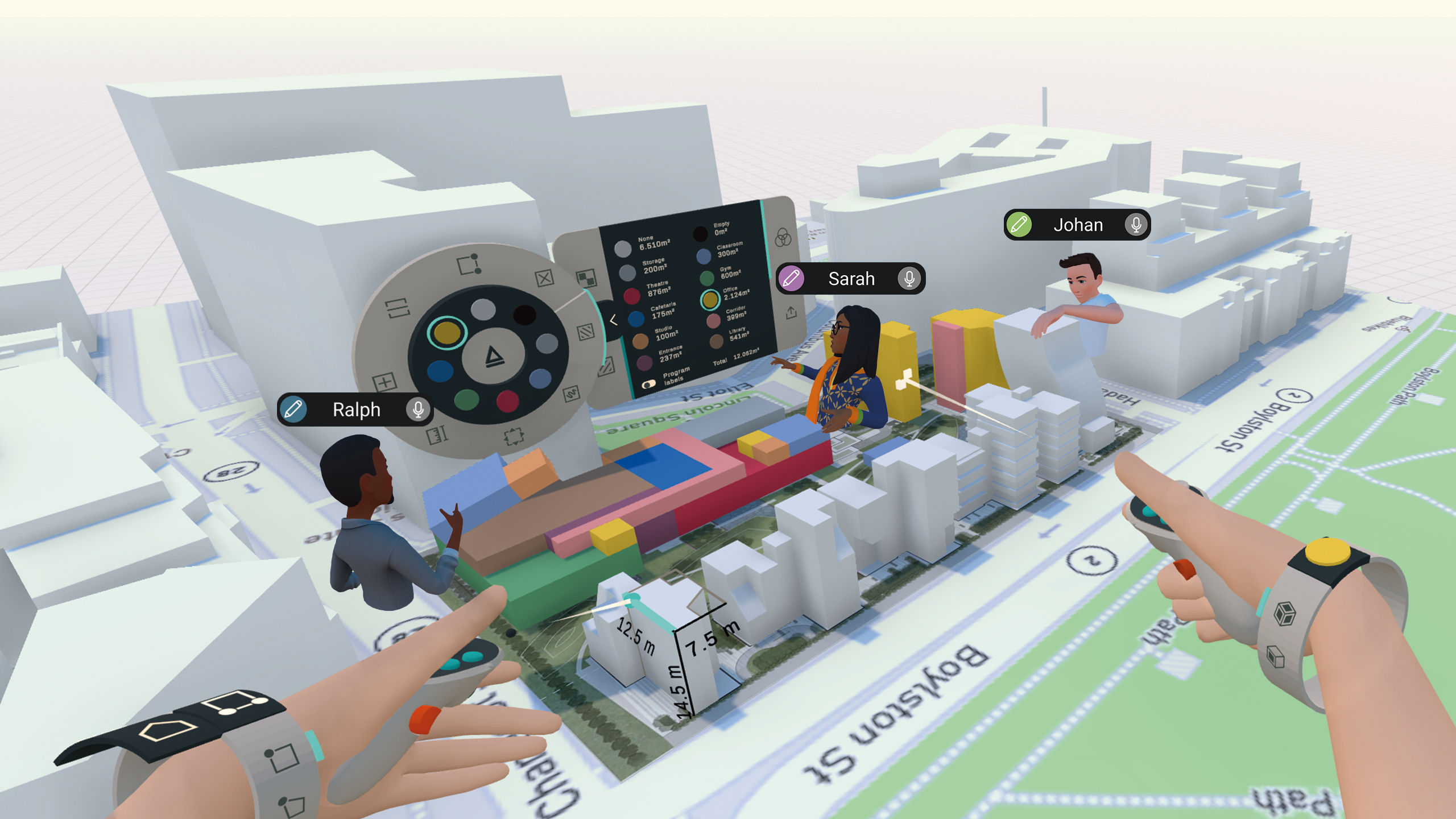
All shapes created or painted with a program material will display a label above them or in stacks of shapes. You can minimize individual labels in the scene by clicking on them.
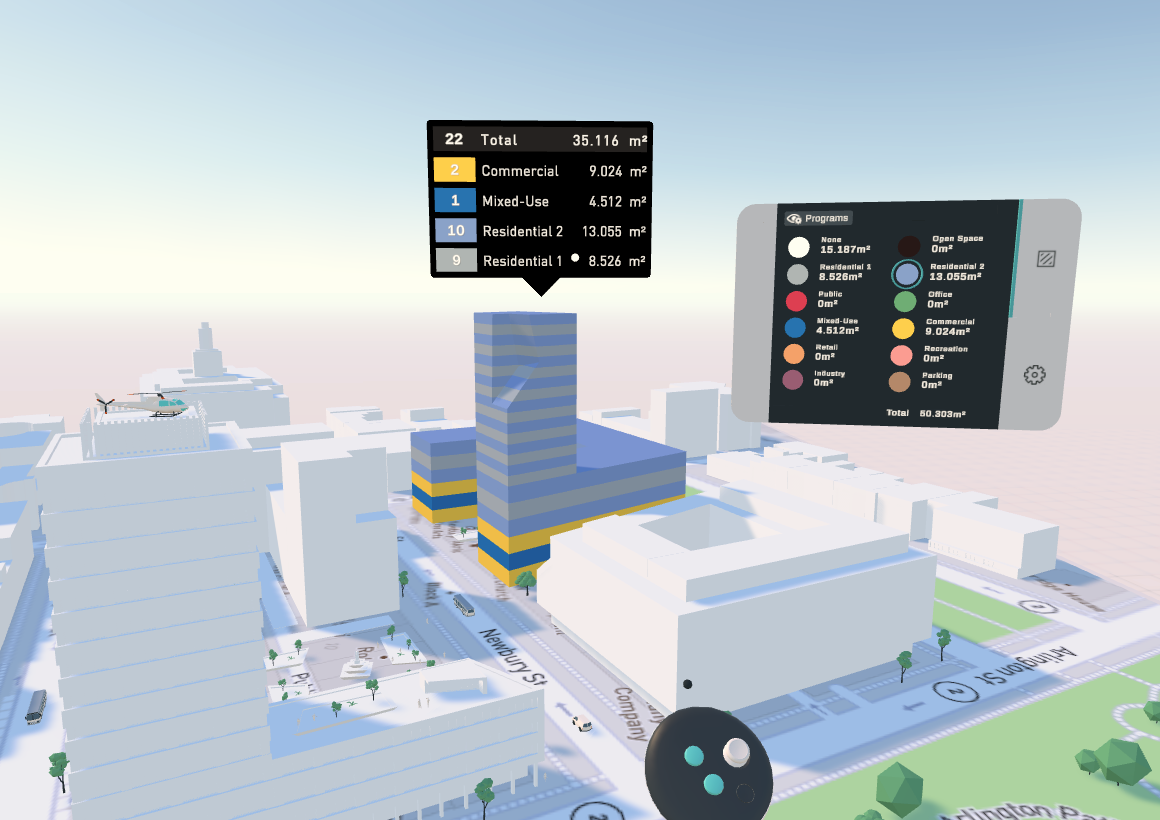
If the Move tool is active on one of the controllers, it will display the total area of the selection in the scene on top of the highest-volume object.
Importing your own program data
You can load custom program names for your project by placing a CSV file with the following format in your Documents\Arkio\Import\Programs folder
ProgramName; Example; Hospital; Kindergarten;You can also add additional columns for numeric values if you'd like to import volumes based on the area requirements for the project:
Program;Quantity;Area;Width;Length;Height Example;2;100;0,0;3 Example;4;60;0;0;3 Example;1;30;0;0;3 Hospital;6;1800;0;0;3 Kindergarten;3;0;20;40;3 Hotel;3;0;10;80;3The first column, ProgramName, names the programs to load (11 different colors supported)
Quantity defines the number of volumes you want.
Area is for the required area (in meters)
Width, Length, and Height define the required custom size of the program (in meters).
You can put multiple spaces under the same program to generate multiple sizes.
You can leave the Area column blank (or 0) if you like to use Width and Length values, or leave the Width and Length columns blank to get a square volume of the required Area.
An example CSV file can be downloaded here.
After you close your CSV file and place it in Documents\\Arkio\\Import\\Programs, you can open Arkio, switch to program mode, and use the import button under program settings to update the names of your programs in the scene. Arkio currently supports only one CSV file in this location, so moving an existing file might be needed.
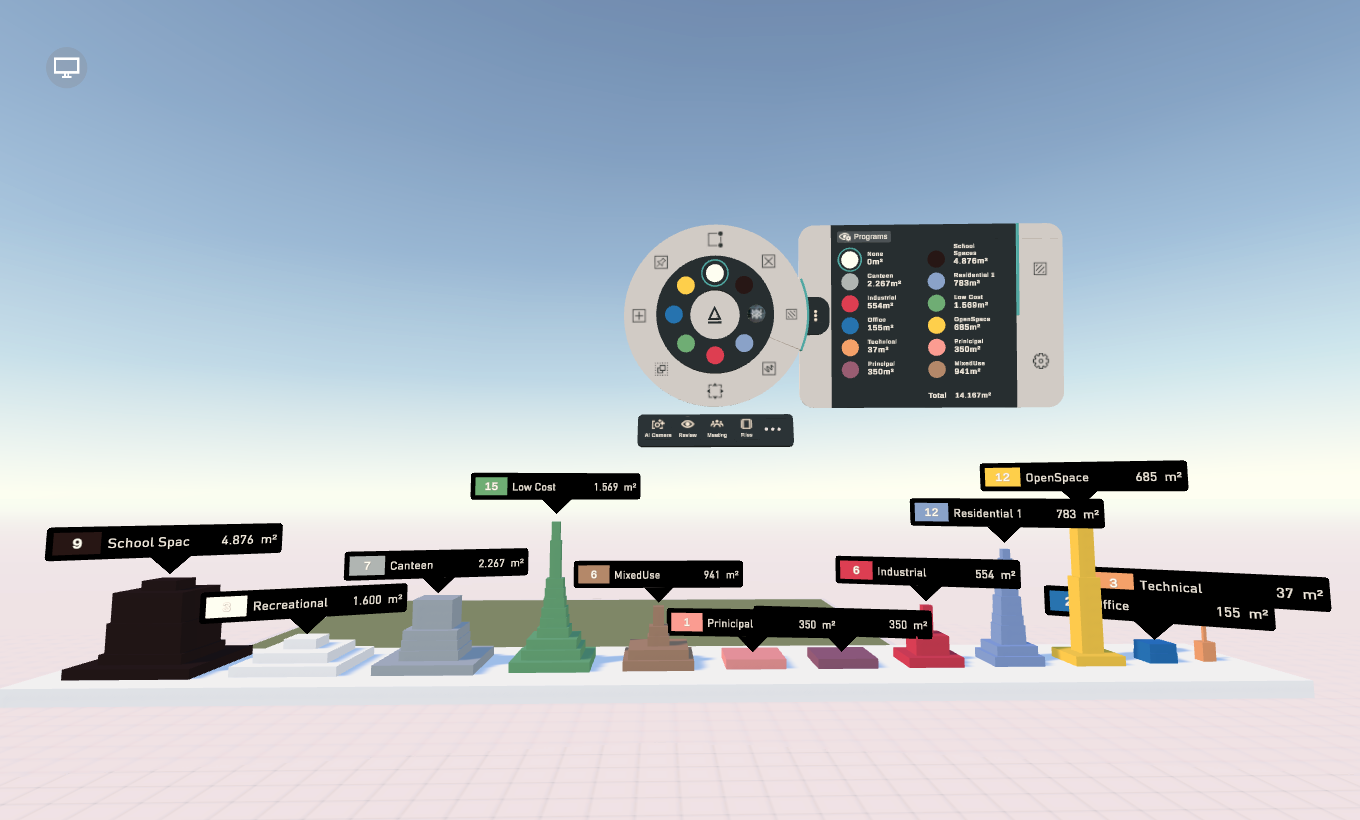
Once loaded, you'll see all your program shapes in front of the table, organized into stacks of your chosen categories. You can then move them to the worktable to arrange and glue your programs in place.
Export program data
When using the export button in the drawer, an overview of all the areas in your scene will be exported to
%userprofile%\Documents\Arkio\Export\Programs
This is also formatted as a CSV file, which provides the areas and quantities of all the volumes in your scene, ready to be loaded into your own database and spreadsheet software. Program data can also be imported into Revit using our plugin, allowing you to filter and sort your data using Revit schedules.
Was this helpful?
Still need help? Ask the team