Sections
Written By Johan Hanegraaf
Last updated 8 months ago
Using the Section tool requires a Plus license for Arkio. You can learn more about our paid features on our website and start a free trial within Arkio to try this.
The Section tool is in the tools drawer at the bottom of the main menu and on the Table UI in VR.
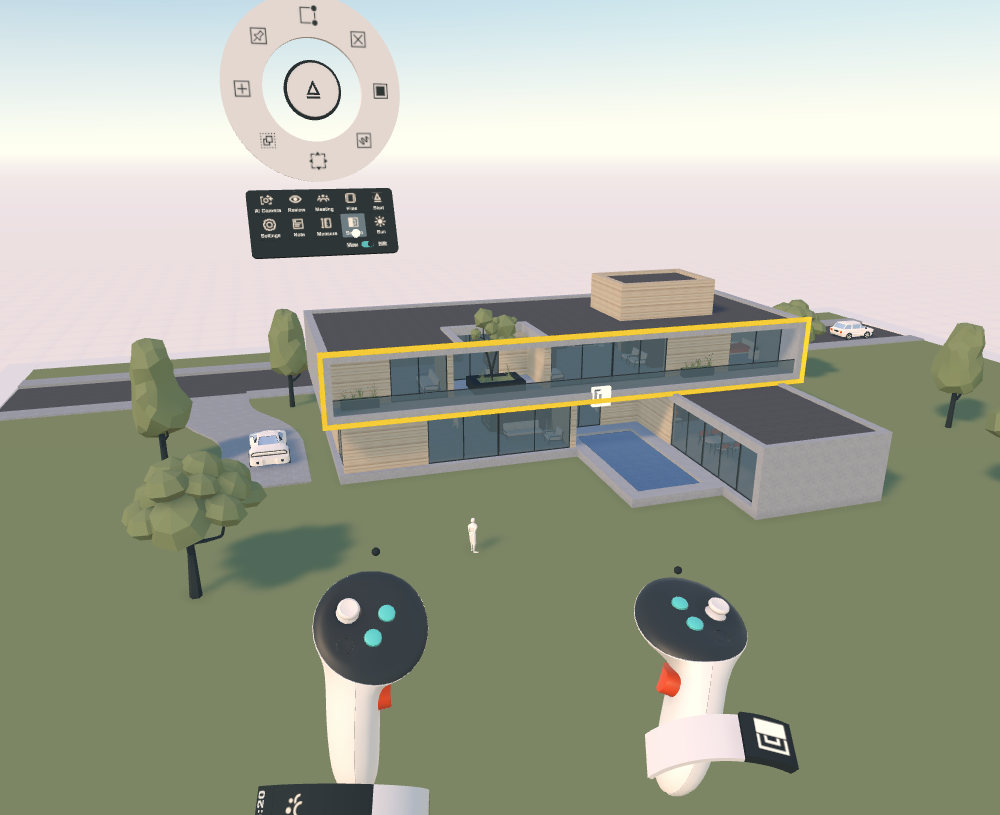 | 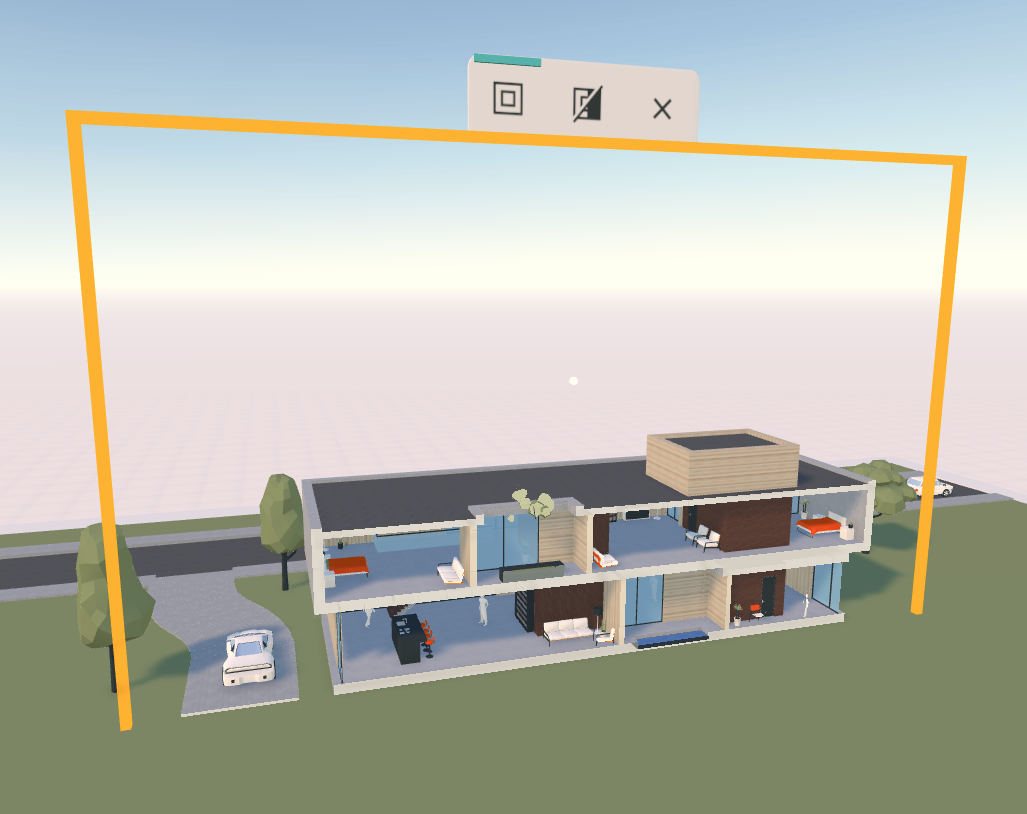 |
Section planes are created by highlighting the plane you want to orient the plane to and then pressing the plane inside to cut the geometry in that direction. This will show a yellow-highlighted section plane that can be further adjusted in depth when needed.
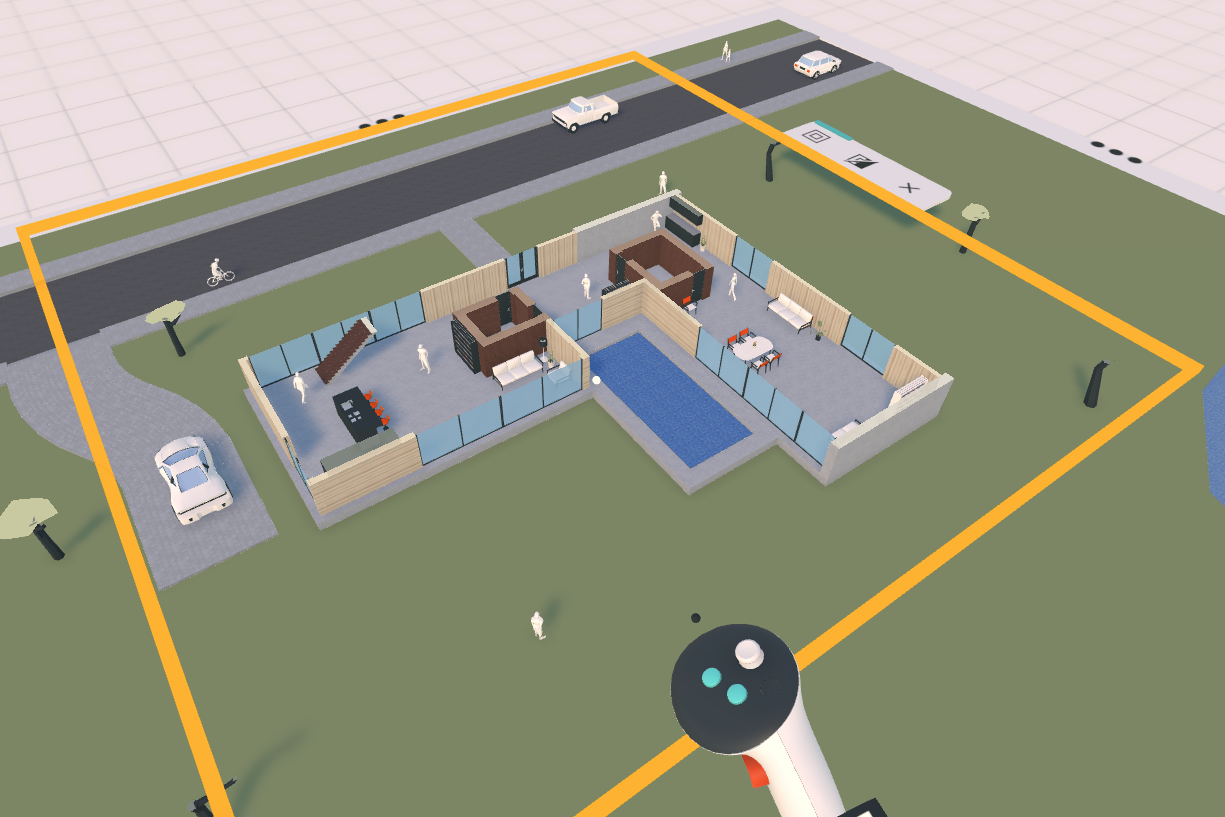
You can toggle the section plane on and off using the icons on the VR section plane. Switching to other tools while the section plane is still active keeps your designs sectioned, allowing you to work on the interiors of your designs as if they were a physical scale model of a floor plan or section. For non-VR devices, the section plane placement and adjustment work similarly, and you can control the section state by toggling the toggles in the bottom menu.
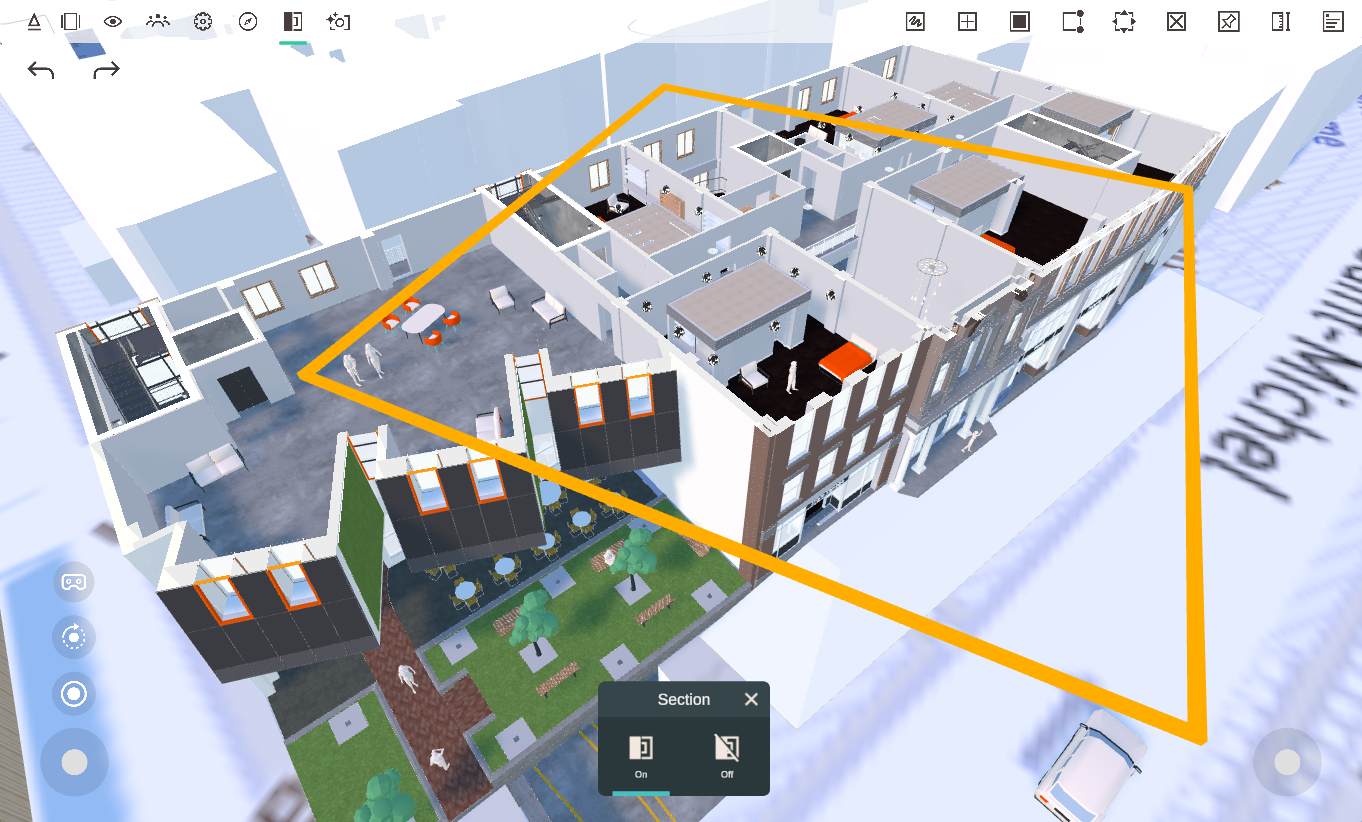
Imported models in Arkio can also be sectioned by moving the section plane through this type of geometry. For imported geometry, the section shader displays the cut plane of solid geometry as a solid backface material, bringing your sectioned projects to life.
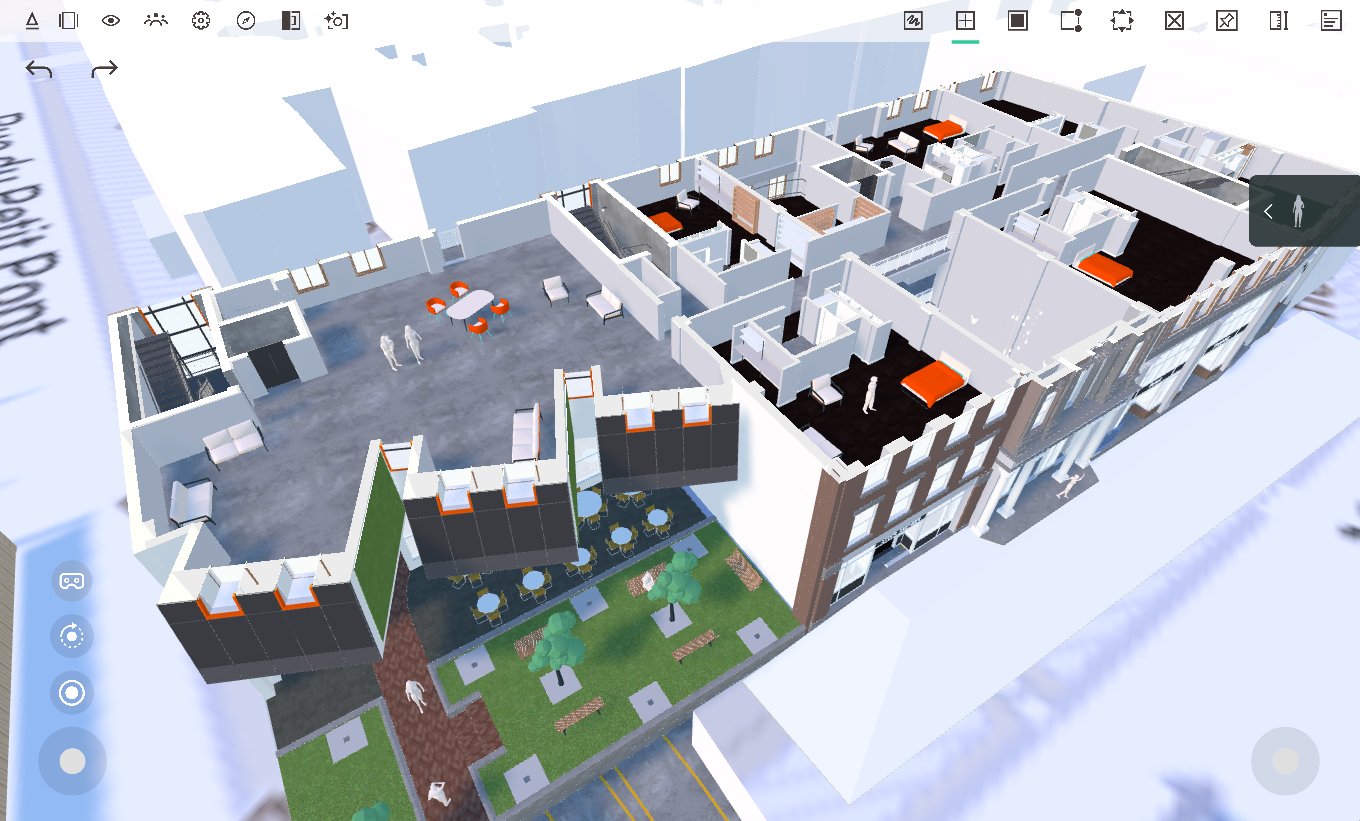
The section placement on non-VR devices works the same way; you first select the Section tool from the top-left ribbon. Click anywhere on the model to define the orientation of the section. And then move the section plane inward or upward from that orientation.
Clicking on another geometry, away from the current plane, while the section tool is still active will move the section plane to that new starting point. If you want to reposition the section to another plane, ensure that your laser/mouse is not blocked by the original section plane. Then, highlight and start a new normal orientation that can be adjusted in depth again.
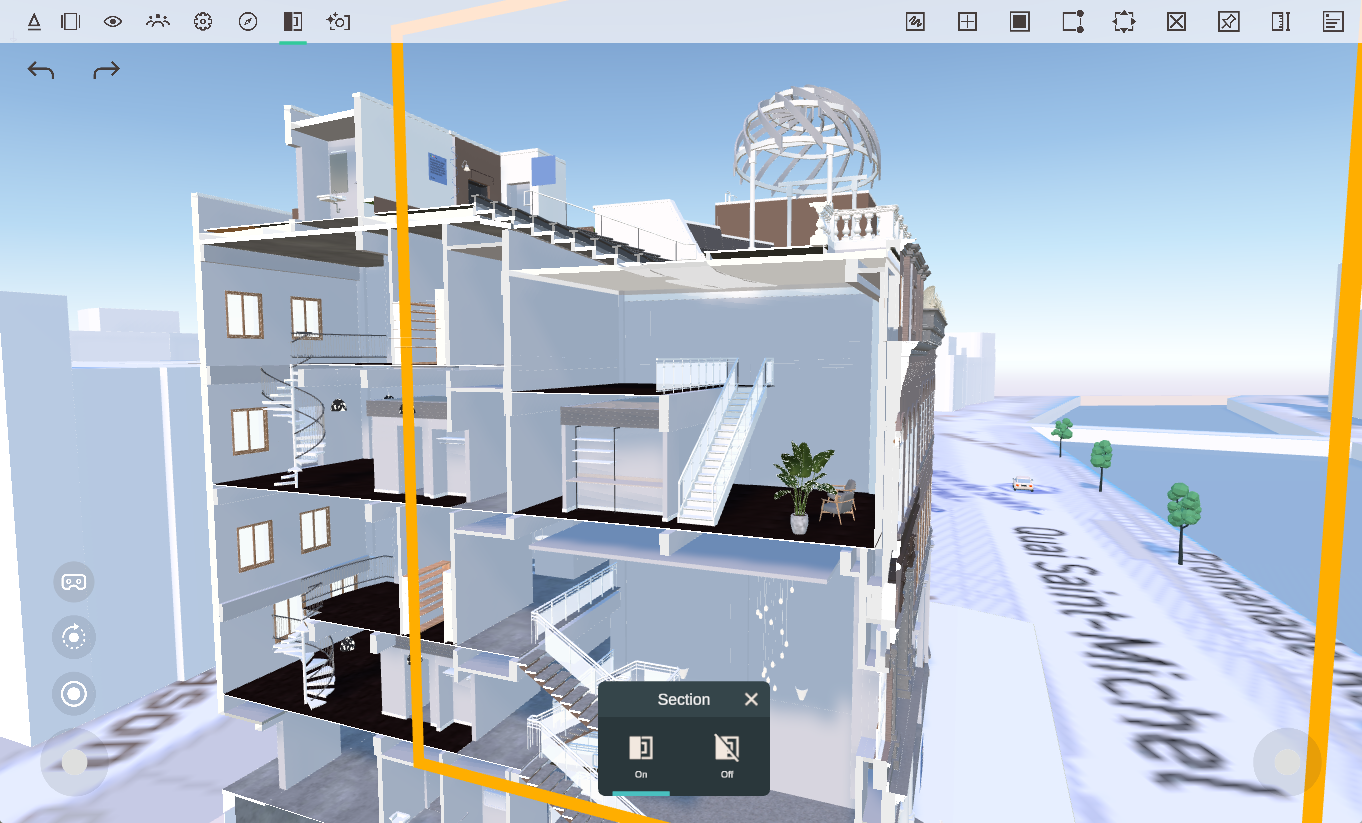
To disable your section, you can switch it off from the VR plane toggle or non-VR bottom settings and then select another Arkio tool or disable the section tool by selecting another tool or closing the current tool (cross icon or click the same tool icon again)
In VR, you can also interact with this section plane by hand by touching and picking up this plane to cut your models in real-time in any direction.
Was this helpful?
Still need help? Ask the team