Saved views
Written By Johan Hanegraaf
Last updated 8 months ago
You can save views in Arkio scenes to quickly hop between different views in the design and to guide others around your models. Views can be created and edited from VR, desktop, and mobile devices, and are shared in meetings for use by everyone.
Saved views for the current scene can be accessed from your Review panel, located in the top ribbon in the flat version or the bottom menu in the VR version of Arkio. With the Review panel open, you can view a list of all previously saved viewpoints for your scene, as well as an overview of all your placed Notes and Frames in the scene that can be filtered using the top buttons.
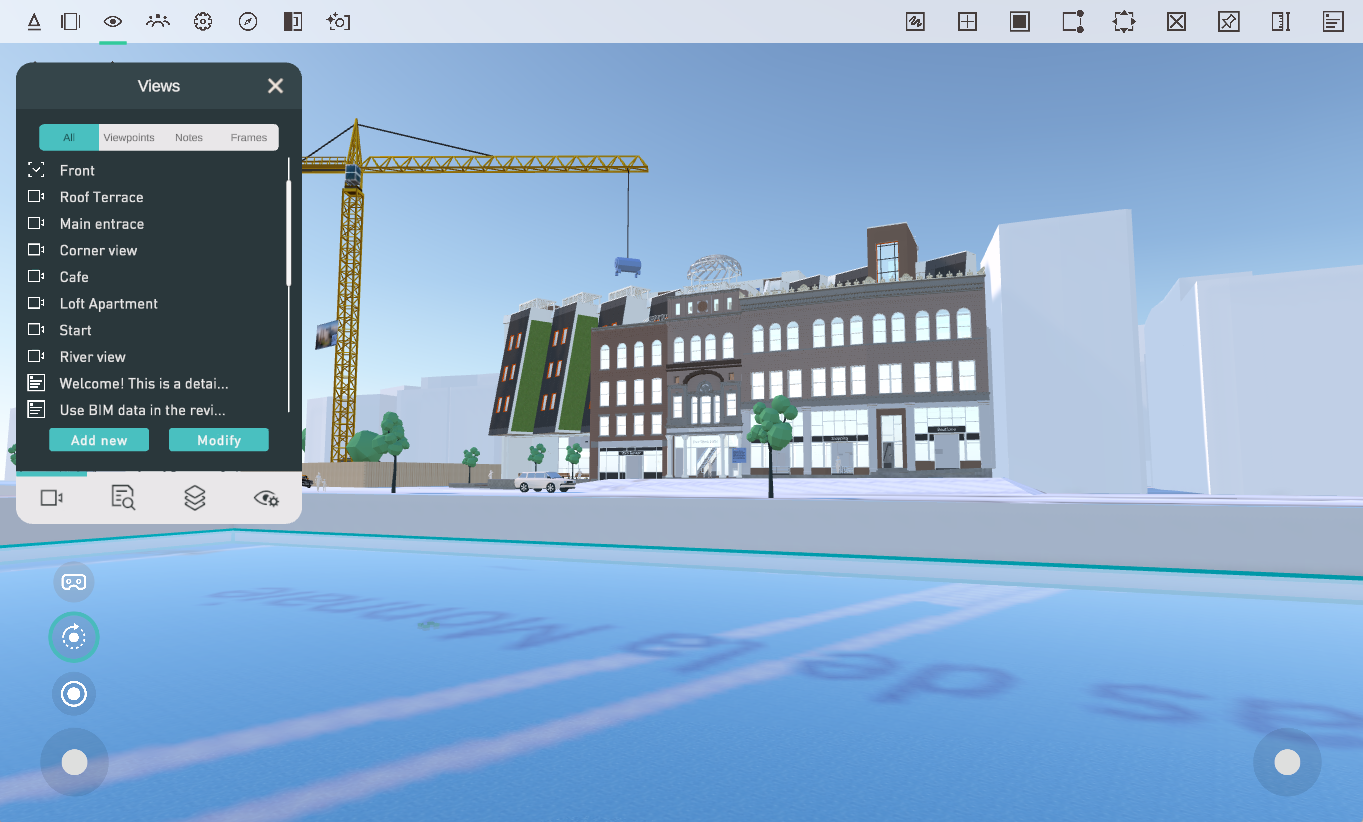
If you select "Add new", a camera will appear in your hand in VR, allowing you to position your new viewpoint. When the trigger is pressed, the view is created, and the viewpoint's default name can be modified or clicked to jump to this view.
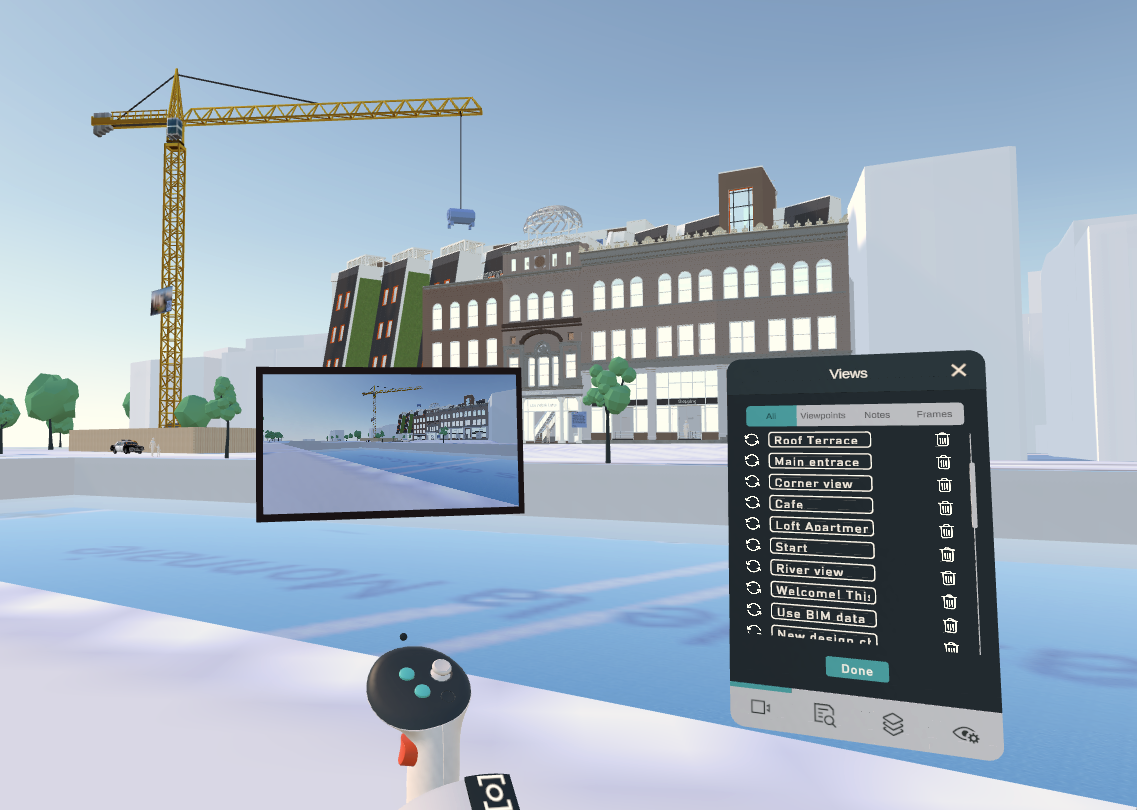
You can repeat these steps to add as many viewpoints as you like. You can delete and update existing views with a new location by using the Modify button and pressing the Update button next to the view name, or by clicking the delete icon located behind the view name. The view lists functions similarly in flat versions of Arkio. The main difference is that you don't need a VR handheld camera to frame your new or updated views, as your device already does so.
If you use a PC or mobile device to jump between views, your camera will be positioned in the original orientation and location of the saved viewpoint. When jumping to a view in VR, your view will be oriented to the original direction and scale of the VR camera.
Notes and Frame views
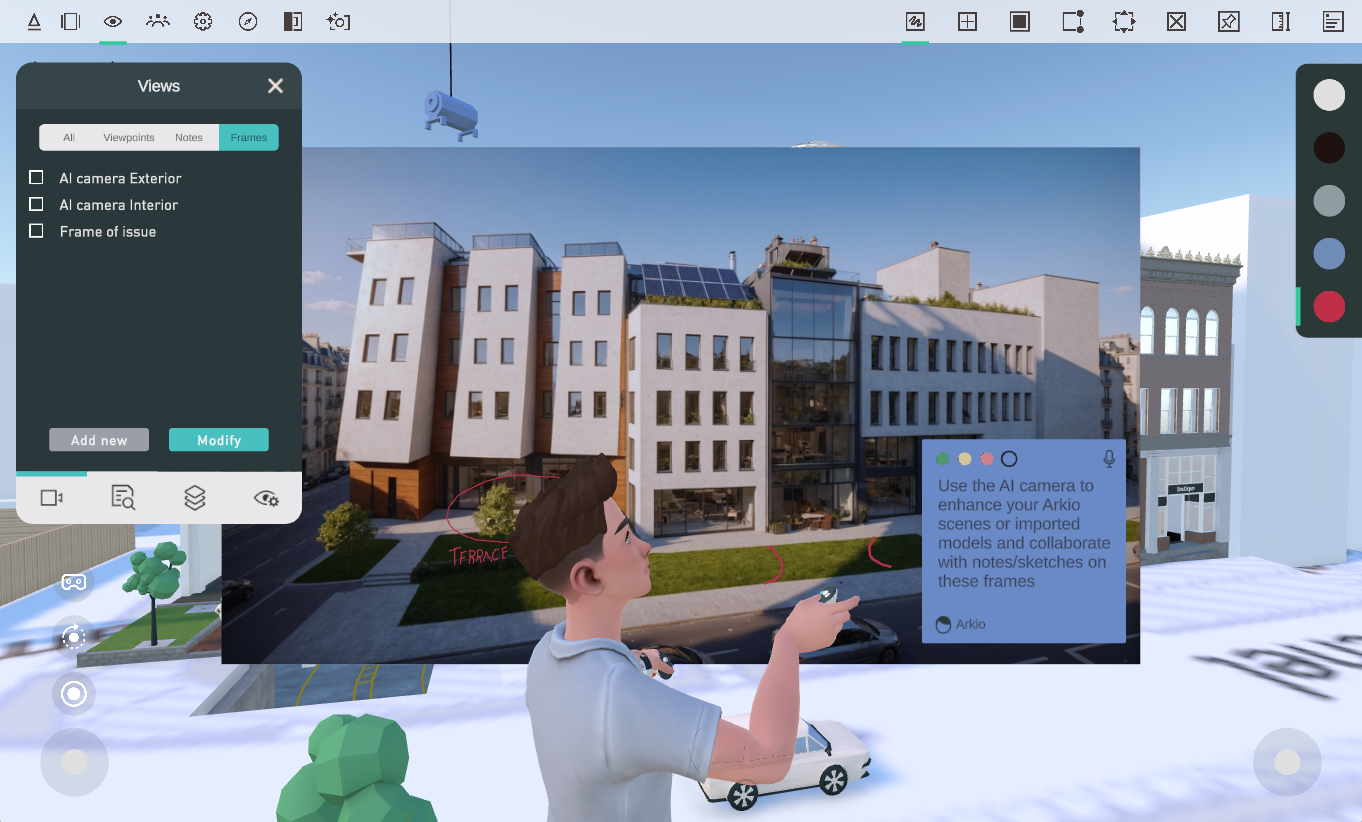
You can jump between existing notes placed in the Arkio scene to switch to the camera position from which the original note or frame was created. If this note or frame is moved in Arkio, the view's position will be updated accordingly. A Note will get the same name as the textual content of the Note, and a frame can be renamed to your liking.
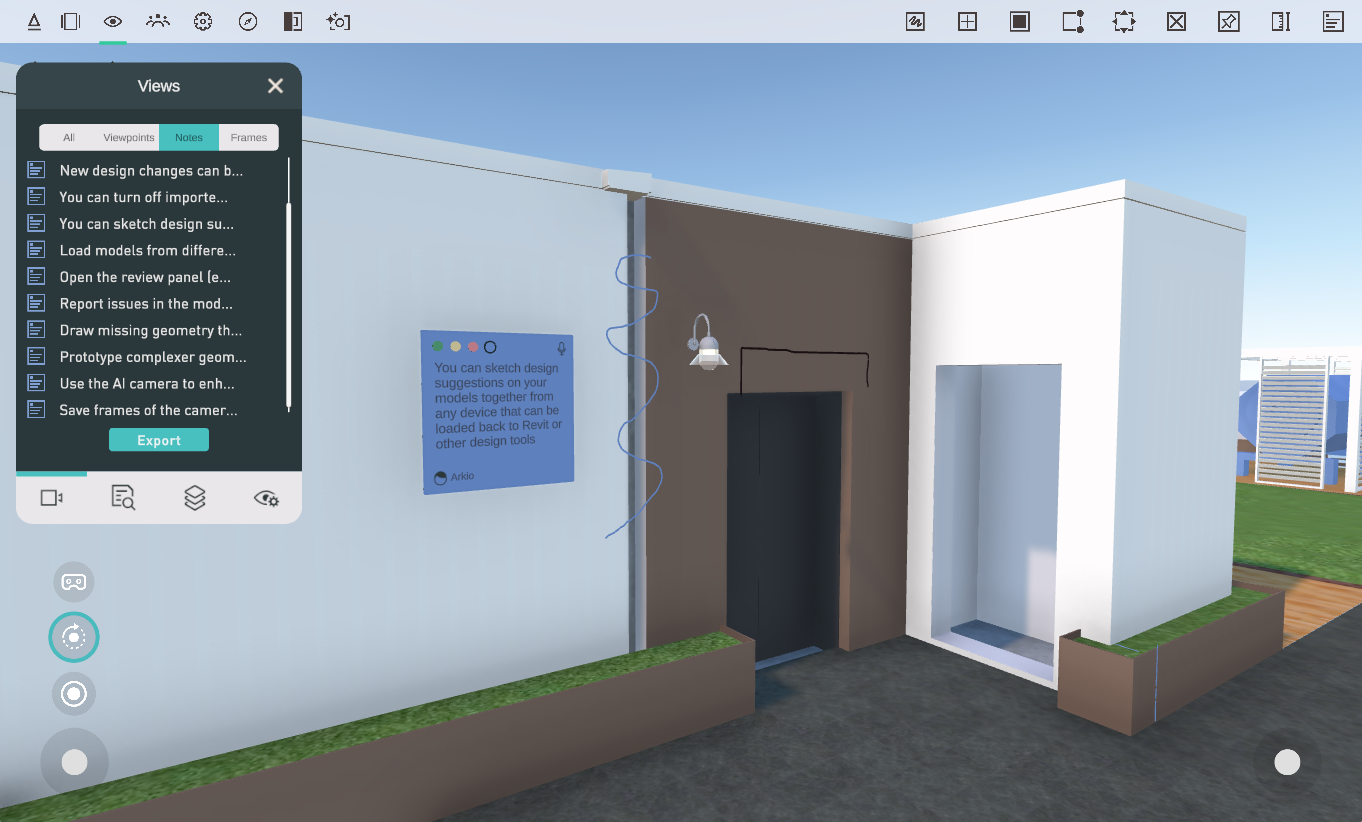
When you delete a note or frame, the corresponding view will also be removed. You can view samples of the saved viewpoints, Notes, and Frames in our Revit sample projects and learn more about working with Notes and Frames on their respective pages.
Sharing views in your meetings
Saved views will be shared in Arkio meetings, allowing you to use them to guide people through your design and quickly switch between different parts when using Gather or Auto-follow mode. You can gather everyone in the meeting, regardless of the device they are using.
You can also jump to other users in a meeting by clicking on the icon behind their name in the meeting panel, and you can gather everyone around your current position by clicking on the gather icon behind your own name.
Was this helpful?
Still need help? Ask the team