PC VR and hybrid mode
Written By Johan Hanegraaf
Last updated 6 months ago
When running Arkio on a PC, it will start in non-VR mode. You can switch to VR mode using the VR toggle in the bottom-left corner. This will search for an active OpenXR headset connected to your system and will switch Arkio to render in that headset using the VR controls instead. On PC, your VR spectator is smoother and higher-resolution, and you can show more detailed models than on a standalone Quest.
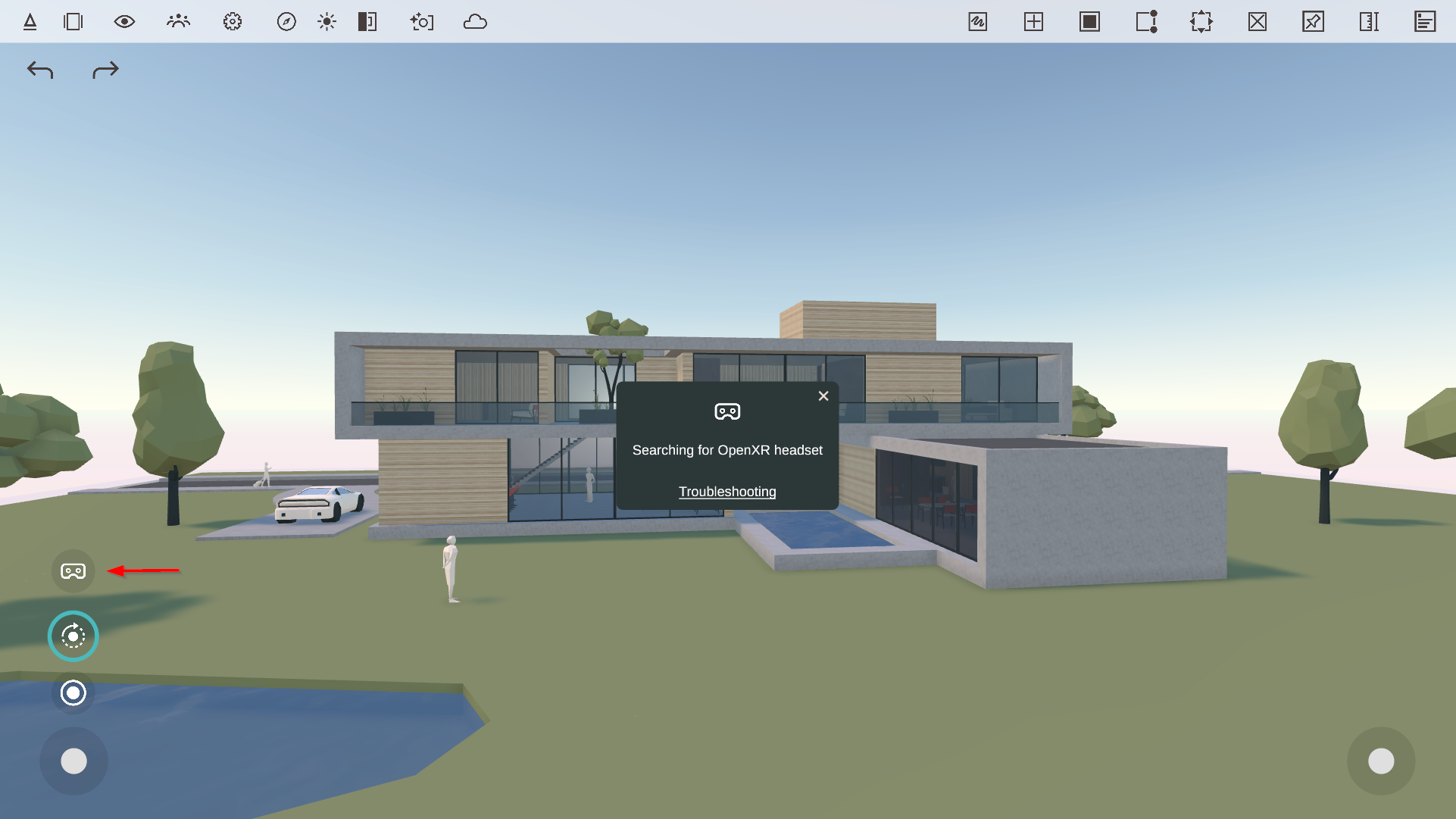
If Arkio cannot find an OpenXR-supported VR headset, we will return to the normal desktop version of Arkio. To troubleshoot issues with your VR headset, please see this page.
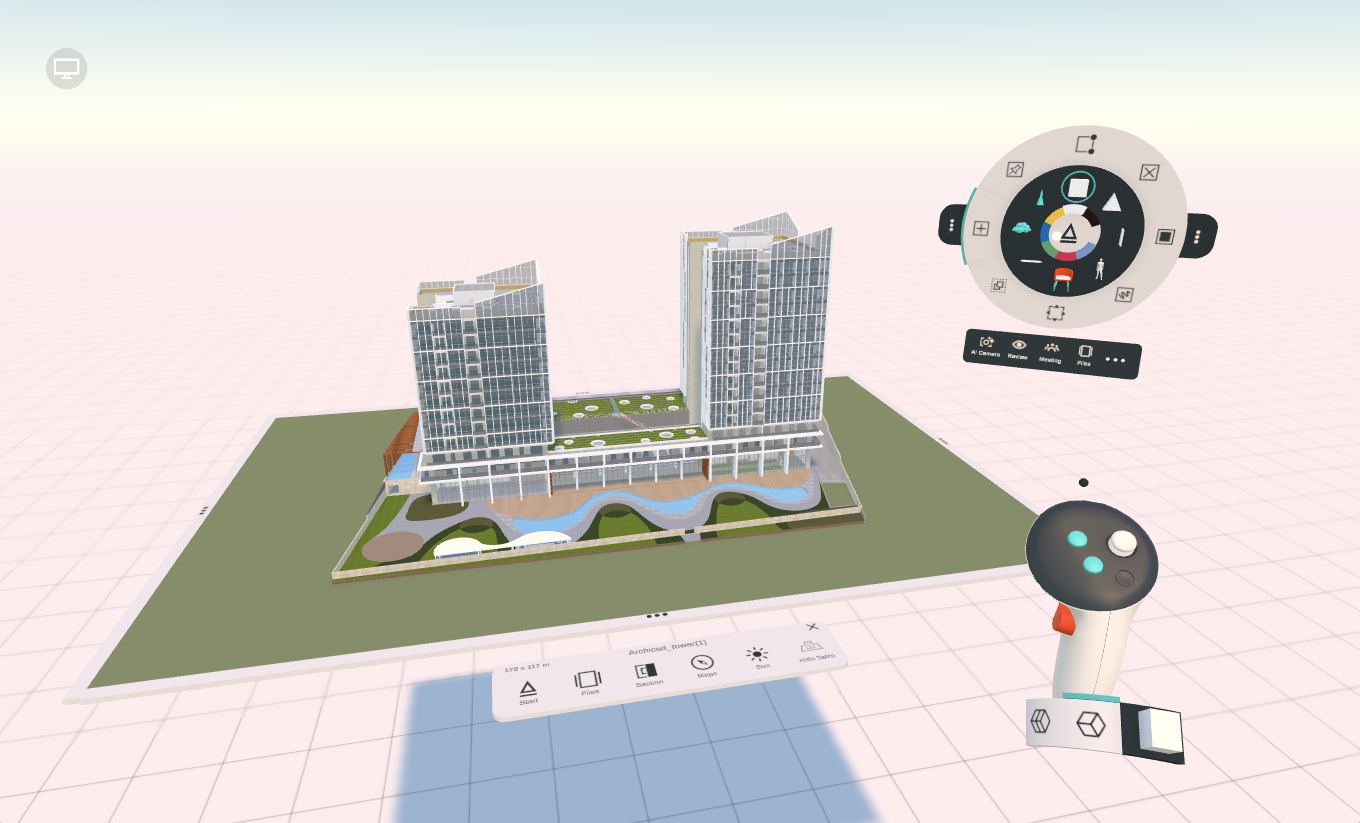
Once in VR, you can press the top-left screen icon to switch back to the normal, non-VR UI of Arkio in Hybrid mode. This allows the PC user to move around and work together with the VR user in third-person. This collaboration happens locally on your PC and does not require an internet connection.
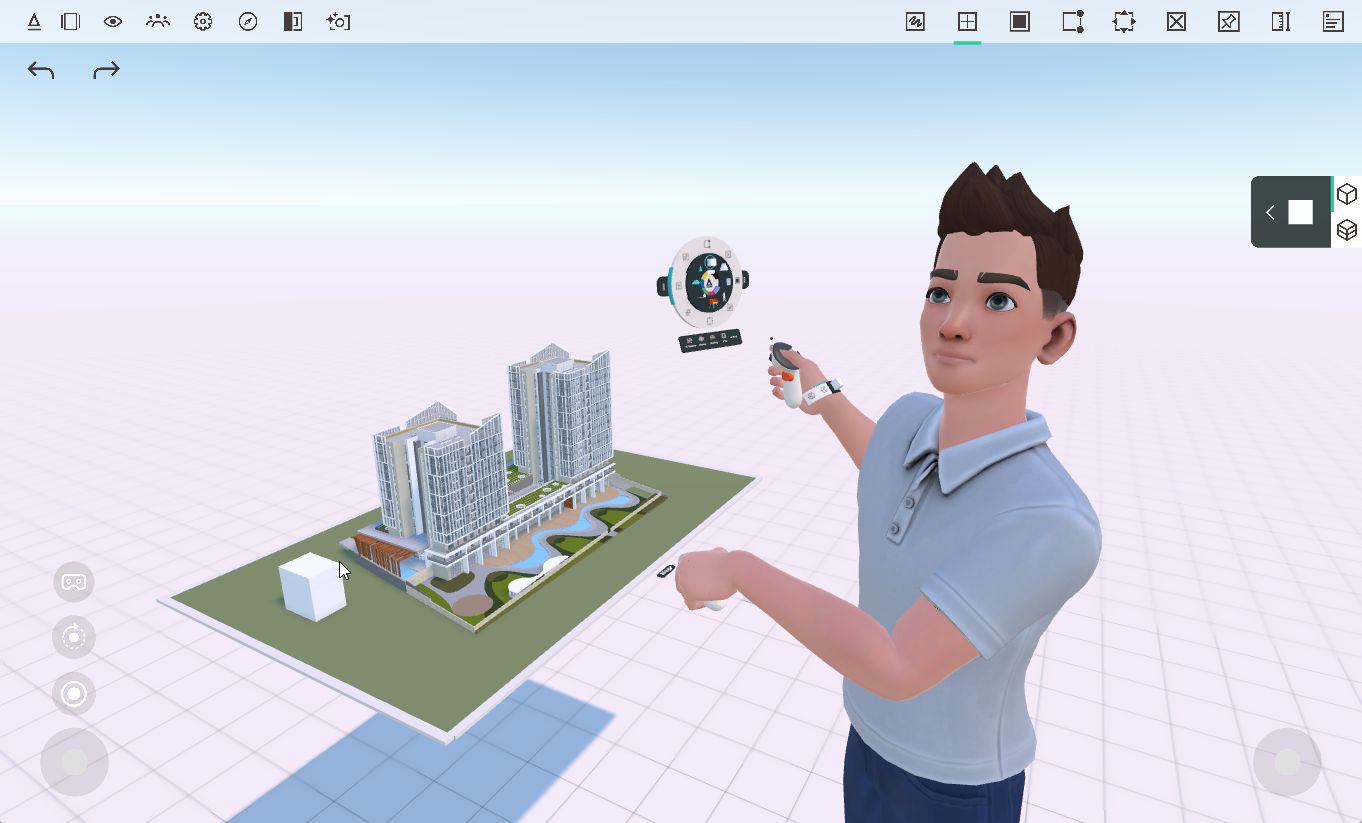
The PC hybrid mode can be handy when working on Arkio from both VR and PC, for example, to import a new version from our plugins while a VR user is viewing an option, or to guide a user in VR around your models while presenting your screen and switching between a comfortable to watch desktop view and a smoothed, higher resolution VR view compared to a standalone device. You can always return to the full-screen VR view by clicking the headset icon in the bottom left corner.
The PC version of Arkio can load larger files and render in higher resolution than Arkio on a Quest headset. This makes the 3rd-person Hybrid mode great for recording or presenting what is happening inside Arkio.
On iOS and Android phones and tablets that support AR capabilities, it's also possible to view the model in Augmented Reality. Please refer to the user interface page for more information on using the non-VR version of Arkio.
Was this helpful?
Still need help? Ask the team