Secondary menus
Expandable drawers and other menus
Written By Johan Hanegraaf
Last updated 8 months ago
Object and materials drawers
The left and the right sides of the main menu have expandable drawers for other geometry and materials. You can open this drawer by clicking on the tab on the left and right sides of the menu if the Create and/or Paint/Sketch tools are selected. Menu drawers can be detached from the menu and placed around you if desired (hover over the drawer back and keep the trigger pressed to pull it away).
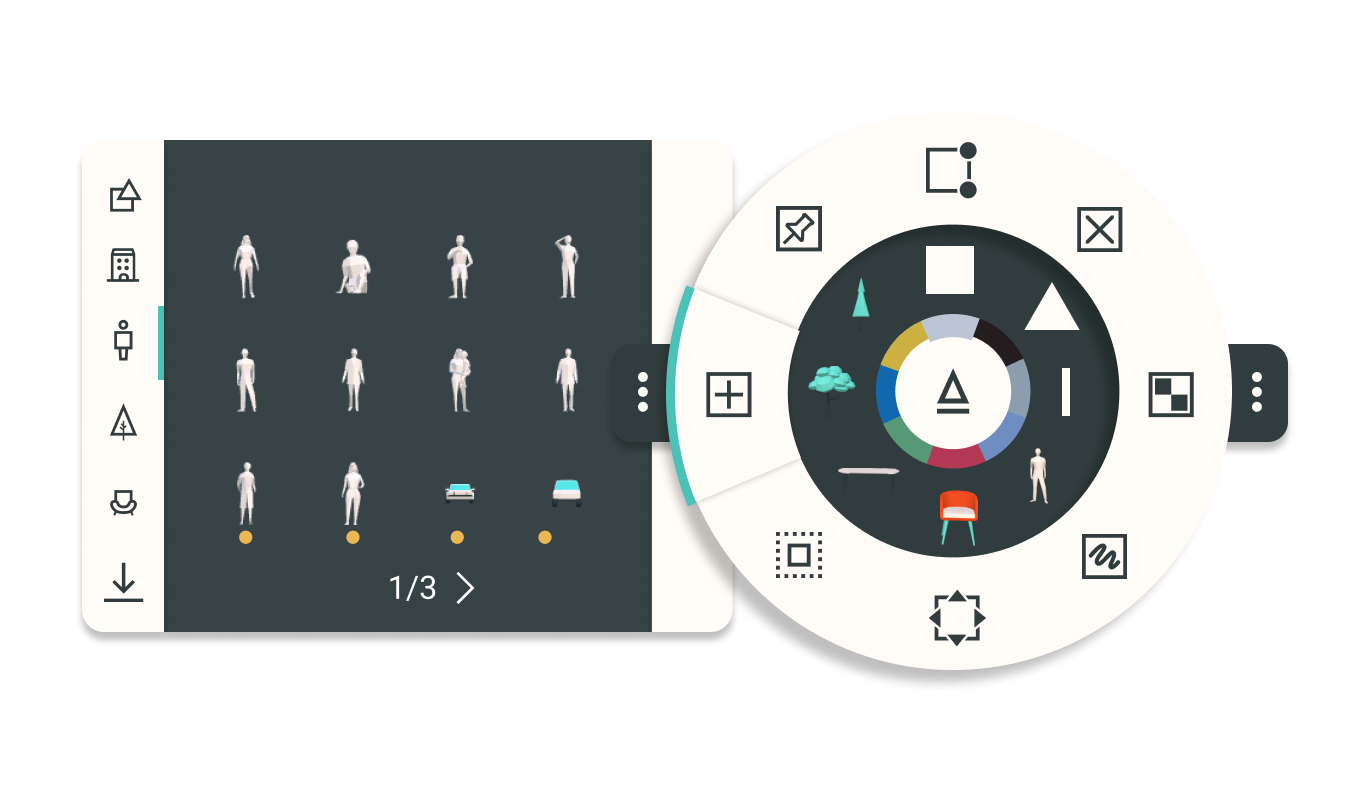
The drawers have been categorized using tabs and contain individual props and materials, which you can select by clicking or dragging them into your favorites in the center of your circular menu. The last create tab shows your custom-imported 3D models.
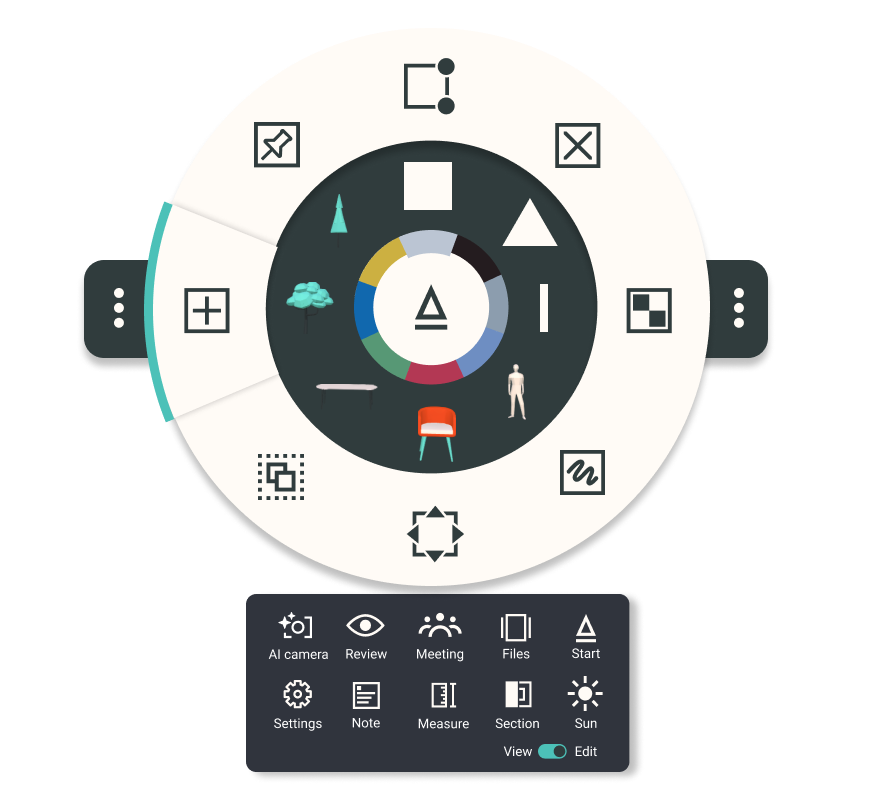
Additional tools from the bottom tab
AI camera - Allows you to take AI-enhanced pictures and place them in the scene as frames
Review panel - Access your saved views, BIM data, and view settings for your active scene
Start panel - Access to all your main workflows, see Home panel below.
Meeting - start or enter into a meeting with up to 24 users
Files - access the file browser that allows you to view, duplicate and export your scenes
Settings - general settings of the app, like units, scaling and snaps
Note - Add sticky notes in the scene where you can leave textual info
Measure - Measure any by drawing a 2-point line between objects in Arkio
Section - Place a section plane in the scene to cut all arkio and imported geometry
Sun study - Adjust the current time of day. Affects the lighting conditions and sky
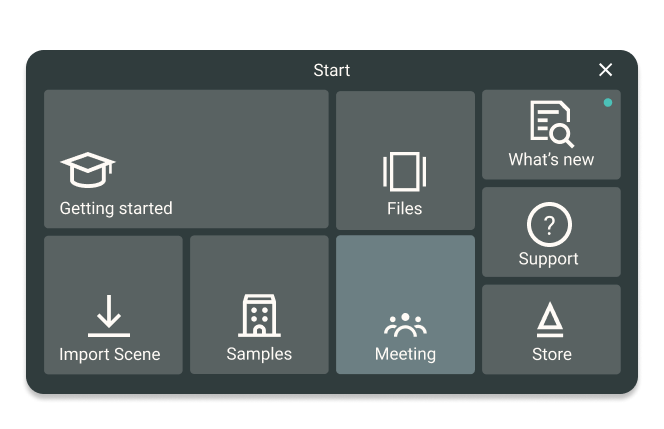
Start panel
The start panel provides quick access to some of Arkio's main tools and features. From here, you can open tutorial scenes and watch tutorials from Getting Started. You can see what's new in Arkio, access some of its popular features, or view sample projects.
You can also open your scenes or a meeting to jump right into the action.
Was this helpful?
Still need help? Ask the team