Undo/redo
Written By Johan Hanegraaf
Last updated 8 months ago
Arkio models are auto-saved while edits are made, and an undo/redo history is stored per session. To restore your scenes to a previous backup version, you can also use Arkio's history mode under your file browser to restore your scenes. Your history should include backups of previous work on your scenes every 1 minute.
Undo/redo is possible for all modeling operations, but not everything in Arkio can be undone - deleting an Arkio scene from your files browser is an example that cannot be undone. Switching scenes or creating a new scene will reset the undo/redo system, so only actions after opening a scene can be undone.
VR controller
Undo and redo are done using your non-dominant controller or hand. Undo is done by pressing the joystick left, and redo is triggered by moving the joystick right. (or by pressing the touchpad left or right if you are using an older VR device)
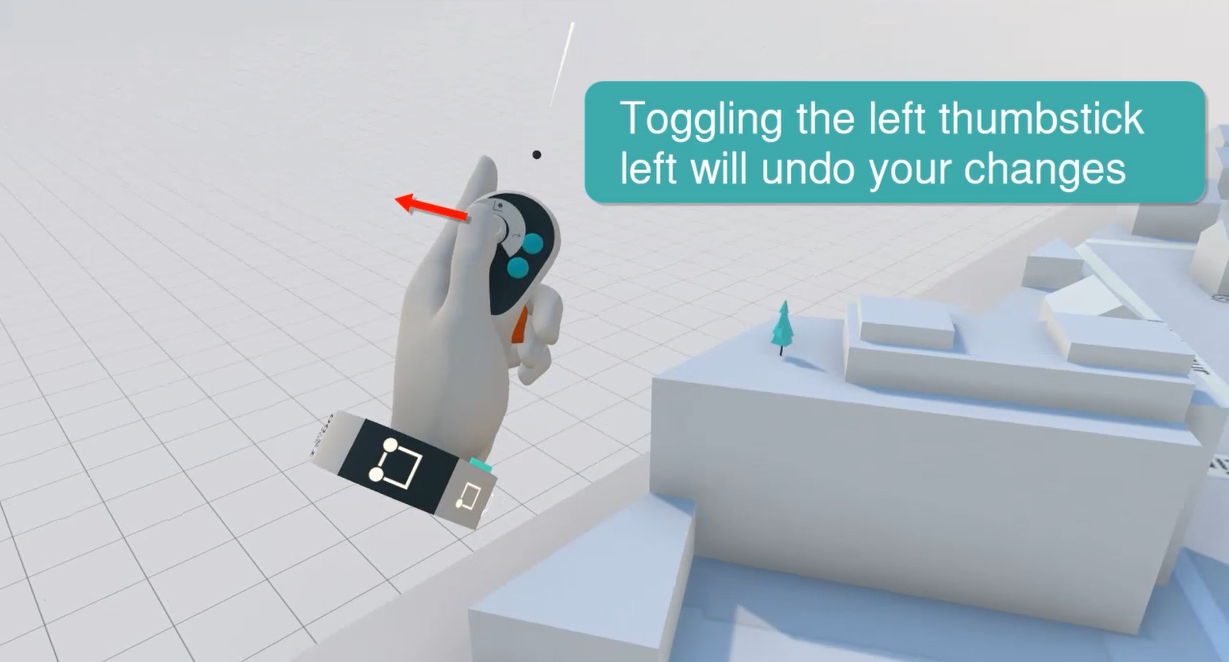 | 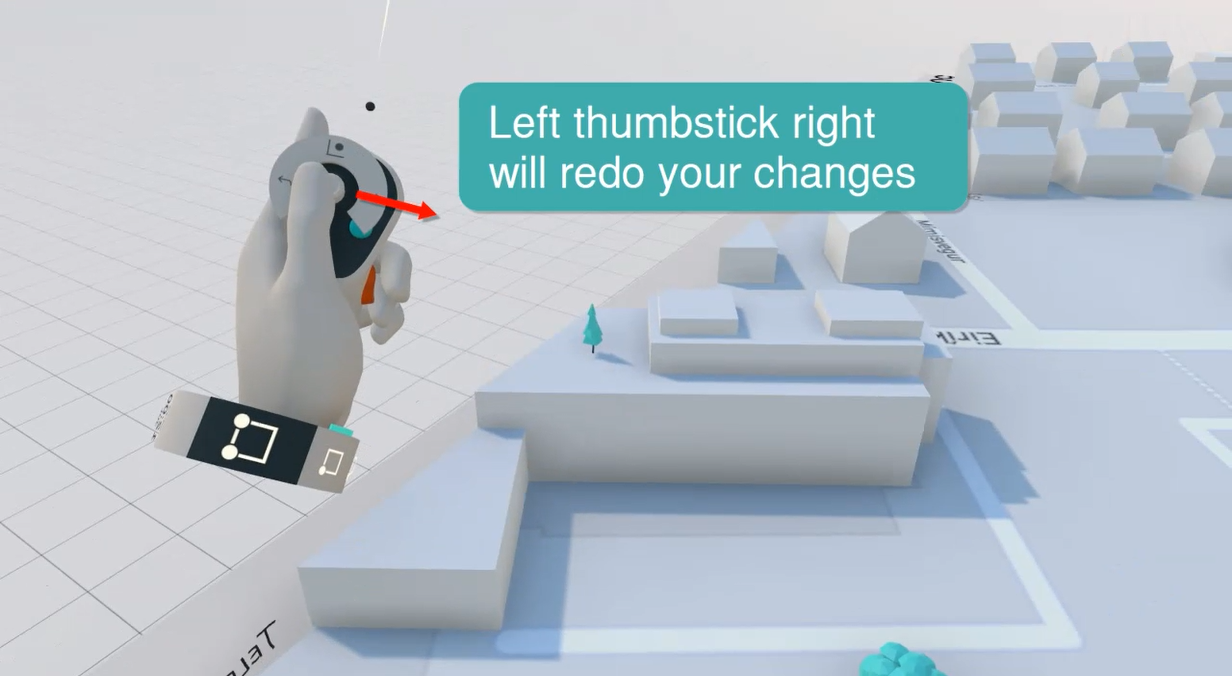 |
Non-VR
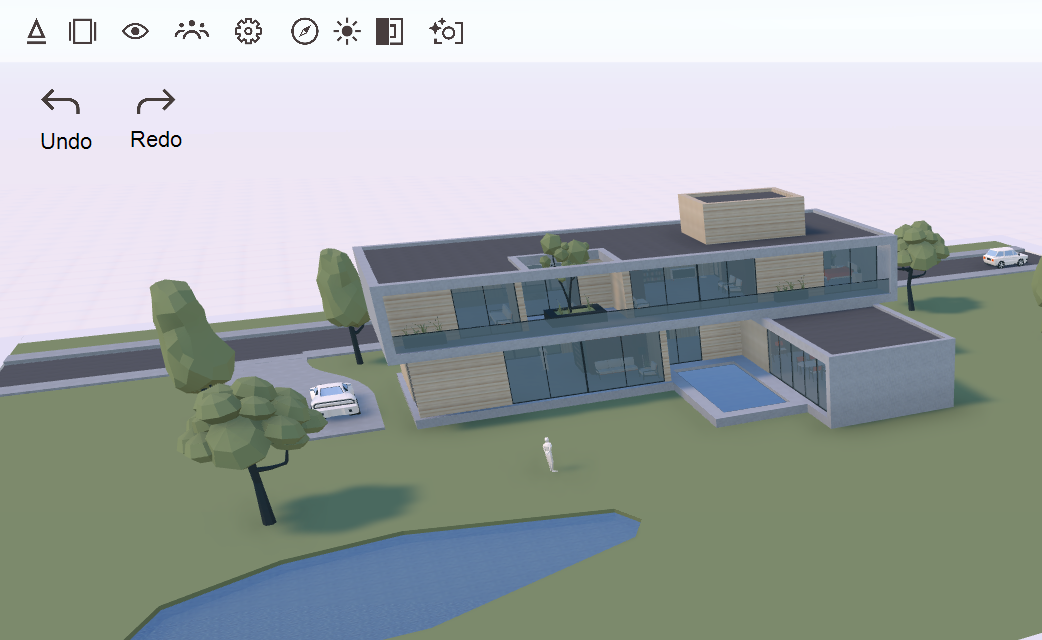
If you are using the non-VR version of Arkio, the undo/redo buttons are in the top-left corner of your screen. You need to be an editor for the Undo Redo buttons to show.
Hand Tracking
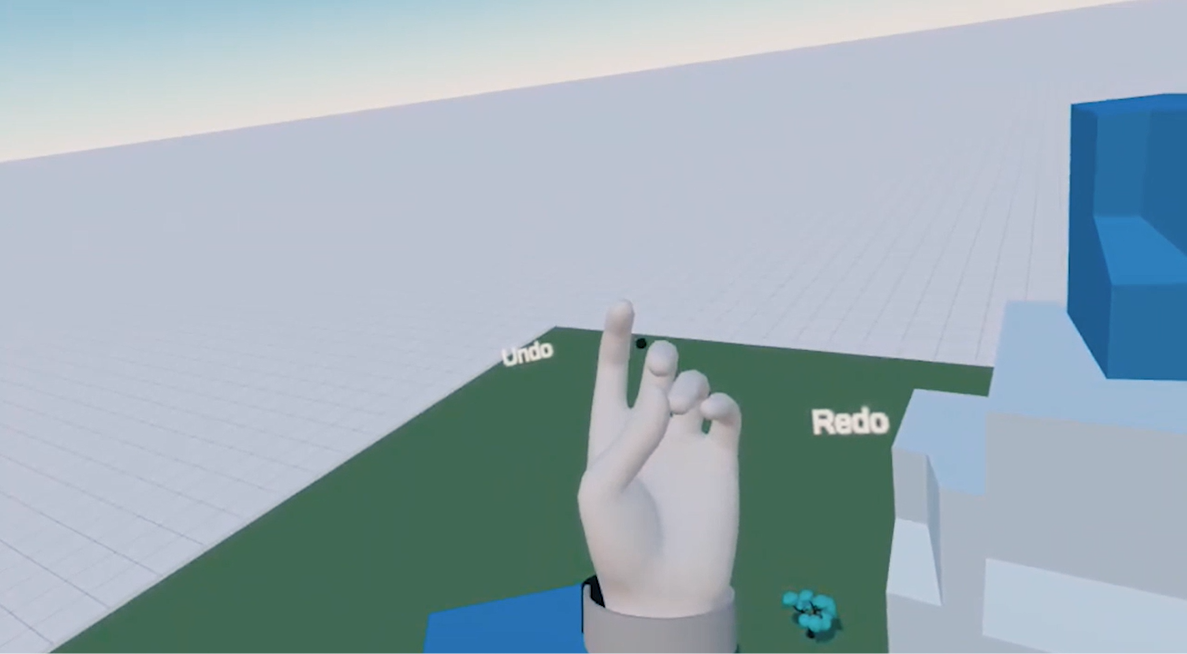
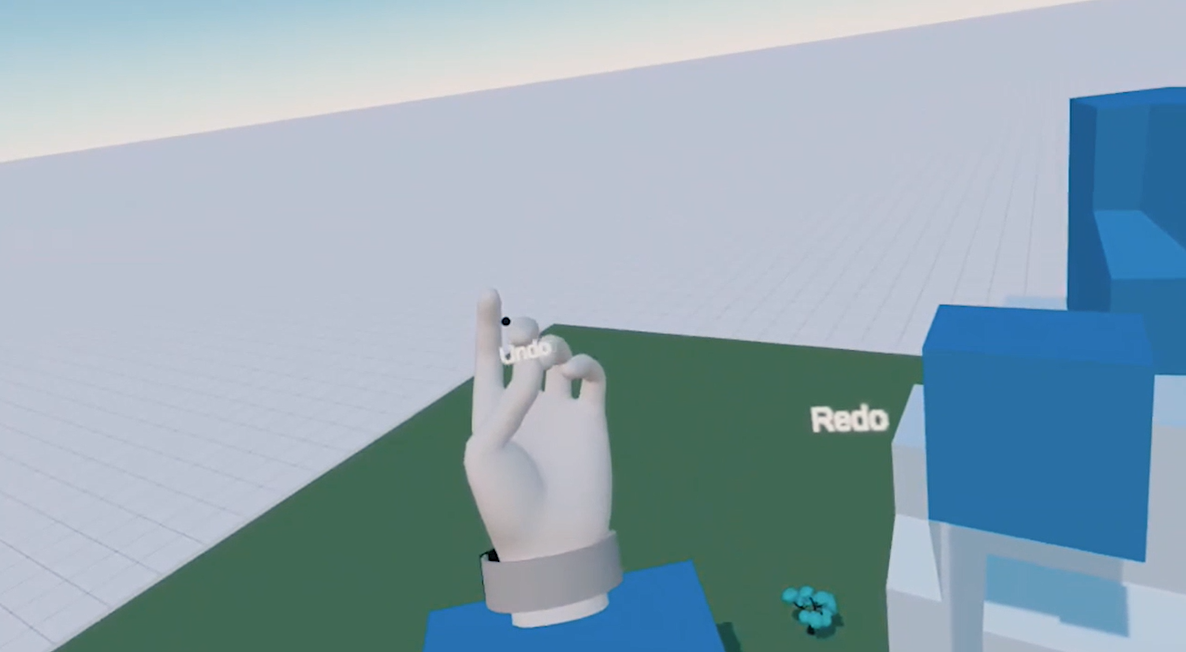
If you are using the experimental hand tracking on a Quest or Quest 2, the Undo/Redo can be triggered by pinching your thumb and middle finger together on your left hand while watching your wrist and moving your hand left to undo or right to redo
 |  |
Meetings
During a Multi-user meeting, the undo/redo history will be global for that scene. That means that every editor in a meeting can undo/redo the last modeling action, even if another user completed it. If you don't want users to make changes and undo/redo in your scene, you can convert them to a viewer using presentation mode, or control their editing capabilities with an Arkio enterprise license.
To streamline multi-user collaboration with undo/redo, you can focus on working on the same part of the model, so everyone can see the changes others are making, and you can better understand and coordinate undo/redo operations together.
If you are working on a different part of the design and you want to work without affecting undo/redo history from others, it can also help to temporarily go out of a meeting and work on your own design options, and then later discuss those designs in a meeting to validate and make any remaining changes with your other designer.
If you created multiple scenes with different design options in Arkio, you can export each design reference individually and combine the parts of your model in your original authoring tools (e.g., Revit) to make adjustments to your existing Revit model.
Your latest combined Revit files can always be loaded back in Arkio to start another collaboration process.
You can either go through the newest model together, staying in the same part, or first work individually on different parts of the model and then discuss the results in a collaborative meeting using the global undo/redo.
Was this helpful?
Still need help? Ask the team