Move/rotate
Written By Johan Hanegraaf
Last updated 8 months ago
The volumetric modeling engine of Arkio will auto-collide, align, and re-host objects in the scene. So moving objects in Arkio will complete 4 conventional 3D modeling operations in one gesture (move, rotate, align and re-host). While moving objects, you can also make duplicates, arrays or delete collections of objects from the scene
When you are moving objects in your scene using the move tool, you can see all of these actions happening in real-time, so you can decide to let go of the trigger when you are happy with the resulting position and alignment of the object.
If your object intersects with something solid (like the terrain), it will slide along that surface and automatically align and glue to nearby other shapes in the scene based on our temporary guides. When these guides and automatic snaps make it hard to position the object to the required position, you can easily disable the guide system by holding down your thumbsticks or the touchpad on the left or right controller. Moving objects can be done in two ways that both have their own strengths:
Moving by laser
Using the laser to move an object will keep the object's rotation the same unless it collides with other solid geometry. This is great when you like to move things with greater accuracy or when you are making rough orthogonal adjustments to objects in the scene (like moving an entire building around at human scale)
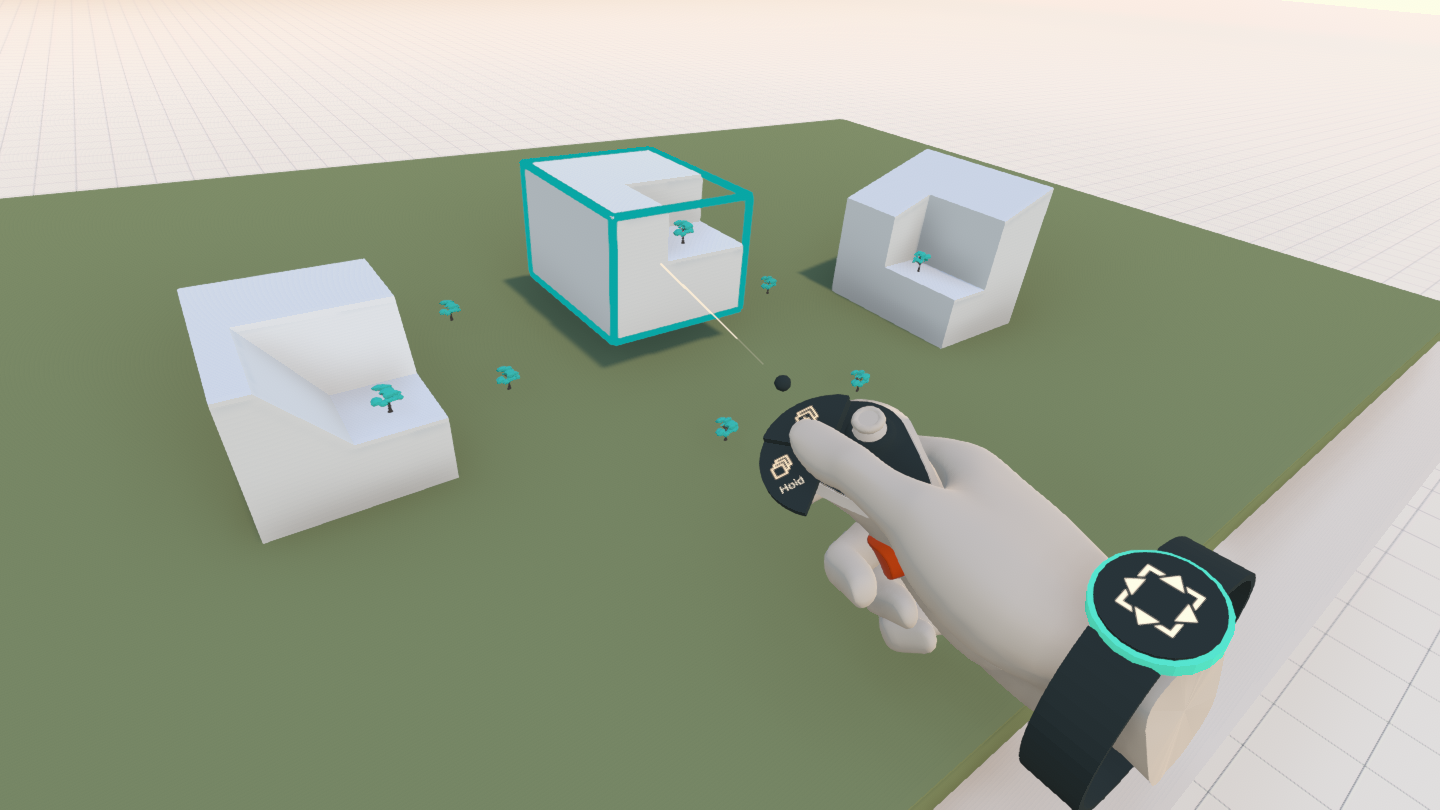 | 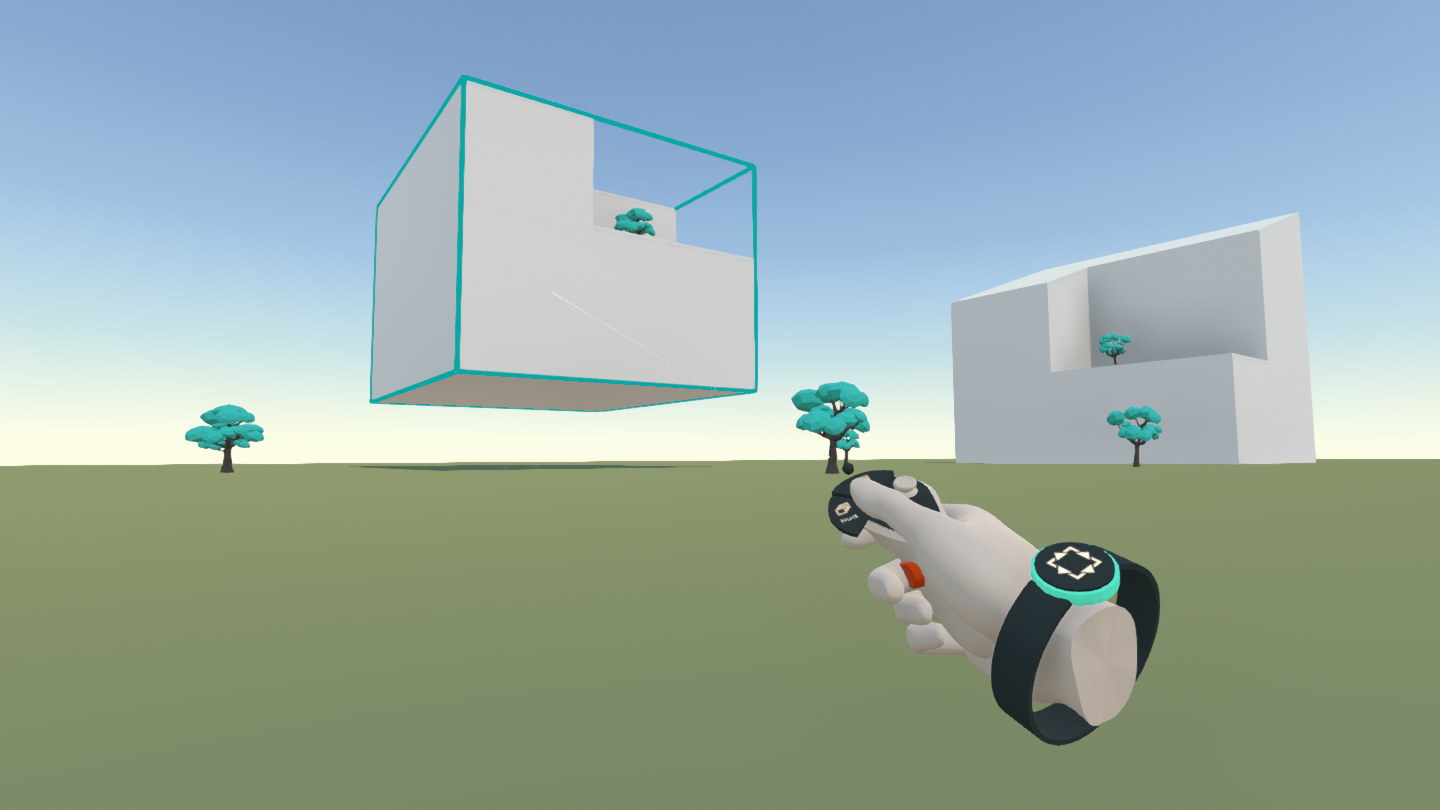 |
When moving objects with a laser, it’s easy to push the object further away over longer distances by moving your controller forward. This movement can be repeated as many times as needed and is helpful when making large position adjustments at the human scale.
While moving things by laser, you can rotate the object by pressing the thumbstick left and right while moving the object. This will rotate the selected object in 45-degree increments.
Moving by hand
Using either hand to move things in Arkio is the most intuitive. You can just place your interaction point in front of the controller in the geometry, pick it up with the trigger when the shape highlights, and let go when you are happy with the new position. This way of moving feels like physical modeling and offers a fast way to reposition objects to another host or to rotate them. Moving by hand gives you the freedom to re-position, host, align, and glue objects with a single gesture - something that would normally take several commands in traditional 3D modeling tools.
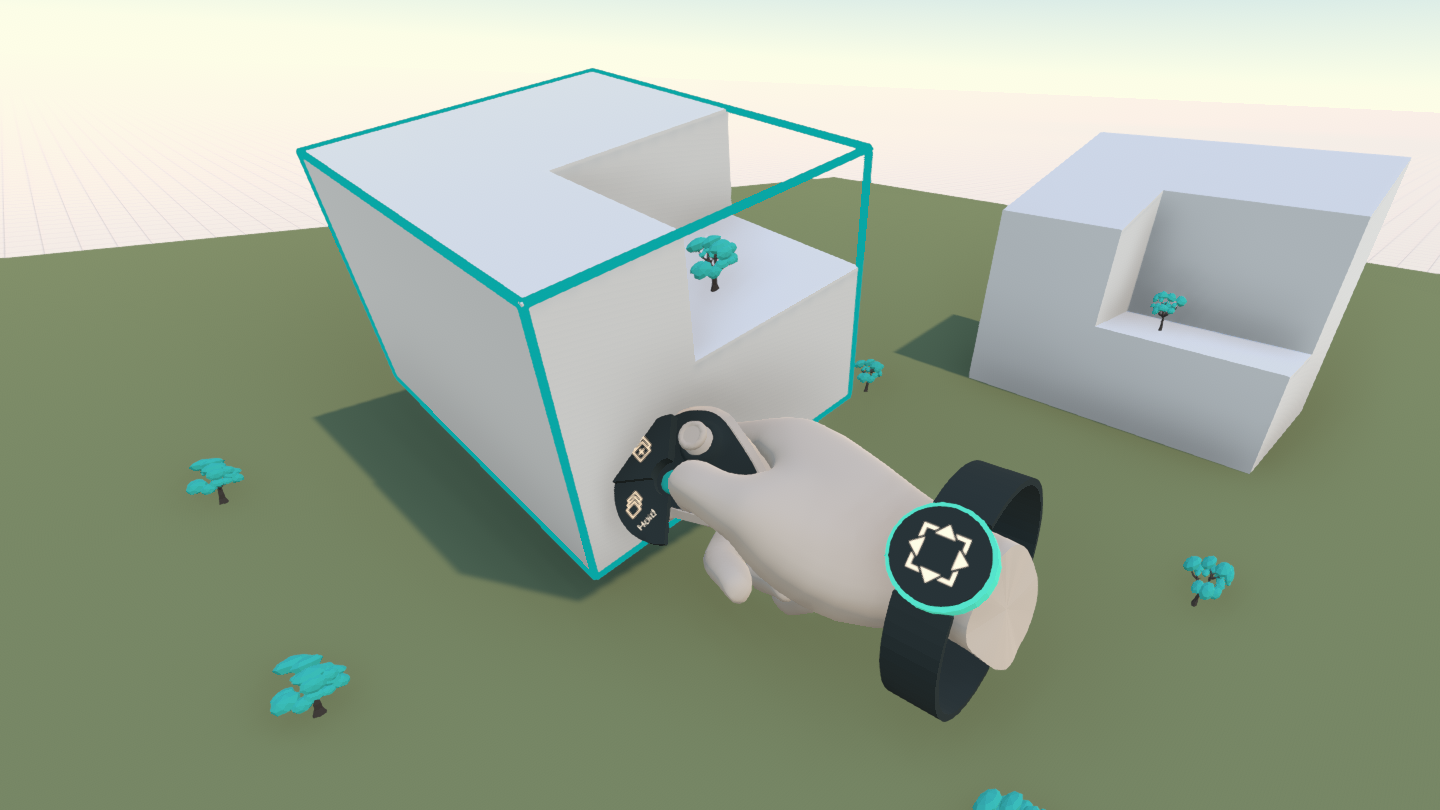 | 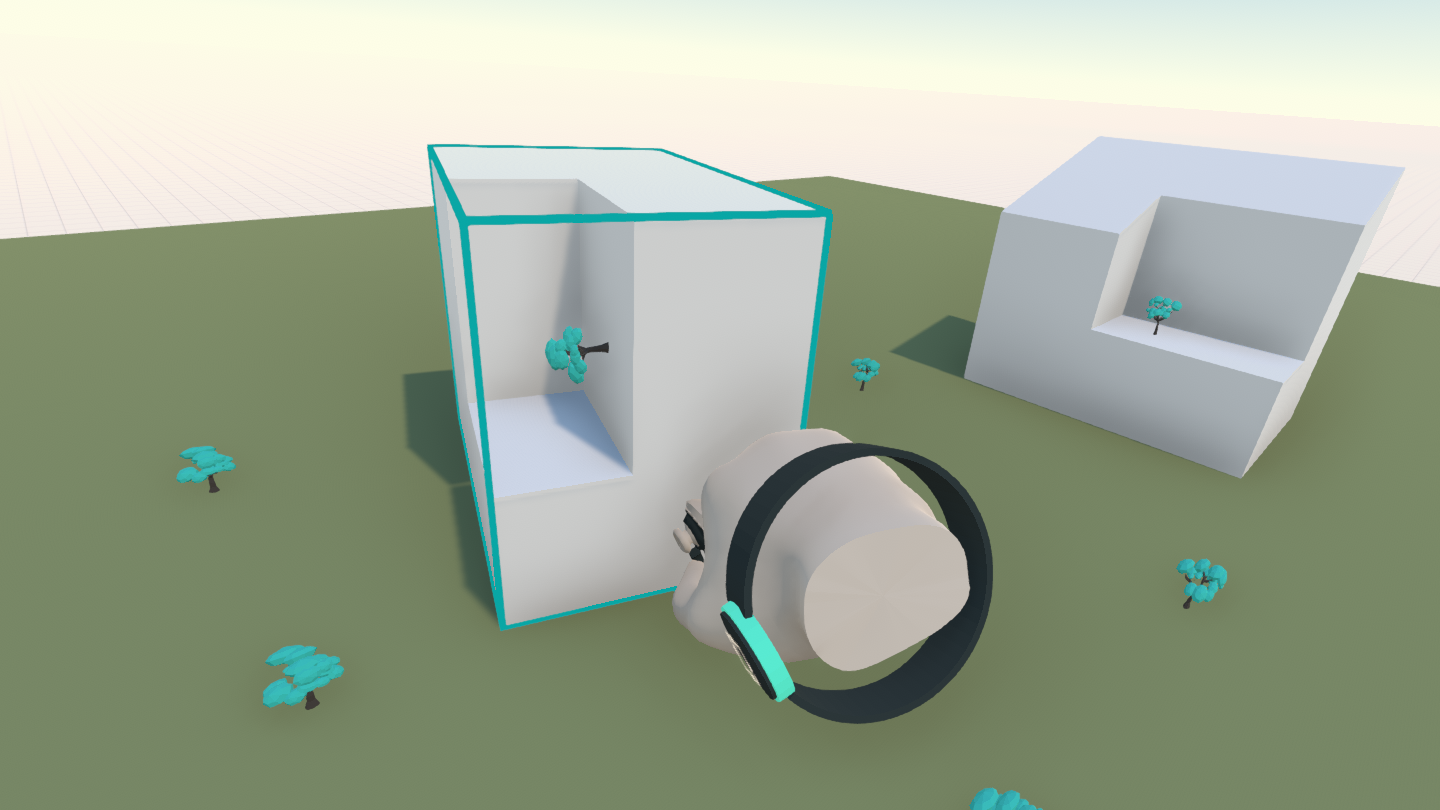 |
Working with your hands allows you to reposition things quickly and makes it easy to try out something by just moving it, or to add a ‘human touch’ to your designs by giving small rotations to the objects you are moving.
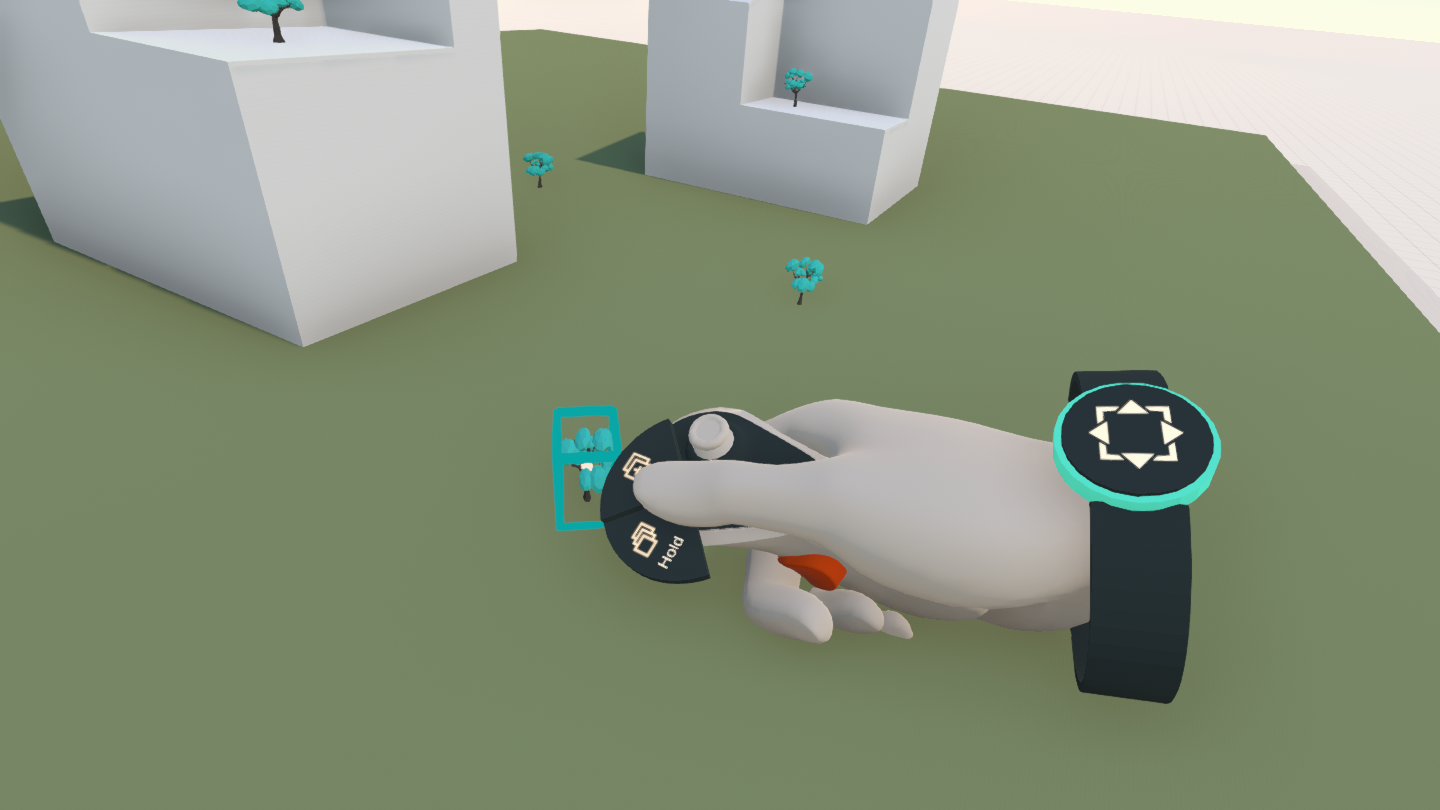 | 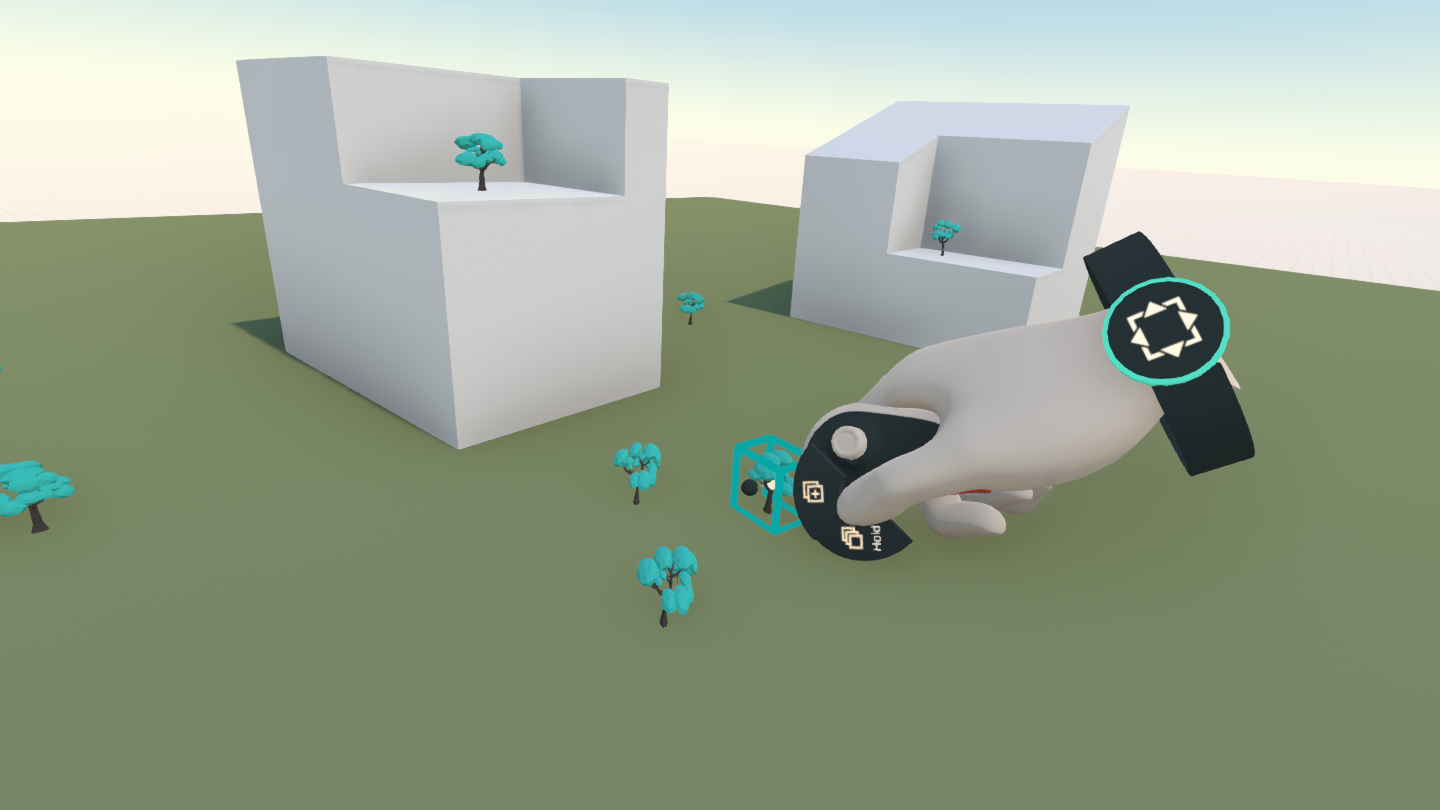 |
When using a laser or hand movement, the green menu button will also show additional commands, such as making a duplicate (press the button once) or array (keep the button pressed). You can also throw away (delete) the object you are moving by making a swing with your controller and letting go of the trigger before you stop - also great for releasing some design stress! :)
Was this helpful?
Still need help? Ask the team