Group
Written By Johan Hanegraaf
Last updated 8 months ago
You can select the grouping tool from the main menu

Once in group selection mode, you can draw a bounding box around shapes in the scene. You’ll see each shape included in the selection be highlighted with a yellow outline.
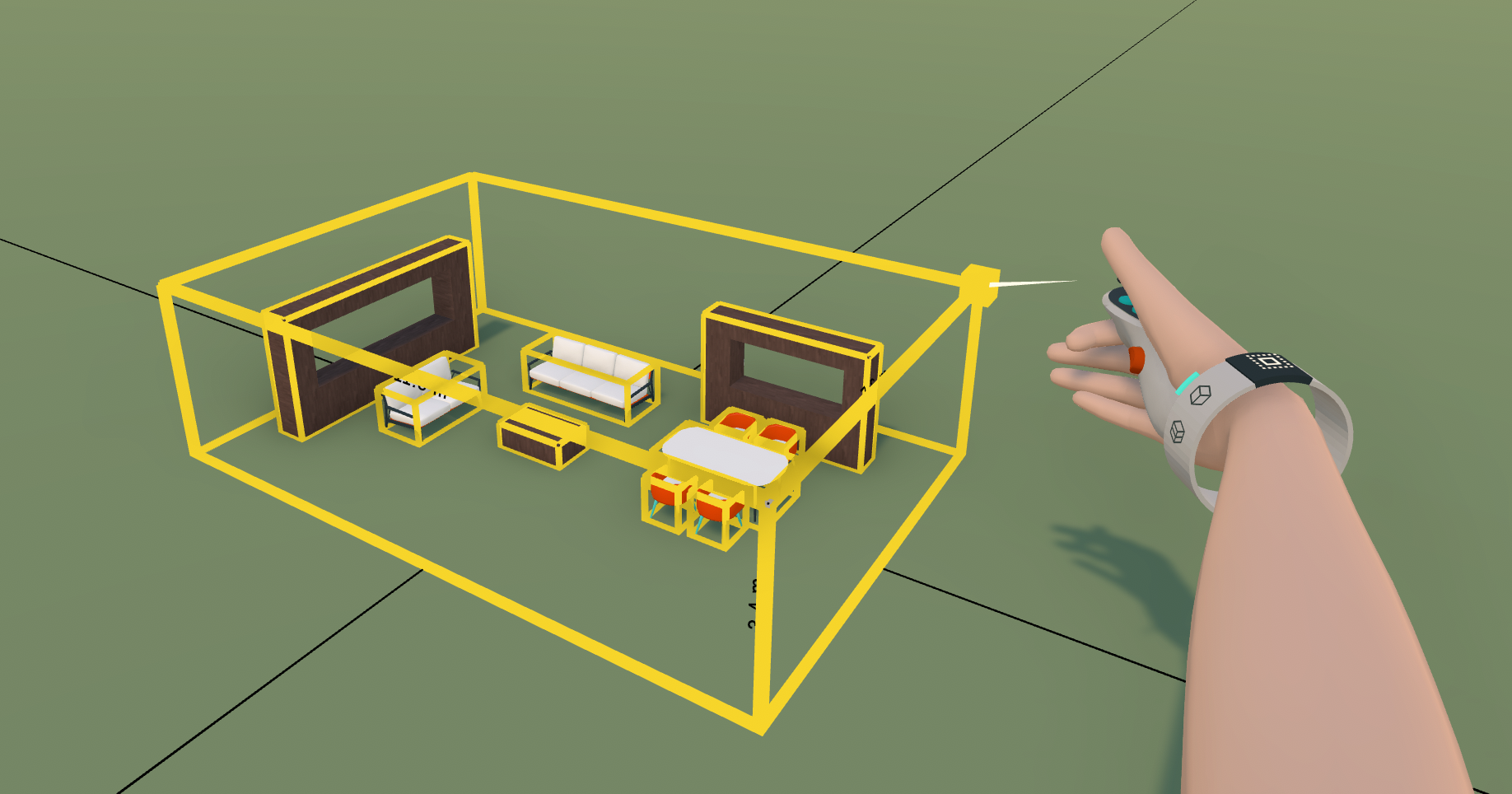
Once the selection is complete, you can pick up the bounding box and move all the shapes it contains. You can also copy and delete these shapes by moving them or throwing them away with your hands. The shapes inside these bounds will follow the edits of your bounds.
Please note that elements must have their center point within the yellow line bounding box to be grouped. If the bounding box does not contain the object's center, it will not be grouped.
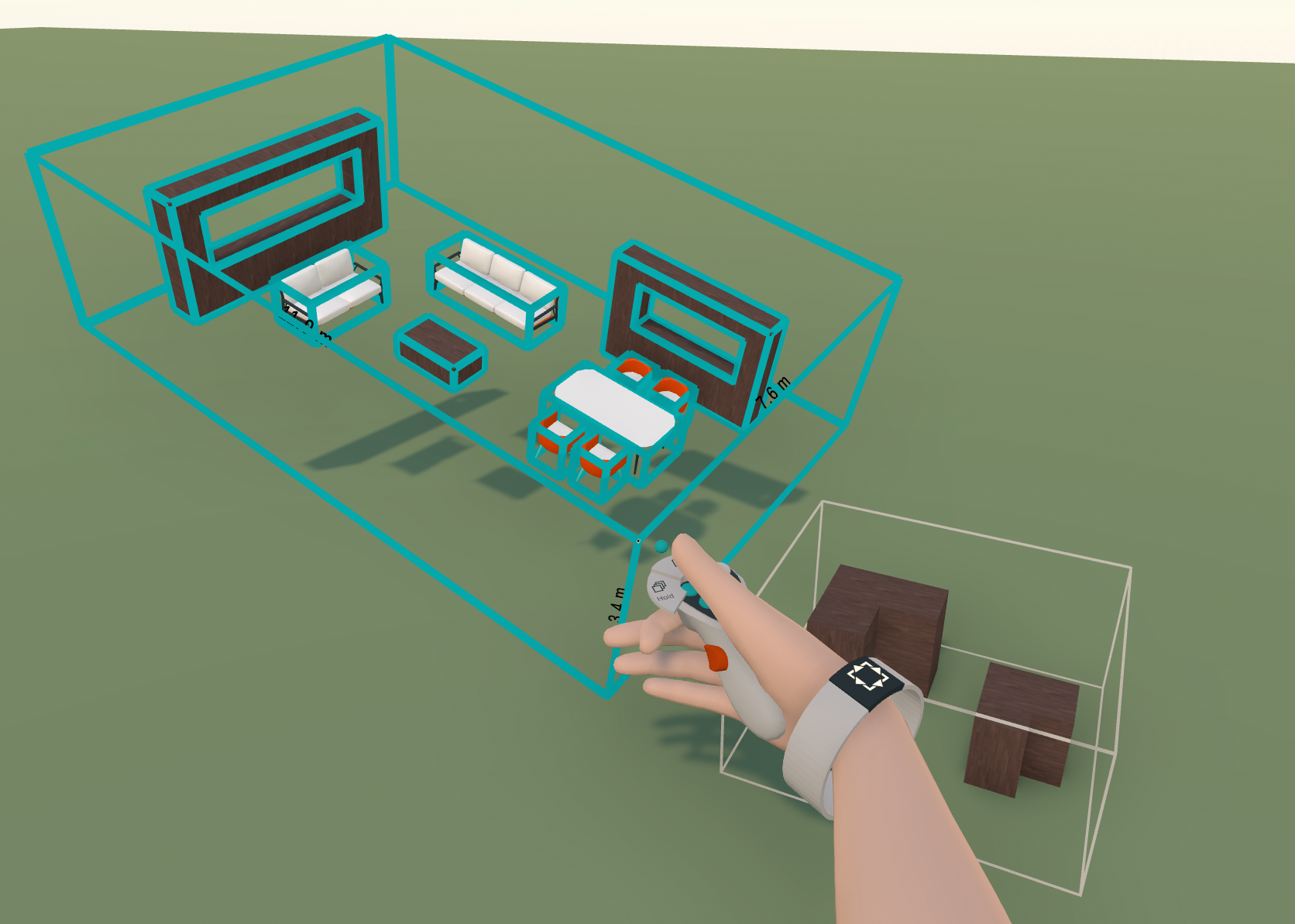
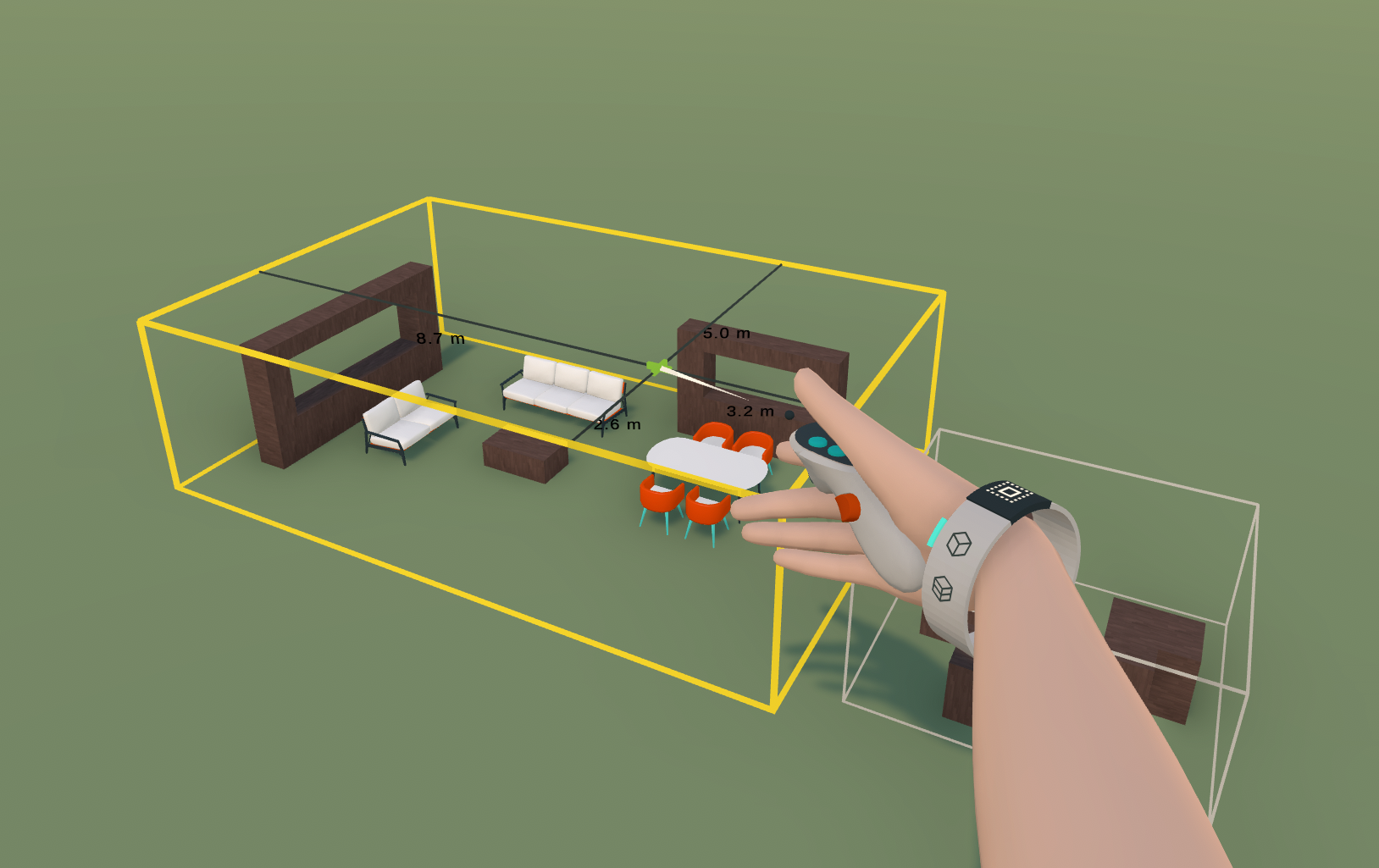
The grouping bound around the objects is visible as a yellow line while grouping mode is active, and it becomes invisible when another tool is selected.
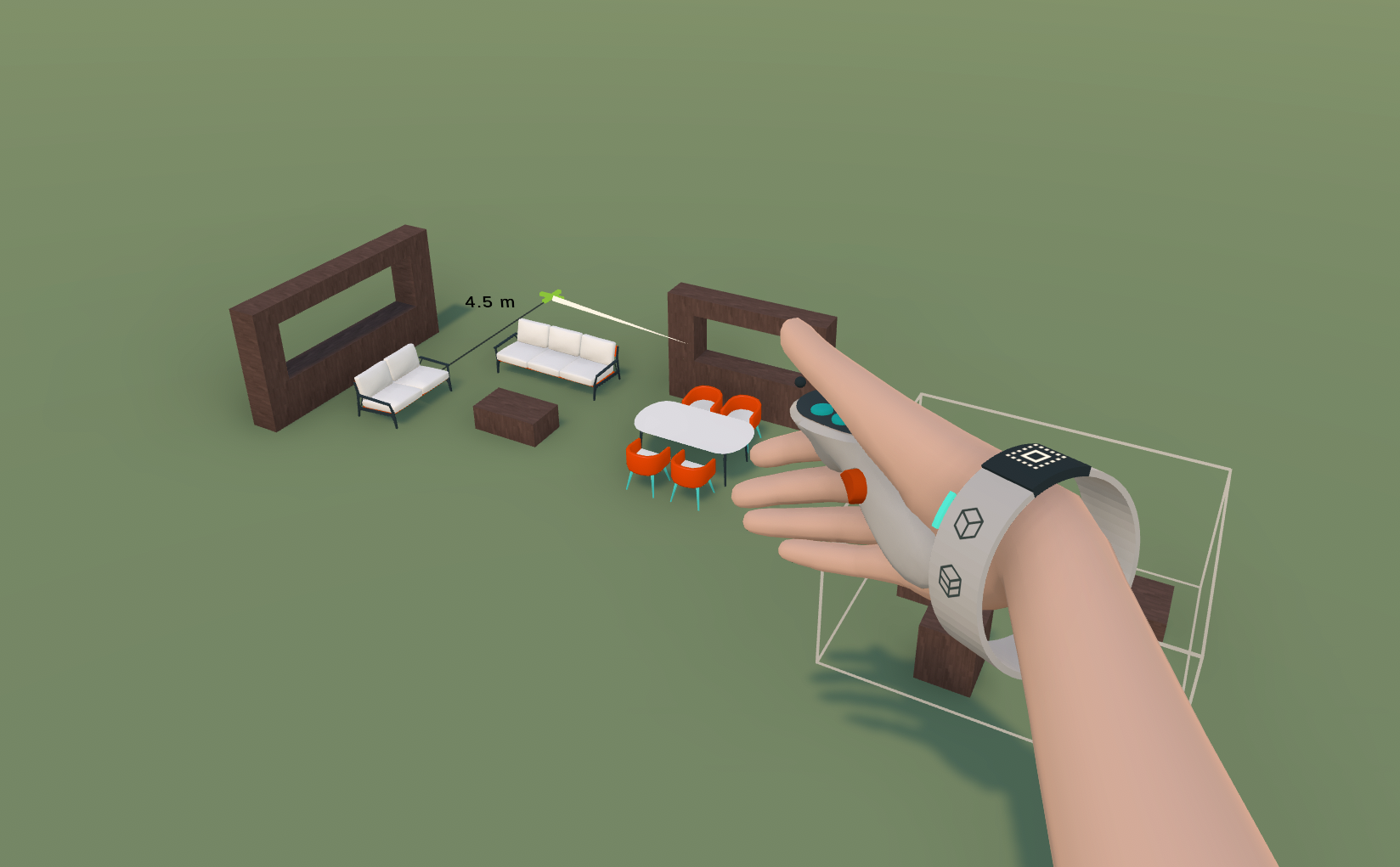
You can dissolve a group while in grouping mode and press your trigger briefly while hovering over an existing group's yellow cage. This will return the group or components inside a bound into individual objects.
 |  |
Was this helpful?
Still need help? Ask the team