Arkio Cloud portal
Written By Johan Hanegraaf
Last updated 5 months ago
Importing models from our plugins requires an Arkio Pro license. You can learn more about our paid features and start a free trial to try this.
Arkio imports and exports images and 3D models locally on your device for offline usage. New imports can also be synchronized with other Arkio devices by connecting them to the same Arkio cloud device group. Arkio Cloud is free to use and does not require an account or a license to upload files. You can create new groups and upload as many GLB, OBJ, or image files as you like.
Archicad, Revit, Rhino, SketchUp, and Navisworks models must be exported using our plugins included in our Windows installer. After exporting from our plugins, Arkio will be opened on your PC to process your imports and synchronize them with other devices in your device group.
Synchronize imports between your devices
When linked to the same device group, newly imported files will be synchronized across all your connected devices. With your desktop devices having the plugins and more processing power, they can best process large Archicad, Revit, Rhino, SketchUp, and Navisworks files. The files are then optimized as Arkio resources and will be shared with other cloud-connected devices, in live Arkio meetings or by sharing a scene URL
Once a new file is imported (e.g., a large Archicad model is imported on your Cloud-connected Mac), your processed import will be synchronized with your other devices in the same device group (e.g., your iPad and Quest headset).
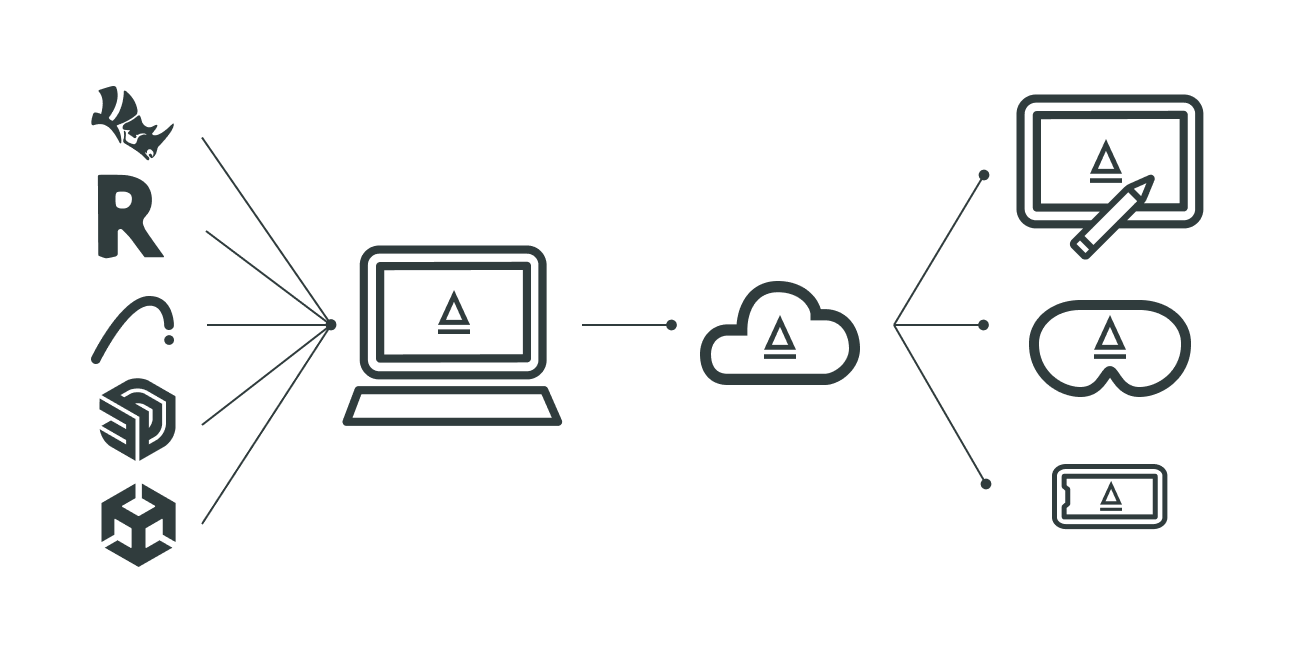
Next time you open your iPad, it will download and show this Archicad model in your Create > Import tab. This works the same for all local imports on your cloud-connected devices. (e.g, a Revit import from your PC, Archicad imports from your Mac and Lidar imports from your iPad all get synchronized to Arkio on your other devices)
Joining the same device group
When new files are imported or exported from an unconnected device, Arkio will create a new cloud device group for you and show a temporary link code that can be renewed and used to connect other devices and the cloud portal at cloud.arkio.is to sync and manage these files.
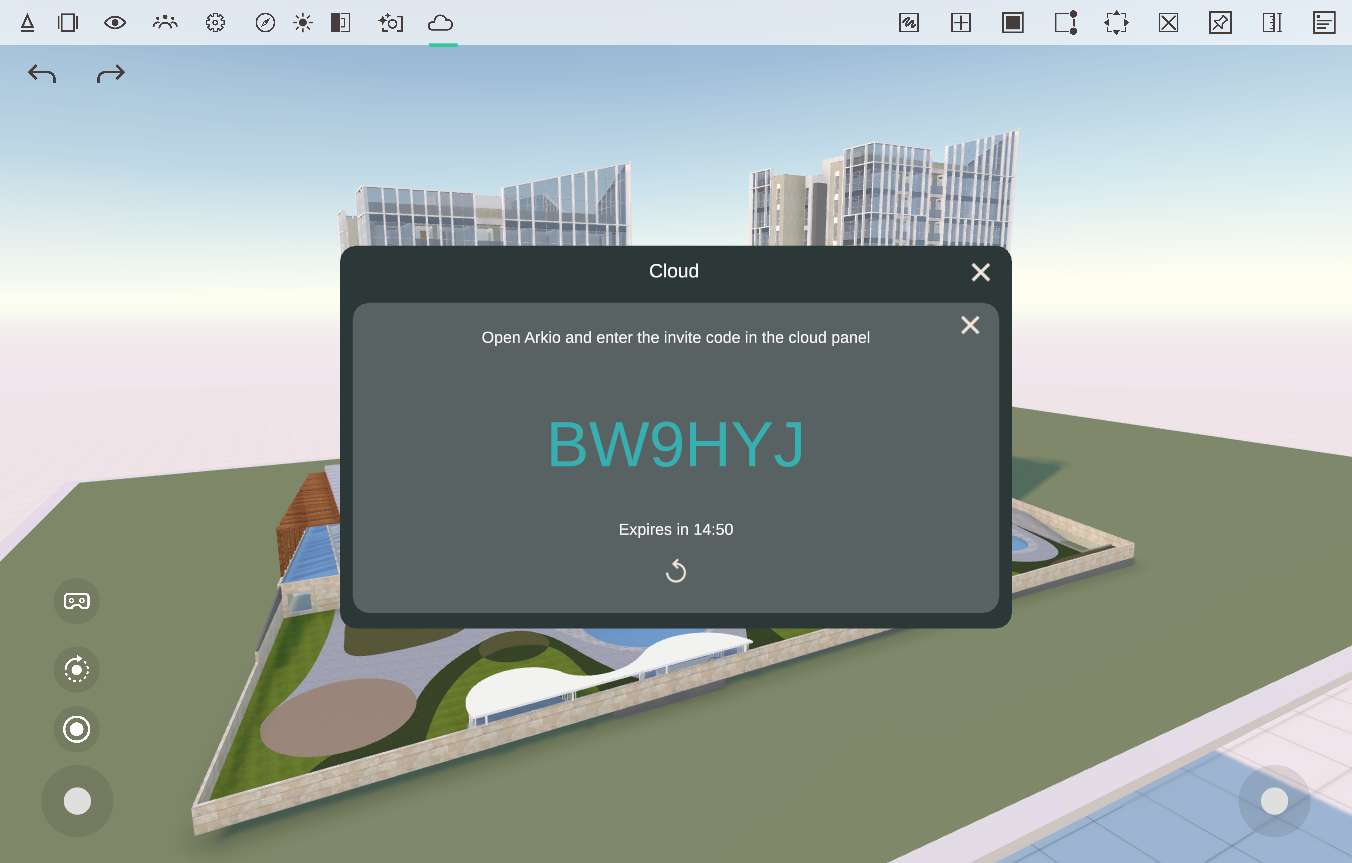
The cloud settings panel in Arkio can be accessed from the top ribbon in non-VR and at the bottom of your main menu in VR. When you connect the cloud web portal to a device, you can manage all files that will be synchronized between your connected devices from this page.
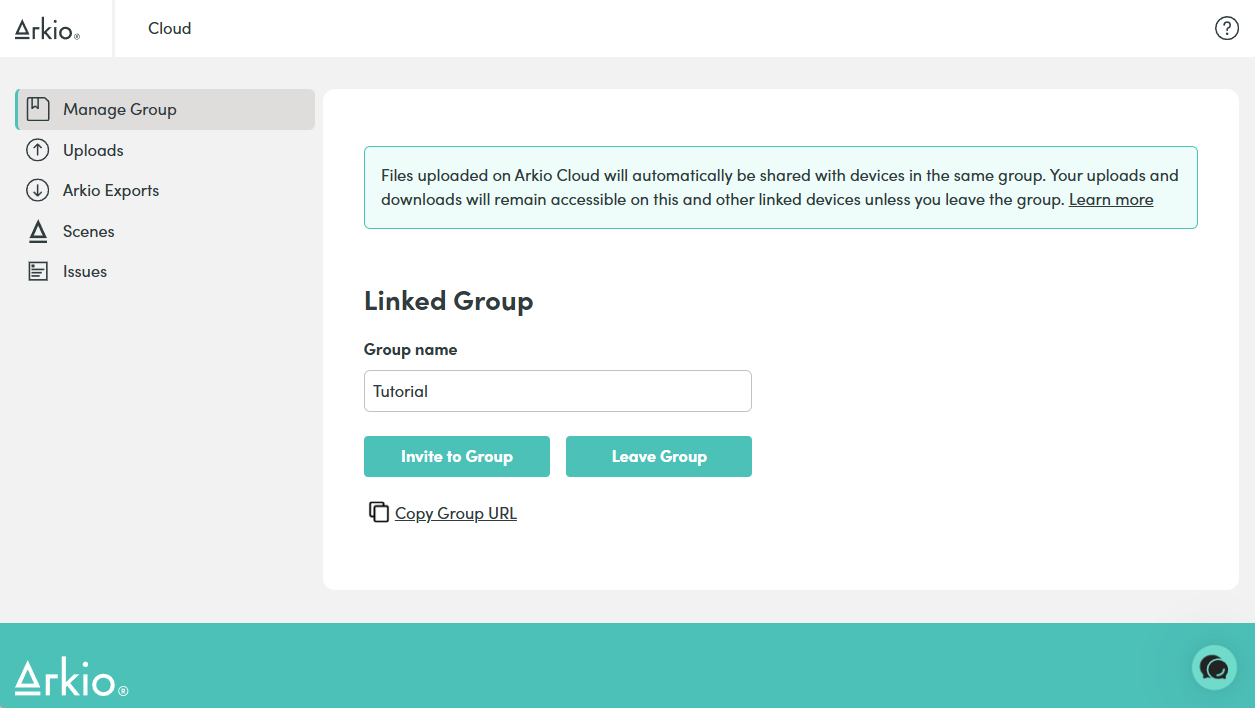
If you join the same group on multiple devices, newly uploaded or imported files will be automatically synchronized with those devices the next time you run Arkio. Once your files are synchronized, they will remain available offline on your device. (see file security for more info)
Manually upload files
The Arkio cloud portal also supports manual uploads of JPG, PNG, OBJ, GLB, and ZIP files containing your models. You can drag and drop these files in the uploads page
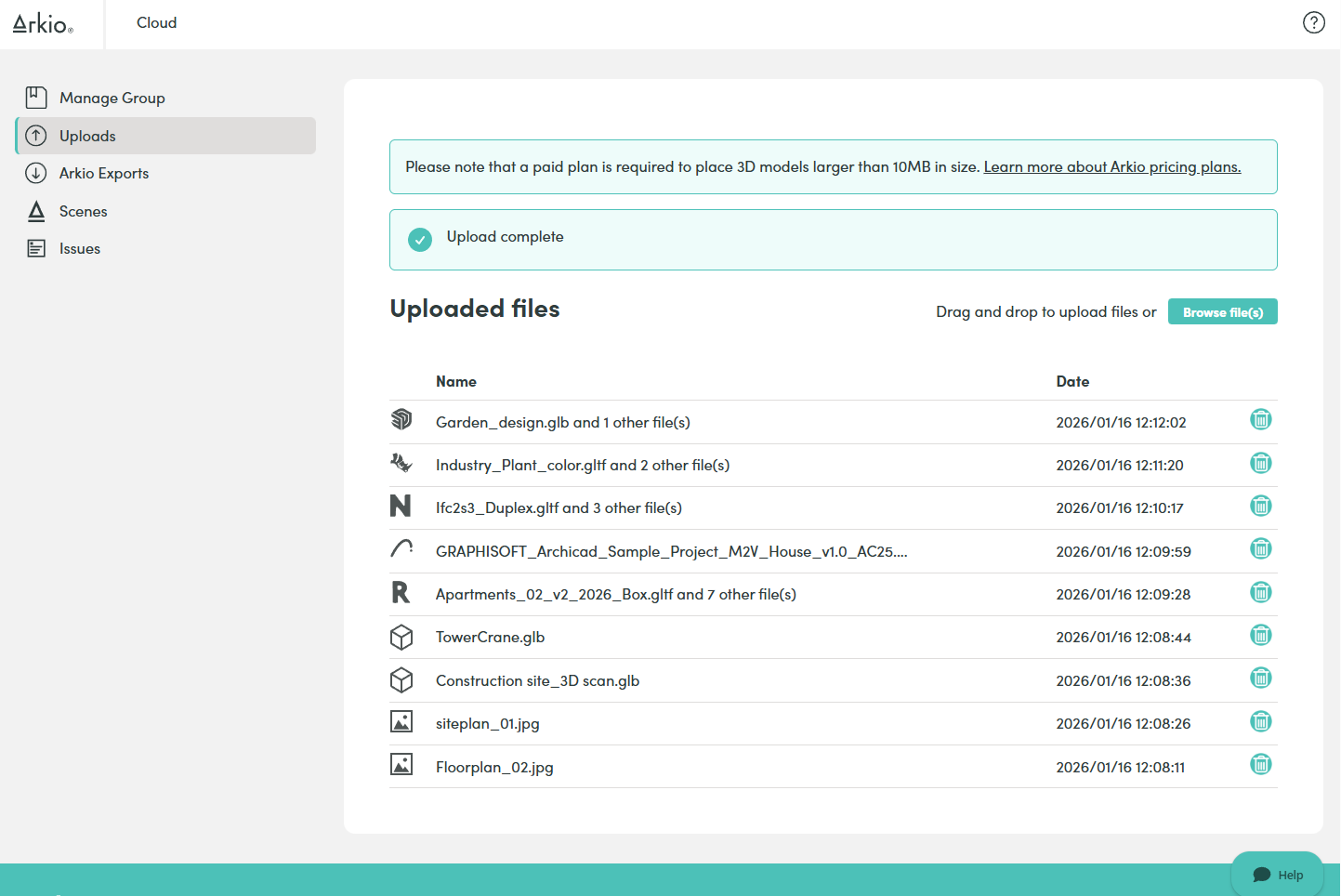 | 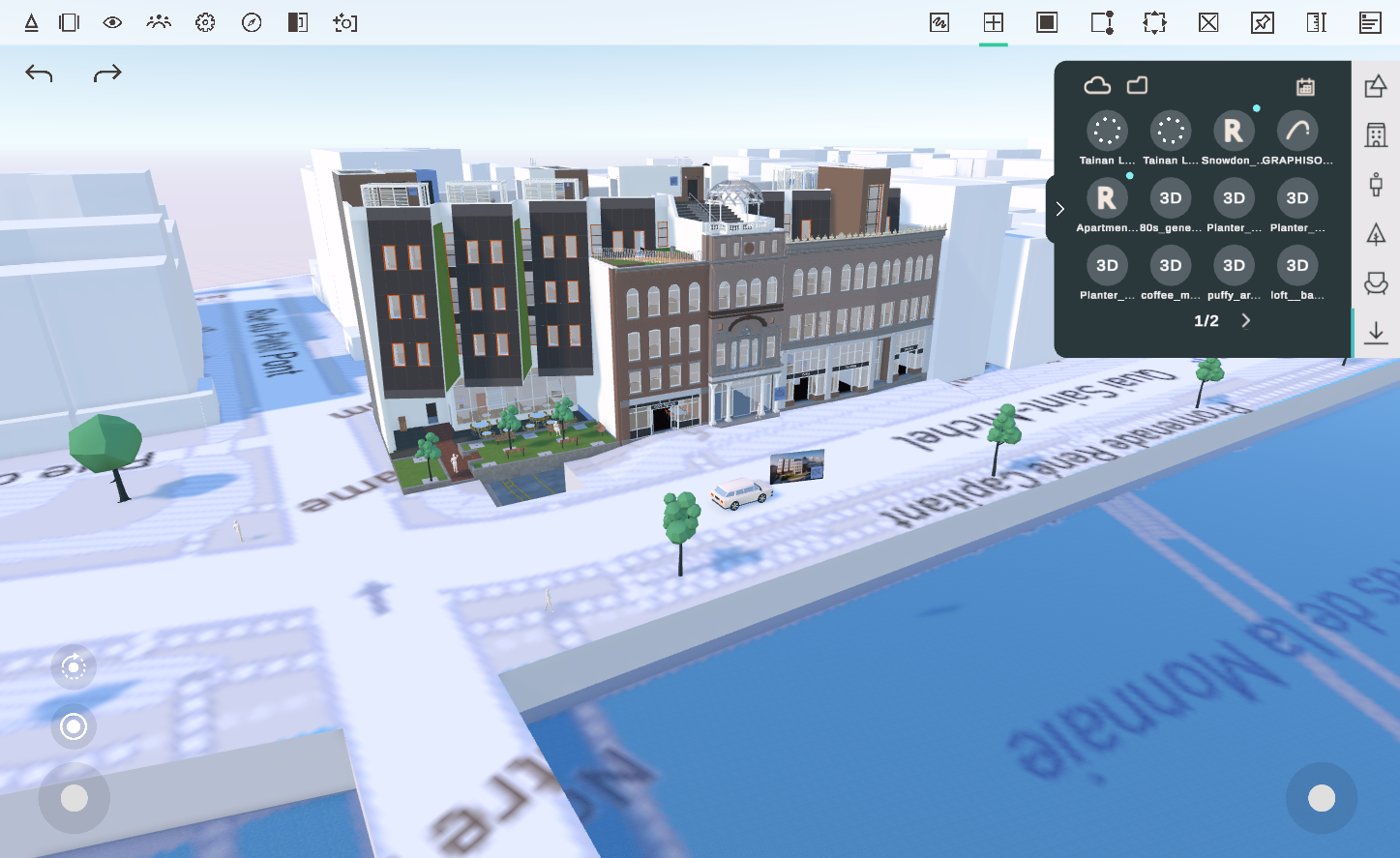 |
Once your files are uploaded to the Arkio Cloud and your Arkio devices are in the same cloud group, the files will be downloaded on your local device, making them available offline in Arkio. The assets will appear in your import drawer and can be placed in the scene.
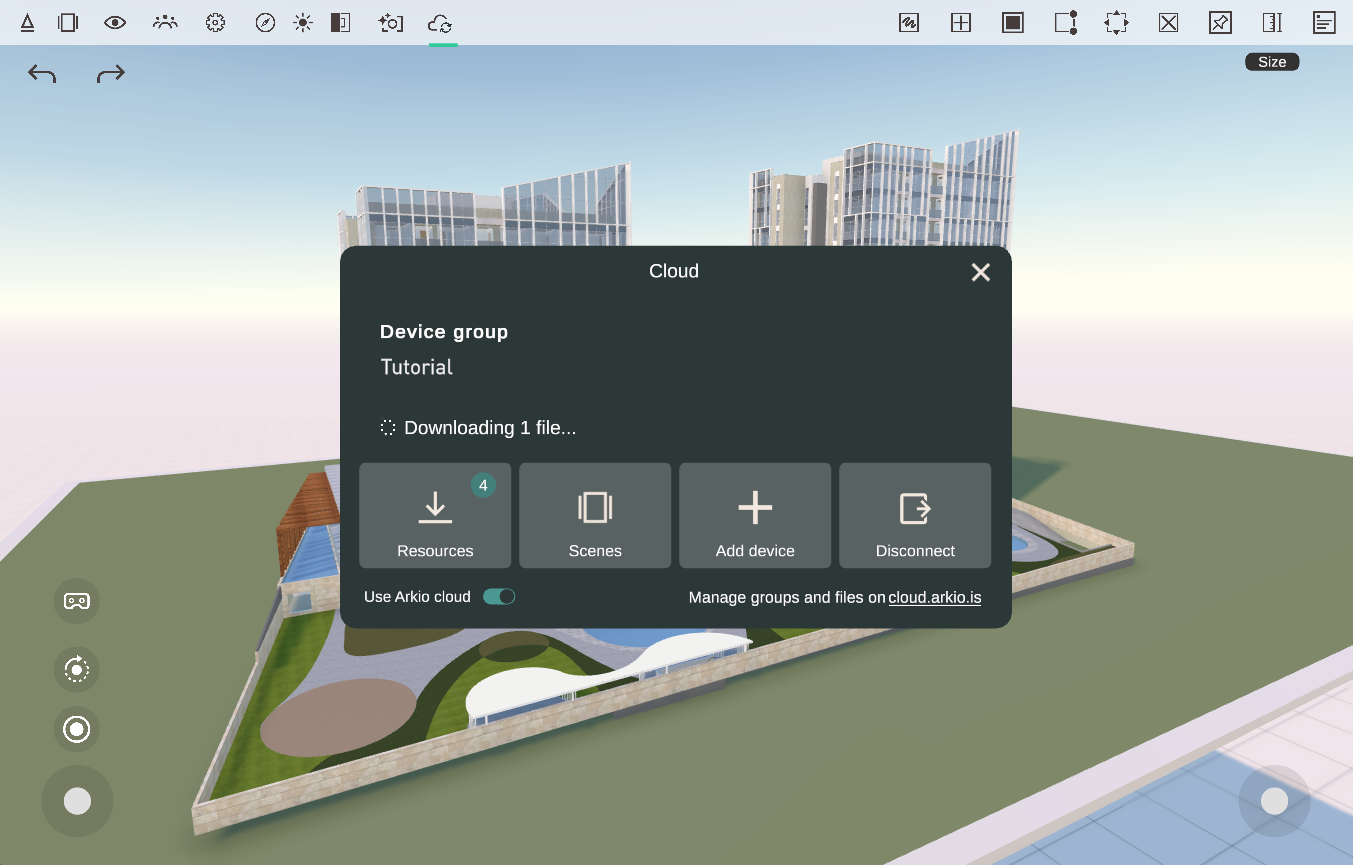
Uploading files larger than 500 MB to the Arkio cloud portal may fail and display a warning. If you need to work with large files, it is best to first import the model to Arkio on a cloud-connected, powerful PC or Mac so it can be processed and synchronized with your less powerful devices.
Updating files
When you upload a new version of your model or image to the cloud by overwriting a file with the same name, Arkio will display a green arrow above the model to indicate that a new version is available. You can click this arrow to replace the older model in this scene with the new version.
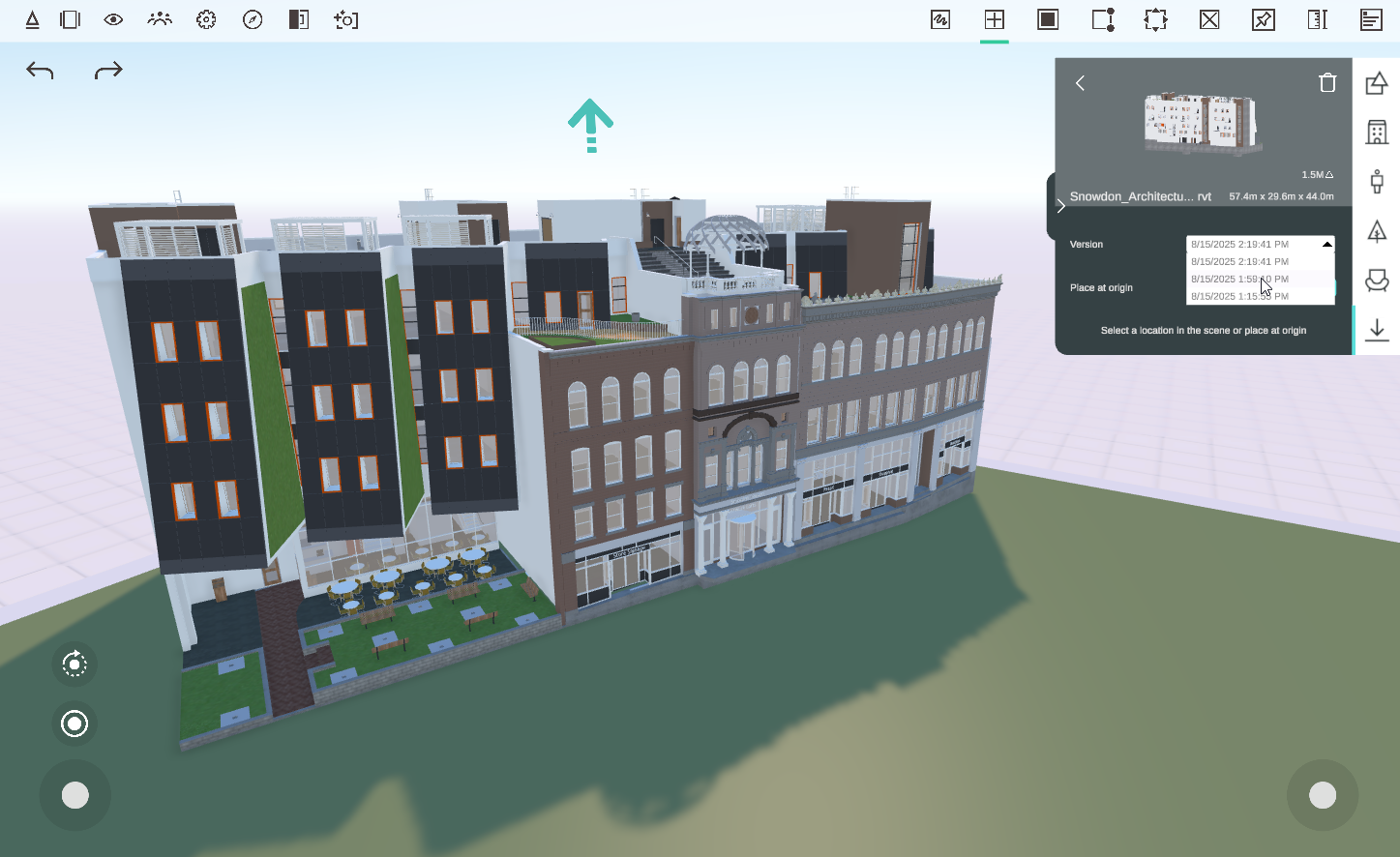
Arkio will retain older versions of your imports, allowing you to revert to a previous version by selecting the desired date in your Create > Import > Placement menu and clicking "Update".
Exporting files from Arkio
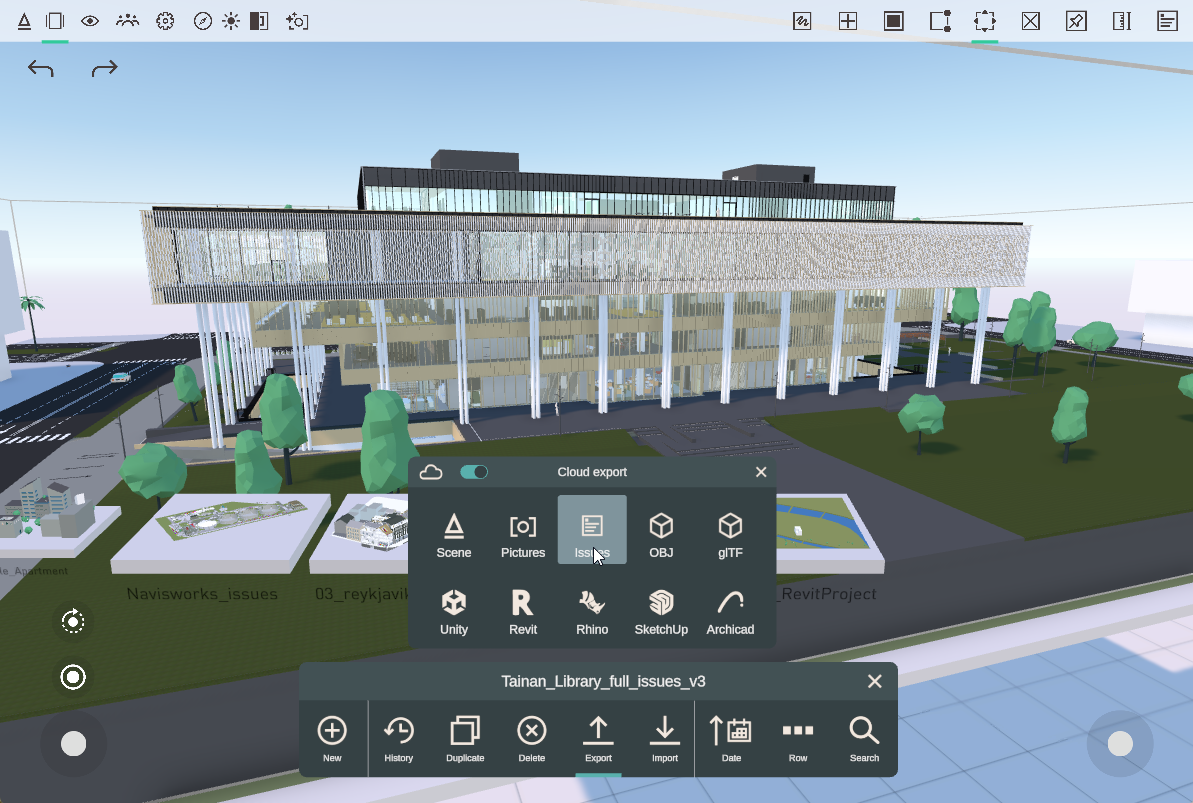
Arkio models are exported by selecting the desired export format in the file browser. When Arkio is linked to a cloud group, you can also export your scenes, photos and issues to the linked cloud group from the export panel. Export of your other files will happen locally on your device and will be automatically shared to your connected cloud group.
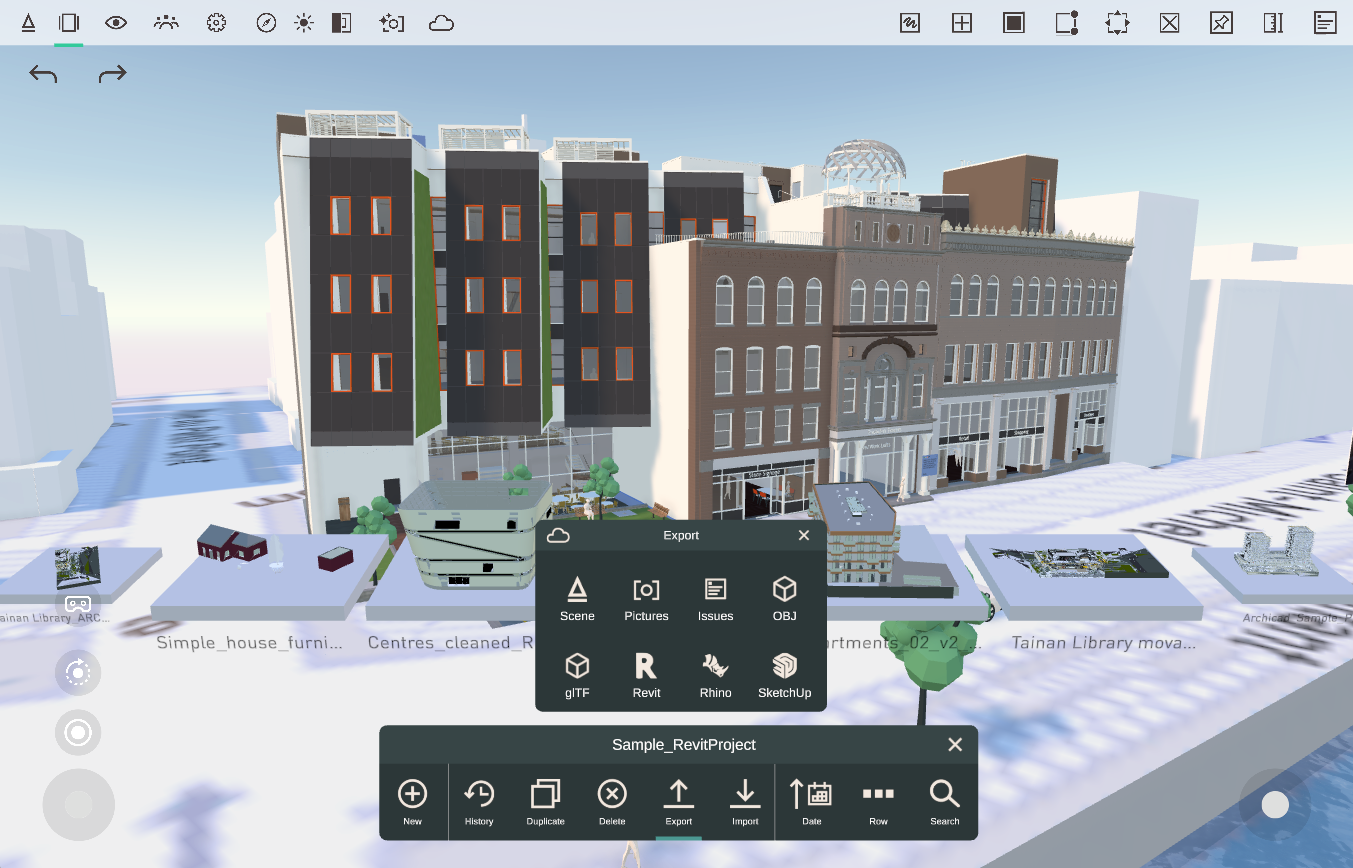
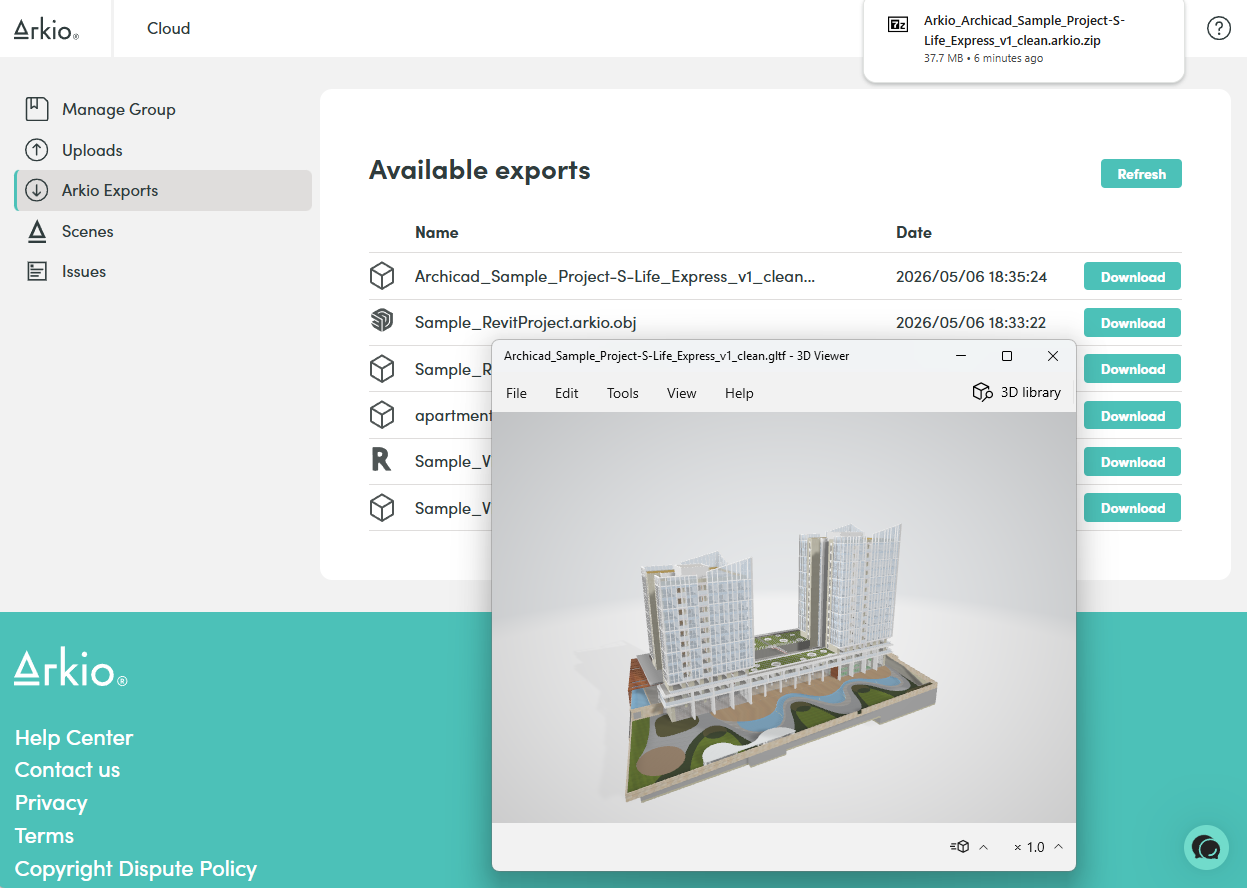
Files exported from Arkio via the cloud can be found in the cloud portal under 'Arkio Exports'. Exports to Revit, Rhino and Sketchup will be auto-downloaded by Arkio on your cloud-connected PC, to be converted back to native geometry of those modeling tools using Arkio’s Windows plugins.
Scene sharing
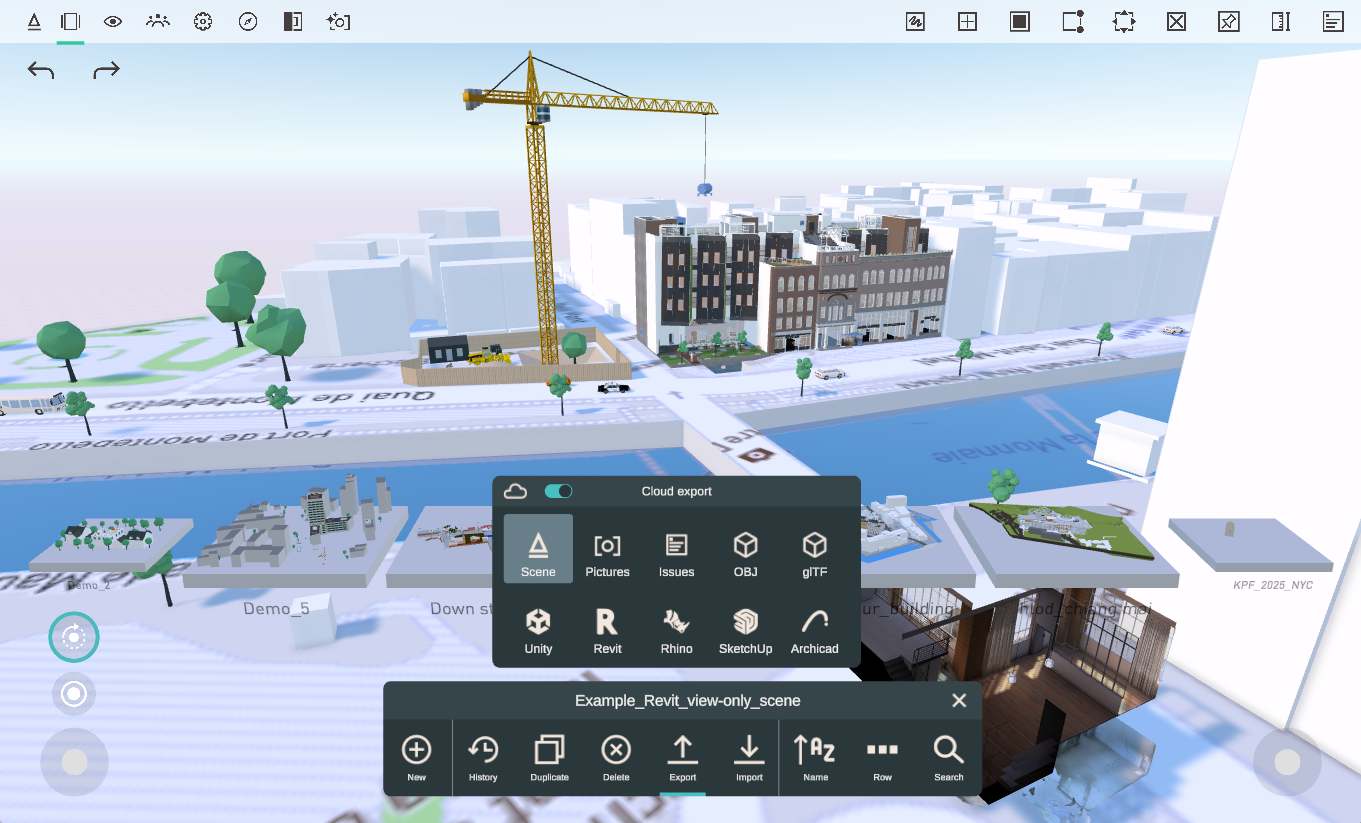
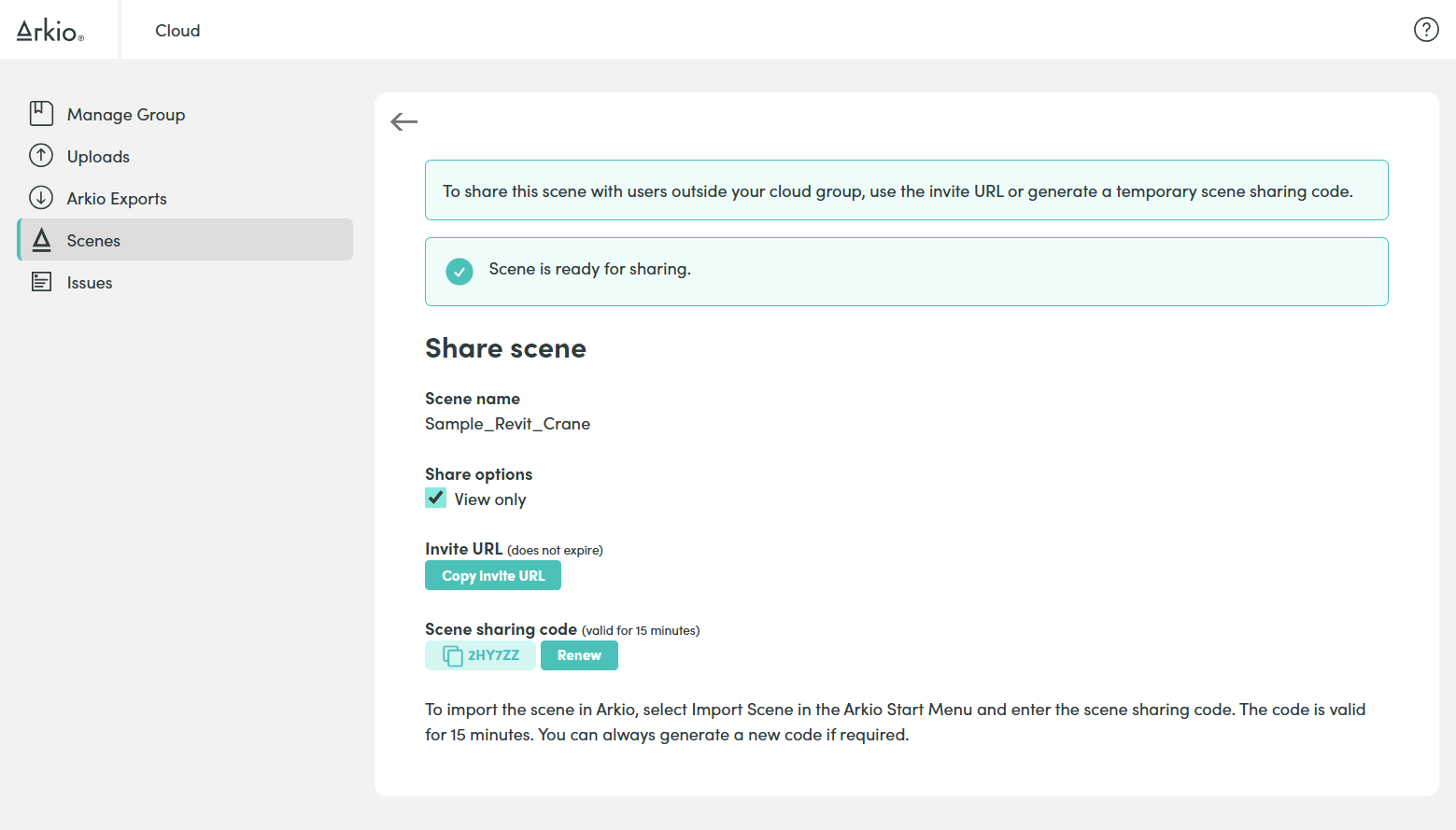
Scenes and all the imported content can also be shared using the Arkio Cloud. You can upload your Arkio Scene from the Export panel in the File Manager. After exporting your scene, it becomes available in your Cloud Scene tab and is shared with all cloud-connected devices. It can also be shared with others without requiring a live Arkio meeting.
 |  |
Exports and share issues
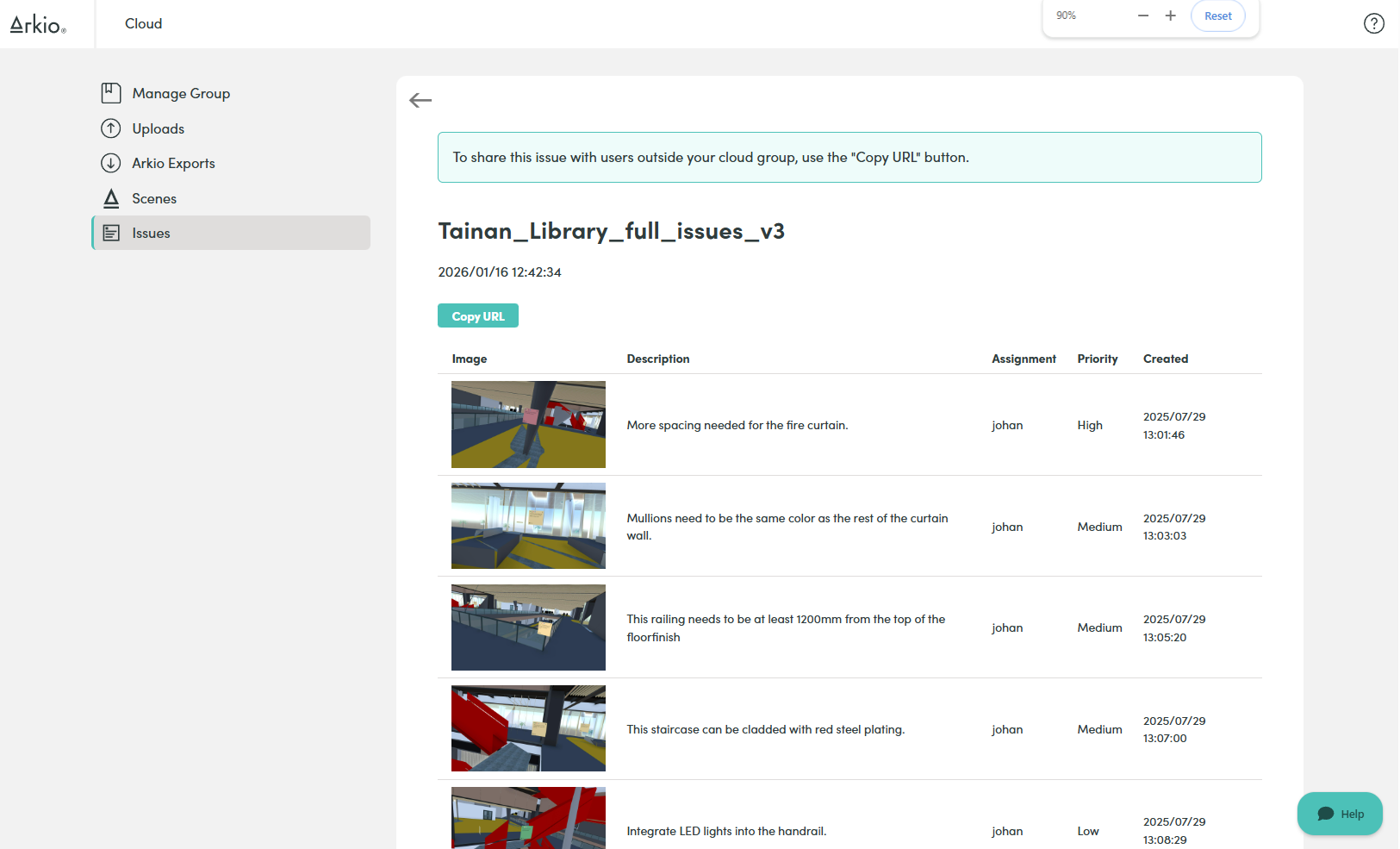
Notes exported to the Arkio Cloud can also be viewed in the cloud portal and shared with anyone via a URL that includes a screenshot of the issue, the note text, and its priority. You can learn more about notes and see an example of issue export pages on this page
 |  |
Disable Arkio cloud
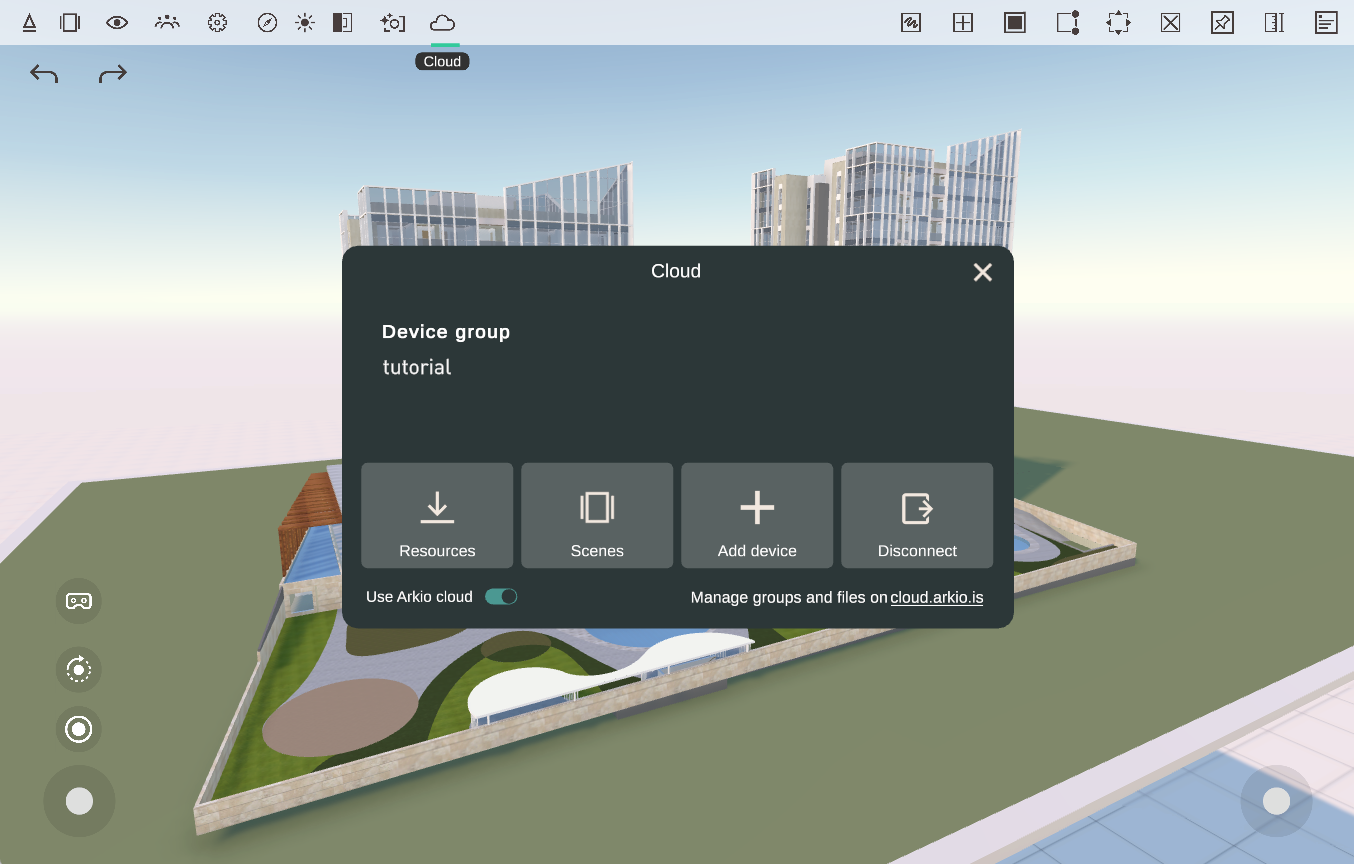
The "Use Arkio cloud" toggle controls whether new imports are synced to the Arkio cloud. If you only want to work offline on your device and don't want new imports to synchronize with the Arkio cloud, you can disable this toggle or leave the Arkio cloud group on that device.
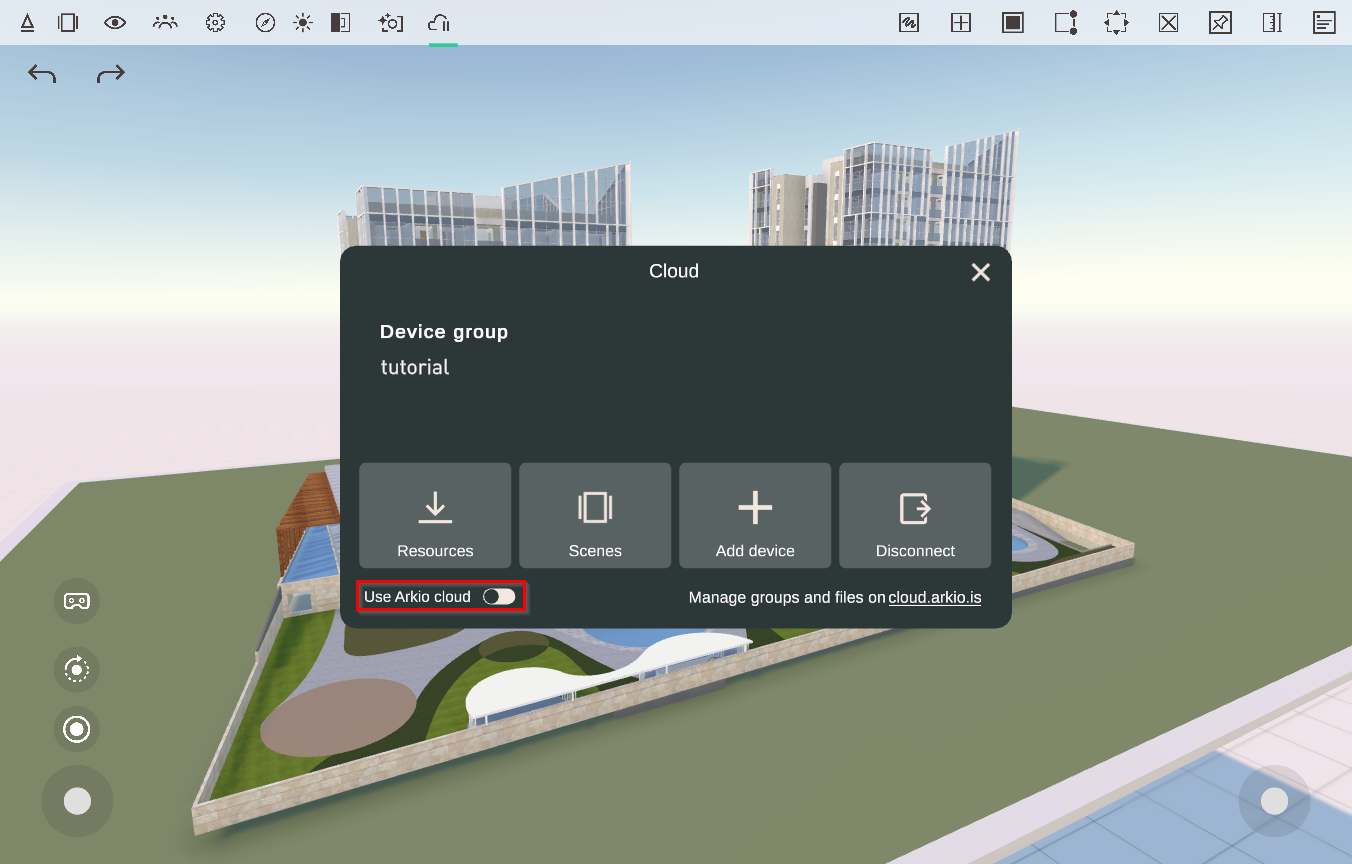
When you stay connected to a device group and disable the toggle, your new uploads will temporarily be paused on that device. When you are ready to sync newly imported files with your other devices, you can flip the toggle back on.
Managing your cloud groups
If you are still linked to an Arkio cloud group on one of your devices, but have somehow lost access to your web portal. You can generate a new invitation code in the Arkio cloud panel using the "add device" button.
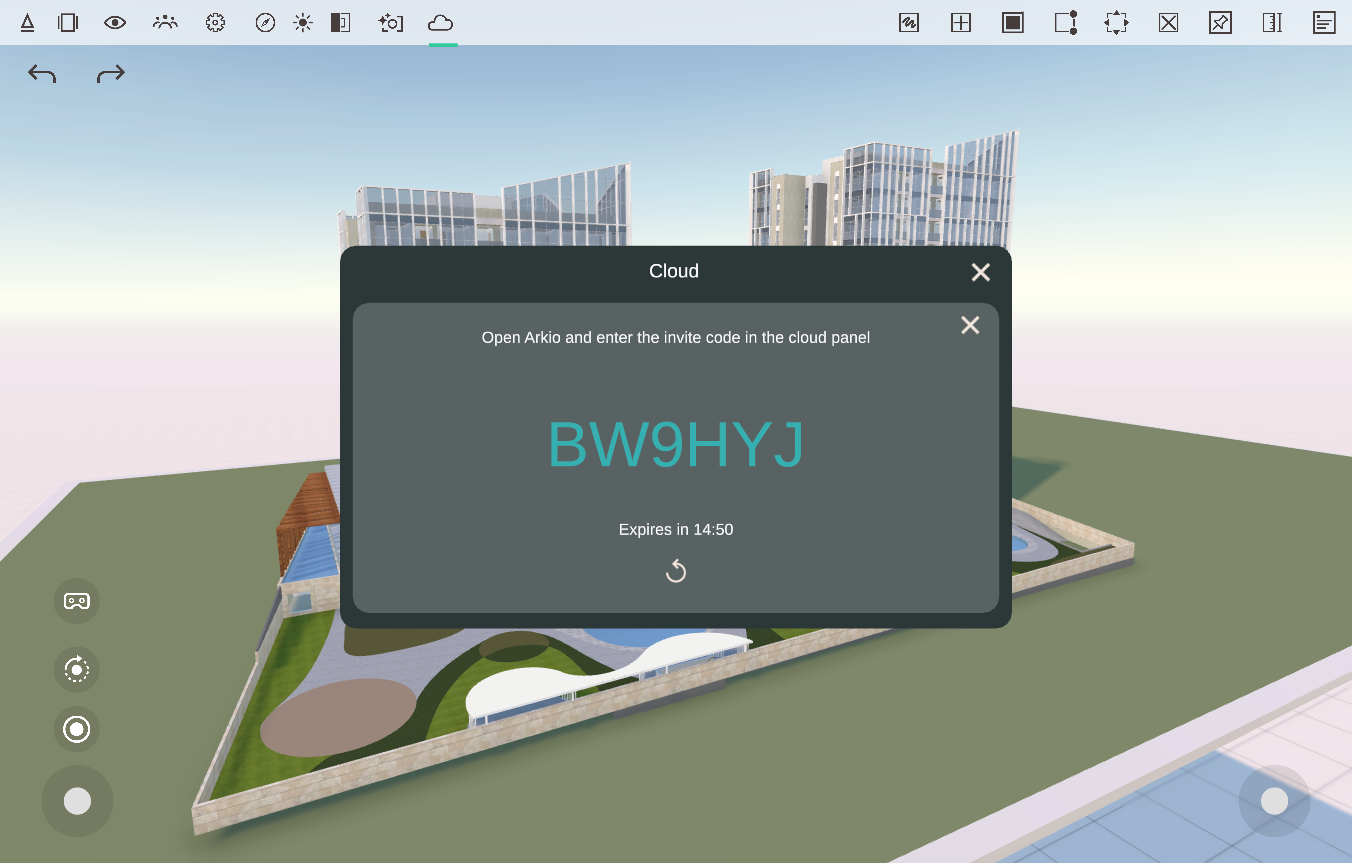 | 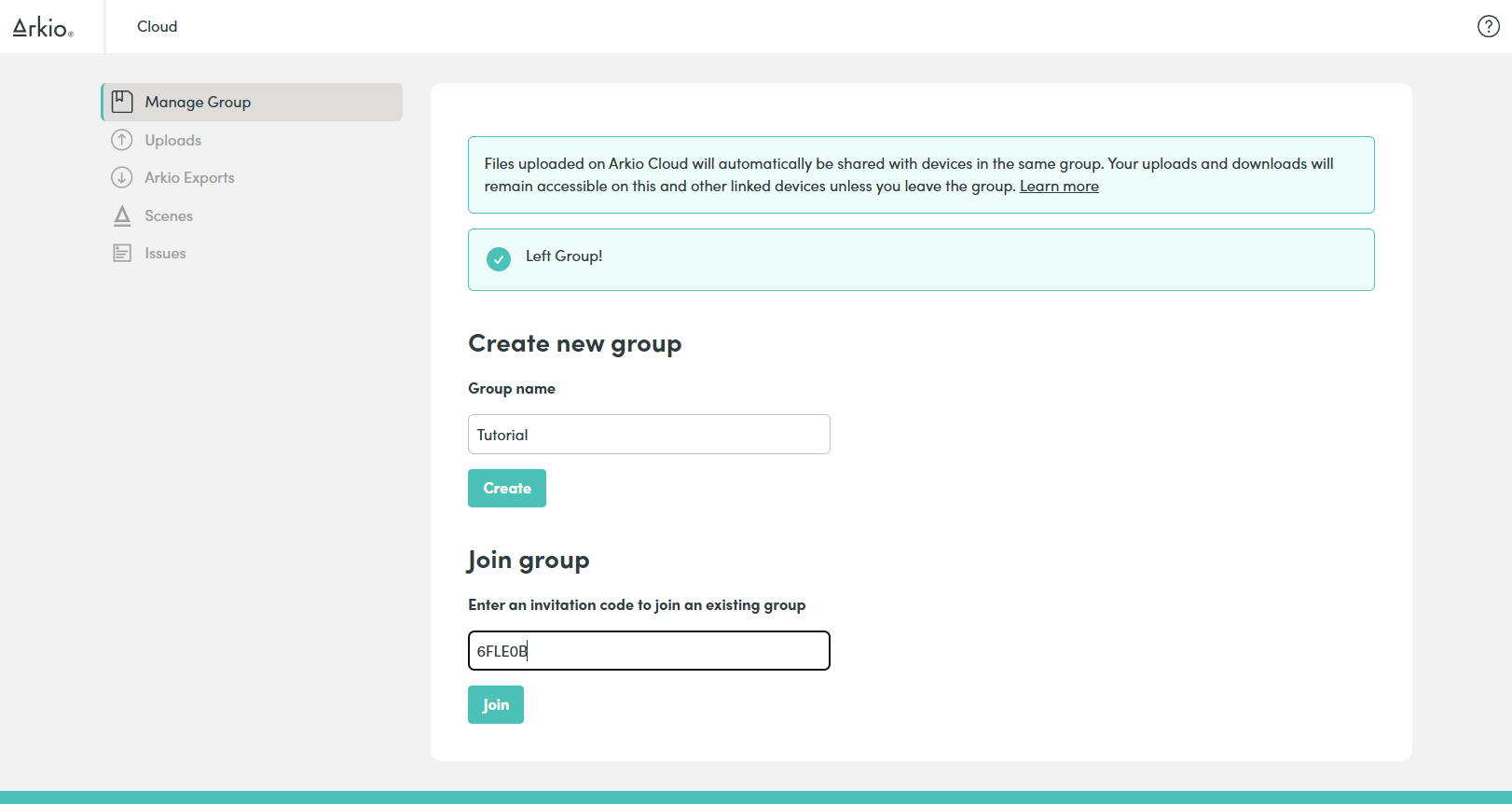 |
This will generate a new temporary code that can be used on other devices or the Arkio cloud webpage to regain access to your uploaded and exported files from your current Arkio cloud group.
The Arkio cloud page saves your previous login in your browser, so when you return to cloud.arkio.is it opens your previous group. If you wish to bookmark this cloud group for future use or share all your cloud content with others, you can also save the long URL that directly logs you in to this Arkio cloud group using "Copy Group URL."
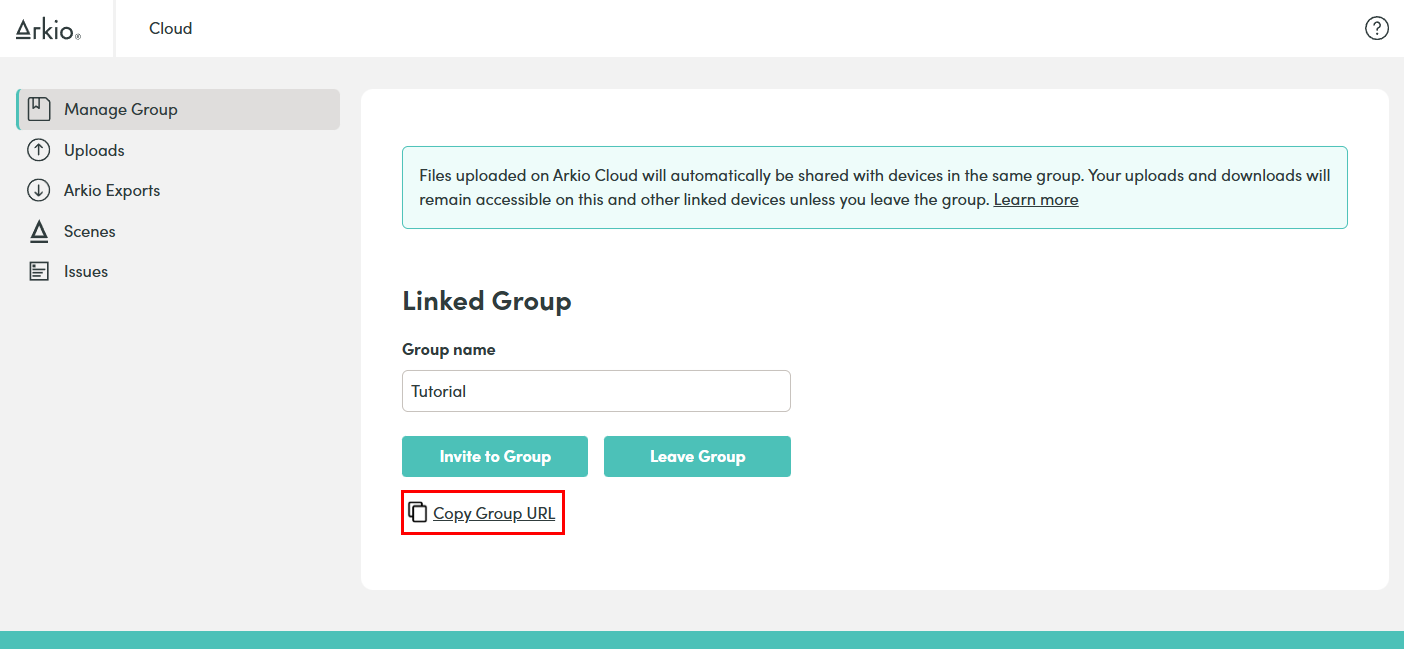
This will copy the URL to your clipboard so you can bookmark a permanent link to your Arkio cloud group or share access to all your Arkio cloud files with others in your organization.
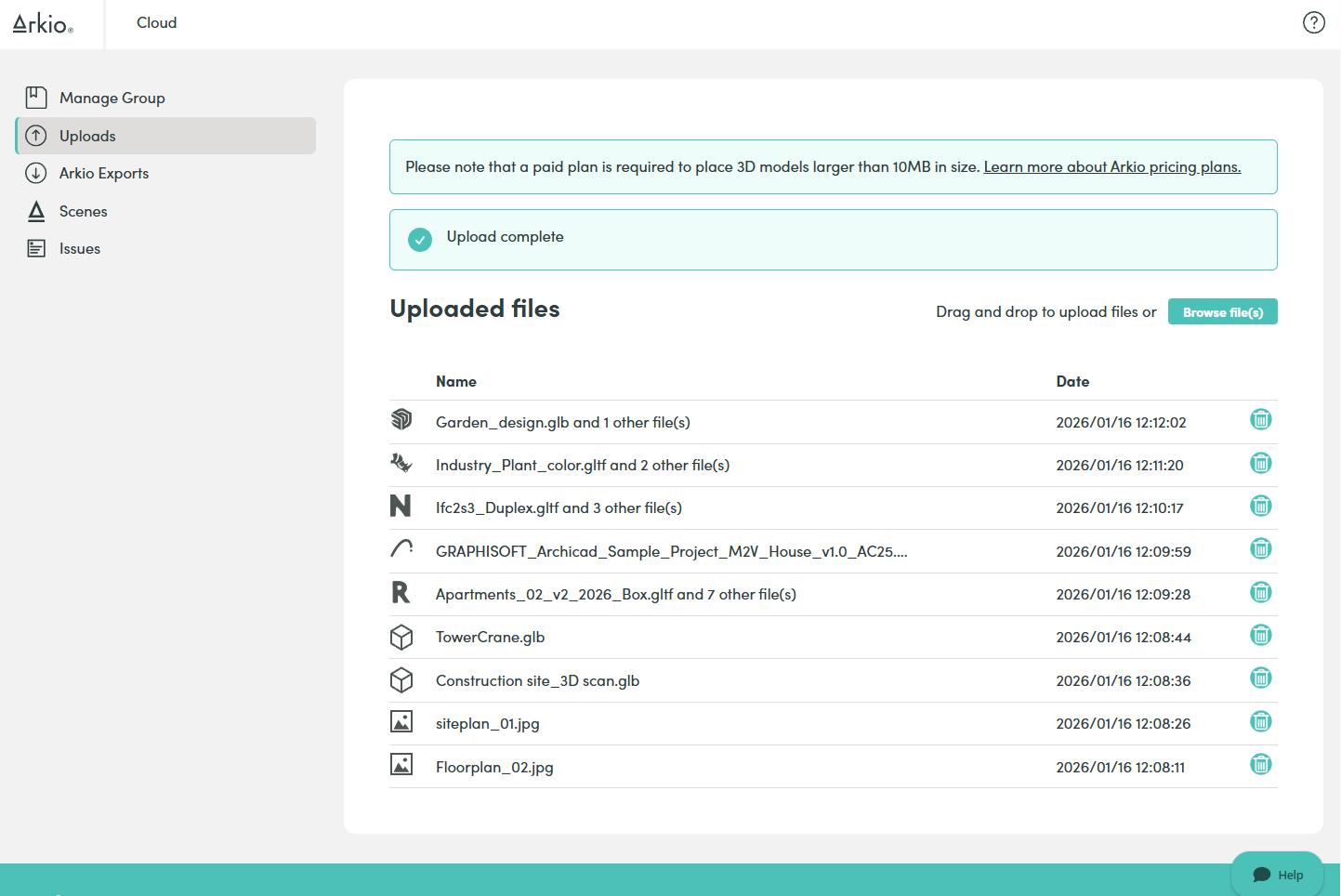
Using the URL bookmarks, you can switch between different cloud groups. This allows you to share multiple files with other teams in your organization. This can be used, e.g., to share company-wide Arkio content libraries or student work files to all connected devices.
FAQ
How long are my files stored on Arkio Cloud?
Files directly uploaded to the Arkio cloud will be stored for 30 days. After that, the source files will be removed, leaving only end-to-end-encrypted Arkio resources for sharing with Arkio devices. Once your files are downloaded and processed, they will remain available offline in Arkio on your device. Exports from Arkio shared with your cloud group will remain available for download until you leave the group.
Who can access the files I have uploaded to the Arkio Cloud?
Only devices linked to an Arkio cloud group can access files uploaded or shared to that group. Arkio Cloud Groups can best be seen as an encrypted file synchronization hub. You can create as many groups as you need. If devices are no longer connected or your uploads expire, your files will stop synchronizing with your devices.
I lost access to my original cloud group. How can I regain access to my files?
If one device is still connected to a cloud group, you can use that device to generate a new link code, which you can then enter on the Arkio Cloud portal. You can save a permanent URL for your group in your browser for safekeeping. You can always create a new group and relink your devices to sync the files you need.
Can I have multiple cloud groups?
Cloud groups are used to sync files between devices. After this, your data is stored locally on your device. You can create as many groups to share files as you like. If you wish to switch between cloud groups, you can also bookmark the URLs of cloud groups (see above) or use other browsers, devices and link codes to manage and switch between them.
Cloud files and data security
Arkio is a locally run application; all your user data is stored on your device. This allows Arkio to be used offline and in high-security environments.
The Arkio Cloud primarily distributes end-to-end encrypted resources across Arkio devices. If you export your scene or synchronize a new import across linked devices, these files will only be shared between devices in the same live Arkio meetings or connected to the same Cloud device group.
Source files uploaded to the Arkio cloud will be removed after 30 days. Users can manually remove any cloud uploads on our cloud web portal. This will also prevent them from syncing to your linked Arkio devices.
If you have further questions about Arkio's data security, we're happy to provide more technical details to your organization's data security team. You can contact us to learn more.
Was this helpful?
Still need help? Ask the team