Import & export basics
Written By Johan Hanegraaf
Last updated 5 months ago
Importing models from our plugins requires an Arkio Pro license. You can learn more about our paid features and start a free trial to try this.
Arkio imports and exports happen locally on your device. These imports can be shared with other devices using a live meeting, or by synchronizing the imports to other Arkio devices connected to the same Arkio Cloud
Import new files to Arkio
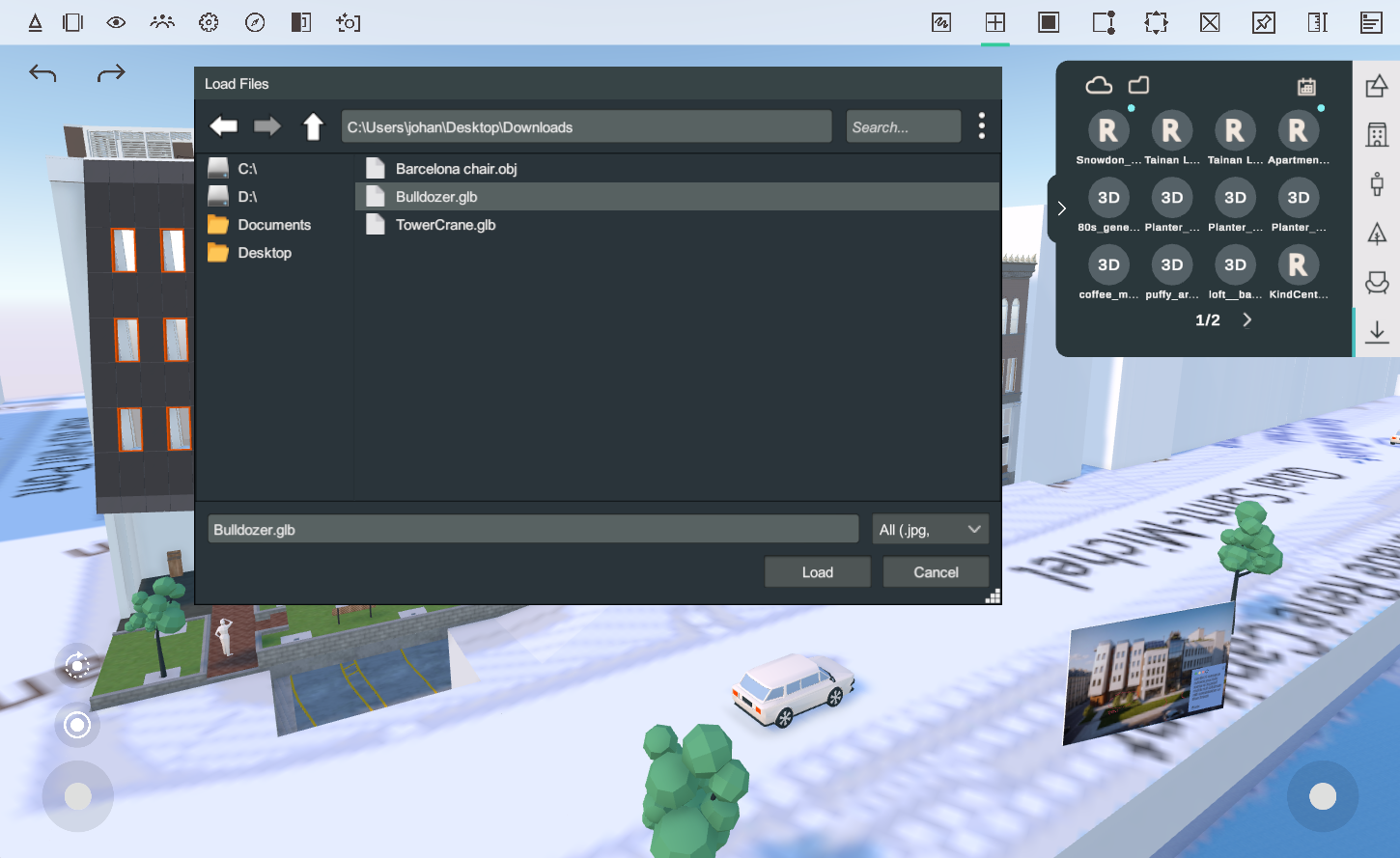
The PC version of Arkio includes our plugins for Revit and other design tools that open your exported models directly in Arkio with layers and movable elements. You can also manually import OBJ and GLB/glTF files on your device by selecting files from the Create > Import drawer. Alternatively, you can place the files in your device's import directory, located in Documents/Arkio/Import on Windows.
Synchronize imports with your other Arkio devices
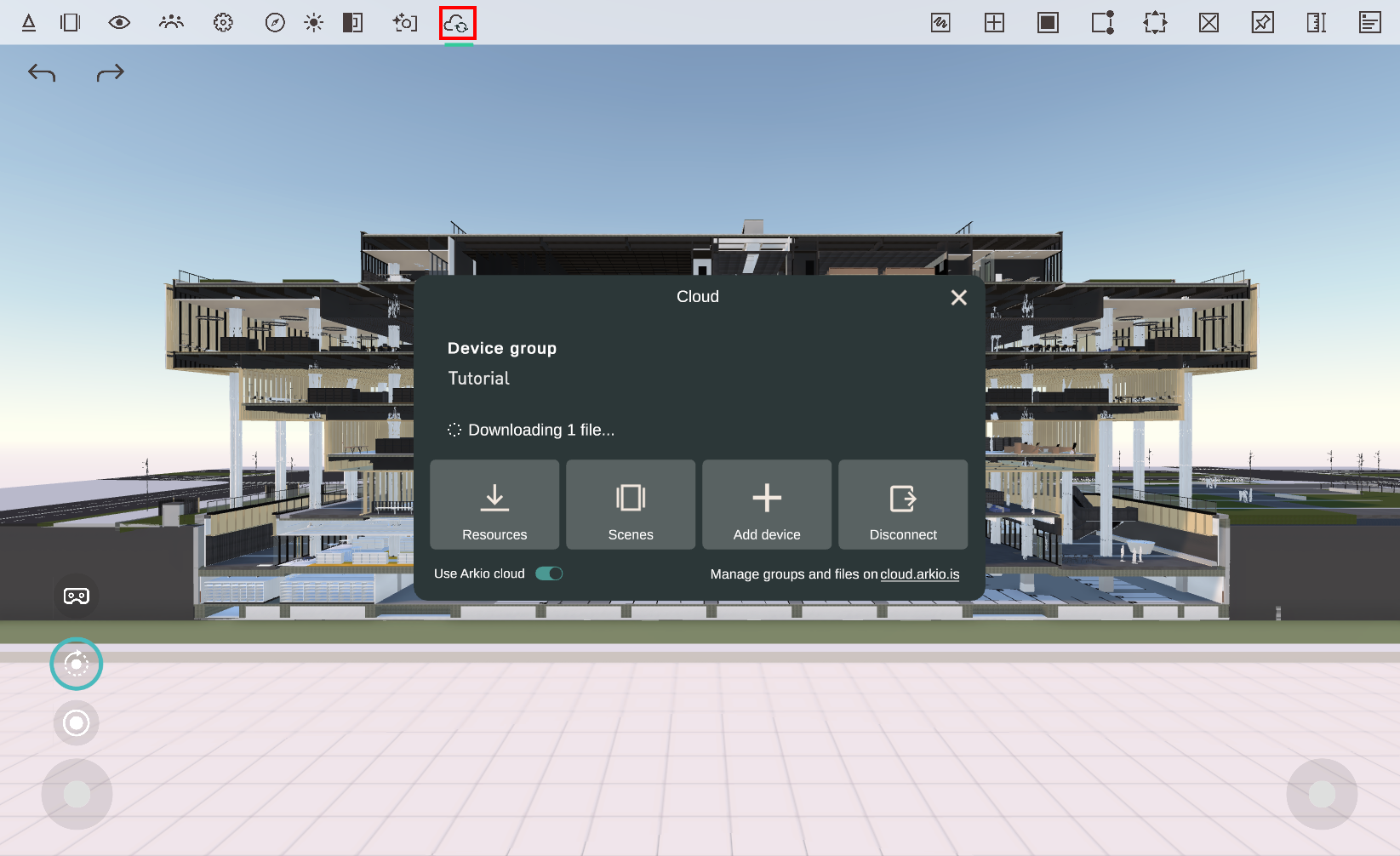
To synchronize your imported files across multiple Arkio devices, such as your PC, Meta Quest, and iPad, you can link your PC and other devices to the same Arkio Cloud device group. The status of your Arkio Cloud shows in your main tool ribbon. After linking, new imports will automatically be synced with other linked devices.
You can also share your scenes, including all placed imports, using a live meeting or via a URL shared from the cloud portal.
Placing imports in the scene
Files imported to Arkio will show in your Create > Import drawer. You can sort these imported resources by name, date, or type and click the file to open a preview with placement settings for that resource. In your model preview tab, you can see the number of triangles and movable elements for that imported object. For generic imported OBJ and GLB models, you can set a different unit and up-axis orientation from the dropdowns. Exports from our plugin already include the correct size and orientation and include layers with individual, movable objects.
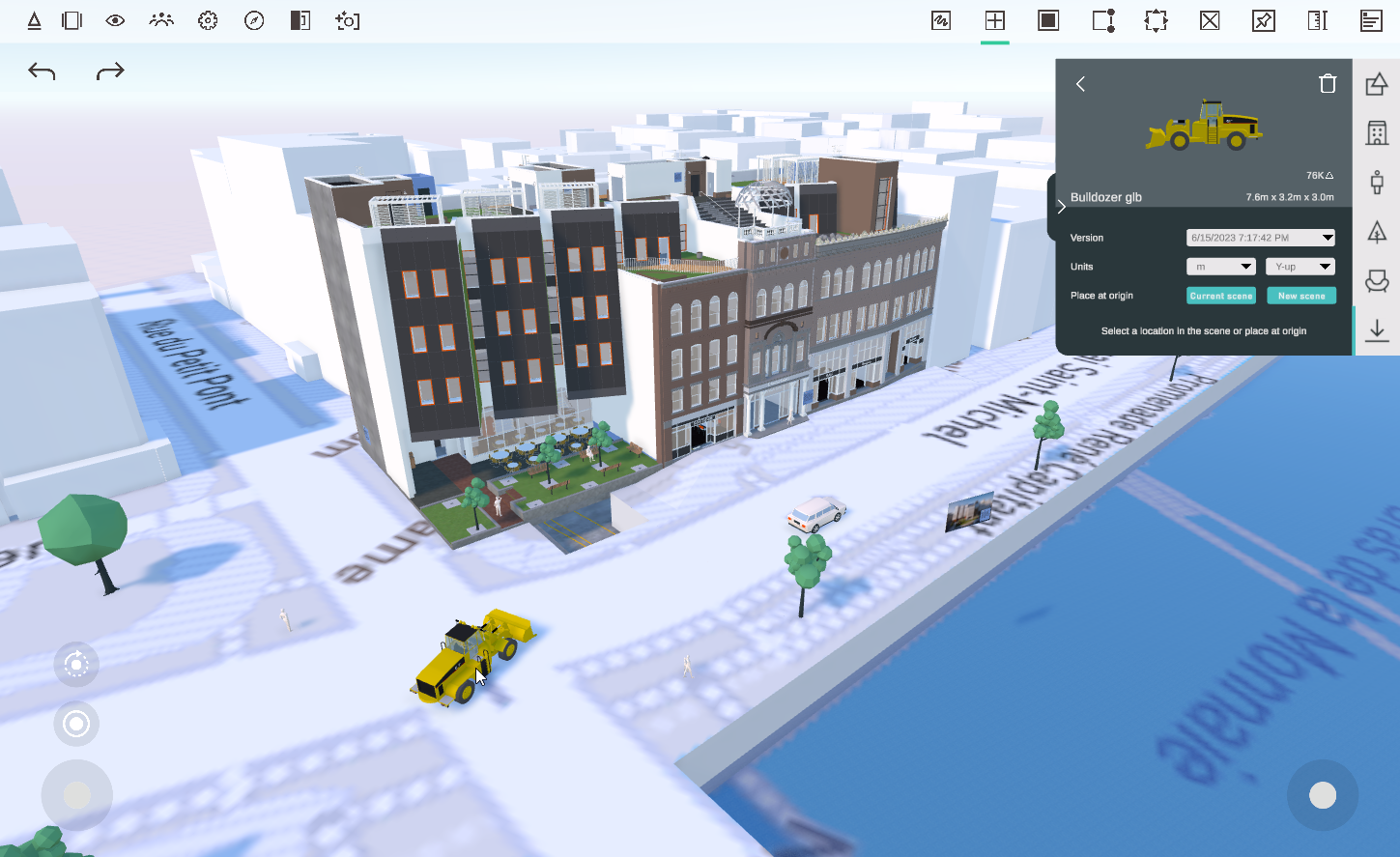 | 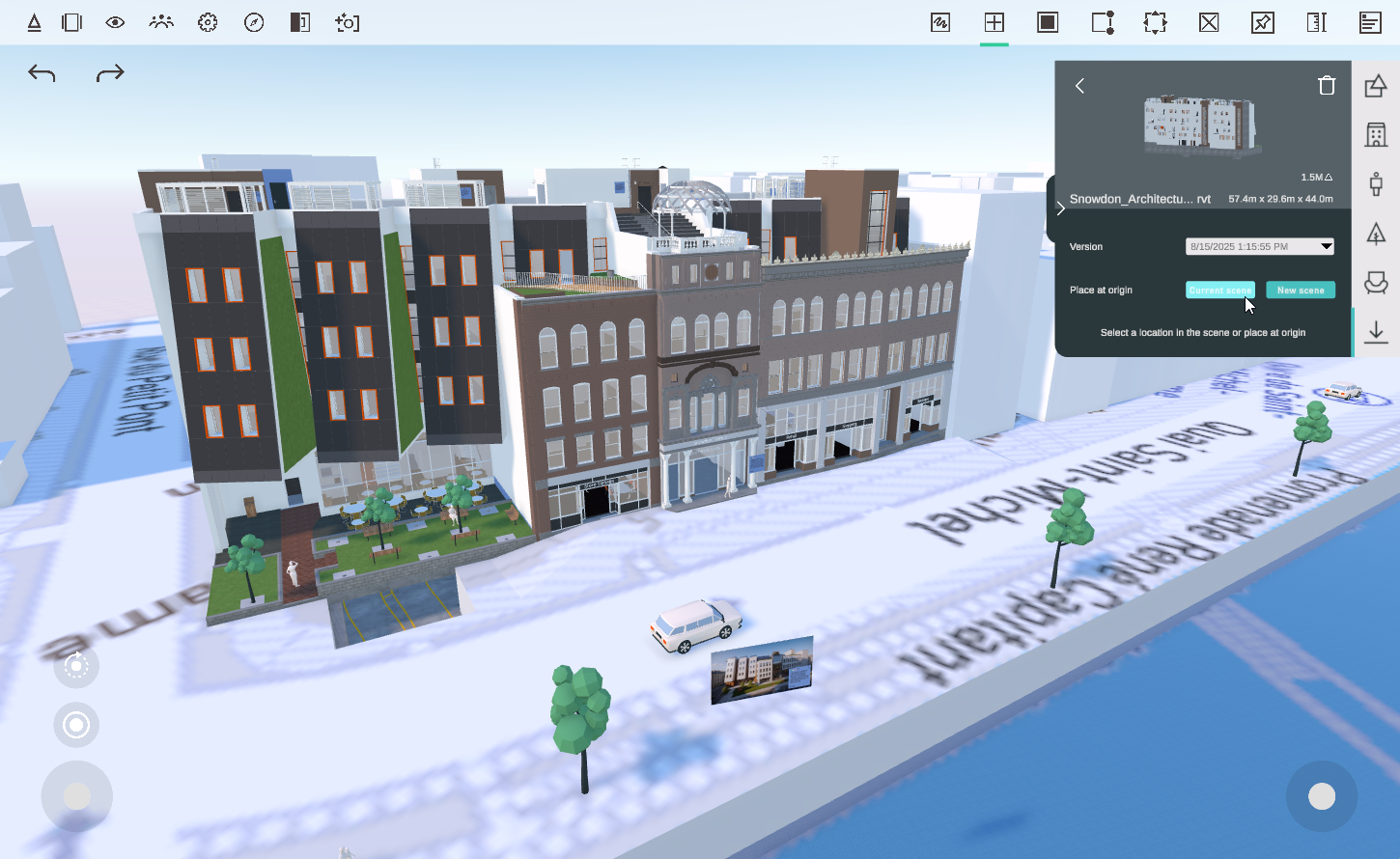 |
With the placement tab open, you can click anywhere in the scene to manually place an instance of that model. Or press the green Place at origin buttons to place the model pinned in the current or a new scene. Models placed at the origin can be aligned with other models, enabling a round trip between your design tools when exporting Arkio-added geometry back to your existing tools.
After you place the imports on one device, you can start a live meeting with your other device to share the scene with that device, including all imported geometry. You can also link your PC to the same Arkio Cloud to automatically synchronize new imports to your other devices.
Importing large models
Arkio supports importing large models with millions of triangles. If you want to load large files, we recommend importing the model in Arkio on a more powerful device, such as your PC/Mac, before sharing it with a mobile device using Arkio cloud or a live meeting. Imported models may appear less detailed, depending on your device's triangle budget.
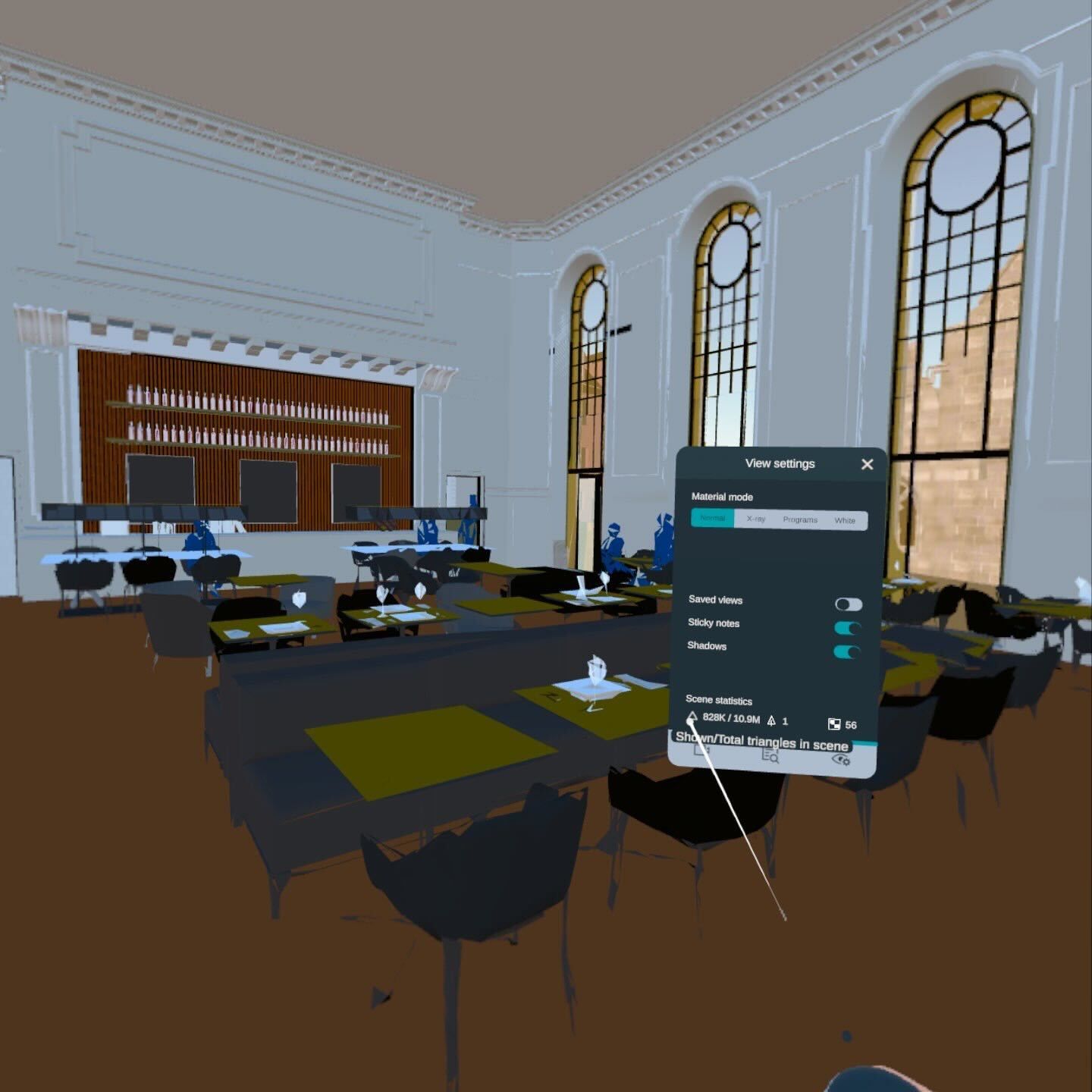 | 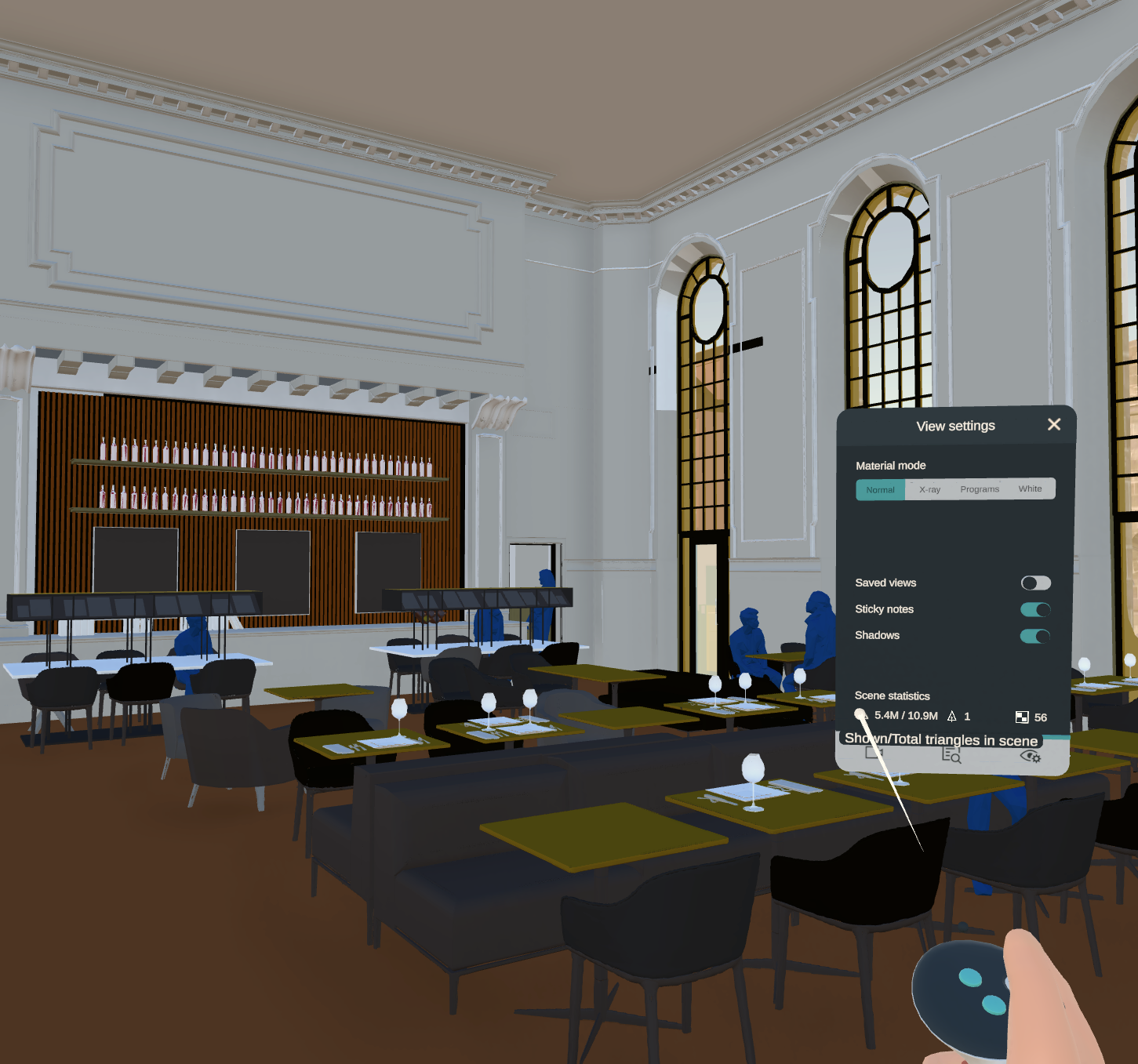 |
828K/10.9M on Quest 3 standalone | 5.4M/10.9M on Quest 3 in PC link mode |
Loading indicators
Icons above imported models indicate whether the files are loading or have issues. Once files are synchronized via our end-to-end encrypted cloud or Arkio meetings, all data in your Arkio scene remains available on your device and can be used offline.
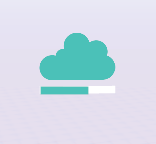 | 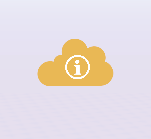 | 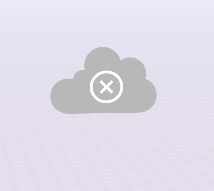 |  |
Loading from the cloud | Too large for the device | File not found | Update available |
Downloading model | Not all geometry is shown | Click to remove | Click to replace |
If you see a yellow or red warning cloud, it means the model you're trying to load is too large for your device or cannot be loaded due to a network issue. You can reduce the model size, reload your resources or use Arkio on a different device, such as a PC using VR link mode.
Updating imports
You can update existing imported models and images by overwriting your Arkio import files with the same name locally or in the Arkio Cloud. Arkio will then recognize and process the new version, displaying a green arrow above the existing model to indicate that a new version is available. You can click this arrow to replace that file in the scene with the new version on the same coordinates.
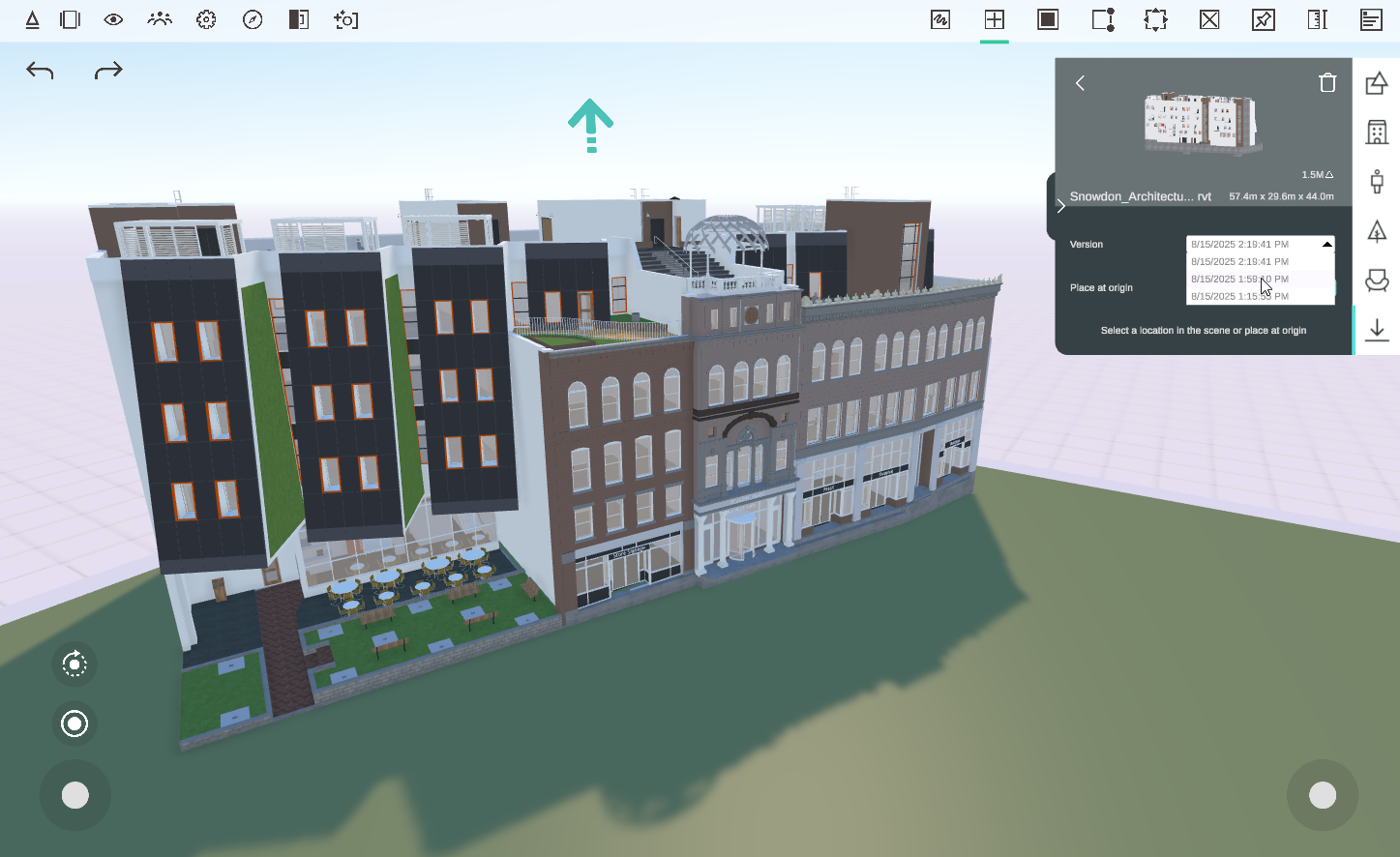
Arkio will retain the older versions of your imported models, allowing you to revert to a previous version by selecting the desired date in your Create > Import > Placement menu and clicking "Update".
Exporting Files
Arkio scenes can be exported by opening your File browser, selecting Export, and choosing the desired Export format. Our Revit, Rhino and SketchUp exporter converts your Arkio-added or moved geometry to native geometry in your original modeling tool. You can also export your models to OBJ or glTF formats.
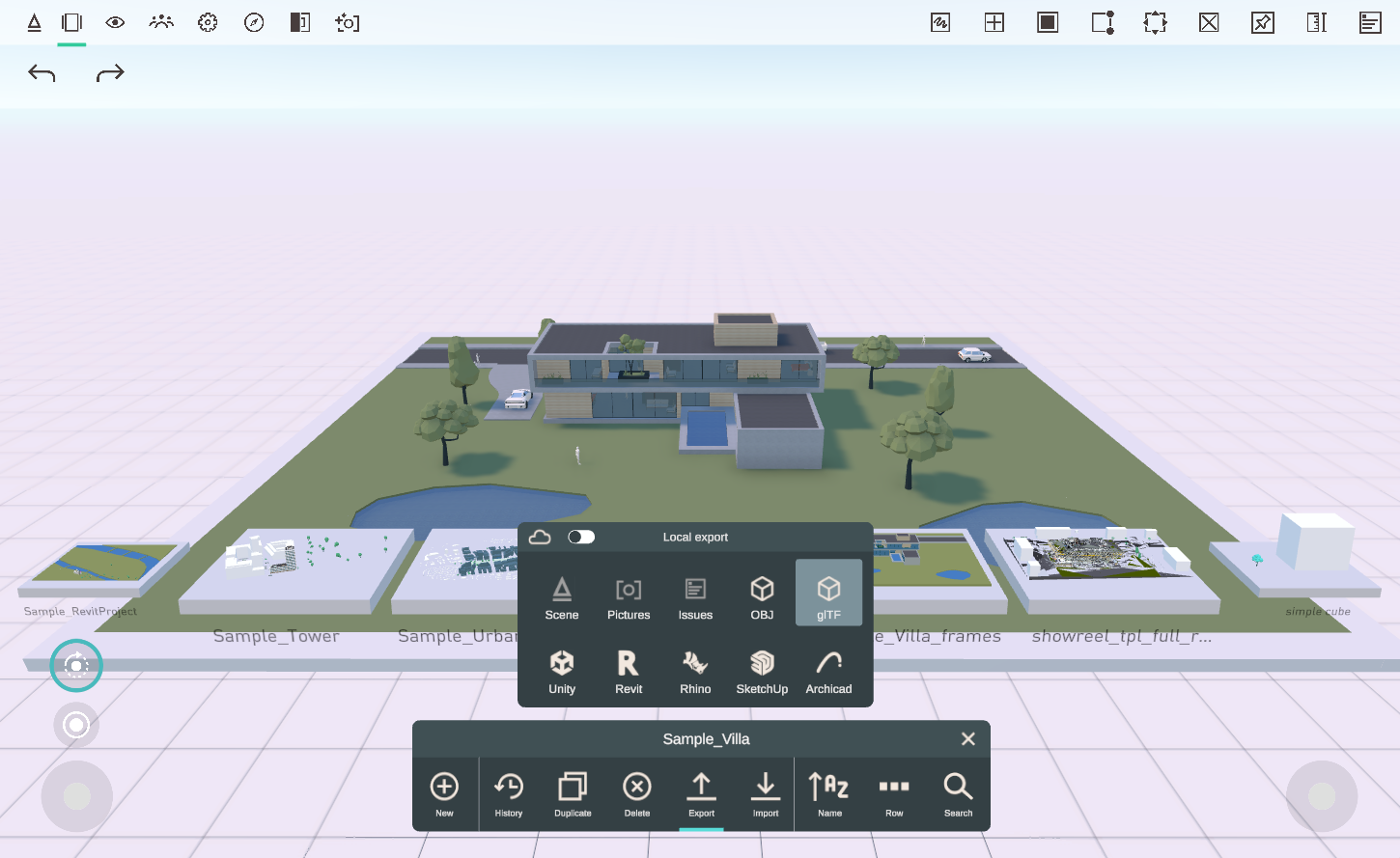
For local OBJ exports, all Arkio's shapes and custom-imported objects are exported as a single mesh, with their materials and textures in the Export/Models folder. The glTF export will export mesh elements in their hierarchy, including materials and textures, into a single GLB file.
Models get exported in metric (1 unit = 1 meter). You can load these models into your other 3D modeling software to convert them to many other 3D mesh or CAD formats. (see export to other 3D formats)
Troubleshooting
Some 3D models may fail to load in Arkio, resulting in a warning in the import panel.
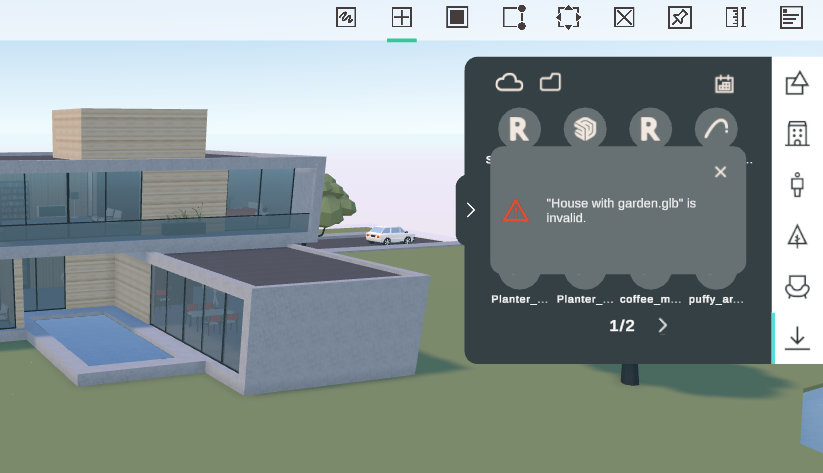
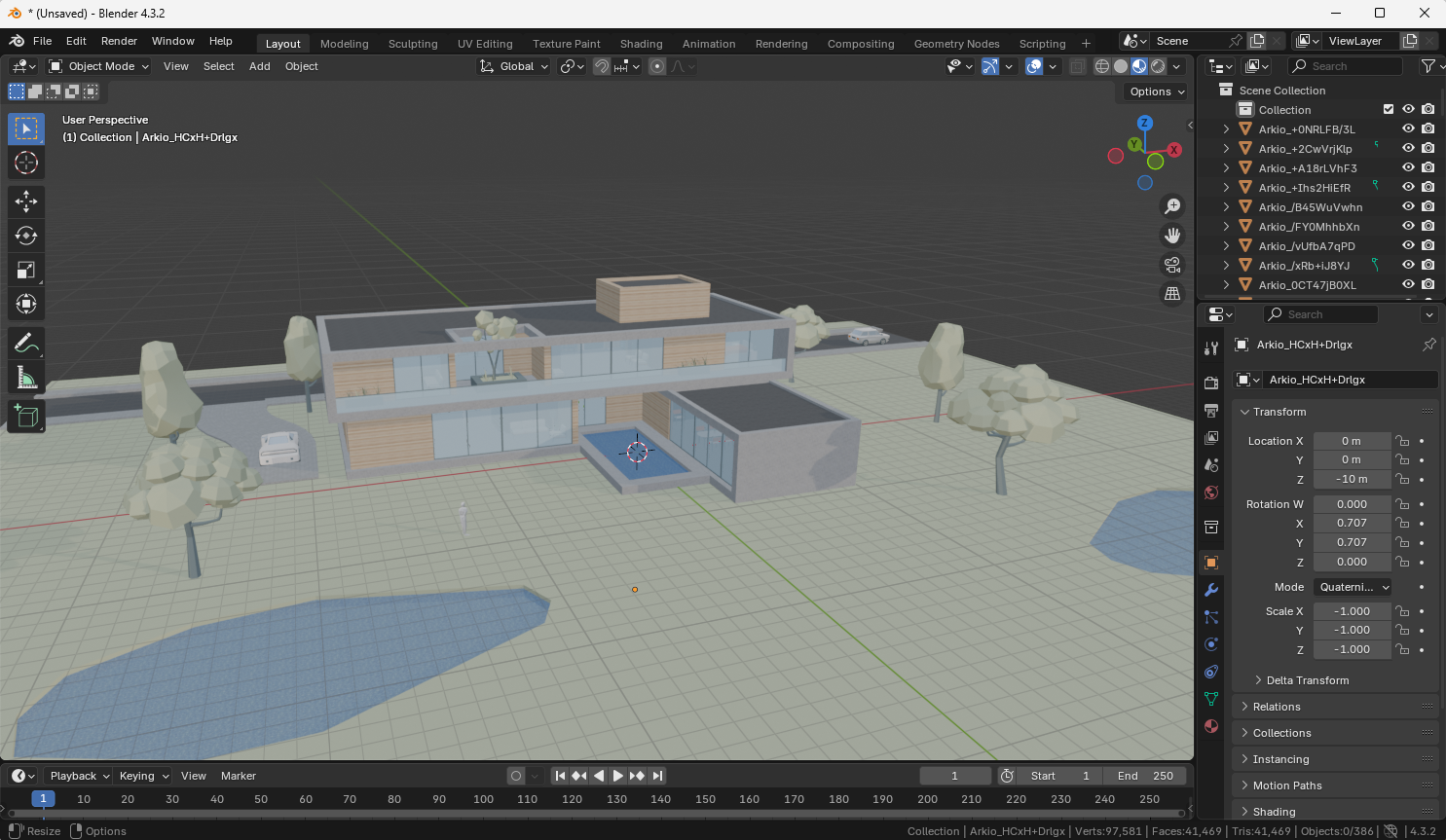
If you experience issues loading your models, try loading the file in GLTF viewers or tools like Blender to determine if the mesh geometry is invalid or too far away from the origin.
Avoid issues and long processing by importing only the geometry you need. You can find tips and best practices to optimize your geometry here.
Sometimes, failing imports affect other files from loading in Arkio. Clearing your temporary resources often resolves most issues.
If you have models that don't load well in Arkio, we'd love to review the file to improve Arkio’s importer. You can contact us at support@arkio.is
Was this helpful?
Still need help? Ask the team