Import other custom 3D models
Written By Johan Hanegraaf
Last updated 4 months ago
We currently support loading the following files to Arkio.
OBJ / GLB / GLTF
JPG / PNG
Archicad, Revit, Rhino, SketchUp, Navisworks (plugins included in our Windows installer, requires a Pro license)
OBJ, GLB, and GLTF models can be loaded directly into Arkio by placing them in your device's Import folder (Documents/Arkio/Import/Models on Windows) or by uploading the files to your Arkio Cloud
Via our supported plugins
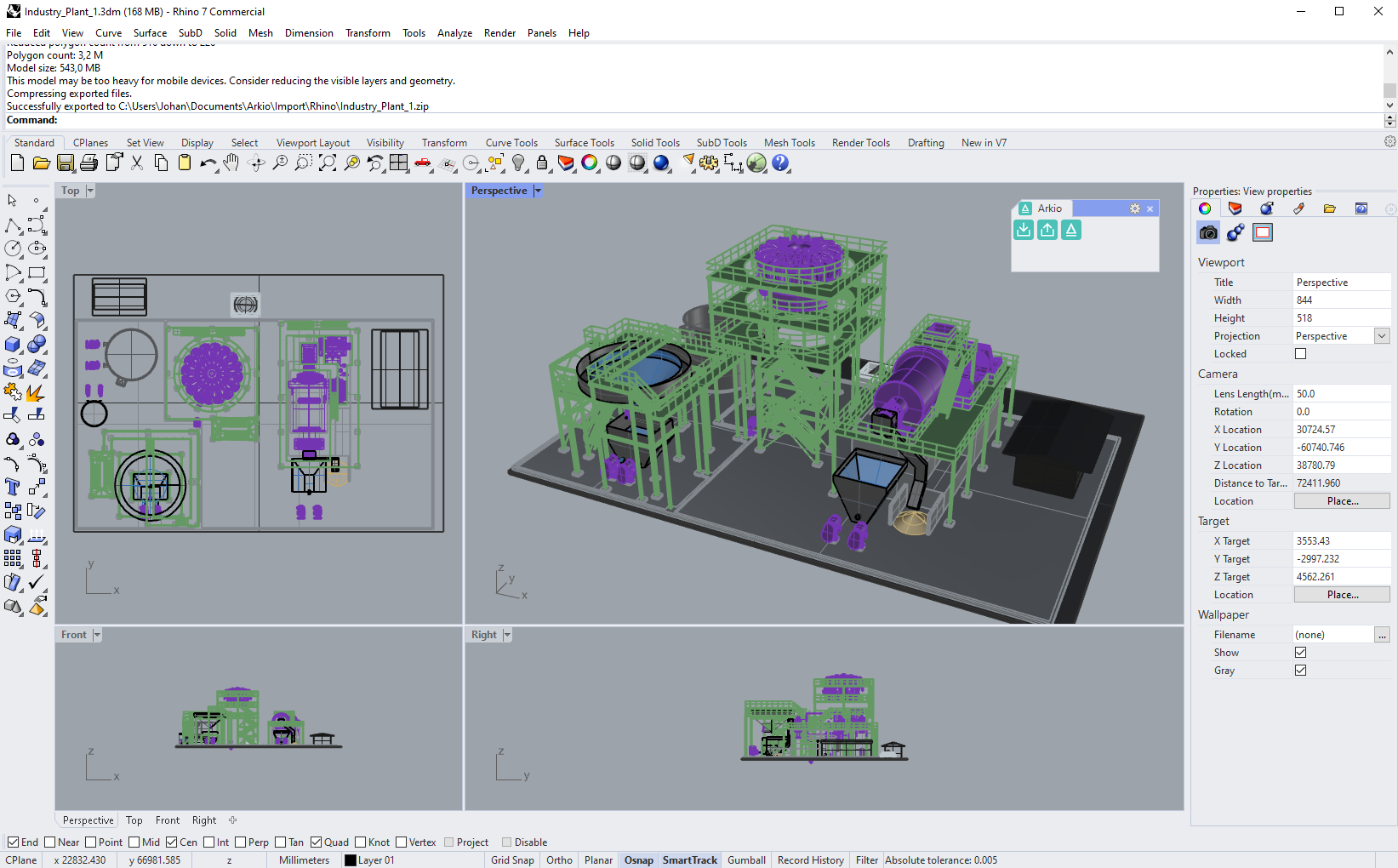
If you have access to our supported CAD/BIM tools, this is the fastest and easiest way to get your models into Arkio. Our Archicad, Revit, Rhino, Sketchup and Navisworks plugins optimize 3D geometry faster, export all objects and textures at the correct scale and orientation and include Layers, BIM data and movable objects, making it easier to work with these models on all your devices.
BIM formats like IFC are best loaded into Navisworks, Revit, or Archicad to keep all BIM data and control the visibility of elements you want to export to Arkio in your 3D view using our plugins.
CAD geometry is best loaded into Rhinoceros, which supports importing more than 50 CAD and mesh formats and offers a 90-day free trial. After loading the geometry and hiding the elements you don’t want exported, you can use our plugins to load the models to Arkio and use the additional features like Layers and movable objects.
Native exporters
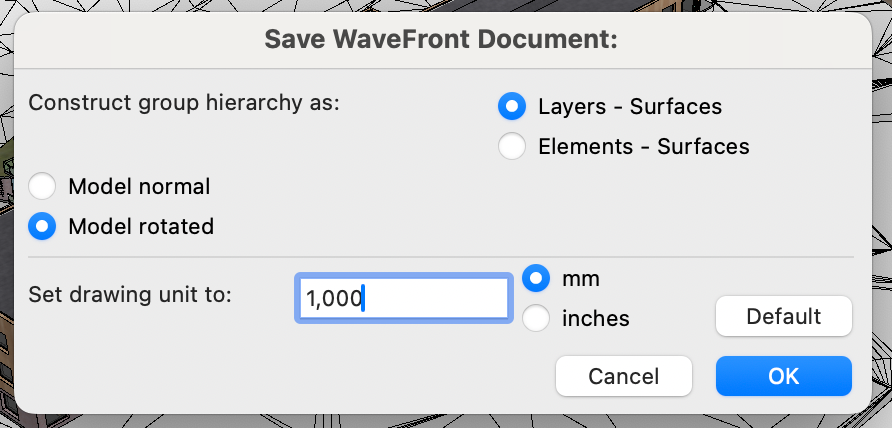
You can often export to OBJ or GLB/glTF from your original application. Most applications can export to OBJ, a widely used older 3D format that can be imported directly into Arkio, either in the cloud or locally. When you export, you may need to rotate and scale your models to ensure they load correctly in Arkio and other 3D applications.
The OBJ format has material export limitations outlined at the bottom of this page. We recommend exporting to GLB if your software supports this format. This format is easier to work with because it stores all texture and material data in a single file.
Third-party exporters
If your CAD application does not support exporting to GLB/glTF, you can often find third-party plugins that allow you to export GLB/glTF files directly from your app. An example of this is the SolidWorks plugin.
For exports from tools that support faraway coordinates, ensure the models are exported near the origin (translate the model to 0, 0, 0) and flipped with the Y-axis up. You can also use free tools like Blender to convert models from various file formats (like FBX, USD, DAE, STL) to Arkio's compatible formats (GLB/glTF or OBJ)
Point cloud files
Point clouds cannot be imported directly into Arkio. These datasets are often several gigabytes and too large for mobile devices. You can simplify your point cloud to a mesh that can be imported into Arkio as an OBJ or GLB/GLTF file. Autodesk Recap 2022 has a scan-to-mesh workflow that can achieve this. You can also utilize external tools like Pointfuse, which supports importing a wide range of point cloud formats and exporting meshes.
Correct the scale and orientation models.
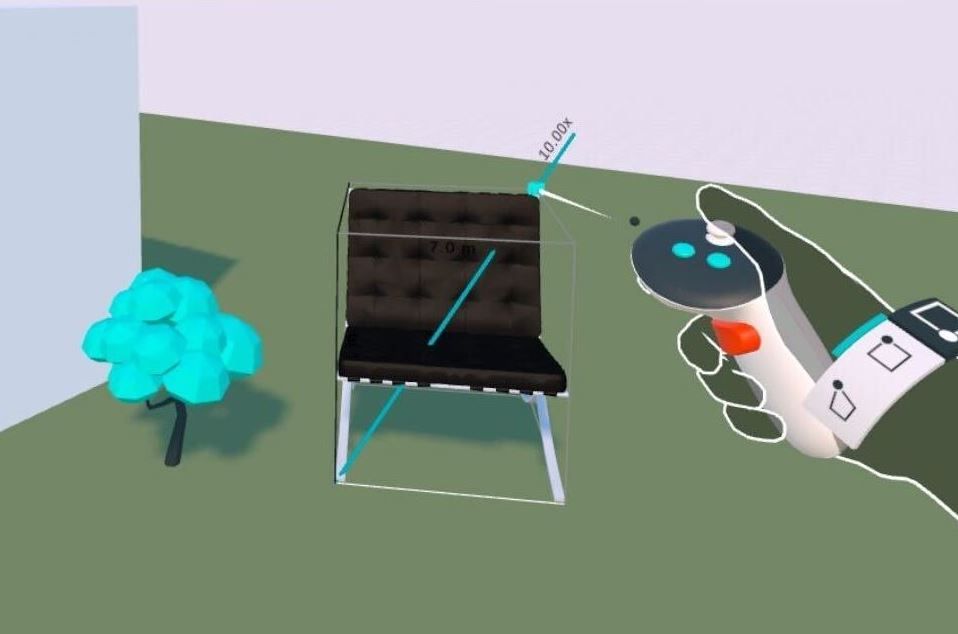
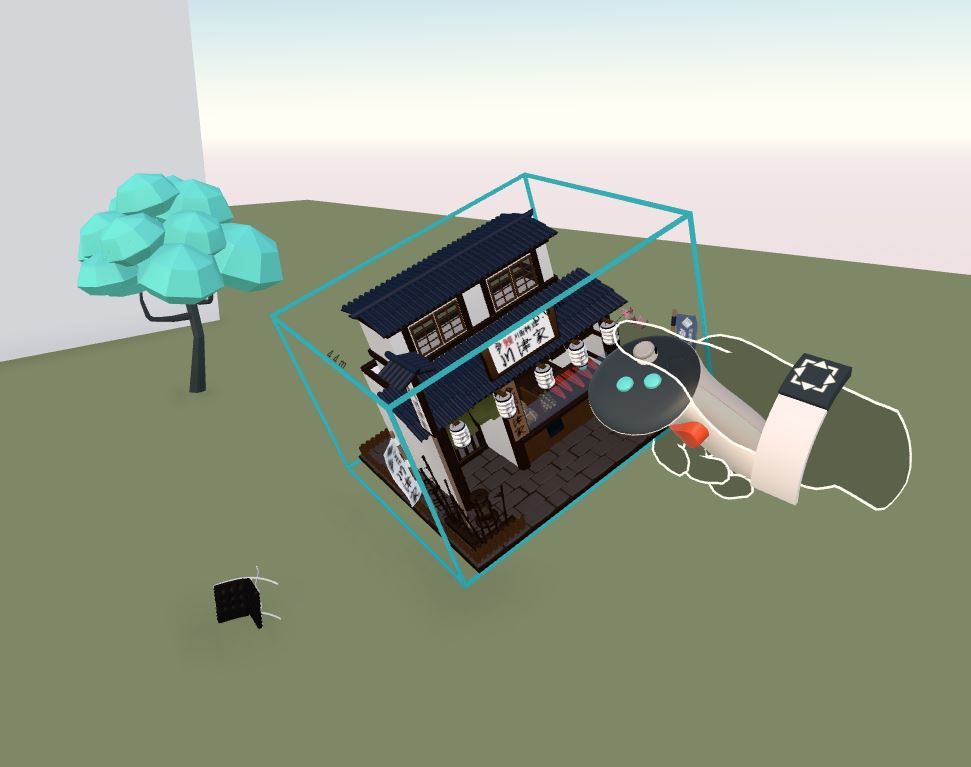
Arkio can import models in inches, feet, mm, cm, and meters from the import panel. If your modeling tool supports exporting to OBJ and GLB, you can often select the export units. We recommend exporting your creations in meters, the default units used by most 3D tools. If your model is exported at other scales, you can manually scale your imported files after placement by applying proportional scale increments. By editing the corners at other scales, you can also manually scale your imported files after placement using scale increments.
 |  |
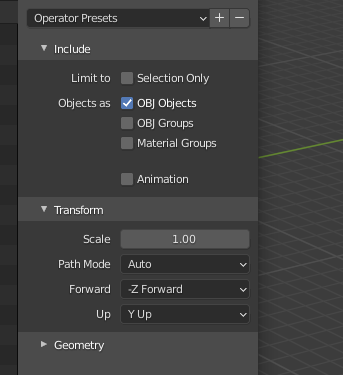
3D programs can use different orientation coordinates. It is easiest to correct your orientation from the source modeling tools. Arkio uses a left-handed Y-axis-up coordinate system, similar to Unity. If you are using Blender or other modeling tools, you can set the coordinate system at export time to ensure your models are exported in this orientation.
 | 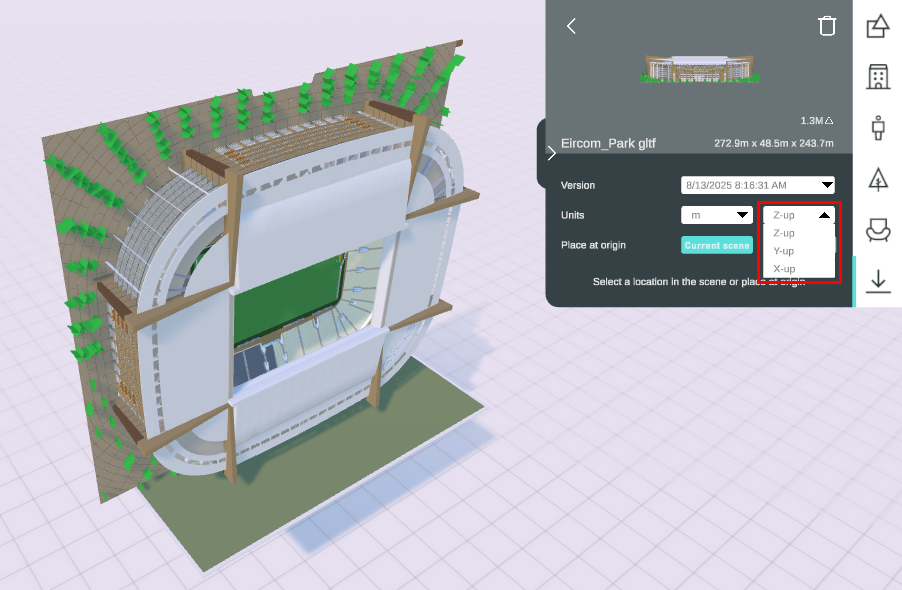 |
If models still load in the wrong orientation in Arkio, you can choose a different up-axis from the import panel dropdown. You can also place the prop on the sides of other Arkio geometry to orient it to any custom angle.
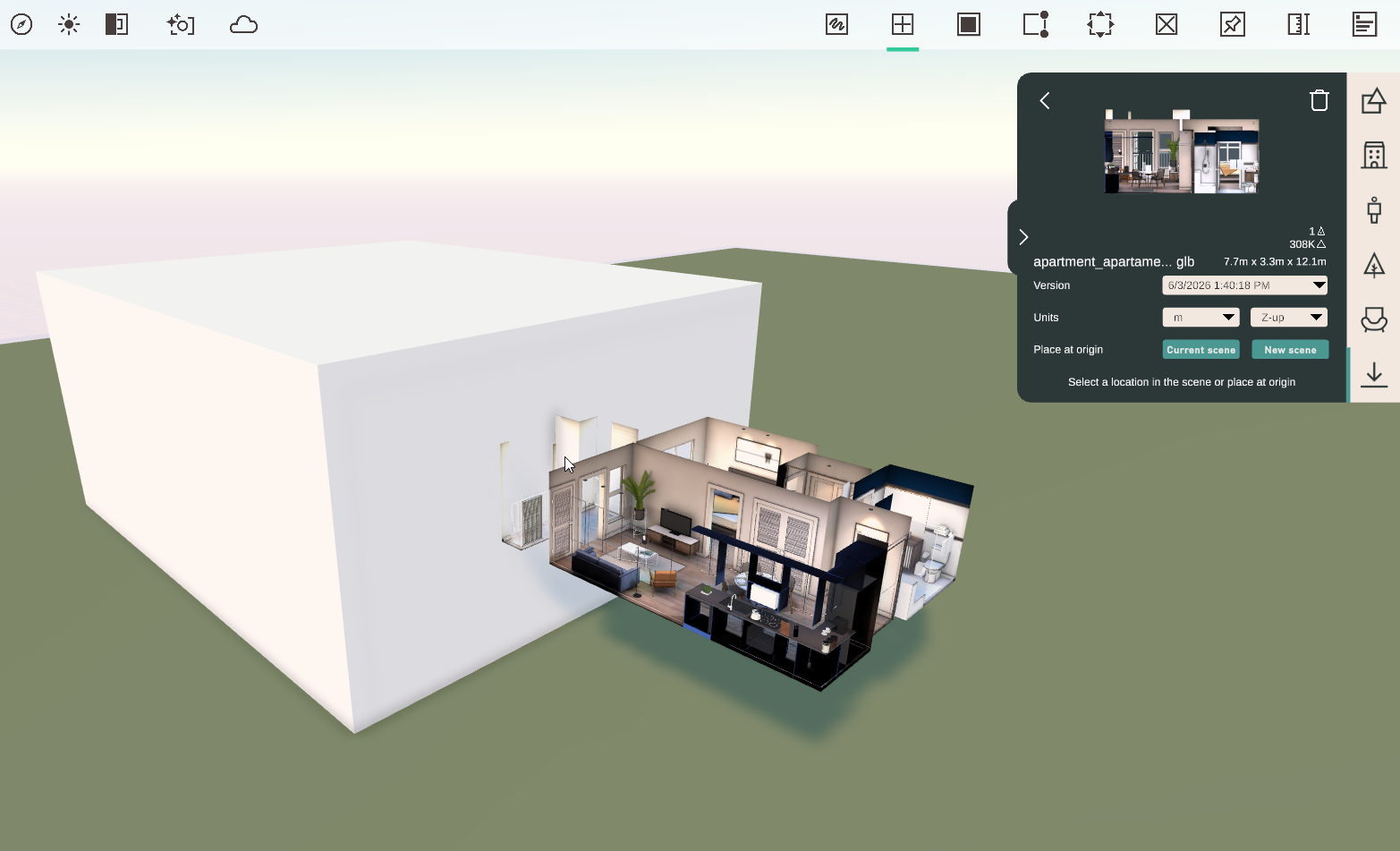
On PC, you can also rotate your object around its vertical axes using the Move tool and the arrow keys. The easiest way to rotate your objects is to use a VR headset to reach into the model, pick it up and rotate it to the correct orientation. When you load your models with Arkio's plugins, the plugins prepare, scale, and orient the model for you, so you don't need to worry about these settings.
OBJ files
OBJ (Wavefront) files are an old 3D format that only store geometry data. Material data is stored in a separate MTL file, and textures are referenced by file paths. For OBJ models with all their materials and textures to load correctly, you need to have your .obj, .mtl, and all your texture files together in one relative path.
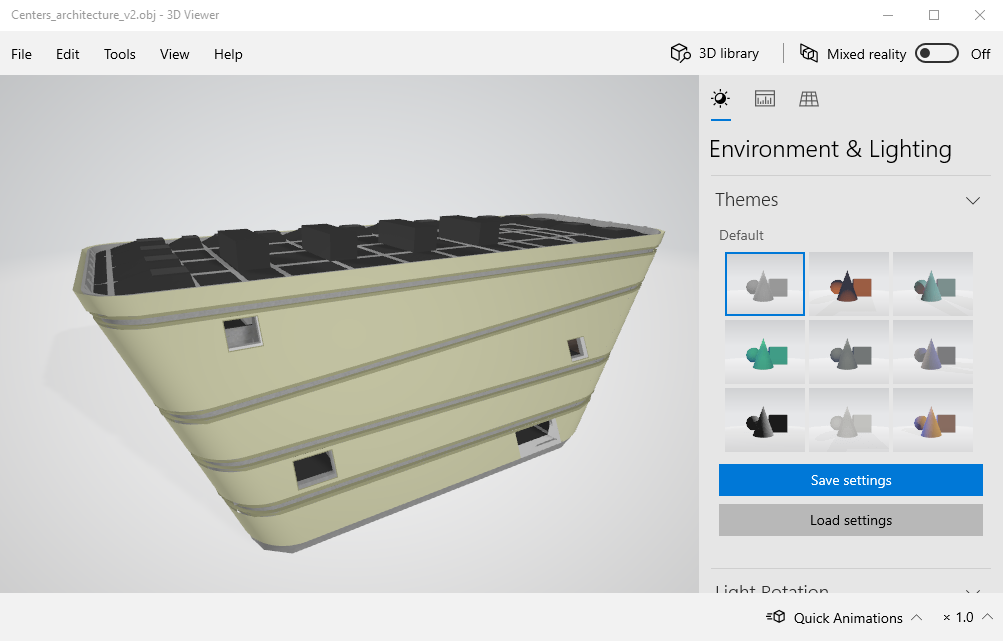
OBJ files cannot contain spaces in the material or texture filenames, as this format does not support them. If your .mtl and/or texture files contain spaces, the materials won't load correctly (appear white in Arkio). To verify that your 3D file and texture paths are correct, you can open the OBJ file in the Windows 3D viewer, which supports viewing both OBJ and GLB formats.
We recommend exporting your geometry in the modern GLB format, which includes materials and textures and is less prone to loading errors. You can use the following blender settings to load OBJ files directly into Arkio.
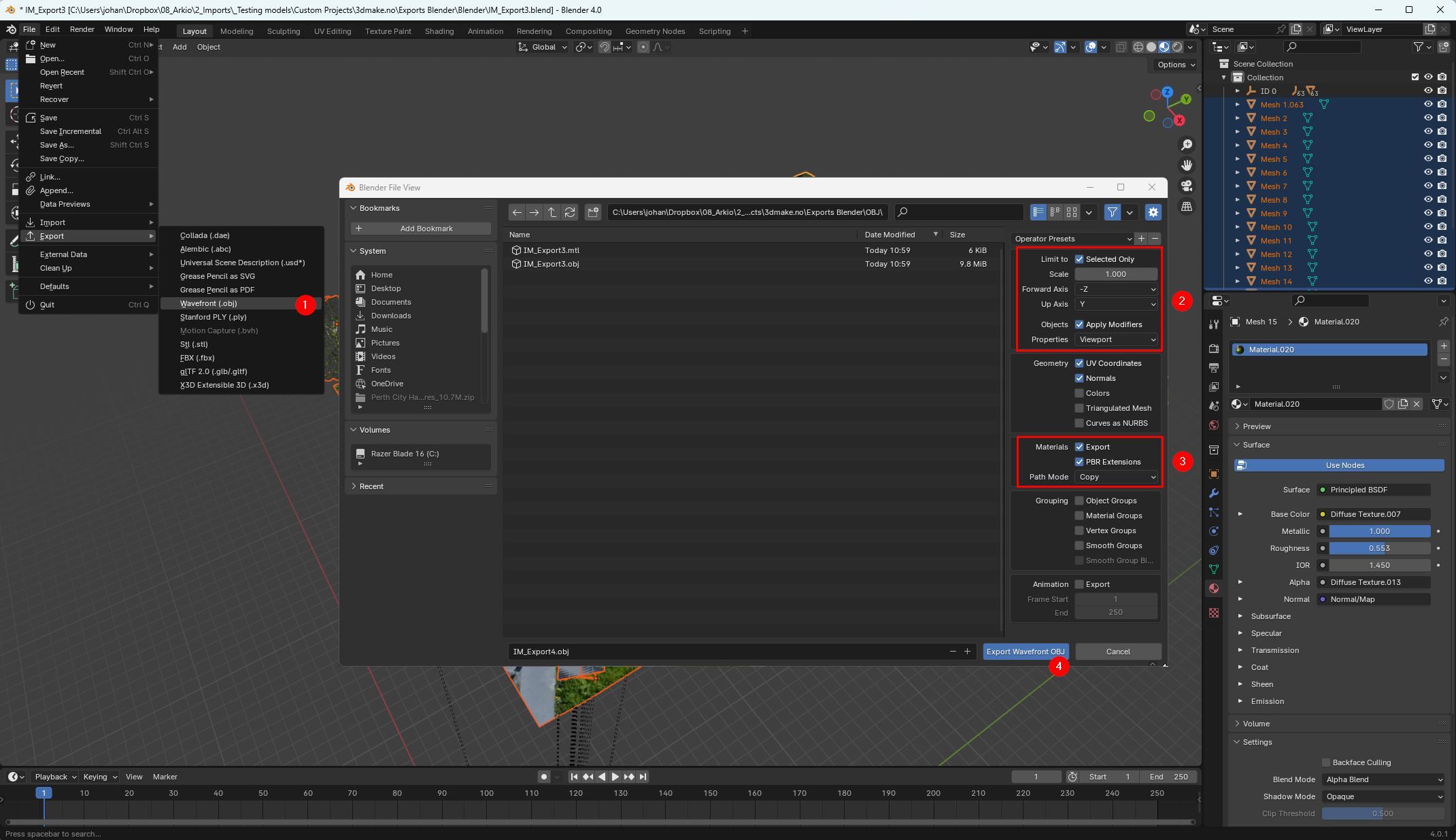
More information is available online about modeling software, including textures with their relative paths to the OBJ files. In Blender, you can use the materials Path Mode 'Copy' option to copy all needed textures in a subdirectory next to the exported .obj file.
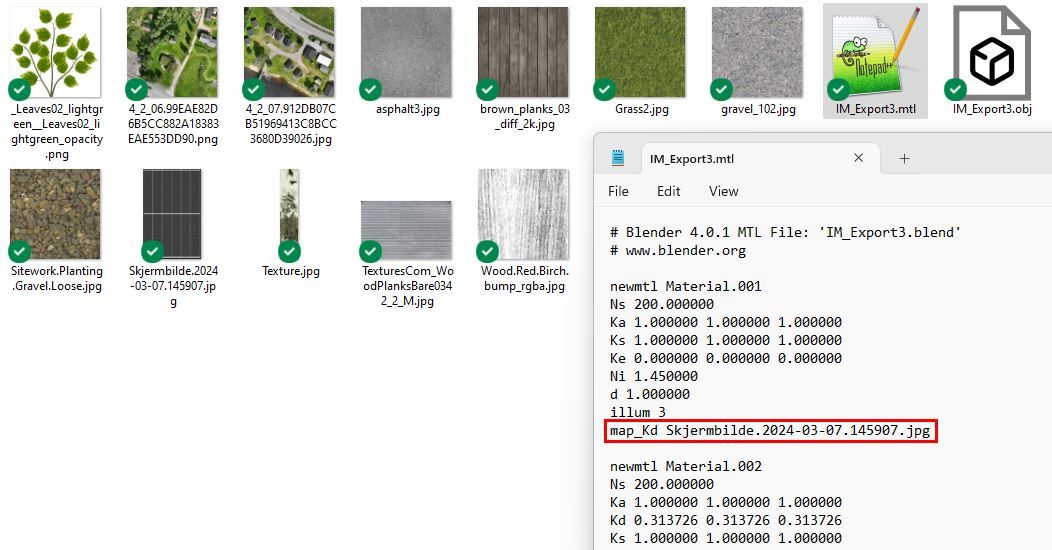
Once exported, you can open the MTL file in Notepad to check if the texture paths are pointing to the correct textures. The map_Kd parameter should point to a relative path (eg, folder\texture.jpg) and not an absolute path that can only be accessed on your system (eg, C:\Program Files (x86)\Common Files\Autodesk)
After testing the textures load correctly in the Windows 3D viewer, and before you custom-export files to Arkio, you can best zip the OBJ and GLB/GLTF files to keep all the materials and other files together for easy uploads and sharing. A GLB file can contain all the geometry and textures inside, but can also have some external texture files. glTF files can include a textures folder and a BIN file, which must be present for the model geometry and textures to load correctly.
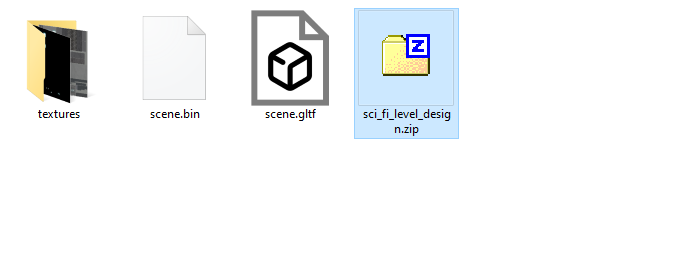
The easiest way to load custom 3D files is to use Arkio Cloud to upload all files that belong together as a folder or a zip file.
Was this helpful?
Still need help? Ask the team