Updates

Follow new updates and improvements to Arkio.

Arkio 3.0 Web

Arkio 3.0 brings AI-assisted 3D design to your browser. Describe an idea, upload references, or sketch a change, then develop it with an AI agent in an editable 3D scene. Model by hand, create renders and videos, and invite others to review your work.

Open app.arkio.is to begin. No Arkio installation is required. See Getting started with Arkio 3.0 for web for your first steps.

Design with an AI agent

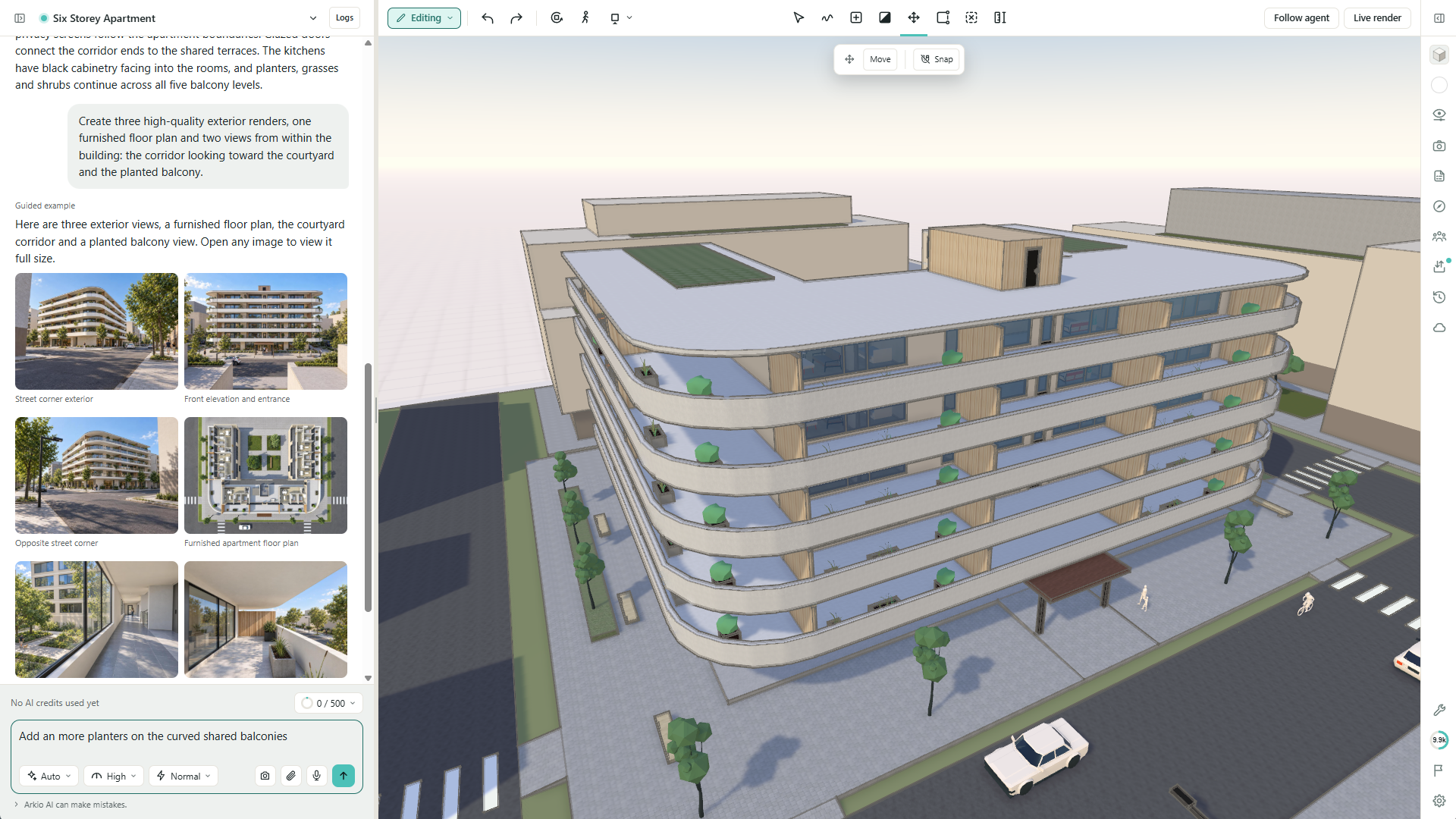
Work with an AI agent that builds and edits directly in your Arkio scene. Describe a building concept, interior, or layout and watch it develop into 3D geometry you can explore, measure, and reshape.

  • Keep designing through conversation: Adjust dimensions, openings, furniture, and materials with follow-up requests.

  • Switch between AI and hands-on modeling: Edit the model yourself, then ask the agent to continue from your changes.

  • Guide focused changes: Select objects to show where to work, and queue your next instructions while the agent finishes its current task.

Learn more: Working with the AI agent.
Start from your project references

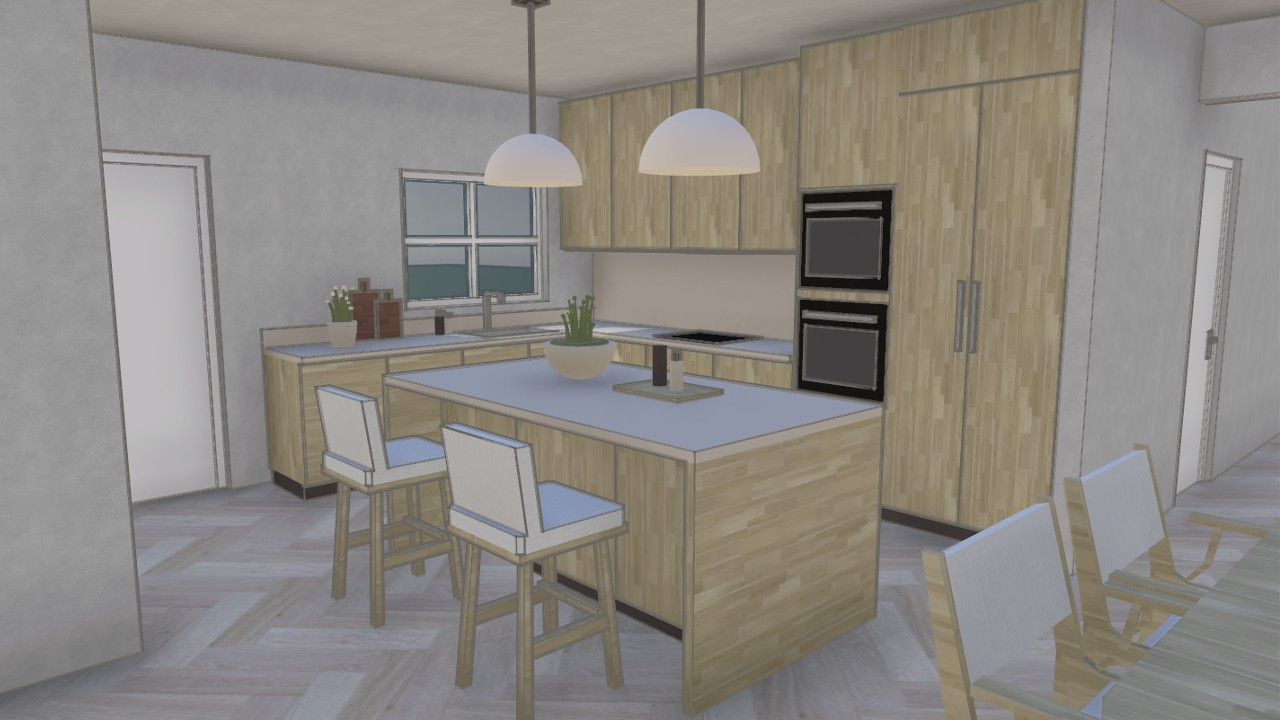
Bring the information you already have into the design conversation. Combine floor plans and photographs with project briefs, room schedules, or material references to explain both the space and your requirements.

For example, use photographs of an existing kitchen and its floor plan to explore a renovation with an island while preserving the window positions. The result becomes an editable 3D concept you can continue developing with the agent and modeling tools.

See supported attachments and reference workflows for file formats, upload limits, and tips.
Show your ideas with sketches and voice

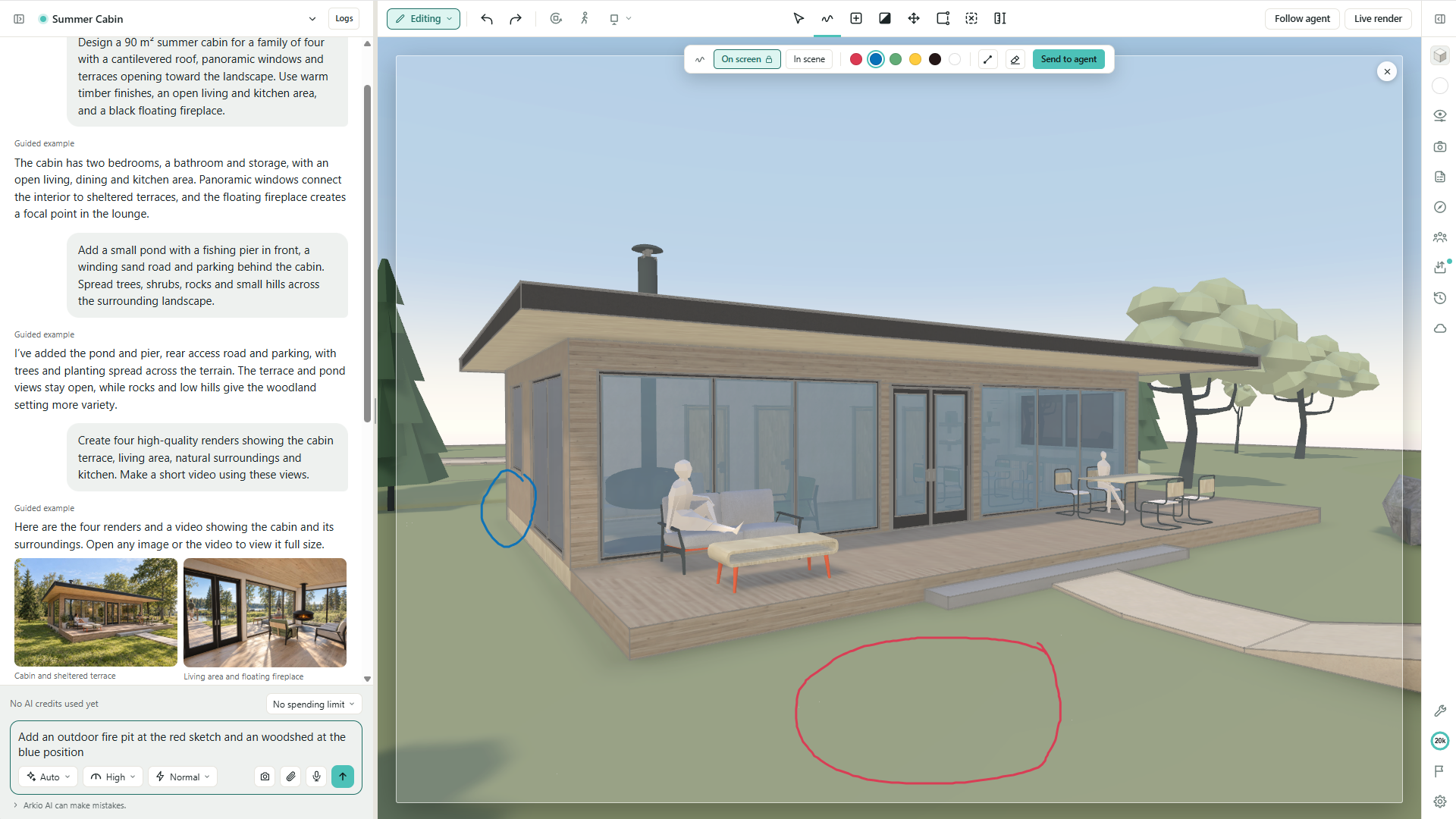
Show an idea directly on your design: circle an area, trace an outline, or use different colors to mark separate changes. Send the sketch with a written request so the agent can connect your instructions to the view.

In the cabin example below, a red circle marks a new fire pit and a blue mark identifies a woodshed. You can also use AI voice mode to talk through ideas and follow-up changes while exploring the scene.

Learn more: Sketch instructions and AI voice.
Create renders and videos

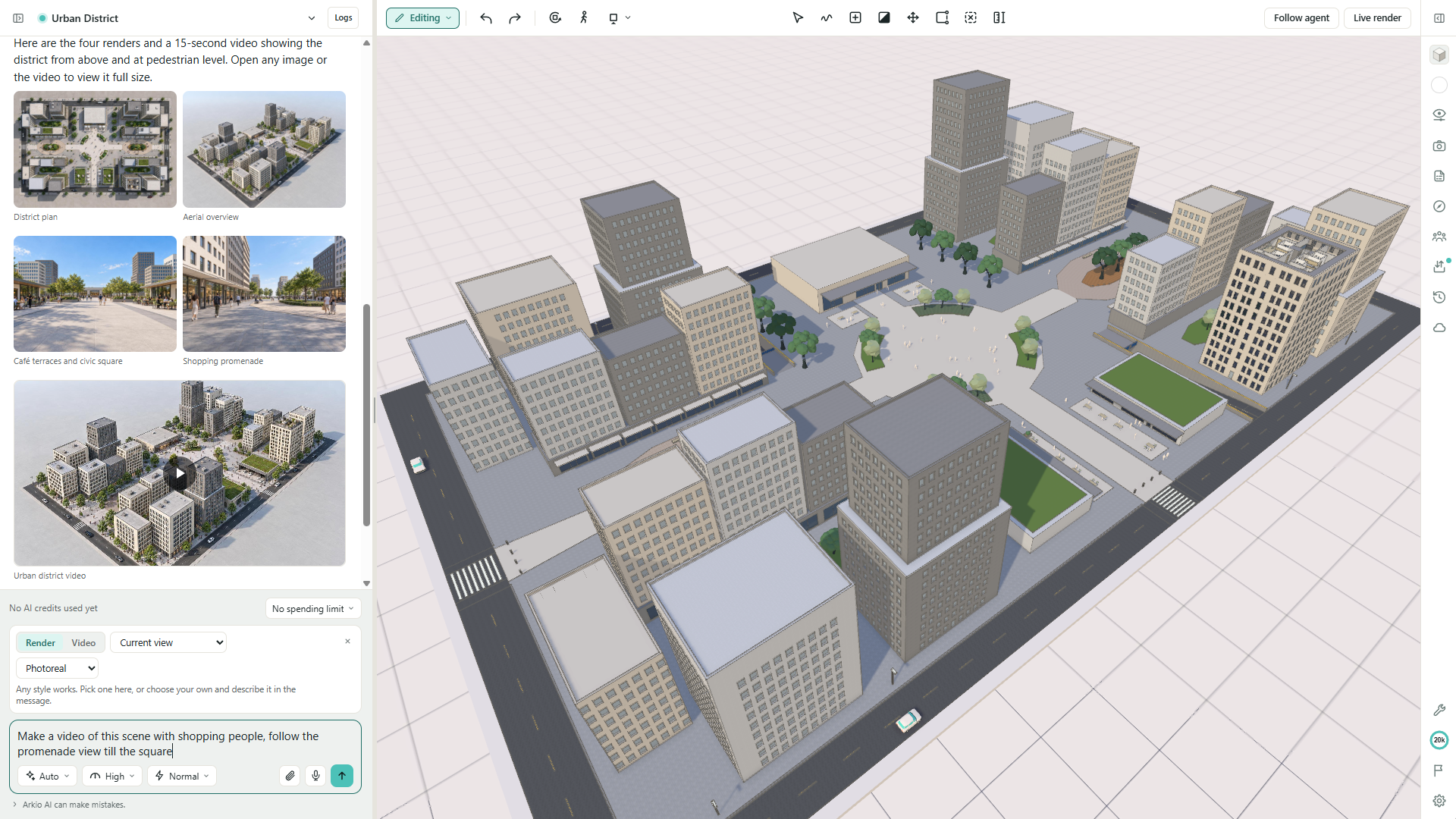
Explore how your design could look and communicate its atmosphere with AI-generated renders and short videos, directly from your conversation.

  • Choose the view and style: Render the current view, saved viewpoints, or views chosen by the agent. Try photorealistic, pencil, marker, or scale-model styles, or describe your own.

  • Develop an image into a video: Create short sequences using renders you have already generated.

  • Keep results together: Find images and videos in the Media library, download or share them, and return to the original conversation to continue.

Learn more: Create AI renders and videos in Arkio Web.
Shape designs with Boolean modeling

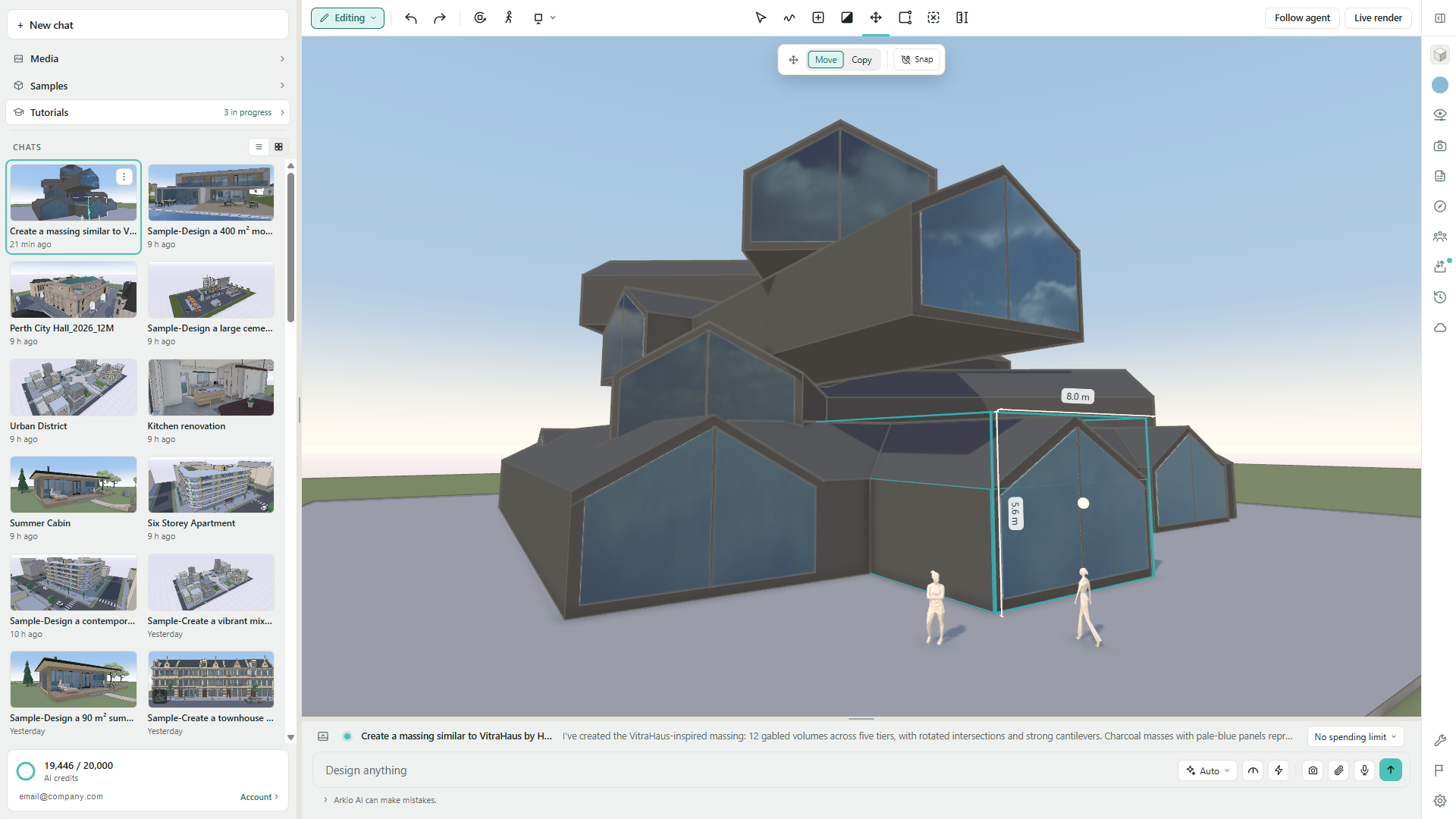
The new Boolean modeling system lets you develop complex forms from overlapping solids and voids. Combine building volumes, then carve out courtyards, openings, recesses, and interior spaces in Arkio geometry.

Move or reshape the solids and voids as your ideas evolve, with the resulting geometry updating to reflect your changes. The AI agent uses the same modeling system, so you can take an agent-generated concept straight into hands-on refinement.

Learn more: Modeling with solids, voids, and supported objects.
Share scenes and work together

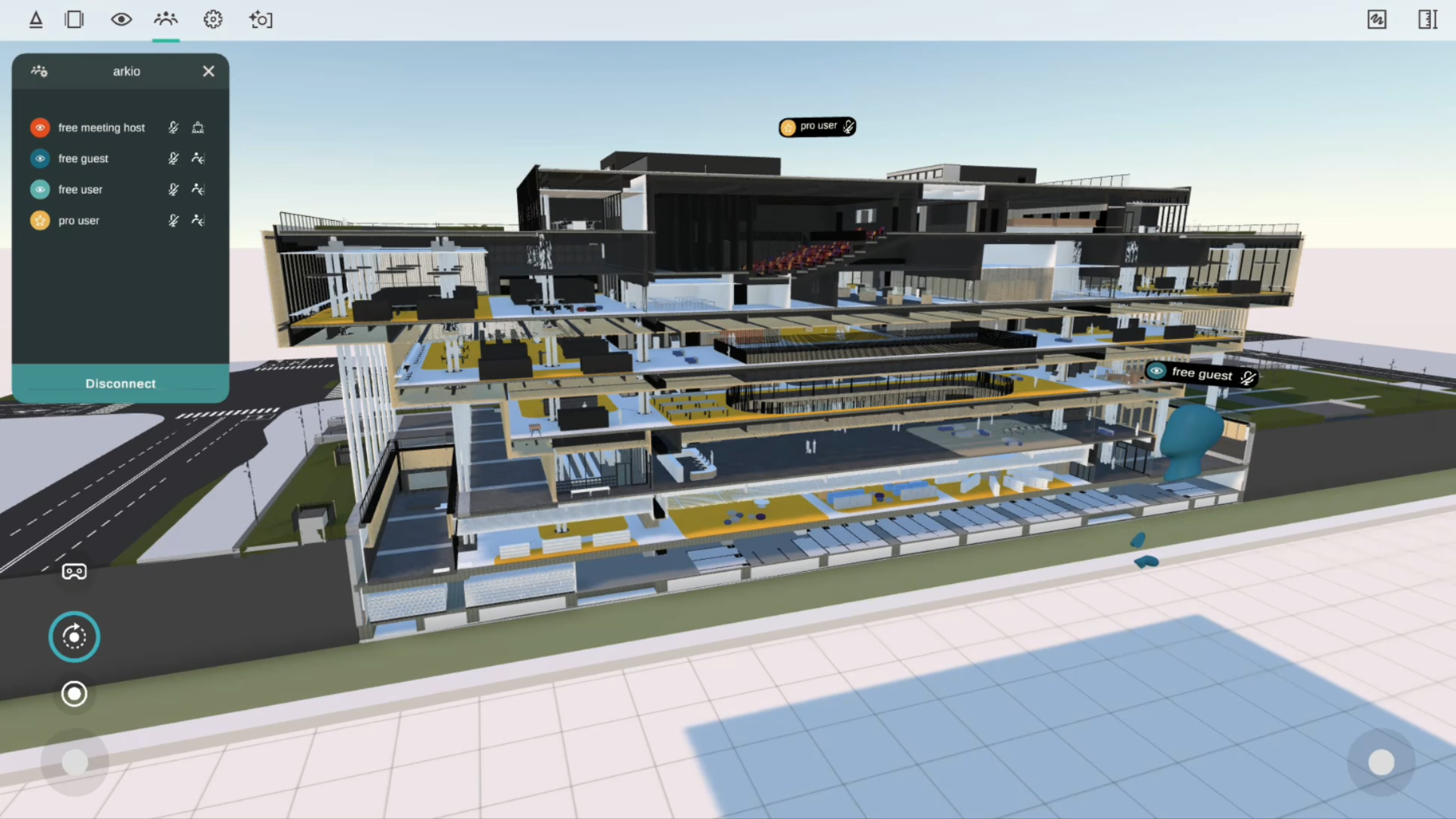
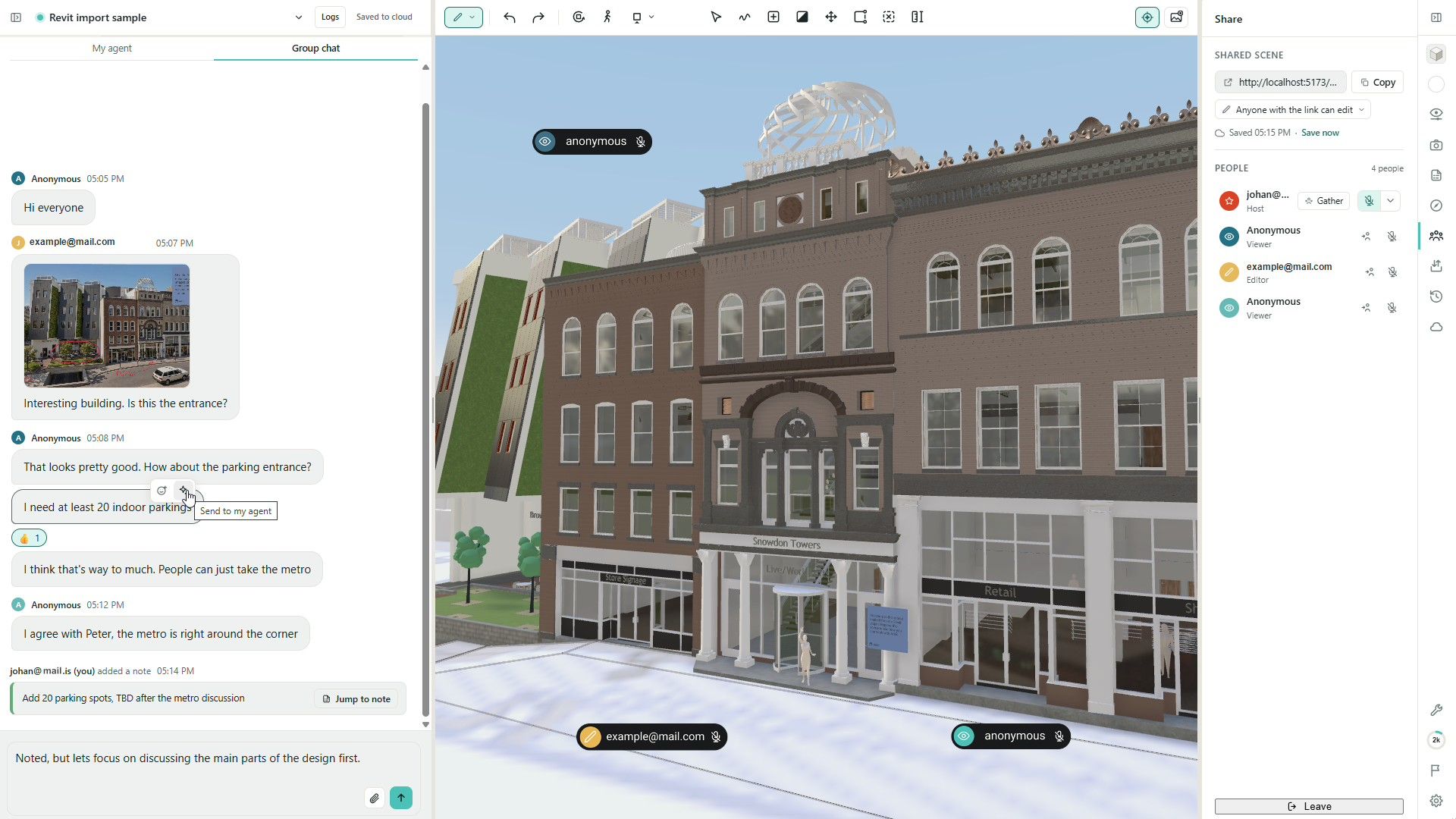
Bring clients and colleagues into the same 3D scene through a browser link. Viewers can explore without creating an account; signed-in collaborators with editing access can develop the design together.

  • Review in context: Jump to a colleague or gather everyone at your location to discuss a room, detail, or design option.

  • Keep the discussion alongside the model: Use Group chat and meeting audio in supported browsers, and share references, renders, and agent results.

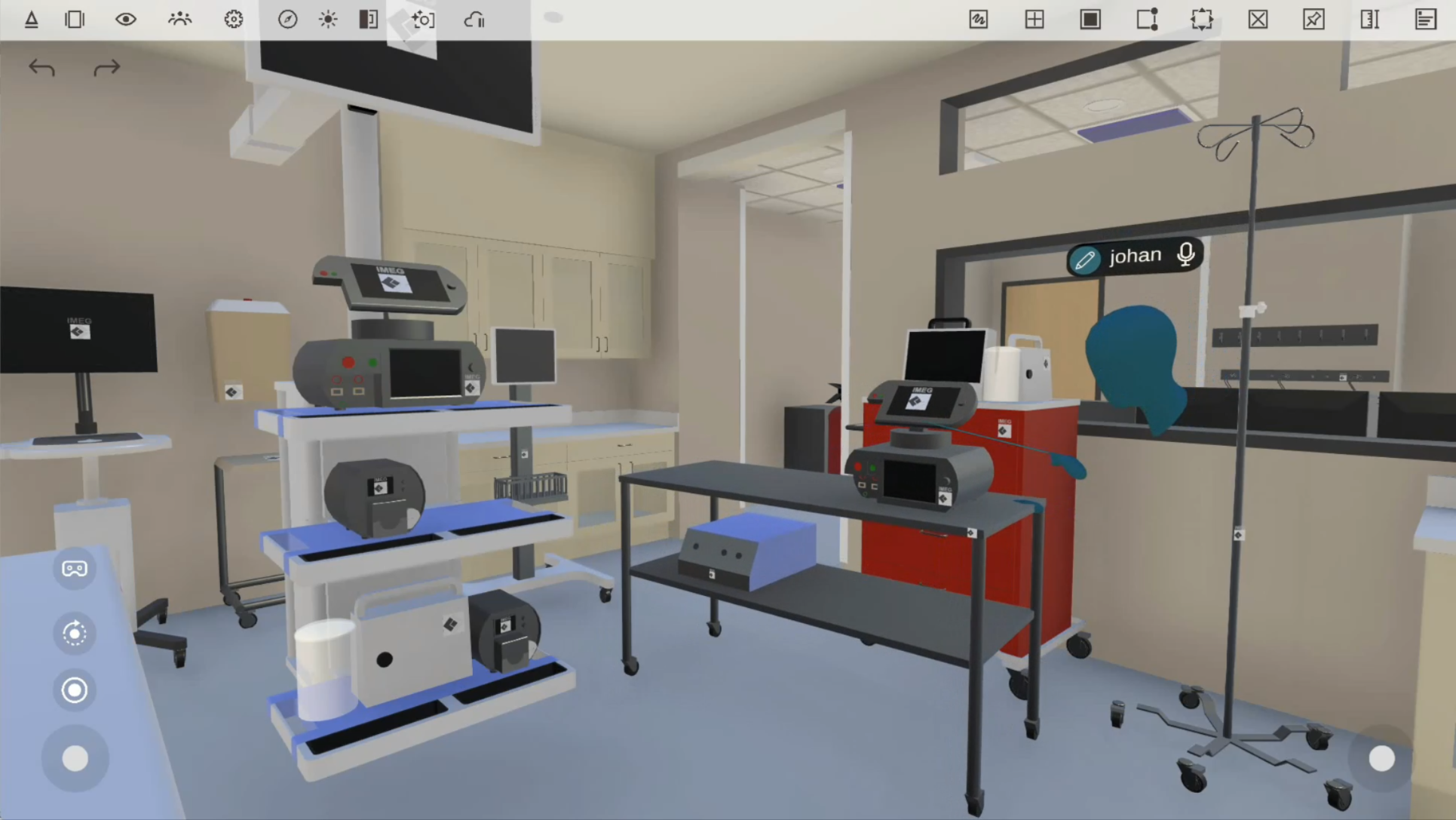
  • Work with your own agents: Participants with AI access can ask their agents to change the shared scene. Model changes are visible to collaborators while agent conversations stay private.

Collaboration between multiple users and AI agents remains experimental. See Collaborate and share scenes in Arkio Web for sharing, permissions, and coordination.
Keep feedback connected to the model

Turn a design review into feedback your team can act on. Place notes on objects or locations, return to their saved views, and discuss each issue in its own comment thread.

Assign notes to the person responsible, mark them resolved, and filter the list to focus on outstanding work. Export notes as CSV for spreadsheets or BCF for compatible BIM review tools, carrying feedback beyond the Arkio session.

Learn more: Review designs with scene notes.
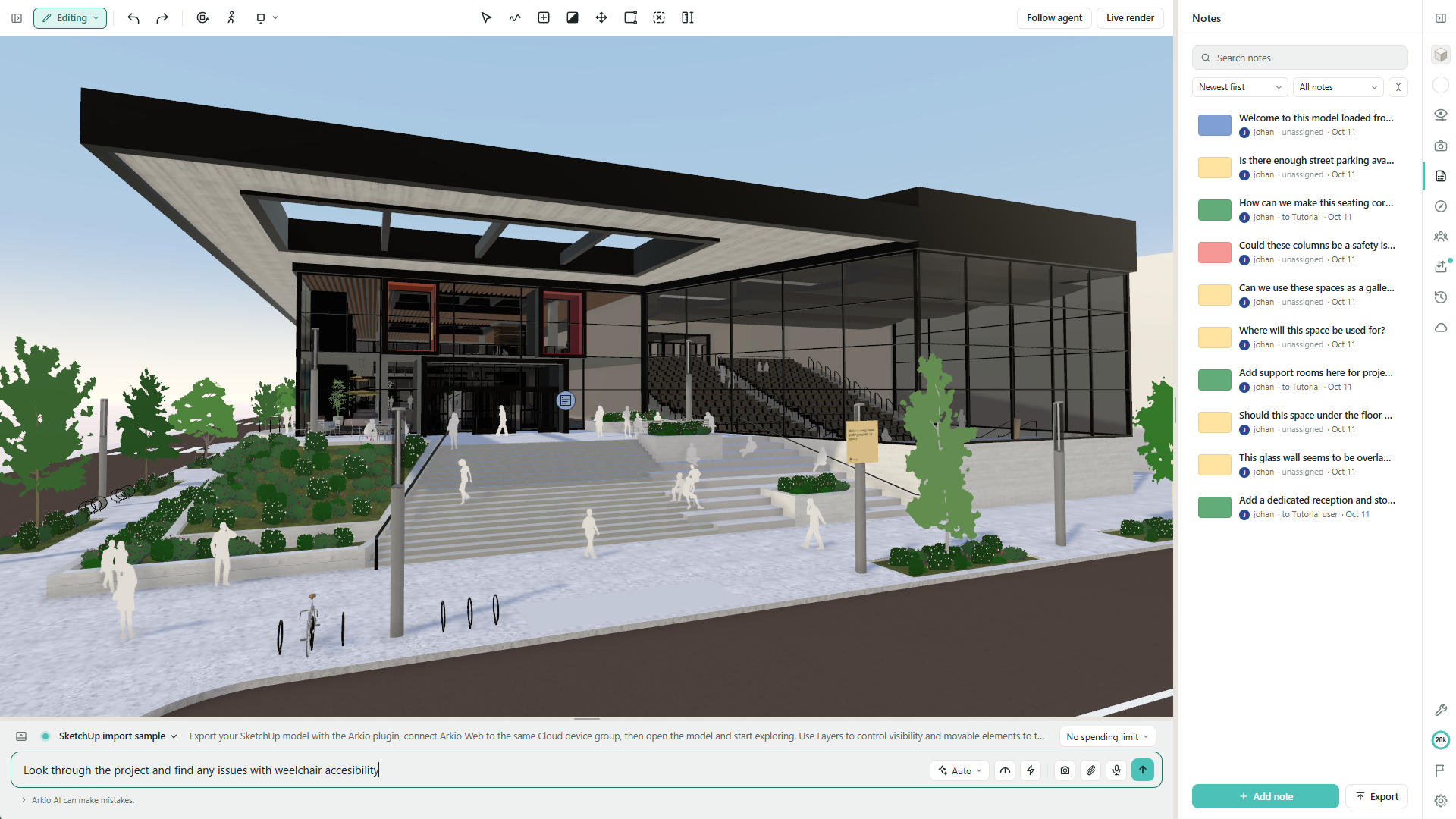
Bring your existing models into Arkio Web

Use an existing project as the starting point for design exploration. Import GLB, glTF, and OBJ models directly, or bring Revit, Rhino, and SketchUp work into the browser through Arkio’s Windows and plugin workflow.

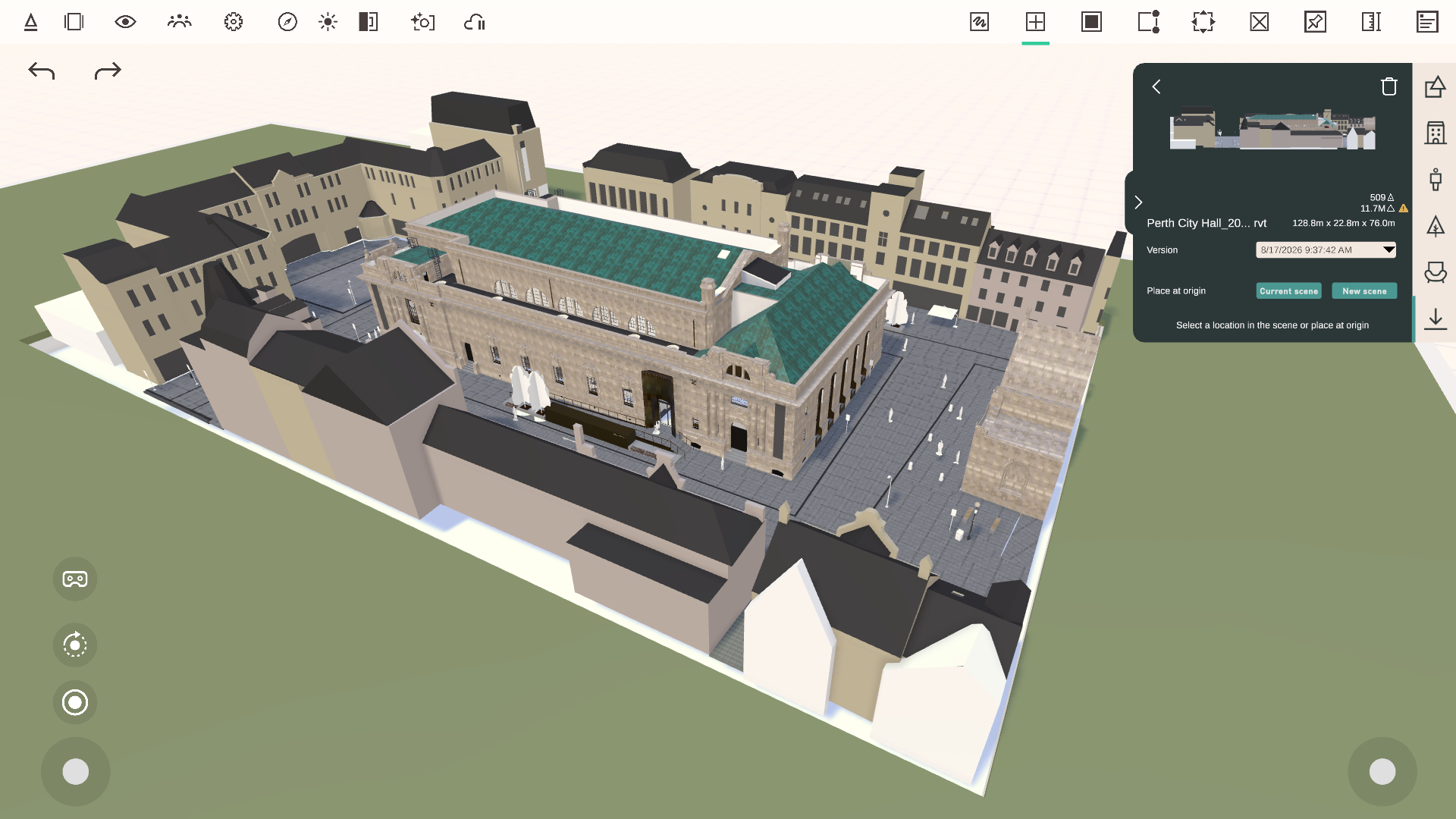
  • Keep project context: Place models at their original coordinates and update them as the source design changes.

  • Review BIM information: Inspect element properties and control model and layer visibility for supported imports with the required plan.

  • Continue in your design tools: Download exports for the Revit, Rhino, and SketchUp plugins, or use GLB, OBJ, and IFC exports where supported by your account and workflow.

See Import and export models in Arkio Web for supported workflows, setup, and limits.
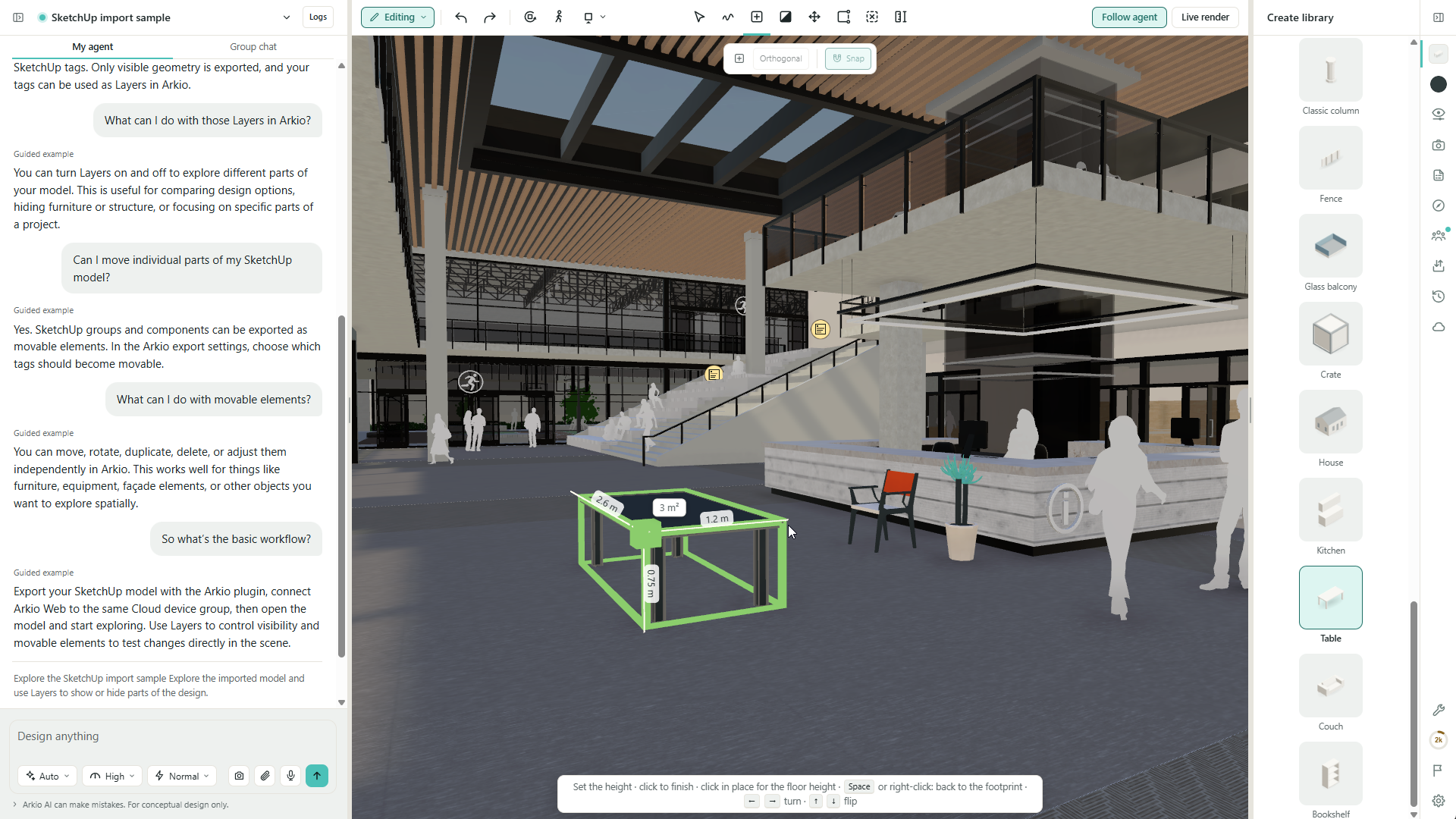
Save your work and explore earlier versions

Your design can continue beyond a single session. Save chats and scenes to your Arkio account and reopen them on another supported device or browser.

Preview earlier versions in scene history before restoring them, or open an earlier version of a private scene in a new chat to explore another direction. Restoring preserves the current scene in history first, so you can return to it later.

Learn more: Save, reopen, and restore your scenes.
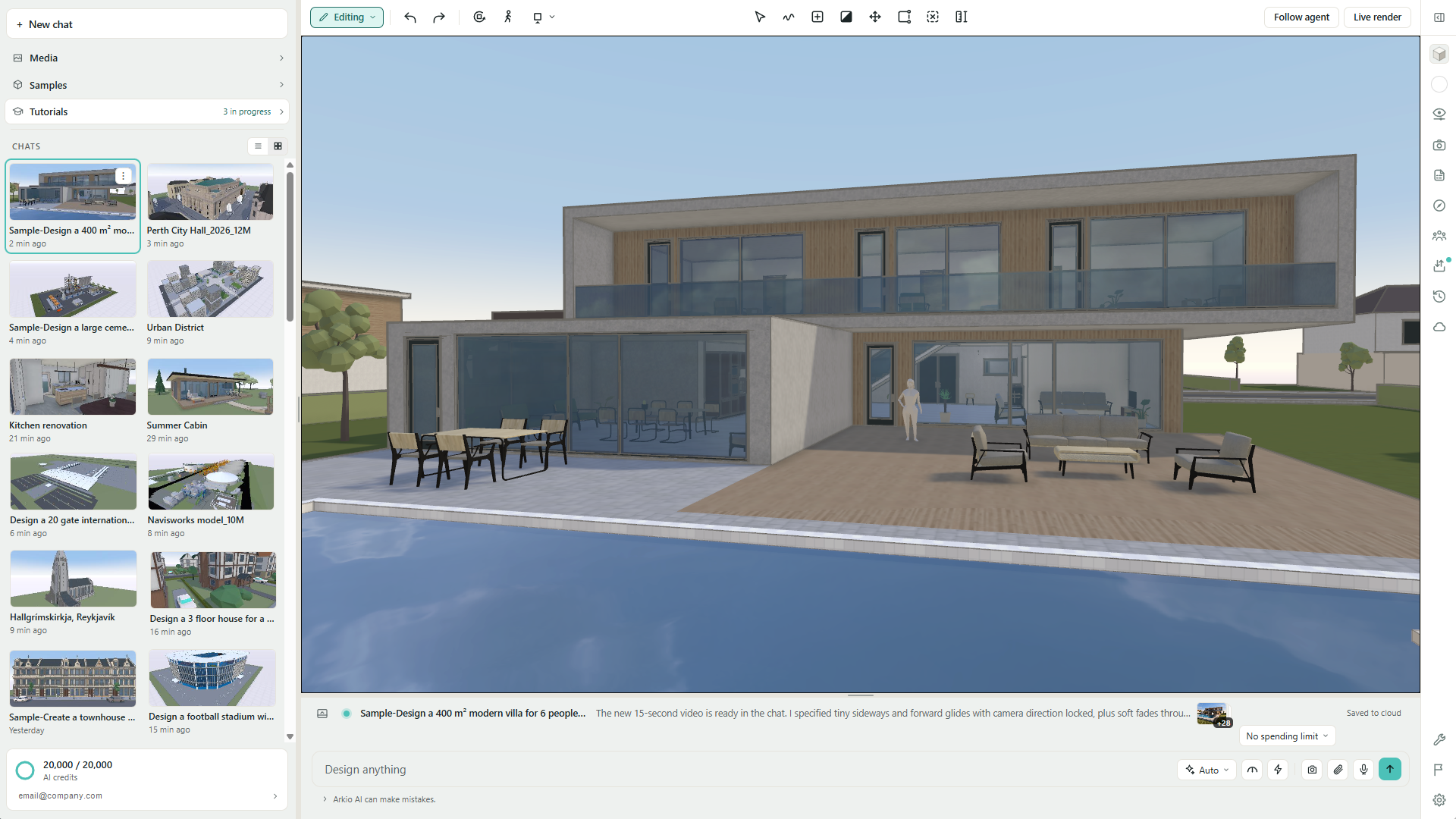
Manage AI credits and team access

Manage AI usage as your work grows from an individual concept to a team project. Review your credit balance, buy additional packs, and set a spending limit for a chat to create a checkpoint before further AI work.

Team accounts pool credits from paid seats, letting colleagues use a shared allowance through their own accounts. Organization controls let you manage invitations, seats, and member spending limits.

Learn more: AI credits and your work and Manage your organization and shared credits.
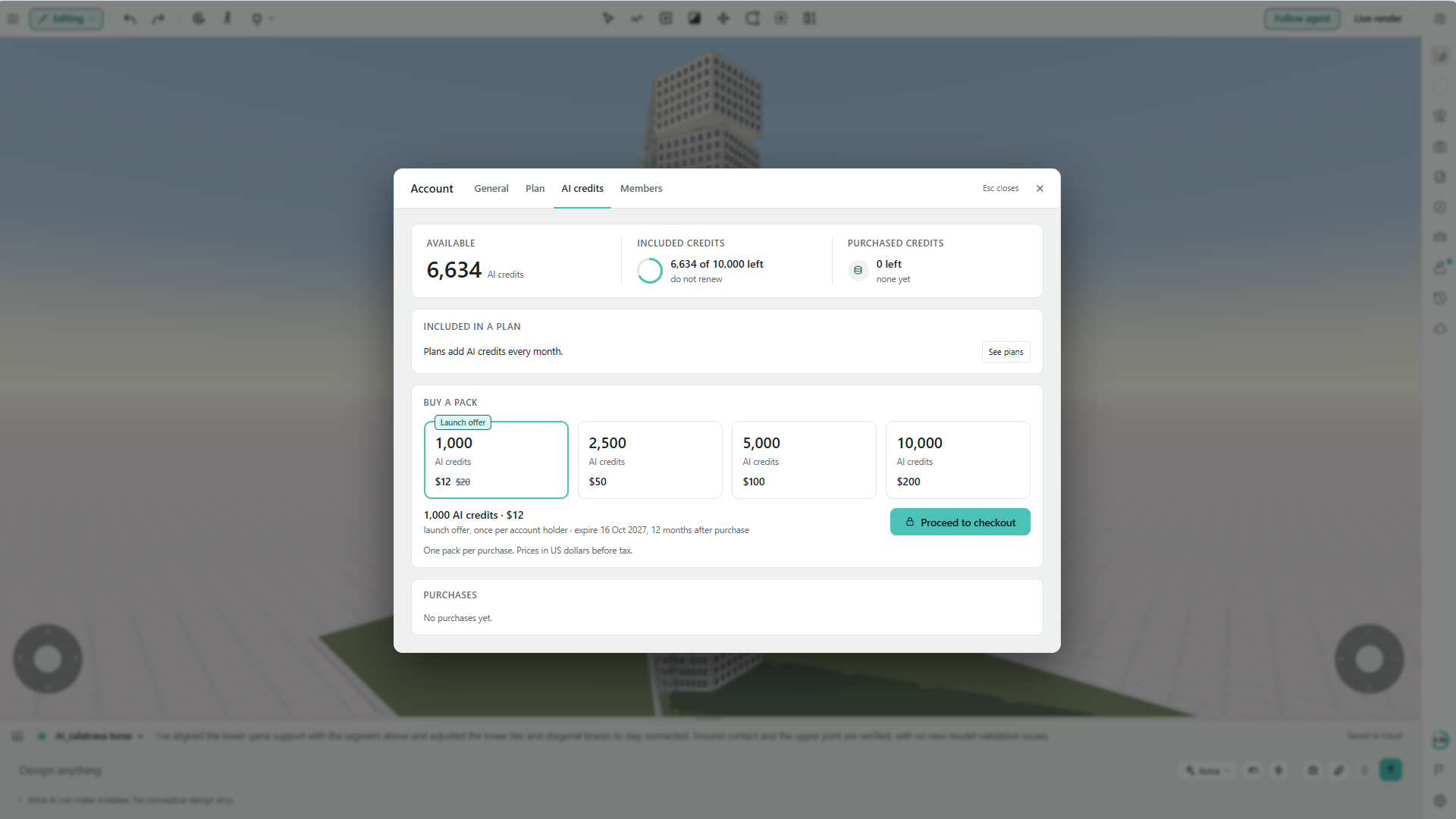
Model and refine directly in your browser

Arkio’s modeling tools sit alongside the AI conversation, giving you direct control over the design. Create and reshape geometry, paint whole objects or individual faces, and add furniture, people, trees, and building components from the libraries.

Group related parts, pin objects to keep them in place, and move between orbiting and walking through the scene as you refine the design.
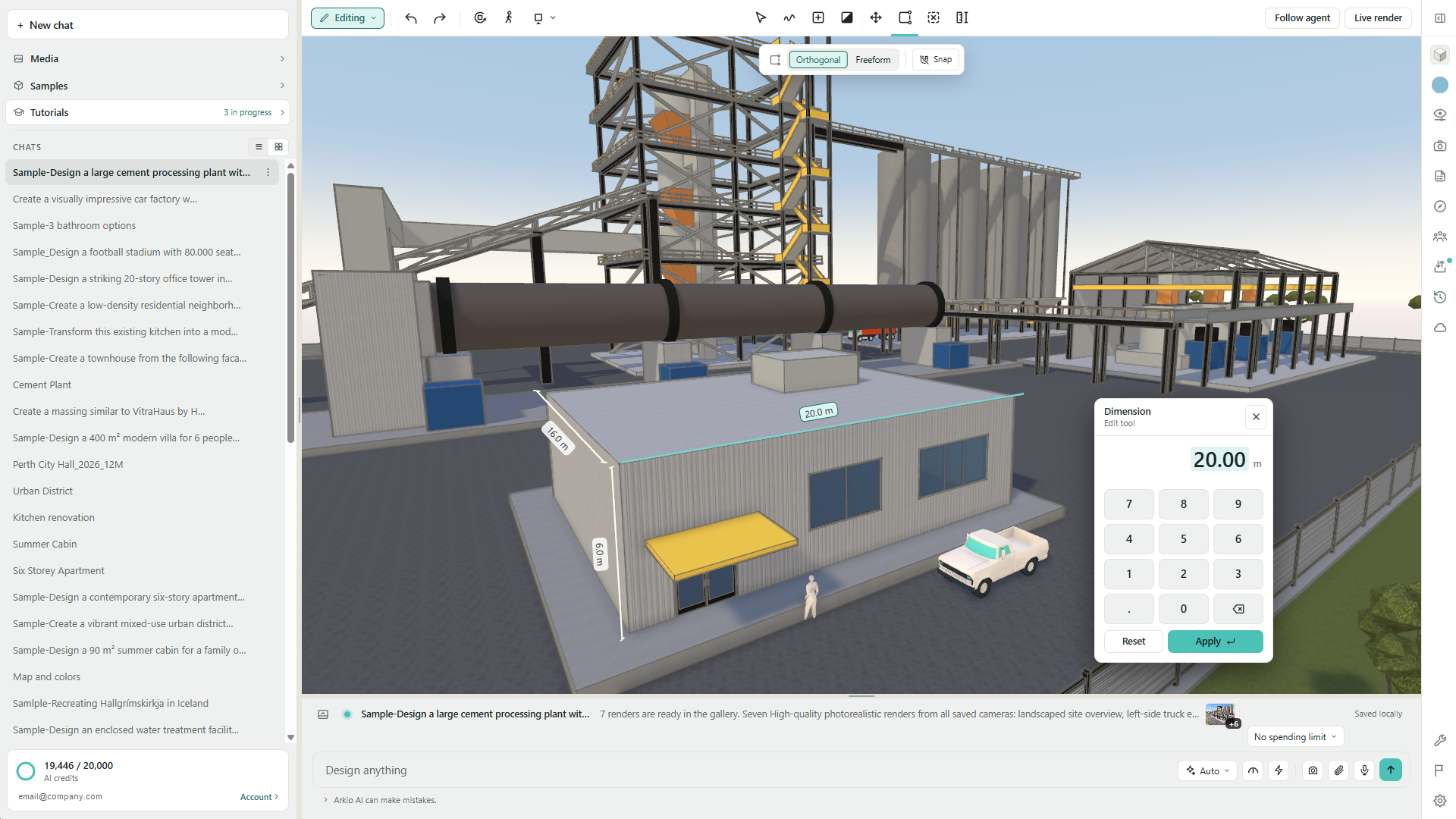
Clearer controls and precise dimensions

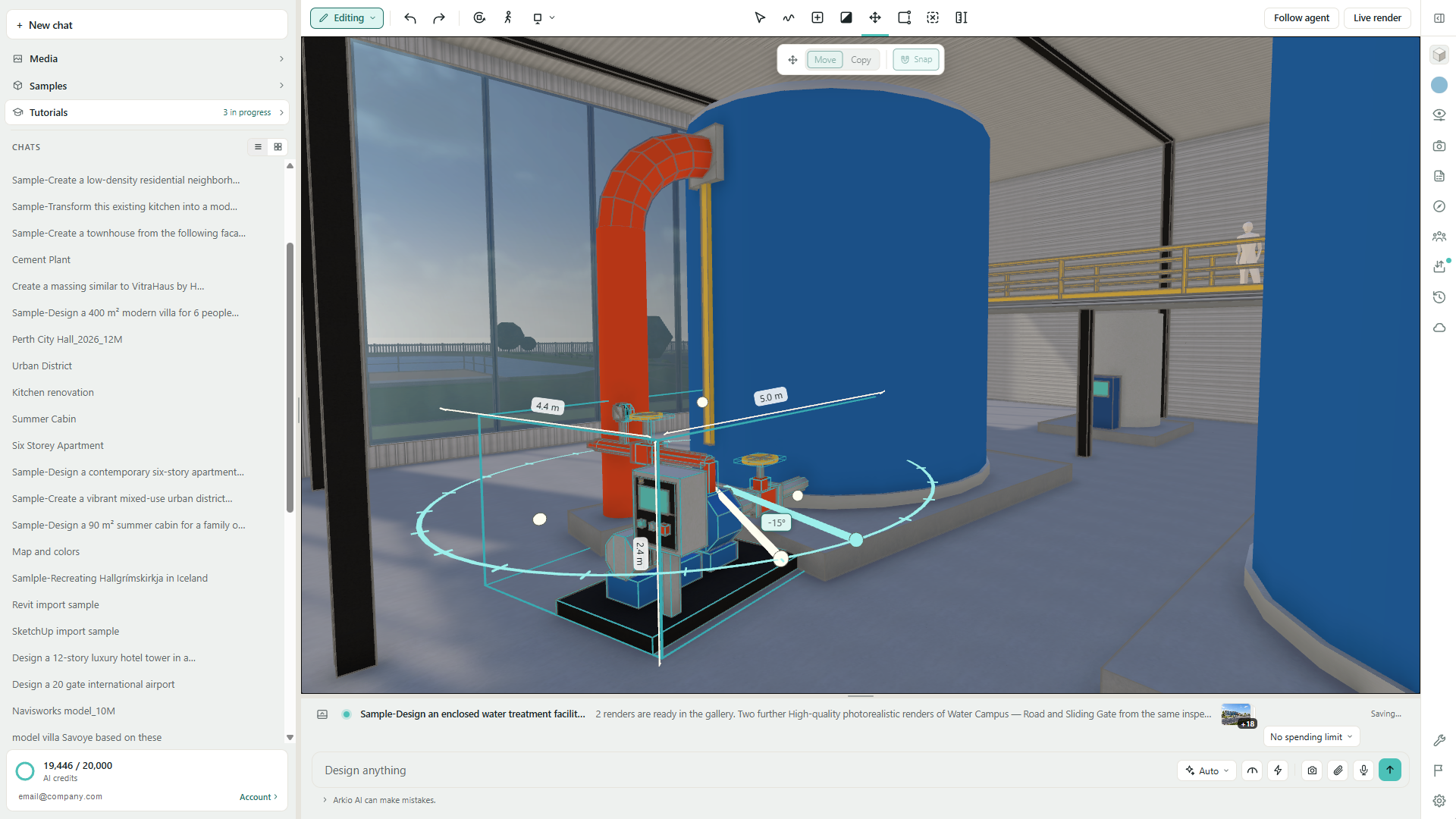
Redesigned handles and rotation rings show what you are moving or reshaping. Click editable dimensions to enter exact values, use distance labels and footprint areas to judge proportions, and follow contextual hints for the current action.

Switch between moving and copying, or orthogonal and freeform editing. Shape creation separates footprint and height, while connected wall segments and hosted openings help you build architectural elements.

Learn more: Model and edit in Arkio Web.
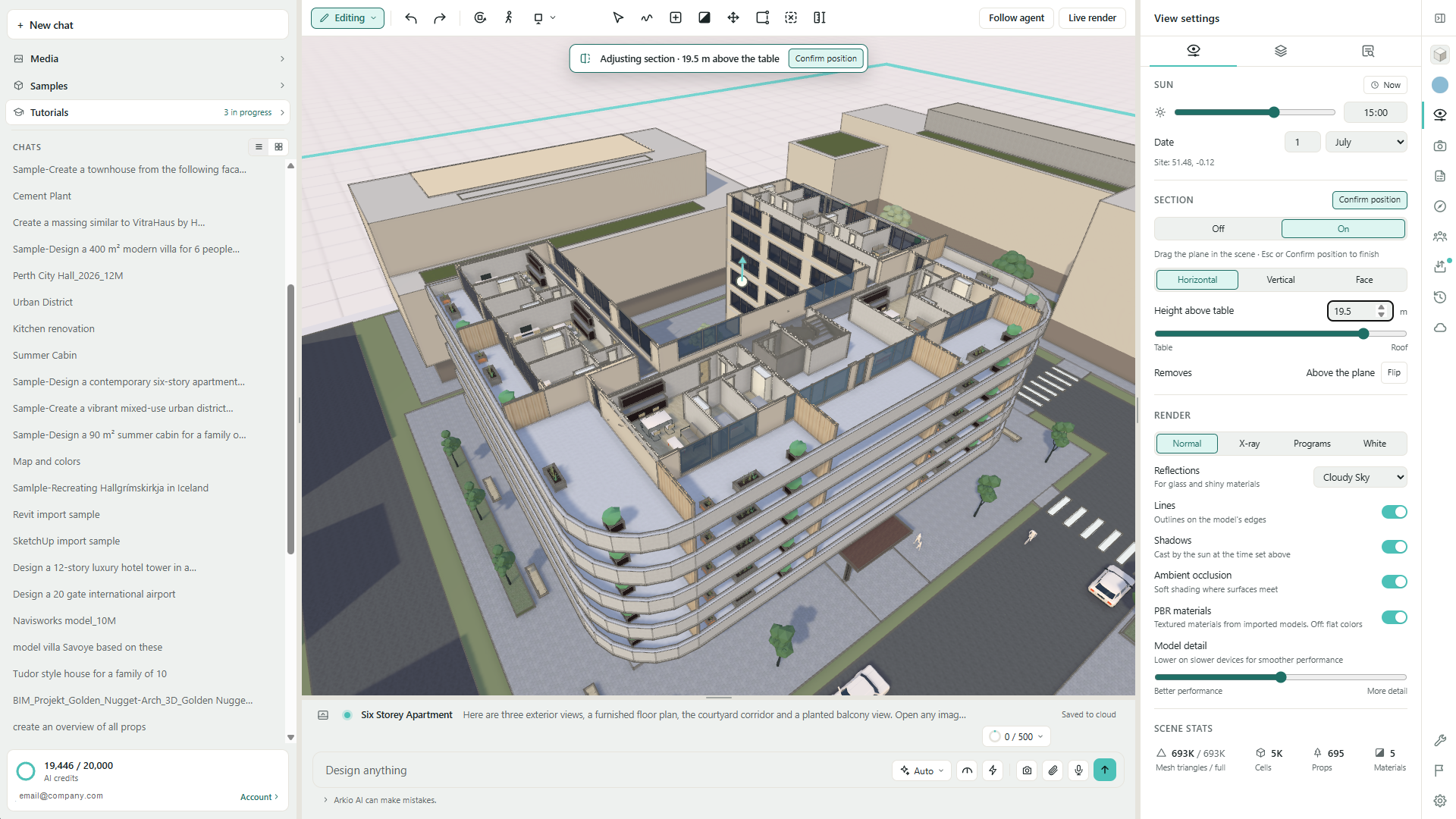
Reveal interiors with section views

Reveal an interior, inspect a floor plan, or present a cut through your building with horizontal, vertical, and face-aligned sections. Move or rotate the cut in the scene, fine-tune its position, and flip which side is visible.

Hide the adjustment widget for a clean presentation. Turn the section off and back on to return to the same placement as the discussion moves between exterior and interior views.
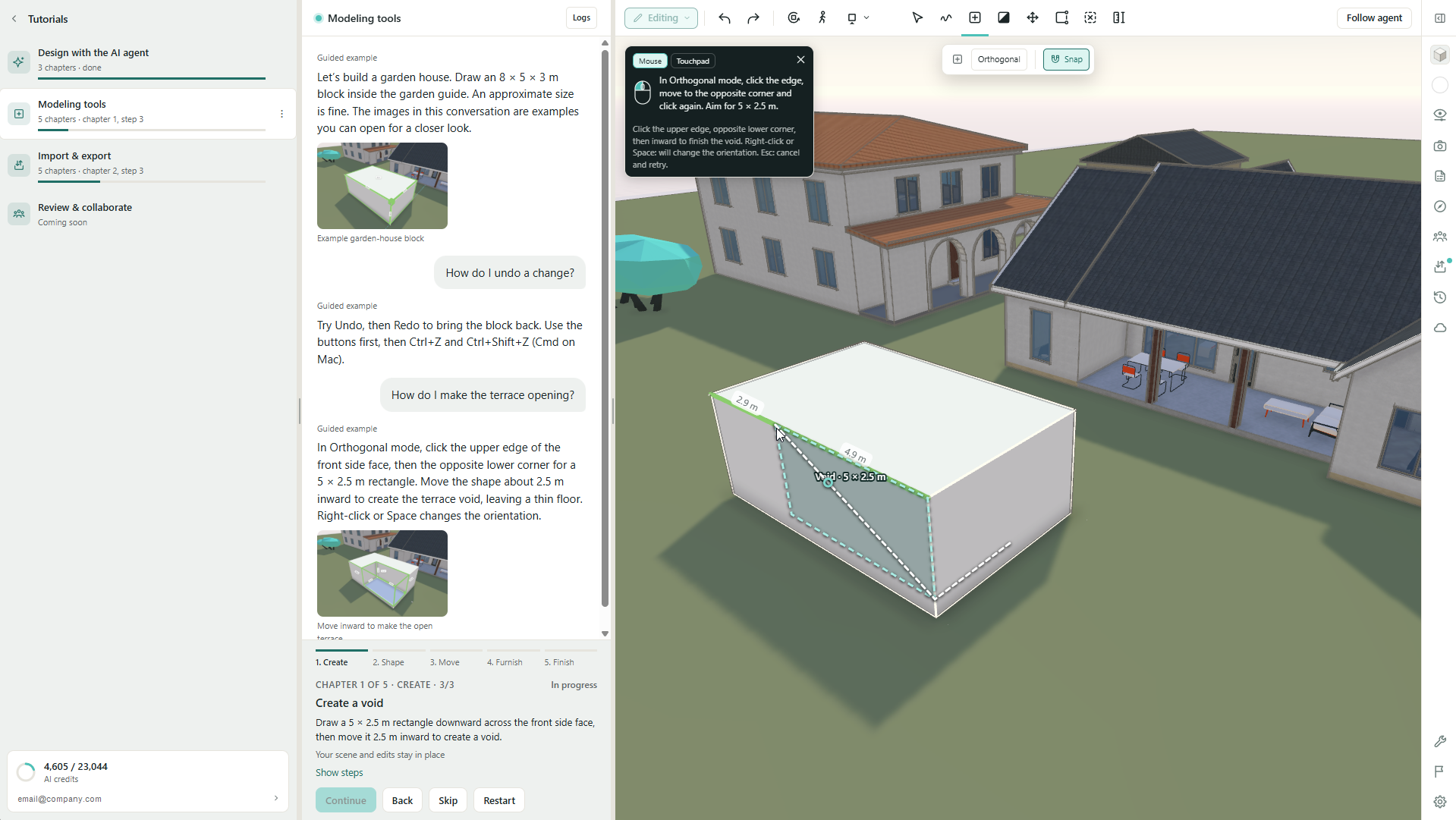
Learn with tutorials and sample scenes

Explore the AI agent, modeling tools, and import/export workflows with guided tutorials and sample scenes. Prepared guided examples do not use AI credits; your own live AI requests do.

Start here: Getting started with Arkio 3.0 for web.
Help us improve Arkio

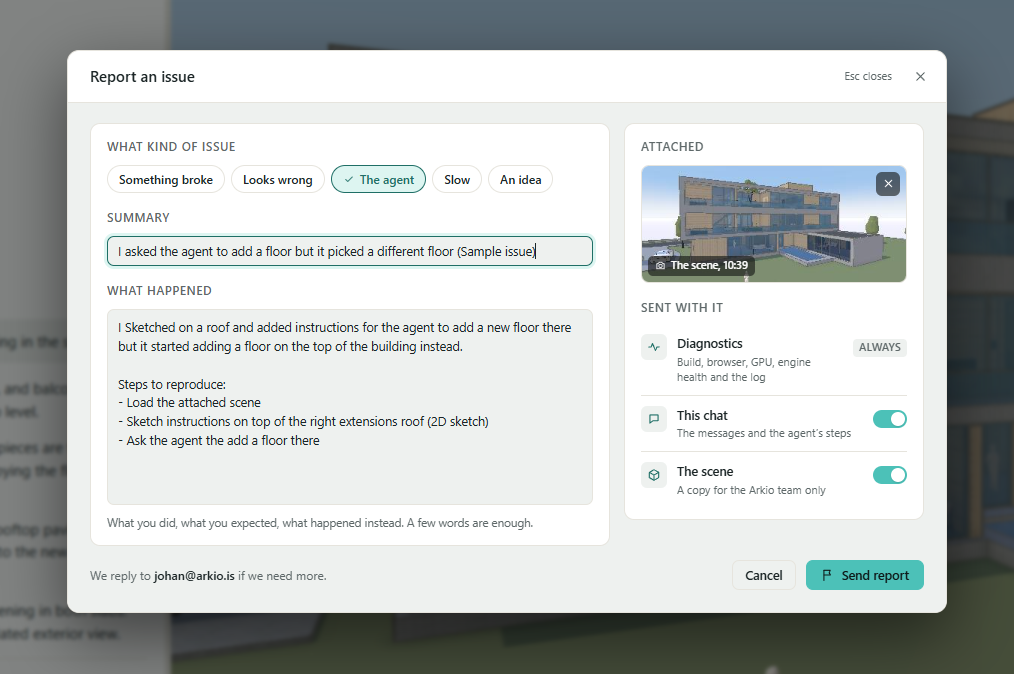
Check Known issues and limitations for current restrictions and workarounds. Use Report an issue in Arkio when something goes wrong, or visit our feedback board to suggest and vote on improvements.

Thank you to everyone who helped shape this release. We look forward to seeing what you create with Arkio 3.0.
Major updates

Arkio 2.3

Arkio 2.3 brings major improvements to visual quality, mobile AR, and import workflows. Experience more realistic imported materials with PBR support, position and explore your designs more naturally in AR, and work more smoothly with movable elements, improved navigation, and better performance across all Arkio-supported devices.


More Realistic Materials with PBR

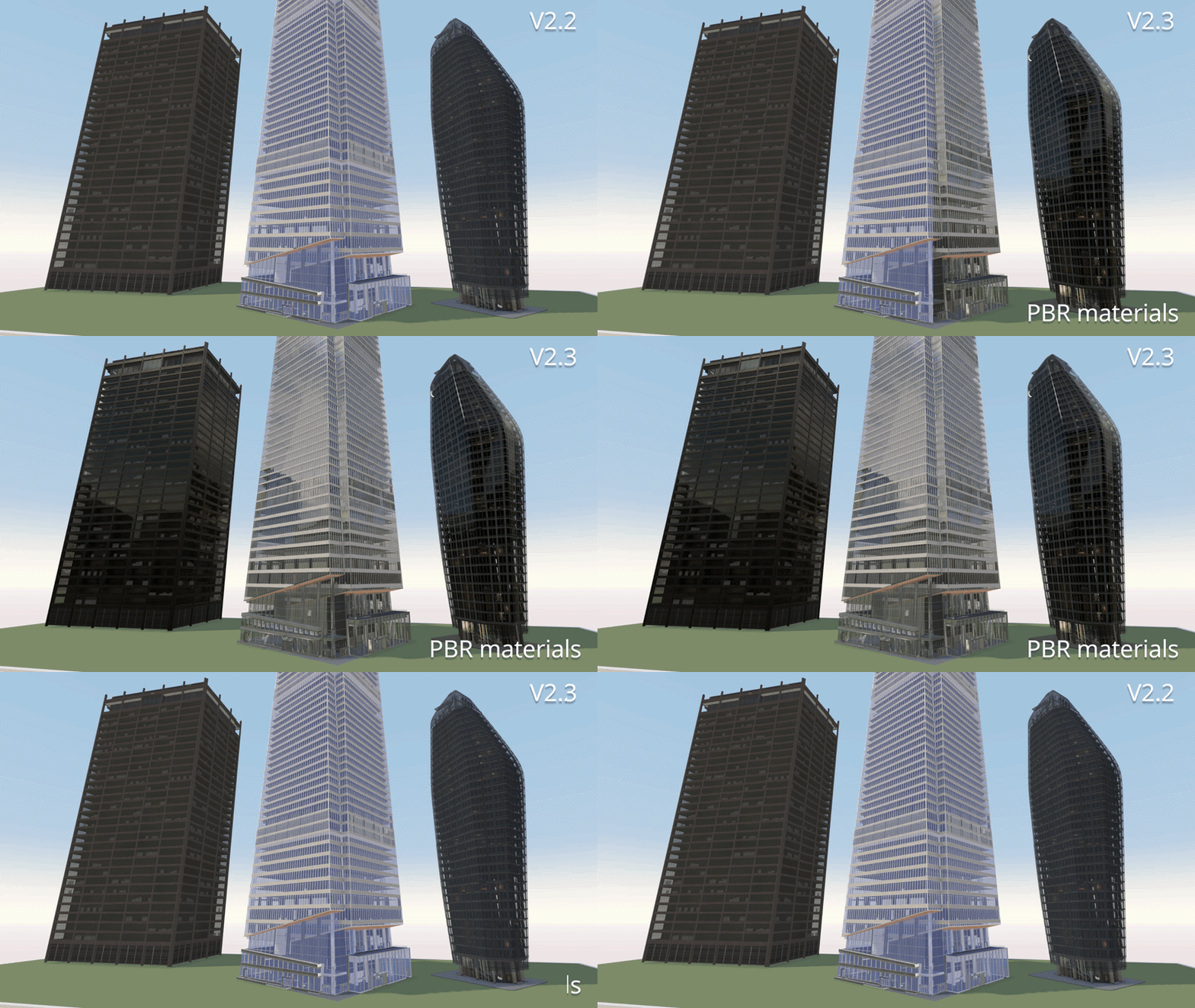
Arkio now supports Physically Based Rendering (PBR) materials for imported models, bringing richer, more realistic materials to your designs and improving their overall visual quality—even on mobile devices like Meta Quest 3.

PBR properties from plugins

PBR material properties are now exported from our plugins for Revit, Rhino, SketchUp, and Archicad. The available properties depend on your software's capabilities, so refer to your tool’s documentation for details on configuring PBR materials.

Arkio supports material properties such as reflections, roughness, metallic surfaces, and normal maps. You can also load glTF files with advanced PBR properties, including custom reflection and metallic maps and emissive materials, to bring highly realistic models into Arkio.

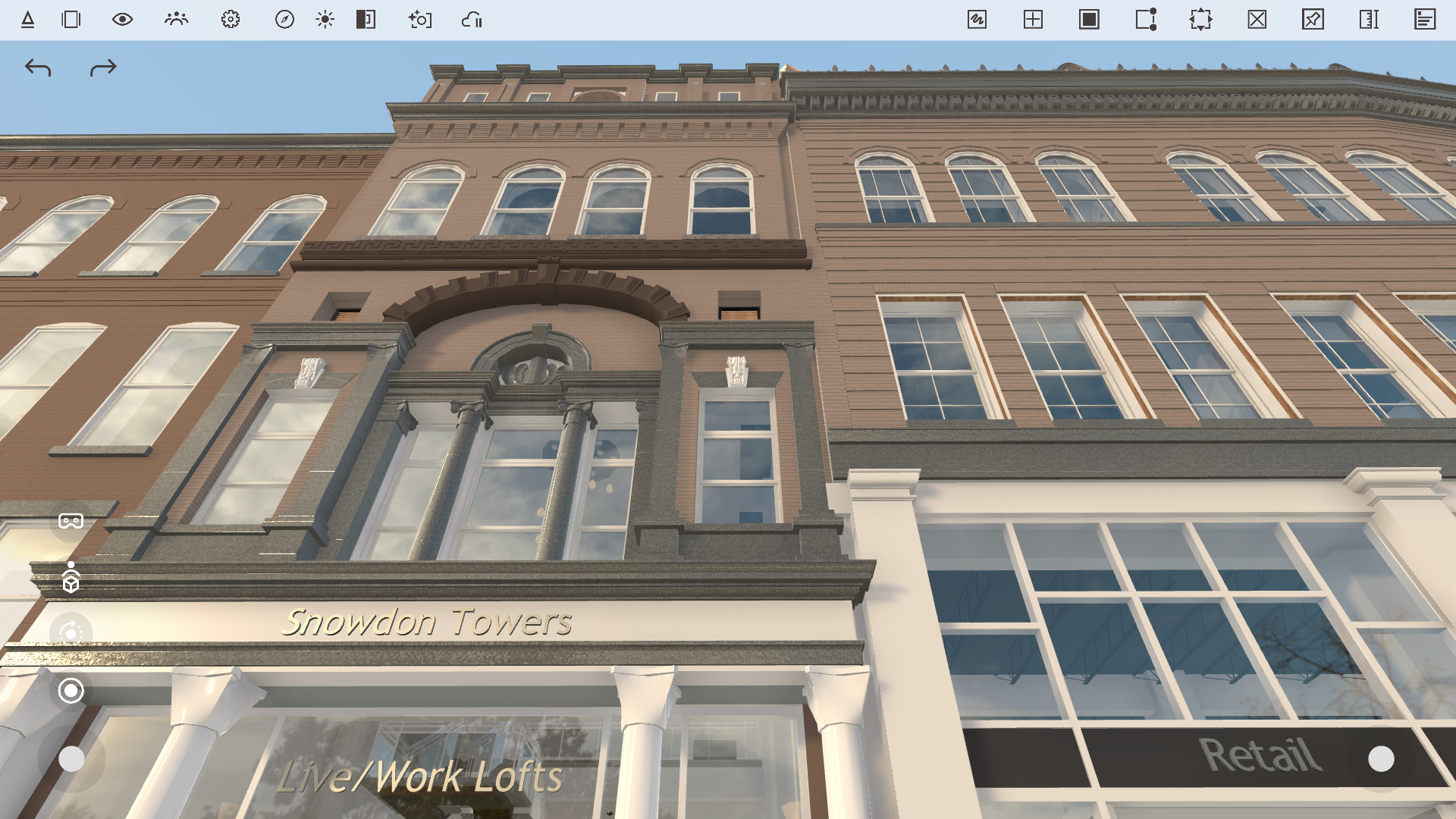
You can explore examples of these materials in our updated Arkio sample scenes.

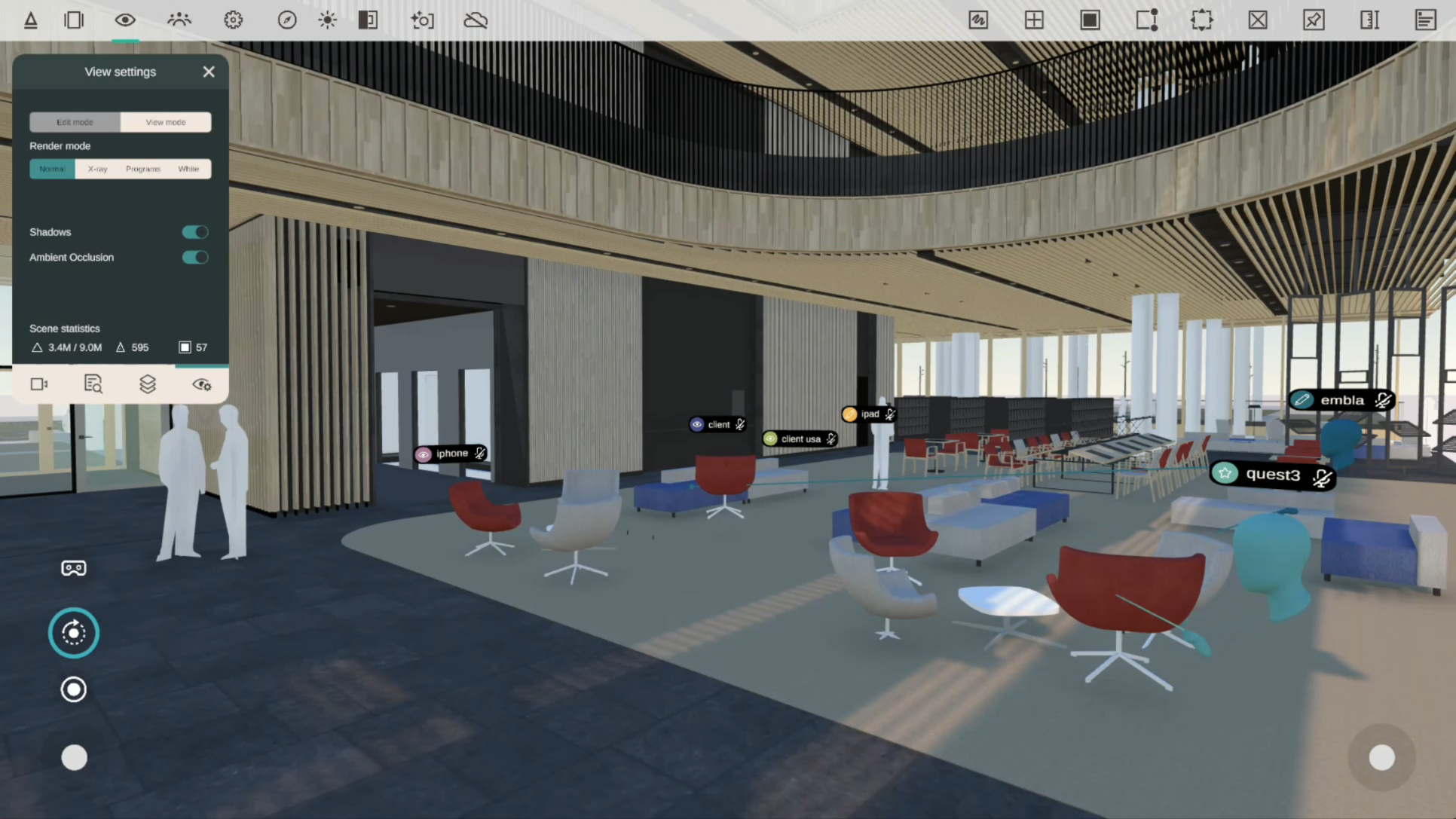
If you prefer Arkio’s previous flat rendering style or want to improve performance for large imported scenes, you can disable PBR materials in View Settings. This toggle also makes it easy to compare your models using the previous and new material systems.

Reflections

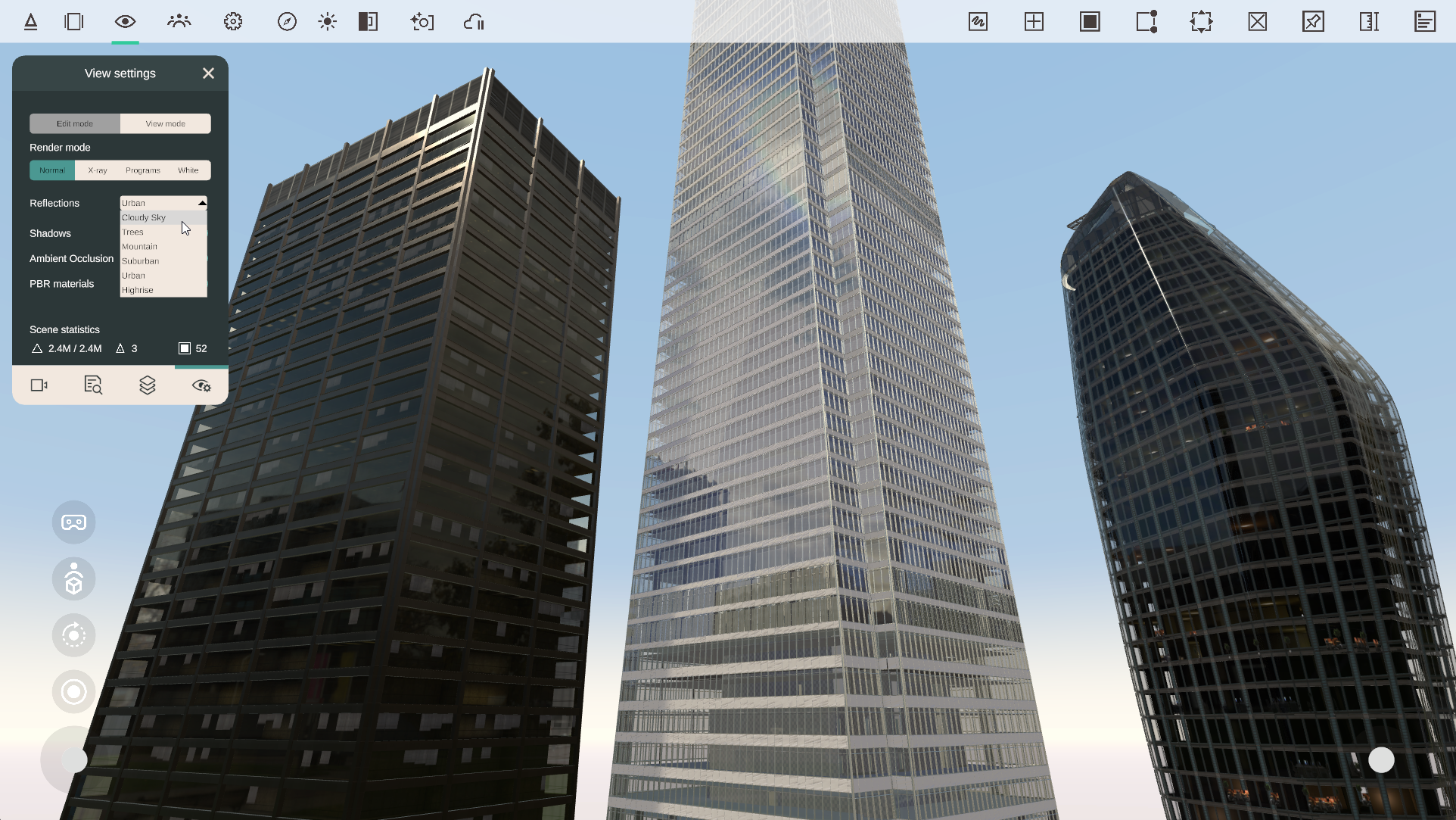
New reflection settings in the View Settings panel give you more control over the appearance of glass and other reflective materials, such as metals and polished surfaces.

Choose from several reflection environments:

  • Cloudy Sky – blue sky with clouds

  • Trees – green field surrounded by trees

  • Mountain – distant mountain landscape

  • Suburban – residential gardens and surroundings

  • Urban – urban square with distant towers

  • Highrise – street surrounded by high-rise buildings

Changing the reflection environment affects reflective PBR materials throughout your scene. Your selection is saved with the Arkio scene, together with your sun and location settings.


Mobile AR Improvements

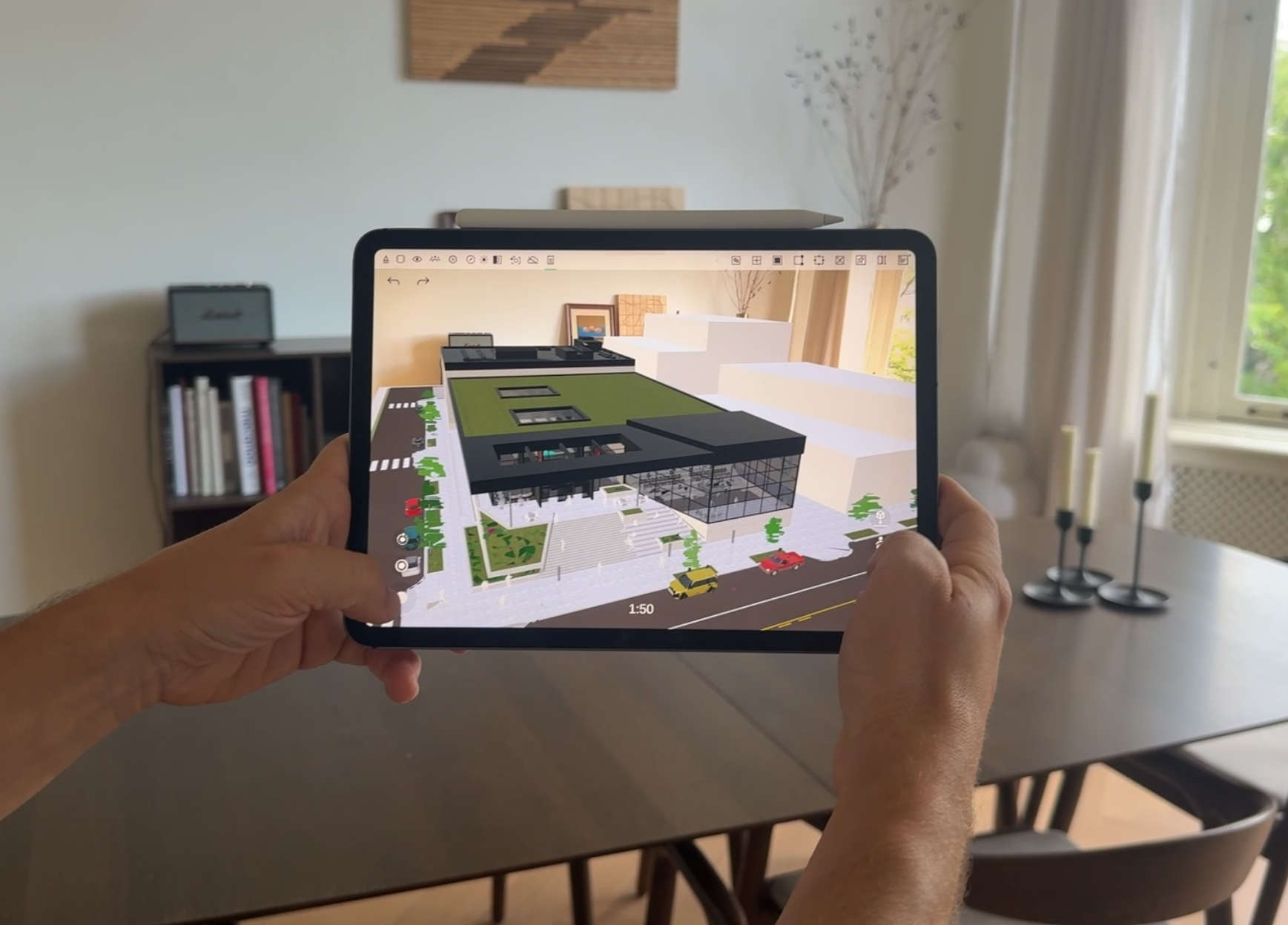
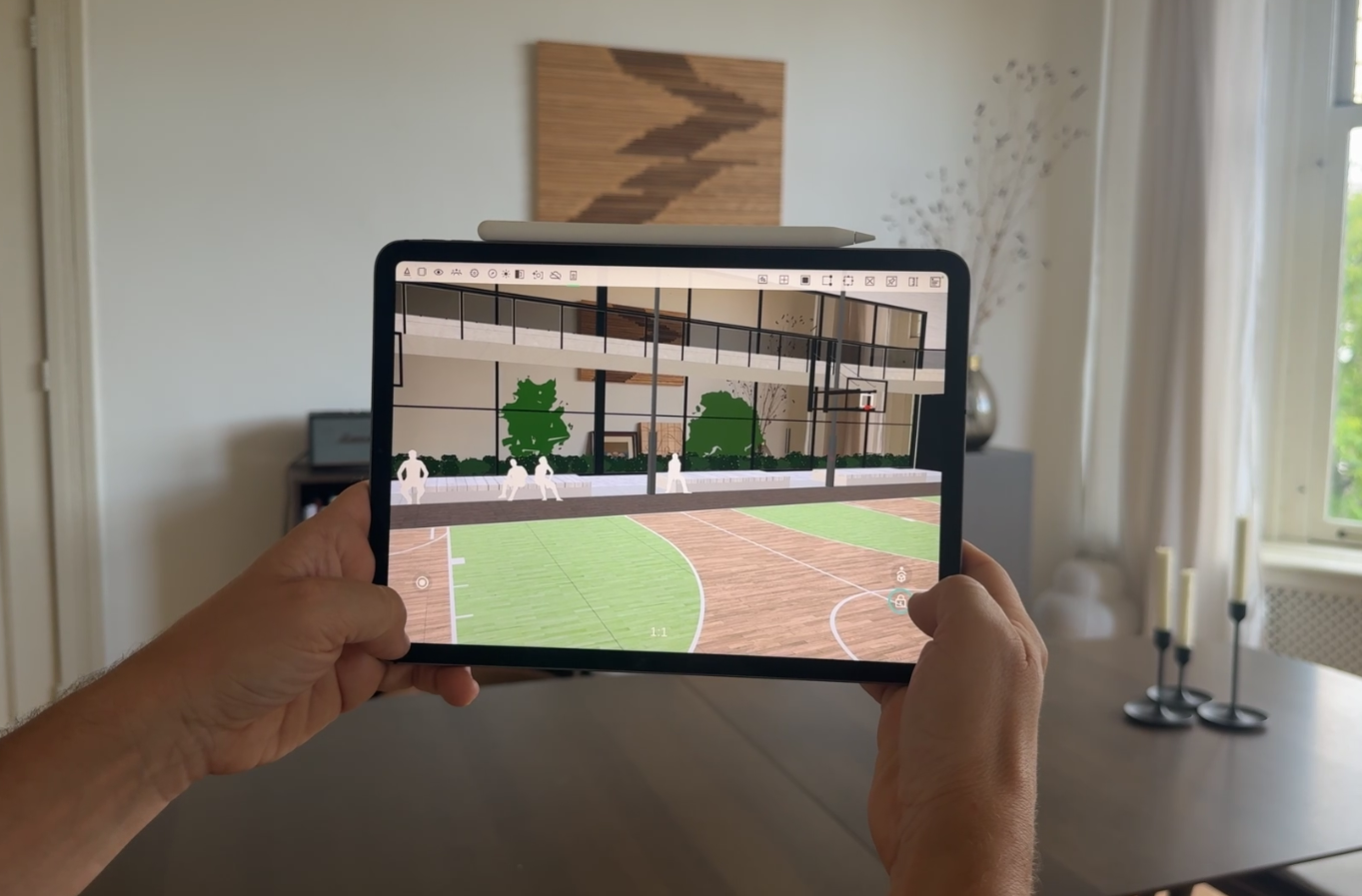
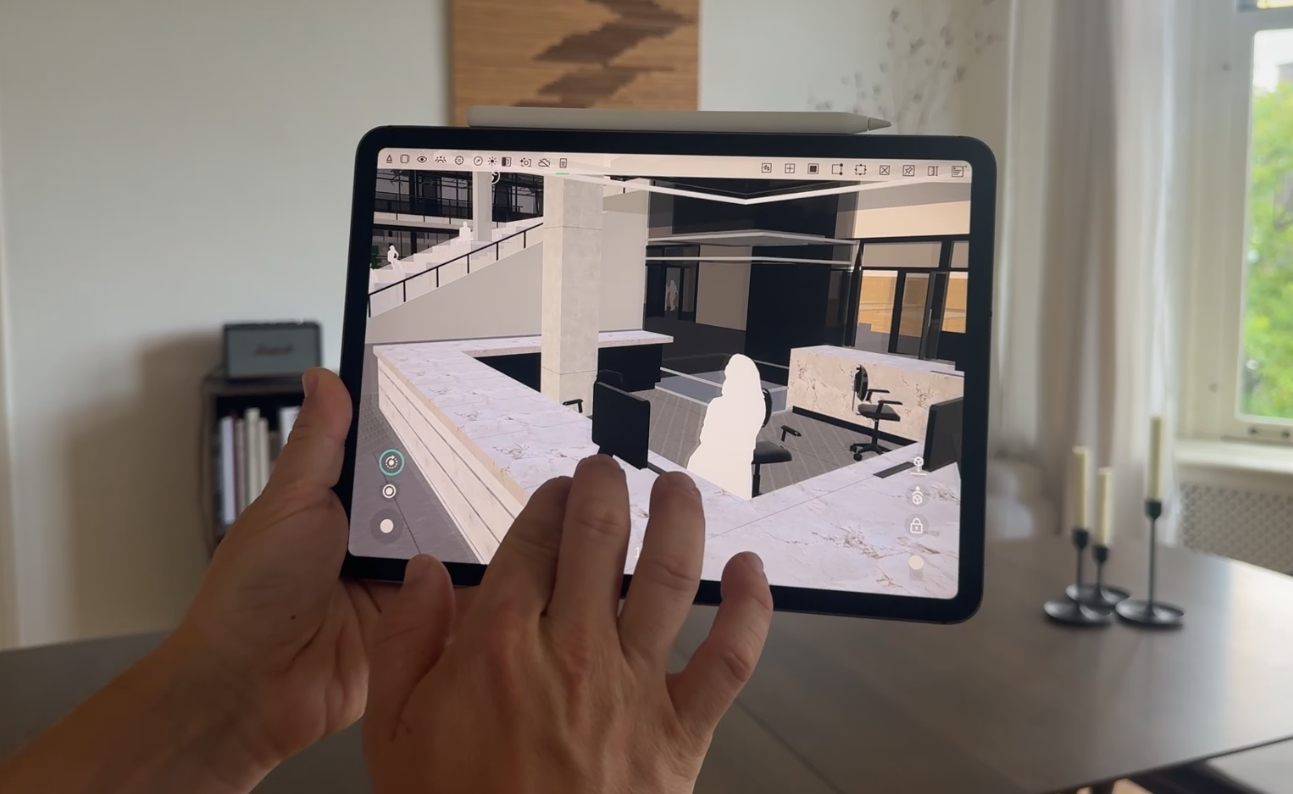
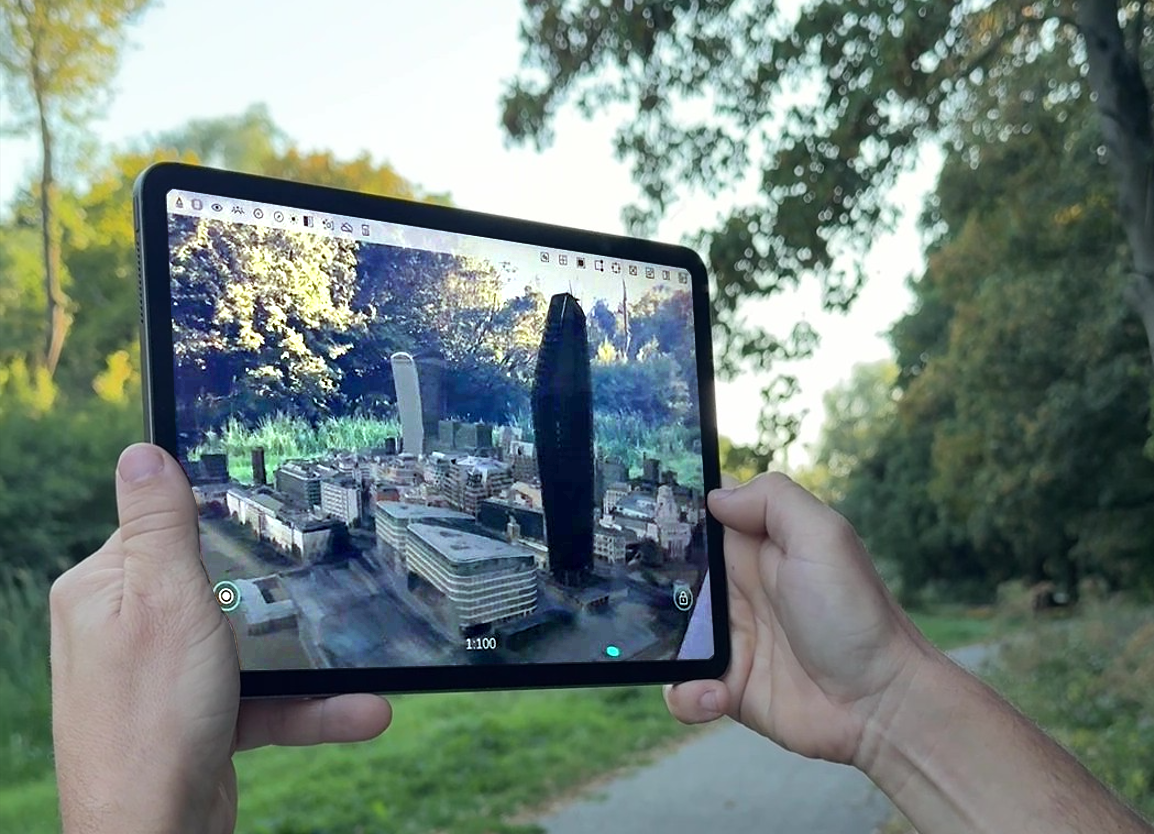
Mobile AR has received a major update, making it easier to position, align, and explore your Arkio models in the real world without needing a VR headset. Using a tablet or smartphone, anyone can experience models at full scale simply by walking around with their mobile device.

Explore and lock your model at 1:1 scale

You can now teleport into your model in AR and explore designs at human scale, making it easier to experience spaces at their true size and in their real-world context.

When you lock a model at 1:1 scale, Arkio creates a teleport marker at that location. You can use this marker to quickly return to your previous locked position, similar to how locking and anchoring work in Arkio on mixed reality headsets.

New AR placement controls

New AR placement controls give you more precise control over your model's position, scale, and orientation:

  • Select the plane where you want to place your Arkio scene

  • Place, recenter, and lock your model using the new controls

  • Adjust the horizontal position by swiping with two fingers or using the left thumbstick

  • Adjust the placement height using the right thumbstick

  • Scale the model by pinching with two fingers

  • Rotate the model using the orbit tool or by swiping outside the model

These navigation interactions are similar to Arkio in 3D mode. For the most accurate alignment at human scale, teleport to a location close to where you are standing in the real world using the Arkio map or other loaded 3D context references.

Once inside the 1:1-scale scene, you can fine-tune the model's position using the left thumbstick for horizontal adjustments and the right thumbstick for vertical adjustments. And use the orbit tool to rotate a corner of the building to a right angle.

When everything is aligned, lock the model in place. You can return to the scale model at any time using the new view reset button, then use your teleport markers to jump back to previously locked 1:1 positions.

AR mode switching and persistence

Your AR placement plane and locked position now persist when switching between AR and 3D on mobile devices. This means you can move between tools and view modes without losing your original AR placement.

Arkio will also maintain your model alignment when your device enters standby or when you switch between apps, allowing you to resume where you left off or pass the device to others to explore the model at scale or 1:1.


Improved Movable Element Workflows

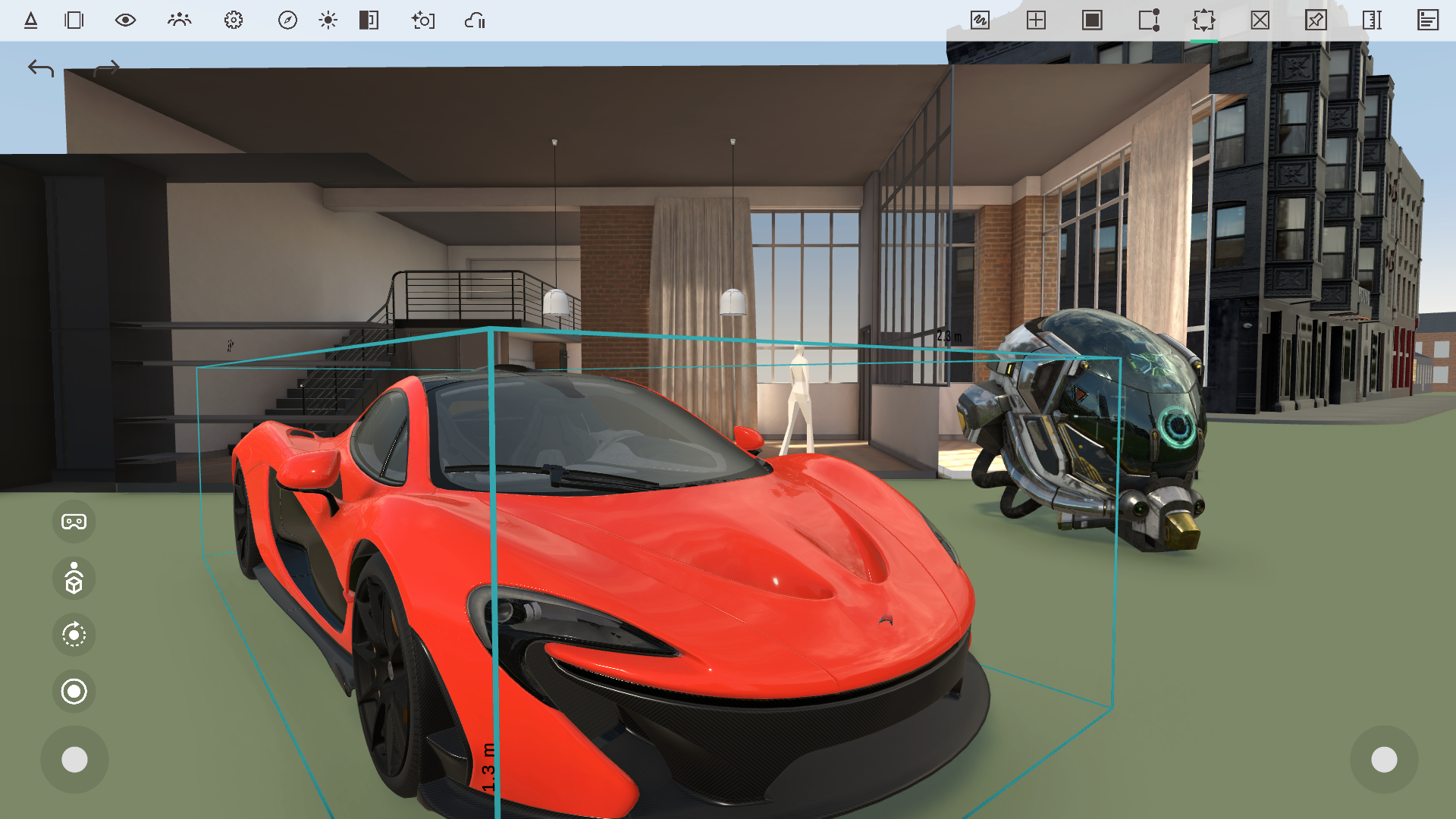
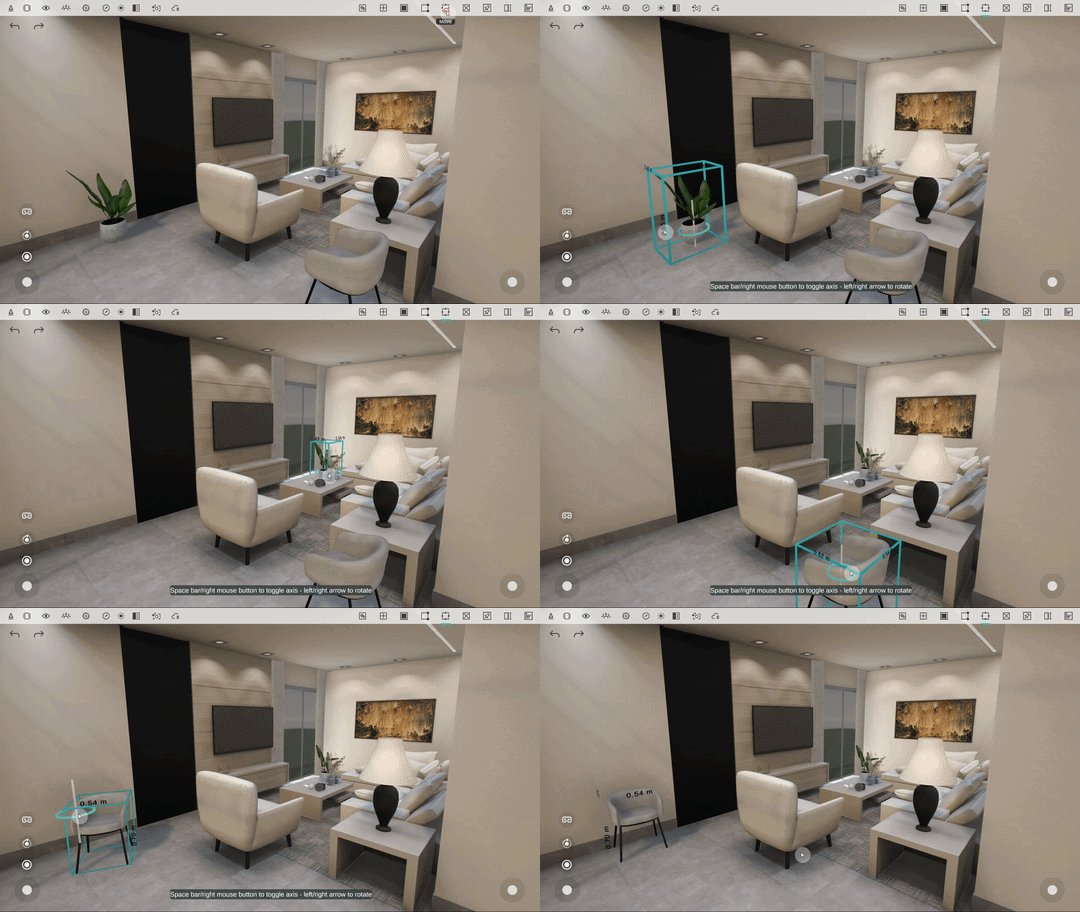
Movable elements and props can now collide with imported mesh surfaces, making it easier to place and align objects directly on imported geometry such as floors, walls, tables, and shelves from your other 3D modeling tools.

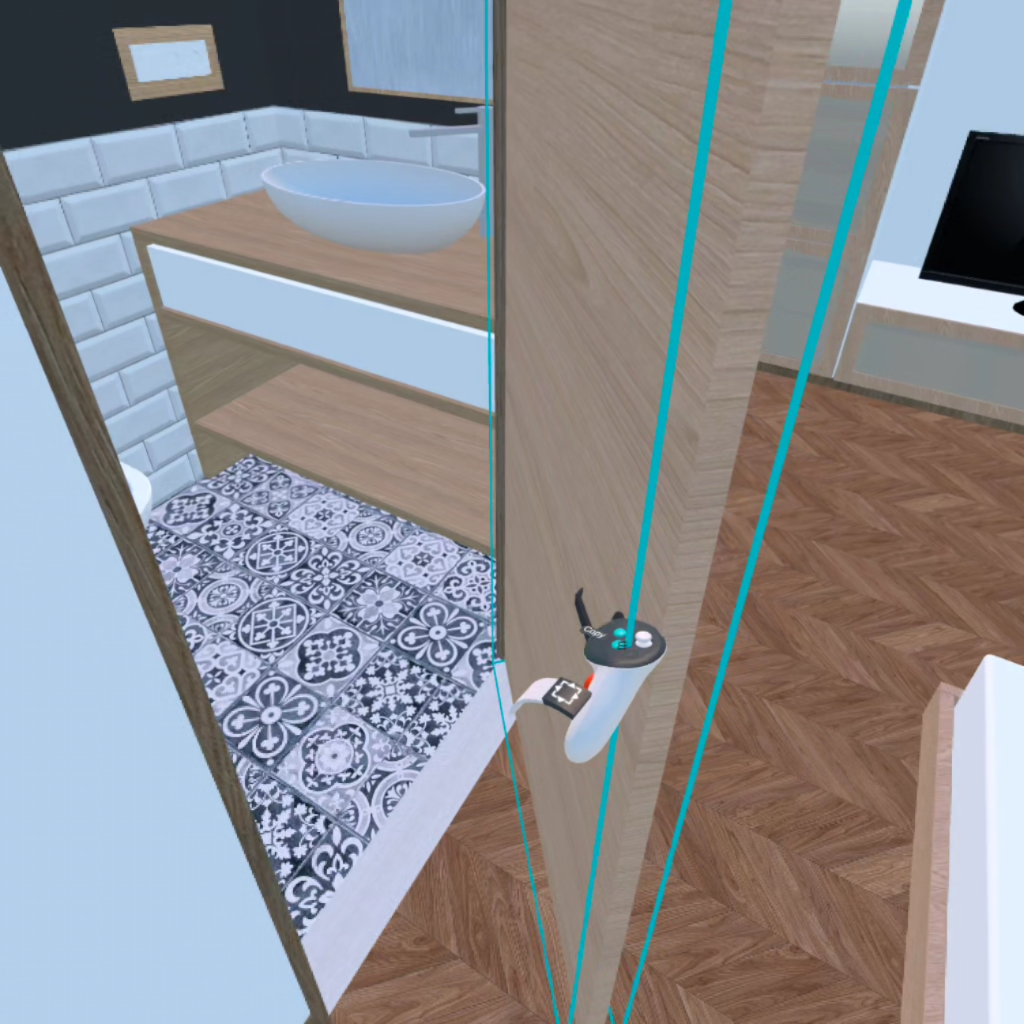
This makes movable objects imported into Arkio behave more like Arkio’s native solid geometry. They can be picked up, aligned, and placed against other geometry using the Move tool or simply grabbed with your hands or controllers in VR.

Editing imported buildings with movable elements now feels more natural, as objects can glide along imported floors and walls and snap into place against surrounding geometry.

In VR, you can temporarily disable mesh surface alignment by holding down the controller thumbstick to disable snapping while moving an object.

Archicad improvements

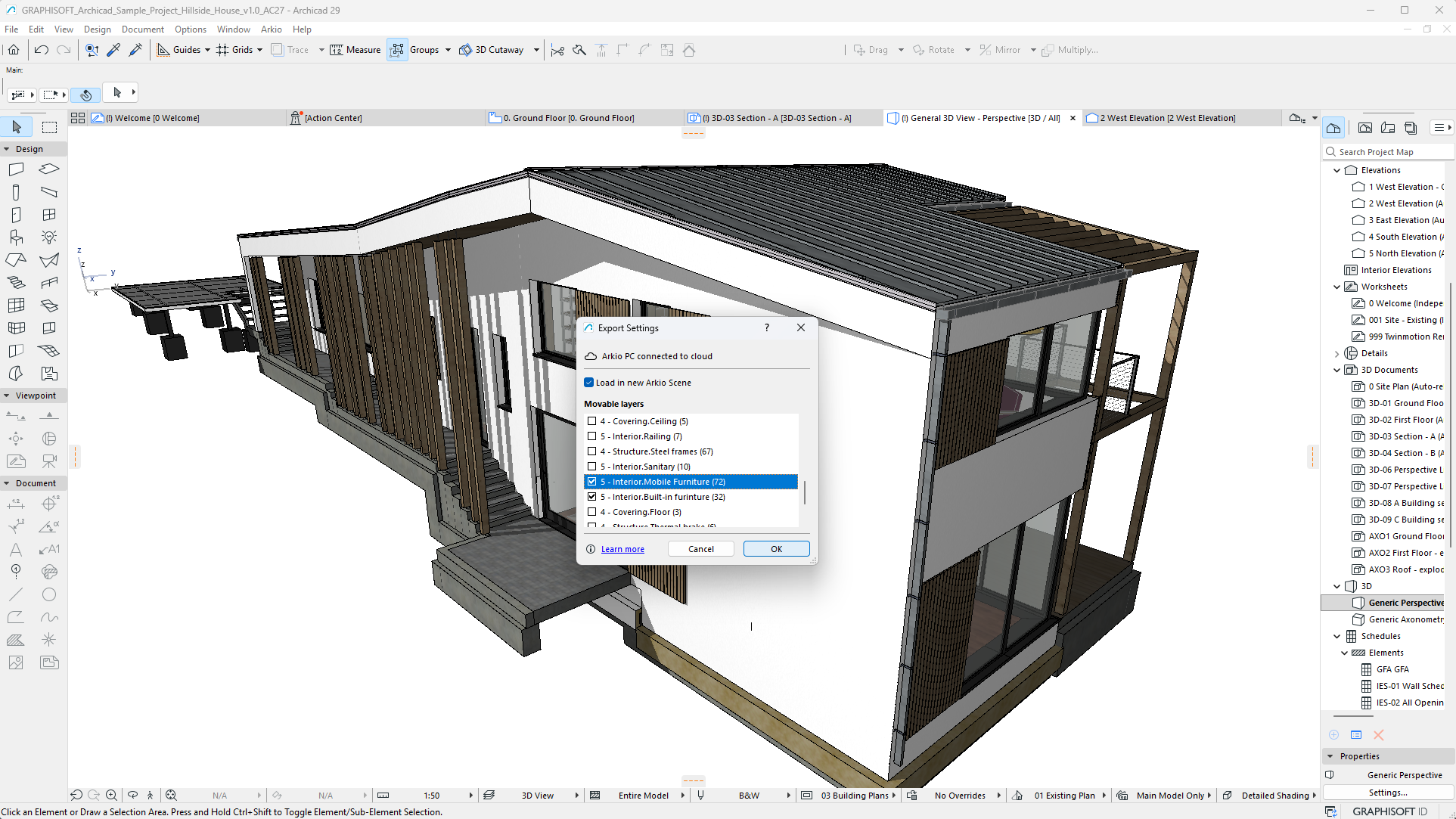
Our Archicad plugins now include additional export options:

  • Automatic model placement

  • Selecting elements to import as movable objects

  • Archicad 29 plugin support on Mac

  • PBR material export to Arkio

These improvements bring the Archicad export workflow in line with our Revit, Rhino, and SketchUp plugins. With movable elements and PBR materials, more of your original Archicad model can now be brought into Arkio for interactive editing and realistic visualization across devices.

Underground geometry

Imported geometry modeled below the origin will now automatically cut a hole in the Arkio table when the model is placed at the origin, revealing geometry that would otherwise be hidden below the table.

This makes it easier to work with underground structures and projects on sloping terrain while keeping models at their original coordinates for round trips between Arkio and supported design tools.


Navigation & Workflow Improvements

Navigation and editing in non-VR mode have been refined for smoother desktop and touchscreen workflows.

Improved navigation

  • Smoother zooming

  • Improved panning

  • Improved orbiting

  • Improved Move tool interactions

  • View reset button in 3D and AR mode

Colocation stability improvements

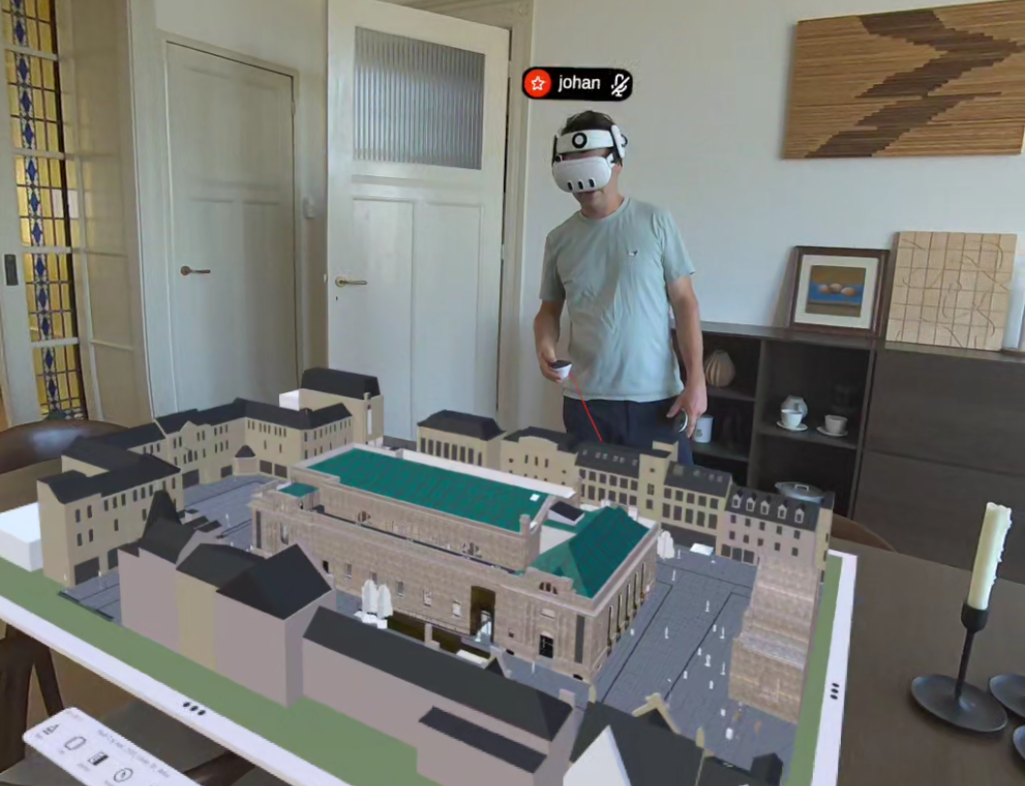
Some of our users reported issues with colocation since version 2.2; this release will address those issues across different workflows and tracking conditions. We’ve improved colocation stability after restarts, during recentering, and model-position updates, resulting in more stable alignments on all Meta Quest devices.

When users are co-located and the scene is locked, avatars are now hidden to create a cleaner mixed reality experience. Only each user’s nametag remains visible.

Better support & diagnostics

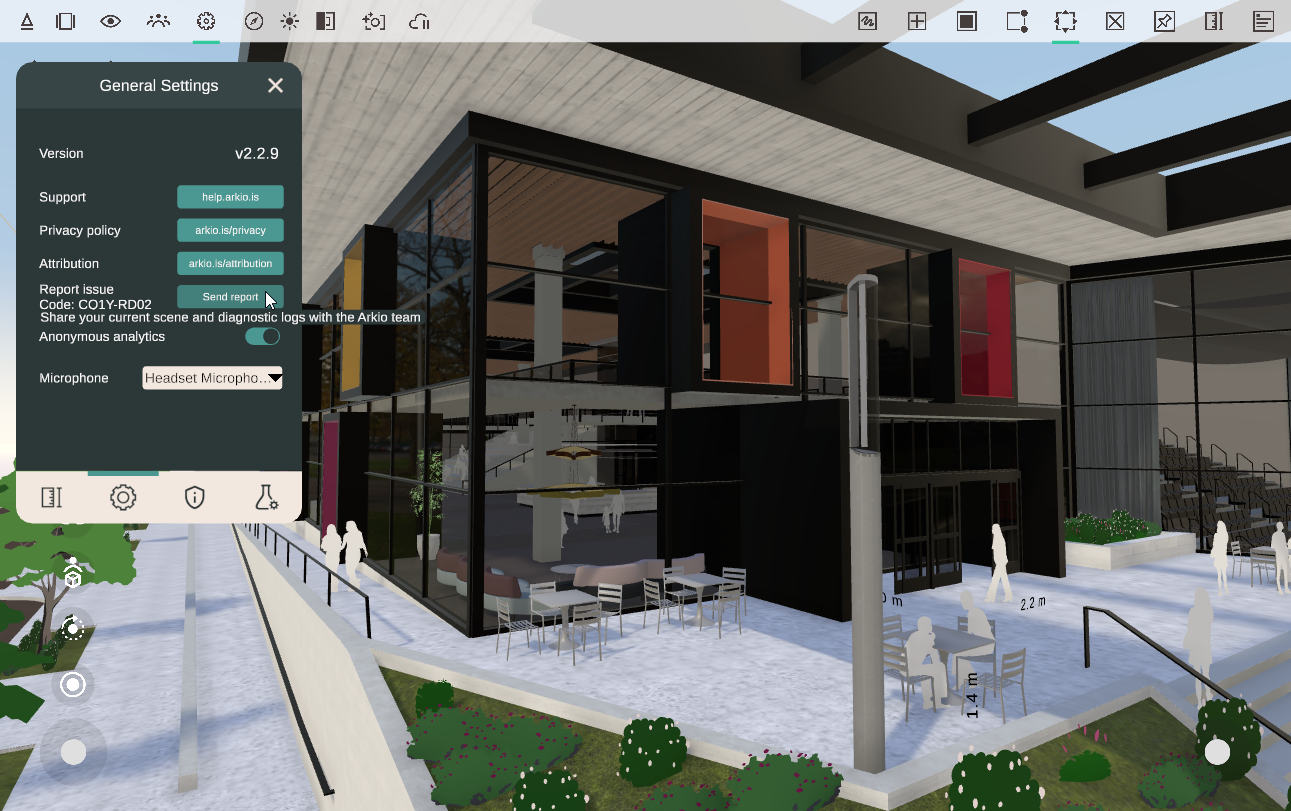
If you run into issues with Arkio, you can use the new report issue button in the settings panel to share logs and traces, giving the Arkio team more information to diagnose and resolve issues more effectively.


Rendering & Performance Improvements

Alongside our new PBR materials, this release includes several visual and performance improvements across Arkio:

  • Increased rendering resolution on Quest 3 and Quest 3S

  • Improved close-up detail for large models

  • Improved sky rendering

  • Improved ambient occlusion

  • Improved rendering of reflective materials

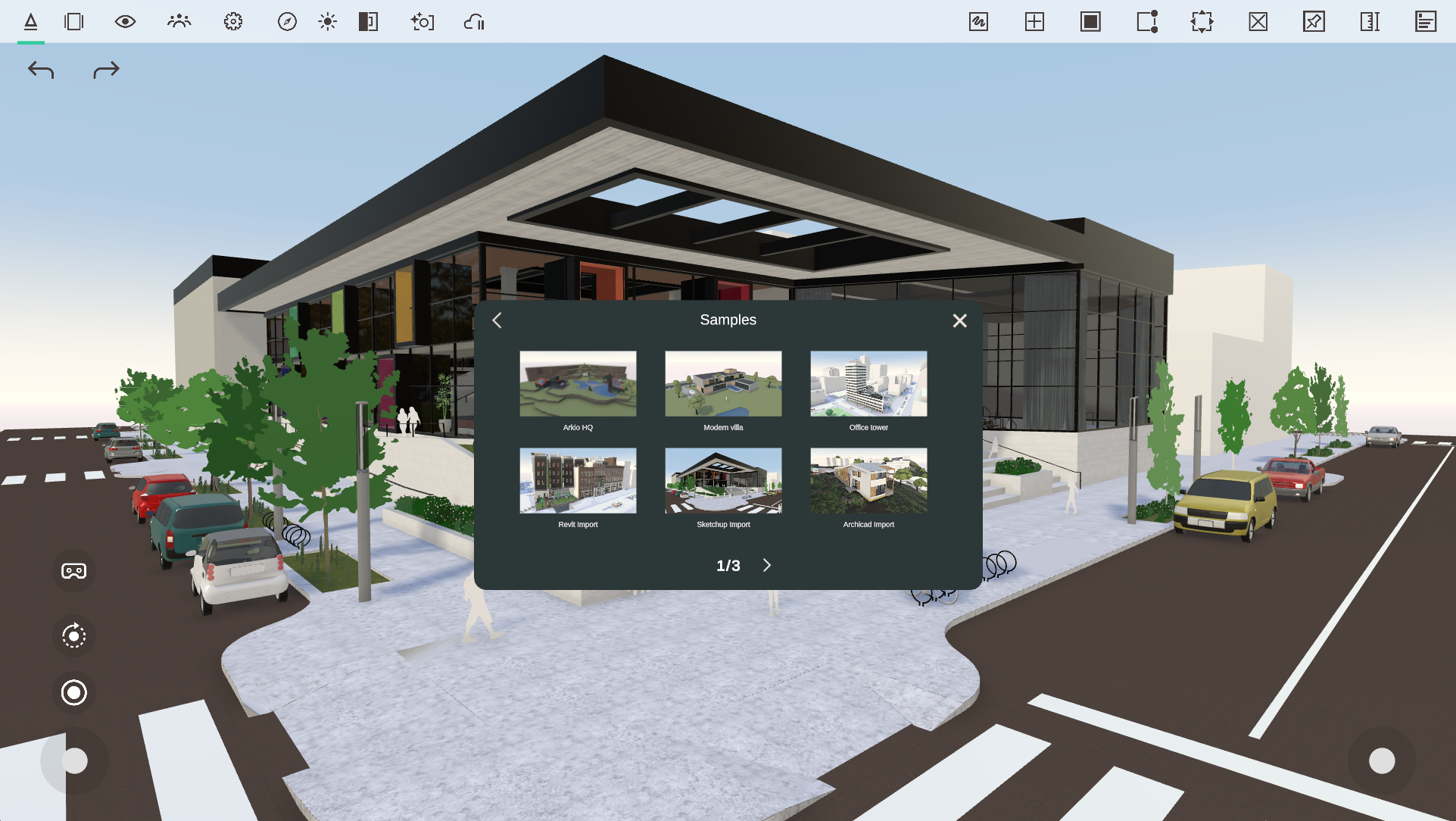
We’ve also included more sample scenes in the start panel showcasing the new PBR materials and movable-element workflows for Revit, SketchUp, and Archicad. These scenes make it easy to explore the latest improvements and see how realistic materials and movable elements can be used in your own Arkio projects.


Fixes

  • Prevented the app from becoming unresponsive on poor network connections

  • Prevented performance issues on Quest caused by invalid spatial anchors

  • Fixed the white floor briefly appearing during VR startup

  • Fixed dual joystick navigation on touchscreen devices

  • AI render settings are disabled when there aren’t enough credits available

  • Limited plugin exports to a maximum of 3,000 movable elements to prevent performance issues

As always, thank you for your feedback and support. We look forward to seeing how you use these new AR, visualization, and interoperability improvements in Arkio 2.3.

Major updates

Arkio 2.2

Arkio 2.2 enhances Arkio’s bidirectional plugins and introduces movable objects, cloud and workflow enhancements. Check out the following video to see what’s new for this release.

🔌 Plugin & Import Workflow Improvements

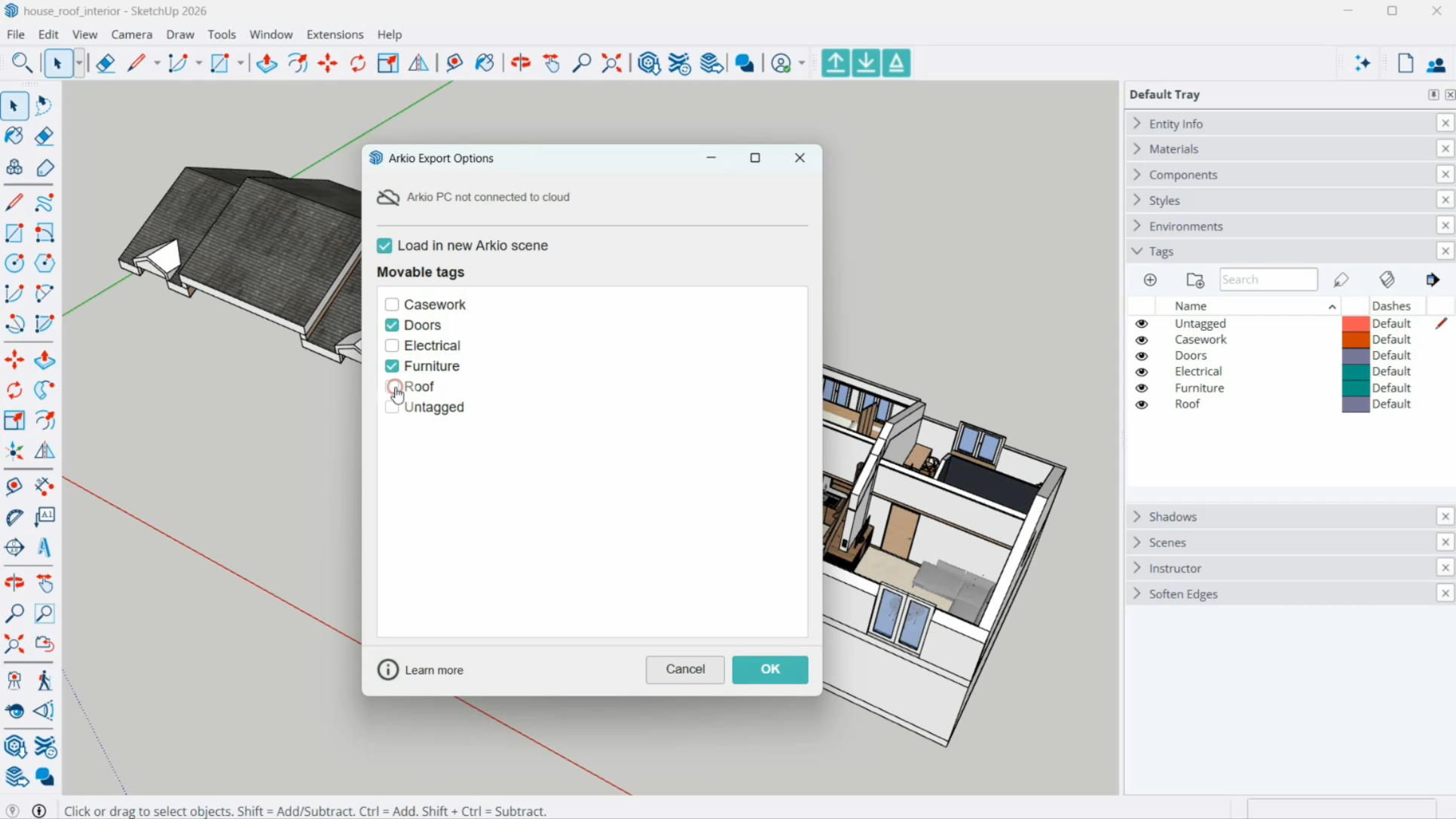
Arkio 2.2 upgrades our plugin workflows for Revit, Rhino, and SketchUp, making our bidirectional plugins more powerful and automatically sharing your latest imports and exports between your devices using the Arkio cloud.

  • New plugin export panel:

    • Open exports directly in a new Arkio scene

    • Level of Detail dropdown for Revit and Rhino

    • Select which objects should be imported as movable

    • status and progress bar

  • Plugins instantly open Arkio in a new scene on PC

    • Processes large files directly for other devices

    • Shows the Cloud device group link code

    • Access your large export directly on Quest or mobile

  • New Import panel:

    • Lists all recent exports

    • Automatic downloads of cloud exports on other devices

    • Material import settings

    • Previous Arkio import settings


🧩 Movable objects

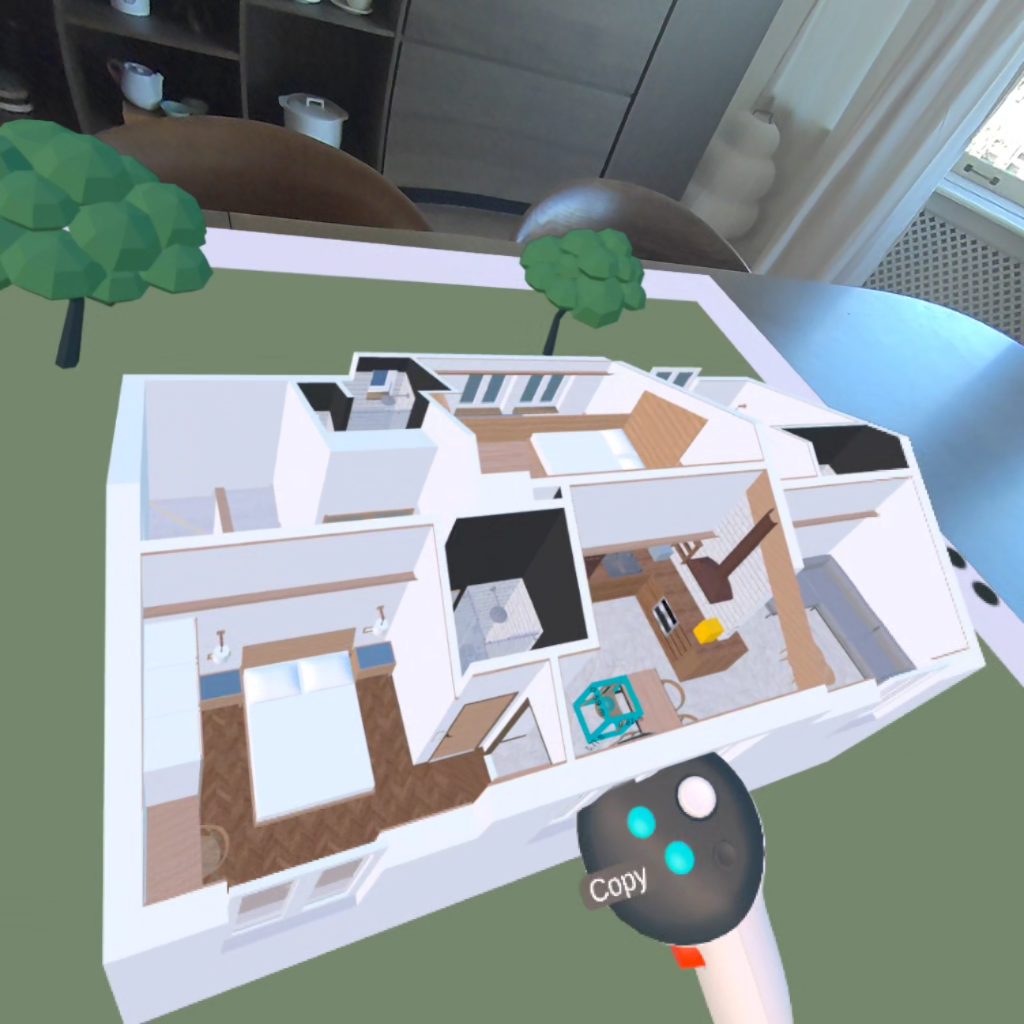
A key addition in Arkio 2.2 is support for movable objects imported from your existing design tools.

Defining Movable objects

  • Select Categories for Revit families

  • Select Layers for Rhino Blocks

  • Select Tags for SketchUp Components and groups

In Arkio

  • Imported as individual, editable objects

  • Full editing capabilities:

    • Move, duplicate, delete, edit, and paint

What This Enables

  • Real-time layout exploration at any scale

  • Testing design variations at human scale

  • Collaborative editing with full flexibility

Round-Trip Workflow

  • All Arkio-created geometry is exported back in the same coordinates

  • Moved objects sync back to your original design tools

  • Supports cross-tool workflows

    • Movable Sketchup components can be converted to Revit families


💳 Simplified Subscription Model

Subscriptions have been streamlined to improve accessibility and clarity. Learn more about this in our updated pricing page.

Starter (Free)

  • 1:1 meetings without a time limit

  • Support for large 3D models (OBJ, GLB)

  • Scenes from Pro/Enterprise hosts become view-only after meetings

Pro

  • Meetings with up to 6 participants

  • Access to bidirectional plugins

  • Support for layers and BIM data

  • Movable objects

  • Advanced features:

    • Sections

    • 3D maps

    • Visibility modes

  • Includes AI credits

Enterprise


📦 Improved Large Scene Performance

  • Support for up to 1,000 movable elements per project export

  • Updated HLOD system for components and props:

    • Handles larger imports more efficiently

    • Maintains smooth performance with hundreds of elements in a scene

  • Optimized for mobile VR devices, including Meta Quest headsets


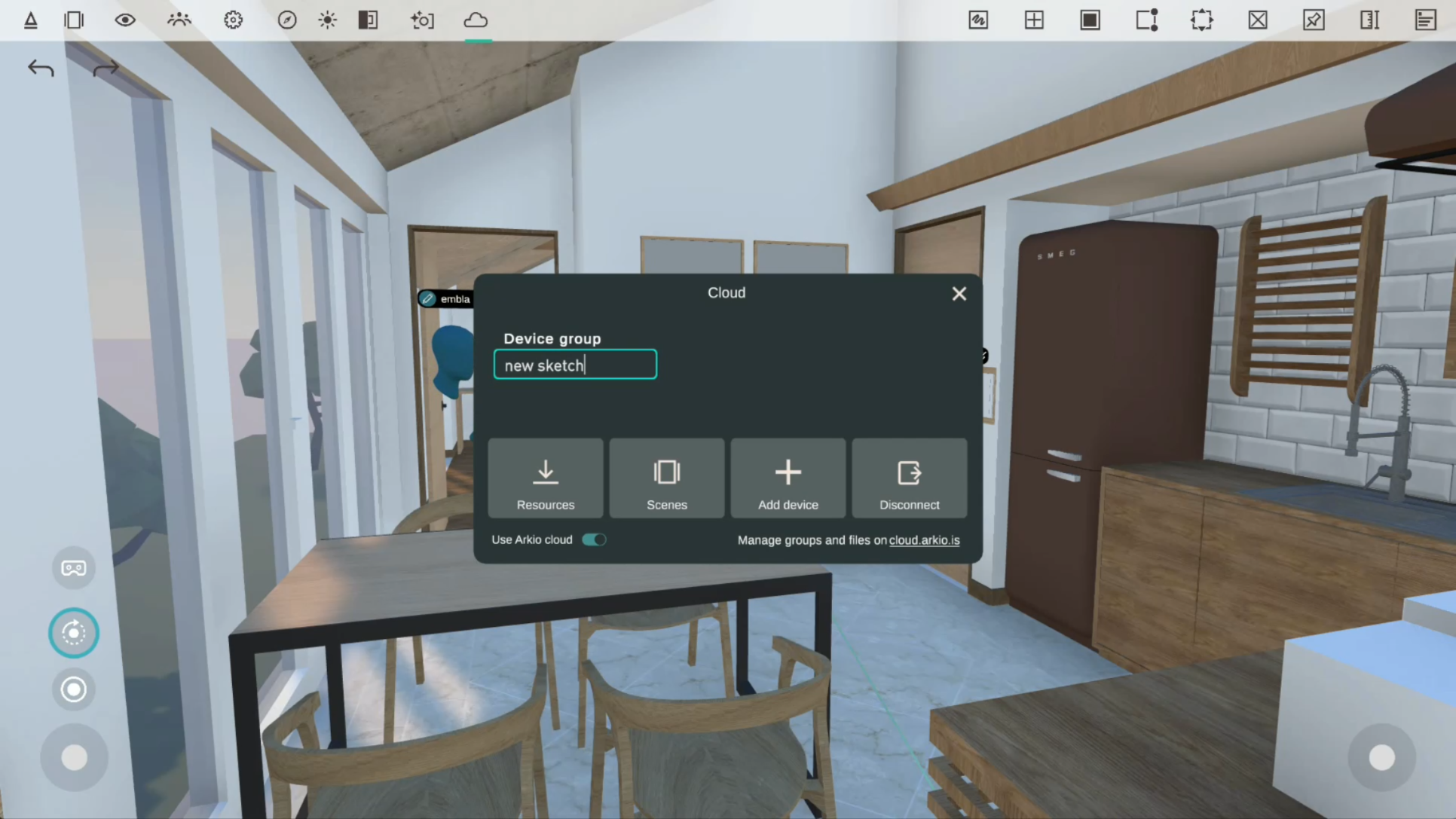
☁️ Arkio Cloud Improvements

Arkio Cloud has been redesigned for improved clarity and ease of use.

New Cloud Panel (VR and non-VR)

  • Dedicated Cloud panel with status icon and notifications

  • New resource and scene overview

Enhanced Cloud Features

  • View device group status

  • Access latest synchronized files

  • Manage Cloud settings in one place

Improved Device Syncing

  • Automatic device group creation when importing or exporting on an unconnected device

  • Create or enter a link code from any device

  • Simplifies syncing across multiple devices

More Control

  • Option to disable Cloud functionality


🖥️ PC & VR Workflow Improvements

Improved startup speed and reliability for PC users.

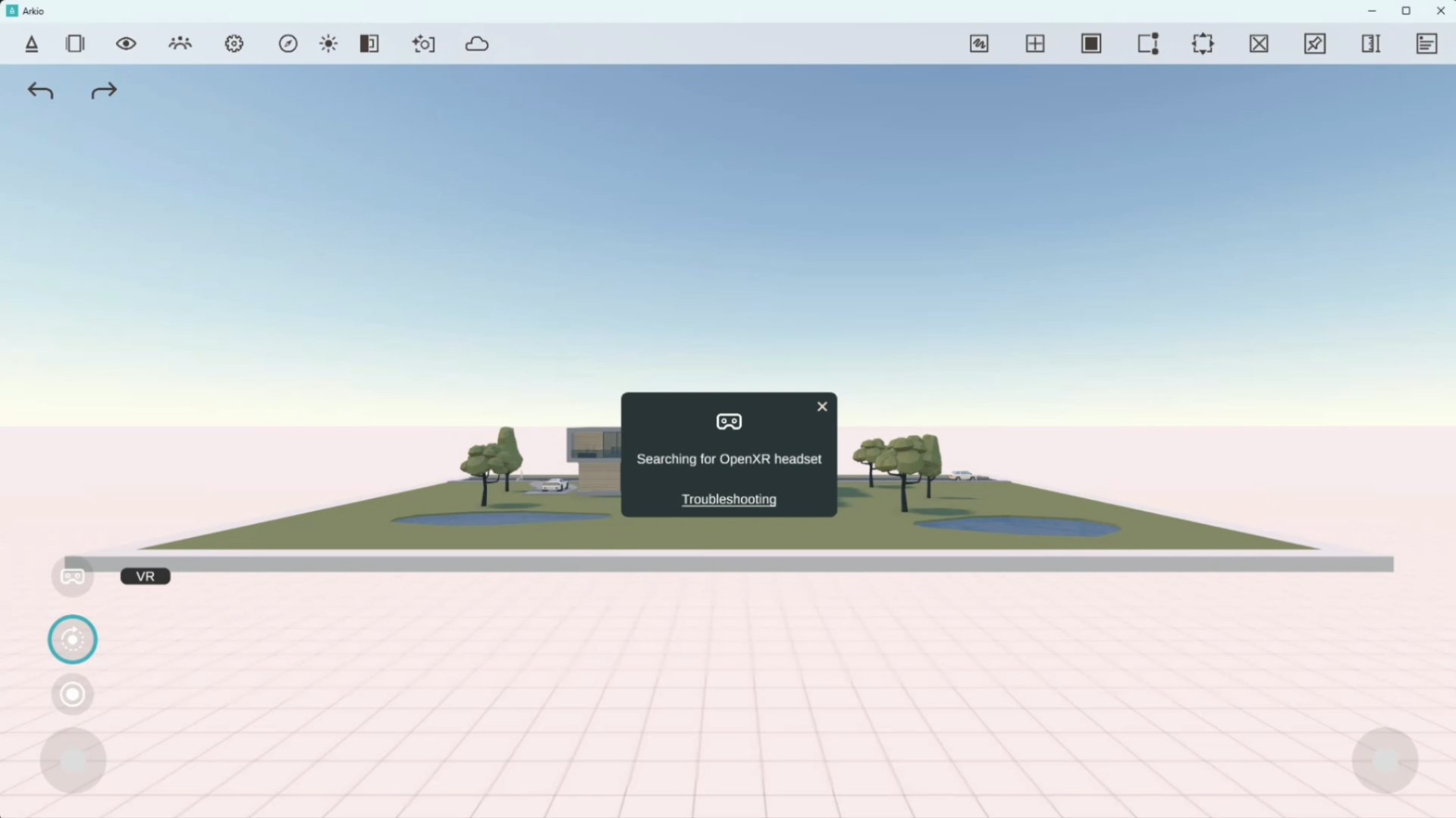
  • Arkio now launches in non-VR mode by default

  • Easily enable VR for any OpenXR-supported headset

Benefits (PC link mode)

  • Faster startup

  • Easier troubleshooting

  • Improved stability


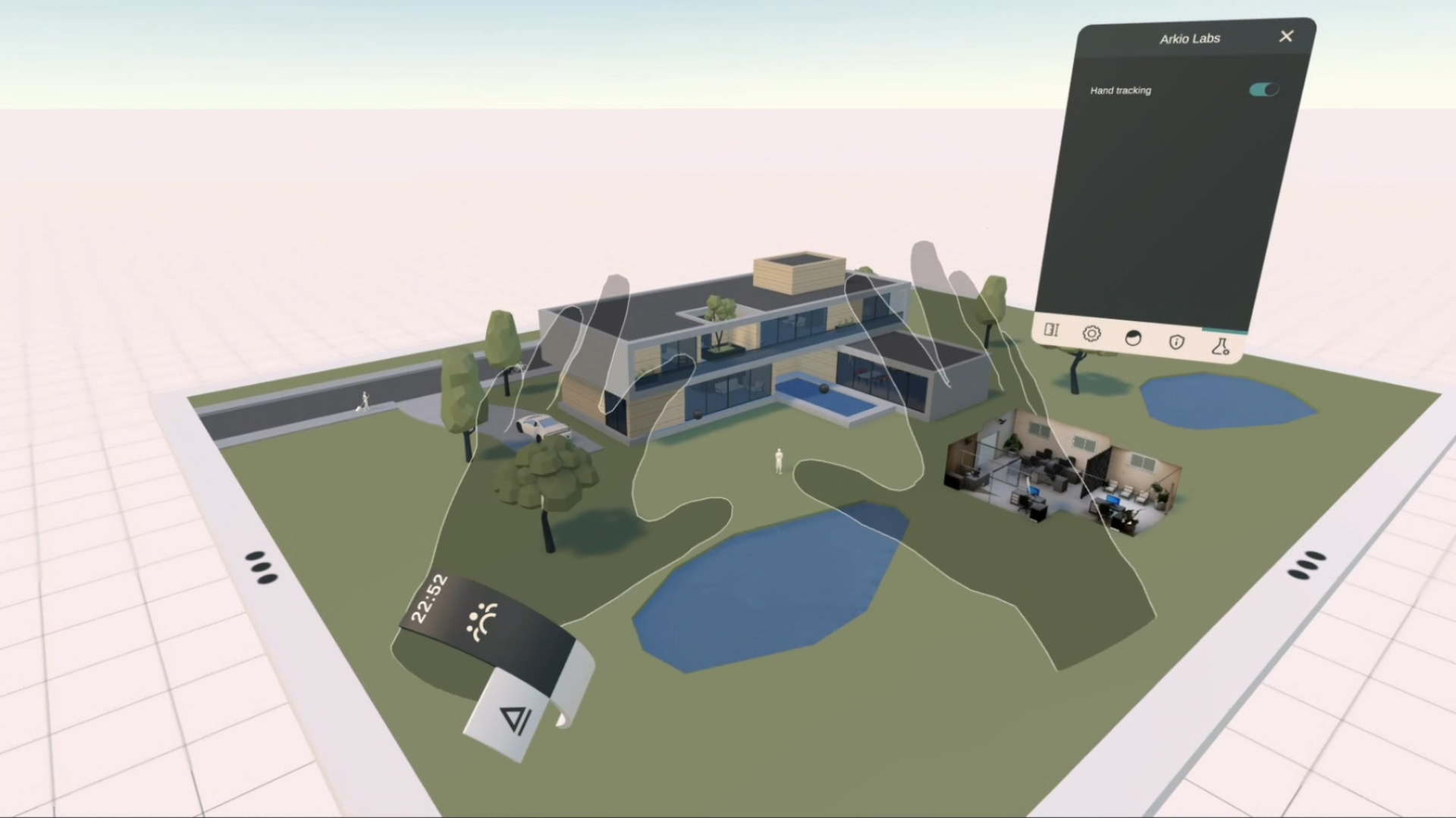
🧪 Arkio Labs

New Arkio Labs tab in Settings for accessing experimental features.

  • Explore upcoming tools and features in development

  • Current option:

    • Enable or disable hand-tracking interactions


✨ General Improvements

Additional updates across the platform:

  • Improved overall user experience

  • Enhanced visual quality:

    • Reflections

    • Shadows

    • Render Resolution (Quest 3)

  • Performance improvements across all platforms

Mixed Reality

  • Hidden white table edge in human scale

  • Improved colocation detection

Media

  • Ability to remove photos and AI photos from the camera roll

Support


🌐 Learn More

For more information:

Major updates

Earlier updates