AI credits and your work
Written By Johan Hanegraaf
Last updated About 8 hours ago
AI credits pay for the AI work you request in Arkio Web, including design assistance, renders, videos and voice conversations. The amount used depends on the task and your chosen settings.
What uses AI credits?
Working with the AI agent: Asking questions, creating designs, making changes, and sending follow-up requests.
Generating images and videos: AI renders, live render updates, and AI-generated videos.
Voice conversations: Time spent in an active voice session, plus any AI design or generation tasks you ask the agent to perform.
A credit is not a fixed number of messages or models. A simple request can use fewer credits than a complex design task. Model choice, reasoning level, processing speed, reference material and generation settings can all affect usage.
Uploading a reference file does not itself use AI credits; asking the agent to work with it does. The prepared guided tutorials do not use AI credits. Your own live AI requests do.
Check your balance
Click your email address or credit balance at the bottom of the left-hand sidebar to open Account. Open AI credits to check your available balance, monthly allowance, purchased credits, and refresh or expiry dates.
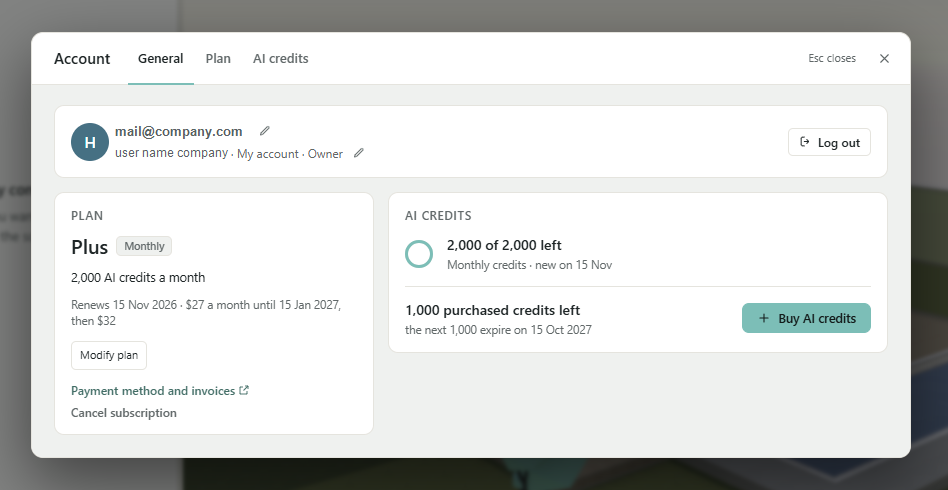
Your balance updates as AI usage is recorded. Work in progress can temporarily reserve credits while its final usage is being calculated.
Monthly credits and purchased credits
Annual subscriptions still receive credits monthly. Paying for a year does not make the full year's credits available immediately.
Base monthly allowances start at 1,500 credits for Plus, 2,500 for Pro, and 3,500 per paid Team seat, pooled across the team. Higher credit levels are available when choosing your plan. Check Account for your selected allowance and current options.
Arkio uses the available credits that expire soonest first. Purchased credits remain available after subscription cancellation until their original expiry date. If an older purchase has different expiry terms, those are shown in your account.
Buy more AI credits
You can buy credit packs with a Free account or a paid subscription. Current pack sizes are 1,000, 2,500, 5,000, and 10,000 credits.
Open Account → AI credits.
Select Buy AI credits and choose a pack.
Review the price, expiry terms, and payment details, then complete checkout.
Return to Arkio and wait for confirmation that the credits have been added.
Available offers and final prices are shown in your account and at checkout. If payment confirmation is delayed, check your balance and purchase history before starting another purchase. If payment is completed but the credits are still missing, contact support@arkio.is with your purchase reference.
Sharing credits with a team
Team subscriptions combine the credits from paid seats into one shared pool. Members sign in with their own email addresses and use that pool. The owner can manage member spending limits and is the only person who can buy additional packs for the team.
A member's spending limit does not reserve credits for that person. AI requests require both available shared credits and room within the member's limit. If you reach your limit, contact your account owner.
What happens when I run out?
You cannot start new paid AI requests when your available balance is exhausted. Buy more credits, wait for your next monthly allowance to refresh if you have an active subscription, or contact your Team owner.
Using all your credits does not delete your existing chats or saved scenes.
Stopping a request does not undo usage already incurred. AI work already performed can still consume credits, and changes already made to your scene remain. End voice sessions when you have finished to avoid continuing voice usage.
Make your credits last longer
Start with Auto, Medium reasoning, and Normal speed. Auto chooses Sol or Astra for each task.
Use clear instructions, relevant references, and focused follow-up requests.
Use higher reasoning levels and faster processing when the task benefits from them.
Review your design before requesting more renders or videos.
Learn more in Choose your AI model, reasoning, and speed.
Saving and returning to your work
When you are signed in, your chats and linked scenes are saved to your Arkio account. Check that the status shows Saved to cloud before switching to another device or browser. You can revisit your work and use scene history to restore earlier versions.
You can also bring an existing project into Arkio. See Import models into Arkio Web for the available workflows and Known issues and limitations for current restrictions.
Was this helpful?
Still need help? Ask the team