Review designs with scene notes
Written By Johan Hanegraaf
Last updated About 1 hour ago
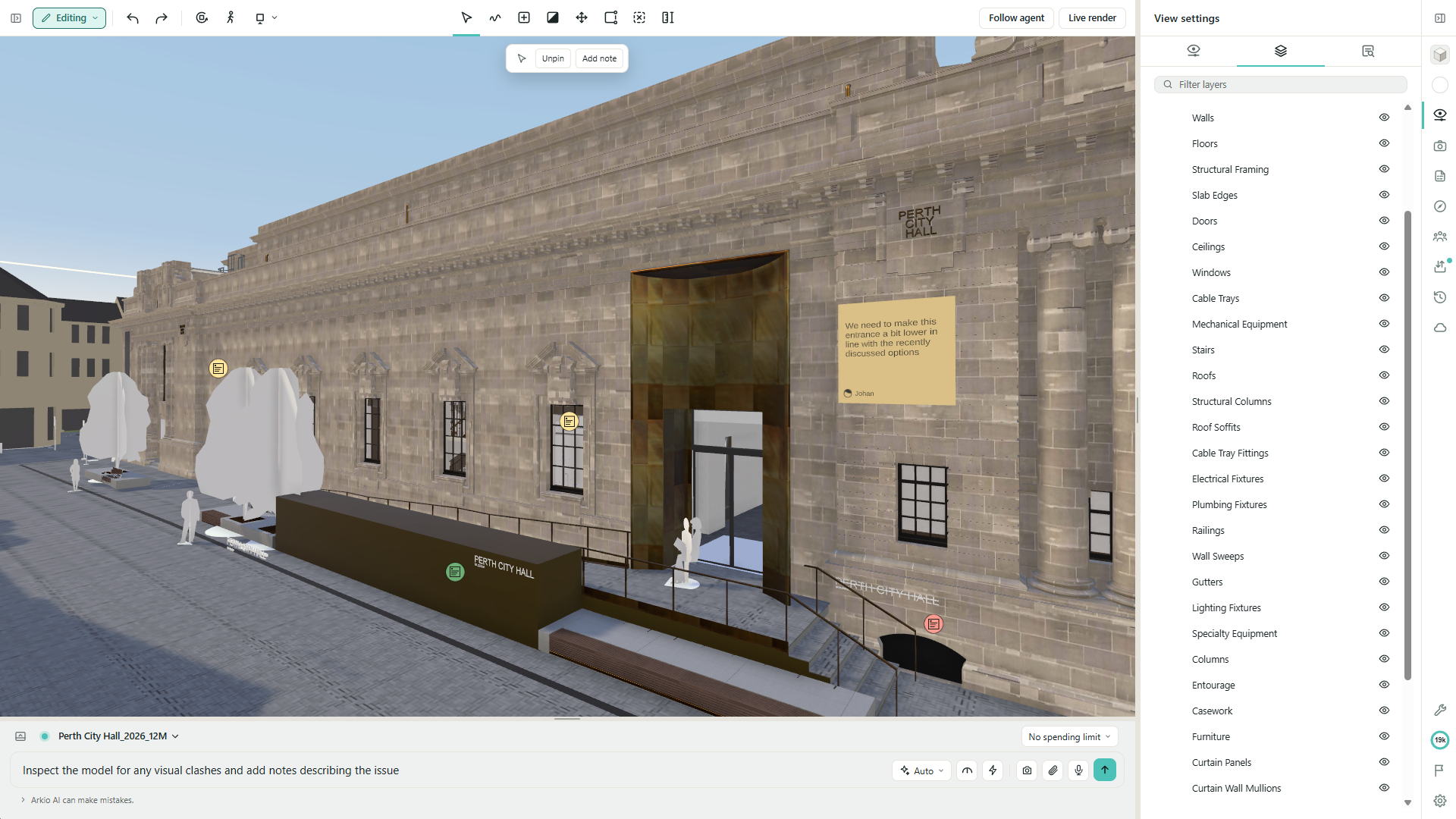
Scene notes keep questions, decisions, and requested changes connected to a location in your design. Each note can have a saved view, an assignee and a resolved status. In shared scenes, participants can discuss it in a comment thread.
Add a note to the scene
Navigate to a view that clearly shows the part of the design you want to discuss.
Open Notes in the right-hand toolbar and choose Add note.
Click a surface in the scene to place the note.
Enter a short, specific description in the Notes panel. Choose a color if useful.
Use Assigned to to select a participant or type a person's name.
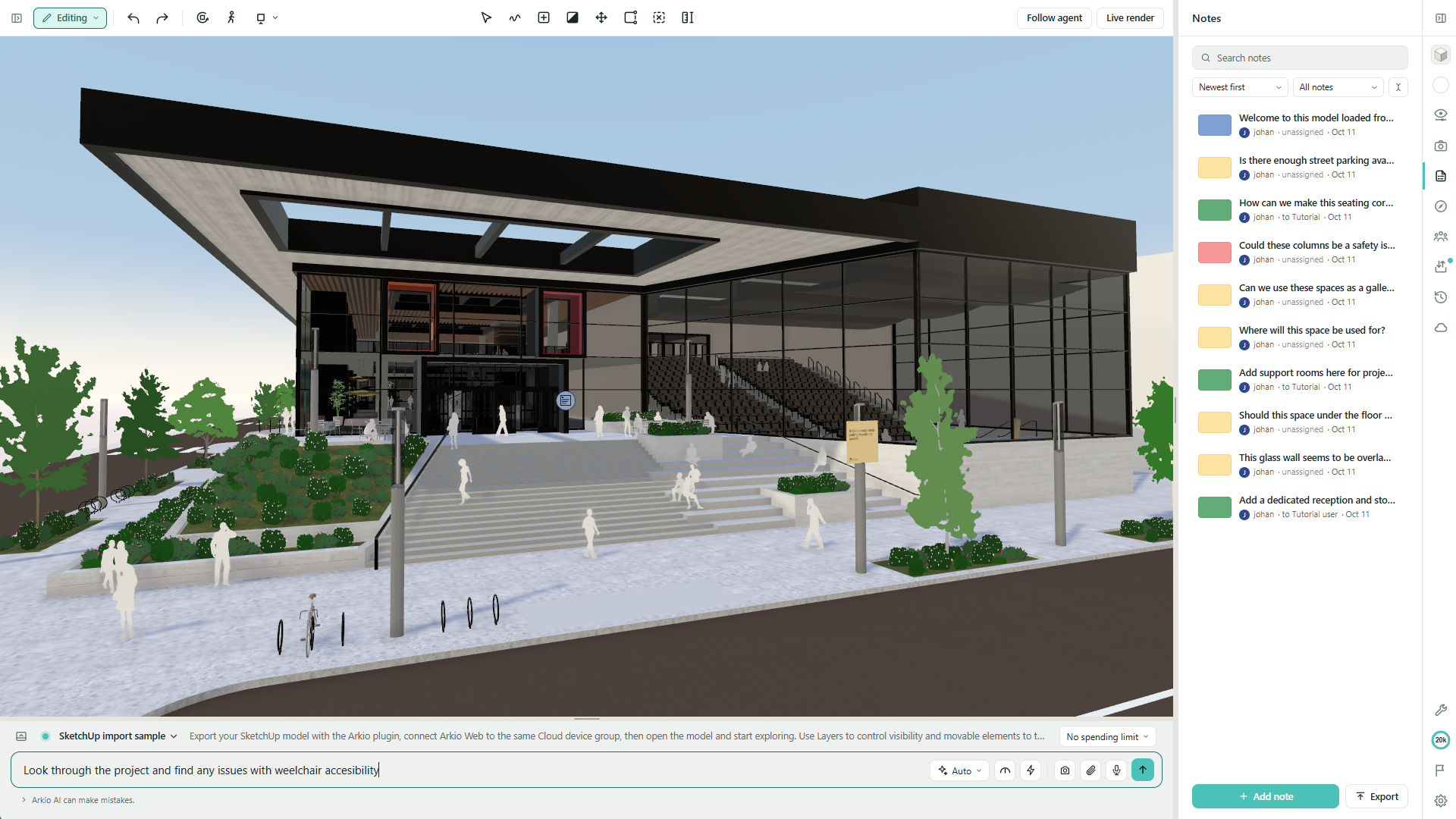
Notes save as you type. The main note has a 256-character limit; use comments for longer discussions in a shared scene. To place another note, choose Add note again.
You can also select a single eligible object and choose Add note from the selection actions.
The available actions depend on your access. Where viewer notes are enabled, viewers can leave feedback and edit their own notes without gaining permission to change the model. Editors can manage the scene's notes.
Return to the note's view
Select a note in the list to open its details without moving your camera. Choose Jump to note to return to its saved viewpoint.
To improve that viewpoint, navigate to a clearer angle and choose Set view when you have permission to edit the note. This updates the view associated with the feedback.
Assign, resolve, and reopen feedback
Use Assigned to to show who should follow up. Typing a name records responsibility; it does not invite that person into the scene or grant them access.
After checking that the requested change is complete, enable Resolved in the note or choose Resolve from its menu. Choose Reopen if more work is needed. Resolving retains the note and its context.
Example: Place a note beside a courtyard entrance saying “Check that the door swing leaves the entrance route clear,” assign it to the designer, and resolve it after reviewing the revised doorway.
Discuss notes in a shared scene
Open a shared scene and select the note you want to discuss.
Write your reply under Comments and select Send.
Use the thread to ask questions, explain a change, or record the review decision.
Comments are available in shared scenes with live meetings. The note discussion also appears in Group chat, where participants can return to the relevant note. Private notes can still record feedback, but do not have the shared comment workflow.
See Collaborate and share scenes in Arkio Web for inviting reviewers and managing access.
Find notes and keep the scene readable
Search the Notes list and use filters such as Open, Resolved, Mine, or Assigned to me.
Sort the list to review notes in a useful order.
Choose Collapse in scene to reduce one note to an icon, or use Collapse all in scene for a clearer view.
Expand a note again when you need to read it in the model.
Collapsing notes changes your own view; it does not resolve or delete them or collapse them for everyone else. If notes are hidden entirely, check their visibility in View settings → Layers, where that feature is available.
Review imported BIM elements
When you place a note on a supported imported BIM element, Arkio can keep the element reference with the note. Its details identify the element being discussed. Use Unlink element if the reference is no longer appropriate.
Properties and element links depend on what the imported model contains. See Import and export models in Arkio Web for inspecting BIM data and controlling model or layer visibility.
Export notes for other tools
Open the Notes list.
Select Export.
Choose Notes as CSV or Notes as BCF, then save the download.
CSV: Use a spreadsheet to review note text, assignees, status, author information, and available element references.
BCF: Use a compatible BIM review application to exchange issues with their available viewpoints, snapshots, comments and element references.
The export contains the scene's notes, including resolved notes; filtering the list does not limit the exported set. BCF is an issue exchange file, not an export of the full 3D model. Linked elements and viewpoints depend on the information available for each note.
Ask the agent to help with notes
You can ask your agent to review notes and make specific changes to the design. Be clear about which feedback it should act on.
Review the open notes assigned to me and summarize the requested changes before modifying the model.
Review the resulting design before resolving its notes. Requests to the AI agent use credits.
If a note cannot be edited, check your permissions and the shared-scene connection. If the problem persists, report an issue with the note and the action you were attempting.
Was this helpful?
Still need help? Ask the team