AI camera
Written By Johan Hanegraaf
Last updated 7 months ago
The AI camera allows you to create both normal and AI-generated photos in Arkio. This feature is designed to aid the ideation process and provide designers with quick ideas for how something could look with added details, materialization, and realism.
Camera preview
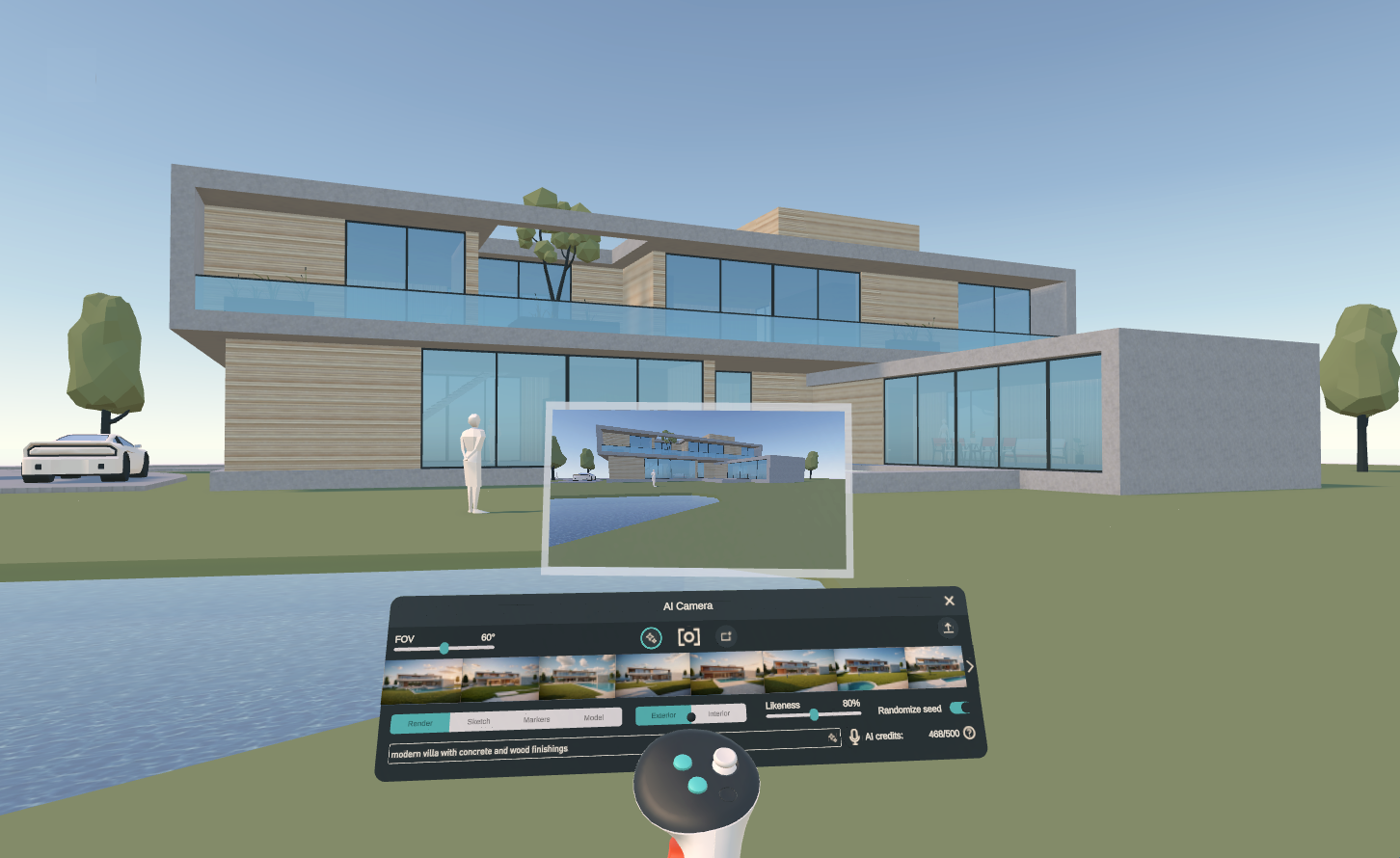
The AI camera tool panel can be started from the main tool menu in Arkio. This will display a gallery of previous images, along with a "New Photo" icon and two toggles for "AI Render, and "Auto Frame". Selecting the "New Photo" icon will enable the camera preview. In VR, this will be a viewfinder on your dominant controller. Using the trigger creates a new snapshot of this viewfinder, which is visible in your gallery. To disable image capture in VR, you can click the "New Photo" icon again, select another tool, or quickly wiggle your hands left and right to deselect your active tool.
Using the camera tool in non-VR mode will display the Camera preview integrated with the camera UI. From this panel, you can create snapshots directly by clicking the center of your camera tool's circle. Having the "AI Render" toggle selected while taking a photo will convert any new snapshot into an AI render. The "Auto Frame" toggle will directly place your photo in the scene as a Frame for others to see and work on.
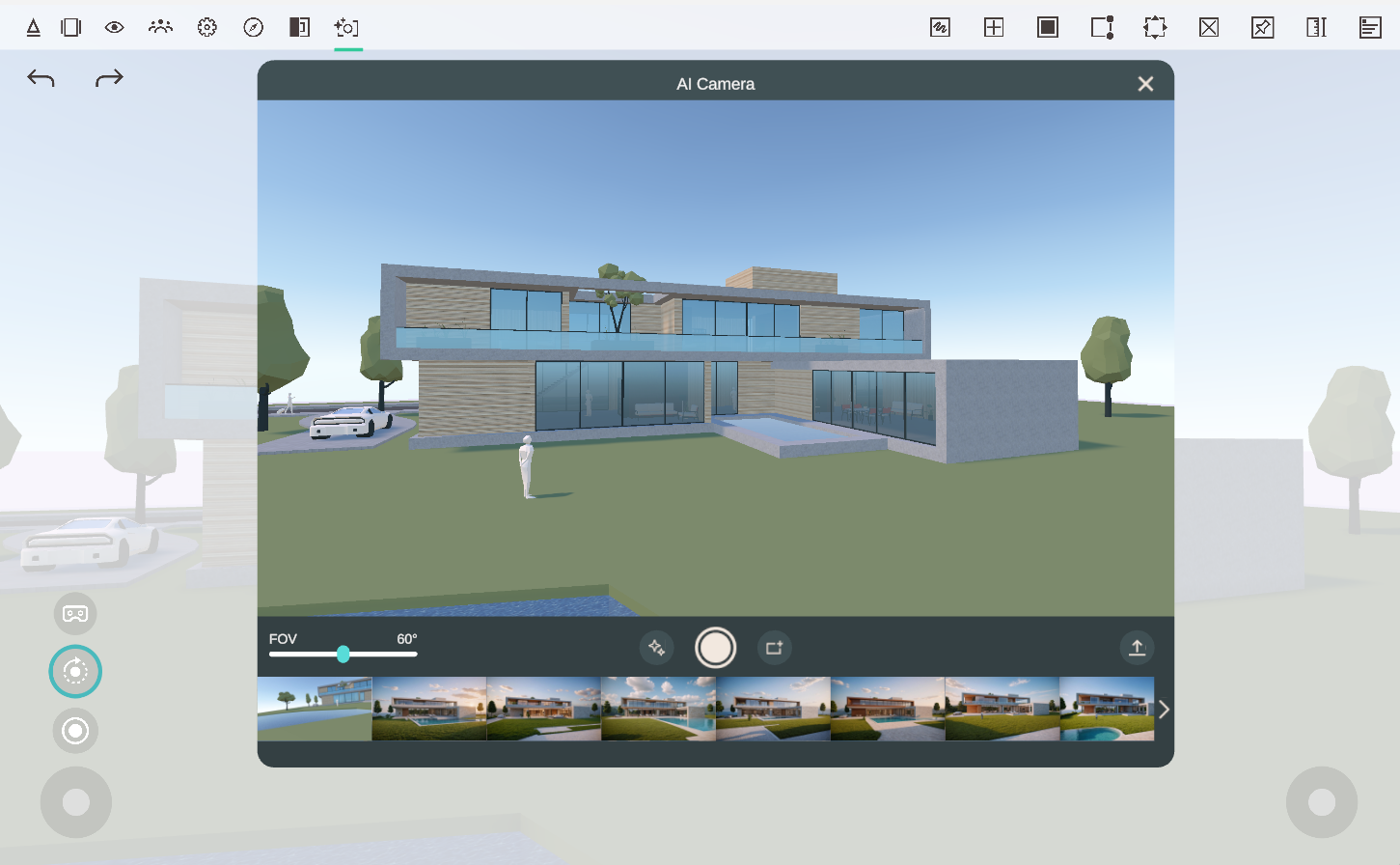
Using the FOV slider, you can adjust your camera's field of view angle. You can set this to large angles to mimic a wide-angle lens for interior shots or to a small angle to zoom in on distant objects. The Export button opens the Export panel in your Arkio file browser, from which you can export your Arkio photos from your device to the Arkio cloud.
Camera gallery
The camera gallery enables you to view all your previously created photos and AI-generated renders. Clicking the thumbnail opens that image in the camera UI. From this preview, you can place that image in the scene as a Frame, or you can return to Camera preview mode to take new photos by using the camera button on the left side of your panel.
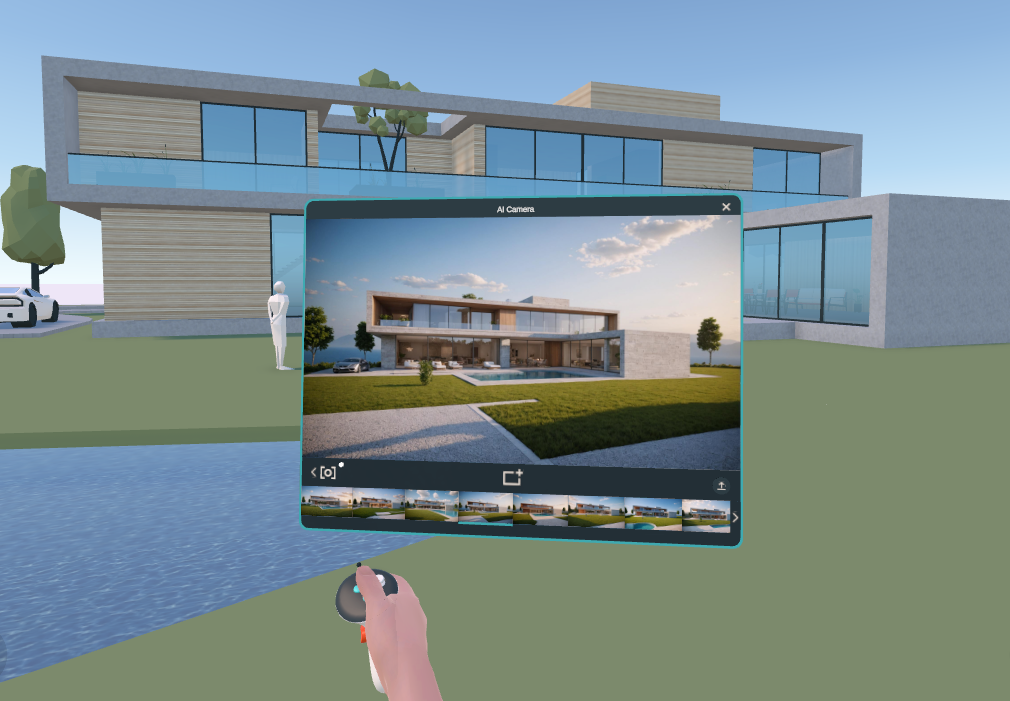
AI enhancements
Making AI renders requires an Arkio license. You can learn more about our paid features on our website and start a free trial within Arkio to try this.
This feature can be accessed by clicking the AI camera icon on the main menu. Once the AI camera interface is displayed, you can take regular images or select the AI render button next to the round capture button to open the AI render interface.
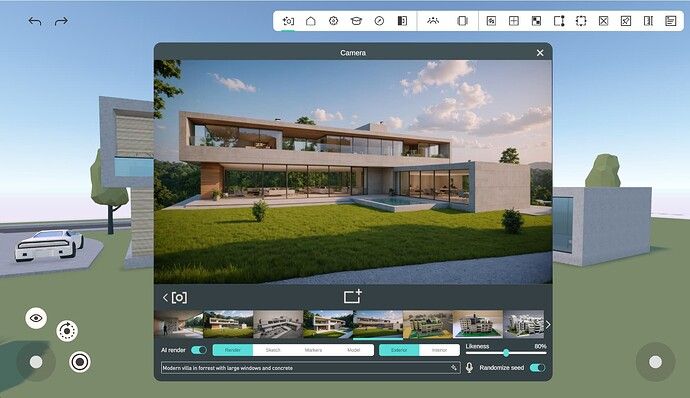
When the AI render toggle is enabled, several render settings are shown below the image gallery. In the prompt input field, you can enter your prompt, which will be automatically enhanced when you take a photo. Type the prompt, or select the microphone icon to speak it; select the mic icon again when done.
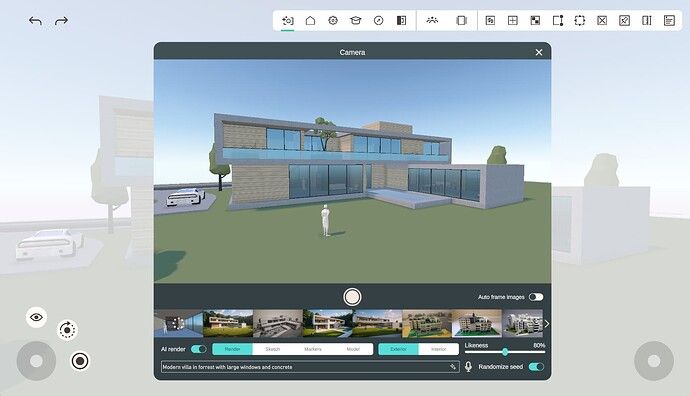
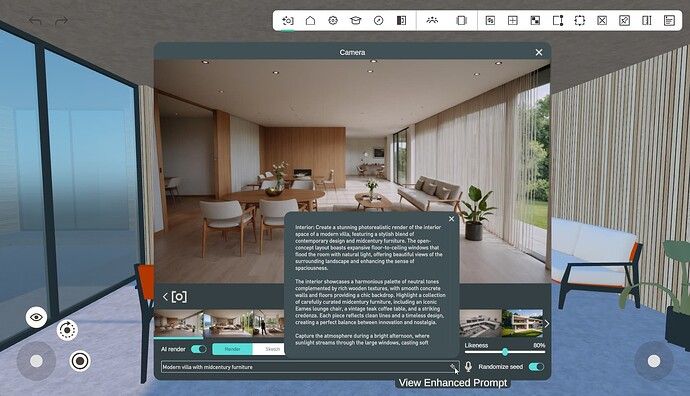
You can inspect and edit the enhanced prompt by clicking on the sparkle icon in the prompt field. This will open a new text dialog with the full prompts, which you can further adjust and edit to tweak your generated image results.
AI camera and Prompt settings
You can choose between predefined render settings for the AI camera to help generate common architectural styles in Arkio. The following styles are available as a starting point, but can be customized by adding more details to your textual prompt.
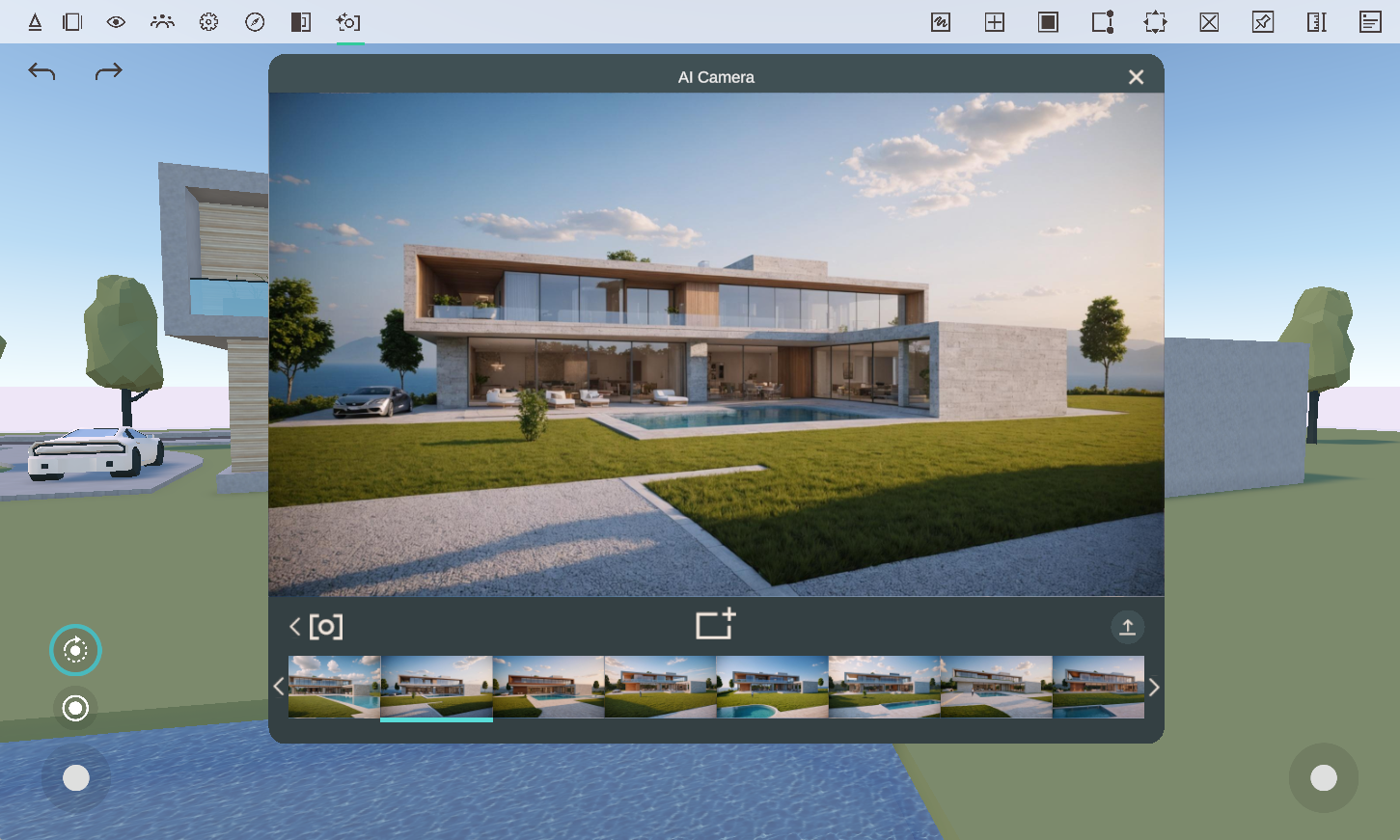 | 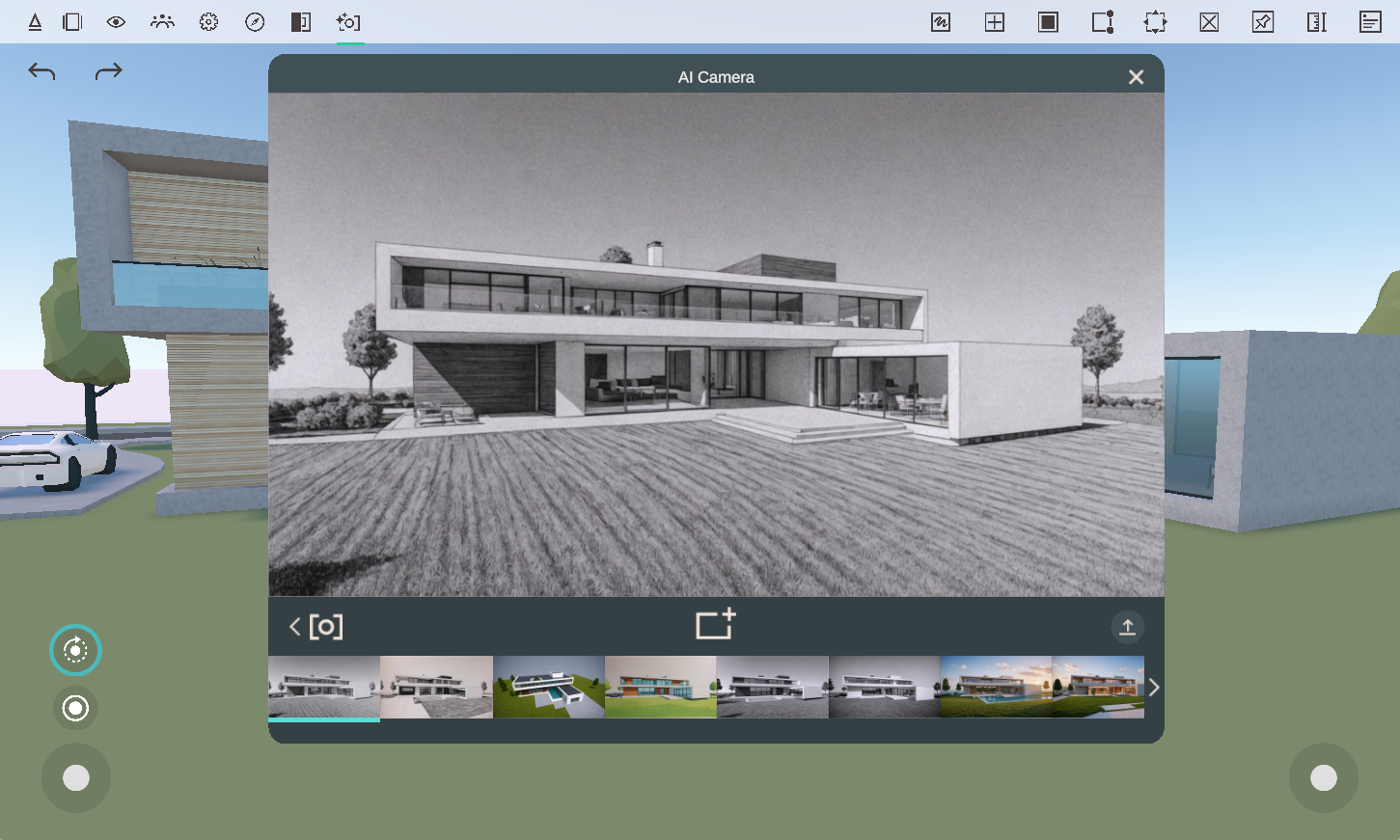 |
Render - Architectural visualisation of realistic buildings with real-world materials and objects. | Sketch - Pen sketch showing the project's concept with details for scale |
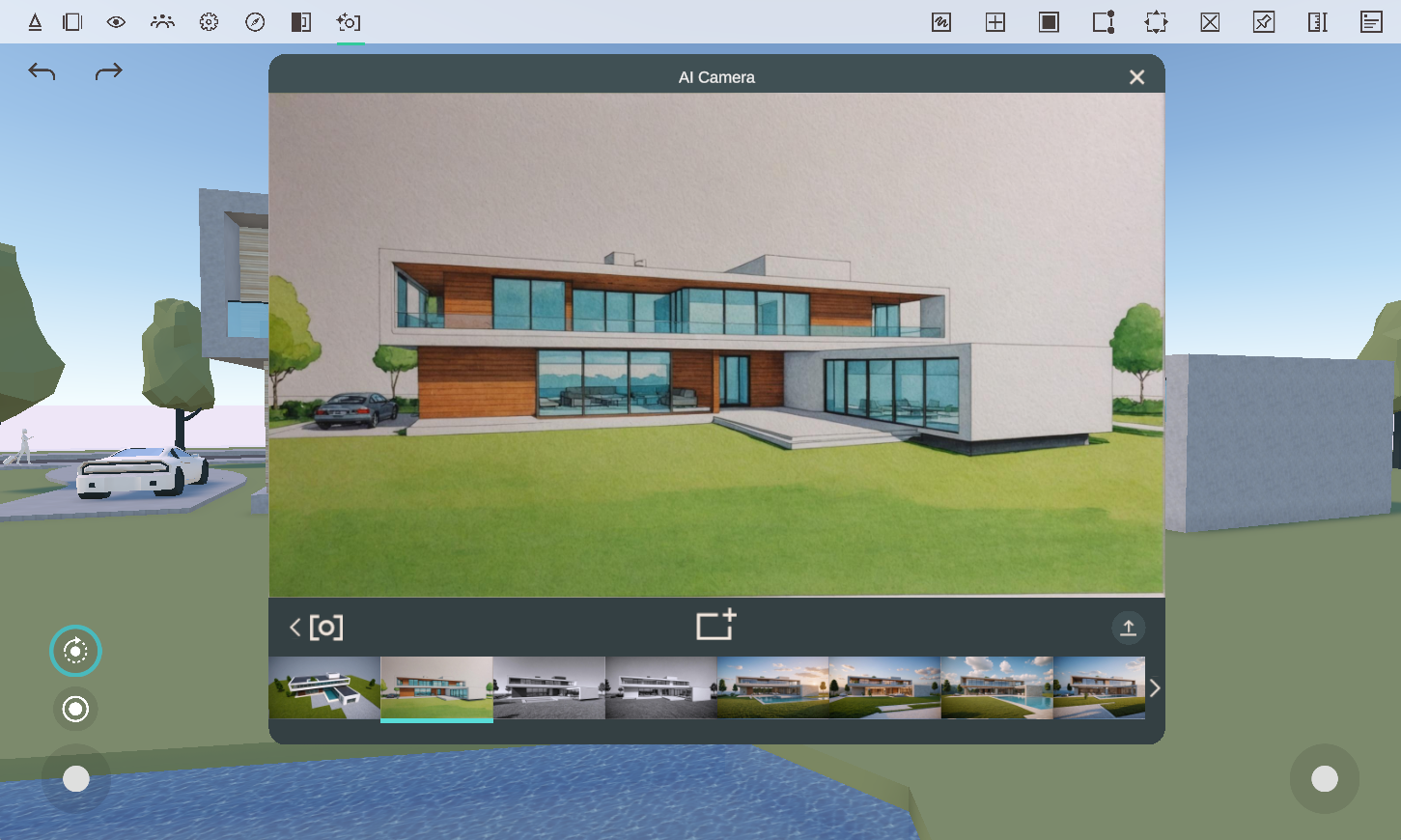 | 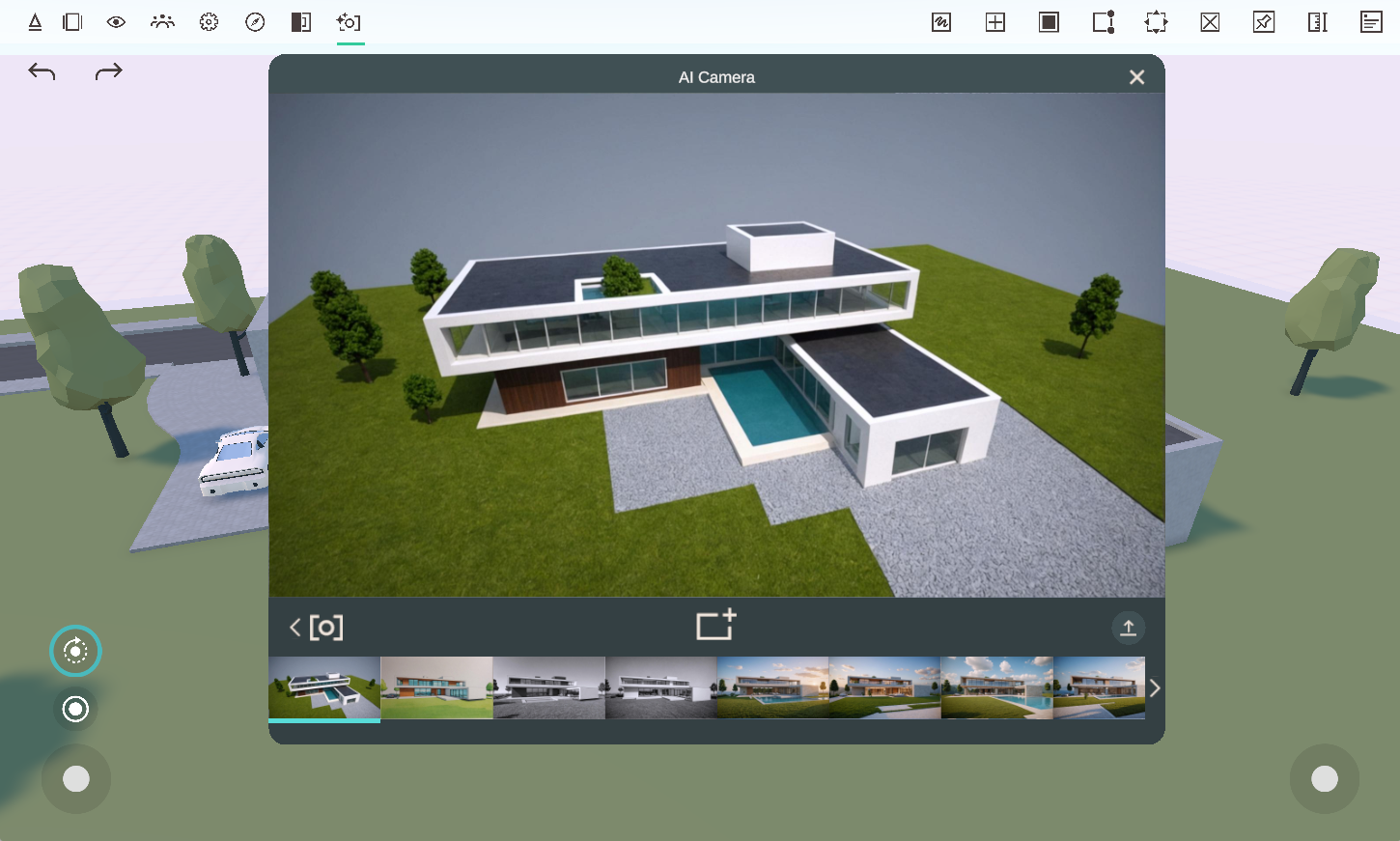 |
Markers - Pen sketch colored with tone markers | Model - Architectural scale model made of cardboard and wood materials |
You can also toggle between generating an “Exterior” or “Interior” scene. To define whether an image is intended to be taken outside or inside a building
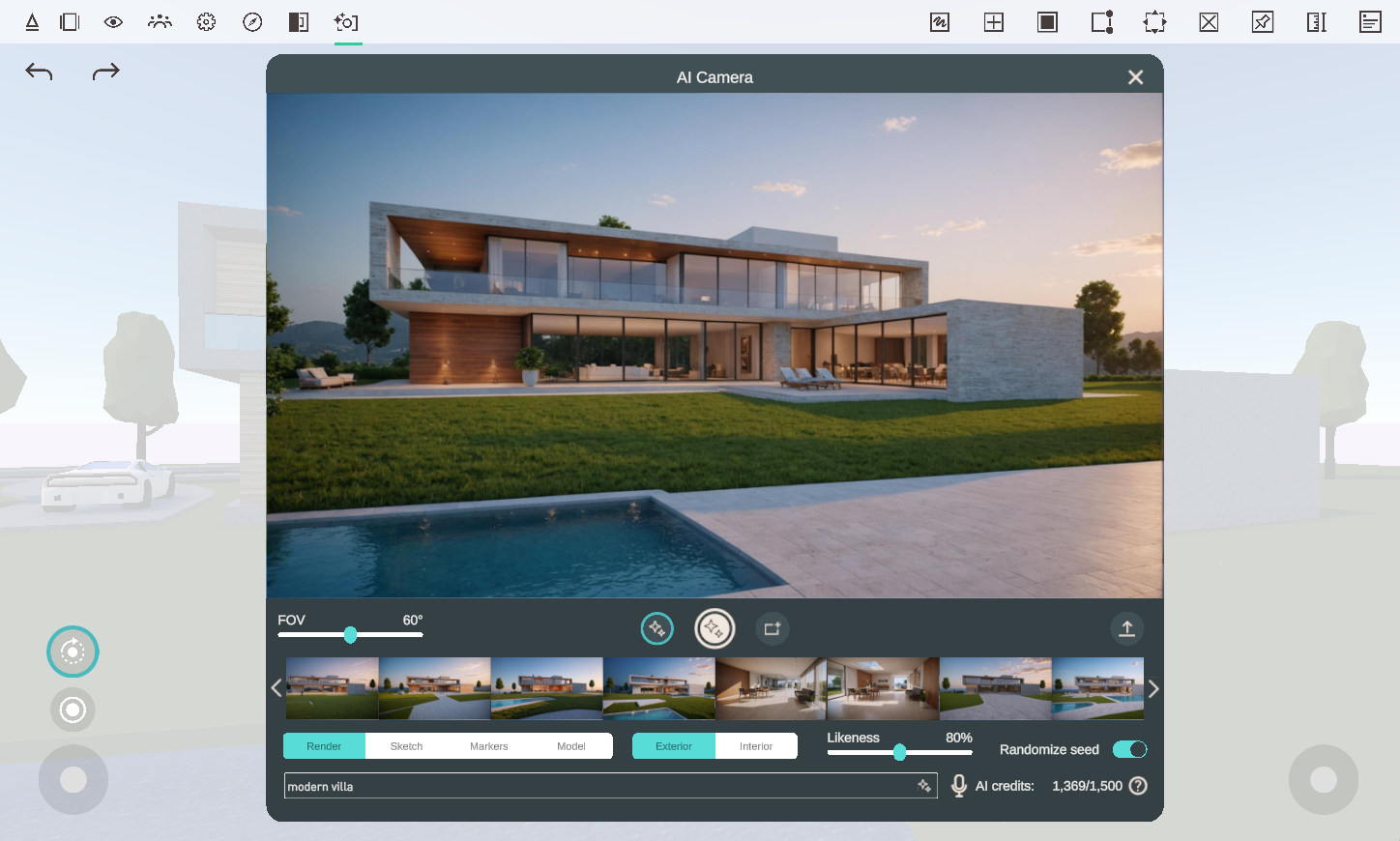
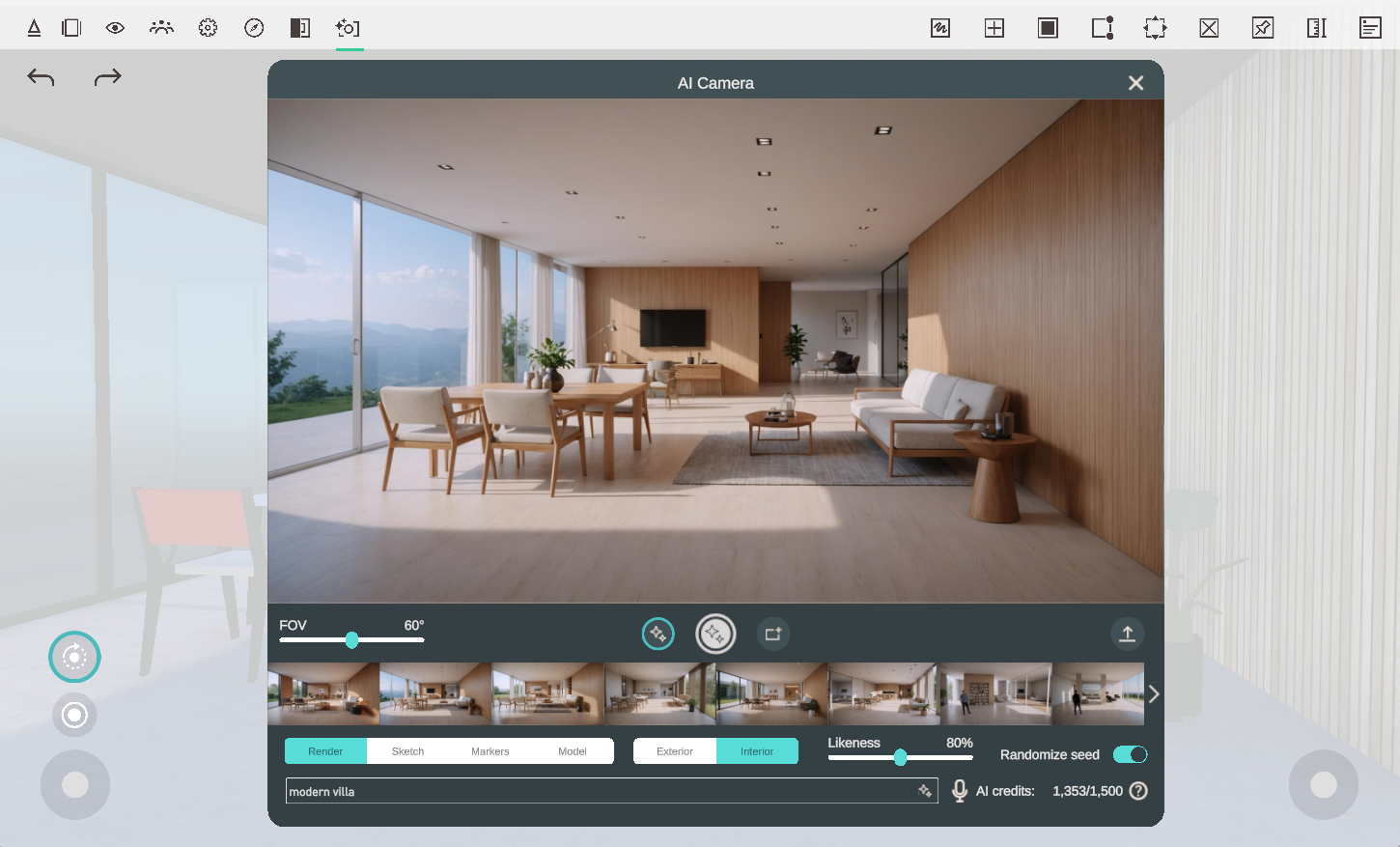
To customize your results, you can also add contextual info in the prompt like “misty weather”, “mountain backdrop”, material specifications like “mid-century furniture” and “concrete with copper details”, or render styles like “Animation style” and “van Gogh painting”. The more context you add to your prompt, the more details will be added. You can experiment with adding city names as context, following an architectural or drawing style, or describing the type and materials of objects to add in the generated image.
You can toggle Randomize Seed to randomize the visual style of your images for any new photo. If you turn off this toggle, it will reuse the same style, so you can render a building or room from different angles and keep the same visual style.
To control the strength of your AI enhancement, you can use the Likeness slider. Setting this slider to a higher percentage will let the generated image stay closer to the geometry in the Arkio scene. If you wish to give the AI more creative freedom, you can lower the likeness percentage. For some views, the AI might have difficulties in following the existing design. Changing the lighting and materials in your scene can help the AI in recognizing the most important parts of your design
Any photos taken get added to the image gallery, and can then be exported via Arkio Cloud using the export button visible below the viewfinder.
AI credits
Using the AI camera enhancements requires one AI credit per generated image. You can see the remaining AI credits and the total number of credits for your plan in the bottom right corner of the AI camera panel.
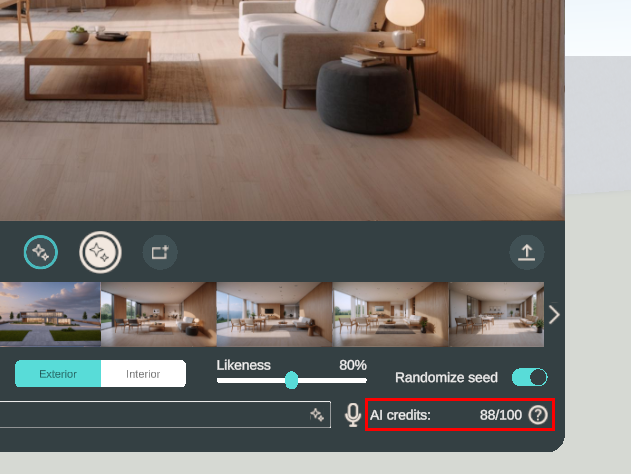
Your AI credits will be renewed every month. If you are using the same license with more team members (Floating Enterprise), you can share the number of credits in one floating pool of AI credits. You can learn about the different AI credits that come with each Arkio subscription on our pricing page
Exporting images
Photos and AI renders are saved on your device under Export/Photos. If you are working on a mobile device, such as a Quest, it's easiest to export your pictures to the Arkio Cloud.
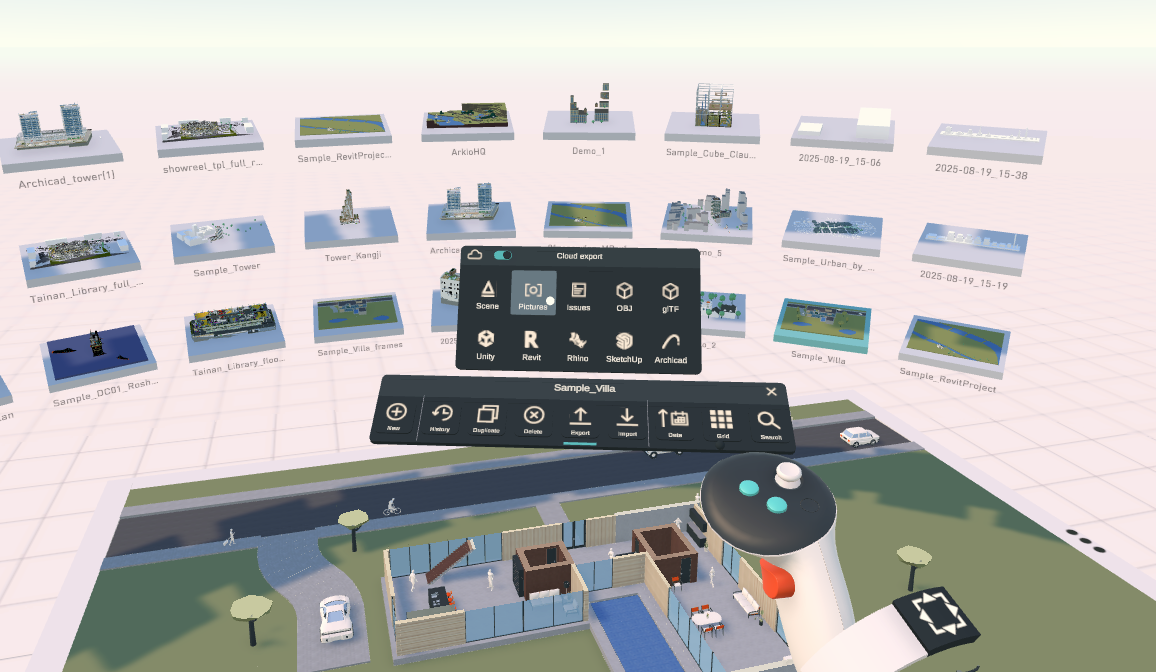
Once linked to a cloud group, you can press the export pictures button found in your scenes tab to share and download the pictures you made in the last 48 hours via the Arkio cloud portal on your other devices.
Passthrough on images
AI photos currently don't support capturing the passthrough feed from Mixed Reality devices like the Meta Quest. However, we plan to support this once Meta approves third-party developer access to the camera, as it would enable a whole new range of real-world AI, Issue management, and presentation opportunities.
Was this helpful?
Still need help? Ask the team