Report issues and share logs in Arkio 2.3
Written By Johan Hanegraaf
Last updated About 2 hours ago
This article covers issue reports and local log files in the older Arkio 2.3 installed apps for Windows, Mac, iOS, Android and Meta Quest.
Using Arkio Web (3.0)?
Use Report an issue in Arkio Web instead of the device-log instructions below. Click the flag icon near the bottom of the right-hand toolbar, describe the problem, review the included information, and select Send report.
For full instructions, attachments, and what to do if the app crashes or a report cannot be sent, see Report an issue from Arkio Web.
Send an issue report from Arkio 2.3
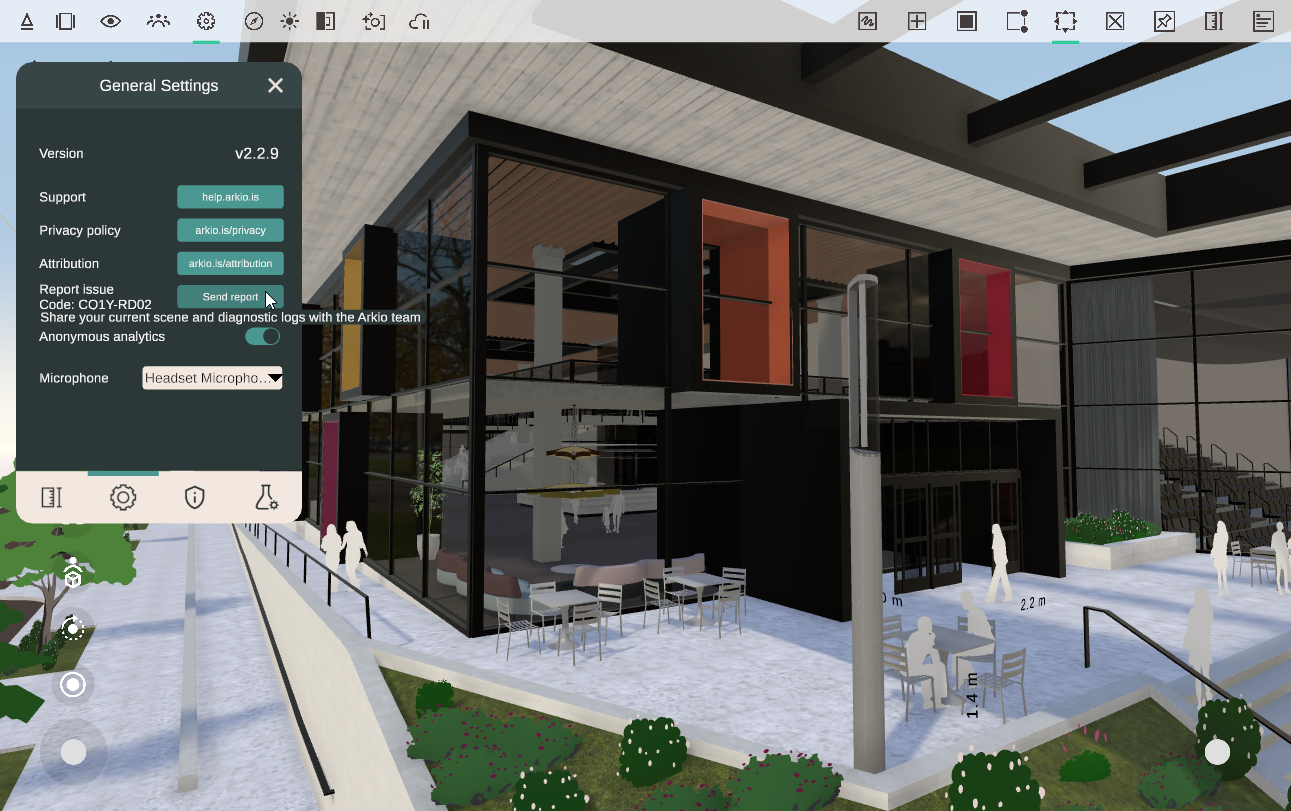
If you experience an issue in an installed Arkio 2.3 app, open General Settings and select Send Report. The report collects logs from the current run and scene, along with device information that helps us investigate the problem.
You can also reach us at support@arkio.is or describe a bug or suggest an improvement to Arkio at our feedback page
Manually access Arkio 2.3 device logs
If you cannot send a report from the installed app, you can find its logs using the device-specific paths below. These paths apply to Arkio 2.3, not Arkio Web. Email the relevant logs to support@arkio.is with your Arkio version, device, and a short description of what happened.
Windows
On Windows, look for Arkio 2.3 logs in these locations:
%userprofile%\appdata\locallow\Arkio\Arkio\
%userprofile%\Documents\ArkioLogs
Mac
On Mac, open Finder → Go → Go to Folder and enter the path below to access the hidden Library folder:
~/Library/Containers/Arkio/Data/Documents/ArkioLogs
iOS
On iOS, open the Files app and look for the Arkio logs here:
Files\Arkio\ArkioLogs
Android
Android user files can be accessed by connecting your phone to a PC using a USB cable, allowing file access and opening the following folder:
\Internal storage\Android\data\is.arkio.arkio\files\ArkioLogs
Meta Quest
Activate Developer mode on your Quest:
Go to dashboard.oculus.com and sign in using your Quest's Meta account
Create a name for your development "organization" - This can be anything
Verify your Meta account - Set up Two-Factor Authentication (via phone number)
Activate developer mode from the Meta Quest phone app: Devices > Headset settings > Developer mode > Turn on
Connect your headset to your PC using a USB-C cable.
On the headset, when prompted, select "Allow" for your PC to access your headset files
Arkio's logs can be copied from the following path
\Quest 3\Internal shared storage\Android\data\com.arkio.arkio\files\ArkioLogs
Was this helpful?
Still need help? Ask the team