Import a model
Written By Johan Hanegraaf
Last updated 7 months ago
The easiest way to get started with Arkio is to load and work with models you’ve already created in other design tools, and share them with your Arkio devices, following these 3 steps:
Step 1 - Use the Arkio plugins
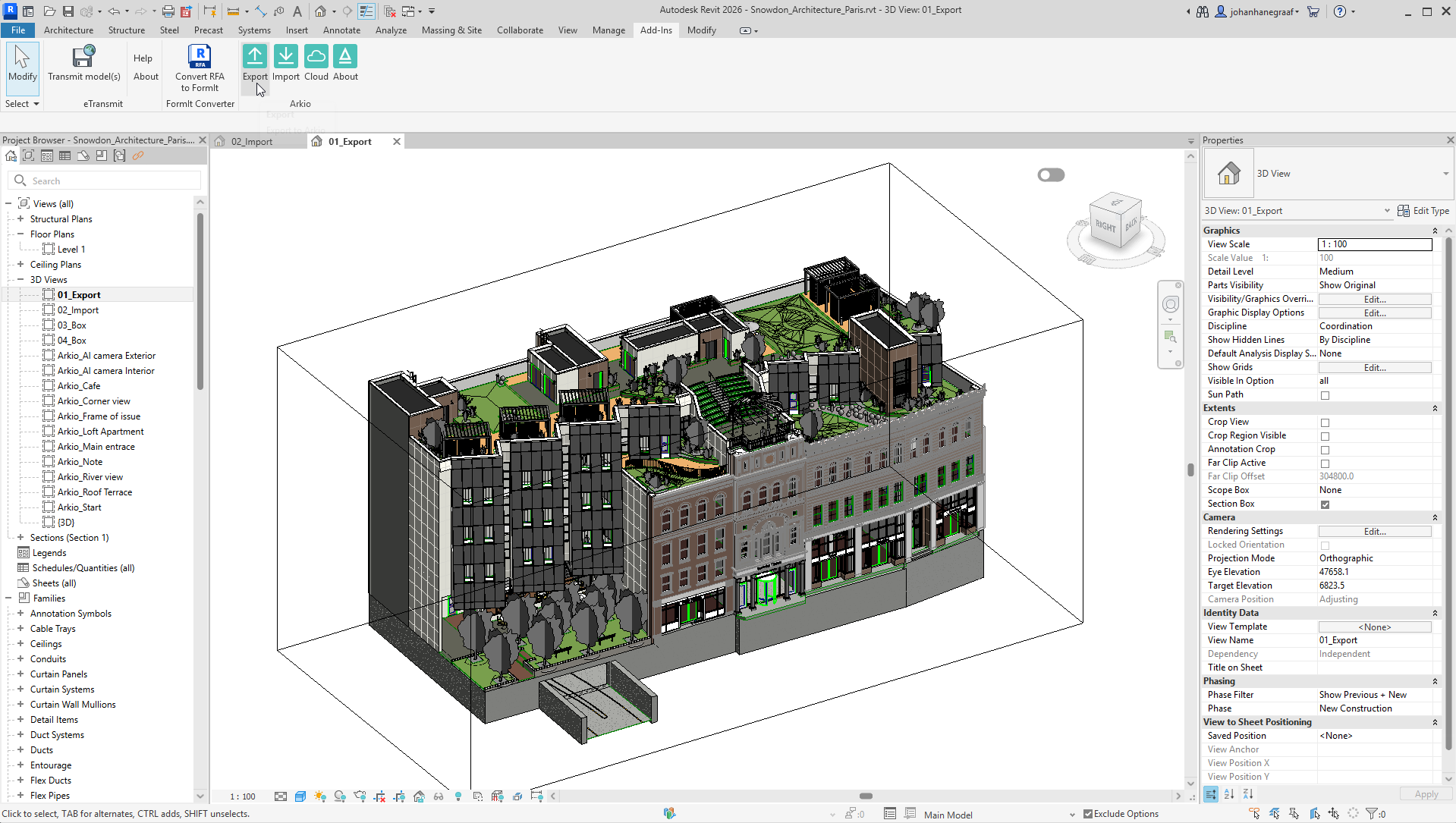
Use our Windows plugin for Archicad, Rhino, Revit, SketchUp or Navisworks to export your model to Arkio. The plugins are included when you install Arkio for Windows. After installation, you can open a 3D view of your project in Revit or another tool, with the 3D elements you want to load visible, then hit Arkio > Export.
Step 2 - Place the model
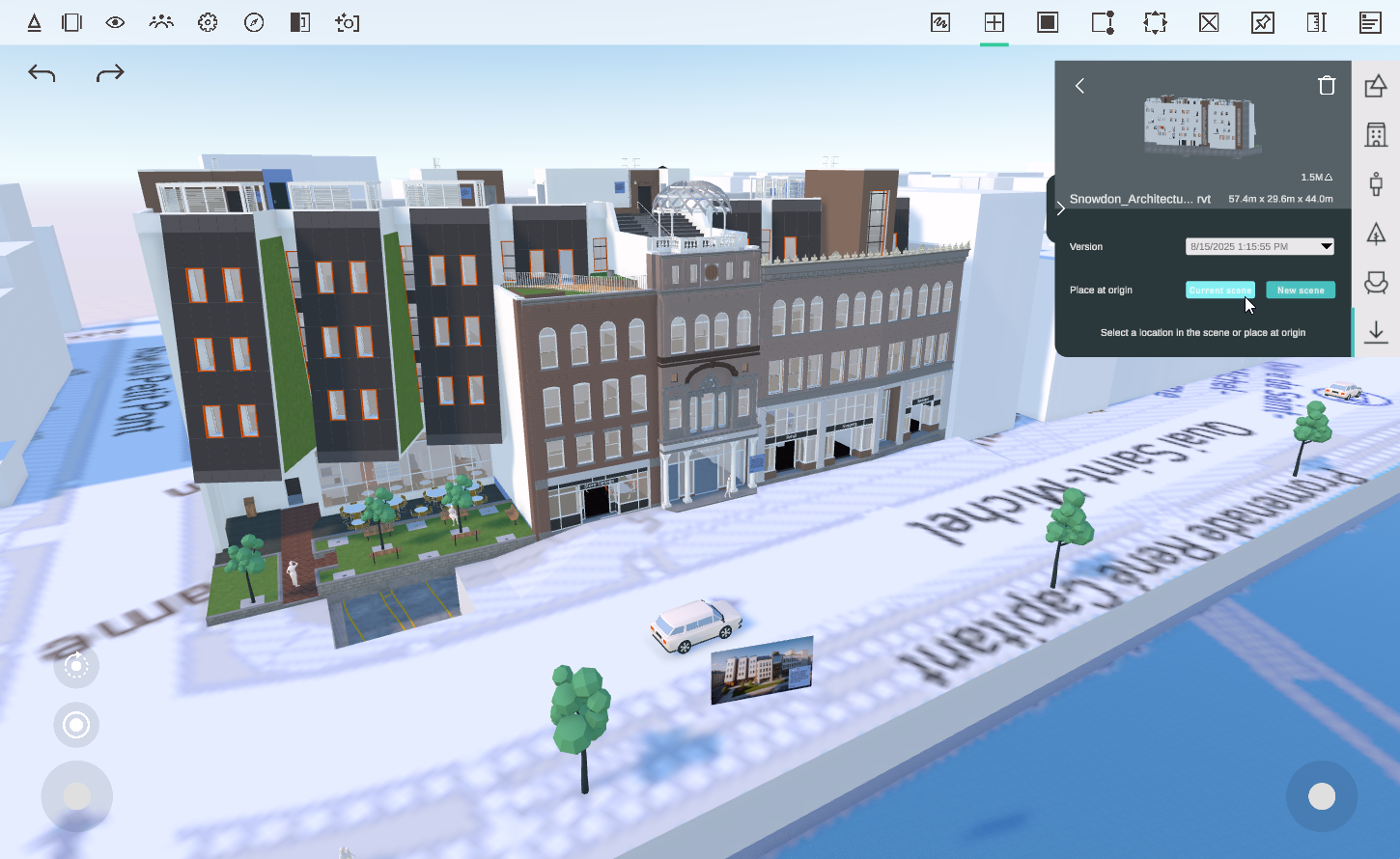
Arkio for Windows will open the import panel after the plugin export completes. This import can be placed with the green buttons in the current scene or a new scene. (Clicking anywhere in the scene with the import panel open will place it manually)
Step 3 - Share it with other devices
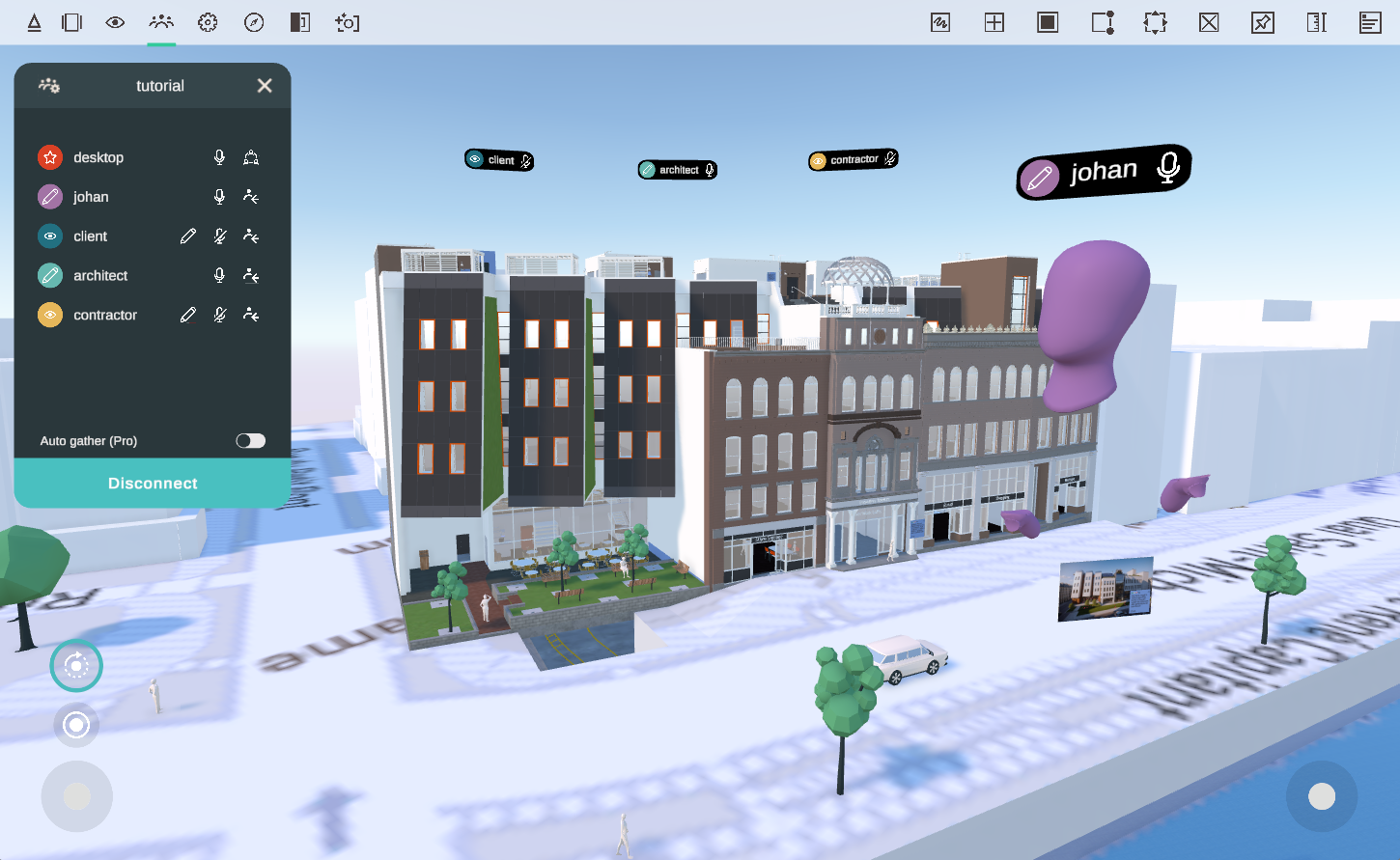
The scene with imported files is now loaded on your PC device and can be shared with other Arkio devices using a live meeting. New imports can also directly be synchronized with other devices by connecting to the same Arkio Cloud, or by sharing your scenes via a URL
Basics - next steps
Once you've got your models loaded to Arkio, it’s time to explore them together with others and try some of the basics of interacting with your models.
Navigate
Explore your loaded models by walking around or teleporting inside using your VR and non-VR devices.
Get hands-on
Arkio offers a unique hands-on modeling experience, letting you reach into objects and move them around as you would with physical models.
Volumetric editing
Arkio’s geometry engine works with editable volumetric objects that can be updated later. You can learn more about the basics of this engine on this page.
Was this helpful?
Still need help? Ask the team