LiDAR and other 3D scans
Written By Johan Hanegraaf
Last updated 3 days ago
Bring scans of existing buildings, rooms, sites, and objects into Arkio to use as a reference for your design. This workflow works with LiDAR scans, photogrammetry models created from photos, and other 3D scans that can be exported as a mesh in a supported format.
Prepare your scan
Capture and process the scan in your scanning app or software.
Crop it to the area you need and remove unwanted background geometry or scanning artifacts.
Export a 3D mesh as GLB, glTF or OBJ. GLB is a convenient option because it can package geometry and textures in one file. For glTF or OBJ, include the accompanying files, materials and textures.
Give the export a descriptive name before importing it, especially when working with several scans.
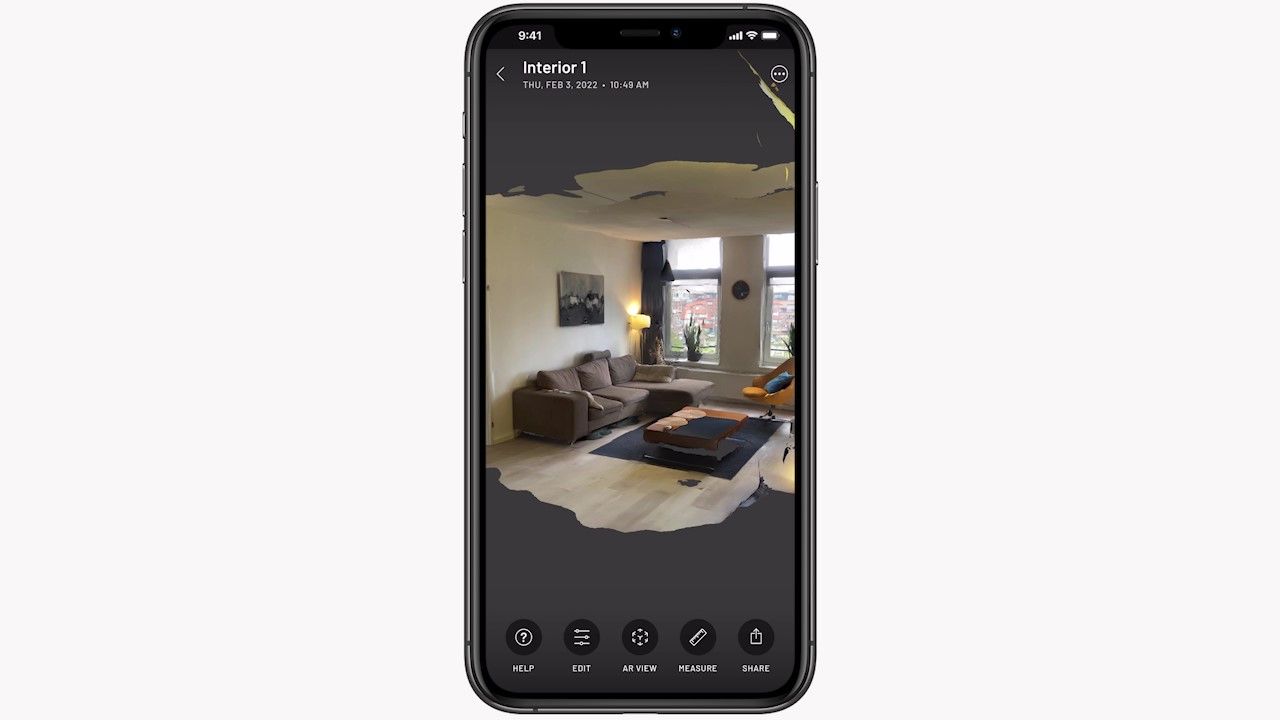
Choose a mesh export rather than a raw point cloud or Gaussian splat. If your scanning software only provides those formats, you will need to create a mesh in suitable processing software before using this import workflow. Export options depend on your scanning app and plan.
Optimize the mesh before importing
Scans can contain millions of triangles, large textures, and small disconnected surfaces. Simplifying the scan before importing can reduce loading time and improve performance, especially in a browser or on mobile and VR devices.
Keep only what you need. Crop the scan or split a large building or site into smaller sections.
Reduce the triangle count. Use your scanning software’s simplification settings or a mesh editor’s decimation tools. Around 500,000 triangles is a useful starting target from our optimization guide, rather than a fixed import limit. Preserve the detail needed for your design.
Clean up disconnected geometry. Weld vertices that should connect and join mesh surfaces that belong together. This can help avoid missing fragments as Arkio reduces model detail.
Check the result before exporting. Make sure the simplified mesh still has the surfaces, textures, and proportions you need. Keep the original scan so you can prepare another version if necessary.
For step-by-step mesh preparation, including Blender’s Decimate modifier, welding vertices and joining related surfaces, see Optimizing imported geometry, particularly the Manual Mesh Optimization section.
Import a scan into Arkio Web
Open Import & export → Import.
Drop your exported model into the import area or choose the file. For models with separate supporting files, include the complete folder or ZIP and keep its folder structure intact.
Wait for the model to finish processing, then open it in the import list.
Check Units and Up axis, then choose Place in scene and click where you want the scan. Finish with Done or Esc.
Direct uploads through Import are limited to 200 MB per file. For larger models, prepare them in Arkio on Windows and connect it and Arkio Web to the same Arkio Cloud group. Larger files still need to fit within your device’s memory and rendering limits. See Import models into Arkio Web for the complete workflow.
Import a scan on other devices
You can upload the exported mesh to the Arkio Cloud portal and connect your devices to the same Cloud group to make it available in Arkio.
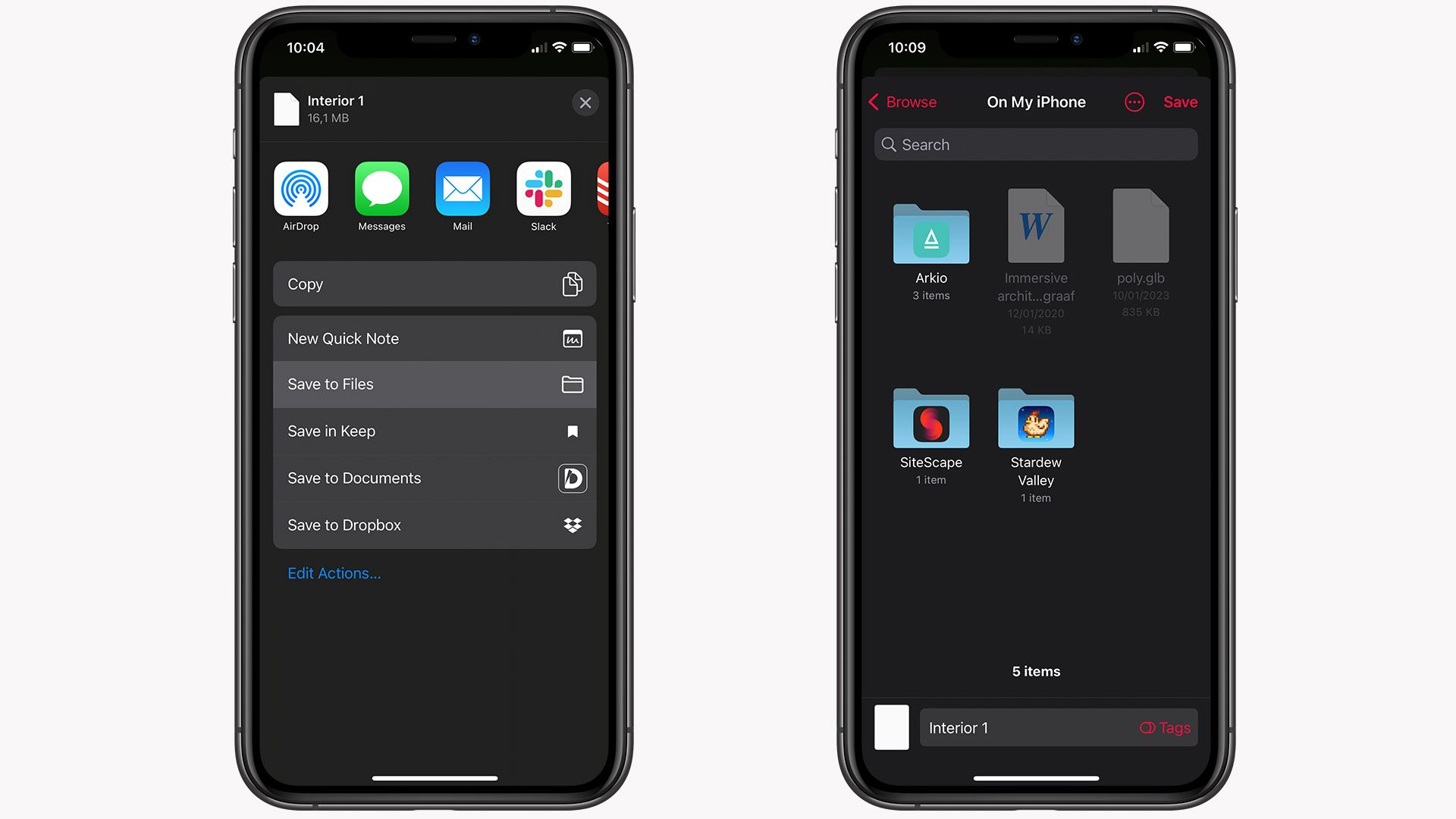
For a local import on iPhone or iPad, save the exported model in Arkio’s Import/Models folder in the Files app. On iPhone, the path is On My iPhone/Arkio/Arkio/Import/Models. Include any supporting files when using glTF or OBJ. Open Arkio and place the model from its import library.
The video and images below show an example LiDAR workflow on iOS. The same mesh preparation principles apply to scans from other sources; your scanning app’s export controls may differ.
Work with your scan in Arkio
Check the scale and orientation against a known dimension before designing around the scan. Use it as context for exploring additions, layouts, or new objects, then share the scene with others for review.
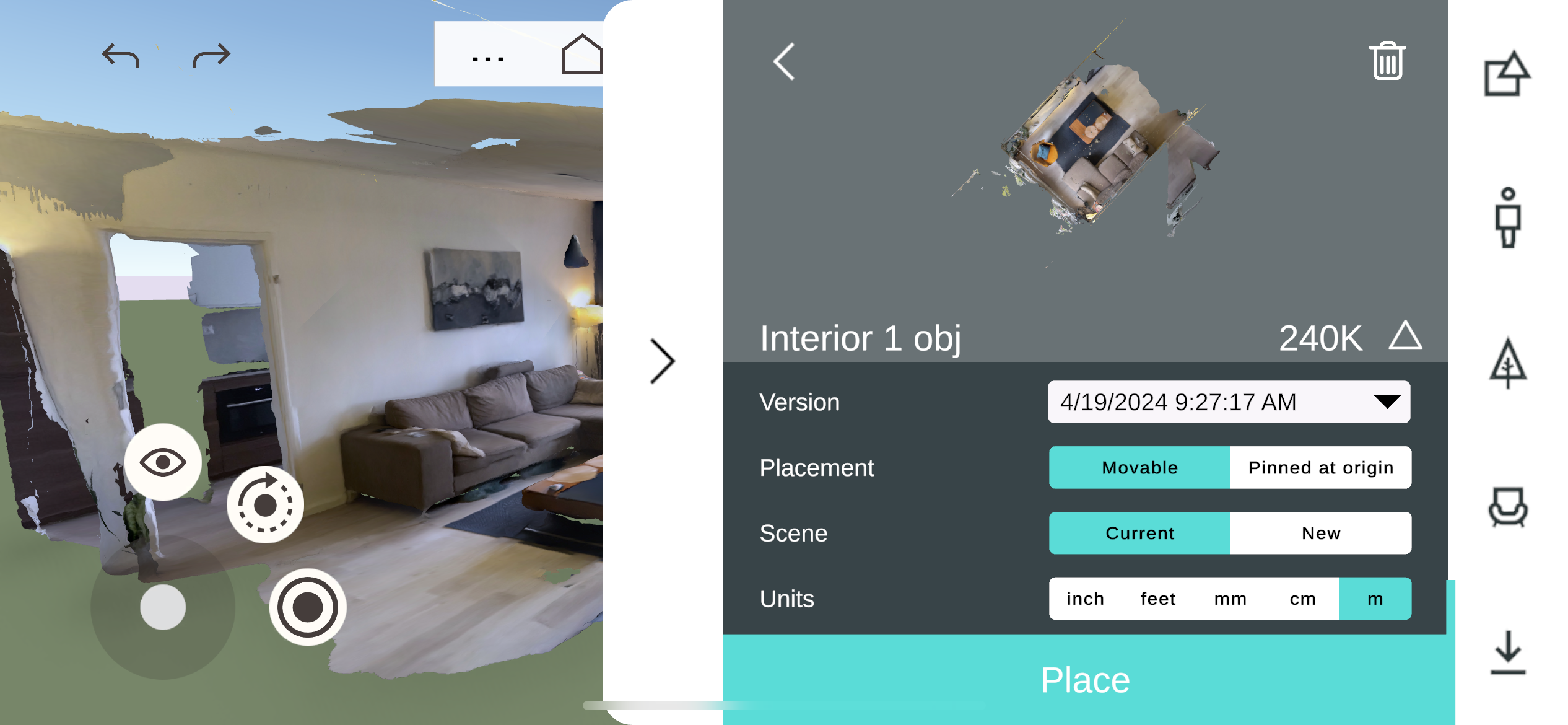
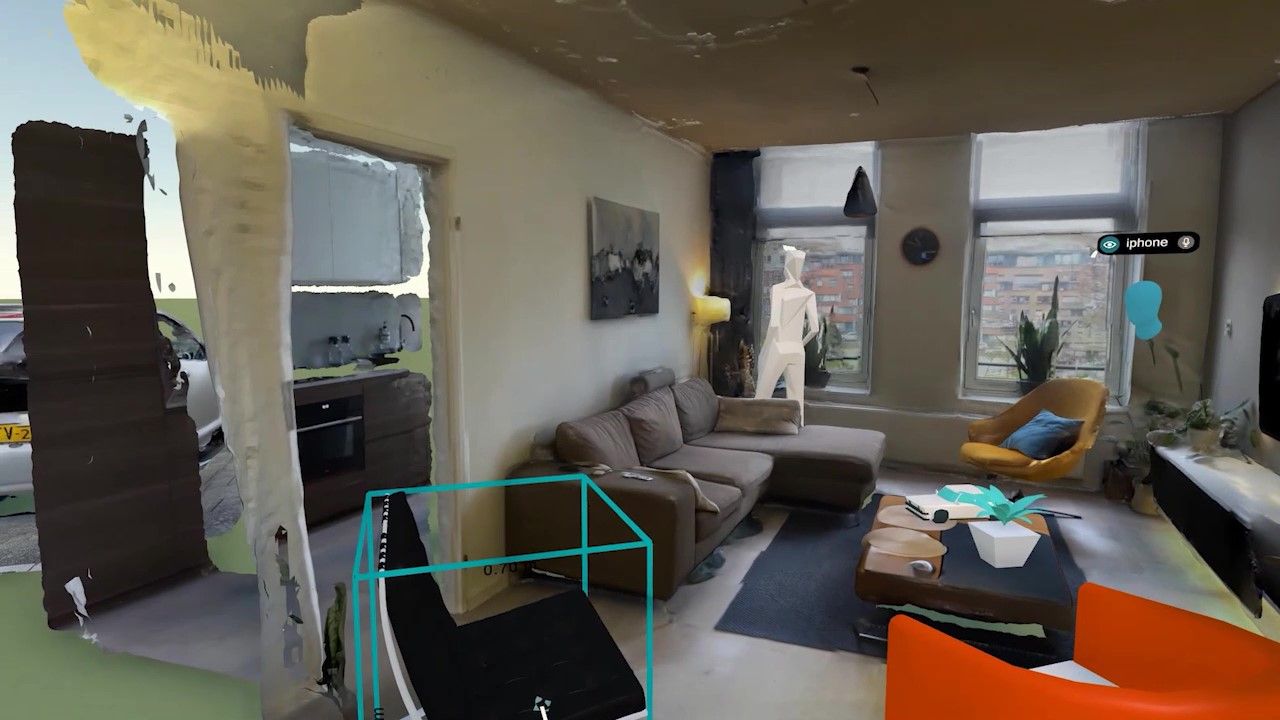
If the scan loads slowly, looks fragmented, or loses too much detail, revisit the mesh optimization steps and try a smaller or simpler export. Large models can appear before their collision data is ready, so allow extra time before selecting surfaces or placing objects on them.
See also Import & export basics and Importing large 3D models.
Was this helpful?
Still need help? Ask the team