Gathering and presenting
Written By Johan Hanegraaf
Last updated 6 months ago
You can gather all users in your Arkio meeting by clicking the gather icon behind your name in the meeting panel. This feature works for both VR and non-VR users of Arkio, allowing you to guide users through your scenes or help new users explore them together.
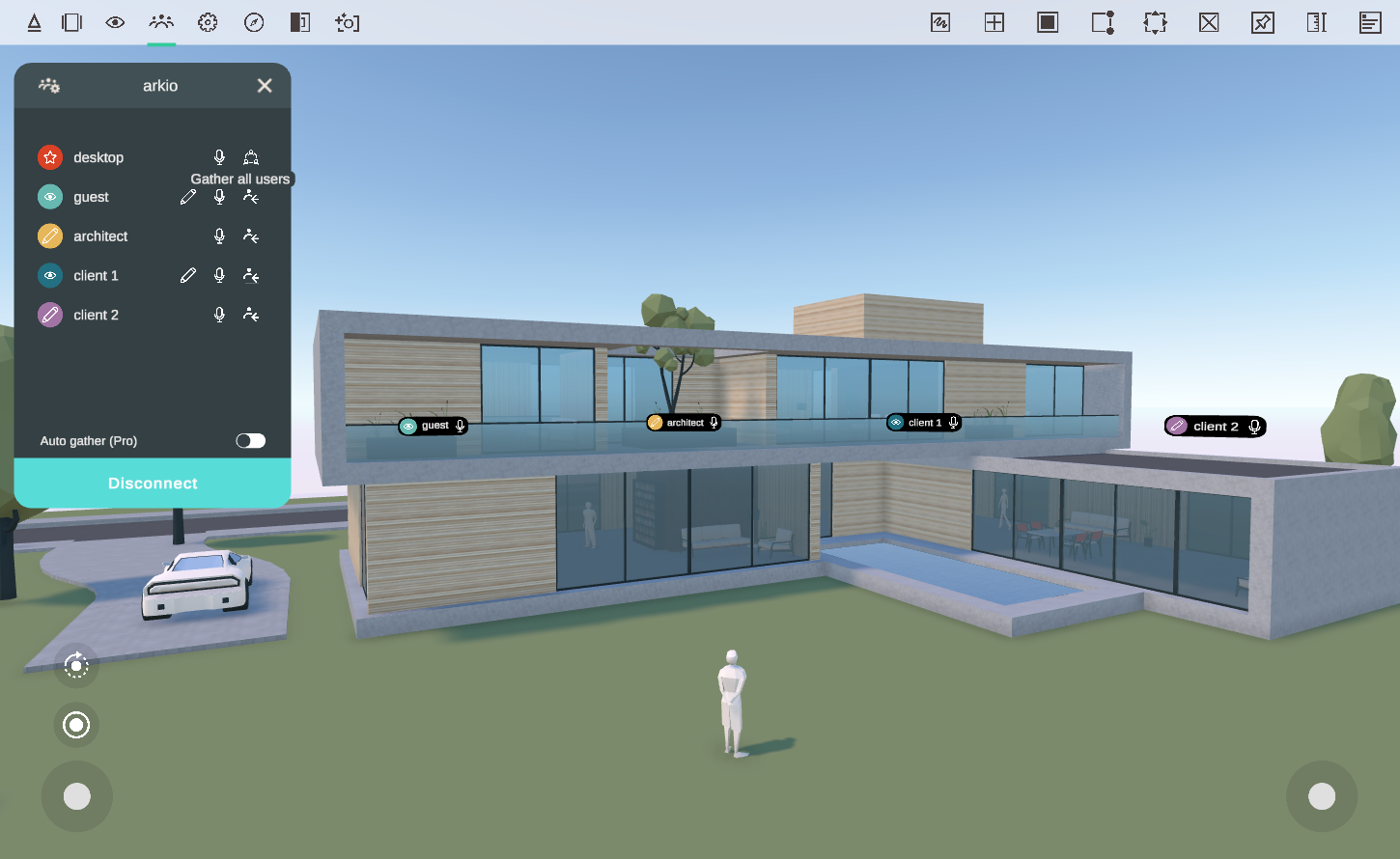
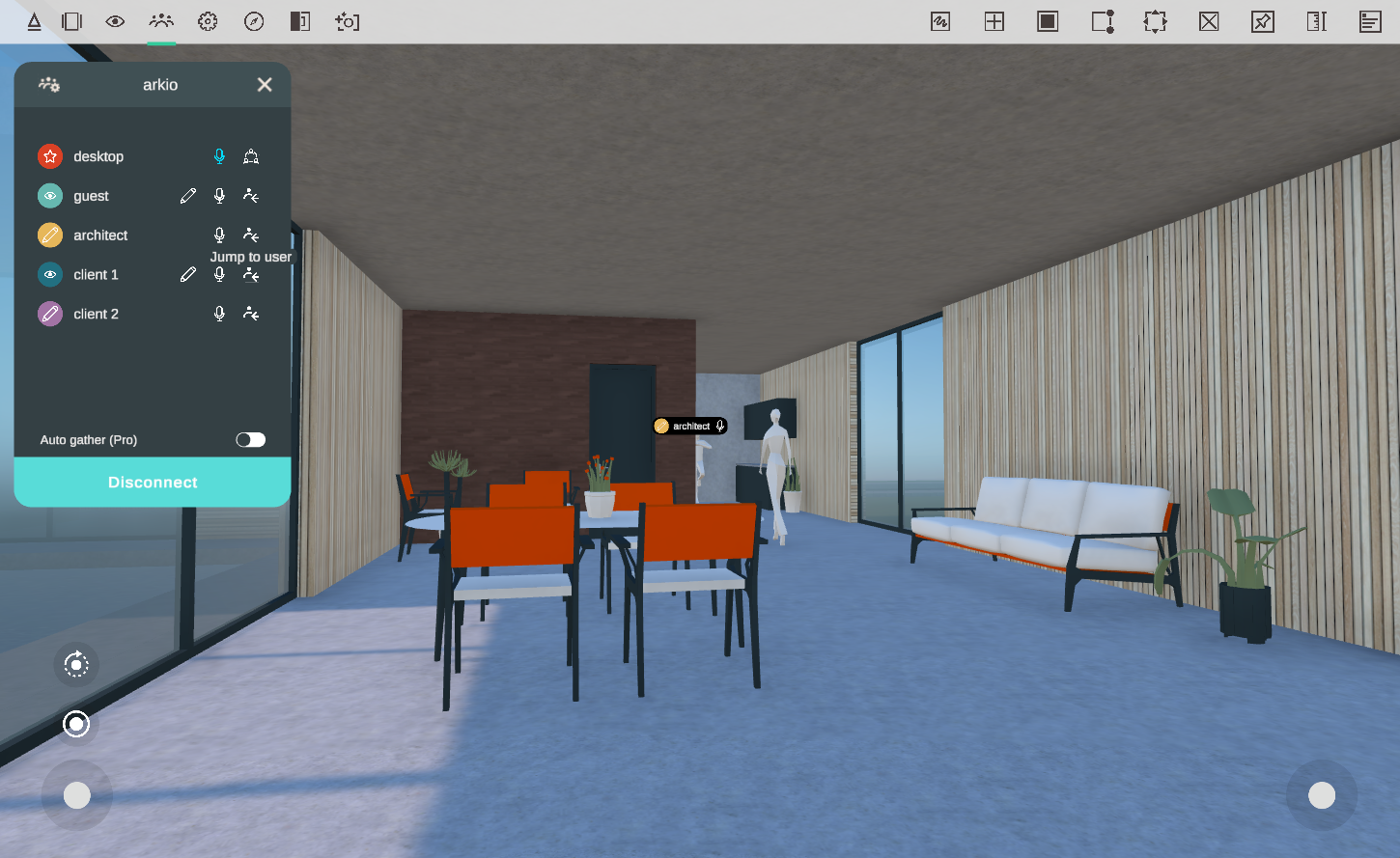
To join others in your Arkio scene, you can click on the icon behind that person's name. You will be teleported behind the other users on the same scale and see what they are looking at to help them out or discuss something.
Gather settings
When using the Gather button in your meeting panel or wristband, all users will be gathered at the default location. This default location for human scale can be adjusted from the meeting host settings. When gathering users to view the model at scale, other users in the meeting will gather around the table so they face the model.
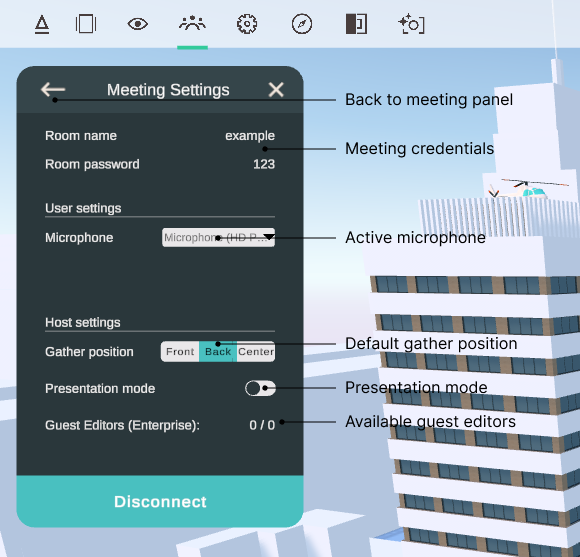
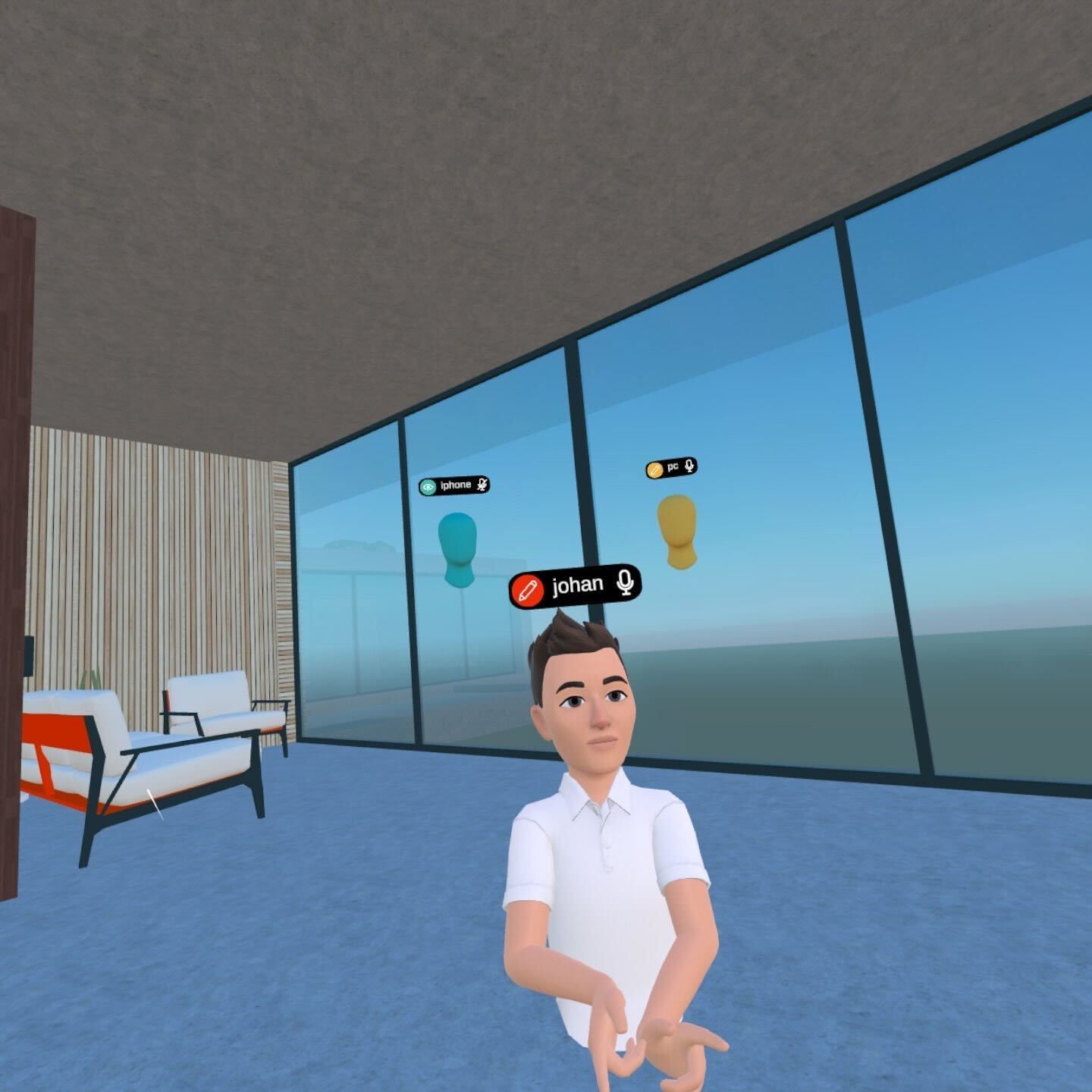
Gather users to the back (default) gathers users around the host's shoulder, which is handy for presenting designs and following where the host is looking. Other users will always face in a similar direction and see what the meeting host wants to present.
Gather users to the front - Gathers users in front of the host in a half-circle, making it easy to start face-to-face conversations directly with your participants. This is especially handy if most of your users are joining from VR/MR devices, as they can look around more easily than on 2D devices, and you can see their avatars directly to communicate.
Gather users to the center - Gathers users in the exact location as the host. This makes it easier to host guided tours in tight spaces or present exact viewpoints from your design
 |  |
Auto gather
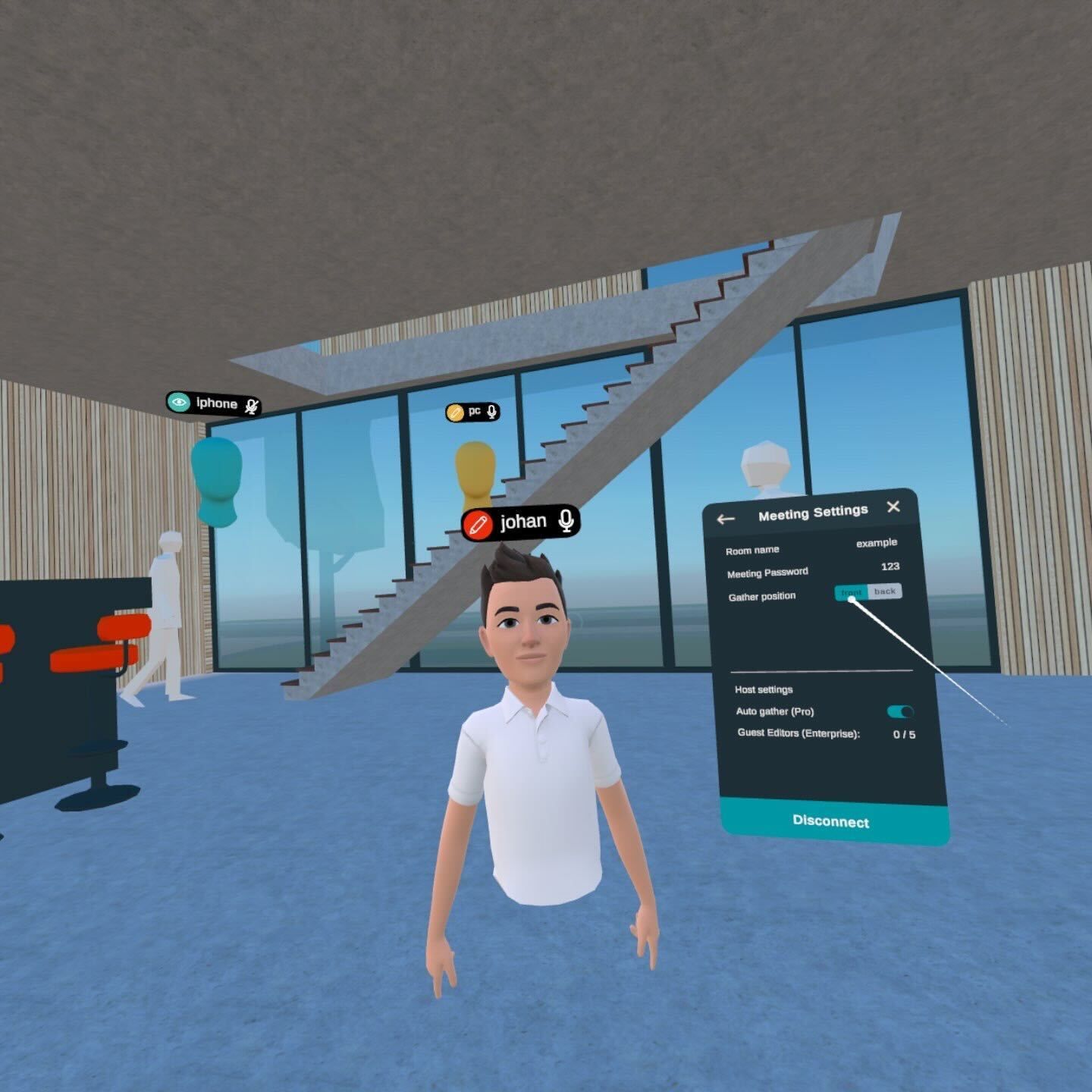
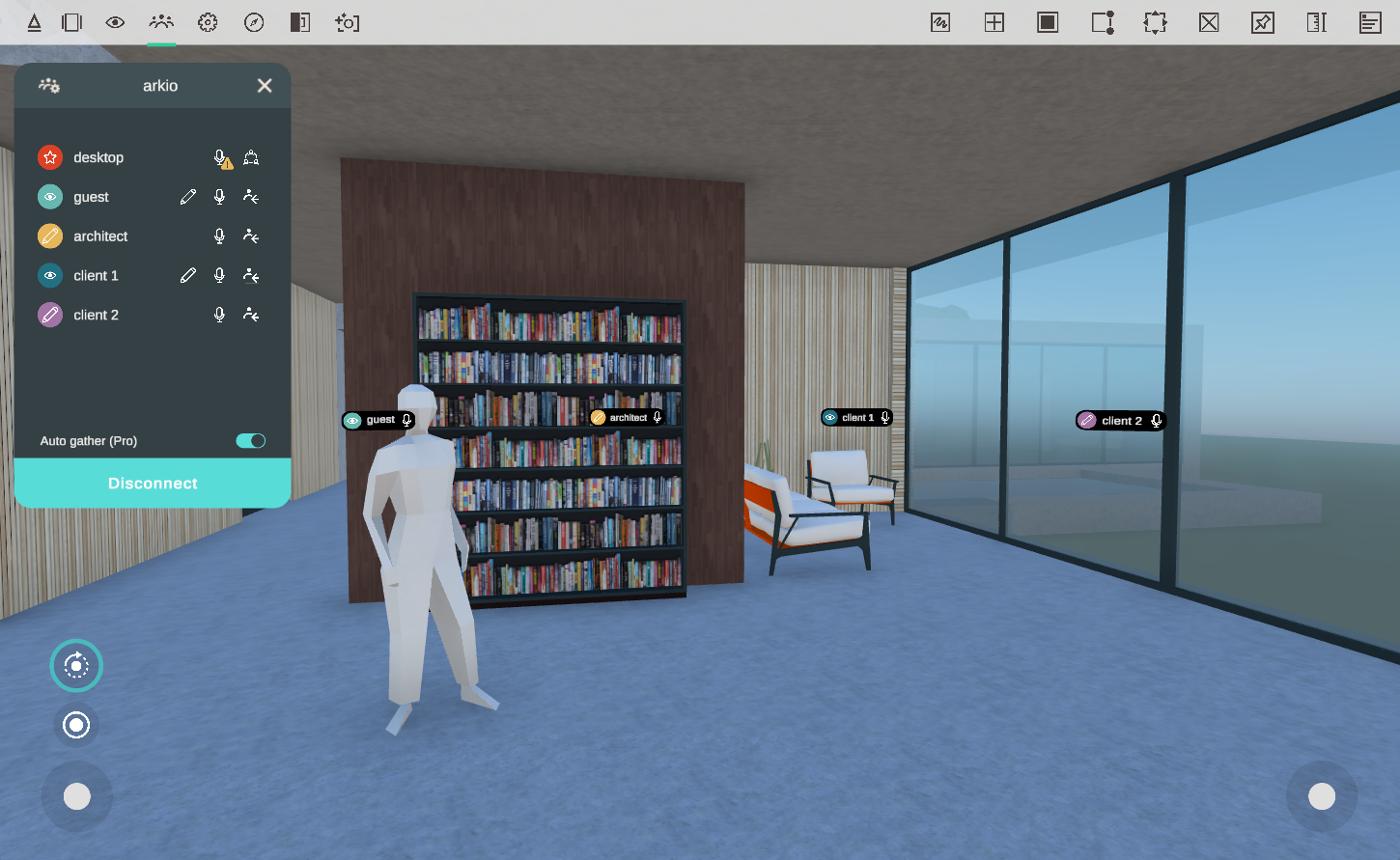
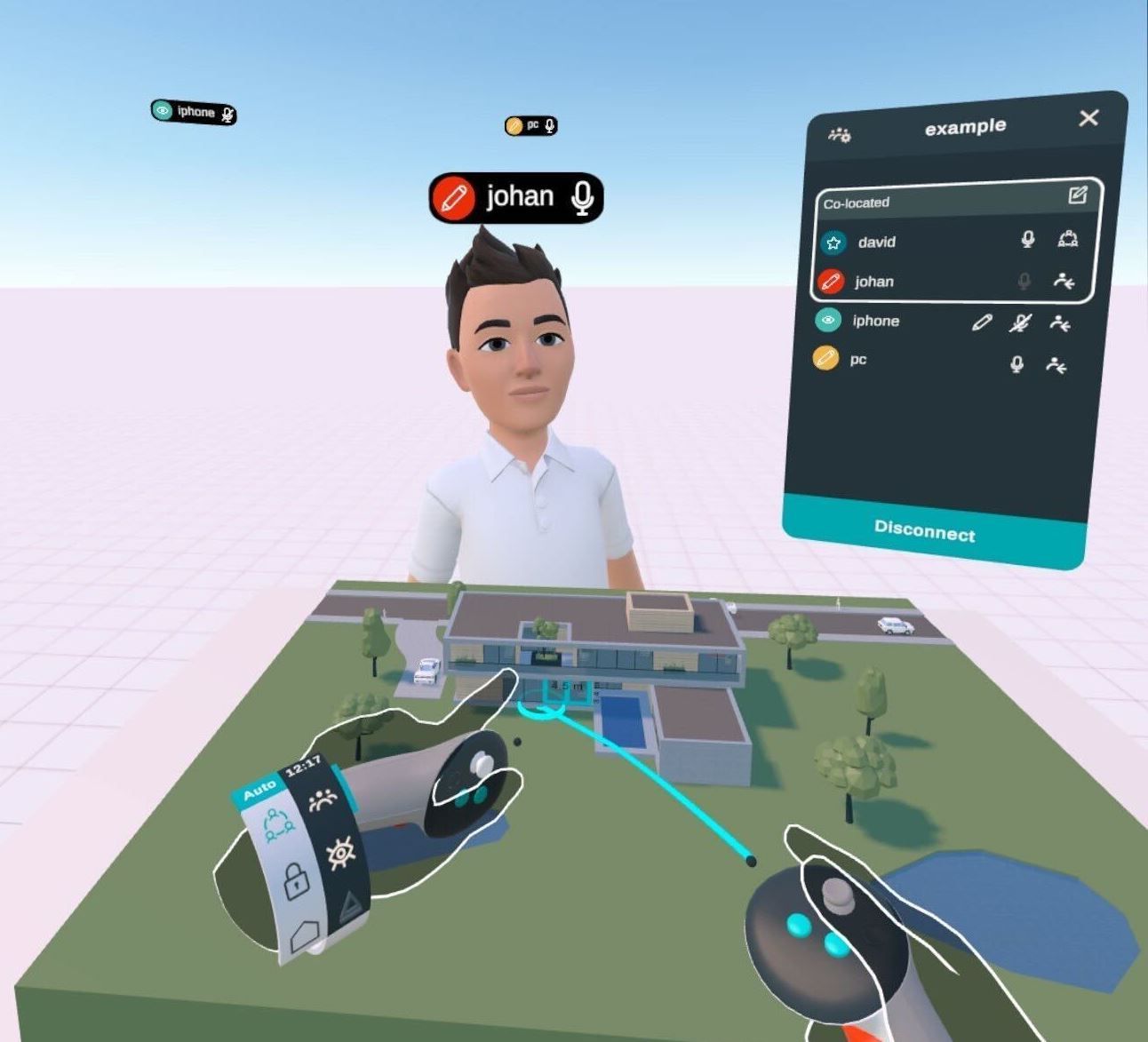
The meeting host can activate auto-gather mode from the meeting panel or their wristband (see the last chapter). This will gather all users in a meeting and realign any colocated users when the meeting host teleports or navigates to a new position in the scene. The gathering will occur a few seconds after the host moves to a new position, preventing other users from moving too frequently.
Presentation mode
A meeting host with an Enterprise license can activate presentation mode to prevent other users from editing and automatically gather and mute them. You can activate presentation mode in the meeting settings (top-left gear icon on the meeting panel). This will make all meeting participants viewers, no matter their license. It will also activate auto-gather mode and mute all current and new users. Users can still unmute themselves to speak with the rest of the participants.
When the host is in presentation mode (meeting settings), all users are unmuted, and their original meeting editing permissions are restored.
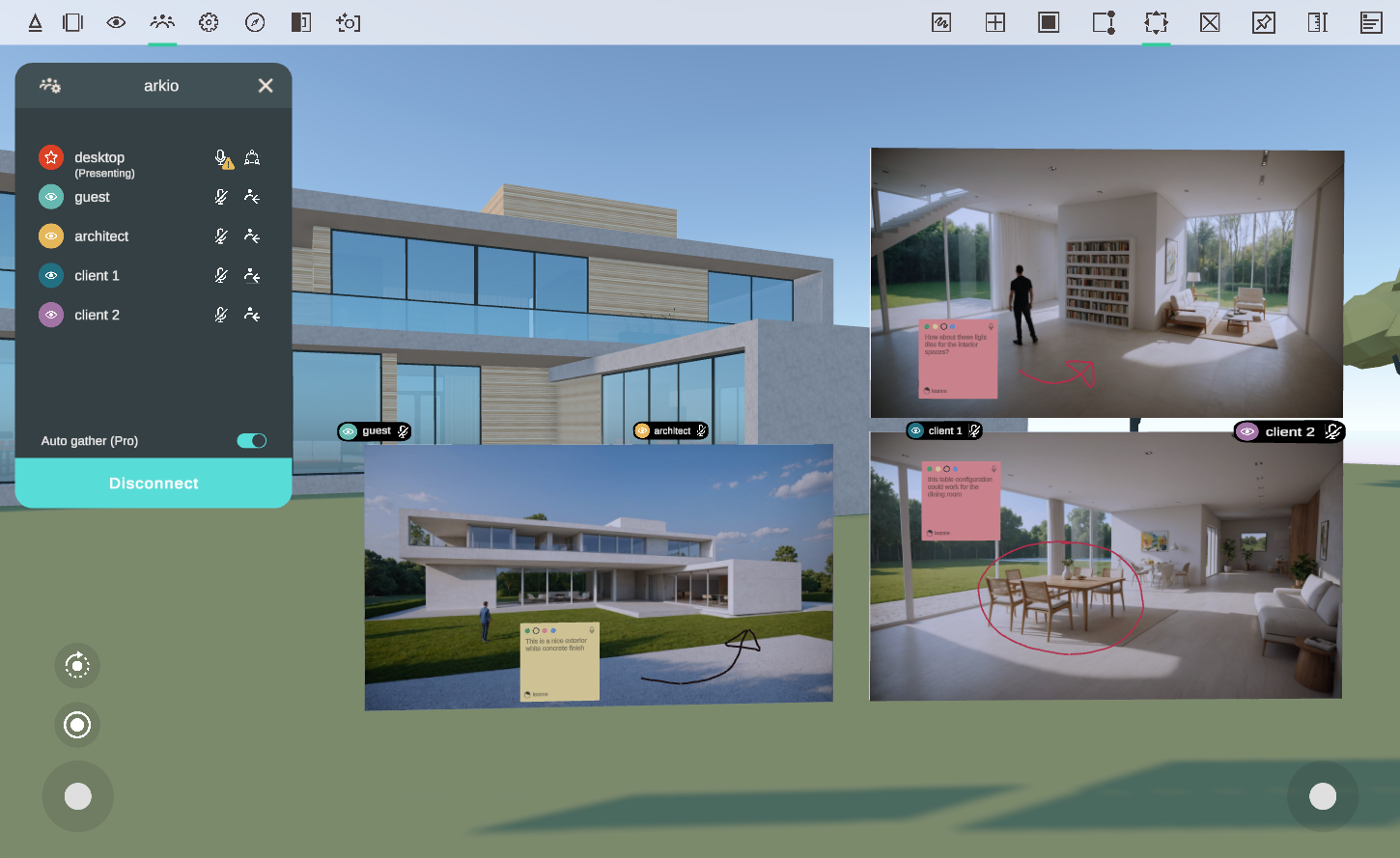
This feature helps organize your meetings and enhance collaboration, allowing the host to focus on presenting while other participants can sit back and experience the tour.
Wristband
In VR, your non-dominant hand in Arkio has a wristband with easy access to meeting tools. There is a button that opens the meetings panel, allowing you to manage your meeting participants and settings. Additional icons will be displayed when you are in a live meeting, like your microphone status.
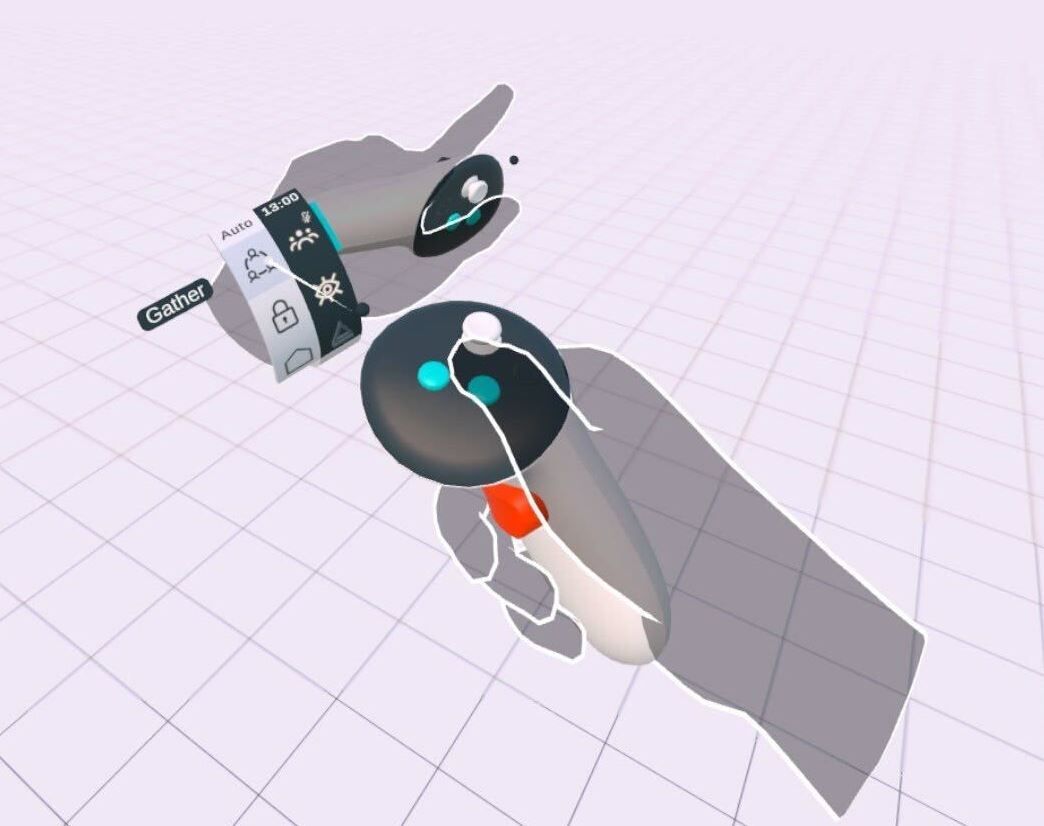
As the meeting host, you can gather users using your wristband. Alternatively, you can turn on the Auto-gather toggle, which will automatically gather users after you've teleported or moved to a new location in the scene. You can also toggle this mode on from the Meeting panel.
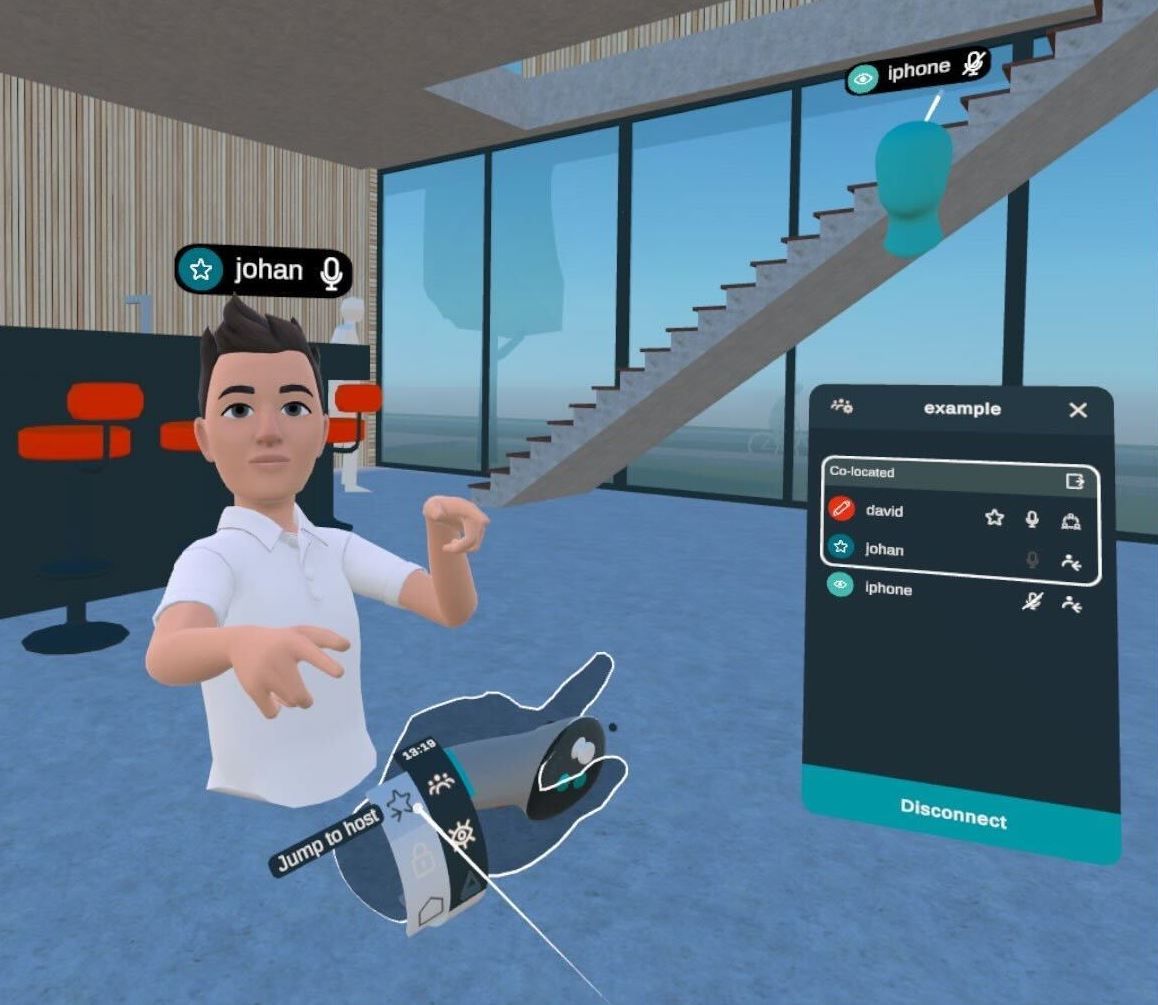
The other guests in the meeting can also use this wristband button to return to the host, allowing them to reconnect when they are lost or need assistance.
 |  |
Was this helpful?
Still need help? Ask the team