Navisworks - Arkio
Written By Johan Hanegraaf
Last updated 5 months ago
Importing models from and to Navisworks requires a Pro license. You can learn more about our paid features and start a free trial to try this.
Navisworks 2024-2026 is currently supported. Our Navisworks plugins are included with Arkio's Windows Installer, available on our download page.
Navisworks to Arkio
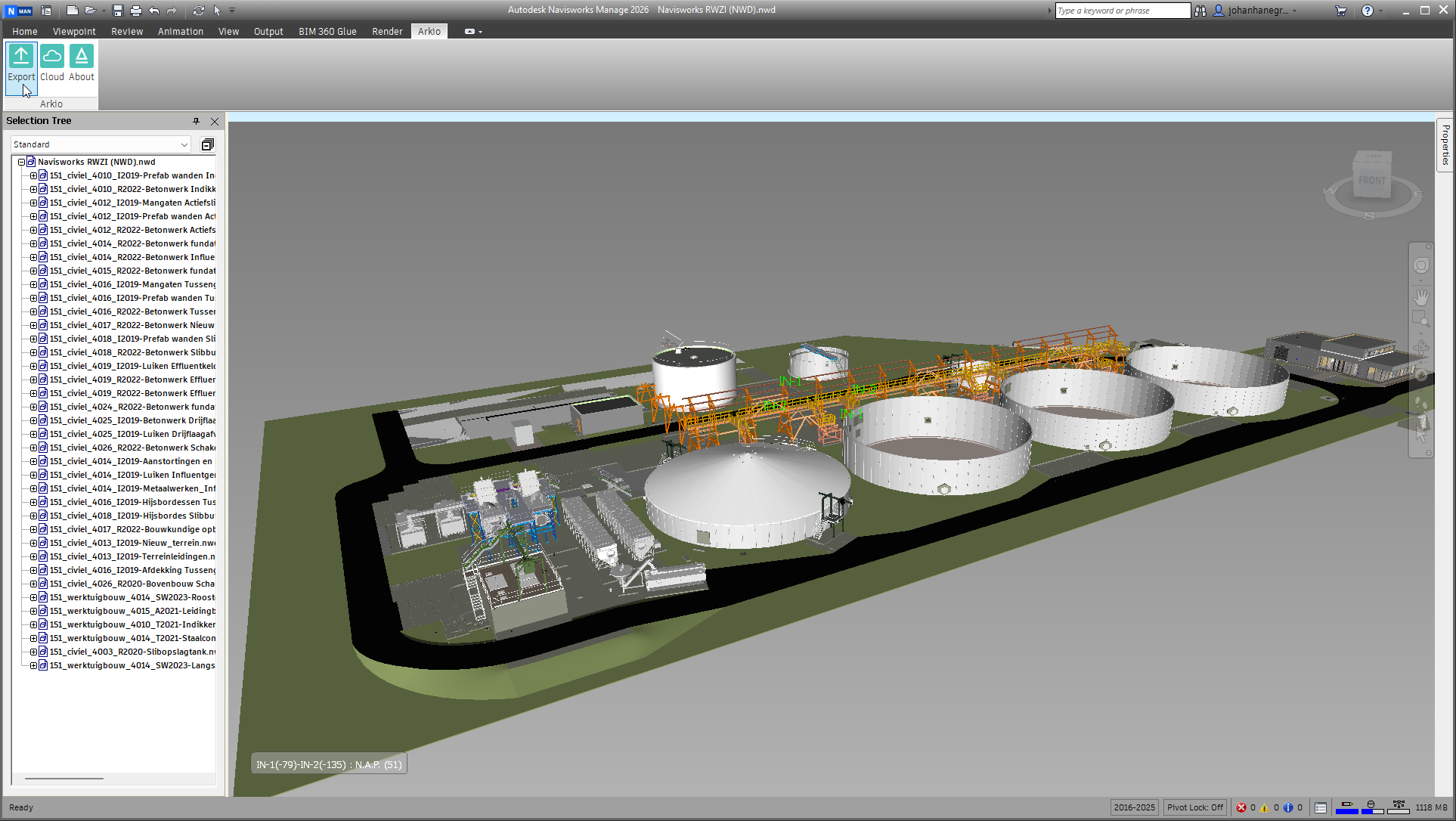
To export your models from Navisworks, you must have the Arkio plugin installed. Open Navisworks in 3D view, make sure all the elements and layers you want to export are visible, then press the Export button.
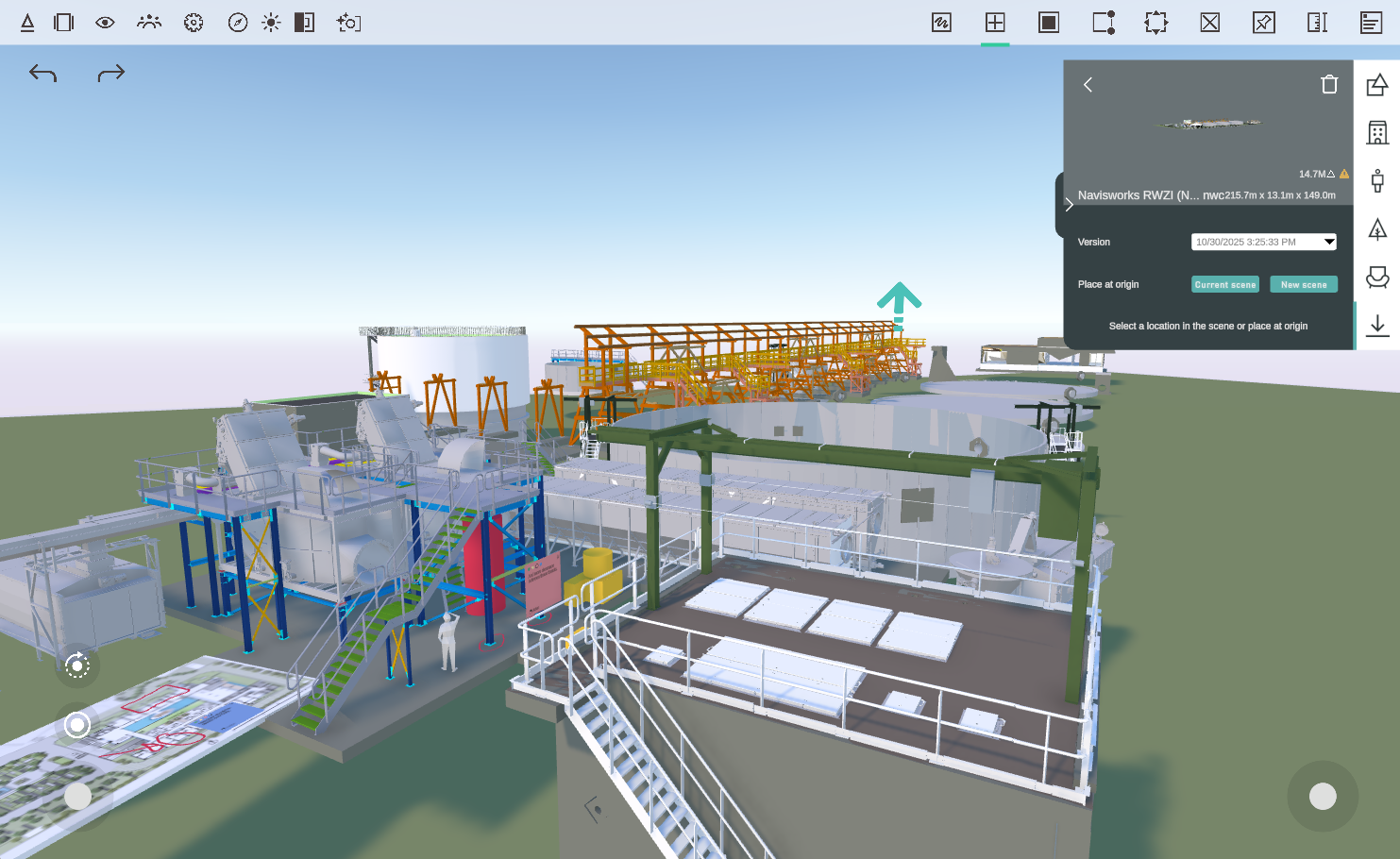
After a model is exported, Arkio opens on your PC and displays the newly exported model in the Create > Import tab. You can open the model to preview it and place it at the origin in your current or a new scene from the import panel or place it manually by clicking in the scene.
Synchronize imports with other Arkio devices
If you wish to synchronize newly imported files across multiple Arkio devices, such as your PC, Meta Quest, and iPad, you can link your PC and other devices to the same device group from your cloud panel. After linking, new imports will automatically be synchronized with all linked devices.
You can also share your scenes, including all placed imports, using a live meeting or via an Arkio Cloud URL
Placing models in Arkio
Exported files from Navisworks can be placed in the scene via the Create > Import drawer. Your cloud-synced imports will also appear here if your device is linked to the same Arkio cloud group.
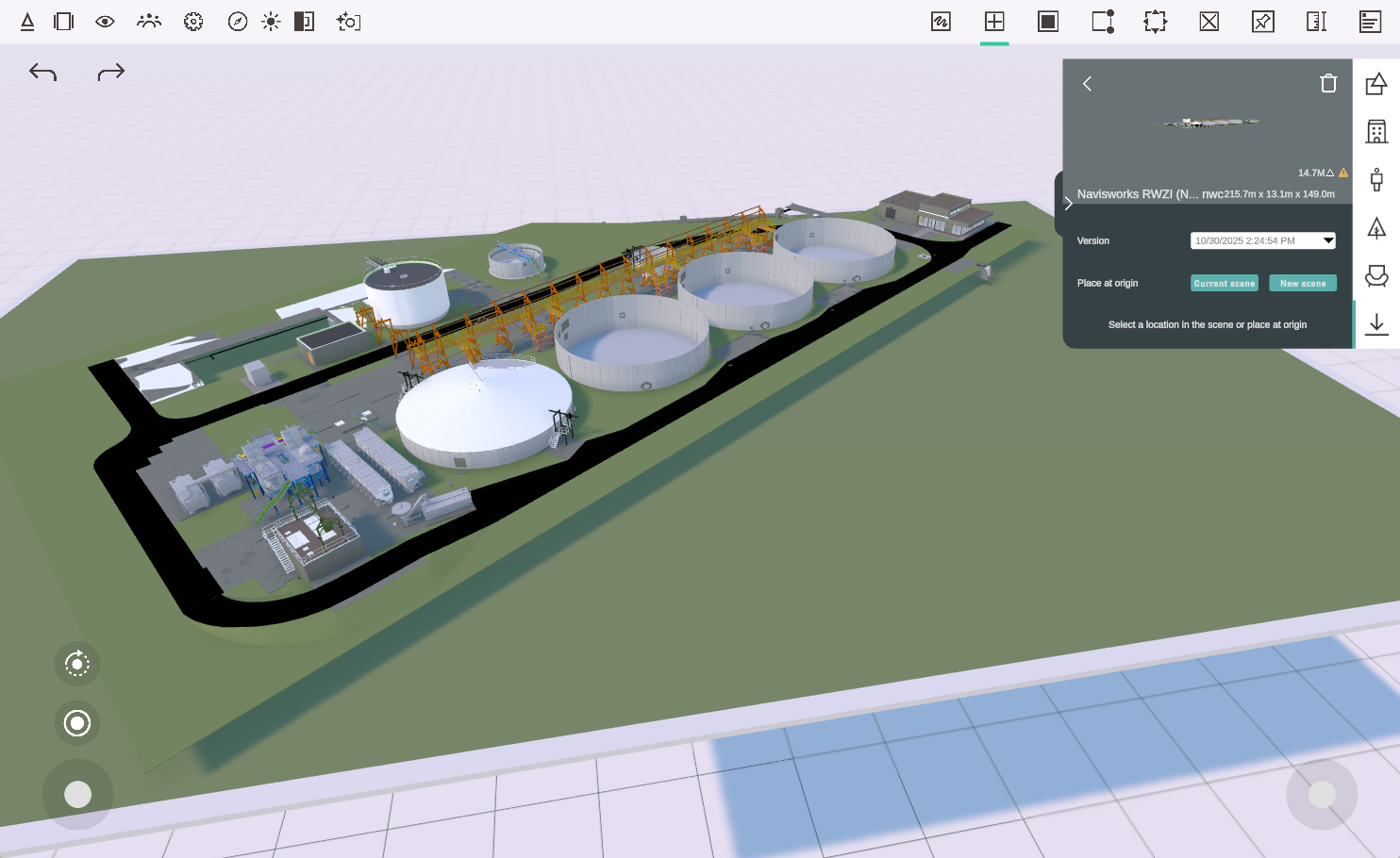
From the import panel, you can click on the filename of your import to open the placement sub-menu, where you can preview your model and select model placement options like the size, orientation and version.
With the placement sub-menu open, you can click anywhere in the scene to manually place an instance of that model. Or press the green Place at origin buttons to place the model pinned in the current or a new scene. Models placed at the origin can be aligned with other models, enabling a round trip between your design tools when exporting Arkio-added geometry back to your existing tool.
Model location and orientation
Models loaded in Arkio at the origin will follow Navisworks Origin and North rotation, so the map feature can be used to load any context around your building.
If the model has geometry modeled under the xy-plane (origin), the Arkio table surface can be cut away using Arkio's solid/void modeling tools. Making the void bigger than the loaded model enables teleporting on underground geometry.
If your model is far from the center or floating, it means it is far from its origin. It's best to keep your model closer to the origin in 3D tools to prevent model inaccuracies. You can address this in two ways:
Place the model manually by clicking in the Arkio scene and pin it manually. When you export from Arkio back to your design tool, you must manually align the imported geometry with your original coordinates.
Adjust your model coordinates in your Navisworks project for better compatibility and model coordination with Arkio and other 3D tools
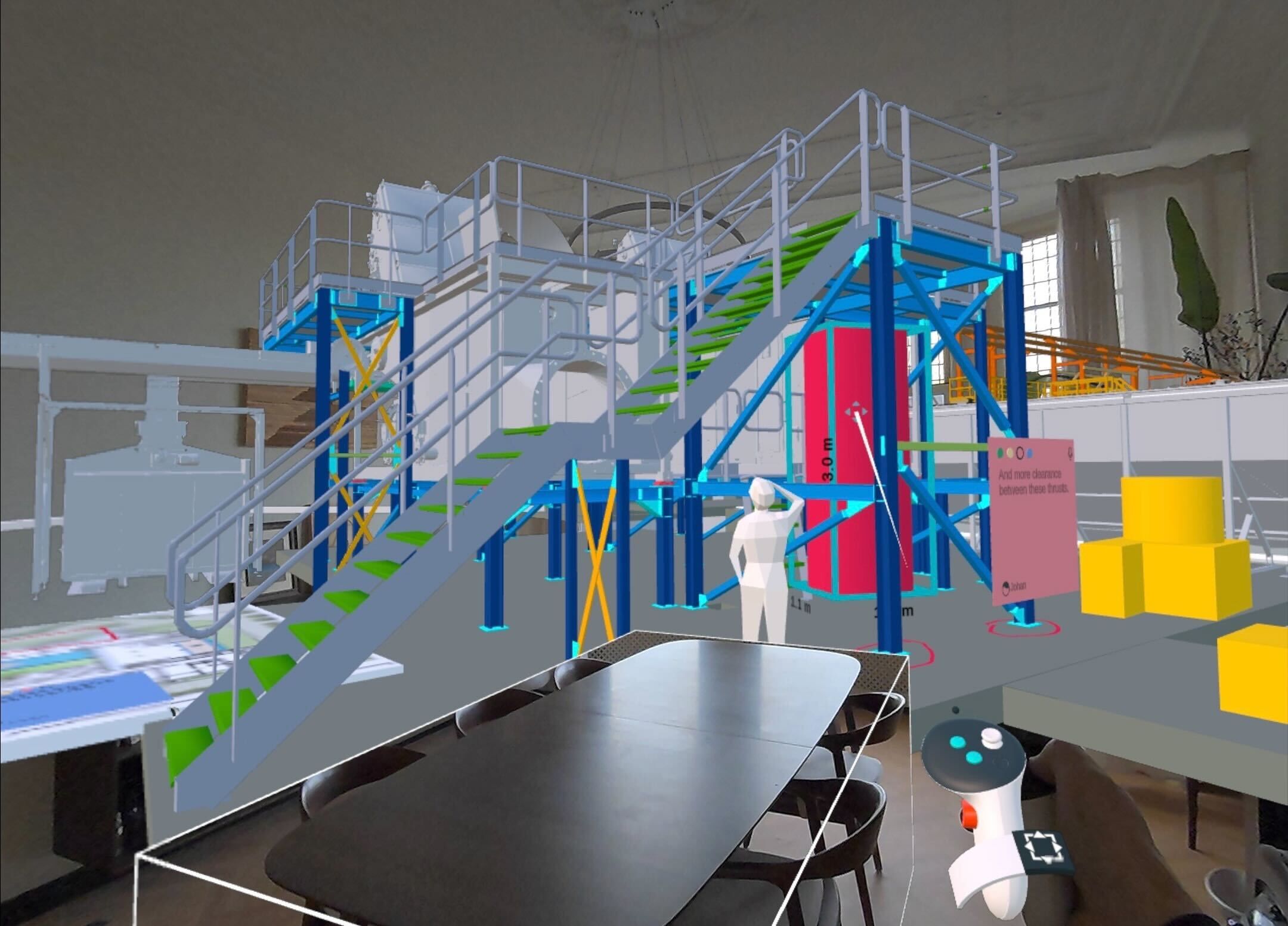
Layers and BIM data
Your Navisworks-exported files contain layer information in Arkio, mapped to the Navisworks model selection tree. If you want to present or switch between layers in Arkio, you can customize the model hierarchy and re-export your file to update your model in Arkio.
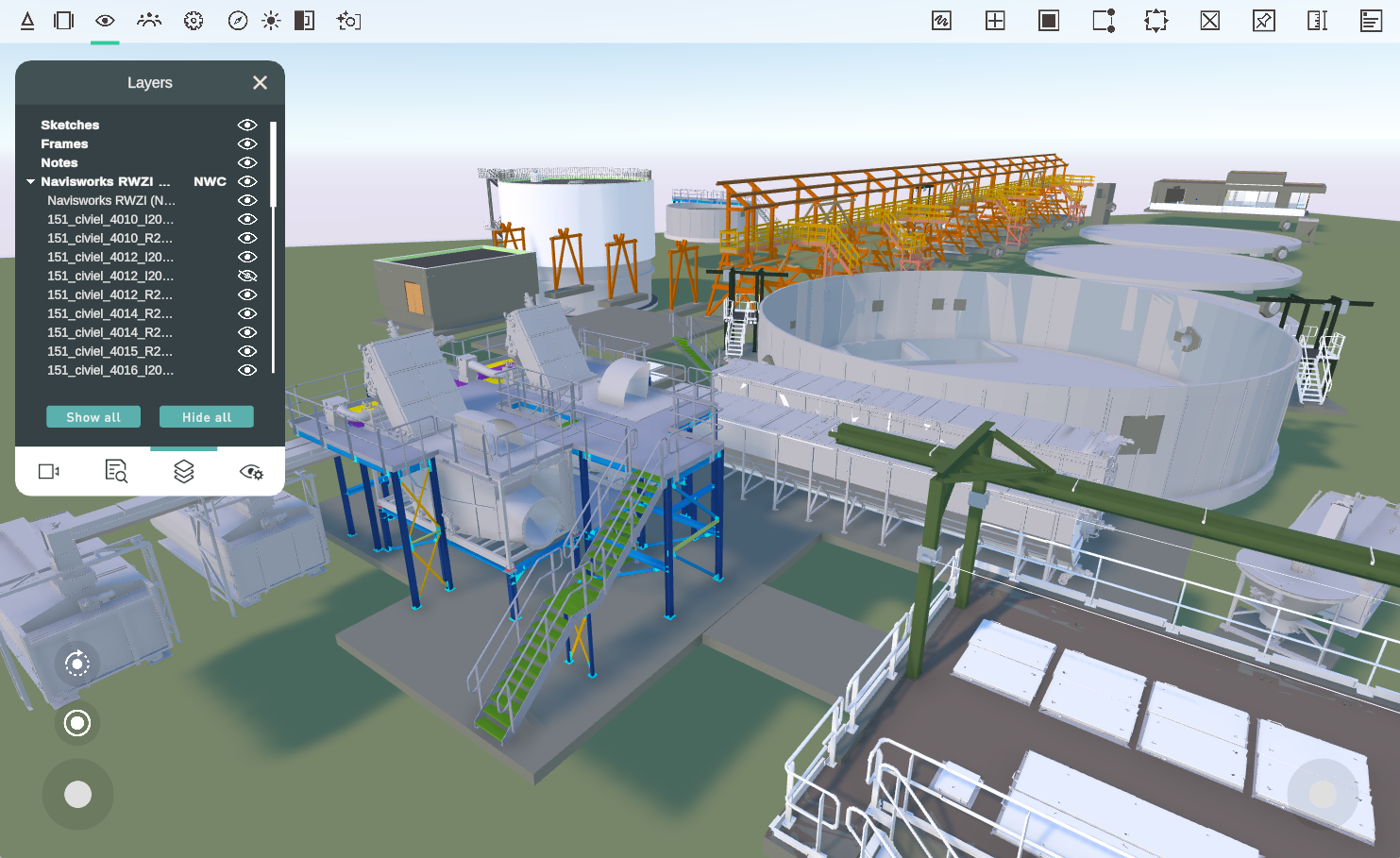
You can export different Navisworks models into one Arkio scene (and models from other supported design tools) and align them at the origin to gain additional control over layers in your scene. This way, you can also control the visibility of all loaded files separately.
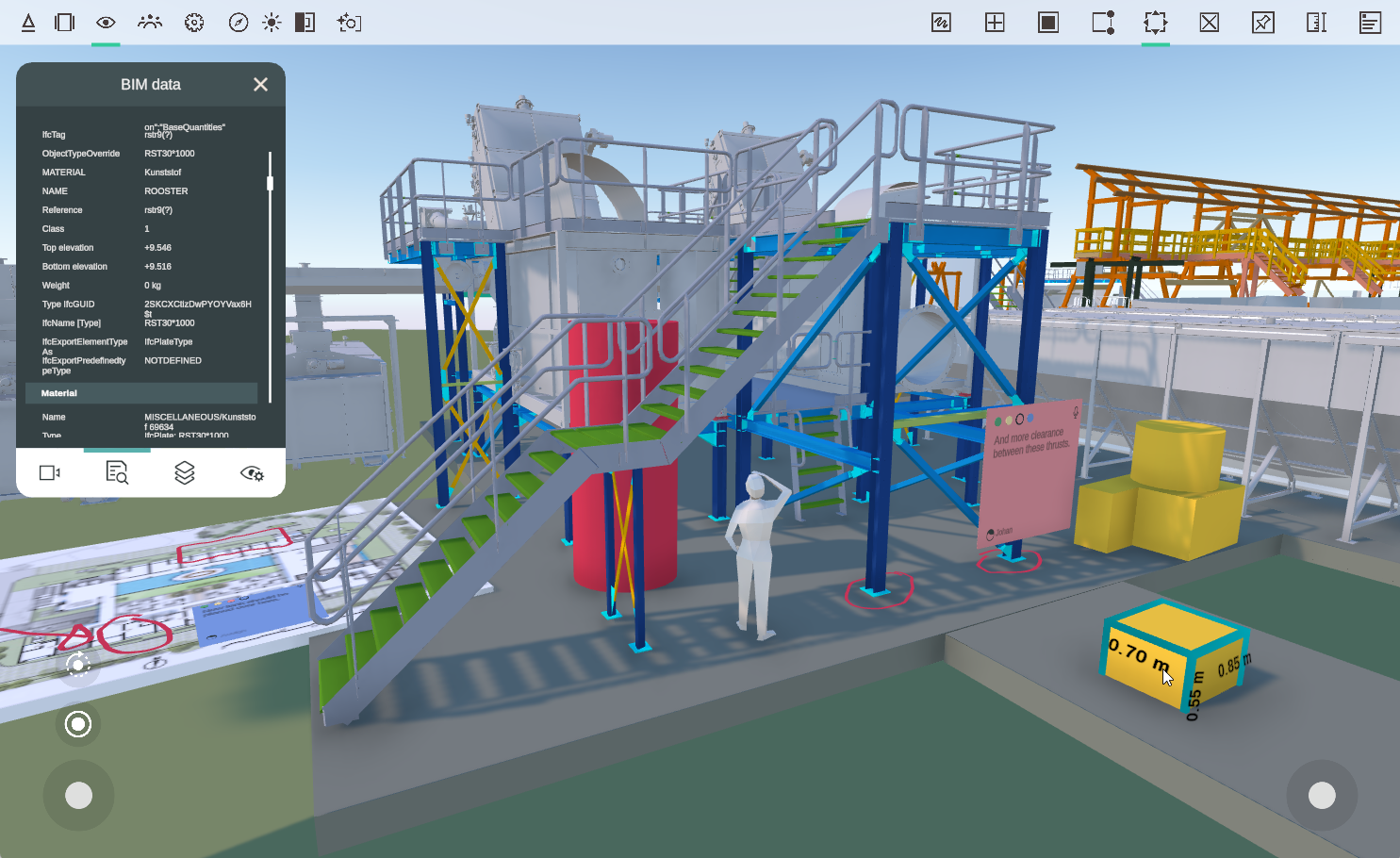
The Arkio plugin exports all the available BIM data for objects. The panel can be opened from the Review panel > BIM data tab, and the imported elements can be hovered with the laser/mouse/touch.
Updating a model
You can update an existing imported model by overwriting your Arkio import files with the same name. In Navisworks, this can be achieved by re-running the export with the same file name. Arkio will then recognize and process the new version, displaying a green update arrow above the model to indicate that a new version is available. You can click this arrow to replace the older file in the scene with the new version on the current coordinates.
Arkio will retain the older versions of your imported models, allowing you to revert to a previous version by selecting the desired date in your placement menu and clicking "Update".
Troubleshooting
Some Navisworks add-ins, like the Coordination Add-In for ACC, load models in different units. You can manually correct the scale in Arkio by proportionally scaling your model from a corner. Contact the add-in developer to see if any fixes are available. Using Navisworks' built-in importers can avoid scaling bugs.
If you experience model-loading issues, try exporting fewer elements first, then gradually increasing the number to see if the issue persists.
Avoid issues and long processing by importing only the geometry you need. You can find tips and best practices to optimize your geometry here.
Sometimes, failing imports affect other files from loading in Arkio. Clearing your temporary resources often resolves most issues.
If you have models that don't load well in Arkio, we'd love to review the file to improve Arkio’s importer. You can contact us at support@arkio.is
Was this helpful?
Still need help? Ask the team