Import models into Arkio Web
Written By Johan Hanegraaf
Last updated 3 minutes ago
Connect Arkio on your PC and Arkio Web to the same Arkio Cloud group to bring plugin exports directly into your web workspace. You can also import custom files by dragging them into Arkio Web.
1. Install Arkio 2.3.2 and its plugins
Download the web beta Arkio 2.3.2 installer
Close your design applications, run the installer, and install the plugins you need. Reopen your design application afterward.
Use this special installer for the web beta, even if you already have another version of Arkio installed, to enable loading your exported Arkio web designs back into Revit, Rhino or SketchUp.
2. Connect Arkio PC and Arkio Web
Open the installed Arkio application on your PC.
Connect it to your Arkio Cloud group.
Open Arkio Web (see email for URL) and connect to the same cloud group.
Keep Arkio running on your PC while exporting and syncing files.
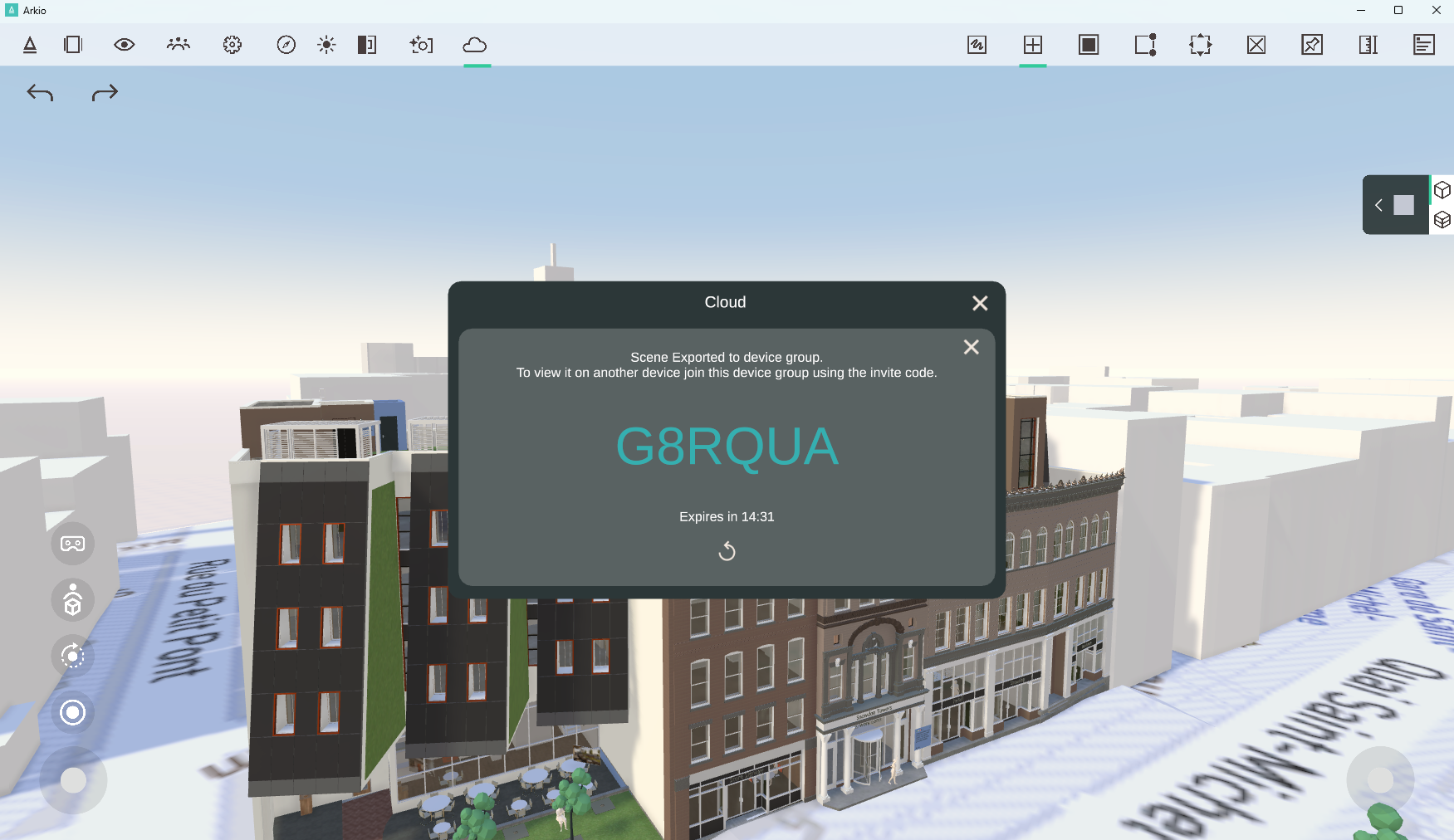
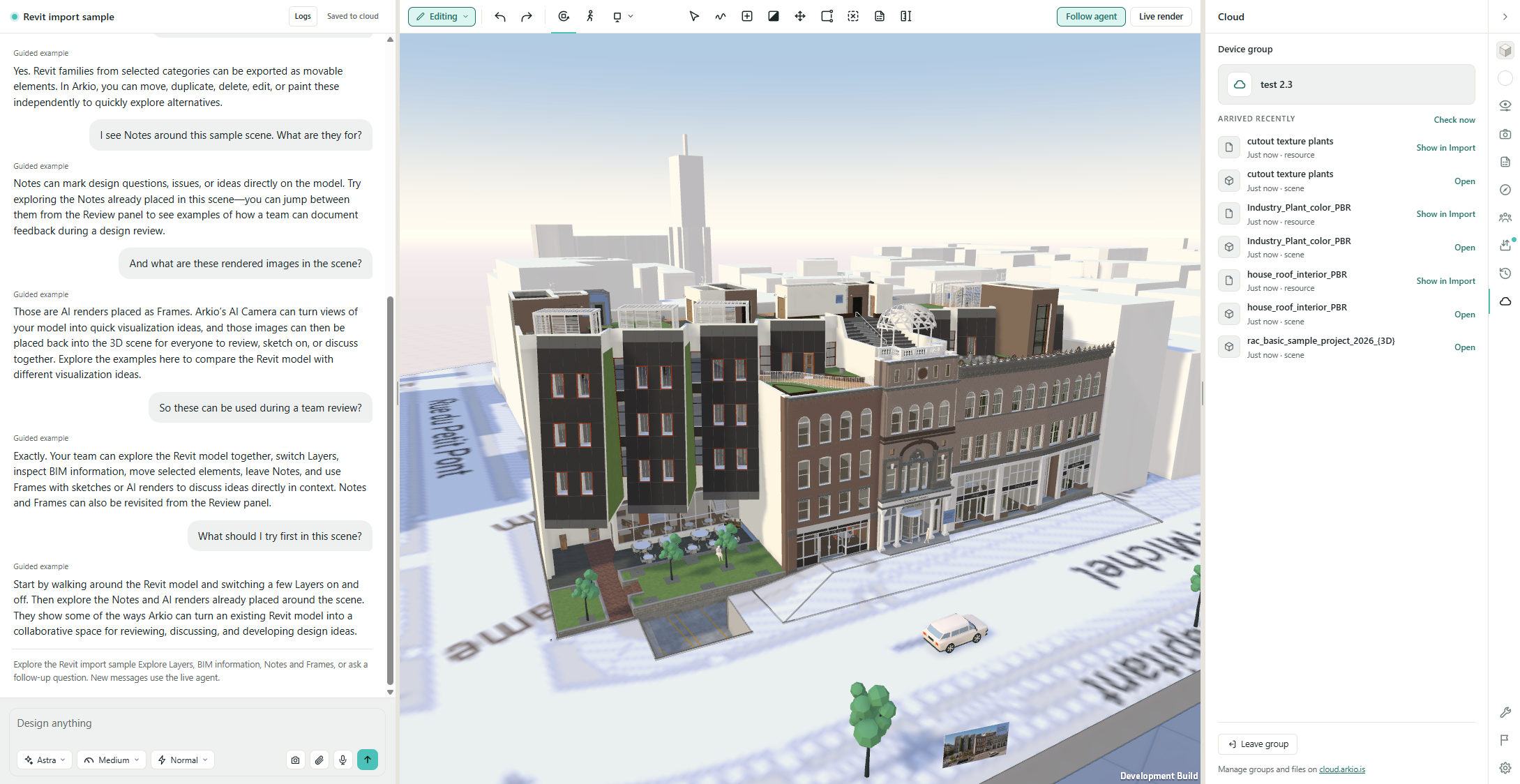
Both applications need to be connected to the same group for your plugin exports to become available in Arkio Web.
3. Export from your design application
Open your model and prepare a 3D view containing the geometry you want to export. Then use your application’s Arkio Export command.
The plugin exports the model to Arkio on your PC, which syncs the files through Arkio Cloud. Once syncing and processing finish, the model becomes available in Arkio Web’s Import & export → Import panel.
4. Place the model
Select the imported model and choose:
Place in scene to position it manually.
Place at origin to use the model’s original coordinates.
Plugin exports include their units and orientation.
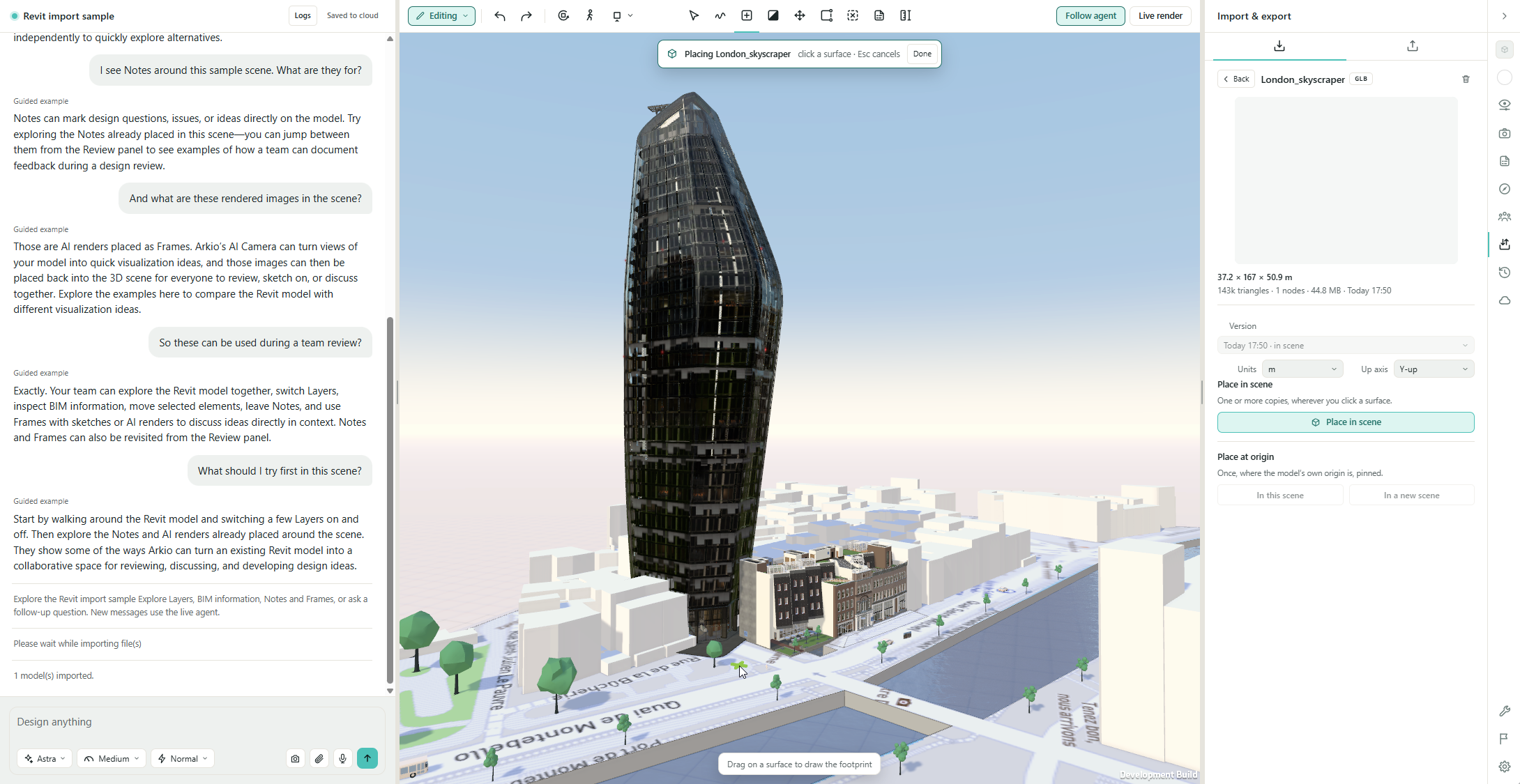
Import custom files with drag and drop
You can also drag OBJ and GLB model files and images directly to Arkio Web.
For models with separate textures or supporting files, drag the complete folder or a ZIP containing all the files. Keep the folder structure intact. Your 3D and 2D imports will appear in the Import panel where you can place them in the scene, and your agent can also help you place, edit and analyze these 3D models.
Native project files such as .rvt, .3dm, and .skp must first be exported using the Arkio plugin.
Export from Arkio Web back to your design application
Exports from Arkio Web to plugins currently require a manual download.
Open Import & export → Export.
Choose an available plugin export format.
Download the export package to your PC.
Extract it if supplied as a ZIP.
Use the corresponding Arkio plugin’s Import command to load the downloaded export.
Only the export formats enabled in the web beta are currently available.
If your model doesn’t appear
Check that Arkio PC is running, both applications are connected to the same cloud group, and the export and cloud sync have finished. For large models, try a smaller selection first.
If the issue continues, use Report an issue and include any error messages from your design application.
Was this helpful?
Still need help? Ask the team