Arkio does not start correctly in PC VR
Written By Johan Hanegraaf
Last updated 6 months ago
General Troubleshooting
When Arkio doesn't start correctly in VR on Windows, or when controller issues occur, it's often because the headset OpenXR runtime isn't properly initialized. Please follow these steps to ensure your VR hardware starts correctly on PC.
For PC VR, we recommend using Arkio’s Windows installer, which includes our plugins. Arkio starts in non-VR mode. Pressing the VR icon on the bottom left searches for your active VR headset in your system using OpenXR to launch the correct runtime for your headset
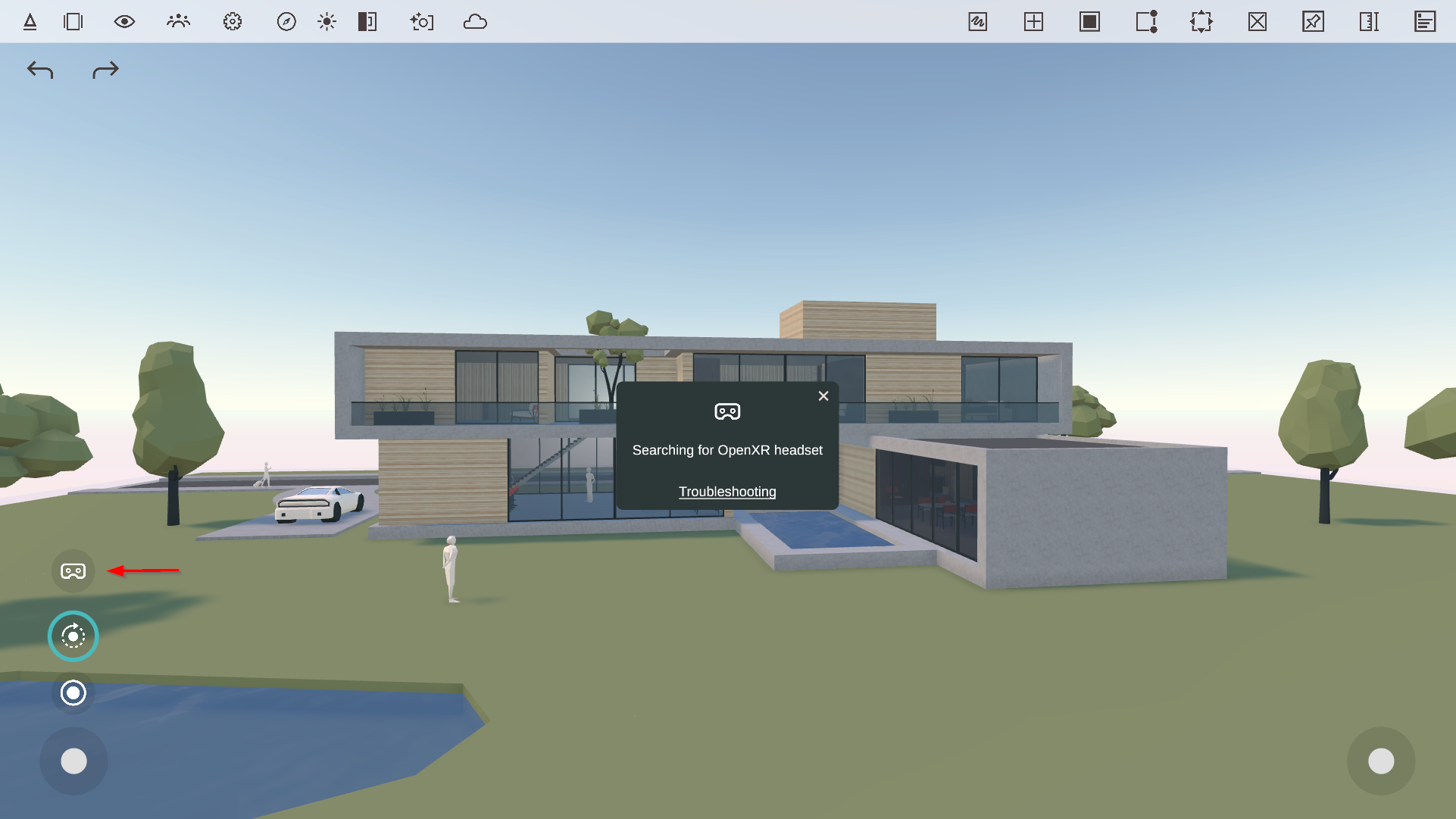
To troubleshoot headset initialization issues you can follow the following steps:
Make sure the headset is connected, turned on and works well for other PC VR apps
Reboot all your devices and make sure only a single instance of your VR driver is running.
If your OpenXR default settings are not configured correctly, a notification should appear in the Meta Quest Link or the SteamVR app to help you set them up correctly. You can set this in Meta Quest Link > Settings > General

Sometimes the Meta account entitlements fail, preventing apps from starting correctly. Logging out and back in to your Meta account and updating or reinstalling the Meta Horizon link app often fixes PC VR link issues with Meta hardware.
The default OpenXR runtime on your system can be altered by other hardware installations. Uninstalling unused runtimes and drivers will make OpenXR less prone to issues. There are also tools to help you switch your OpenXR runtime settings if you have multiple headsets installed on your system.
If previous headset installations changed your system settings. You might have to uninstall and reinstall all your older headset drivers, or manually restore your OpenXR settings
If you have trouble with the Meta Horizon Link VR initialization in Arkio. You can also bypass Horizon Link using the SteamVR link app or virtual desktop app to use a different runtime (this will show Vive controllers instead of Meta’s, but Arkio can still be used in VR)
If you are still experiencing VR startup problems after trying these steps, you can contact us at support@arkio.is to see if we can help you fix the issue.
Was this helpful?
Still need help? Ask the team