Dimensions
Written By Johan Hanegraaf
Last updated 8 months ago
Automatic dimensions
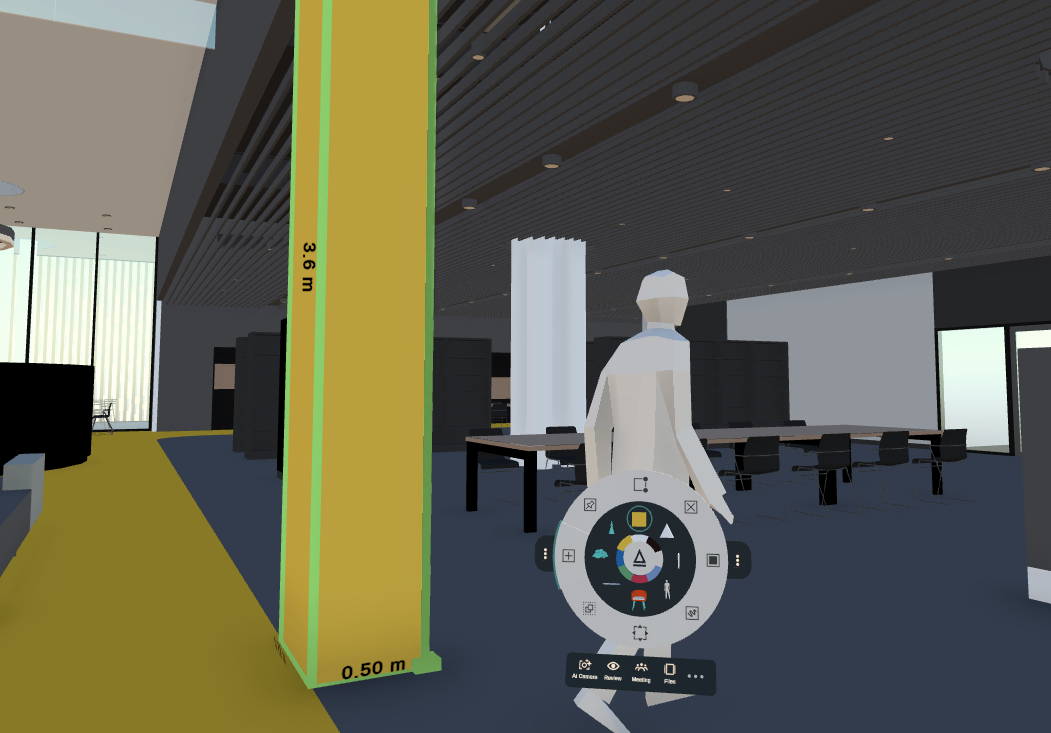
In Arkio, dimensions are automatically displayed when a new shape is created. Units can be set to meters or feet by adjusting the settings. Shape edges are highlighted in green when created and in blue when edited or moved.
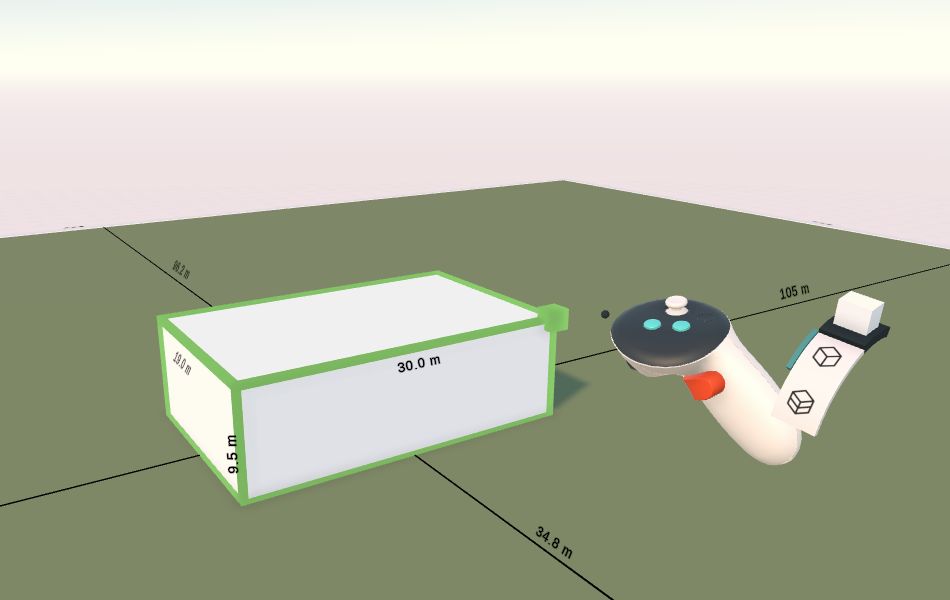
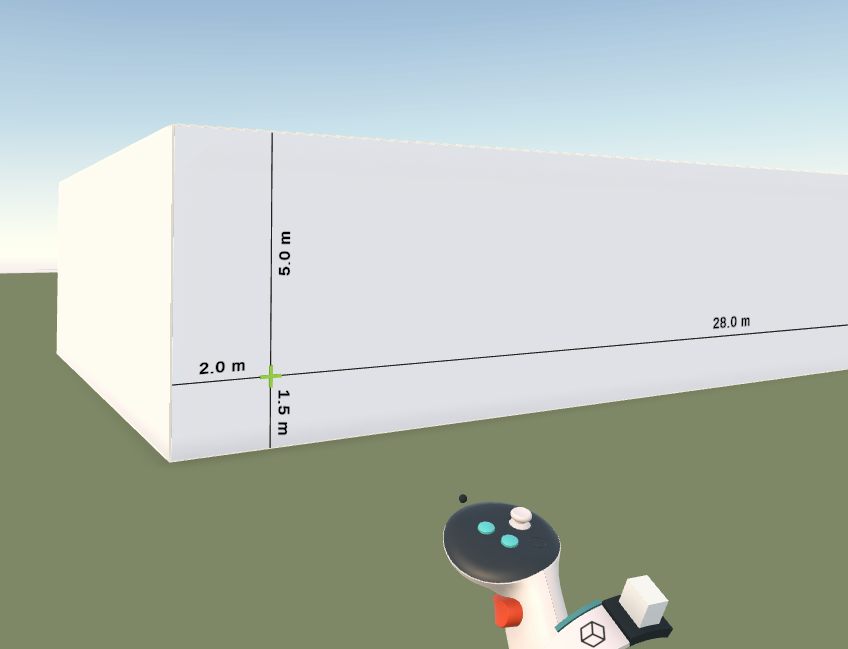
Hovering over a face with the create tool selected shows the distance from a point to all of its orthogonal edges. Pointing to a face, line or point with the edit tool shows the shape’s measurements and the dimensions of nearby shapes.
 | 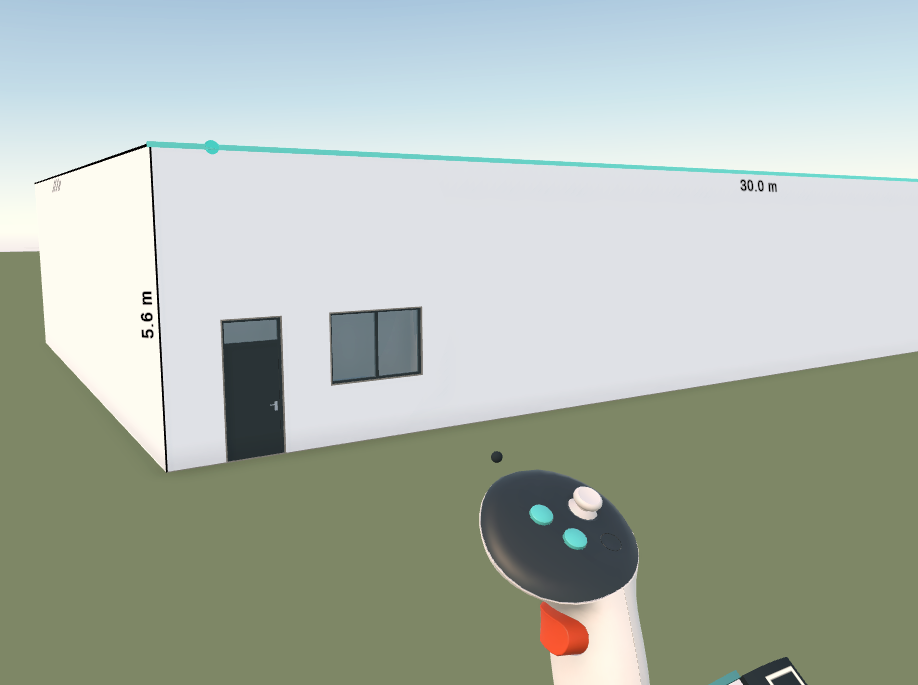 |
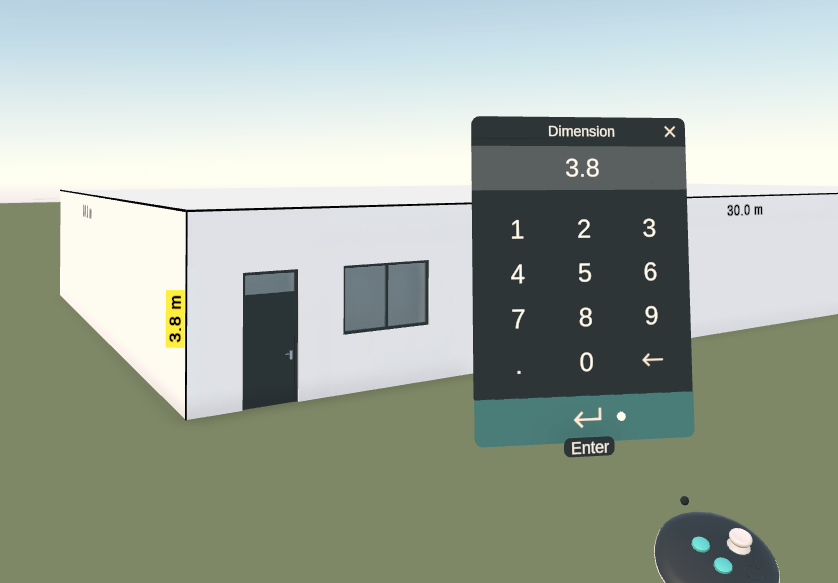
After you select something using the move or edit tool, the object's dimensions will remain in your scene, and you can update the sizes by selecting the dimension label with your laser or mouse and entering a new size.
Measure tool
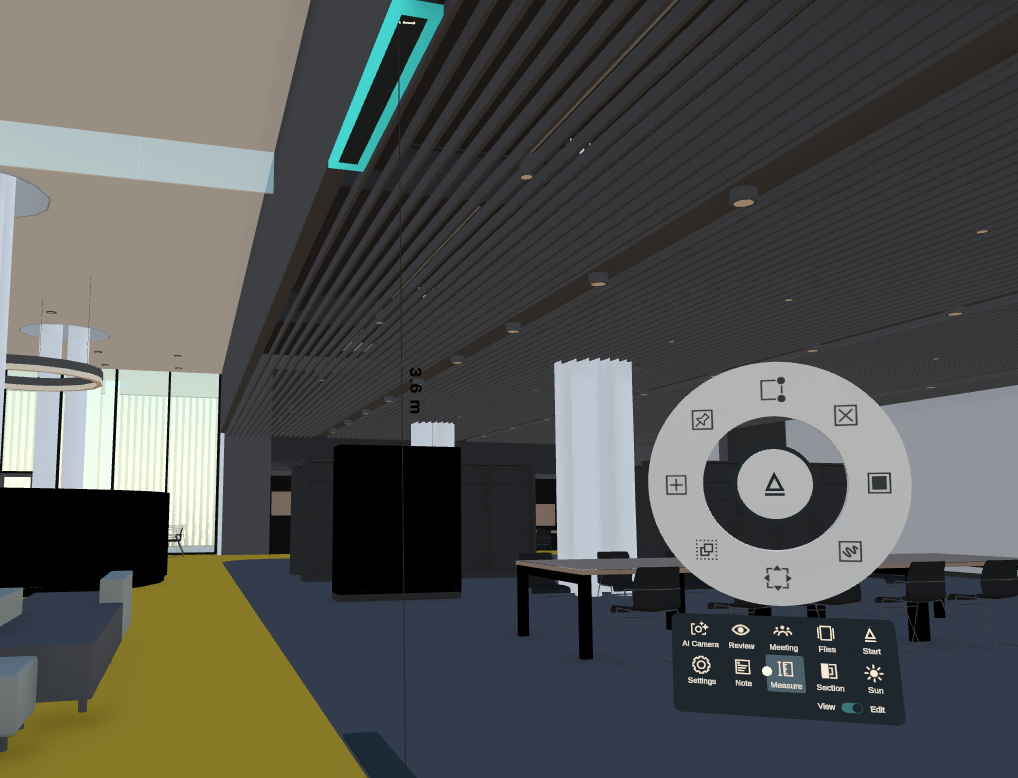
Using the measure tool, you can measure any arbitrary dimension in the model. This tool is pretty simple and is also used to show BIM data, so it’s often easier to use Arkio’s modelling feature to create interactable volumes at the size you need for your desired clearances and size tests.
You can place Arkio people and vehicles to already get a good sense of scale, or prototype the sizes of objects from Arkio’s primitive shapes and move them around to see things more clearly and to get an even better sense of the spaces and object sizes.
Was this helpful?
Still need help? Ask the team