Augmented Reality on iOS and Android
Written By Johan Hanegraaf
Last updated 24 days ago
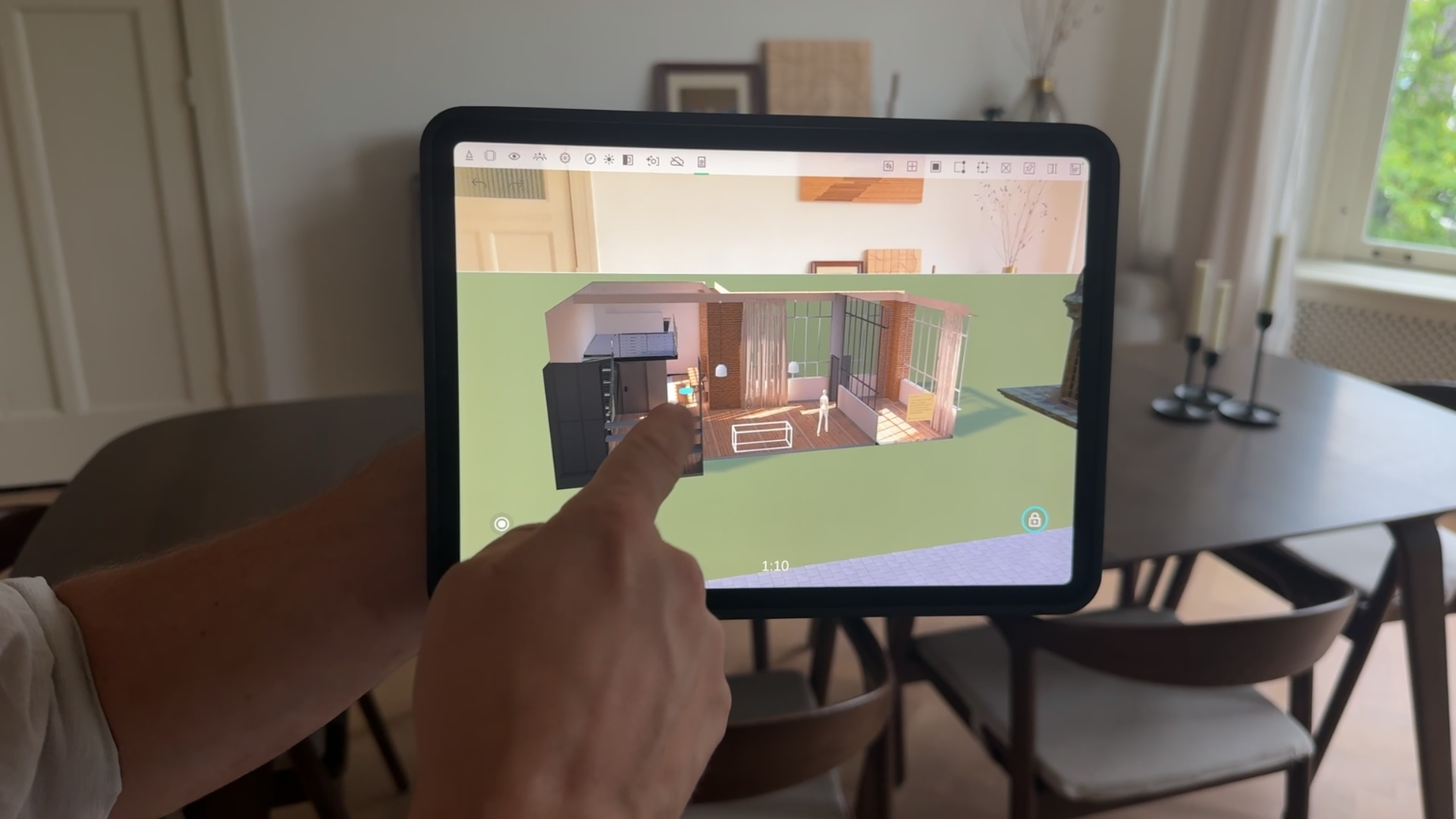
On mobile devices like iOS and Android phones and tablets, you can use Arkio in Augmented Reality to view your models as a scale model or 1:1 scale on any surface in the real world.
You can toggle AR mode using the AR icon at the top of your mobile toolbar. Once this mode is activated and camera access is accepted, you can point your device at a surface. This will display blue dots once your device detects* a surface. Tap once on these dots to place the Arkio scene in that position.
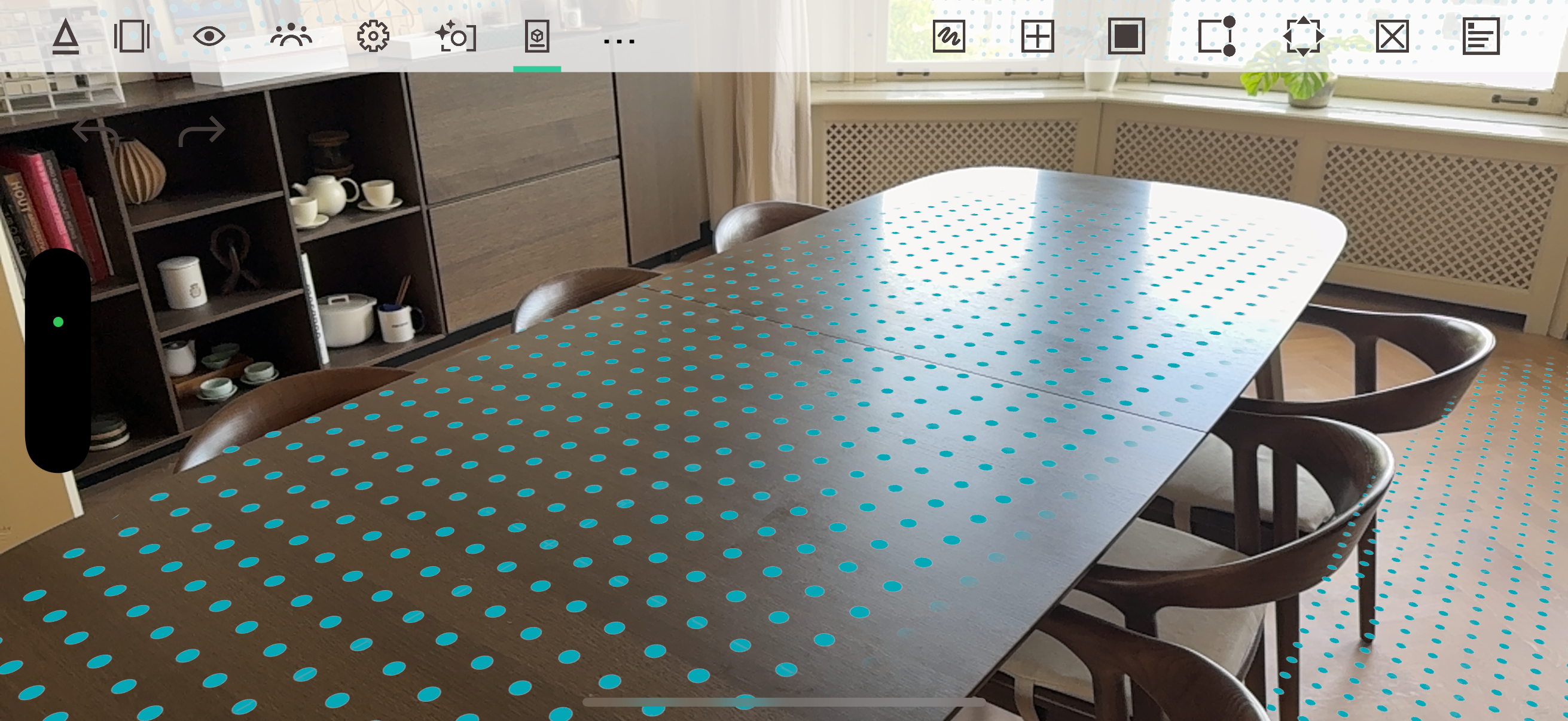
If you would like to reposition or rotate the model after placement, you can go into placement mode again from the bottom right corner. As long as this mode is active, your tools are deactivated until your scene is placed on the blue dots.
AR mode switching and persistence
If you click on the AR icon again, you will go back to 3D mode. The position of your model in AR is saved as long as the Arkio application is running. This means you can move between tools and view modes without losing your original AR alignment.
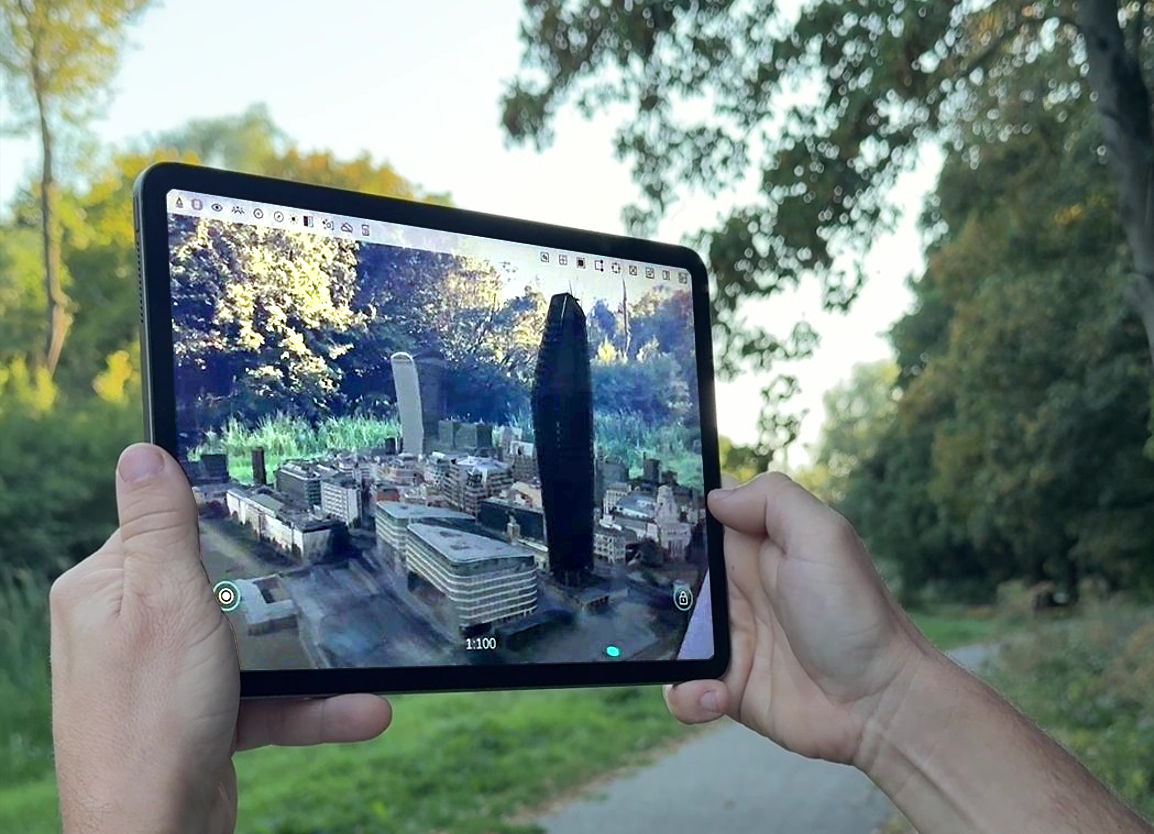
Arkio will also maintain your AR position when your device enters standby or when you switch back and forth between apps, allowing you to resume where you left off or share the device with others to explore the model.
Navigation in AR
AR placement controls give you more precise control over your model's position, scale, and orientation. The AR touchscreen navigation interactions are similar to Arkio in 3D mode.
Place, recenter, and lock your model using the icons above your thumbsticks
Adjust the placement height using the right thumbstick
Adjust the horizontal position by swiping with two fingers or using the left thumbstick
Scale the model by pinching with two fingers
Rotate the model using the orbit tool or by swiping one finger outside the model
Alignment and locking
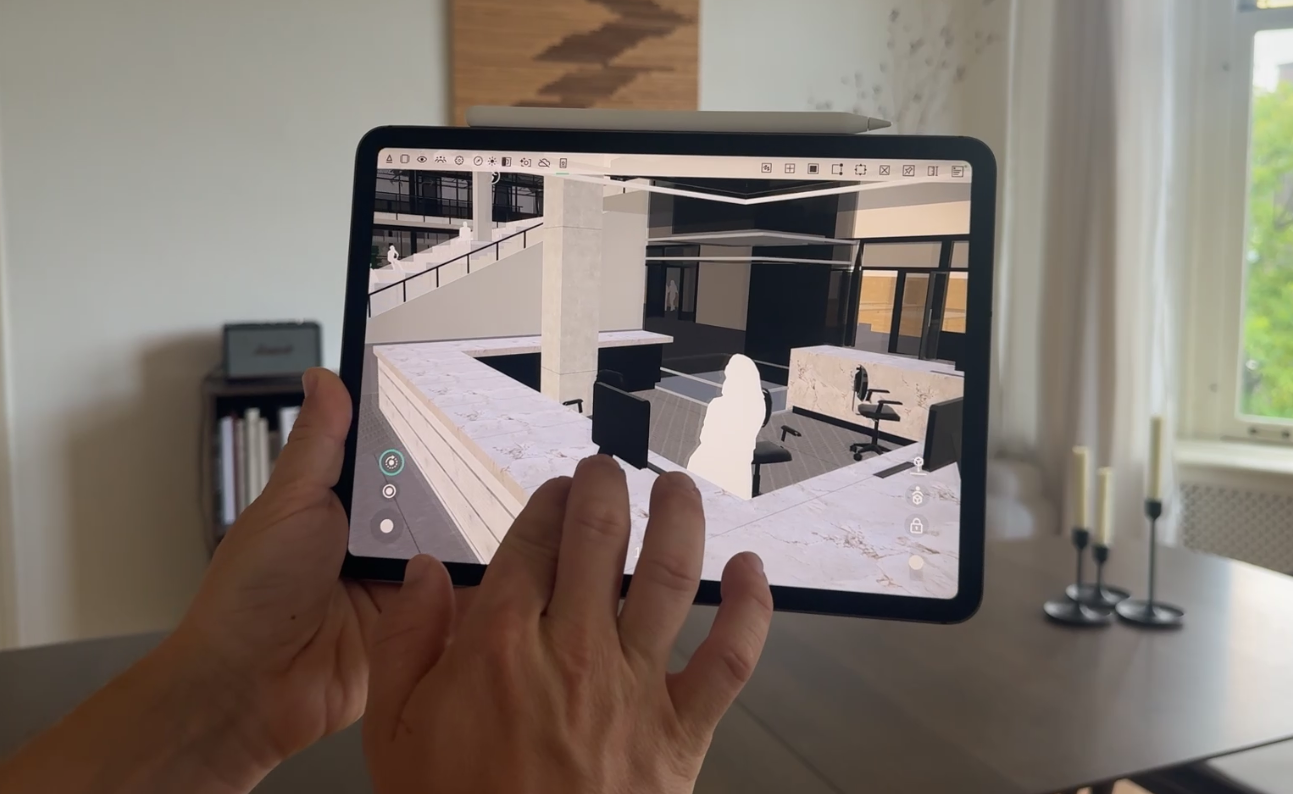
For the most accurate alignment at human scale, teleport to a location close to where you are standing in the real world using the Arkio map or other loaded context references.
Once inside the scene at 1:1-scale, you can fine-tune the model's position using the left thumbstick for horizontal adjustments and the right thumbstick for vertical adjustments. Using the orbit tool, you can start swiping from any point in the scene to rotate the building to a right angle. When everything is aligned, lock the model in place using the lock button on above the right thumbstick.
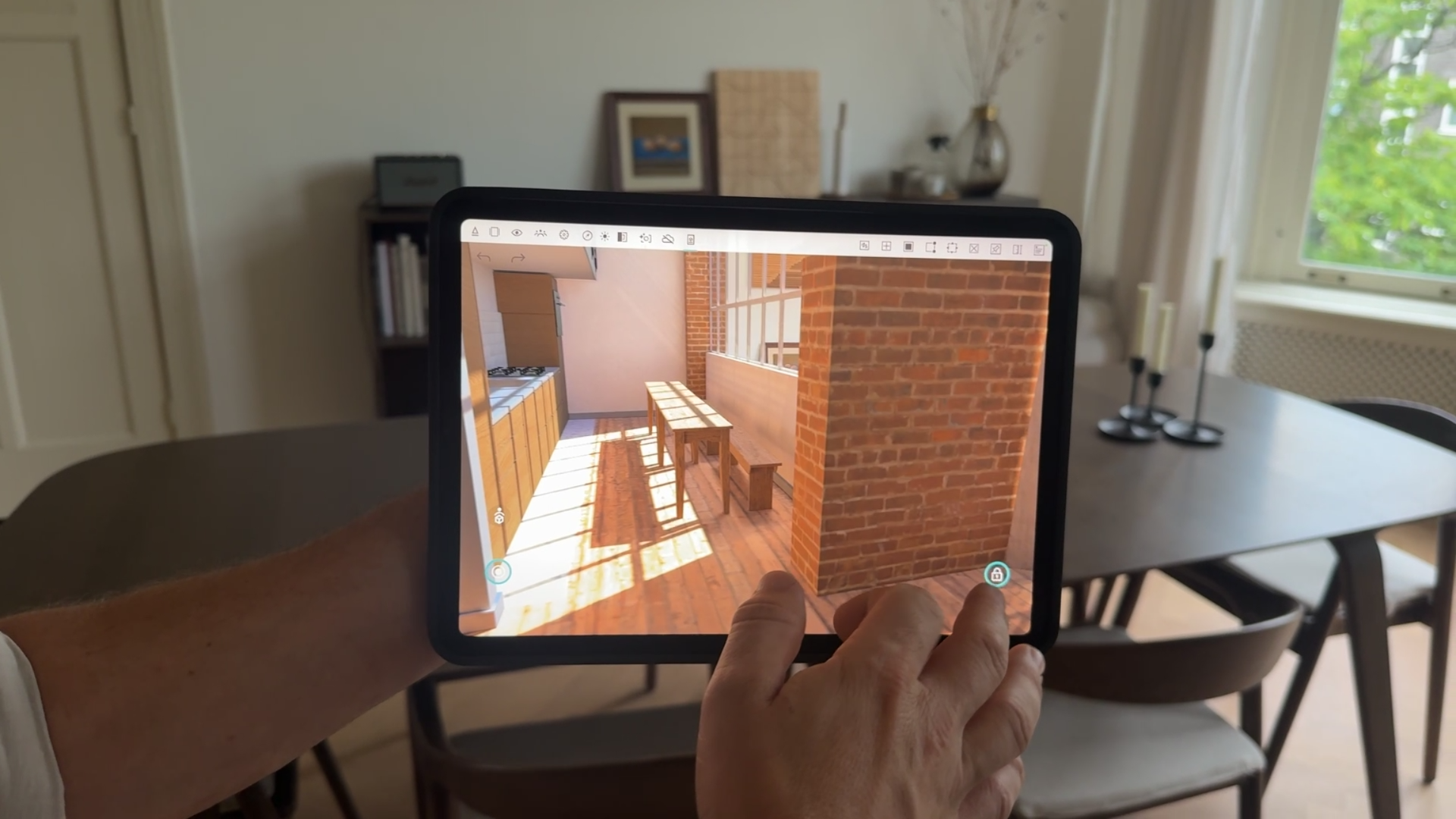
You can return to the scale model at any time using the new view reset button (top button above left thumbstick), then use your teleport markers to jump back to previously locked 1:1 positions.
AR editing
All of Arkio’s creation and editing tools are available in AR (experimental). You can start normal screen-based interactions and move your device around to help you reach the final position of your operation. We would love to hear your feedback on how you would like to use this.
*Devices that have a built-in LiDAR scanner, like the latest-gen iPhones and iPad Pros, offer better and faster tracking for AR. If you are using an older-gen device, it might take a while before your device discovers the tracking location.
Was this helpful?
Still need help? Ask the team