Steam VR controller bindings
Written By Johan Hanegraaf
Last updated 7 months ago
If you have issues with your VR controllers on your PC, Arkio might be starting up with the wrong VR runtime (Meta vs Steam), or you might be missing SteamVR controller bindings for a less common headset.
Meta Quest headsets
To run Arkio on your Meta Quest in PC VR mode, you can best use the Horizon Link Windows app on your PC to directly start Arkio using (air)link mode on your Quest from the Windows installer. When you use Arkio on Steam with third-party applications like Virtual Desktop, you may encounter startup and controller issues because the Steam installation uses SteamVR rather than Meta's runtime.
Custom controller bindings
If you are using a SteamVR-compatible controllers, you can customize or add any new controller bindings by clicking on Options>Devices>Controller Settings in the Steam VR dialog. Here, you can select Arkio, which will open a submenu where you can create your bindings or assign new ones from the community.
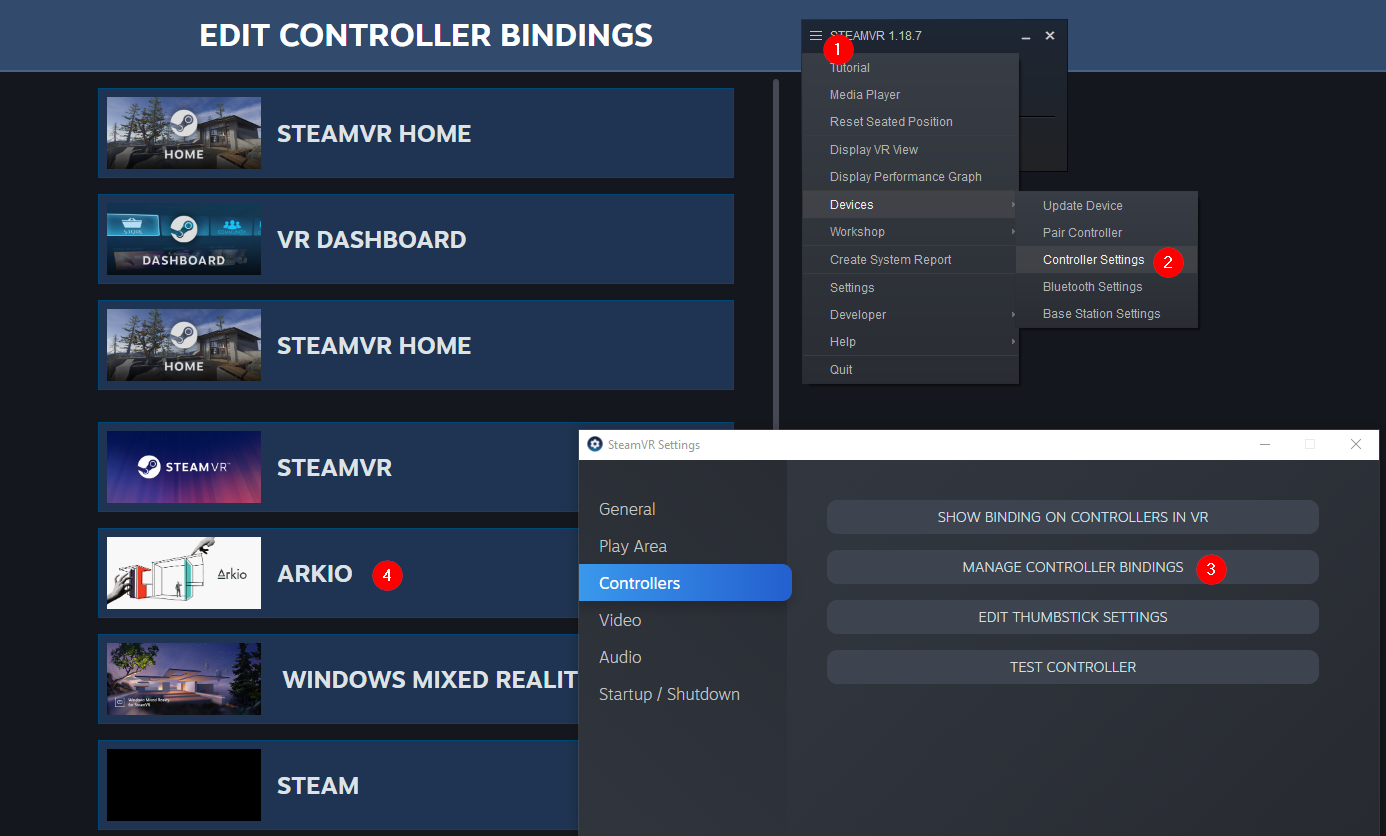
Adding new custom VR controllers to Arkio
If your controllers are not responding correctly in SteamVR and Arkio, it might be because they are not yet supported. You can fix this issue (and help others with the same device) by assigning the correct controller bindings in SteamVR.
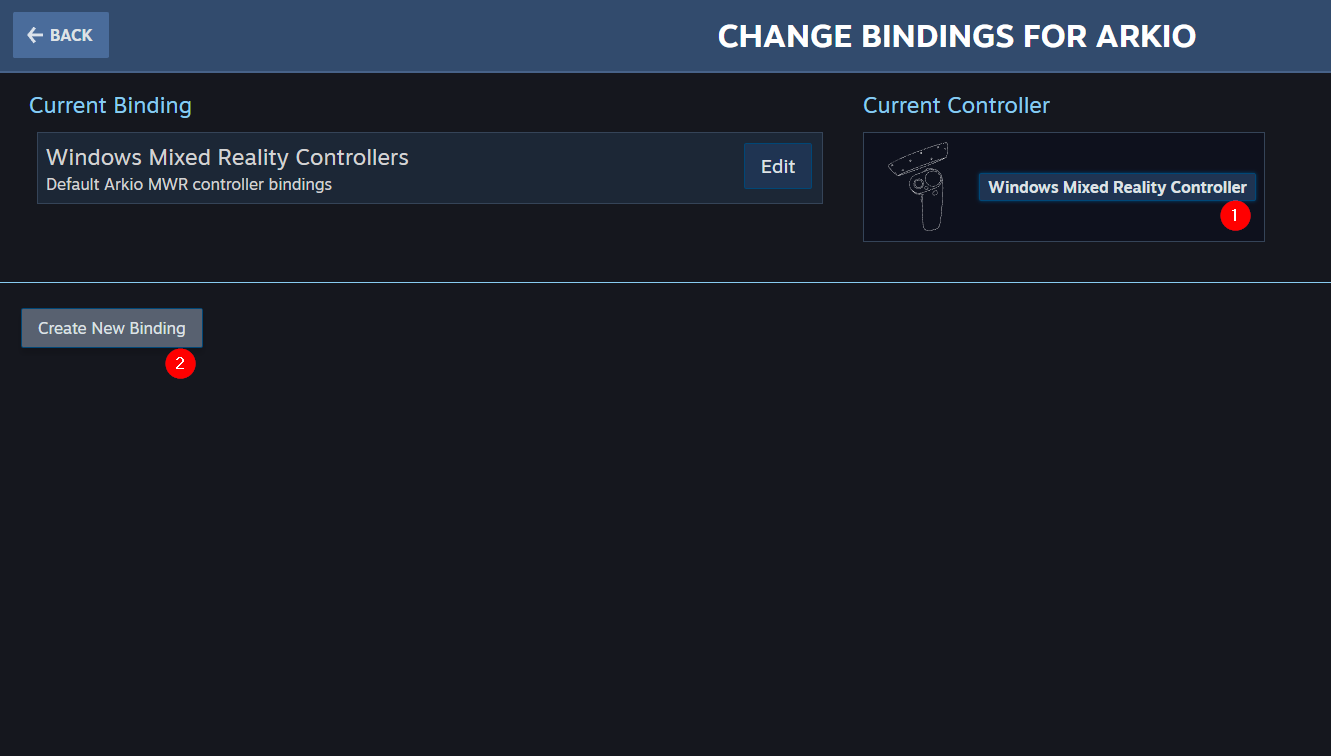
To get started, you open the controller binding menu following the first step in the Oculus Guide. Then you select the correct controller you like to edit from the "current controller" list and create a new binding.
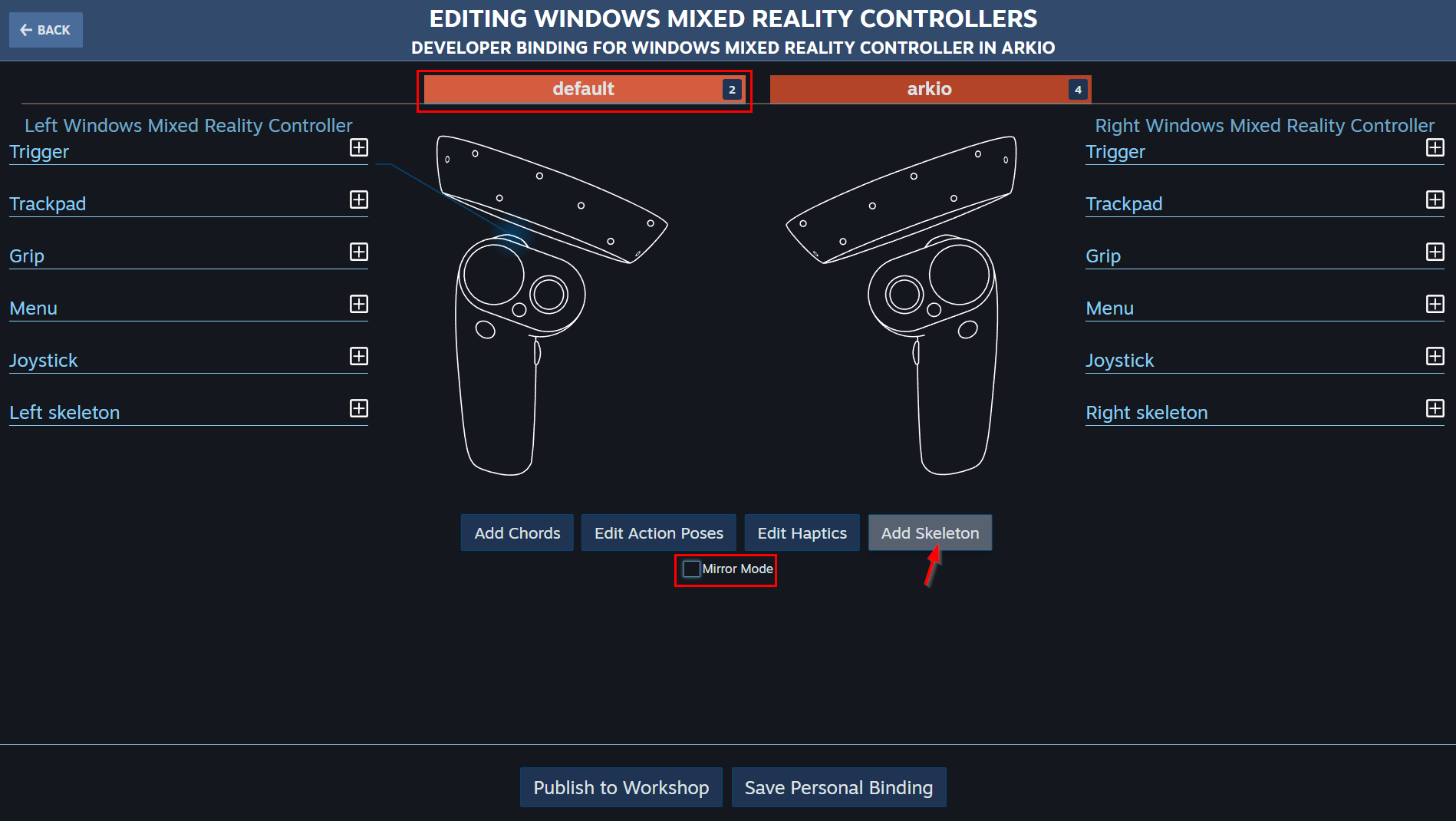
We'd first need to add the missing skeletons to the correct left/right controller in the default tab. You can uncheck mirror mode and press the add skeleton button to access this menu.
After you correctly assign the left and right hands to the controllers, you can close this menu and open the Arkio tab to assign the specific buttons for Arkio. On the left, you see the buttons available on your controller. New actions can be added to these buttons using the + symbol.
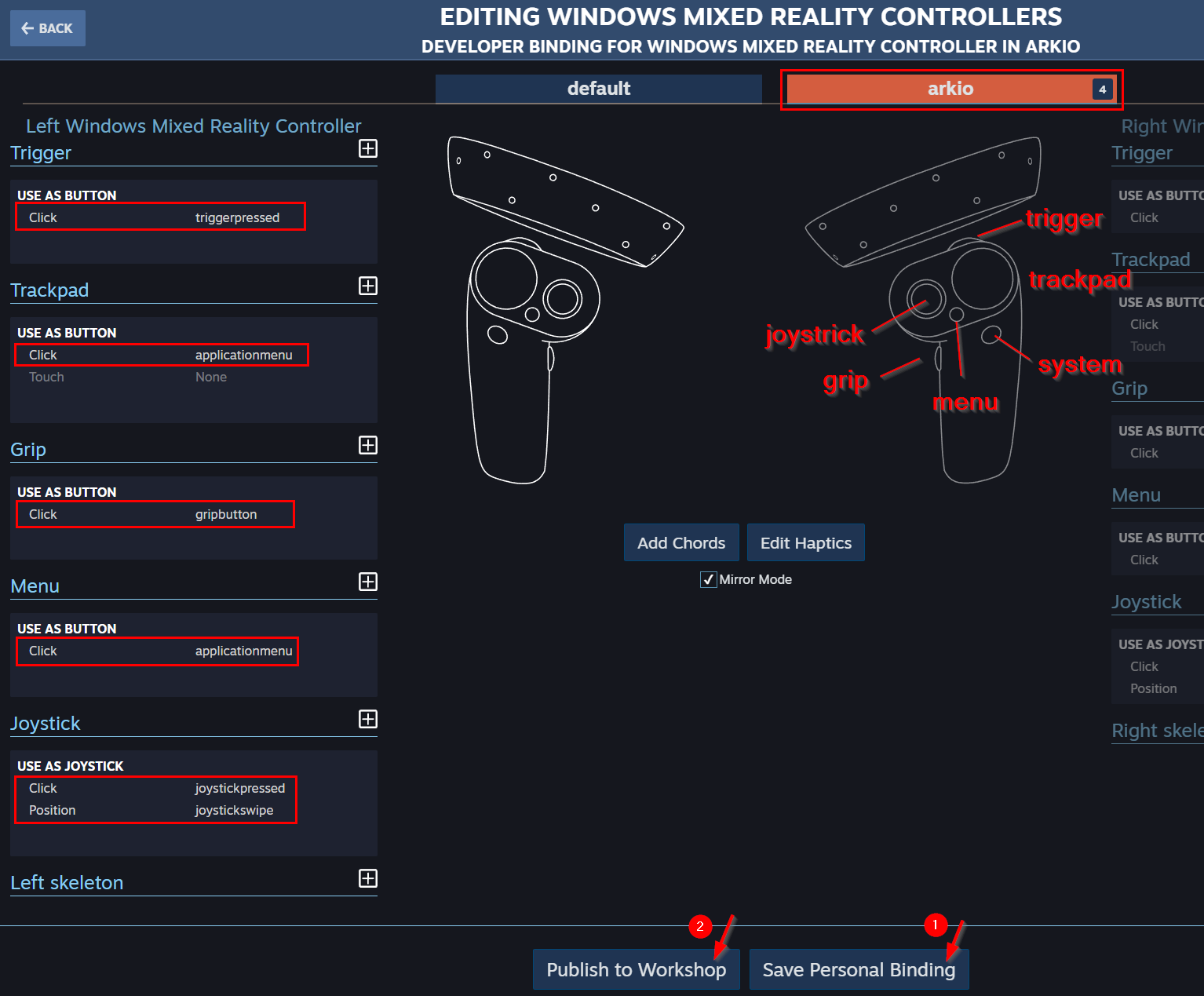
Most of the operations in Arkio are driven by simple button operations, so selecting "Button" would already give you a list of all the available Arkio operations with the correct name. In the above preview, you can find all the correct controller buttons assigned to a WMR controller.
The "applicationmenu" buttons in Arkio are used for our Quick menu and duplicate operations and can be assigned to all the extra buttons that you have available next to your trigger and grip button.

To assign a Joystick or Dpad, you can use the top two categories. Both inputs require a click-and-position operation. Once you are done and have added all the above operations to the correct buttons, you can save the controller bindings locally (for yourself and different configurations), and you can also help others in the community who have the same VR device by sharing these bindings with them.
We'd also love to hear from our users who made suggestions/additions to any controller bindings in Steam VR, so we can include them in the official release of Arkio. We appreciate the help and would love to learn more about your controllers so we can add the correct bindings to future releases of Arkio on SteamVR.
Was this helpful?
Still need help? Ask the team