Navigation
Written By Johan Hanegraaf
Last updated 4 months ago
In Arkio, there are several ways to navigate your environment, using VR and Mixed Reality headsets.
XR headsets
Move your body - the most natural way to get around is to move your head and body. This is a fun way to explore your designs, whether as a scale model or at a human scale. While moving your head, the passthrough image might blend in as a safety measure for boundaryless mode. You can move a bit slower or switch to full-passthrough mode on your wristband to avoid this effect.
Teleport - You can teleport by pressing the dominant hand thumbstick forward. This teleports you to the target and changes your scale to human scale (1:1). Teleporting into the sky will put you back to your previous god scale. It's possible to teleport through vertical planes in Arkio to allow you to teleport inside buildings. We're also looking into adding a dedicated fly mode in Arkio in upcoming updates for users who want an alternative way to navigate.
Fly mode - Using your non-dominant hand thumbstick forward or backward will activate fly mode, gradually moving you in the direction your head is facing. Your flying speed adjusts to your scale in VR, providing a comfortable way to explore your designs at different scales.
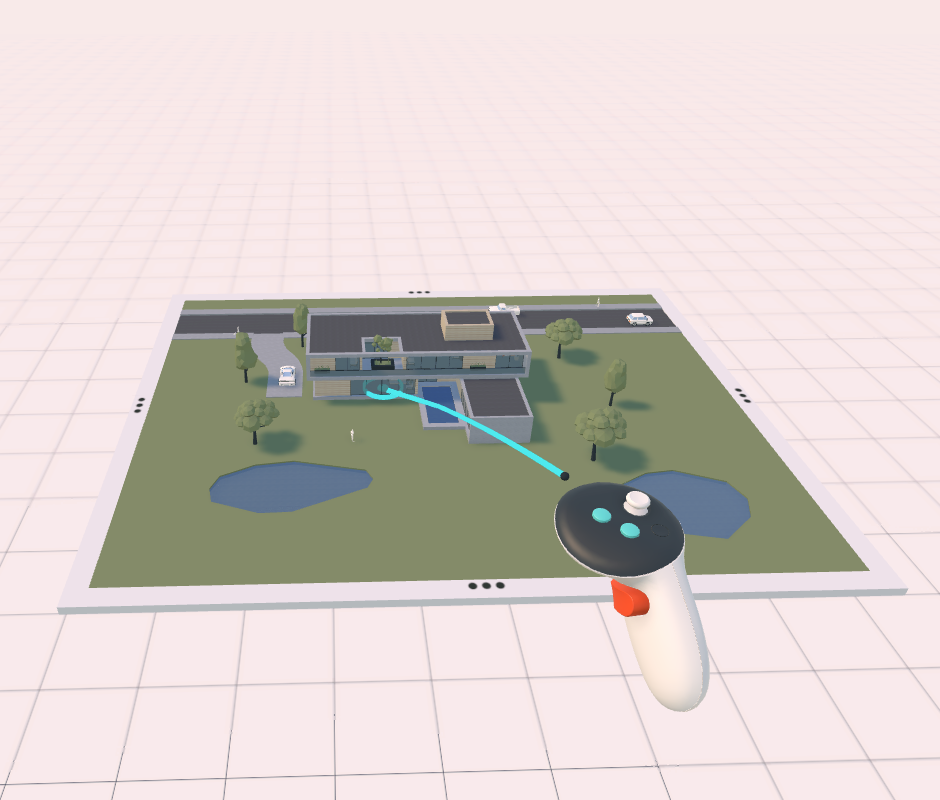 | 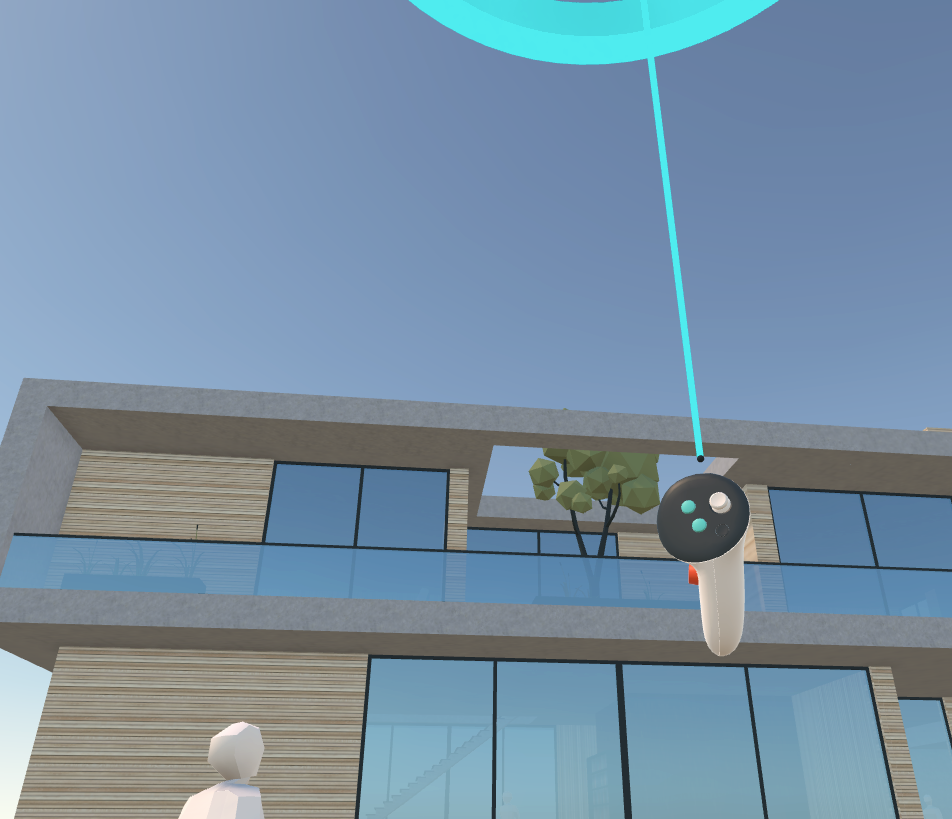 |
Panning - To pan the scene, you must hold the grip button on one controller. Moving the controller corresponds to moving the world. Briefly grabbing and switching between two controllers, like a “ski pole” movement, is a great way to move yourself through the world. Momentum is preserved while panning, so if you let go while panning, throw yourself somewhere and slowly drift to a halt.
Scaling - To scale the scene, hold the grip button on both controllers simultaneously, then move your hands together or apart. You will see a white line connecting the controllers with a scale indicator. And should feel your scale change physically. The scale will automatically snap when nearing an architectural model scale (1:10, 1:50, 1:100, 1:500, 1:1000).
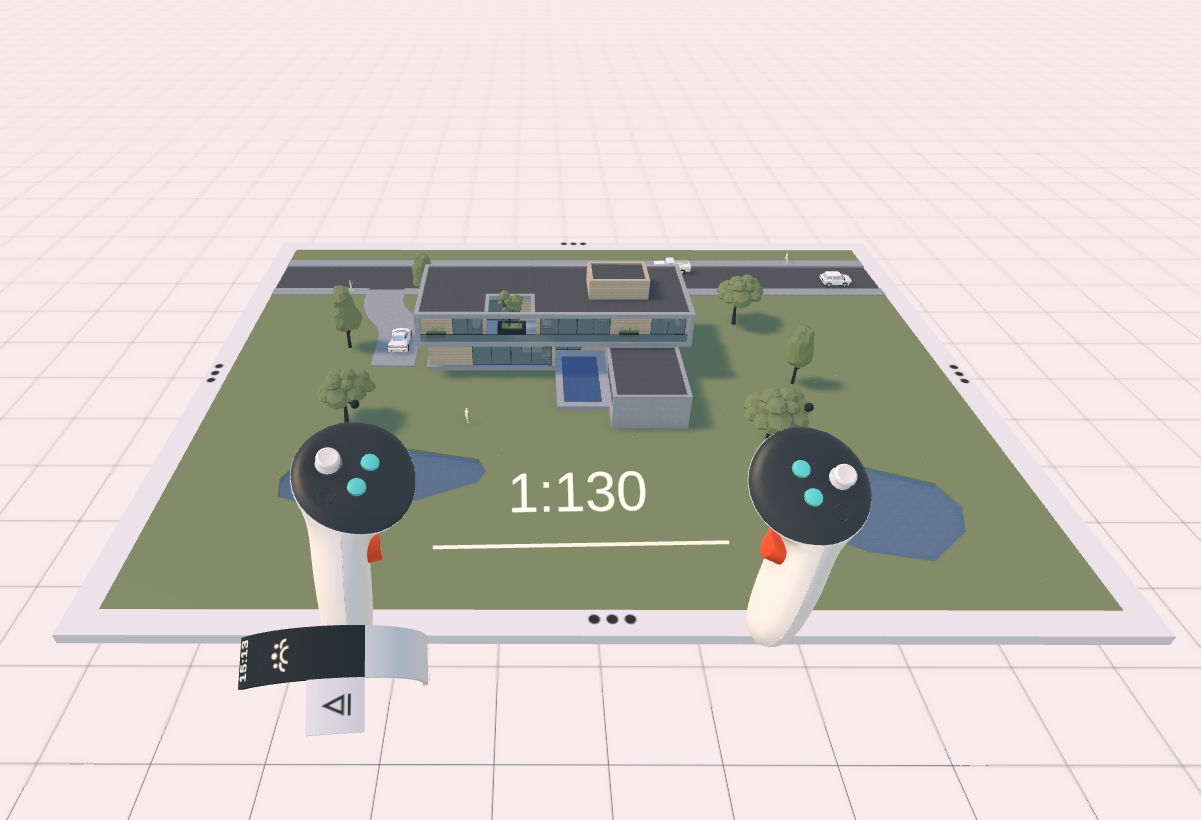 | 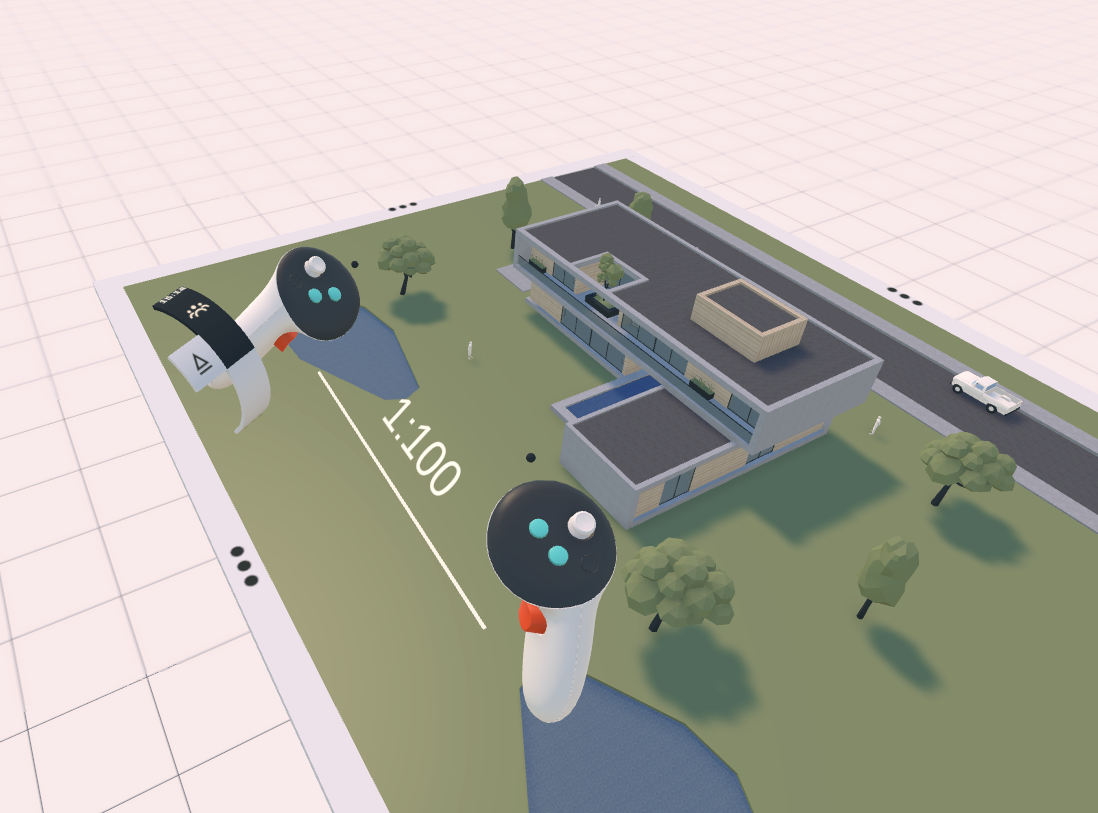 |
Rotating - To rotate the model, hold the grip button on both controllers simultaneously. You will see a white line connecting the controllers with a scale indicator. Rotating the controllers horizontally rotates the world around them accordingly.
Non-VR navigation
Arkio non-VR navigation is similar to other 3D tools. You can use the mouse scroll wheel and touch gestures to zoom and pan. Click or touch and drag on the Arkio table and UI to activate tools and work with the file.
Panning - You can pan anywhere in the scene using your middle mouse button or by dragging two fingers on your touchscreen
Zooming - You can zoom using your mouse scroll wheel or by pinching two fingers on your touchscreen. Your mouse or finger hit will be used as the zoom/orbit target. Based on your distance from the hit surface in Arkio, zooming and orbiting will be adjusted to make navigation easier.
Orbiting - Use your right mouse button anywhere in the scene, or swipe or click the left mouse button on the sky or the white ground to fall back to an orbit, no matter what tool is selected. You can also select the Orbit tool from the bottom left corner to allow orbiting from all surfaces in the scene using your left mouse button, or by swiping on your touchscreen.
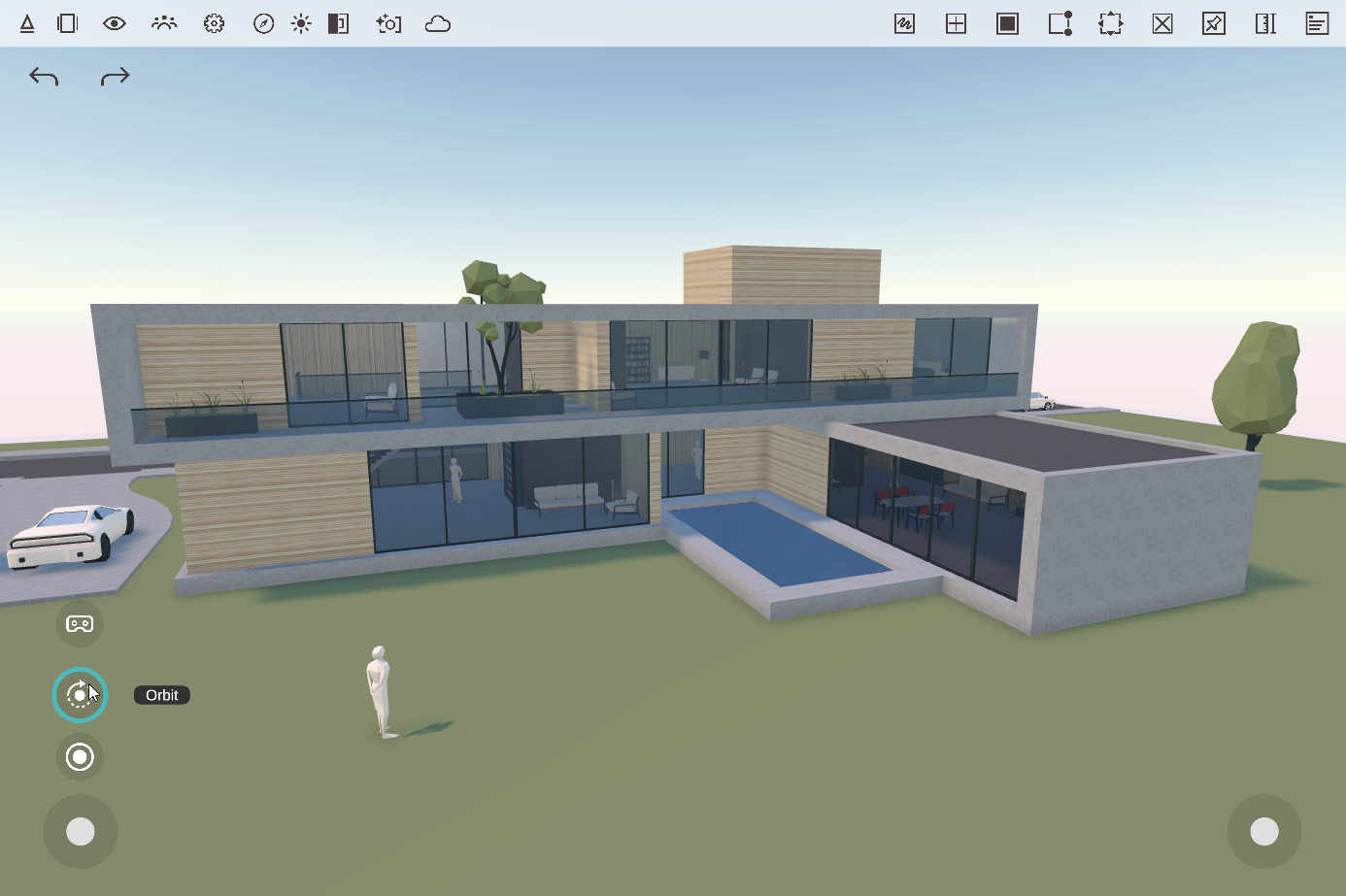 | 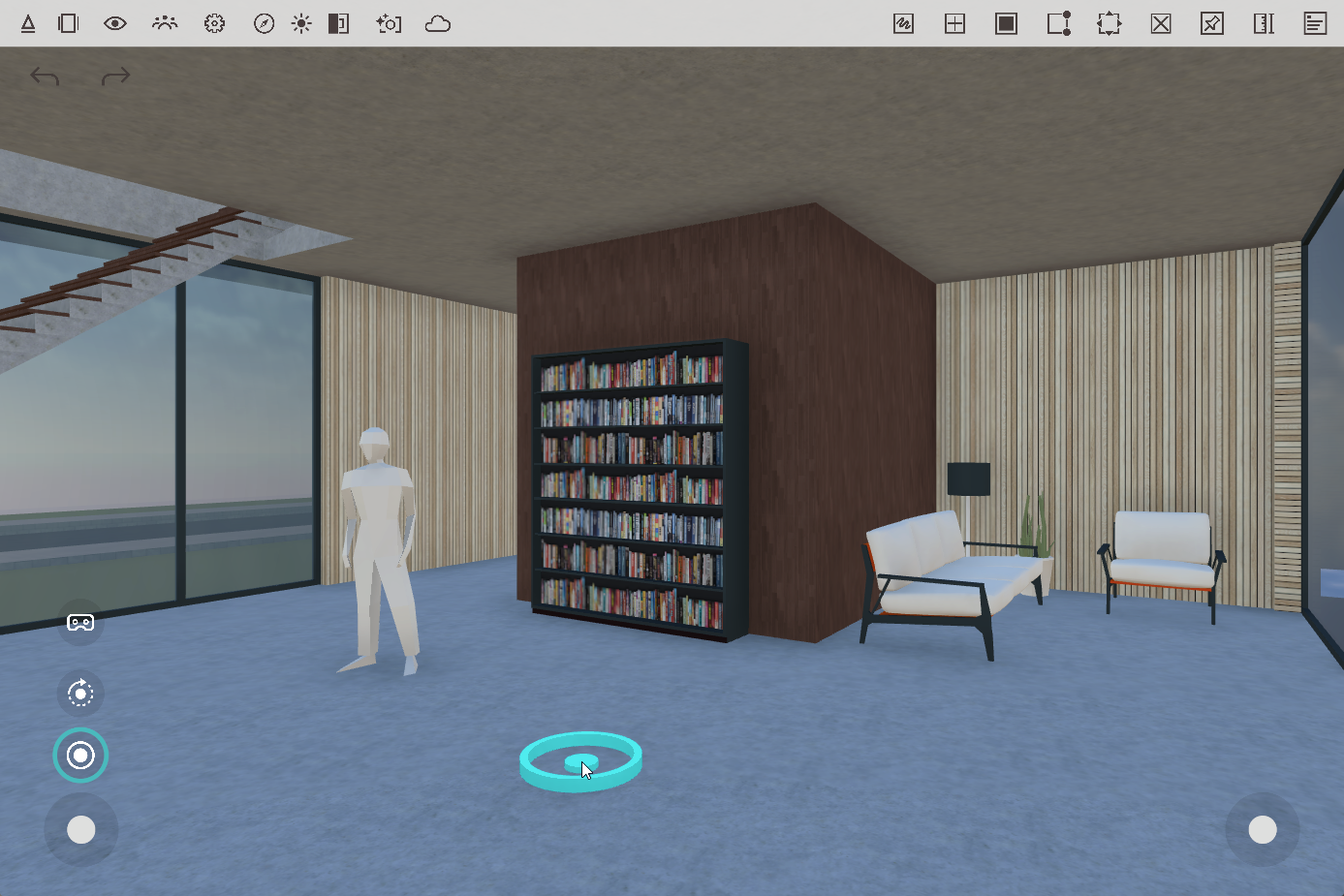 |
Teleporting - Using the teleport tool in the bottom-left corner lets you teleport anywhere in the scene at human scale (similar to VR navigation) with your left mouse button or by tapping on your touchscreen.
Looking around - In teleport mode, your right-mouse-button navigation switches from orbiting to looking around, making it easier to walk inside your spaces. On touchscreens, you can use the left thumbstick to move around and the right thumbstick to look around.
First-person controls - Using the WASD keys on a PC, you can walk around the scene in first person. You can hold the Shift key to move faster and use the Q and E keys to move up and down.
Was this helpful?
Still need help? Ask the team