Arkio Web plans and legacy 2.3 licenses
Buy and manage Arkio Web plans, and find help for existing Arkio 2.3 license keys and App Store purchases.
Written By Johan Hanegraaf
Last updated About 2 hours ago
Arkio has two licensing systems during the transition to 3.0: account-based plans for Arkio Web and legacy license keys or in-app purchases for the installed Arkio 2.3 apps. New Arkio Web plans bought on our website do not activate Arkio 2.3.
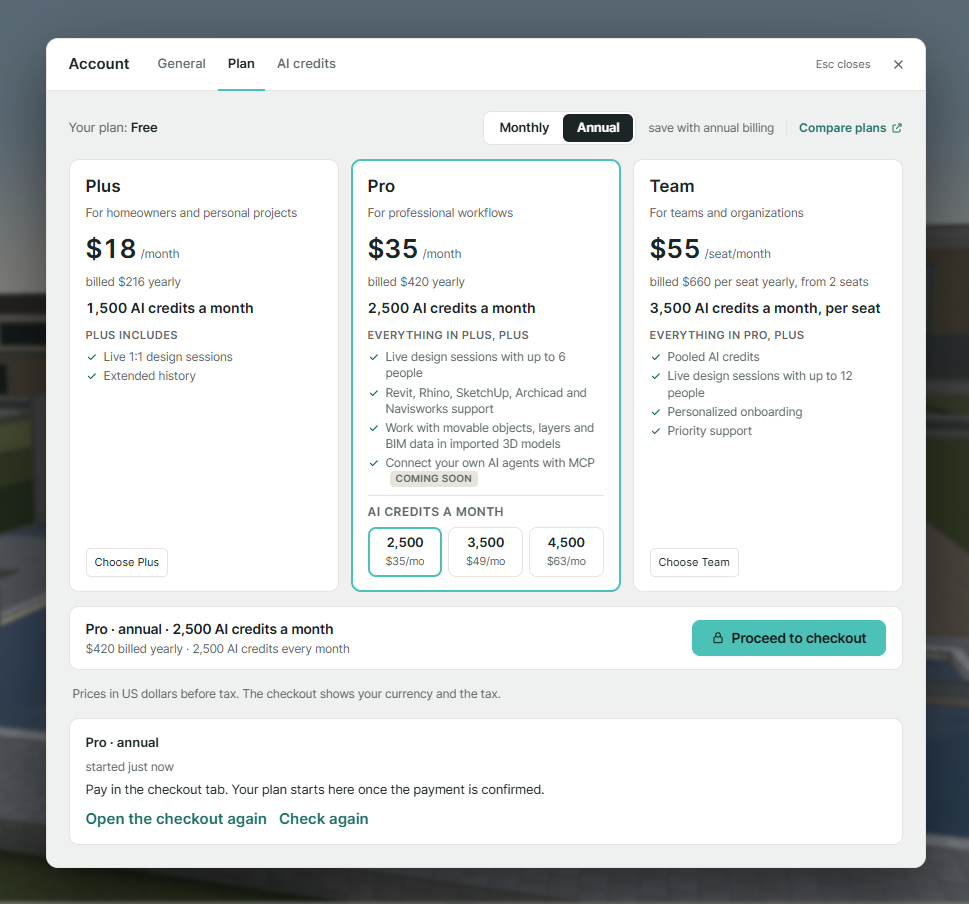
Buy an Arkio Web plan
Visit the Arkio Web pricing page to compare Plus, Pro, and Team, and select a plan.
Sign in to Arkio Web with the account you want to use for the purchase.
Choose the available billing, AI credit, and Team seat options, review the order, and complete checkout.
Return to Arkio Web and check your plan in Account.
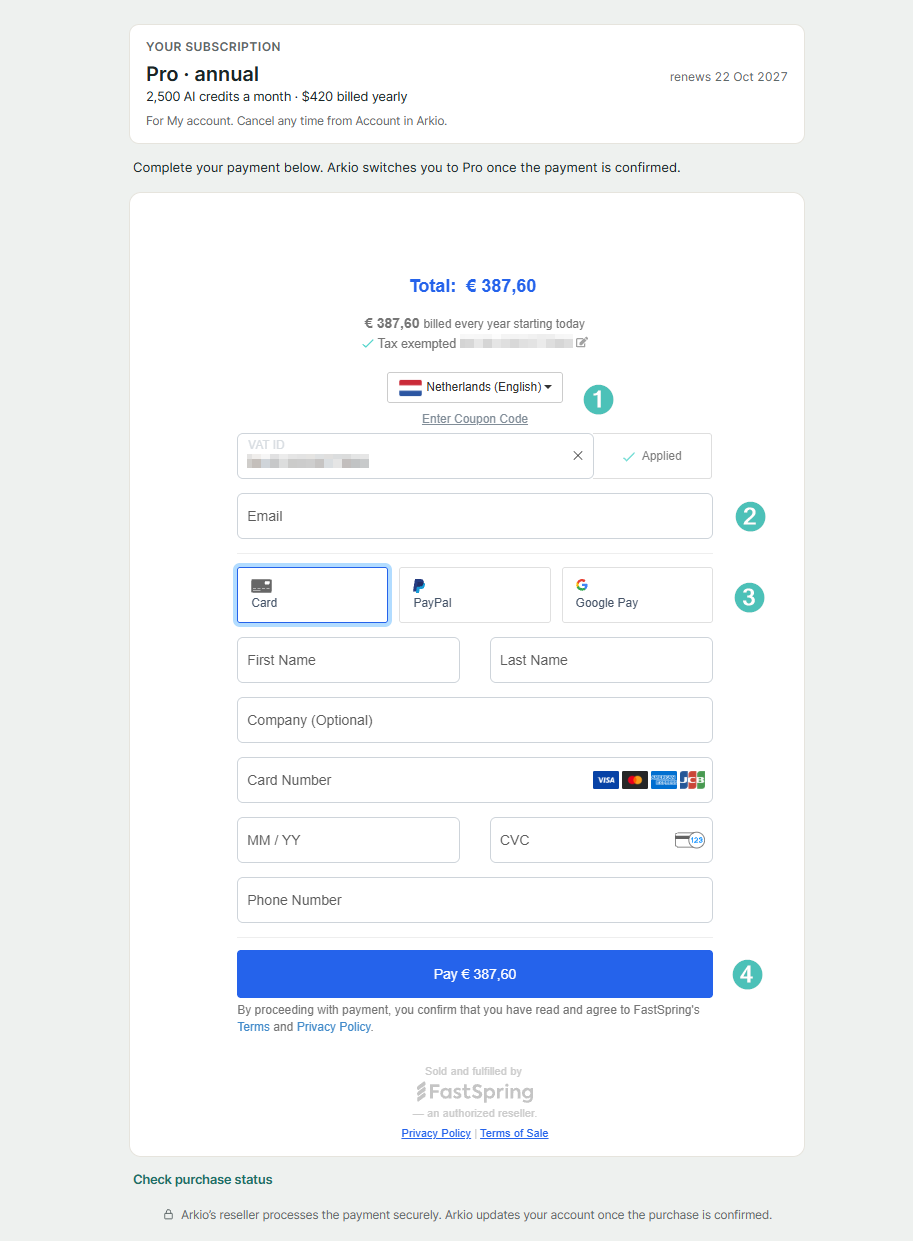
On the checkout page, you can:
Enter any applicable tax-exemption details or a coupon code you received from us.
Check the billing email address for your order confirmation.
Enter your payment details.
Review the order and complete checkout.
After a successful payment, you will receive an order confirmation at the billing email address entered at checkout.
Web plans and AI credits are linked to the Arkio account you were signed in to when you started checkout. Changing the billing email does not transfer the purchase to another Arkio account. Web plans are not activated through the Settings > License panel in Arkio 2.3.
Manage an Arkio Web plan
In Arkio Web, click your email address or credit balance at the bottom of the sidebar to open Account. Manage your plan and billing there. For a Team subscription, the account owner handles purchases and billing.
For AI balances, additional packs and monthly allowances, see AI credits and your work. If a completed purchase is not reflected in your account, contact support@arkio.is with your order reference.
Existing Arkio 2.3 license keys and purchases
Existing legacy license keys and in-app purchases continue to work while we roll out Arkio 3.0 to the other supported devices. The order-confirmation example below helps you identify an existing legacy purchase.
Legacy subscriptions were offered with monthly or annual billing. Check your original order confirmation for the details of your subscription.
Your original legacy order confirmation contains the license code (1), a link to manage the order (2), and a link to its invoice (3). These codes are for the installed Arkio 2.3 apps.
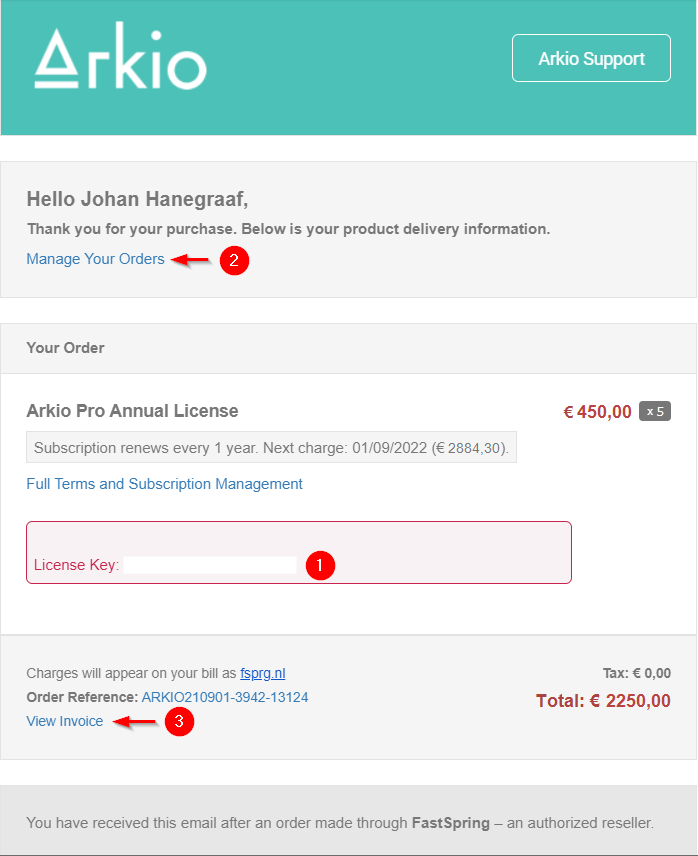
An existing legacy Pro key can be activated on up to two devices. A legacy Enterprise key uses floating seats and can be assigned to multiple devices within your organization. To enter a key, see Adding a legacy license to Arkio 2.3.
Manage or cancel a legacy subscription
For an existing legacy subscription bought through our website, use the legacy subscription portal or the management link in your original order email. For a purchase through Meta or Apple, manage it in the relevant App Store subscription settings.
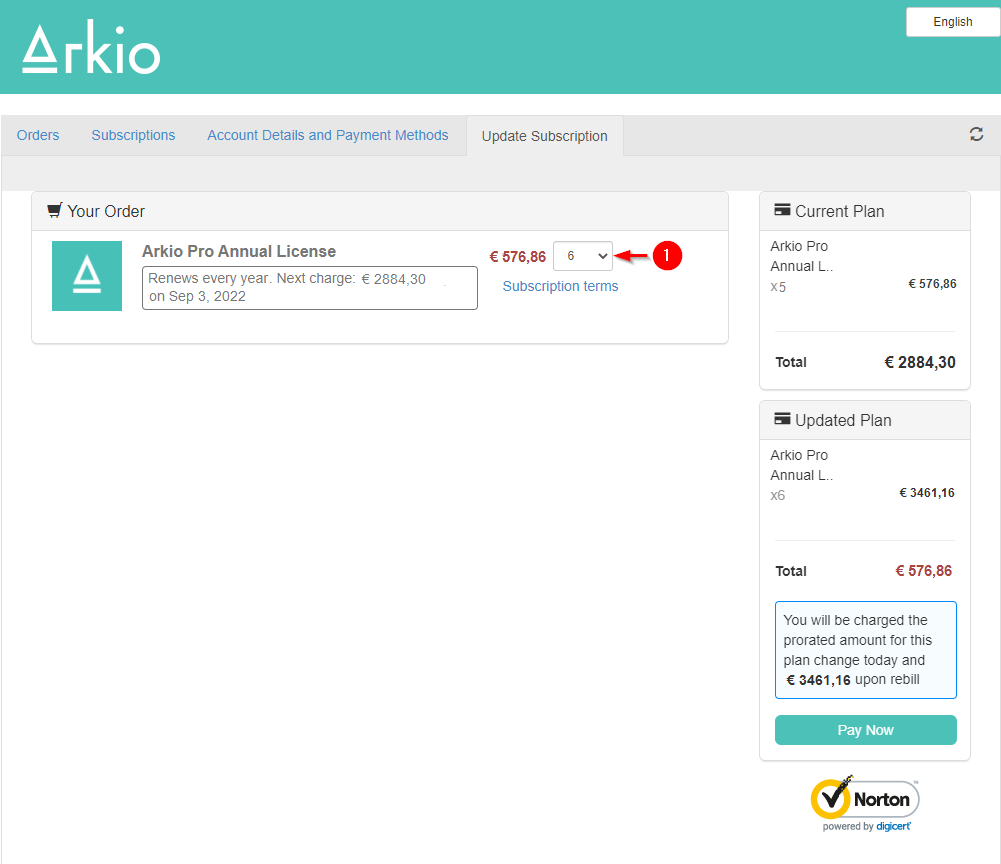
Sign in to the legacy portal with the email used for the original purchase, then select the relevant order to view invoices, update billing information or manage the subscription. If the portal offers an upgrade to a legacy floating license, review the additional seats and charge before confirming. This manages the existing 2.3 subscription; it does not create an Arkio Web Team plan.
If you cancel a legacy subscription, you will no longer be charged for its next term, and the subscription license expires at the end of the current term. We do not offer refunds on subscriptions. For questions about your existing purchase or the transition to Arkio 3.0, contact support@arkio.is.
During the transition to Arkio 3.0
Your existing legacy key or in-app purchase continues to work in Arkio 2.3 during the rollout. A new Web subscription is not a replacement activation key for those apps. For downloads and current platform information, see Arkio 2.3 apps and transition information.
Was this helpful?
Still need help? Ask the team