Model and edit in Arkio Web
Written By Johan Hanegraaf
Last updated About 2 hours ago
Use Arkio's modeling tools to build a design yourself or refine a scene created by the AI agent. Manual edits and agent changes work on the same model.
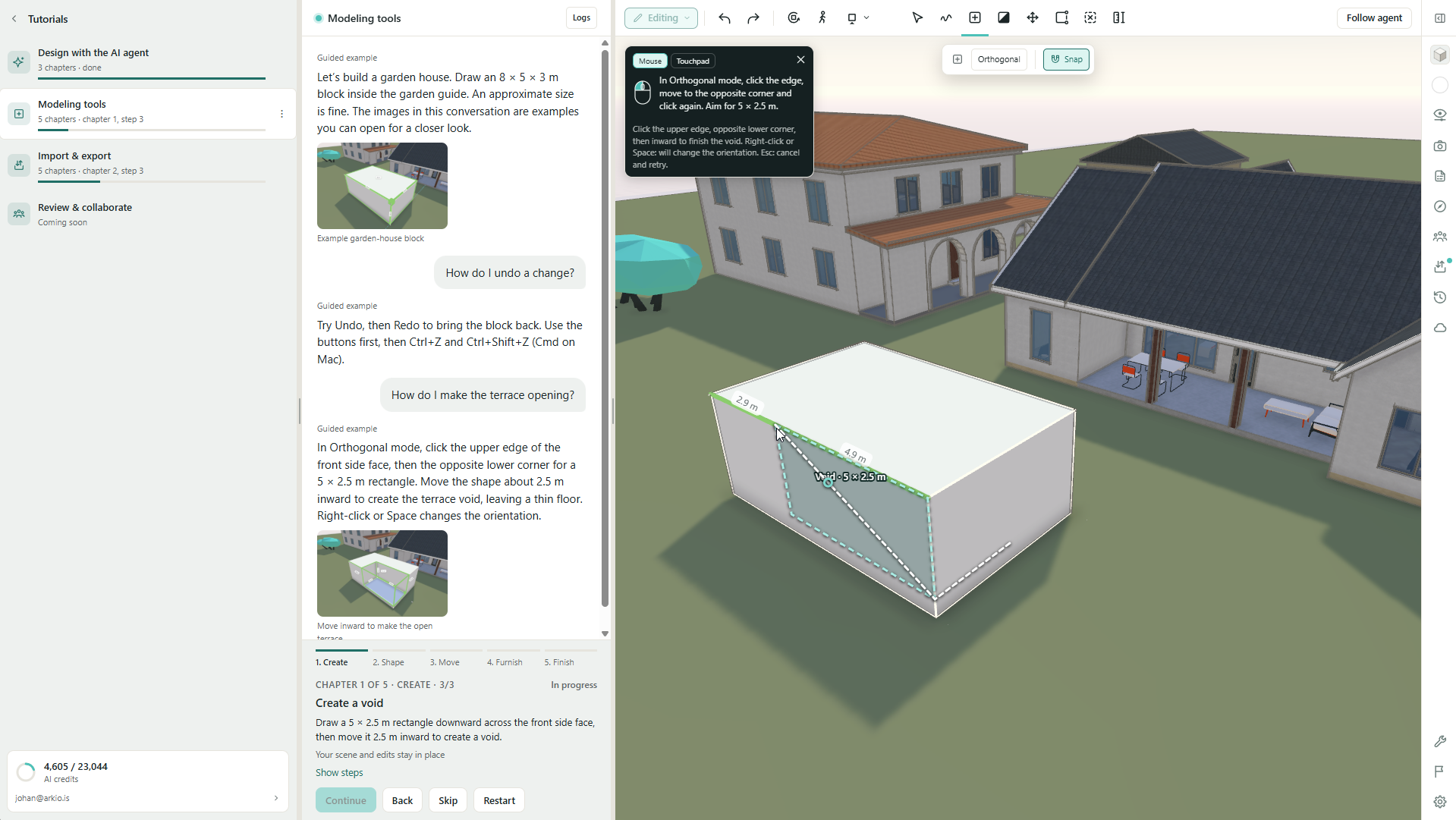
Open a scene you can edit. For a guided introduction, choose Tutorials → Modeling tools. The tutorial takes you through a garden pavilion, furniture placement, and materials.
Choose a tool
Select a tool above the scene. Its available modes and controls appear with it; follow the on-screen hints while creating or adjusting an object.
Create: Draw geometry or place a component from the Create library.
Select: Select objects for grouping, pinning, and other selection actions.
Move: Reposition objects or switch to Copy.
Edit: Adjust faces, edges, and corners.
Paint: Apply a material to a whole solid or an individual face.
Measure: Check distances in the model.
Create a shape
Choose Create and select a primitive, such as a cube, from the library.
Click to start the shape and follow the placement hints to define its footprint and height. The surface you start from affects the drawing plane.
Use the visible dimensions and snapping guides to judge its size.
Finish the shape, then inspect it from another angle.
Start with the main volumes and openings before adding furniture or small details. Use Undo to remove an unwanted step and Redo to bring it back.
Shape space with solids and voids
Solids add built form; voids remove space from Arkio geometry. Overlapping them lets you create openings, recesses, and courtyards. You can continue moving or reshaping the geometry as the design develops.
Try a simple terrace opening:
Create a rectangular block approximately 8 × 5 × 3 metres.
With Create in Orthogonal mode, start a rectangle on the block's front face. Leave some material around the opening and a thin floor below it.
Extend the new shape inward into the block to create a void, stopping before the back face.
Inspect the recess from the front and side. Use Edit to adjust its size or depth.
The Modeling tools tutorial demonstrates this exercise with placement guides. Begin with Arkio-created shapes for this exercise; imported models are reference geometry and do not behave like editable Arkio solids.
Boolean overlaps and supported objects
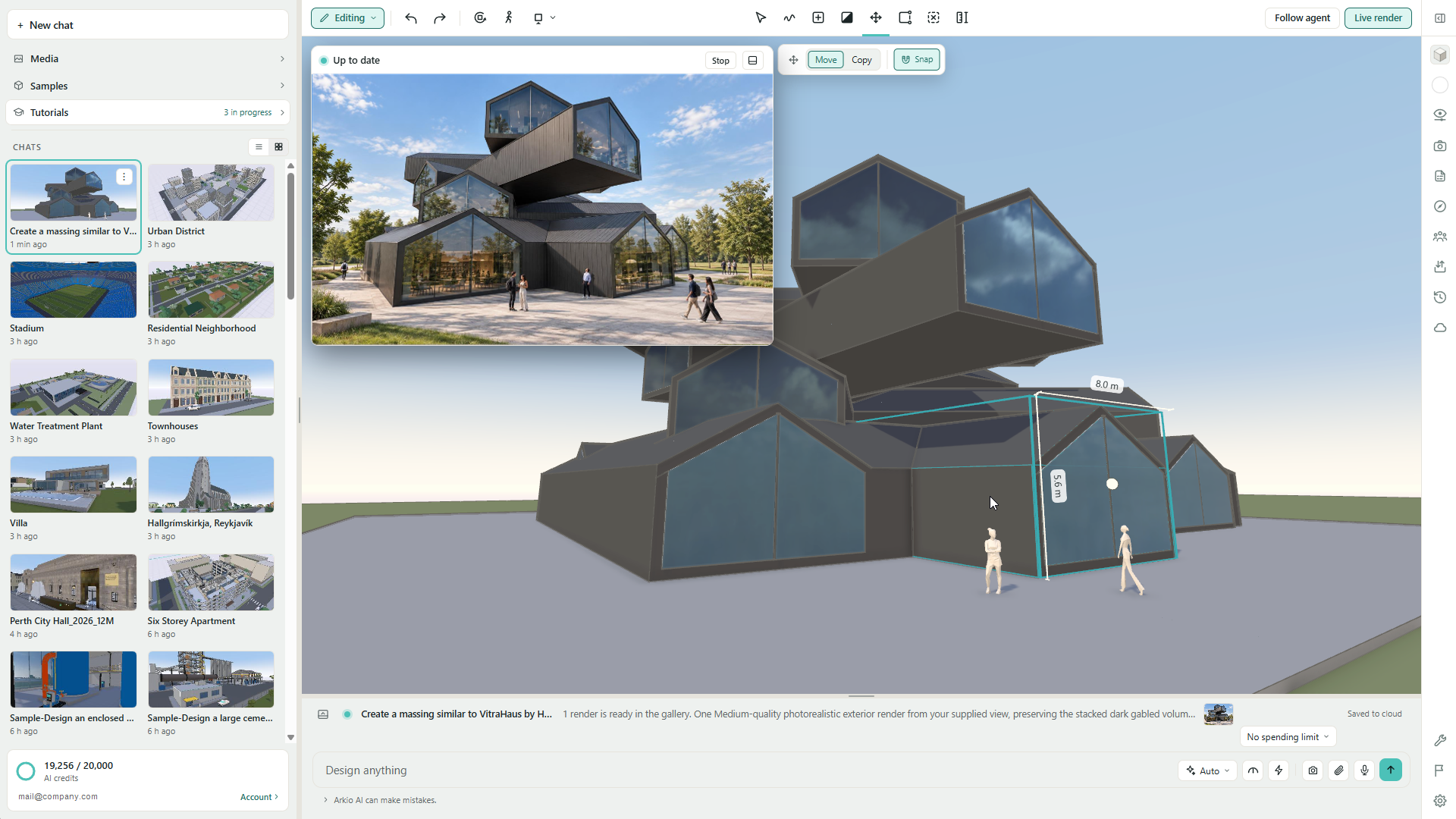
Arkio Web lets solids and voids overlap while keeping the underlying shapes editable. Use overlaps to combine building volumes, carve openings, and develop interiors without rebuilding the geometry after each change.
How overlapping shapes behave
Solid with solid: Building volumes can intersect and form a continuous exterior. The original shapes remain editable; the overlap does not automatically turn them into one grouped object.
Void with solid: A void removes space from the Arkio geometry it cuts. Move or resize it to adjust an opening, recess, or room.
Void with void: Openings can overlap to form a connected empty space where they cut the same host geometry.
Solid inside a void: Add built elements inside an empty space, such as a column or partition inside a room.
The result also depends on how the parts were created and attached. A void belonging to one building volume does not necessarily cut every other volume that overlaps it. When connecting two hollow volumes, check the junction from inside; an overlapping exterior alone does not guarantee a clear passage.
How support relationships affect edits
Objects can be attached to the geometry they were created on or placed against. These relationships help parts of a design stay together as you edit:
A roof or other attached part can follow the building volume that supports it.
A hosted opening can follow changes to its supporting wall or face.
An object placed on a surface can follow that support when it moves.
Touching or overlapping alone does not tell you which parts will move together. Existing attachments and the way you place or move an object matter. Use Group when you want an explicit collection of objects to work with as a unit.
Moving a part away can change its attachments. Sliding an opening along a wall may preserve its relationship with that wall, while moving it away from the wall can detach it. After repositioning a part, make a small test move of its former support and use Undo to check the relationship.
Try an overlapping building extension
Create two solid building volumes and move one partly into the other.
Inspect the joined exterior, then select and adjust each volume to see which parts follow.
Create an opening at the intended connection and inspect it from both sides. Check that the void cuts the required geometry rather than only one volume.
Move or resize the extension, then check the opening and any attached roof or interior objects again.
Supported geometry and troubleshooting
Boolean cuts work with Arkio's native solids and voids. Imported GLB, glTF, and OBJ meshes remain reference models; placing an Arkio void over an imported mesh does not cut a hole in that mesh. Edit the source model in its original application when you need to change its geometry.
If an overlap or movement gives an unexpected result, undo the change and check the selected shape, its host, and any groups or pinned objects. Inspect the intersection from another angle or with a section view. Snapping can initially align shapes to nearby faces; move beyond that alignment if you intend them to overlap.
Edit with precise dimensions
Choose Edit and point at a face, edge, or corner.
Drag the highlighted feature to change the shape. Use Orthogonal for constrained edits or Freeform when the design calls for a less constrained adjustment.
Click an editable dimension label to open the number pad. Enter the required value and choose Apply.
Review the result from another viewpoint and use Measure to check important clearances.
Use snapping and alignment guides to keep related parts coordinated. If an adjustment affects more geometry than intended, undo it and check the selected feature and connected parts before trying again.
Move, rotate, and copy objects
Use Move to reposition an object. The handles and rotation rings show the available adjustments. Hold Alt while dragging to place an object onto another surface.
Switch to Copy to duplicate an object. Choose Once for one copy or Repeat to place several. Use Stop placing or Esc when finished.
For example, place one chair beside a table, then copy and rotate it to arrange the remaining seats. Furniture and other library components can also be placed repeatedly; press Esc to finish.
Group and pin objects
With Select, select multiple objects and choose Group to work with them together. Use Ungroup when you need to adjust individual members again.
Choose Pin to help keep selected objects in place while working around them, and Unpin before moving them again.
When the scene has keyboard focus, G groups, Shift+G ungroups, P pins, and Shift+P unpins an eligible selection. Use the visible buttons if a shortcut is unavailable.
Apply materials
Open the Paint library and choose a color or material.
Choose Solid to paint the whole shape, or Face to paint only the surface you click.
Apply the material, then inspect the design from another angle to check which surfaces changed.
For the pavilion example, use one material for the walls and a different finish for the roof faces. Materials in the model also provide context for later AI renders.
Use scene history to revisit a saved design or explore an alternative in a new chat. When the model is ready to present, create AI renders and videos from your chosen views.
Continue with the AI agent
Select the part of the design you want the agent to work on and describe what should change and what should remain.
Add a table and four chairs to this terrace. Keep the pavilion dimensions and opening unchanged.
See Working with the AI agent for selections, sketches, and focused follow-ups. Live AI requests use credits; see AI models, settings, and credit usage for estimates.
If a tool is unavailable, check your editing access and whether an operation is still active. Press Esc to leave placement and select the intended tool again. See Known issues and limitations for current restrictions.
Was this helpful?
Still need help? Ask the team