Create AI renders and videos in Arkio Web
Written By Johan Hanegraaf
Last updated About 2 hours ago
Use AI renders to explore the appearance of your design and create short videos to present it. You can request media from the chat, then find completed results in the Media library.
Sign in with available AI credits and open a scene you can work in. Check the model and choose a useful viewpoint before requesting a render. Generated images and videos are separate from your editable 3D geometry.
Create a render
Position your view in the scene, or prepare named viewpoints in Views.
Select the camera button in the chat message box, labeled Render or video of the scene.
Choose Render and select Current view, Saved views, or Let the agent choose. Saved views uses the saved viewpoints in the scene; check the request summary before sending. When the agent chooses, you can set the number of renders.
Choose a style: Photoreal, Pencil sketch, Markers, Scale model, or Your own. For your own style, describe the look in the message.
Add instructions about materials, lighting, atmosphere, or details to preserve, then send the message.
Choosing the render options prepares a request; generation starts when you send it. You can also ask for a render directly in a normal chat message.
Render the current view as a warm evening interior with oak cabinetry and soft lighting. Preserve the layout, window positions, and furniture arrangement.
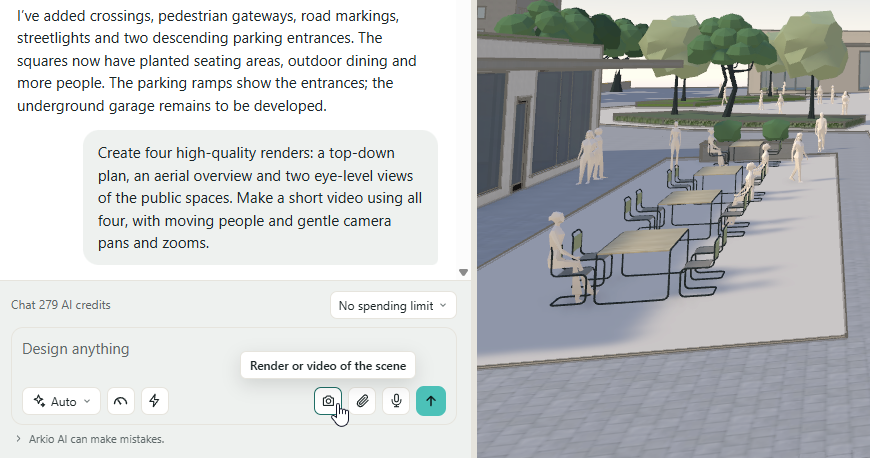
You can also describe the renders and videos you want the agent to create directly by describing the renders in the chat without opening the camera first.
Review and refine an image
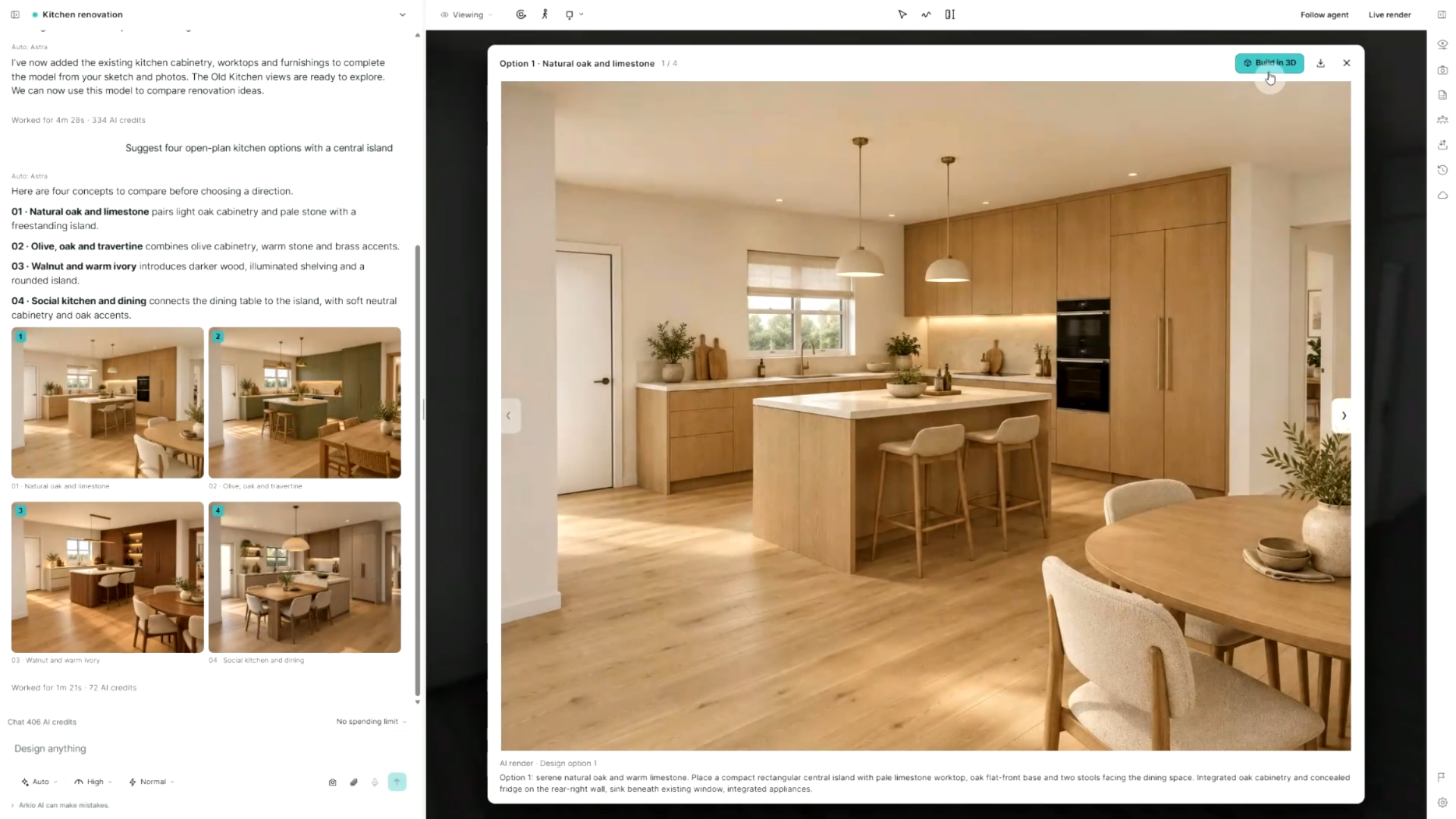
Open the completed image from the chat to inspect it. Compare it with the model: AI images can interpret or add details that are not present in the geometry. Describe the specific image change you want in a follow-up request.
If a change should also become part of the 3D design, ask the agent to update the model or use Arkio's modeling tools. Changing the appearance of a generated image does not automatically make the same change to the geometry.
Create a video
Select the chat's camera button and choose Video.
Choose a source. Use Renders in this chat to work from completed images, or choose the current view, saved views, or views selected by the agent.
When using existing renders, select the images in the order you want the camera to travel. With one image, describe the camera movement; with two, the video starts from the first and ends at the second.
Choose the video length from the available options. Add instructions about the camera movement and pace, then send the request.
Open the completed video in the chat to review it.
Create a 10-second video from these two renders, moving slowly from the entrance toward the courtyard.
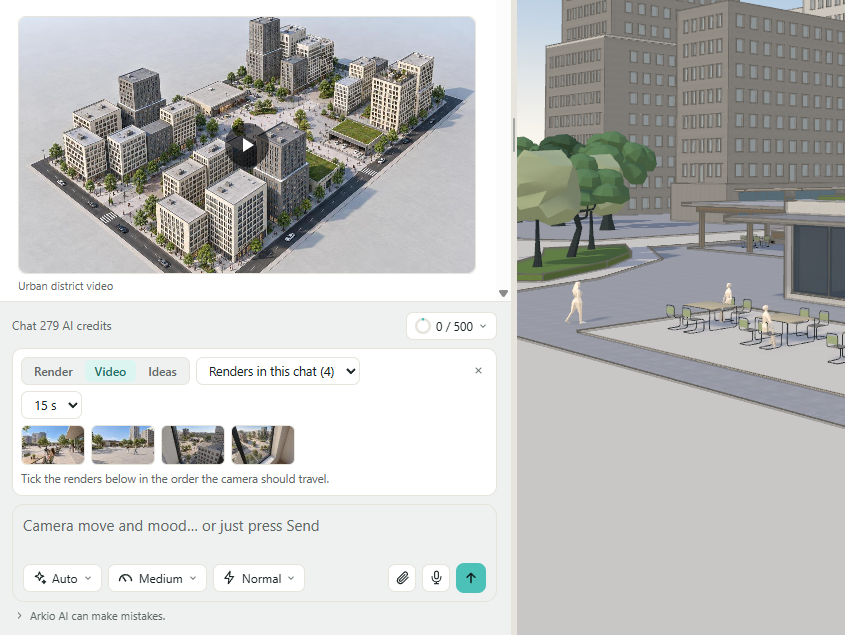
Videos made from existing renders use their appearance. To change that appearance, refine the renders first. A video requested from scene views may generate source renders before making the video, so allow for both stages in your credit budget.
Use live rendering while exploring
Open Live Render above the scene.
Choose Render once for one image, or Start for ongoing updates.
Explore your design and allow the view to settle while images are generated. The Interval control sets the minimum time between updates; generation time can make updates take longer.
Select Stop when you have finished. You can keep the panel below the scene or use its float control to place it over the scene.
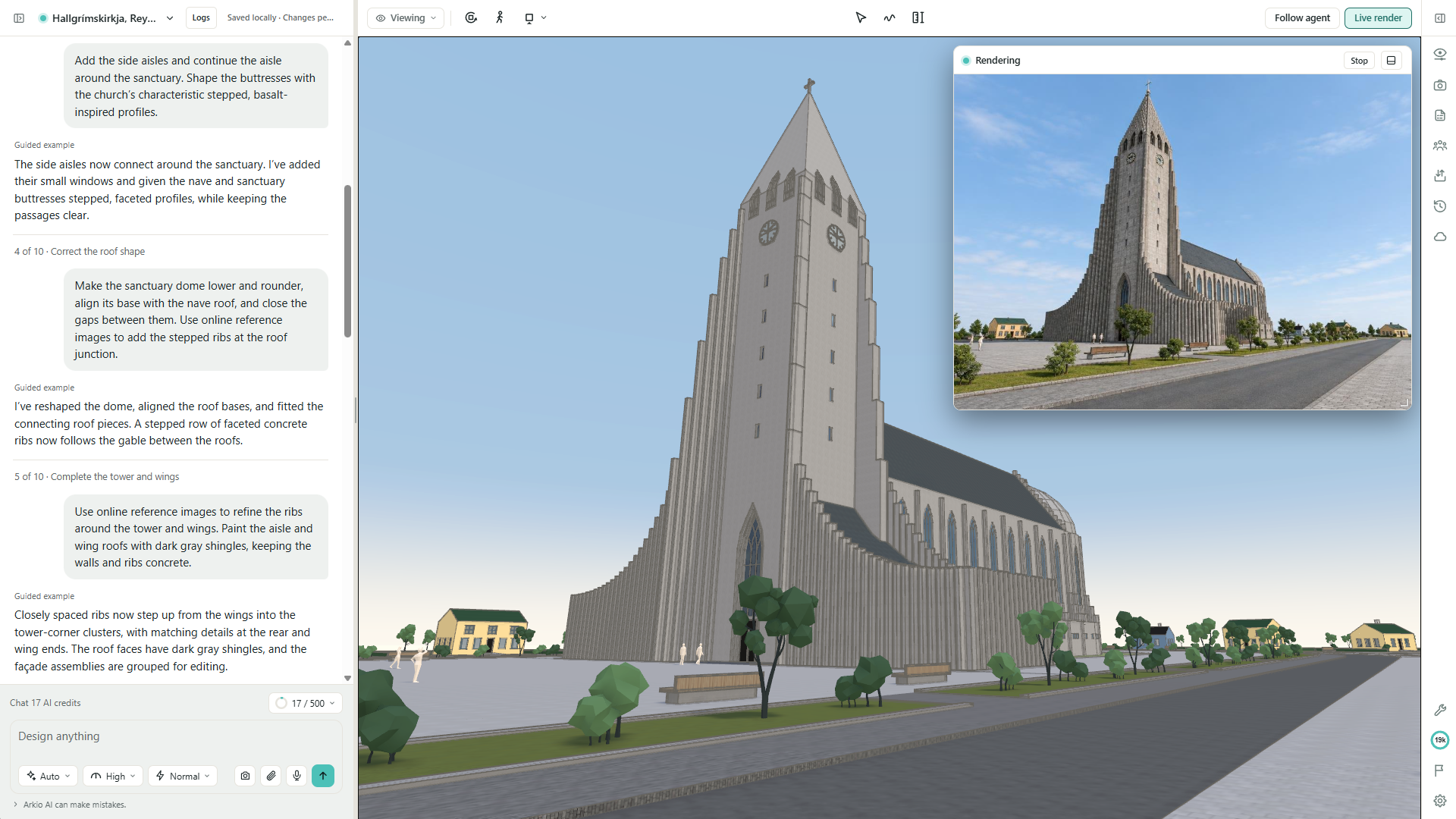
Live rendering uses AI credits as images are generated. It is a sequence of rendered updates, not a saved video recording. For a presentation image or video you want to keep and share, request it through the chat.
Find, download, and share your media
Open Media in the left sidebar to browse completed chat renders and videos.
Use the type filters and sorting controls to find a result. Select a tile to open it.
Use the item's menu to Download, or choose Open chat to return to its source conversation.
In a shared scene, use Share to group where available. Review the prepared message in Group chat and send it when ready.
Media from archived chats is hidden from the library. Restore the chat through Archived → Restore to library to show those results again.
Credits and troubleshooting
Before generating a set of images or videos, consider setting a spending limit for the chat. It pauses new paid requests once reported usage reaches the allowance. Generation already in progress can finish and add charges; the limit does not guarantee a maximum final cost.
See AI models, settings, and credit usage for planning estimates, and AI credits and your work for balances and purchases. Additional attempts and separate agent processing can add to the total.
If Saved views is unavailable, save a viewpoint first. If Renders in this chat is unavailable, generate an image in that conversation first.
If a result or preview fails to load, use Retry where shown and check the original chat before sending a duplicate generation request.
If live rendering reports that another tab is using the live view, stop it there before starting it in this tab.
For persistent problems, report an issue from Arkio Web and include the request and any error message.
Was this helpful?
Still need help? Ask the team